radio JEEP COMPASS 2017 2.G Workshop Manual
[x] Cancel search | Manufacturer: JEEP, Model Year: 2017, Model line: COMPASS, Model: JEEP COMPASS 2017 2.GPages: 429, PDF Size: 3.46 MB
Page 377 of 429
•You will then be asked to give your mobile phone a
priority level between one and seven, with one being the
highest priority. You can pair up to seven mobile phones
to your Uconnect Phone. However, at any given time,
only one mobile phone can be in use, connected to your
Uconnect System. The priority allows the Uconnect
Phone to know which mobile phone to use if multiple
mobile phones are in the vehicle at the same time. For
example, if priority three and priority five phones are
present in the vehicle, the Uconnect Phone will use the
priority three mobile phone when you make a call. You
can select to use a lower priority mobile phone at any
time (refer to “Advanced Phone Connectivity” in this
section).
Dial By Saying A Number
•Push the Phonebutton to begin.
•After the “Ready” prompt and the following beep, say
“Dial.”
• The system will prompt you to say the number you want
to call.
• For example, you can say “234-567-8901.” •
The Uconnect Phone will confirm the phone number
and then dial. The number will appear in the display of
certain radios.
Call by Saying a Name
•Push the Phonebutton to begin.
•After the “Ready” prompt and the following beep, say
“Call.”
• The system will prompt you to say the name of the
person you want to call.
• After the “Ready” prompt and the following beep, say
the name of the person you want to call. For example,
you can say “John Doe,” where John Doe is a previously
stored name entry in the Uconnect phonebook or down-
loaded phonebook. To learn how to store a name in the
phonebook, refer to “Add Names to Your Uconnect
Phonebook,” in the phonebook.
• The Uconnect system will confirm the name and then
dial the corresponding phone number, which may ap-
pear in the display of certain radios.
10
MULTIMEDIA 375
Page 386 of 429

To turn confirmation prompts on or off using Voice Com-
mand:
1. Push the Phone
button to begin.
2. After the “Ready” prompt and the following beep, say:•“Setup Confirmations Prompts On”
• “Setup Confirmations Prompts Off”
Phone And Network Status Indicators
If available on the radio and/or on a premium display such
as the instrument panel cluster, and supported by your
mobile phone, the Uconnect Phone will provide notifica-
tion to inform you of your phone and network status when
you are attempting to make a phone call using Uconnect
Phone. The status is given for roaming, network signal
strength, phone battery strength, etc.
Dialing Using The Mobile Phone Keypad
You can dial a phone number with your mobile phone
keypad and still use the Uconnect Phone (while dialing via
the mobile phone keypad, the user must exercise caution
and take precautionary safety measures). By dialing a
number with your paired Bluetooth mobile phone, the audio will be played through your vehicles audio system.
The Uconnect Phone will work the same as if you dial the
number using Voice Command.
NOTE:
Certain brands of mobile phones do not send the
dial ring to the Uconnect Phone to play it on the vehicle
audio system, so you will not hear it. Under this situation,
after successfully dialing a number the user may feel that
the call did not go through even though the call is in
progress. Once your call is answered, you will hear the
audio.
Mute/Un-Mute (Mute ON/OFF)
When you mute the Uconnect Phone, you will still be able
to hear the conversation coming from the other party, but
the other party will not be able to hear you. To mute the
Uconnect Phone:
• Push the Voice Command
button.
•Following the beep, say “Mute.”
To un-mute the Uconnect Phone:
• Push the Voice Command
button.
•Following the beep, say “Mute off.”
384 MULTIMEDIA
Page 388 of 429
Delete Uconnect Phone Paired Mobile Phones
•Push the Phonebutton to begin.
•After the “Ready” prompt and the following beep, say
“Setup Phone Pairing.”
• At the next prompt, say “Delete” and follow the
prompts.
• You can also push the Voice Command
button at any
time while the list is being played, and then choose
the phone you wish to delete.
Things You Should Know About Your Uconnect
Phone
Uconnect Phone Tutorial
To hear a brief tutorial of the system features, push the
Phone
button and say “Uconnect Tutorial.” Voice Training
For users experiencing difficulty with the system recogniz-
ing their voice commands or numbers, the Uconnect Phone
Voice Training feature may be used. To enter this training
mode, follow one of the two following procedures:
•
From outside the Uconnect Phone mode (e.g., from radio
mode), push and hold the Voice Command
button
for five seconds until the session begins, or,
• Push the Voice Commandbutton and say the “Voice
Training,” “System Training,” or “Start Voice Train-
ing” command.
You can either push the Uconnect Phone button to restore
the factory setting or repeat the words and phrases when
prompted by the Uconnect Phone. For best results, the
Voice Training session should be completed when the
vehicle is parked with the engine running, all windows
closed, and the blower fan switched off.
This procedure may be repeated with a new user. The
system will adapt to the last trained voice only.
386 MULTIMEDIA
Page 398 of 429
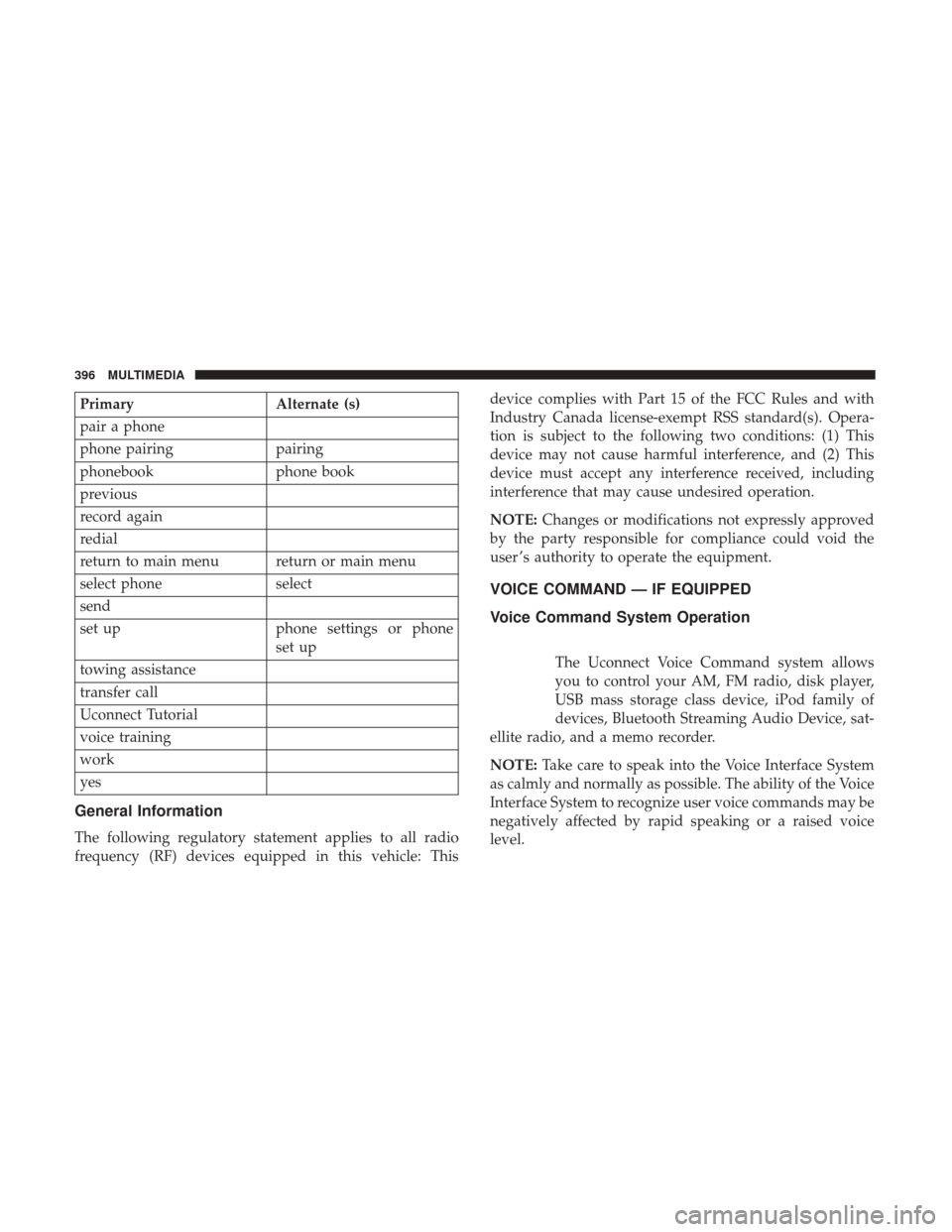
PrimaryAlternate (s)
pair a phone
phone pairing pairing
phonebook phone book
previous
record again
redial
return to main menu return or main menu
select phone select
send
set up phone settings or phone
set up
towing assistance
transfer call
Uconnect Tutorial
voice training
work
yes
General Information
The following regulatory statement applies to all radio
frequency (RF) devices equipped in this vehicle: This device complies with Part 15 of the FCC Rules and with
Industry Canada license-exempt RSS standard(s). Opera-
tion is subject to the following two conditions: (1) This
device may not cause harmful interference, and (2) This
device must accept any interference received, including
interference that may cause undesired operation.
NOTE:
Changes or modifications not expressly approved
by the party responsible for compliance could void the
user ’s authority to operate the equipment.
VOICE COMMAND — IF EQUIPPED
Voice Command System Operation
The Uconnect Voice Command system allows
you to control your AM, FM radio, disk player,
USB mass storage class device, iPod family of
devices, Bluetooth Streaming Audio Device, sat-
ellite radio, and a memo recorder.
NOTE: Take care to speak into the Voice Interface System
as calmly and normally as possible. The ability of the Voice
Interface System to recognize user voice commands may be
negatively affected by rapid speaking or a raised voice
level.
396 MULTIMEDIA
Page 399 of 429
WARNING!
Any voice commanded system should be used only in
safe driving conditions following all applicable laws.
Your attention should be focused on safely operating
the vehicle. Failure to do so may result in a collision
causing serious injury or death.
When you push the Voice Command
button, you will
hear a beep. The beep is your signal to give a command.
NOTE: If you do not say a command within a few seconds,
the system will present you with a list of options.
If you would like to interrupt the system while it lists
options, push the Voice Command
button, listen for
the beep, and say your command.
Pushing the Voice Commandbutton while the system
is speaking is known as “barging in.” The system will be
interrupted, and after the beep, you can add or change
commands. This will become helpful once you start to
learn the options.
NOTE: At any time, you can say the words “Cancel,”
“Help” or “Main Menu.” These commands are universal and can be used from any
menu. All other commands can be used depending upon
the active application.
When using this system, you should speak clearly and at a
normal speaking volume.
The system will best recognize your speech if the windows
are closed, and the heater/air conditioning blower is set to
low.
At any point, if the system does not recognize one of your
commands, you will be prompted to repeat it.
To hear the first available Menu, push the Voice Command
button and say “Help” or “Main Menu.”
Commands
The Voice Command system understands two types of
commands, Universal commands and Local commands.
Universal commands are available at all times. Local
commands are available if the supported radio mode is
active.10
MULTIMEDIA 397
Page 400 of 429
Changing The Volume
1. Start a dialogue by pushing the Voice Commandbut-
ton.
2. Say a command (e.g., “Help”).
3. Use the ON/OFF VOLUME rotary knob to adjust the volume to a comfortable level while the Voice Com-
mand system is speaking. Please note the volume set-
ting for Voice Command is different than the audio
system.
Main Menu
Start a dialogue by pushing the Voice Commandbut-
ton. You may say “Main Menu” to switch to the main
menu.
In this mode, you can say the following commands:
• “Radio AM” (to switch to the radio AM mode)
• “Radio FM” (to switch to radio FM mode)
• “Sat” (to switch to Satellite radio mode)
• “Disc” (to switch to the disc mode)
• “USB” (to switch to USB mode) •
“Bluetooth Streaming” (to switch to Bluetooth Stream-
ing mode)
• “Memo” (to switch to the memo recorder)
• “System Setup” (to switch to system setup)
Radio AM
To switch to the AM band, say “AM” or “Radio AM.” In
this mode, you may say the following commands:
•“Frequency #” (to change the frequency)
• “Next Station” (to select the next station)
• “Previous Station” (to select the previous station)
• “Radio Menu” (to switch to the radio menu)
• “Main Menu” (to switch to the main menu)
Radio FM
To switch to the FM band, say “FM” or “Radio FM.” In this
mode, you may say the following commands:
•“Frequency #” (to change the frequency)
• “Next Station” (to select the next station)
• “Previous Station” (to select the previous station)
398 MULTIMEDIA
Page 401 of 429
•“Menu Radio” (to switch to the radio menu)
• “Main Menu” (to switch to the main menu)
Satellite Radio
To switch to satellite radio mode, say “Sat” or “Satellite
Radio.” In this mode, you may say the following com-
mands:
•“Channel Number” (to change the channel by its spoken
number)
• “Next Channel” (to select the next channel)
• “Previous Channel” (to select the previous channel)
• “List Channel” (to hear a list of available channels)
• “Select Name” (to say the name of a channel)
• “Menu Radio” (to switch to the radio menu)
• “Main Menu” (to switch to the main menu)
Disc Mode
To switch to the disc mode, say “Disc.” In this mode, you
may say the following commands:
•“Track” (#) (to change the track)
• “Next Track” (to play the next track) •
“Previous Track” (to play the previous track)
• “Main Menu” (to switch to the main menu)
USB Mode
To switch to USB mode, say “USB.” In this mode, you may
say the following commands:
•“Next Track” (to play the next track)
• “Previous Track” (to play the previous track)
• “Play” (to play an Artist Name, Playlist Name, Album
Name, Track Name, etc.)
Bluetooth Streaming (BT) Mode
To switch to Bluetooth Streaming (BT) mode, say
“Bluetooth Streaming.” In this mode, you may say the
following commands:
•“Play” (to play the current track)
• “Pause” (to pause the current track)
• “Next Track” (to play the next track)
• “Previous Track” (to play the previous track)
10
MULTIMEDIA 399
Page 403 of 429
Voice Training
For users experiencing difficulty with the system recogniz-
ing their voice commands or numbers the Uconnect Voice
“Voice Training” feature may be used.
1. Push the Voice Command
button, say “System
Setup” and once you are in that menu then say “Voice
Training.” This will train your own voice to the
system and will improve recognition.
2. Repeat the words and phrases when prompted by Uconnect Voice. For best results, the “Voice Training”
session should be completed when the vehicle is parked,
engine running, all windows closed, and the blower fan
switched off. This procedure may be repeated with a
new user. The system will adapt to the last trained voice
only.
RADIO OPERATION AND MOBILE PHONES
Under certain conditions, the mobile phone being on in
your vehicle can cause erratic or noisy performance from
your radio. This condition may be lessened or eliminated
by relocating the mobile phone antenna. This condition is
not harmful to the radio. If your radio performance does not satisfactorily “clear” by the repositioning of the an-
tenna, it is recommended that the radio volume be turned
down or off during mobile phone operation when not
using Uconnect (if equipped).
Regulatory And Safety Information
USA/CANADA
Exposure to Radio Frequency Radiation
The radiated output power of the internal wireless radio is
far below the FCC radio frequency exposure limits. Nev-
ertheless, the wireless radio will be used in such a manner
that the radio is 20 cm or further from the human body.
The internal wireless radio operates within guidelines
found in radio frequency safety standards and recommen-
dations, which reflect the consensus of the scientific com-
munity.
The radio manufacturer believes the internal wireless radio
is safe for use by consumers. The level of energy emitted is
far less than the electromagnetic energy emitted by wire-
less devices such as mobile phones. However, the use of
wireless radios may be restricted in some situations or
environments, such as aboard airplanes. If you are unsure
of restrictions, you are encouraged to ask for authorization
before turning on the wireless radio.
10
MULTIMEDIA 401
Page 404 of 429
This device complies with Part 15 of the FCC Rules and
with Industry Canada license-exempt RSS standard(s).
Operation is subject to the following two conditions:
1. This device may not cause harmful interference.
2. This device must accept any interference received, in-cluding interference that may cause undesired opera-
tion.
NOTE:
• This equipment has been tested and found to comply
with the limits for a Class B digital device, pursuant to
Part 15 of the FCC Rules. These limits are designed to
provide reasonable protection against harmful interfer-
ence in a residential installation. This equipment gener-
ates, uses and can radiate radio frequency energy and, if
not installed and used in accordance with the instruc-
tions, may cause harmful interference to radio commu-
nications. However, there is no guarantee that interfer-
ence will not occur in a particular installation. •
If this equipment does cause harmful interference to
radio or television reception, which can be determined
by turning the equipment off and on, the user is encour-
aged to try to correct the interference by one or more of
the following measures:
1. Increase the separation between the equipment and receiver.
2. Consult the dealer or an experienced radio technician for help.
CD/DVD DISC MAINTENANCE
To keep a CD/DVD in good condition, take the following
precautions:
1. Handle the disc by its edge; avoid touching the surface.
2. If the disc is stained, clean the surface with a soft cloth,wiping from center to edge.
3. Do not apply paper or tape to the disc; avoid scratching the disc.
402 MULTIMEDIA
Page 414 of 429
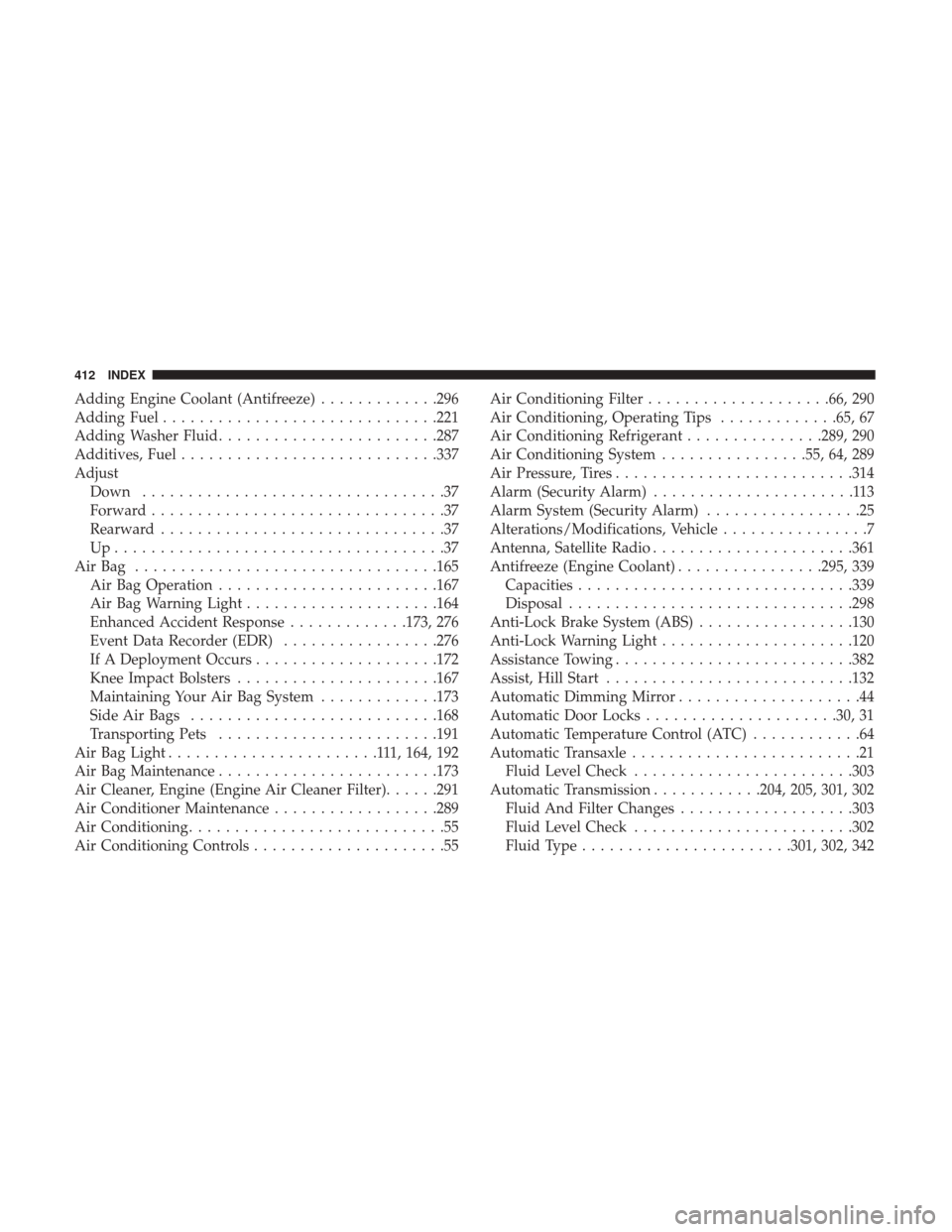
Adding Engine Coolant (Antifreeze).............296
Adding Fuel ............................. .221
Adding Washer Fluid ........................287
Additives, Fuel ............................337
Adjust Down .................................37
Forward ................................37
Rearward ...............................37
Up....................................37
AirBag ................................ .165
Air Bag Operation ........................167
Air Bag Warning Light .....................164
Enhanced Accident Response .............173, 276
Event Data Recorder (EDR) .................276
If A Deployment Occurs ....................172
Knee Impact Bolsters ..................... .167
Maintaining Your Air Bag System .............173
Side Air Bags .......................... .168
Transporting Pets ........................191
Air Bag Light .......................111, 164, 192
Air Bag Maintenance ........................173
Air Cleaner, Engine (Engine Air Cleaner Filter) ......291
Air Conditioner Maintenance ..................289
Air Conditioning ............................55
Air Conditioning Controls .....................55 Air Conditioning Filter
....................66, 290
Air Conditioning, Operating Tips .............65, 67
Air Conditioning Refrigerant ...............289, 290
Air Conditioning System ................55, 64, 289
Air Pressure, Tires ..........................314
Alarm (Security Alarm) ......................113
Alarm System (Security Alarm) .................25
Alterations/Modifications, Vehicle ................7
Antenna, Satellite Radio ..................... .361
Antifreeze (Engine Coolant) ................295, 339
Capacities ............................. .339
Disposal ...............................298
Anti-Lock Brake System (ABS) .................130
Anti-Lock Warning Light .....................120
Assistance T owing.........................
.382
Assist, Hill Start .......................... .132
Automatic Dimming Mirror ....................44
Automatic Door Locks .....................30, 31
Automatic Temperature Control (ATC) ............64
Automatic Transaxle .........................21
Fluid Level Check ........................303
Automatic Transmission ............204, 205, 301, 302
Fluid And Filter Changes ...................303
Fluid Level Check ........................302
Fluid Type .......................301, 302, 342
412 INDEX