audio JEEP COMPASS 2018 Owner handbook (in English)
[x] Cancel search | Manufacturer: JEEP, Model Year: 2018, Model line: COMPASS, Model: JEEP COMPASS 2018Pages: 348, PDF Size: 6.03 MB
Page 290 of 348
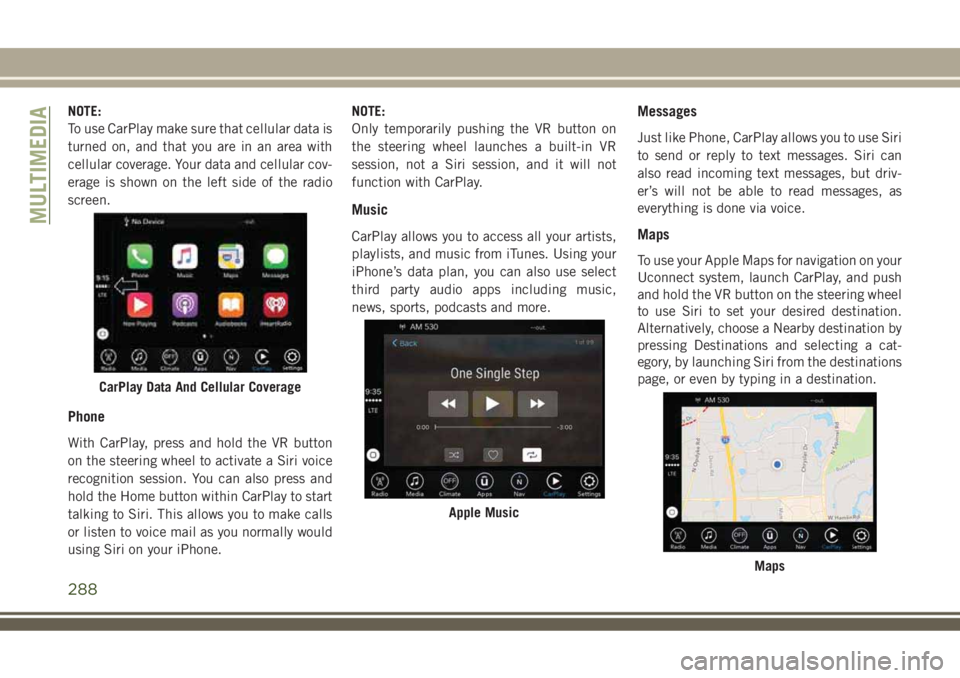
NOTE:
To use CarPlay make sure that cellular data is
turned on, and that you are in an area with
cellular coverage. Your data and cellular cov-
erage is shown on the left side of the radio
screen.
Phone
With CarPlay, press and hold the VR button
on the steering wheel to activate a Siri voice
recognition session. You can also press and
hold the Home button within CarPlay to start
talking to Siri. This allows you to make calls
or listen to voice mail as you normally would
using Siri on your iPhone.NOTE:
Only temporarily pushing the VR button on
the steering wheel launches a built-in VR
session, not a Siri session, and it will not
function with CarPlay.
Music
CarPlay allows you to access all your artists,
playlists, and music from iTunes. Using your
iPhone’s data plan, you can also use select
third party audio apps including music,
news, sports, podcasts and more.
Messages
Just like Phone, CarPlay allows you to use Siri
to send or reply to text messages. Siri can
also read incoming text messages, but driv-
er’s will not be able to read messages, as
everything is done via voice.
Maps
To use your Apple Maps for navigation on your
Uconnect system, launch CarPlay, and push
and hold the VR button on the steering wheel
to use Siri to set your desired destination.
Alternatively, choose a Nearby destination by
pressing Destinations and selecting a cat-
egory, by launching Siri from the destinations
page, or even by typing in a destination.
CarPlay Data And Cellular Coverage
Apple Music
Maps
MULTIMEDIA
288
Page 292 of 348
UCONNECT SETTINGS
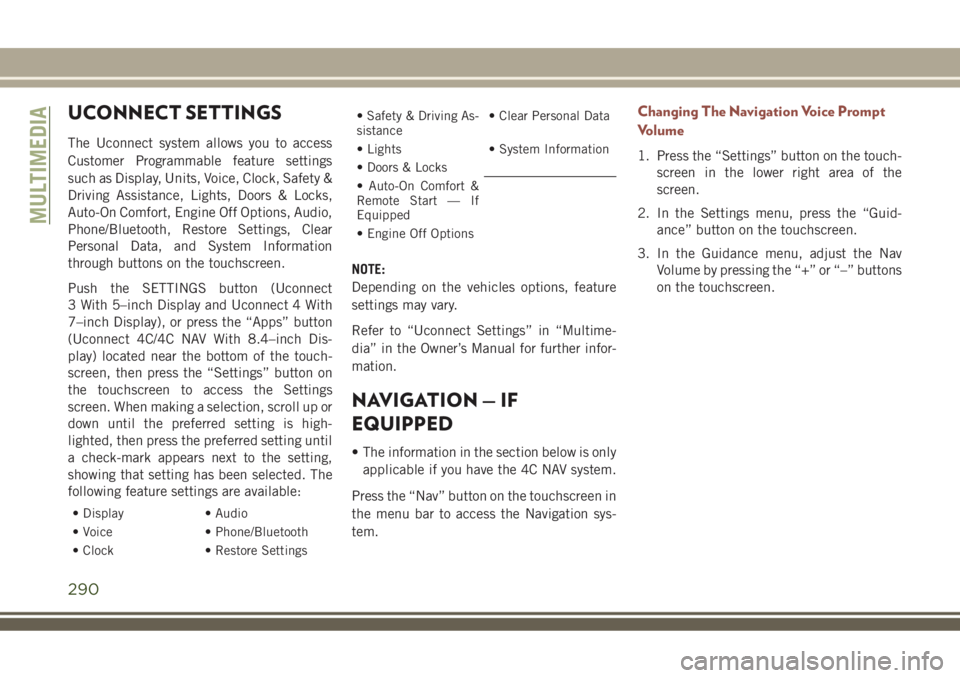
The Uconnect system allows you to access
Customer Programmable feature settings
such as Display, Units, Voice, Clock, Safety &
Driving Assistance, Lights, Doors & Locks,
Auto-On Comfort, Engine Off Options, Audio,
Phone/Bluetooth, Restore Settings, Clear
Personal Data, and System Information
through buttons on the touchscreen.
Push the SETTINGS button (Uconnect
3 With 5–inch Display and Uconnect 4 With
7–inch Display), or press the “Apps” button
(Uconnect 4C/4C NAV With 8.4–inch Dis-
play) located near the bottom of the touch-
screen, then press the “Settings” button on
the touchscreen to access the Settings
screen. When making a selection, scroll up or
down until the preferred setting is high-
lighted, then press the preferred setting until
a check-mark appears next to the setting,
showing that setting has been selected. The
following feature settings are available:
• Display • Audio
• Voice • Phone/Bluetooth
• Clock • Restore Settings
• Safety & Driving As-
sistance• Clear Personal Data
• Lights • System Information
• Doors & Locks
• Auto-On Comfort &
Remote Start — If
Equipped
• Engine Off Options
NOTE:
Depending on the vehicles options, feature
settings may vary.
Refer to “Uconnect Settings” in “Multime-
dia” in the Owner’s Manual for further infor-
mation.
NAVIGATION — IF
EQUIPPED
• The information in the section below is only
applicable if you have the 4C NAV system.
Press the “Nav” button on the touchscreen in
the menu bar to access the Navigation sys-
tem.
Changing The Navigation Voice Prompt
Volume
1. Press the “Settings” button on the touch-
screen in the lower right area of the
screen.
2. In the Settings menu, press the “Guid-
ance” button on the touchscreen.
3. In the Guidance menu, adjust the Nav
Volume by pressing the “+” or “–” buttons
on the touchscreen.
MULTIMEDIA
290
Page 302 of 348
Select The iPhone's Priority Level
When the pairing process has successfully
completed, the system will prompt you to
choose whether or not this is your favorite
mobile phone. Selecting “Yes” will make this
mobile phone the highest priority. This mo-
bile phone will take precedence over other
paired mobile phones within range and will
connect to the Uconnect system automati-
cally when entering the vehicle. Only one
mobile phone and/or one Bluetooth audio
device can be connected to the Uconnect
system at a time. If “No” is selected, simply
select “Uconnect” from the mobile phone/
audio device Bluetooth screen, and the
Uconnect system will reconnect to the
Bluetooth device.Pair Your Android Device:
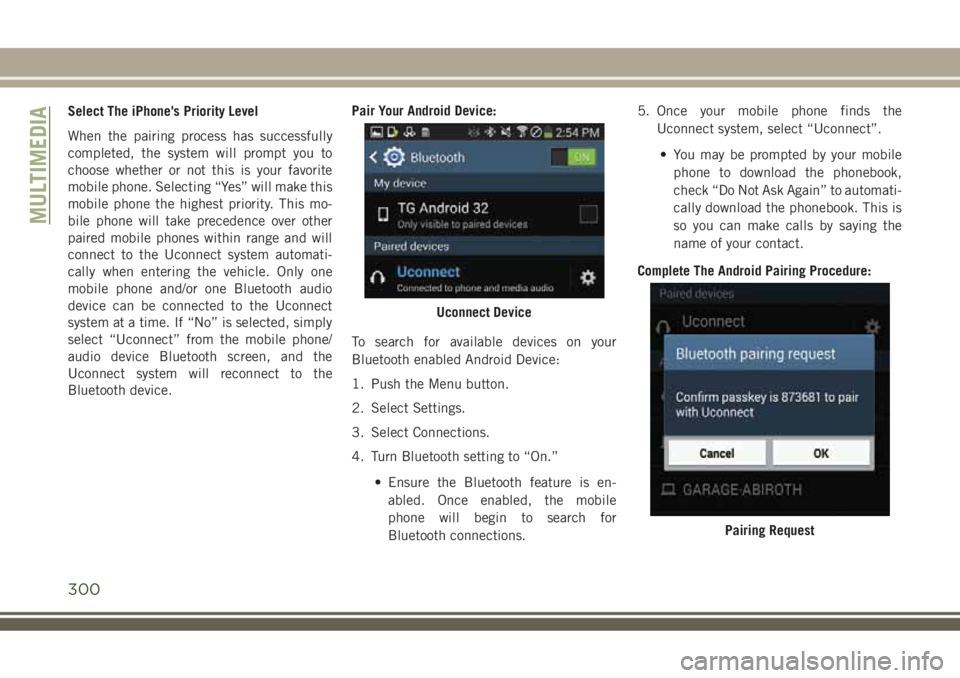
To search for available devices on your
Bluetooth enabled Android Device:
1. Push the Menu button.
2. Select Settings.
3. Select Connections.
4. Turn Bluetooth setting to “On.”
• Ensure the Bluetooth feature is en-
abled. Once enabled, the mobile
phone will begin to search for
Bluetooth connections.5. Once your mobile phone finds the
Uconnect system, select “Uconnect”.
• You may be prompted by your mobile
phone to download the phonebook,
check “Do Not Ask Again” to automati-
cally download the phonebook. This is
so you can make calls by saying the
name of your contact.
Complete The Android Pairing Procedure:
Uconnect Device
Pairing Request
MULTIMEDIA
300
Page 303 of 348
1. Confirm the passkey shown on the mobile
phone matches the passkey shown on the
Uconnect system then accept the
Bluetooth pairing request.
NOTE:
Some mobile phones require the PIN to be
entered manually, enter the PIN number
shown on the Uconnect screen.
Select The Android Mobile Phone's Priority
Level
When the pairing process has successfully
completed, the system will prompt you to
choose whether or not this is your favorite
mobile phone. Selecting “Yes” will make this
mobile phone the highest priority. This mo-
bile phone will take precedence over other
paired mobile phones within range and will
connect to the Uconnect system automati-
cally when entering the vehicle. Only one
mobile phone and/or one Bluetooth audio
device can be connected to the Uconnect
system at a time. If “No” is selected, simply
select “Uconnect” from the mobile phone/
audio device Bluetooth screen, and the
Uconnect system will reconnect to the
Bluetooth device.NOTE:
Keep in mind that software updates – either
on your phone or Uconnect system – may
interfere with the Bluetooth connection. If
this happens, simply repeat the pairing pro-
cess. However, first, make sure to delete the
device from the list of phones on your
Uconnect system. Next, be sure to remove
Uconnect from the list of devices in your
phone’s Bluetooth settings.
You are now ready to make hands-free calls.
Press the Uconnect “Phone” button
on
your steering wheel to begin.
Common Phone Commands (Examples)
• “Call John Smith”
• “Call John Smith mobile”
• “Dial 1 248 555 1212”
• “Redial”
Mute (Or Unmute) Microphone During
Call
• During a call, press the “Mute” button on
the Phone main screen, that appears only
when a call is in progress, to mute and
unmute the call.
Transfer Ongoing Call Between Handset
And Vehicle
• During an on-going call, press the “Trans-
fer” button on the Phone main screen to
transfer an on-going call between handset
and vehicle.
Phonebook
The Uconnect system will automatically sync
your phonebook from your paired phone, if
this feature is supported by your phone.
Phonebook contacts are updated each time
that the phone is connected. Phonebook en-
tries are displayed in the Contacts menu. If
your phone book entries do not appear, check
the settings on your phone. Some phones
require you to enable this feature manually.
• Your phonebook can be browsed on the
Uconnect system touchscreen, but editing
can only be done on your phone. To browse,
press the “Phone” button on the touch-
screen, then the “Phonebook” button on
the touchscreen.
Favorite phonebook entries can be saved as
Favorites for quicker access. Favorites are
shown in the Favorites menu.
301
Page 304 of 348
Voice Command Tips
• Speaking complete names (i.e; Call John
Doe vs. Call John) will result in greater
system accuracy.
• You can “link” commands together for
faster results. Say “Call John Doe, mobile,”
for example.
• If you are listening to available voice com-
mand options, you do not have to listen to
the entire list. When you hear the command
that you need, push the
button on the
steering wheel, wait for the beep and say
your command.
Changing The Volume
• Start a dialogue by pushing the Phone
button
, then say a command. For
example, "Help".
• Use the radio VOLUME/MUTE rotary knob
to adjust the volume to a comfortable level
while the Uconnect system is speaking.
NOTE:
The volume setting for Uconnect is different
than the audio system.NOTE:
To access help, push the Uconnect Phone
button
on the steering wheel and say
"help." Push the Uconnect Phone Pickup
button
or the VR buttonand say
"cancel" to cancel the help session.
Using Do Not Disturb
With Do Not Disturb, you can disable notifi-
cations from incoming calls and texts, allow-
ing you to keep your eyes on the road and
hands on the wheel. For your convenience,
there is a counter display to keep track of
your missed calls and text messages while
you were using Do Not Disturb.
To activate Do Not Disturb, select “Pairing”
on the phone menu bar, and select “Do Not
Disturb” from the Settings menu. You can
also activate it using the “Do Not Disturb”
button at the top of every Phone screen.
Do Not Disturb can automatically reply with a
text message, a call or both, when declining
an incoming call and send it to voicemail.
Automatic reply messages can be:• “I am driving right now, I will get back to
you shortly.”
• Create a custom auto reply message up to
160 characters.
While in Do Not Disturb, Conference Call can
be selected so you can still place a second
call without being interrupted by incoming
calls.
NOTE:
• Only the beginning of your custom message
will be seen on the touchscreen.
• Reply with text message is not compatible
with iPhones.
• Auto reply with text message is only avail-
able on phones that supporting Bluetooth
MAP.
Incoming Text Messages
After pairing your Uconnect system with a
Bluetooth enabled mobile device with the
Message Access Profile (MAP), the Uconnect
system can announce a new incoming text
message and read it to you over the vehicle’s
audio system.
MULTIMEDIA
302
Page 335 of 348
Adaptive Cruise Control (ACC)
Off ..............164, 165, 166
On ..............164, 165, 166
Adaptive Cruise Control (ACC) (Cruise
Control)..................164
Additives, Fuel................256
AirBag ....................107
Air Bag Operation............108
Air Bag Warning Light.........106
Enhanced Accident Response. . . .220
Event Data Recorder (EDR)......220
If A Deployment Occurs........117
Knee Impact Bolsters.........113
Maintaining Your Air Bag System . .119
Redundant Air Bag Warning Light . .106
Side Air Bags..............113
Transporting Pets............135
Air Bag Light...........61, 106, 137
Air Bag Maintenance............119
Air Conditioner Maintenance.......234
Air Conditioning Filter.........47, 235
Air Conditioning, Operating Tips......47
Air Conditioning Refrigerant........234
Air Conditioning System.......46, 234
Air Pressure, Tires..............238Alarm
Arm The System.............20
Disarm The System............20
Alarm (Security Alarm).........19, 64
Alarm System (Security Alarm). . . .19, 21
Antifreeze (Engine Coolant)........258
Anti-Lock Brake System (ABS).......76
Anti-Lock Warning Light...........65
Arming System (Security Alarm)......19
Assist, Hill Start................83
Audio Jack...............274, 282
Audio Systems (Radio)...........267
Auto Down Power Windows.........48
Automatic Dimming Mirror.........34
Automatic Headlights............35
Automatic Temperature Control (ATC) . . .46
Automatic Transaxle............150
Automatic Transmission..........152
Adding Fluid.............
.259
Fluid
Level Check...........237
Fluid Type................259
Auto Up Power Windows...........48
Auxiliary Electrical Outlet (Power Outlet) .56
Auxiliary Power Outlet............56
Axle Fluid...................259Axle Lubrication...............259
Back-Up...................176
Back-Up Camera..............176
Battery..................62, 233
Charging System Light.........62
Belts, Seat..................137
Blind Spot Monitoring............85
Brake Assist System.............77
Brake Control System, Electronic.....77
Brake Fluid..................259
Brake System................236
Fluid Check...........236, 259
Master Cylinder.............236
Parking..................145
Brake/Transmission Interlock.......151
Bulb Replacement.............186
Bulbs, Light.................138
Camera....................176
Capacities, Fluid..............258
Caps, Filler
Fuel....................176
Oil (Engine)...............230
Carbon Monoxide Warning.....136, 257
INDEX
333
Page 337 of 348
Turn Signal........34, 36, 70, 138
Flash-To-Pass...............34, 35
Fluid, Brake.................259
Fluid Capacities...............258
Fluid Leaks..................138
Fluid Level Checks
Brake...................236
Engine Oil................233
Fluids And Lubricants...........259
Fog Lights..............34, 36, 69
Folding Rear Seat............25, 29
Forward Collision Warning..........89
Freeing A Stuck Vehicle..........215
Front And Rear ParkSense System. . . .169
Front ParkSense System..........169
Fuel...................255, 257
Additives.................256
Diesel...................257
Filler Cap (Gas Cap)..........176
Gasoline.................255
Light....................66
Materials Added............256
Octane Rating.......255, 257, 259
Specifications..............259
Tank Capacity..............258
Fuses.....................192Gas Cap (Fuel Filler Cap).........176
Gasoline (Fuel)................255
Gear Ranges..............148, 153
Gear Select Lever Override........214
Glass Cleaning................251
Gross Axle Weight Rating.........179
Gross Vehicle Weight Rating........179
Hands-Free Phone (Uconnect)......295
Hazard Warning Flasher..........186
Headlights
Automatic.................
35
Cleaning.................248
Delay.................34, 36
High Beam/Low Beam Select
Switch................34, 35
Leveling..................37
Lights On Reminder...........34
Passing................34, 35
Switch...................34
Time Delay..............34, 36
Head Restraints................30
Head Rests...................30
Heated Mirrors.................34
High Beam/Low Beam Select (Dimmer)
Switch.................34, 35
Hill Descent Control.............82Hill Descent Control Indicator.......82
Hill Start Assist................83
Hood Prop...................53
Hood Release.................53
Instrument Cluster..............70
Instrument Cluster Display
Instrument Cluster Display.......60
Instrument Panel Lens Cleaning.....250
Interior Appearance Care..........249
Interior Fuses................196
Intermittent Wipers (Delay Wipers) . .37, 38
Introduction...................1
Inverter, Power.................58
iPod/USB/MP3 Control
Bluetooth Streaming Audio......295
Jacking Instructions............201
Jack Location................199
Jack Operation.........199, 201, 237
Jump Starting................211
Key Fob
Arm The Alarm..............20
Disarm The Alarm.............20
Programming Additional Key Fobs . . .19
Key Fob, Remote Keyless Entry......13
335