The JEEP COMPASS 2023 Owners Manual
[x] Cancel search | Manufacturer: JEEP, Model Year: 2023, Model line: COMPASS, Model: JEEP COMPASS 2023Pages: 344, PDF Size: 18.8 MB
Page 179 of 344
MULTIMEDIA177
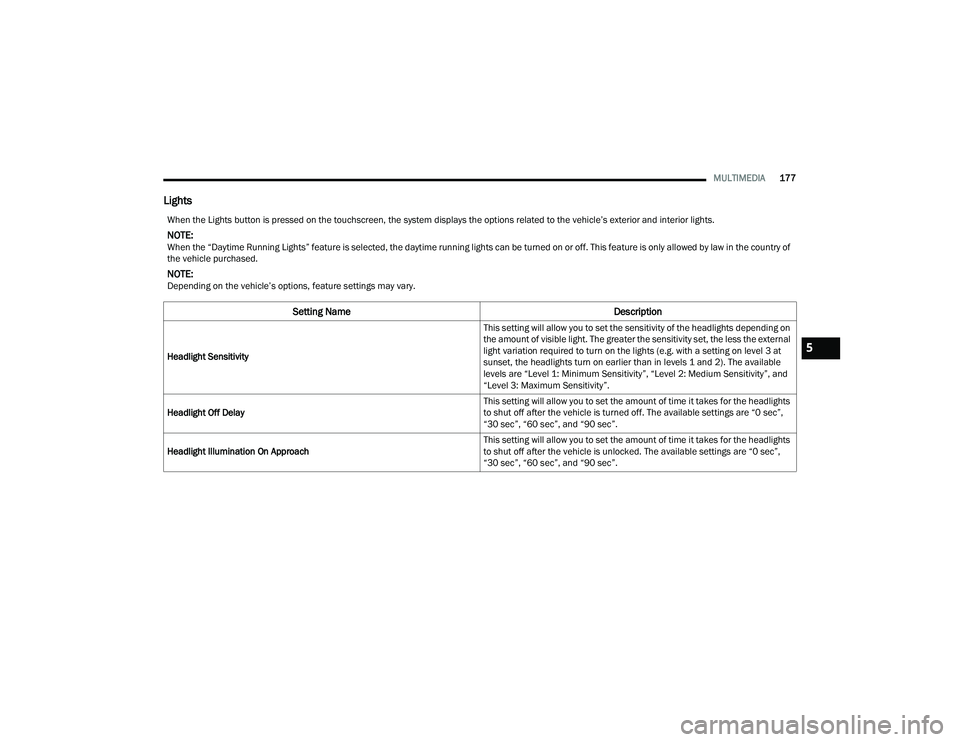
Lights
When the Lights button is pressed on the touchscreen, the system displays the options related to the vehicle’s exterior and interior lights.
NOTE:When the “Daytime Running Lights” feature is selected, the daytime running lights can be turned on or off. This feature is only allowed by law in the country of
the vehicle purchased.
NOTE:Depending on the vehicle’s options, feature settings may vary.
Setting Name Description
Headlight Sensitivity This setting will allow you to set the sensitivity of the headlights depending on
the amount of visible light. The greater the sensitivity set, the less the external
light variation required to turn on the lights (e.g. with a setting on level 3 at
sunset, the headlights turn on earlier than in levels 1 and 2). The available
levels are “Level 1: Minimum Sensitivity”, “Level 2: Medium Sensitivity”, and
“Level 3: Maximum Sensitivity”.
Headlight Off Delay This setting will allow you to set the amount of time it takes for the headlights
to shut off after the vehicle is turned off. The available settings are “0 sec”,
“30 sec”, “60 sec”, and “90 sec”.
Headlight Illumination On Approach This setting will allow you to set the amount of time it takes for the headlights
to shut off after the vehicle is unlocked. The available settings are “0 sec”,
“30 sec”, “60 sec”, and “90 sec”.5
22_MP_OM_EN_USC_t.book Page 177
Page 180 of 344
178MULTIMEDIA
Brakes
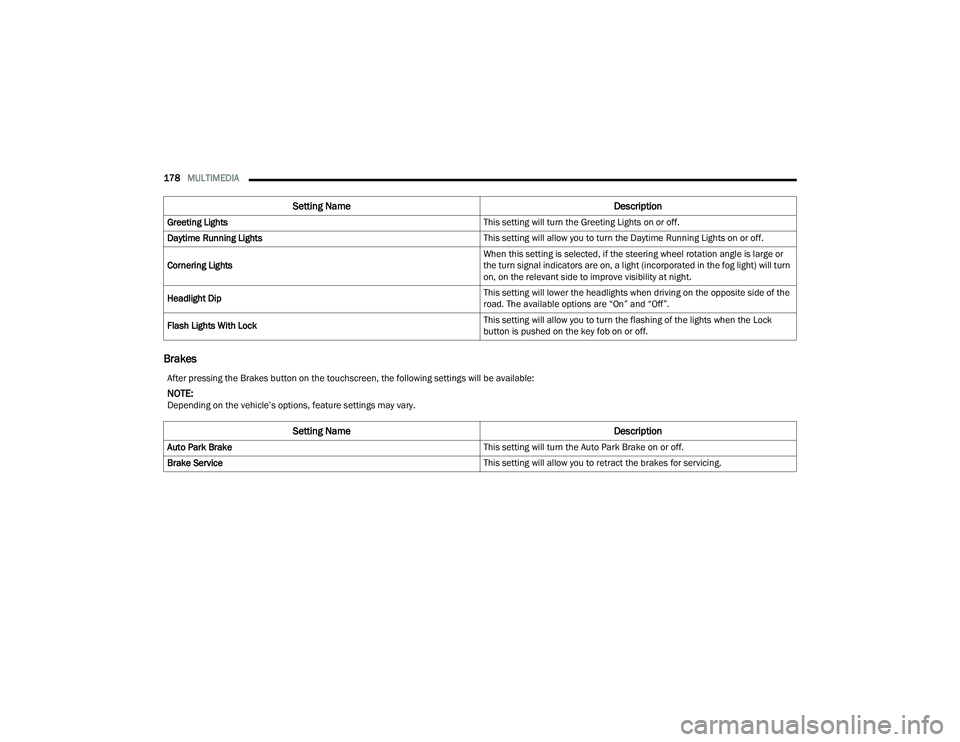
Greeting Lights This setting will turn the Greeting Lights on or off.
Daytime Running Lights This setting will allow you to turn the Daytime Running Lights on or off.
Cornering Lights When this setting is selected, if the steering wheel rotation angle is large or
the turn signal indicators are on, a light (incorporated in the fog light) will turn
on, on the relevant side to improve visibility at night.
Headlight Dip This setting will lower the headlights when driving on the opposite side of the
road. The available options are “On” and “Off”.
Flash Lights With Lock This setting will allow you to turn the flashing of the lights when the Lock
button is pushed on the key fob on or off.
Setting Name
Description
After pressing the Brakes button on the touchscreen, the following settings will be available:
NOTE:Depending on the vehicle’s options, feature settings may vary.
Setting NameDescription
Auto Park Brake This setting will turn the Auto Park Brake on or off.
Brake Service This setting will allow you to retract the brakes for servicing.
22_MP_OM_EN_USC_t.book Page 178
Page 181 of 344
MULTIMEDIA179
Doors & Locks
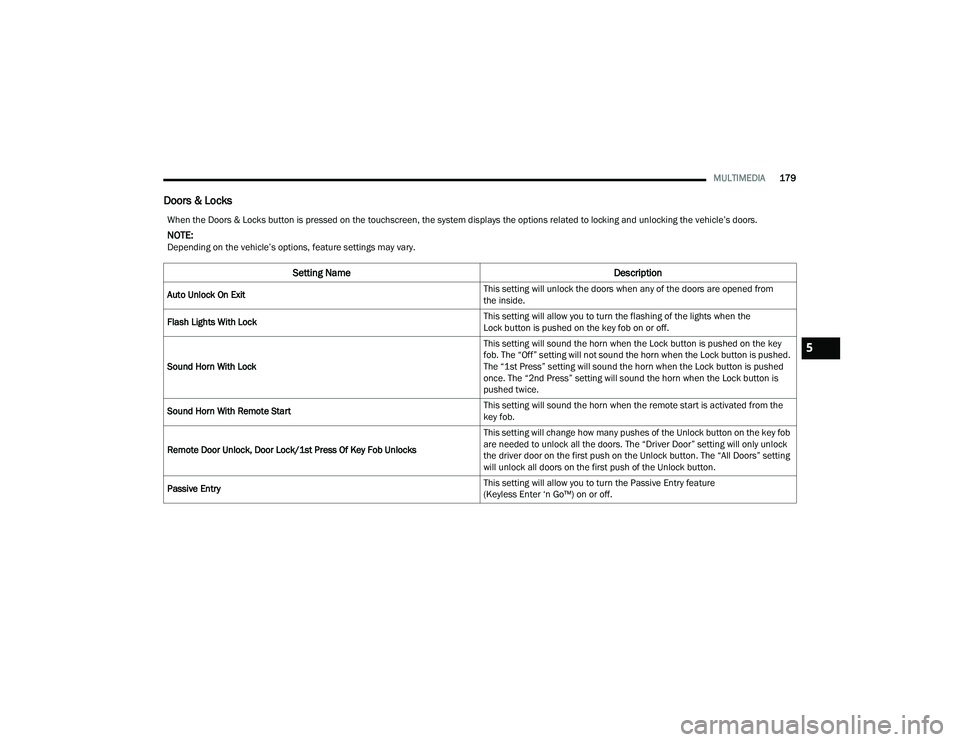
When the Doors & Locks button is pressed on the touchscreen, the system displays the options related to locking and unlocking the vehicle’s doors.
NOTE:Depending on the vehicle’s options, feature settings may vary.
Setting Name Description
Auto Unlock On Exit This setting will unlock the doors when any of the doors are opened from
the inside.
Flash Lights With Lock This setting will allow you to turn the flashing of the lights when the
Lock button is pushed on the key fob on or off.
Sound Horn With Lock This setting will sound the horn when the Lock button is pushed on the key
fob. The “Off” setting will not sound the horn when the Lock button is pushed.
The “1st Press” setting will sound the horn when the Lock button is pushed
once. The “2nd Press” setting will sound the horn when the Lock button is
pushed twice.
Sound Horn With Remote Start This setting will sound the horn when the remote start is activated from the
key fob.
Remote Door Unlock, Door Lock/1st Press Of Key Fob Unlocks This setting will change how many pushes of the Unlock button on the key fob
are needed to unlock all the doors. The “Driver Door” setting will only unlock
the driver door on the first push on the Unlock button. The “All Doors” setting
will unlock all doors on the first push of the Unlock button.
Passive Entry This setting will allow you to turn the Passive Entry feature
(Keyless Enter ‘n Go™) on or off.
5
22_MP_OM_EN_USC_t.book Page 179
Page 182 of 344
180MULTIMEDIA
Seats & Comfort
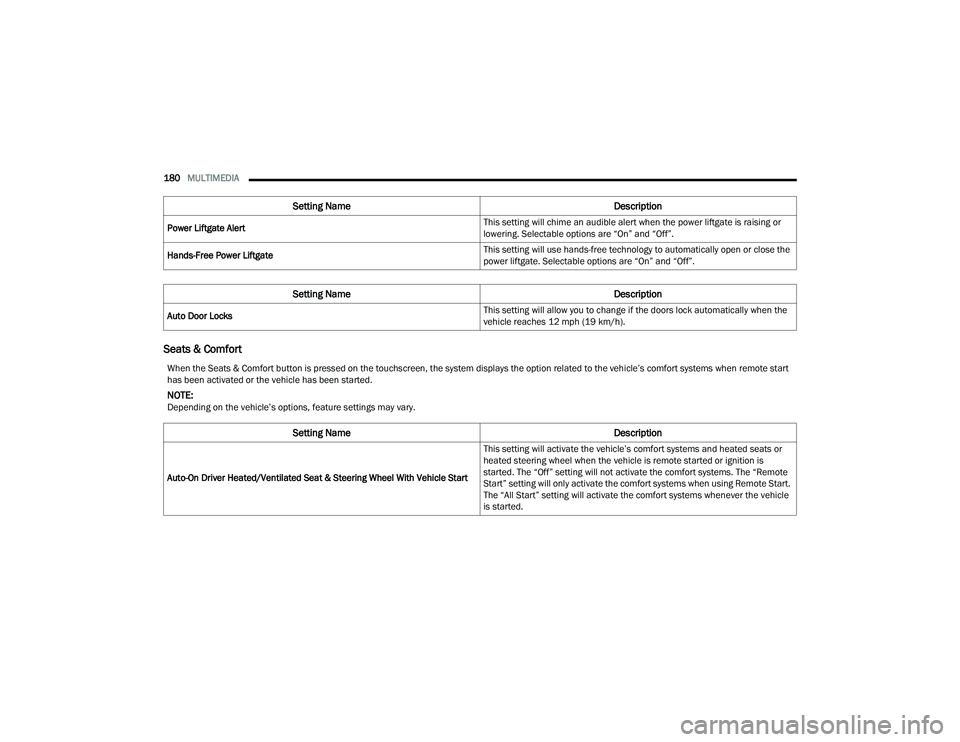
Power Liftgate Alert This setting will chime an audible alert when the power liftgate is raising or
lowering. Selectable options are “On” and “Off”.
Hands-Free Power Liftgate This setting will use hands-free technology to automatically open or close the
power liftgate. Selectable options are “On” and “Off”.
Setting Name
Description
Auto Door Locks This setting will allow you to change if the doors lock automatically when the
vehicle reaches 12 mph (19 km/h).
Setting Name
Description
When the Seats & Comfort button is pressed on the touchscreen, the system displays the option related to the vehicle’s comfort systems when remote start
has been activated or the vehicle has been started.
NOTE:Depending on the vehicle’s options, feature settings may vary.
Setting NameDescription
Auto-On Driver Heated/Ventilated Seat & Steering Wheel With Vehicle Start This setting will activate the vehicle’s comfort systems and heated seats or
heated steering wheel when the vehicle is remote started or ignition is
started. The “Off” setting will not activate the comfort systems. The “Remote
Start” setting will only activate the comfort systems when using Remote Start.
The “All Start” setting will activate the comfort systems whenever the vehicle
is started.
22_MP_OM_EN_USC_t.book Page 180
Page 183 of 344
MULTIMEDIA181
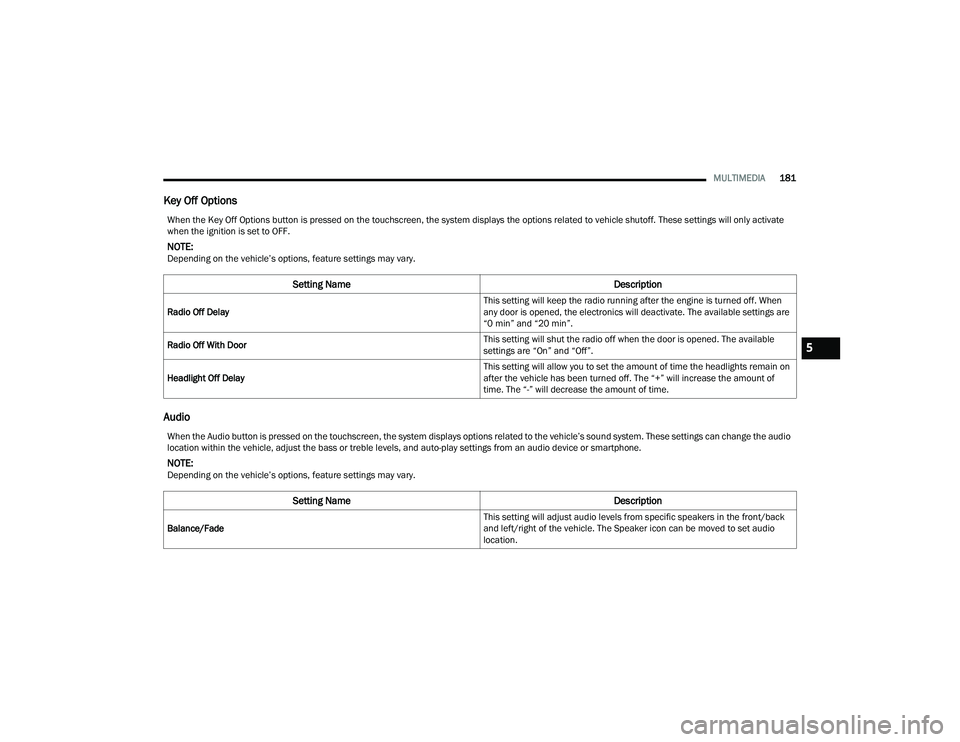
Key Off Options
Audio
When the Key Off Options button is pressed on the touchscreen, the system displays the options related to vehicle shutoff. These settings will only activate
when the ignition is set to OFF.
NOTE:Depending on the vehicle’s options, feature settings may vary.
Setting Name Description
Radio Off Delay This setting will keep the radio running after the engine is turned off. When
any door is opened, the electronics will deactivate. The available settings are
“0 min” and “20 min”.
Radio Off With Door This setting will shut the radio off when the door is opened. The available
settings are “On” and “Off”.
Headlight Off Delay This setting will allow you to set the amount of time the headlights remain on
after the vehicle has been turned off. The “+” will increase the amount of
time. The “-” will decrease the amount of time.
When the Audio button is pressed on the touchscreen, the system displays options related to the vehicle’s sound system. These settings can change the audio
location within the vehicle, adjust the bass or treble levels, and auto-play settings from an audio device or smartphone.
NOTE:Depending on the vehicle’s options, feature settings may vary.
Setting Name
Description
Balance/Fade This setting will adjust audio levels from specific speakers in the front/back
and left/right of the vehicle. The Speaker icon can be moved to set audio
location.
5
22_MP_OM_EN_USC_t.book Page 181
Page 184 of 344
182MULTIMEDIA
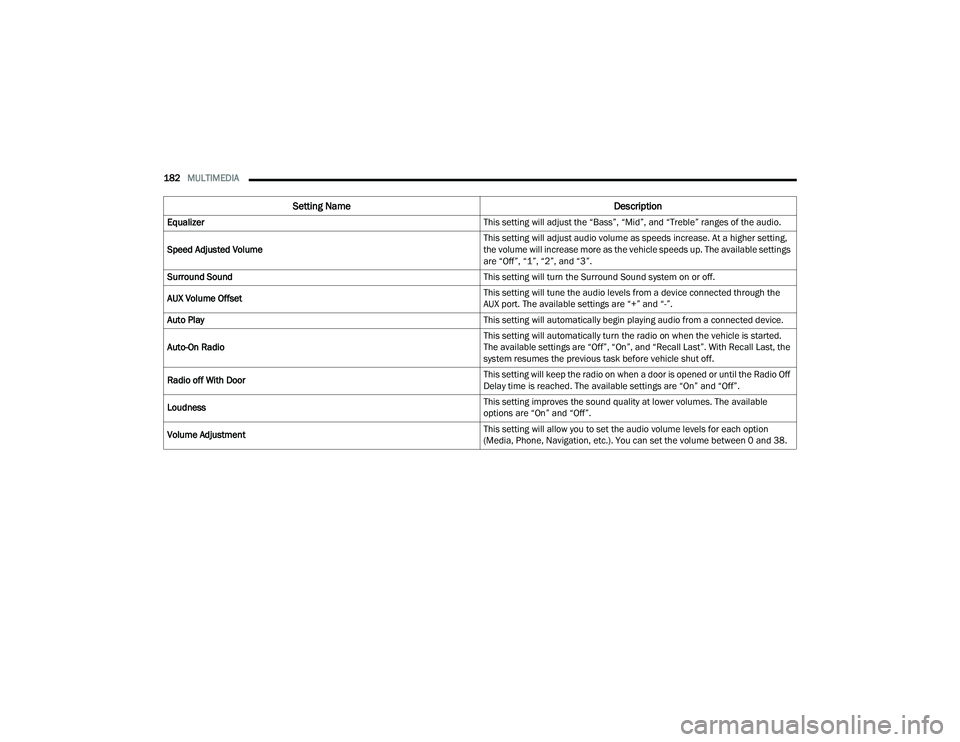
Equalizer This setting will adjust the “Bass”, “Mid”, and “Treble” ranges of the audio.
Speed Adjusted Volume This setting will adjust audio volume as speeds increase. At a higher setting,
the volume will increase more as the vehicle speeds up. The available settings
are “Off”, “1”, “2”, and “3”.
Surround Sound This setting will turn the Surround Sound system on or off.
AUX Volume Offset This setting will tune the audio levels from a device connected through the
AUX port. The available settings are “+” and “-”.
Auto Play This setting will automatically begin playing audio from a connected device.
Auto-On Radio This setting will automatically turn the radio on when the vehicle is started.
The available settings are “Off”, “On”, and “Recall Last”. With Recall Last, the
system resumes the previous task before vehicle shut off.
Radio off With Door This setting will keep the radio on when a door is opened or until the Radio Off
Delay time is reached. The available settings are “On” and “Off”.
Loudness This setting improves the sound quality at lower volumes. The available
options are “On” and “Off”.
Volume Adjustment This setting will allow you to set the audio volume levels for each option
(Media, Phone, Navigation, etc.). You can set the volume between 0 and 38.
Setting Name
Description
22_MP_OM_EN_USC_t.book Page 182
Page 185 of 344
MULTIMEDIA183
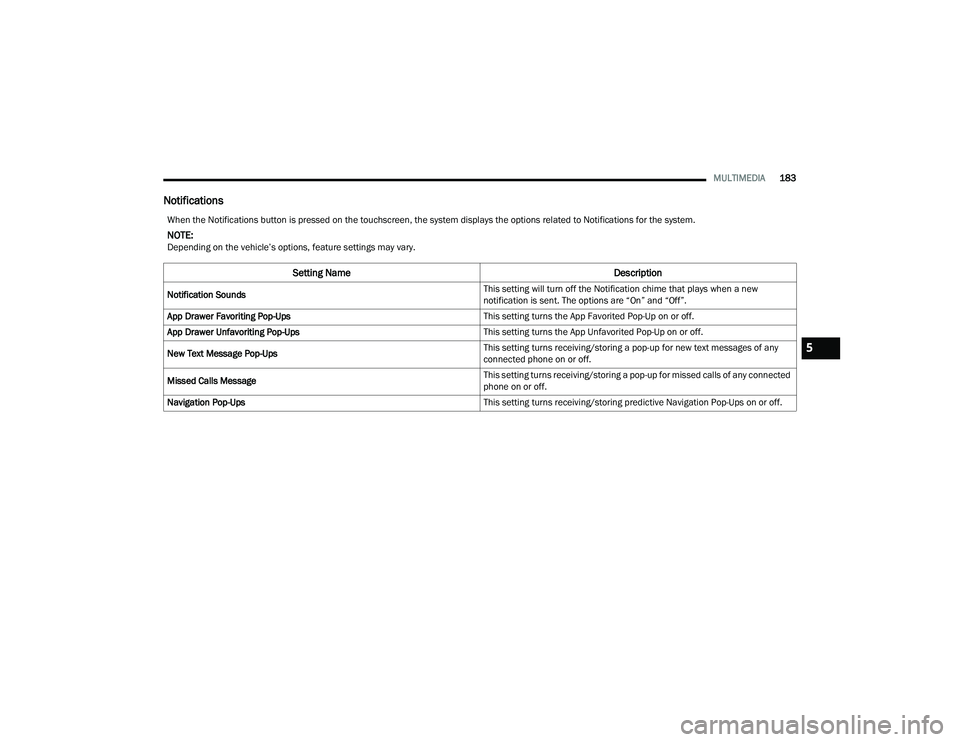
Notifications
When the Notifications button is pressed on the touchscreen, the system displays the options related to Notifications for the system.
NOTE:Depending on the vehicle’s options, feature settings may vary.
Setting Name Description
Notification Sounds This setting will turn off the Notification chime that plays when a new
notification is sent. The options are “On” and “Off”.
App Drawer Favoriting Pop-Ups This setting turns the App Favorited Pop-Up on or off.
App Drawer Unfavoriting Pop-Ups This setting turns the App Unfavorited Pop-Up on or off.
New Text Message Pop-Ups This setting turns receiving/storing a pop-up for new text messages of any
connected phone on or off.
Missed Calls Message This setting turns receiving/storing a pop-up for missed calls of any connected
phone on or off.
Navigation Pop-Ups This setting turns receiving/storing predictive Navigation Pop-Ups on or off.
5
22_MP_OM_EN_USC_t.book Page 183
Page 186 of 344
184MULTIMEDIA
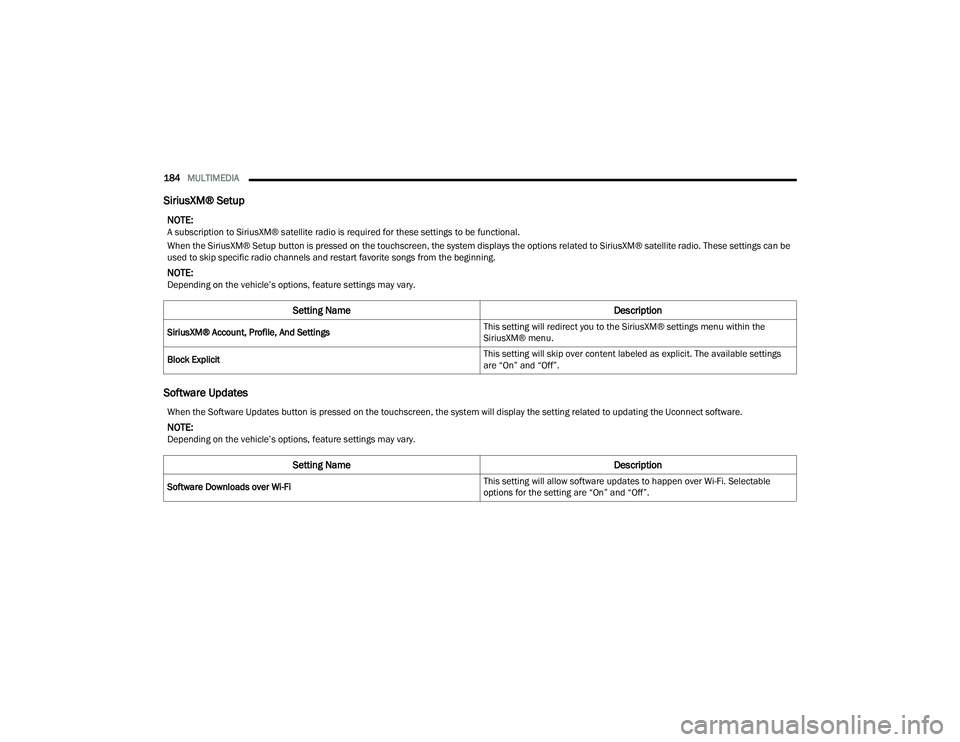
SiriusXM® Setup
Software Updates
NOTE:A subscription to SiriusXM® satellite radio is required for these settings to be functional.
When the SiriusXM® Setup button is pressed on the touchscreen, the system displays the options related to SiriusXM® satellite radio. These settings can be
used to skip specific radio channels and restart favorite songs from the beginning.
NOTE:Depending on the vehicle’s options, feature settings may vary.
Setting Name Description
SiriusXM® Account, Profile, And Settings This setting will redirect you to the SiriusXM® settings menu within the
SiriusXM® menu.
Block Explicit This setting will skip over content labeled as explicit. The available settings
are “On” and “Off”.
When the Software Updates button is pressed on the touchscreen, the system will display the setting related to updating the Uconnect software.
NOTE:Depending on the vehicle’s options, feature settings may vary.
Setting Name
Description
Software Downloads over Wi-Fi This setting will allow software updates to happen over Wi-Fi. Selectable
options for the setting are “On” and “Off”.
22_MP_OM_EN_USC_t.book Page 184
Page 187 of 344
MULTIMEDIA185
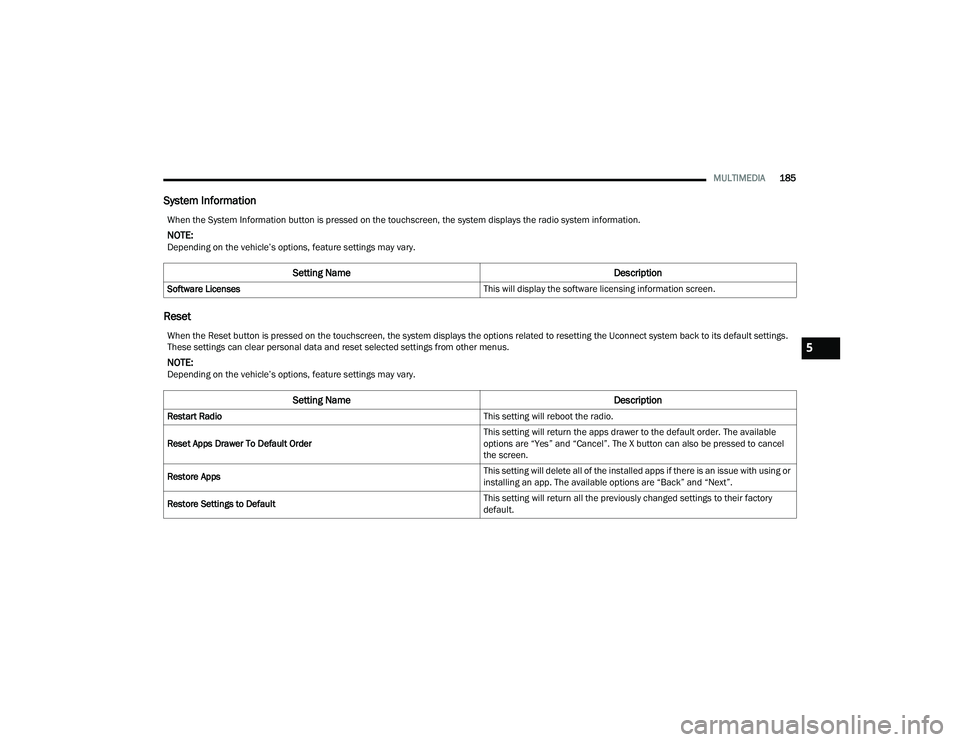
System Information
Reset
When the System Information button is pressed on the touchscreen, the system displays the radio system information.
NOTE:Depending on the vehicle’s options, feature settings may vary.
Setting Name Description
Software Licenses This will display the software licensing information screen.
When the Reset button is pressed on the touchscreen, the system displays the options related to resetting the Uconnect system back to its default settings.
These settings can clear personal data and reset selected settings from other menus.
NOTE:Depending on the vehicle’s options, feature settings may vary.
Setting NameDescription
Restart Radio This setting will reboot the radio.
Reset Apps Drawer To Default Order This setting will return the apps drawer to the default order. The available
options are “Yes” and “Cancel”. The X button can also be pressed to cancel
the screen.
Restore Apps This setting will delete all of the installed apps if there is an issue with using or
installing an app. The available options are “Back” and “Next”.
Restore Settings to Default This setting will return all the previously changed settings to their factory
default.
5
22_MP_OM_EN_USC_t.book Page 185
Page 188 of 344
186MULTIMEDIA
RADIO OPERATION AND MOBILE PHONES
Under certain conditions, the mobile phone being
on in your vehicle can cause erratic or noisy
performance from your radio. This condition may
be lessened or eliminated by repositioning the
mobile phone within the vehicle. This condition is
not harmful to the radio. If your radio performance
does not satisfactorily improve from repositioning
the mobile phone, it is recommended that the
volume be turned down or off during mobile phone
operation when not using the Uconnect system.
REGULATORY AND SAFETY
I
NFORMATION
US/CANADA
Exposure to Radio Frequency Radiation
The radiated output power of the internal wireless
radio is far below the FCC and IC radio frequency
exposure limits. Nevertheless, the wireless radio
will be used in such a manner that the radio is
8 inches (20 cm) or further from the human body.
The internal wireless radio operates within
guidelines found in radio frequency safety
standards and recommendations, which reflect
the consensus of the scientific community. The radio manufacturer believes the internal
wireless radio is safe for use by consumers.
The level of energy emitted is far less than the
electromagnetic energy emitted by wireless
devices such as mobile phones. However, the
use of wireless radios may be restricted in some
situations or environments, such as aboard
airplanes. If you are unsure of restrictions, you are
encouraged to ask for authorization before turning
on the wireless radio Ú
page 328.
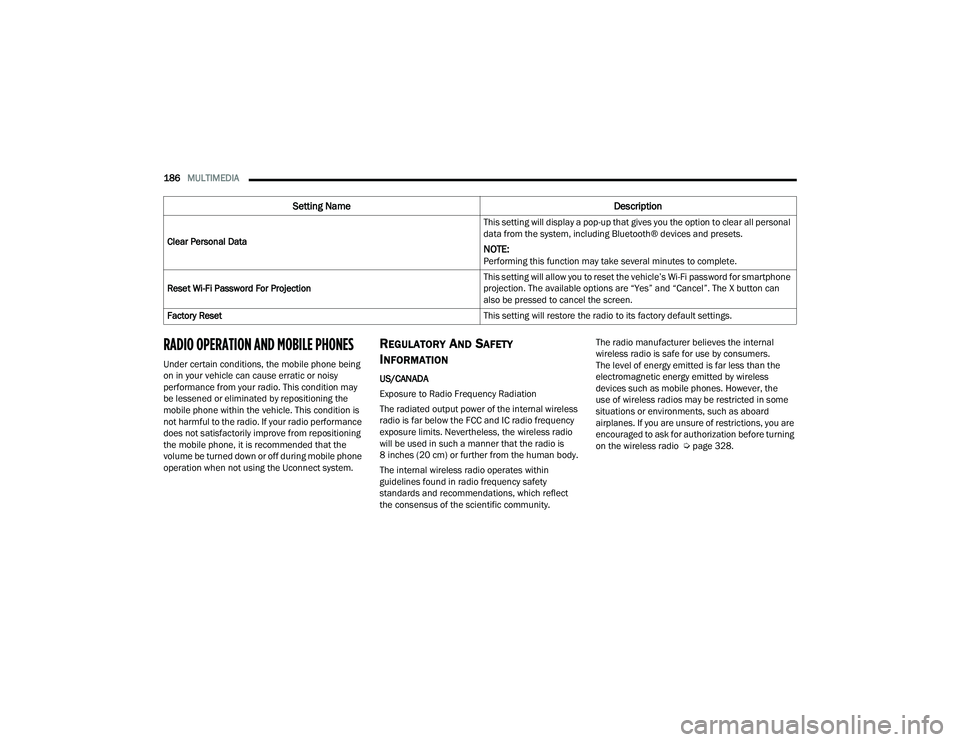
Clear Personal Data
This setting will display a pop-up that gives you the option to clear all personal
data from the system, including Bluetooth® devices and presets.
NOTE:Performing this function may take several minutes to complete.
Reset Wi-Fi Password For Projection This setting will allow you to reset the vehicle’s Wi-Fi password for smartphone
projection. The available options are “Yes” and “Cancel”. The X button can
also be pressed to cancel the screen.
Factory Reset This setting will restore the radio to its factory default settings.
Setting NameDescription
22_MP_OM_EN_USC_t.book Page 186