change wheel JEEP COMPASS 2023 User Guide
[x] Cancel search | Manufacturer: JEEP, Model Year: 2023, Model line: COMPASS, Model: JEEP COMPASS 2023Pages: 344, PDF Size: 18.8 MB
Page 133 of 344
STARTING AND OPERATING131
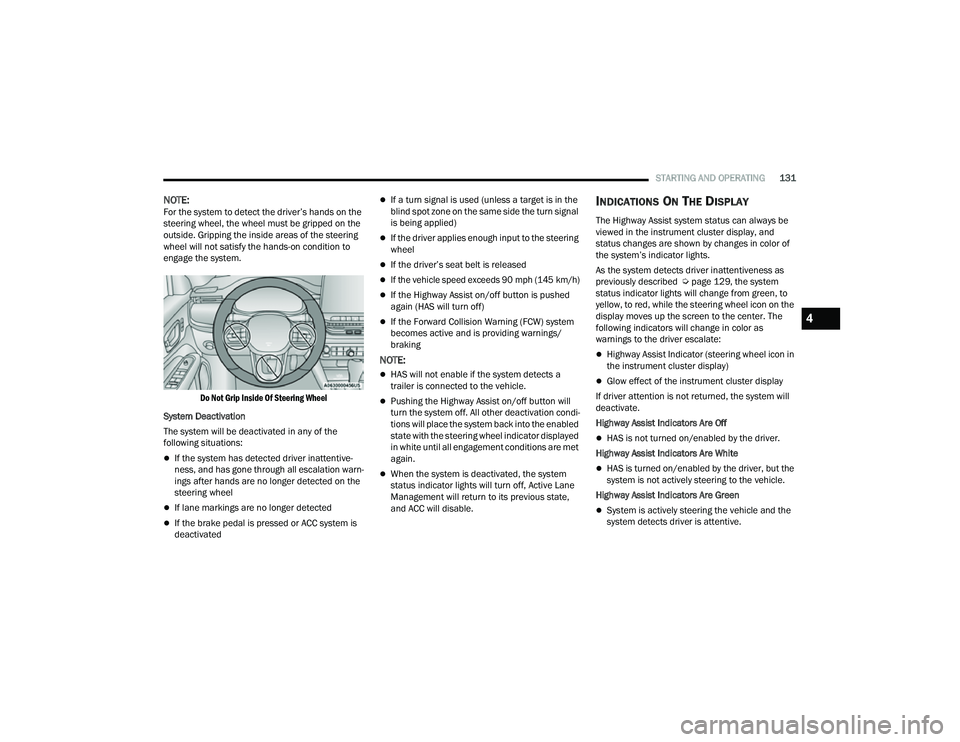
NOTE:For the system to detect the driver’s hands on the
steering wheel, the wheel must be gripped on the
outside. Gripping the inside areas of the steering
wheel will not satisfy the hands-on condition to
engage the system.
Do Not Grip Inside Of Steering Wheel
System Deactivation
The system will be deactivated in any of the
following situations:
If the system has detected driver inattentive -
ness, and has gone through all escalation warn -
ings after hands are no longer detected on the
steering wheel
If lane markings are no longer detected
If the brake pedal is pressed or ACC system is
deactivated
If a turn signal is used (unless a target is in the
blind spot zone on the same side the turn signal
is being applied)
If the driver applies enough input to the steering
wheel
If the driver’s seat belt is released
If the vehicle speed exceeds 90 mph (145 km/h)
If the Highway Assist on/off button is pushed
again (HAS will turn off)
If the Forward Collision Warning (FCW) system
becomes active and is providing warnings/
braking
NOTE:
HAS will not enable if the system detects a
trailer is connected to the vehicle.
Pushing the Highway Assist on/off button will
turn the system off. All other deactivation condi -
tions will place the system back into the enabled
state with the steering wheel indicator displayed
in white until all engagement conditions are met
again.
When the system is deactivated, the system
status indicator lights will turn off, Active Lane
Management will return to its previous state,
and ACC will disable.
INDICATIONS ON THE DISPLAY
The Highway Assist system status can always be
viewed in the instrument cluster display, and
status changes are shown by changes in color of
the system’s indicator lights.
As the system detects driver inattentiveness as
previously described Ú page 129, the system
status indicator lights will change from green, to
yellow, to red, while the steering wheel icon on the
display moves up the screen to the center. The
following indicators will change in color as
warnings to the driver escalate:
Highway Assist Indicator (steering wheel icon in
the instrument cluster display)
Glow effect of the instrument cluster display
If driver attention is not returned, the system will
deactivate.
Highway Assist Indicators Are Off
HAS is not turned on/enabled by the driver.
Highway Assist Indicators Are White
HAS is turned on/enabled by the driver, but the
system is not actively steering to the vehicle.
Highway Assist Indicators Are Green
System is actively steering the vehicle and the
system detects driver is attentive.
4
22_MP_OM_EN_USC_t.book Page 131
Page 134 of 344
132STARTING AND OPERATING
(Continued)
Highway Assist Indicators Are Yellow
Driver inattentiveness has been detected,
warning the driver to place hands on the
steering wheel.
Highway Assist Indicators Are Red
Driver inattentiveness is still being detected,
warning the driver to place hands on the
steering wheel.
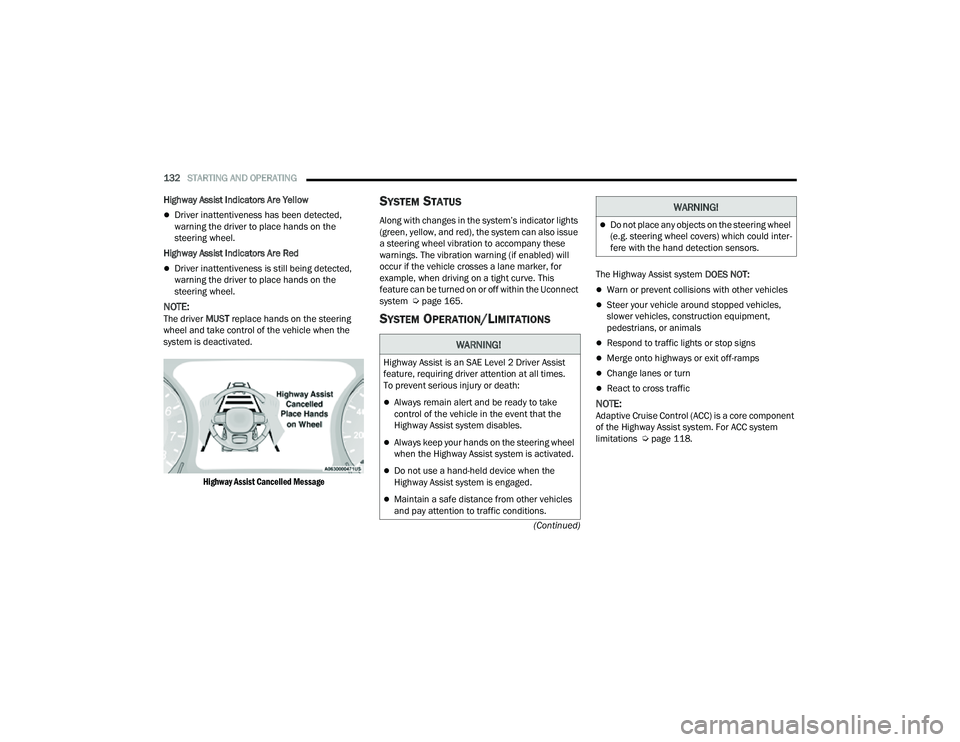
NOTE:The driver MUST replace hands on the steering
wheel and take control of the vehicle when the
system is deactivated.
Highway Assist Cancelled Message
SYSTEM STATUS
Along with changes in the system’s indicator lights
(green, yellow, and red), the system can also issue
a steering wheel vibration to accompany these
warnings. The vibration warning (if enabled) will
occur if the vehicle crosses a lane marker, for
example, when driving on a tight curve. This
feature can be turned on or off within the Uconnect
system Ú page 165.
SYSTEM OPERATION/LIMITATIONS
The Highway Assist system DOES NOT:
Warn or prevent collisions with other vehicles
Steer your vehicle around stopped vehicles,
slower vehicles, construction equipment,
pedestrians, or animals
Respond to traffic lights or stop signs
Merge onto highways or exit off-ramps
Change lanes or turn
React to cross traffic
NOTE:Adaptive Cruise Control (ACC) is a core component
of the Highway Assist system. For ACC system
limitations Úpage 118.
WARNING!
Highway Assist is an SAE Level 2 Driver Assist
feature, requiring driver attention at all times.
To prevent serious injury or death:
Always remain alert and be ready to take
control of the vehicle in the event that the
Highway Assist system disables.
Always keep your hands on the steering wheel
when the Highway Assist system is activated.
Do not use a hand-held device when the
Highway Assist system is engaged.
Maintain a safe distance from other vehicles
and pay attention to traffic conditions.
Do not place any objects on the steering wheel
(e.g. steering wheel covers) which could inter -
fere with the hand detection sensors.
WARNING!
22_MP_OM_EN_USC_t.book Page 132
Page 147 of 344
STARTING AND OPERATING145
The sensors may not detect objects of a partic -
ular shape or made from particular materials
(very thin poles, trailer beams, panels, nets,
bushes, anti-parking posts, pavements, rubbish
bins, motor vehicles, etc.). Always take great
care to check that the vehicle and its path are
actually compatible with the parking place iden -
tified by the system.
The use of wheels and tires that are different
size to the original equipment could affect the
operation of the system.
The operation of the rear sensors is automati -
cally deactivated when the trailer's electric plug
is inserted in the vehicle's tow hook socket,
while the front sensors stay active and can
provide acoustic and visual warnings. If this situ -
ation occurs, Active Park Assist will not work.
The rear sensors are automatically reactivated
when the trailer's cable plug is removed.
In "Search in Progress" mode, the system could
incorrectly identify a parking place to carry out
the maneuver (e.g. by a junction, driveways,
roads crossing the direction of travel, etc.).
In the case of parking maneuvers on roads with
inclines, the performance of the system could
be inferior and it may deactivate.
If a parking maneuver is being carried out
between two parked vehicles alongside a curb,
the system may cause the vehicle to drive up
onto the curb.
Some maneuvers at very tight bends might be
impossible to be carried out.
Take great care to ensure that conditions do not
change during the parking maneuver (e.g. if
there are persons and/or animals in the parking
place, moving vehicles, etc.) and intervene
immediately if necessary.
During parking maneuvers, pay attention to vehi -
cles approaching from the opposite direction.
Always abide by the law and road regulations.
NOTE:
Correct system operation is not guaranteed if
snow chains or the compact spare tire are fitted.
The function only informs the driver about the
last appropriate parking place (parallel or
perpendicular) detected by the parking sensors.
Some messages displayed are accompanied by
acoustic warnings.
ACTIVE LANE MANAGEMENT SYSTEM —
IF EQUIPPED
ACTIVE LANE MANAGEMENT OPERATION
The Active Lane Management (ALM) system uses a
forward facing camera to detect lane markings or
road edges and measure vehicle position within
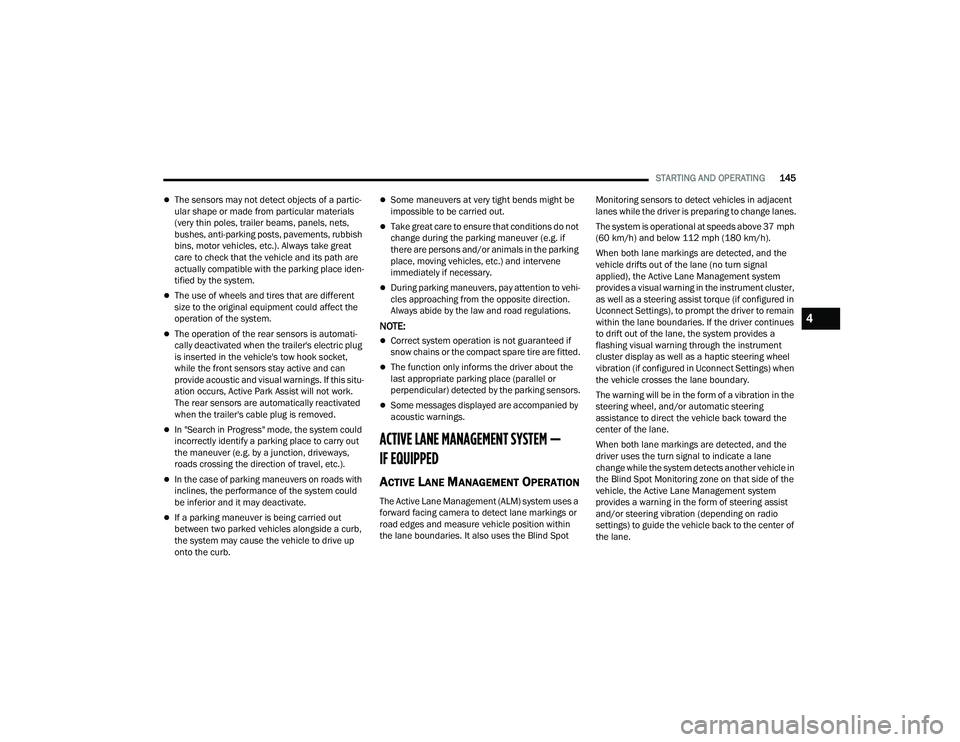
the lane boundaries. It also uses the Blind Spot Monitoring sensors to detect vehicles in adjacent
lanes while the driver is preparing to change lanes.
The system is operational at speeds above 37 mph
(60 km/h) and below 112 mph (180 km/h).
When both lane markings are detected, and the
vehicle drifts out of the lane (no turn signal
applied), the Active Lane Management system
provides a visual warning in the instrument cluster,
as well as a steering assist torque (if configured in
Uconnect Settings), to prompt the driver to remain
within the lane boundaries. If the driver continues
to drift out of the lane, the system provides a
flashing visual warning through the instrument
cluster display as well as a haptic steering wheel
vibration (if configured in Uconnect Settings) when
the vehicle crosses the lane boundary.
The warning will be in the form of a vibration in the
steering wheel, and/or automatic steering
assistance to direct the vehicle back toward the
center of the lane.
When both lane markings are detected, and the
driver uses the turn signal to indicate a lane
change while the system detects another vehicle in
the Blind Spot Monitoring zone on that side of the
vehicle, the Active Lane Management system
provides a warning in the form of steering assist
and/or steering vibration (depending on radio
settings) to guide the vehicle back to the center of
the lane.
4
22_MP_OM_EN_USC_t.book Page 145
Page 149 of 344
STARTING AND OPERATING147
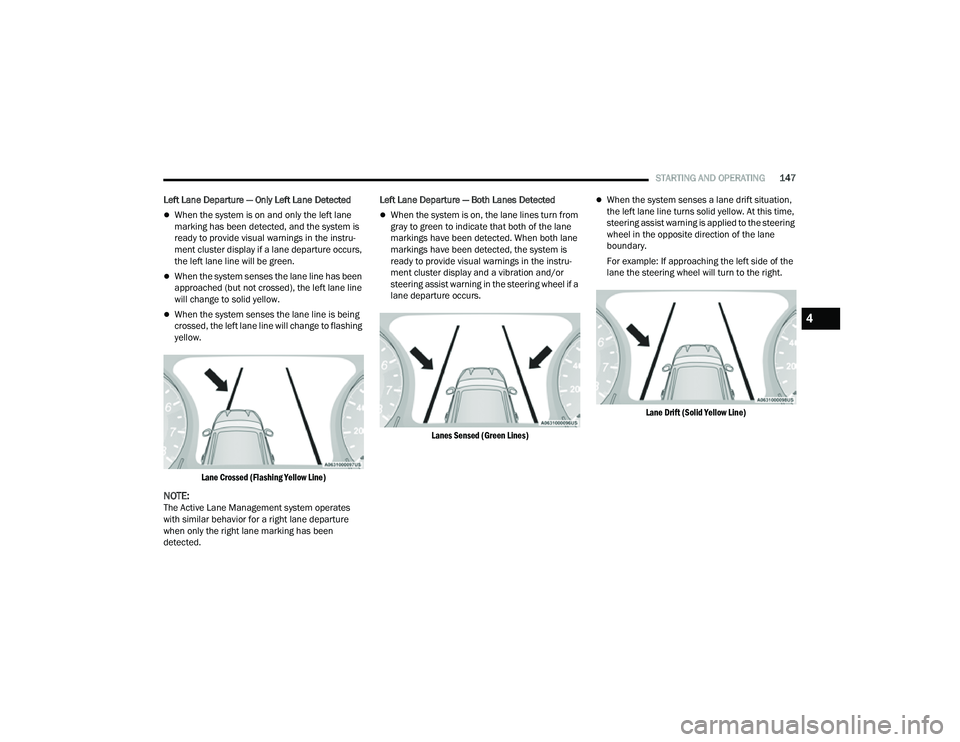
Left Lane Departure — Only Left Lane Detected
When the system is on and only the left lane
marking has been detected, and the system is
ready to provide visual warnings in the instru-
ment cluster display if a lane departure occurs,
the left lane line will be green.
When the system senses the lane line has been
approached (but not crossed), the left lane line
will change to solid yellow.
When the system senses the lane line is being
crossed, the left lane line will change to flashing
yellow.
Lane Crossed (Flashing Yellow Line)
NOTE:The Active Lane Management system operates
with similar behavior for a right lane departure
when only the right lane marking has been
detected. Left Lane Departure — Both Lanes Detected
When the system is on, the lane lines turn from
gray to green to indicate that both of the lane
markings have been detected. When both lane
markings have been detected, the system is
ready to provide visual warnings in the instru -
ment cluster display and a vibration and/or
steering assist warning in the steering wheel if a
lane departure occurs.
Lanes Sensed (Green Lines)
When the system senses a lane drift situation,
the left lane line turns solid yellow. At this time,
steering assist warning is applied to the steering
wheel in the opposite direction of the lane
boundary.
For example: If approaching the left side of the
lane the steering wheel will turn to the right.
Lane Drift (Solid Yellow Line)
4
22_MP_OM_EN_USC_t.book Page 147
Page 150 of 344
148STARTING AND OPERATING
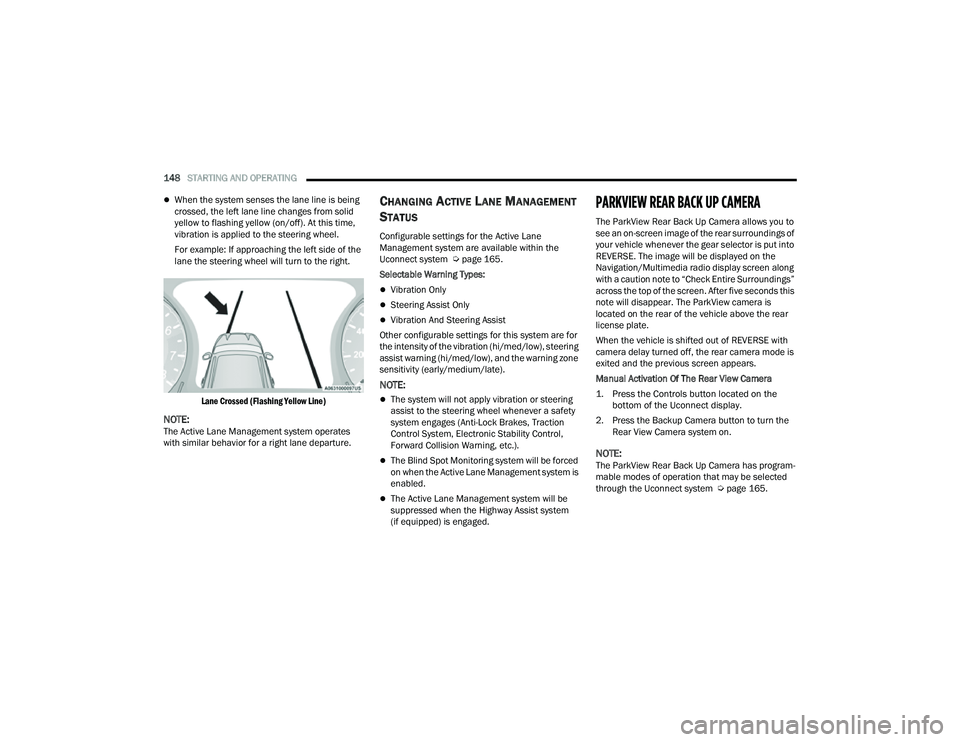
When the system senses the lane line is being
crossed, the left lane line changes from solid
yellow to flashing yellow (on/off). At this time,
vibration is applied to the steering wheel.
For example: If approaching the left side of the
lane the steering wheel will turn to the right.
Lane Crossed (Flashing Yellow Line)
NOTE:The Active Lane Management system operates
with similar behavior for a right lane departure.
CHANGING ACTIVE LANE MANAGEMENT
S
TATUS
Configurable settings for the Active Lane
Management system are available within the
Uconnect system Ú page 165.
Selectable Warning Types:
Vibration Only
Steering Assist Only
Vibration And Steering Assist
Other configurable settings for this system are for
the intensity of the vibration (hi/med/low), steering
assist warning (hi/med/low), and the warning zone
sensitivity (early/medium/late).
NOTE:
The system will not apply vibration or steering
assist to the steering wheel whenever a safety
system engages (Anti-Lock Brakes, Traction
Control System, Electronic Stability Control,
Forward Collision Warning, etc.).
The Blind Spot Monitoring system will be forced
on when the Active Lane Management system is
enabled.
The Active Lane Management system will be
suppressed when the Highway Assist system
(if equipped) is engaged.
PARKVIEW REAR BACK UP CAMERA
The ParkView Rear Back Up Camera allows you to
see an on-screen image of the rear surroundings of
your vehicle whenever the gear selector is put into
REVERSE. The image will be displayed on the
Navigation/Multimedia radio display screen along
with a caution note to “Check Entire Surroundings”
across the top of the screen. After five seconds this
note will disappear. The ParkView camera is
located on the rear of the vehicle above the rear
license plate.
When the vehicle is shifted out of REVERSE with
camera delay turned off, the rear camera mode is
exited and the previous screen appears.
Manual Activation Of The Rear View Camera
1. Press the Controls button located on the bottom of the Uconnect display.
2. Press the Backup Camera button to turn the Rear View Camera system on.
NOTE:The ParkView Rear Back Up Camera has program -
mable modes of operation that may be selected
through the Uconnect system Ú page 165.
22_MP_OM_EN_USC_t.book Page 148
Page 152 of 344
150STARTING AND OPERATING
SURROUND VIEW CAMERA SYSTEM —
IF EQUIPPED
Your vehicle may be equipped with the Surround
View Camera system that allows you to see an
on-screen image of the surroundings and Top View
of your vehicle whenever the gear selector is put
into REVERSE or a different view is selected
through the touchscreen soft buttons. The Top
View of the vehicle will show which doors are open.
The image will be displayed on the touchscreen
display along with a caution note “Check Entire
Surroundings” across the top of the screen.
After five seconds, this note will disappear. The
Surround View Camera system is comprised of four
sequential cameras located in the front grille, rear
liftgate and side mirrors.
NOTE:The Surround View Camera system has program -
mable settings that may be selected through the
Uconnect system Ú page 165.
Press this button on the touchscreen to
enter the Surround View Camera menu in
the Uconnect system.
When the vehicle is shifted into REVERSE, the Rear
View and Top View is the default view of the
system.
When the vehicle is shifted out of REVERSE with
camera delay turned on, the camera image will
continue to be displayed for up to 10 seconds
unless the vehicle speed exceeds 8 mph (13 km/h),
the vehicle is shifted into PARK or the ignition is
placed in the OFF position. There is a touchscreen
button X to disable the display of the camera image.
When the vehicle is shifted out of REVERSE with
camera delay turned off, the Surround View
Camera mode is exited and the last known screen
appears again.
When enabled, active guidelines are overlaid on
the image to illustrate the width of the vehicle,
including the side view mirrors and its projected
backup path based on the steering wheel position.
Different colored zones indicate the distance to
the rear of the vehicle.
The following table shows the approximate
distances for each zone:
Modes Of Operation
Manual activation of the Surround View Camera is
selected by pressing the Surround View Camera
soft key located in the Controls menu within the
Uconnect system.
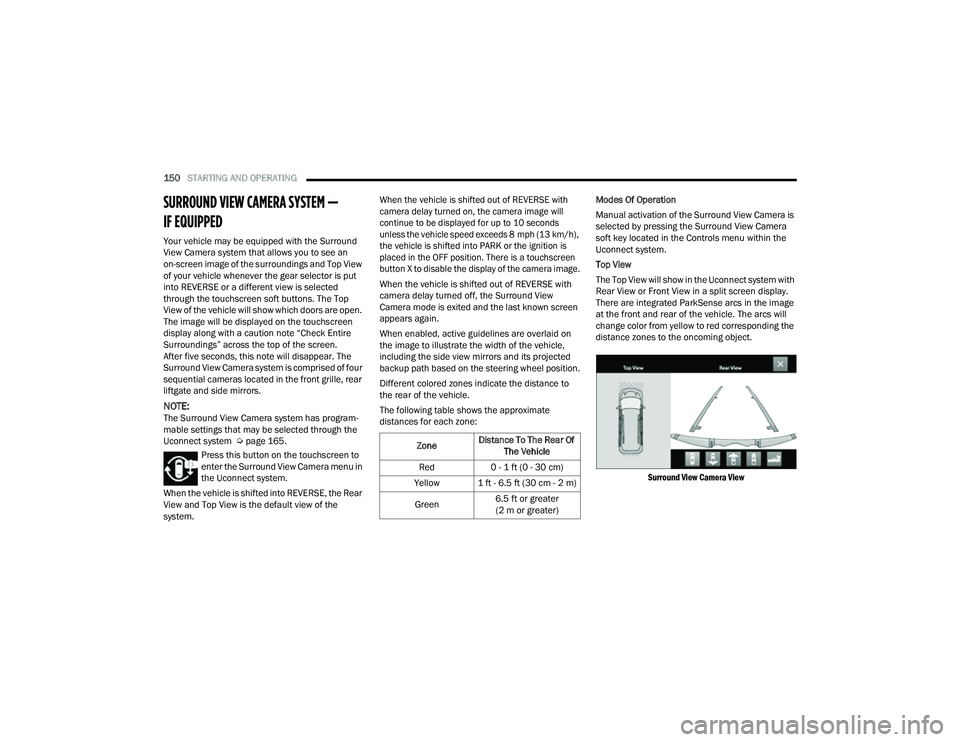
Top View
The Top View will show in the Uconnect system with
Rear View or Front View in a split screen display.
There are integrated ParkSense arcs in the image
at the front and rear of the vehicle. The arcs will
change color from yellow to red corresponding the
distance zones to the oncoming object.
Surround View Camera View
Zone Distance To The Rear Of
The Vehicle
Red 0 - 1 ft (0 - 30 cm)
Yellow 1 ft - 6.5 ft (30 cm - 2 m)
Green 6.5 ft or greater
(2 m or greater)
22_MP_OM_EN_USC_t.book Page 150
Page 164 of 344
162STARTING AND OPERATING
Flowing Water
If the water is swift flowing and rising (as in storm
run-off) avoid crossing until the water level recedes
and/or the flow rate is reduced. If you must cross
flowing-water, avoid depths in excess of 9 inches
(22 cm). The flowing water can erode the
streambed causing your vehicle to sink into deeper
water. Determine exit point(s) that are downstream
of your entry point to allow for drifting.
Standing Water
Avoid driving in standing water deeper than
16 inches (40.5 cm), and reduce speed
appropriately to minimize wave effects. Maximum
speed in 16 inches (40.5 cm) of water is less than
5 mph (8 km/h).
(Trailhawk only): Avoid driving in standing water
deeper than 19 inches (48 cm), and reduce speed
appropriately to minimize wave effects. Maximum
speed in 19 inches (48 cm) of water is less than
5 mph (8 km/h).
Maintenance
After driving through deep water, inspect your
vehicle fluids and lubricants (engine, transmission,
Power Transfer Unit, and Rear Drive Module) to
ensure they have not been contaminated.
Contaminated fluids and lubricants (milky, foamy
in appearance) should be flushed/changed as
soon as possible to prevent component damage.
Driving In Snow, Mud And Sand
In heavy snow, when pulling a load, or for
additional control at slower speeds, shift the
transmission to a low gear and shift the 4WD
system to the appropriate terrain mode, using
4WD LOW if necessary Úpage 112. Do not shift to
a lower gear than necessary to maintain headway.
Over-revving the engine can spin the wheels and
traction will be lost.
Avoid abrupt downshifts on icy or slippery roads
because engine braking may cause skidding and
loss of control.
Hill Climbing
NOTE:Before attempting to climb a hill, determine the
conditions at the crest and/or on the other side.
Before climbing a steep hill, shift the transmission
to a lower gear and shift the 4WD System to 4WD
LOW. Use FIRST gear and 4WD LOW for very steep
hills.
NOTE:Brakes should be applied at increased slippage,
but before coming to a stop to avoid digging into
the loose surface and rendering the operator of the
vehicle stuck/immobile. If you stall or begin to lose headway
while climbing
a steep hill, allow your vehicle to come to a stop
and immediately apply the brakes. Once stopped,
shift to REVERSE. Back slowly down the hill
allowing the compression braking of the engine to
help regulate your speed. If the brakes are
required to control vehicle speed, apply them
lightly and avoid locking or skidding the tires.
NOTE:Remember, never drive diagonally across a hill -
drive straight up or down.
If the wheels start to slip as you approach the crest
of a hill, ease off the accelerator and maintain
headway by turning the front wheels slowly left and
right. This may provide a fresh “bite” into the
surface and may provide traction to complete the
climb.
WARNING!
If the engine stalls or you lose headway or
cannot make it to the top of a steep hill or grade,
never attempt to turn around. To do so may
result in tipping and rolling the vehicle. Always
back straight down a hill in REVERSE gear
carefully. Never back down a hill in NEUTRAL
using only the brake.
22_MP_OM_EN_USC_t.book Page 162
Page 169 of 344
MULTIMEDIA167
Phone Pop-ups Displayed In Cluster This setting will display smartphone notifications and messages in the
Instrument Cluster Display.
Time Format This setting will allow you to set the time format (AM/PM). Sync Time With GPS
must be “Off” for this setting to be available. The “12 hrs” setting will set the
time to a 12-hour format. The “24 hrs” setting will set the time to a 24-hour
format.
Voice Options This setting will allow you to change the voice options for the radio to
“Male” or “Female”.
Wake Up Word This setting will allow you to set the system “Wake Up” word. The available
options are “Off”, “Hey, Uconnect”, and “Hey, Jeep®”.
Voice Barge-in This setting will allow Voice Barge-in to be turned on or off.
Show Command List This setting will allow the Command List to be shown on or off.
Navigation Settings This setting will redirect to the list of Navigation settings. Refer to the Owner’s
Manual Supplement for further information.
Auto-On Driver Heated/Ventilated Seat & Heated Steering Wheel This setting will activate the vehicle’s comfort system and heated seats or
heated steering wheel when the vehicle is remote started or ignition is
started. The “Off” setting will not activate the comfort systems. The “Remote
Start” setting will only activate the comfort systems when using Remote Start.
The “All Start” setting will activate the comfort systems whenever the vehicle
is started.
Setting Name
Description
5
22_MP_OM_EN_USC_t.book Page 167
Page 173 of 344
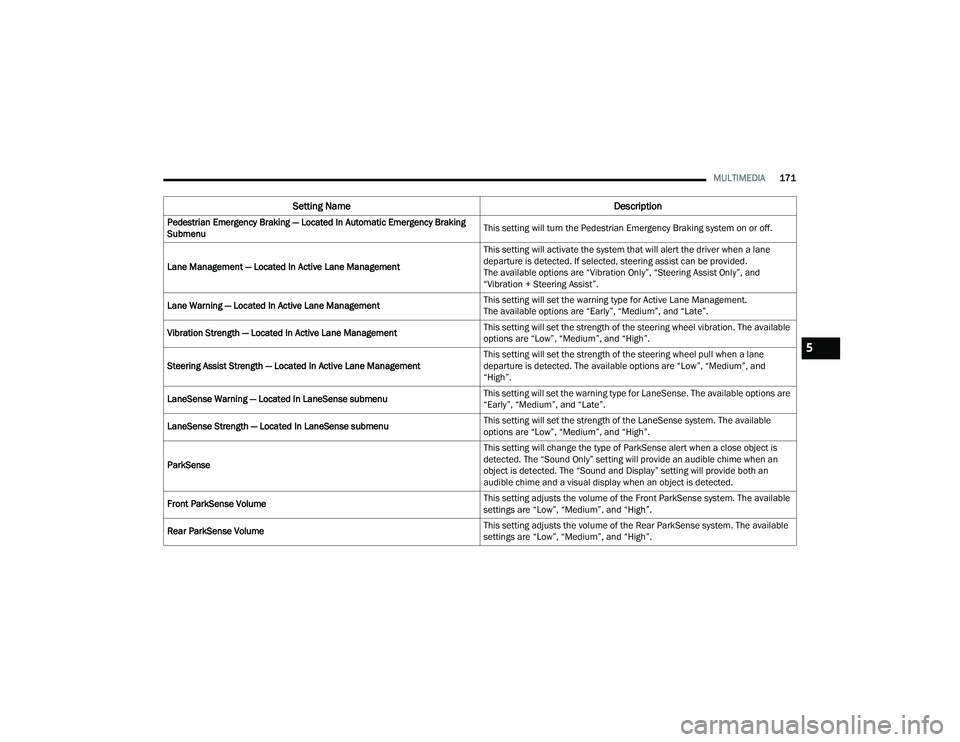
MULTIMEDIA171
Pedestrian Emergency Braking — Located In Automatic Emergency Braking
Submenu This setting will turn the Pedestrian Emergency Braking system on or off.
Lane Management — Located In Active Lane Management This setting will activate the system that will alert the driver when a lane
departure is detected. If selected, steering assist can be provided.
The available options are “Vibration Only”, “Steering Assist Only”, and
“Vibration + Steering Assist”.
Lane Warning — Located In Active Lane Management This setting will set the warning type for Active Lane Management.
The available options are “Early”, “Medium”, and “Late”.
Vibration Strength — Located In Active Lane Management This setting will set the strength of the steering wheel vibration. The available
options are “Low”, “Medium”, and “High”.
Steering Assist Strength — Located In Active Lane Management This setting will set the strength of the steering wheel pull when a lane
departure is detected. The available options are “Low”, “Medium”, and
“High”.
LaneSense Warning — Located In LaneSense submenu This setting will set the warning type for LaneSense. The available options are
“Early”, “Medium”, and “Late”.
LaneSense Strength — Located In LaneSense submenu This setting will set the strength of the LaneSense system. The available
options are “Low”, “Medium”, and “High”.
ParkSense This setting will change the type of ParkSense alert when a close object is
detected. The “Sound Only” setting will provide an audible chime when an
object is detected. The “Sound and Display” setting will provide both an
audible chime and a visual display when an object is detected.
Front ParkSense Volume This setting adjusts the volume of the Front ParkSense system. The available
settings are “Low”, “Medium”, and “High”.
Rear ParkSense Volume This setting adjusts the volume of the Rear ParkSense system. The available
settings are “Low”, “Medium”, and “High”.
Setting Name
Description
5
22_MP_OM_EN_USC_t.book Page 171
Page 174 of 344
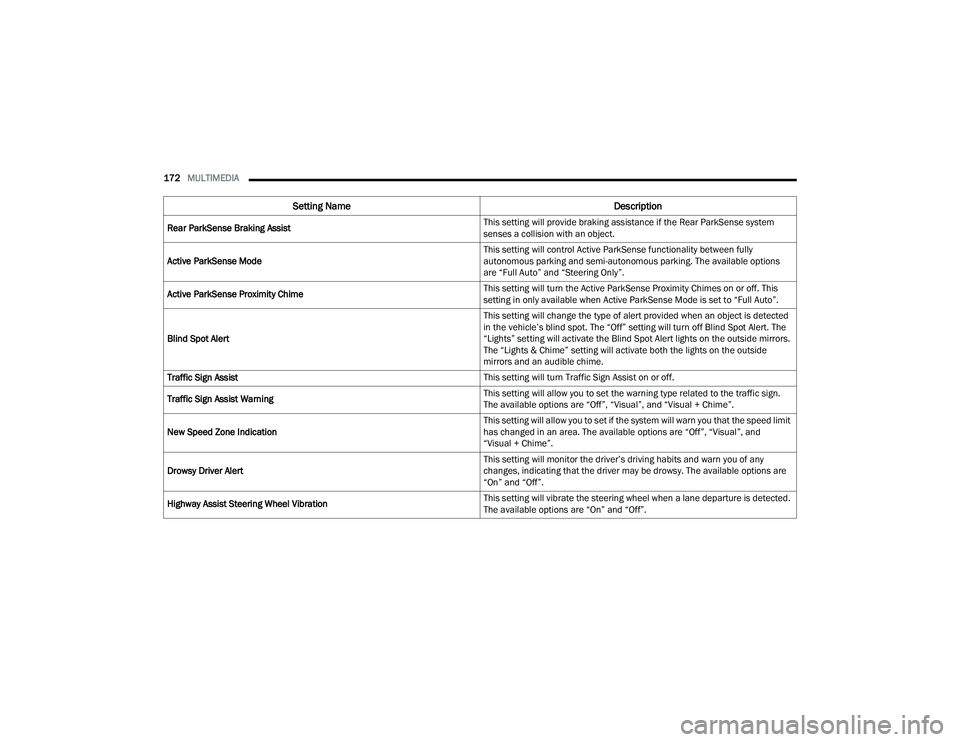
172MULTIMEDIA
Rear ParkSense Braking Assist This setting will provide braking assistance if the Rear ParkSense system
senses a collision with an object.
Active ParkSense Mode This setting will control Active ParkSense functionality between fully
autonomous parking and semi-autonomous parking. The available options
are “Full Auto” and “Steering Only”.
Active ParkSense Proximity Chime This setting will turn the Active ParkSense Proximity Chimes on or off. This
setting in only available when Active ParkSense Mode is set to “Full Auto”.
Blind Spot Alert This setting will change the type of alert provided when an object is detected
in the vehicle’s blind spot. The “Off” setting will turn off Blind Spot Alert. The
“Lights” setting will activate the Blind Spot Alert lights on the outside mirrors.
The “Lights & Chime” setting will activate both the lights on the outside
mirrors and an audible chime.
Traffic Sign Assist This setting will turn Traffic Sign Assist on or off.
Traffic Sign Assist Warning This setting will allow you to set the warning type related to the traffic sign.
The available options are “Off”, “Visual”, and “Visual + Chime”.
New Speed Zone Indication This setting will allow you to set if the system will warn you that the speed limit
has changed in an area. The available options are “Off”, “Visual”, and
“Visual + Chime”.
Drowsy Driver Alert This setting will monitor the driver’s driving habits and warn you of any
changes, indicating that the driver may be drowsy. The available options are
“On” and “Off”.
Highway Assist Steering Wheel Vibration This setting will vibrate the steering wheel when a lane departure is detected.
The available options are “On” and “Off”.
Setting Name
Description
22_MP_OM_EN_USC_t.book Page 172