android auto JEEP GRAND CHEROKEE 2018 Owner handbook (in English)
[x] Cancel search | Manufacturer: JEEP, Model Year: 2018, Model line: GRAND CHEROKEE, Model: JEEP GRAND CHEROKEE 2018Pages: 368, PDF Size: 5.72 MB
Page 327 of 368
Select The iPhone's Priority Level
When the pairing process has successfully
completed, the system will prompt you to
choose whether or not this is your favorite
mobile phone. Selecting “Yes” will make this
mobile phone the highest priority. This mo-
bile phone will take precedence over other
paired mobile phones within range and will
connect to the Uconnect system automati-
cally when entering the vehicle. Only one
mobile phone and/or one Bluetooth audio
device can be connected to the Uconnect
system at a time. If “No” is selected, simply
select “Uconnect” from the mobile phone/
audio device Bluetooth screen, and the
Uconnect system will reconnect to the
Bluetooth device.Pair Your Android Device:
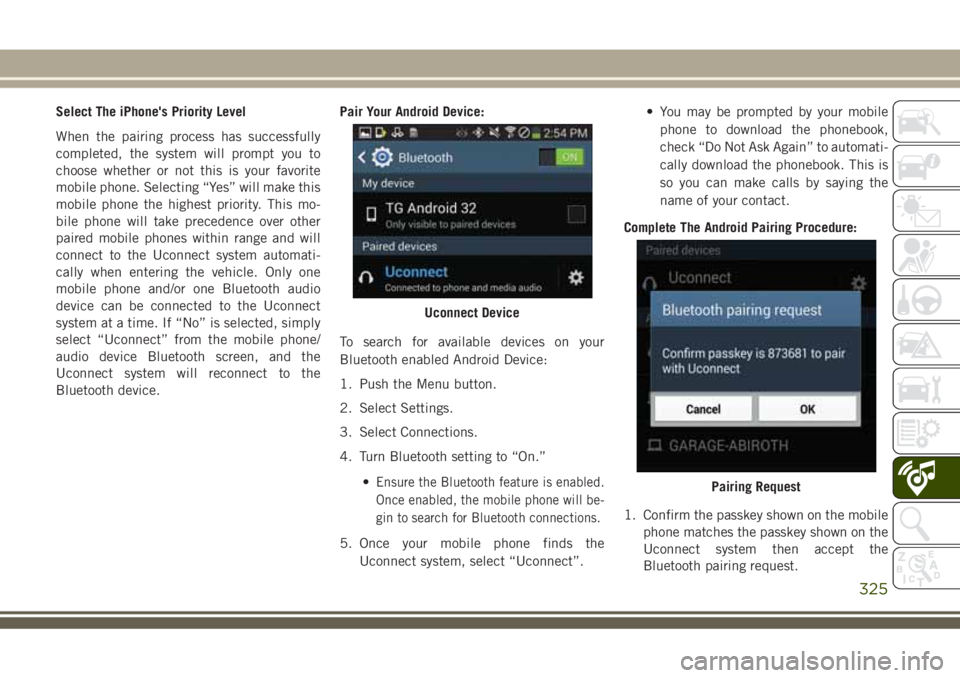
To search for available devices on your
Bluetooth enabled Android Device:
1. Push the Menu button.
2. Select Settings.
3. Select Connections.
4. Turn Bluetooth setting to “On.”
•
Ensure the Bluetooth feature is enabled.
Once enabled, the mobile phone will be-
gin to search for Bluetooth connections.
5. Once your mobile phone finds the
Uconnect system, select “Uconnect”.• You may be prompted by your mobile
phone to download the phonebook,
check “Do Not Ask Again” to automati-
cally download the phonebook. This is
so you can make calls by saying the
name of your contact.
Complete The Android Pairing Procedure:
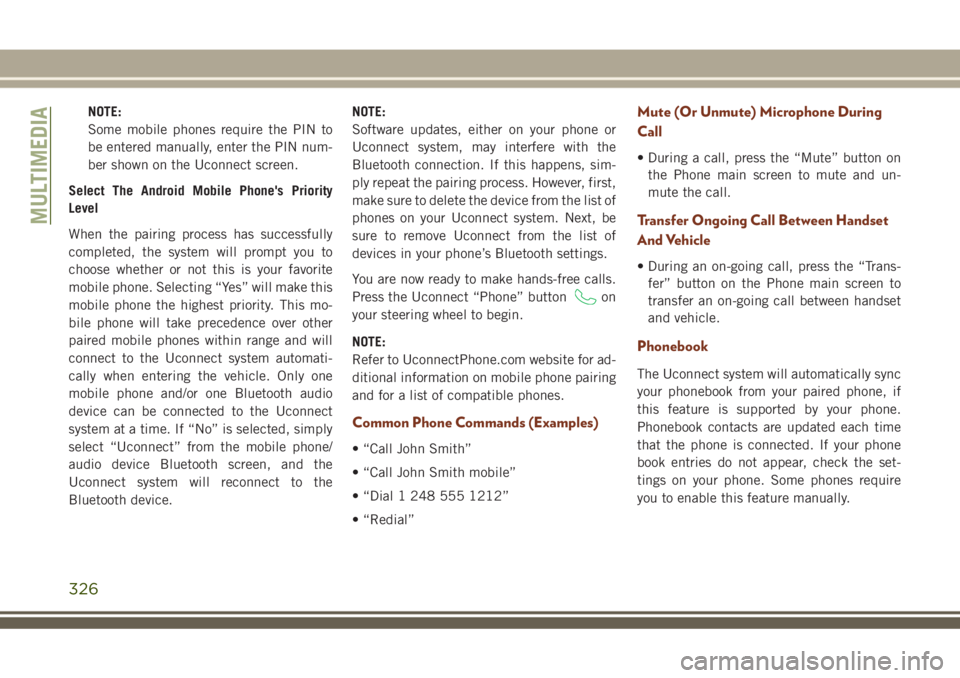
1. Confirm the passkey shown on the mobile
phone matches the passkey shown on the
Uconnect system then accept the
Bluetooth pairing request.
Uconnect Device
Pairing Request
325
Page 328 of 368
NOTE:
Some mobile phones require the PIN to
be entered manually, enter the PIN num-
ber shown on the Uconnect screen.
Select The Android Mobile Phone's Priority
Level
When the pairing process has successfully
completed, the system will prompt you to
choose whether or not this is your favorite
mobile phone. Selecting “Yes” will make this
mobile phone the highest priority. This mo-
bile phone will take precedence over other
paired mobile phones within range and will
connect to the Uconnect system automati-
cally when entering the vehicle. Only one
mobile phone and/or one Bluetooth audio
device can be connected to the Uconnect
system at a time. If “No” is selected, simply
select “Uconnect” from the mobile phone/
audio device Bluetooth screen, and the
Uconnect system will reconnect to the
Bluetooth device.NOTE:
Software updates, either on your phone or
Uconnect system, may interfere with the
Bluetooth connection. If this happens, sim-
ply repeat the pairing process. However, first,
make sure to delete the device from the list of
phones on your Uconnect system. Next, be
sure to remove Uconnect from the list of
devices in your phone’s Bluetooth settings.
You are now ready to make hands-free calls.
Press the Uconnect “Phone” button
on
your steering wheel to begin.
NOTE:
Refer to UconnectPhone.com website for ad-
ditional information on mobile phone pairing
and for a list of compatible phones.
Common Phone Commands (Examples)
• “Call John Smith”
• “Call John Smith mobile”
• “Dial 1 248 555 1212”
• “Redial”
Mute (Or Unmute) Microphone During
Call
• During a call, press the “Mute” button on
the Phone main screen to mute and un-
mute the call.
Transfer Ongoing Call Between Handset
And Vehicle
• During an on-going call, press the “Trans-
fer” button on the Phone main screen to
transfer an on-going call between handset
and vehicle.
Phonebook
The Uconnect system will automatically sync
your phonebook from your paired phone, if
this feature is supported by your phone.
Phonebook contacts are updated each time
that the phone is connected. If your phone
book entries do not appear, check the set-
tings on your phone. Some phones require
you to enable this feature manually.
MULTIMEDIA
326
Page 337 of 368
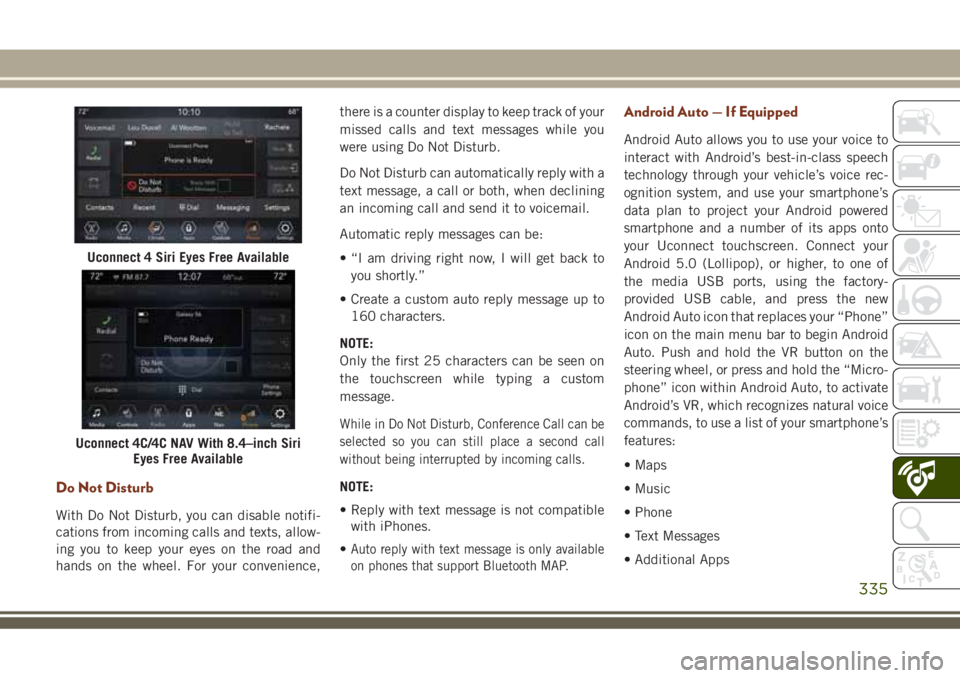
Do Not Disturb
With Do Not Disturb, you can disable notifi-
cations from incoming calls and texts, allow-
ing you to keep your eyes on the road and
hands on the wheel. For your convenience,there is a counter display to keep track of your
missed calls and text messages while you
were using Do Not Disturb.
Do Not Disturb can automatically reply with a
text message, a call or both, when declining
an incoming call and send it to voicemail.
Automatic reply messages can be:
• “I am driving right now, I will get back to
you shortly.”
• Create a custom auto reply message up to
160 characters.
NOTE:
Only the first 25 characters can be seen on
the touchscreen while typing a custom
message.
While in Do Not Disturb, Conference Call can be
selected so you can still place a second call
without being interrupted by incoming calls.
NOTE:
• Reply with text message is not compatible
with iPhones.
•
Auto reply with text message is only available
on phones that support Bluetooth MAP.
Android Auto — If Equipped
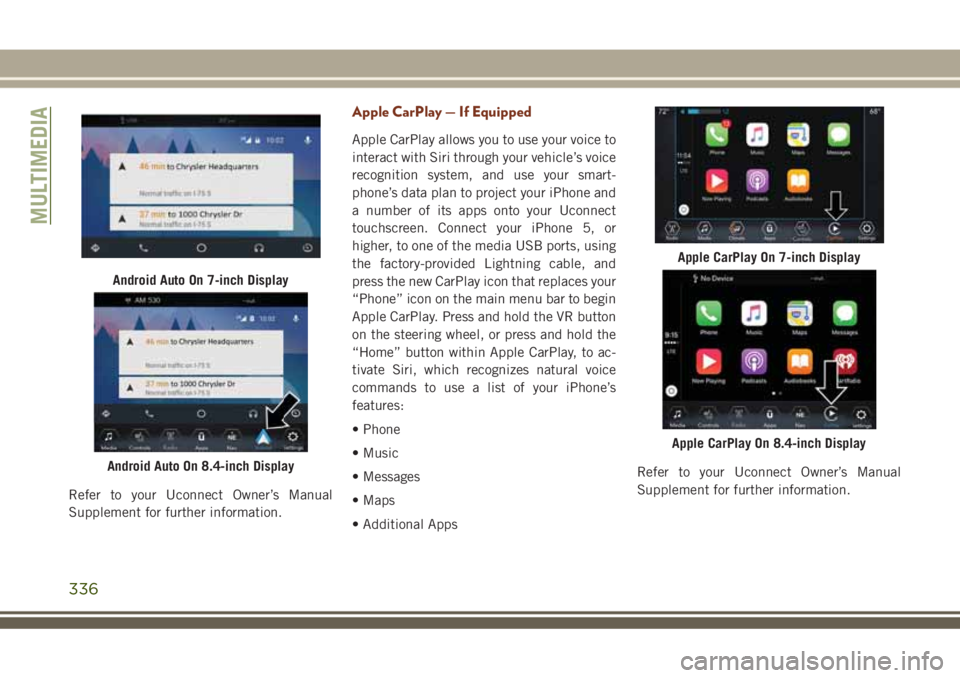
Android Auto allows you to use your voice to
interact with Android’s best-in-class speech
technology through your vehicle’s voice rec-
ognition system, and use your smartphone’s
data plan to project your Android powered
smartphone and a number of its apps onto
your Uconnect touchscreen. Connect your
Android 5.0 (Lollipop), or higher, to one of
the media USB ports, using the factory-
provided USB cable, and press the new
Android Auto icon that replaces your “Phone”
icon on the main menu bar to begin Android
Auto. Push and hold the VR button on the
steering wheel, or press and hold the “Micro-
phone” icon within Android Auto, to activate
Android’s VR, which recognizes natural voice
commands, to use a list of your smartphone’s
features:
• Maps
• Music
• Phone
• Text Messages
• Additional Apps
Uconnect 4 Siri Eyes Free Available
Uconnect 4C/4C NAV With 8.4–inch Siri
Eyes Free Available
335
Page 338 of 368
Refer to your Uconnect Owner’s Manual
Supplement for further information.
Apple CarPlay — If Equipped
Apple CarPlay allows you to use your voice to
interact with Siri through your vehicle’s voice
recognition system, and use your smart-
phone’s data plan to project your iPhone and
a number of its apps onto your Uconnect
touchscreen. Connect your iPhone 5, or
higher, to one of the media USB ports, using
the factory-provided Lightning cable, and
press the new CarPlay icon that replaces your
“Phone” icon on the main menu bar to begin
Apple CarPlay. Press and hold the VR button
on the steering wheel, or press and hold the
“Home” button within Apple CarPlay, to ac-
tivate Siri, which recognizes natural voice
commands to use a list of your iPhone’s
features:
• Phone
• Music
• Messages
• Maps
• Additional AppsRefer to your Uconnect Owner’s Manual
Supplement for further information.
Android Auto On 7-inch Display
Android Auto On 8.4-inch Display
Apple CarPlay On 7-inch Display
Apple CarPlay On 8.4-inch Display
MULTIMEDIA
336