AUX JEEP GRAND CHEROKEE 2023 Owners Manual
[x] Cancel search | Manufacturer: JEEP, Model Year: 2023, Model line: GRAND CHEROKEE, Model: JEEP GRAND CHEROKEE 2023Pages: 424, PDF Size: 15.48 MB
Page 5 of 424

3
MIRRORS ............................................................... 49 Inside Rearview Mirror .....................................49
Illuminated Vanity Mirrors ...............................50
Outside Mirrors ................................................51
Outside Automatic Dimming Mirror —
If Equipped........................................................52
Power Mirrors ...................................................52
Automatic Power Folding Mirrors — If Equipped ...53
Heated Mirrors — If Equipped..........................53
Tilt Side Mirrors In Reverse — If Equipped......53
UNIVERSAL GARAGE DOOR OPENER
(HOMELINK®) — IF EQUIPPED ............................ 53
Before You Begin Programming HomeLink® ... 54
Erasing All The HomeLink® Channels ............54
Identifying Whether You Have A Rolling Code
Or Non-Rolling Code Device.............................54
Programming HomeLink® To A Garage Door
Opener ..............................................................54
Programming HomeLink® To A Miscellaneous
Device ...............................................................55
Reprogramming A Single HomeLink® Button.... 56
Canadian/Gate Operator Programming .........56
Security .............................................................57
Troubleshooting Tips ........................................57 EXTERIOR LIGHTS ..................................................57
Headlight Switch .............................................57
Multifunction Lever ..........................................58
Daytime Running Lights (DRLs) —
If Equipped .......................................................58
High/Low Beam Switch....................................59
Automatic High Beams — If Equipped ............59
Flash-To-Pass ...................................................59
Automatic Headlights ......................................59
Parking Lights And Panel Lights ......................59
Headlights On Automatically With Wipers ......60
Headlight Illumination On Approach ...............60
Headlight Delay ................................................60
Lights-On Reminder .........................................61
Fog Lights — If Equipped .................................61
Turn Signals ......................................................61
Lane Change Assist — If Equipped ..................61
Automatic Headlight Leveling —
If Equipped........................................................61
Battery Saver ....................................................62
INTERIOR LIGHTS ..................................................62
Courtesy Lights .................................................62 WINDSHIELD WIPERS AND WASHERS ............. 64
Windshield Wiper Operation............................ 64
Rain Sensing Wipers — If Equipped ............... 65
Rear Wiper And Washer .................................. 66
Windshield Wiper De-Icer —If Equipped ........ 66
CLIMATE CONTROLS ............................................. 66
Automatic Climate Control Descriptions And
Functions .......................................................... 66
Automatic Temperature Control (ATC) ............ 72
Climate Voice Recognition............................... 72
Operating Tips .................................................73
INTERIOR STORAGE AND EQUIPMENT ............... 74
Storage ............................................................. 74
Lighted Cupholders — If Equipped .................. 76
Sun Screens — If Equipped .............................76
USB/AUX Control ............................................. 77
Electrical Power Outlets................................... 78
Power Inverter — If Equipped .......................... 80
Wireless Charging Pad — If Equipped ............ 80
WINDOWS ............................................................. 81
Power Window Controls ................................... 81
Wind Buffeting .................................................83
23_WL_OM_EN_USC_t.book Page 3
Page 9 of 424

7
REAR SEAT ENTERTAINMENT (RSE) WITH
AMAZON FIRE TV BUILT-IN — IF EQUIPPED ..... 234 Overview......................................................... 234
Getting Started .............................................. 235Accessing Rear Seat Entertainment with Fire
TV built-in from the Front Radio Screen....... 235Accessing Rear Seat Entertainment with Fire
TV built-in from the Rear Screens ................ 236
Accessing Rear Seat Entertainment with Fire TV
built-in from the Passenger Screen —
If Equipped..................................................... 236
First Time Starting Up
(Using the Rear Screens) .............................. 236Alexa Voice Control........................................ 237
Listen Via Vehicle Speakers ......................... 237Quick Menu.................................................... 237
Parental Controls (Using the Rear Screens) .. 238
Voice Remote with Alexa Pairing (Using the
Rear Screens) ................................................ 238
Media Sources Input (Using the Front Radio and
Rear Screens) ................................................ 238
Voice Remote with Alexa............................... 239 Replacing the Voice Remote with
Alexa Batteries .............................................. 239
Rear Seat Entertainment with Fire TV Built-In
streaming (Using the Front Radio and Rear
Screens) ......................................................... 240
Fire TV Apps/Games
(Using the Rear Screens) .............................. 241
Are We There Yet? ......................................... 241
Using The Video USB Port ............................. 242
Play Video Games ......................................... 242
Headphones Operation................................. 242
Rear Climate Controls ................................... 243Legal & Compliance ...................................... 245
OFF-ROAD PAGES — IF EQUIPPED.................... 245
Off-Road Pages Status Bar .......................... 245
Vehicle Dynamics ......................................... 246
Accessory Gauges ........................................ 246Pitch & Roll ................................................... 246
Selec-Terrain — If Equipped ......................... 246
Suspension — If Equipped ............................ 247
RADIO OPERATION AND MOBILE PHONES ..... 247
Regulatory And Safety Information .............. 247
SAFETY
SAFETY FEATURES .............................................. 248 Anti-Lock Brake System (ABS) ..................... 248
Drowsy Driver Detection (DDD) — If Equipped .... 249
Rear Seat Reminder Alert (RSRA) ................ 249Electronic Brake Control (EBC) System ...... 250
AUXILIARY DRIVING SYSTEMS .......................... 258
Blind Spot Monitoring (BSM) ........................ 258Forward Collision Warning (FCW)
With Mitigation .............................................. 261
Tire Pressure Monitoring System (TPMS) .... 264
OCCUPANT RESTRAINT SYSTEMS ................... 269
Occupant Restraint Systems Features ....... 269
Important Safety Precautions ...................... 269
Seat Belt Systems ........................................ 270
Supplemental Restraint Systems (SRS) ...... 277Child Restraints ............................................. 289
SAFETY TIPS ........................................................ 303
Transporting Passengers.............................. 303
Transporting Pets ......................................... 303
Connected Vehicles ...................................... 303
Safety Checks You Should Make Inside The
Vehicle .......................................................... 303Periodic Safety Checks You Should Make
Outside The Vehicle ...................................... 305
Exhaust Gas................................................... 305
Carbon Monoxide Warnings ......................... 306
23_WL_OM_EN_USC_t.book Page 7
Page 79 of 424
GETTING TO KNOW YOUR VEHICLE77
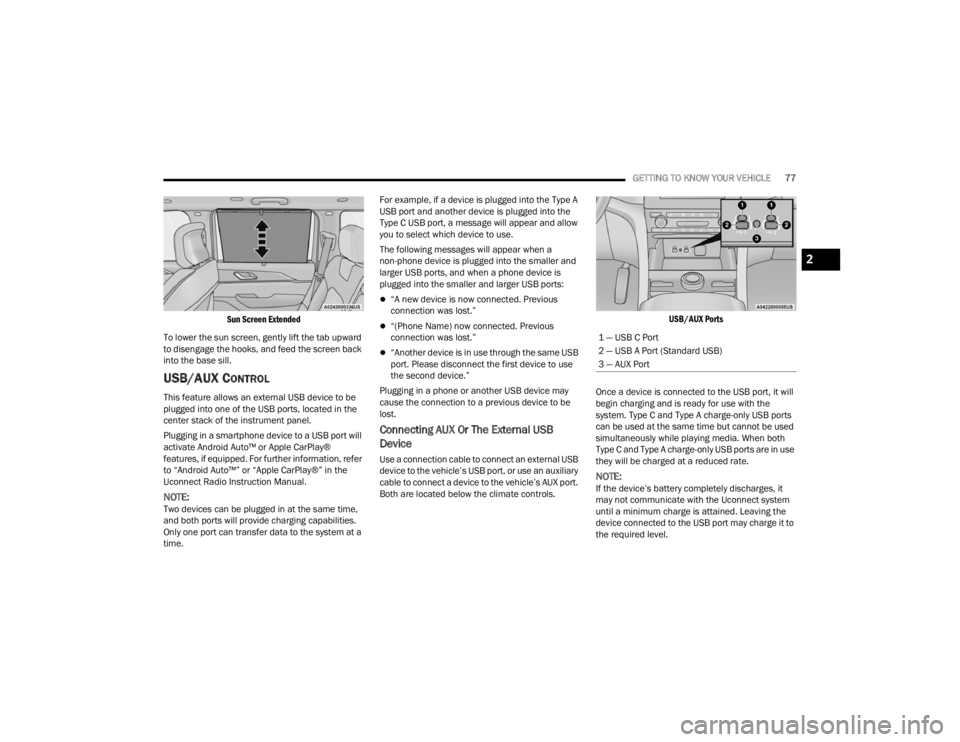
Sun Screen Extended
To lower the sun screen, gently lift the tab upward
to disengage the hooks, and feed the screen back
into the base sill.
USB/AUX CONTROL
This feature allows an external USB device to be
plugged into one of the USB ports, located in the
center stack of the instrument panel.
Plugging in a smartphone device to a USB port will
activate Android Auto™ or Apple CarPlay®
features, if equipped. For further information, refer
to “Android Auto™” or “Apple CarPlay®” in the
Uconnect Radio Instruction Manual.
NOTE:Two devices can be plugged in at the same time,
and both ports will provide charging capabilities.
Only one port can transfer data to the system at a
time. For example, if a device is plugged into the Type A
USB port and another device is plugged into the
Type C USB port, a message will appear and allow
you to select which device to use.
The following messages will appear when a
non-phone device is plugged into the smaller and
larger USB ports, and when a phone device is
plugged into the smaller and larger USB ports:
“A new device is now connected. Previous
connection was lost.”
“(Phone Name) now connected. Previous
connection was lost.”
“Another device is in use through the same USB
port. Please disconnect the first device to use
the second device.”
Plugging in a phone or another USB device may
cause the connection to a previous device to be
lost.
Connecting AUX Or The External USB
Device
Use a connection cable to connect an external USB
device to the vehicle’s USB port, or use an auxiliary
cable to connect a device to the vehicle’s AUX port.
Both are located below the climate controls.
USB/AUX Ports
Once a device is connected to the USB port, it will
begin charging and is ready for use with the
system. Type C and Type A charge-only USB ports
can be used at the same time but cannot be used
simultaneously while playing media. When both
Type C and Type A charge-only USB ports are in use
they will be charged at a reduced rate.
NOTE:If the device’s battery completely discharges, it
may not communicate with the Uconnect system
until a minimum charge is attained. Leaving the
device connected to the USB port may charge it to
the required level.
1 — USB C Port
2 — USB A Port (Standard USB)
3 — AUX Port
2
23_WL_OM_EN_USC_t.book Page 77
Page 80 of 424
78GETTING TO KNOW YOUR VEHICLE
Using This Feature
By using a USB cable to connect an external
device:
The device can be played on the vehicle’s sound
system, and provides the artist, track title, and
album information on the radio display.
NOTE:Depending on track configuration, track infor -
mation may not be present on the radio display.
The device can be controlled using the radio
buttons to play and browse the contents of the
device.
The audio device battery charges when plugged
into the USB port.
By using an auxiliary cable to connect an external
device:
The audio device can be played on the vehicle’s
sound system. The Uconnect system will not
display information related to the artist, track
title, and album information.
NOTE:When using the AUX port, the external device
cannot be controlled using the radio buttons. The
device will not charge.
For further information, refer to the Uconnect
Radio Instruction Manual.
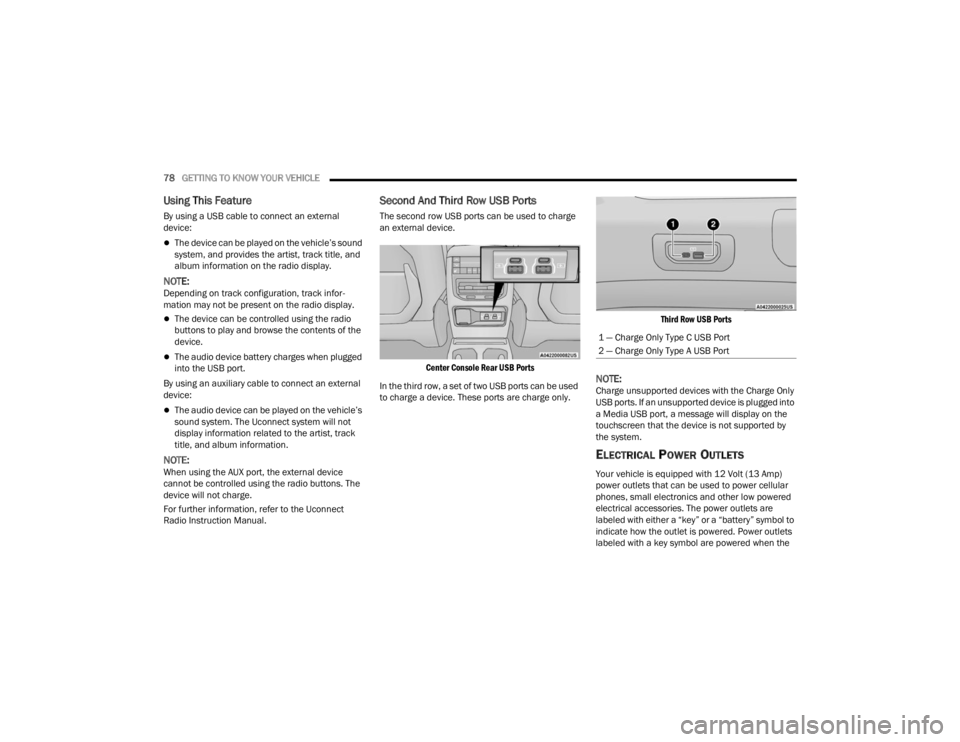
Second And Third Row USB Ports
The second row USB ports can be used to charge
an external device.
Center Console Rear USB Ports
In the third row, a set of two USB ports can be used
to charge a device. These ports are charge only.
Third Row USB Ports
NOTE:Charge unsupported devices with the Charge Only
USB ports. If an unsupported device is plugged into
a Media USB port, a message will display on the
touchscreen that the device is not supported by
the system.
ELECTRICAL POWER OUTLETS
Your vehicle is equipped with 12 Volt (13 Amp)
power outlets that can be used to power cellular
phones, small electronics and other low powered
electrical accessories. The power outlets are
labeled with either a “key” or a “battery” symbol to
indicate how the outlet is powered. Power outlets
labeled with a key symbol are powered when the
1 — Charge Only Type C USB Port
2 — Charge Only Type A USB Port
23_WL_OM_EN_USC_t.book Page 78
Page 224 of 424

222MULTIMEDIA
Suspension
Radio Off Delay
This setting will keep the radio on for the selected amount of time after vehicle
shut off. The available options are “0 sec”, “45 sec”, “5 min”, and “10 min”.
Radio Off With Door This setting will keep the radio on when a door is opened or until the Radio Off
Delay time is reached. The available settings are “On” and “Off”.
Windows With Key Fob This setting will allow you to control window function while the vehicle is off.
The available options are “On” and “Off”.
Setting Name
Description
When the Suspension button is pressed on the touchscreen, the system will display settings related to the vehicle’s air suspension.
NOTE:Depending on the vehicle’s options, feature settings may vary.
Setting NameDescription
Auto Entry/Exit Suspension This setting will turn the Auto Entry/Exit Suspension system on or off.
Display Suspension Messages This setting will display suspension messages in the Instrument Cluster
Display. The “All” setting will display all available messages. The “Warnings
Only” setting will only display warning messages.
Tire Jack Mode This setting will disable the Air Suspension system to assist in changing a
spare tire.
Auxiliary Mode This setting will allow you to set the Auxiliary Suspension Mode. The available
options are “Off”, “Transport Mode”, and “Wheel Alignment Mode”. In
Transport Mode, the vehicle will not auto level when being transported by
another vehicle. In Wheel Alignment Mode, the vehicle will not auto level when
a wheel alignment is being performed.
23_WL_OM_EN_USC_t.book Page 222
Page 225 of 424

MULTIMEDIA223
Audio
When the Audio button is pressed on the touchscreen, the system displays options related to the vehicle’s sound system. These settings can change the audio
location within the vehicle, adjust the bass or treble levels, and auto-play settings from an audio device or smartphone.
NOTE:Depending on the vehicle’s options, feature settings may vary.
Setting Name Description
Balance/Fade This setting will adjust audio levels from specific speakers in the front/back
and left/right of the vehicle. The Speaker icon can be moved to set audio
location.
Equalizer This setting will adjust the “Bass”, “Mid”, and “Treble” ranges of the audio.
Speed Adjusted Volume This setting will adjust audio volume as speeds increase. At a higher setting,
the volume will increase more as the vehicle speeds up. The available settings
are “Off”, “1”, “2”, and “3”.
Surround Sound This setting will turn the Surround Sound system on or off.
AUX Volume Offset This setting will tune the audio levels from a device connected through the
AUX port. The available settings are “+” and “-”.
Auto Play This setting will automatically begin playing audio from a connected device.
Auto-On Radio This setting will automatically turn the radio on when the vehicle is started, if
selected. The available settings are “Off”, “On”, and “Recall Last”. With Recall
Last, the system resumes the previous task before vehicle shut off.
Radio off With Door This setting will keep the radio on when a door is opened or until the Radio Off
Delay time is reached. The available settings are “On” and “Off”.
Volume Adjustment This setting will allow you to set the audio volume levels for each option
(Media, Phone, Navigation, etc.). You can set the volume between 0 and 38.
Media Expander This setting will allow you to turn the Media Expander setting “On” or “Off”.
5
23_WL_OM_EN_USC_t.book Page 223
Page 230 of 424
228MULTIMEDIA
STEERING WHEEL AUDIO CONTROLS
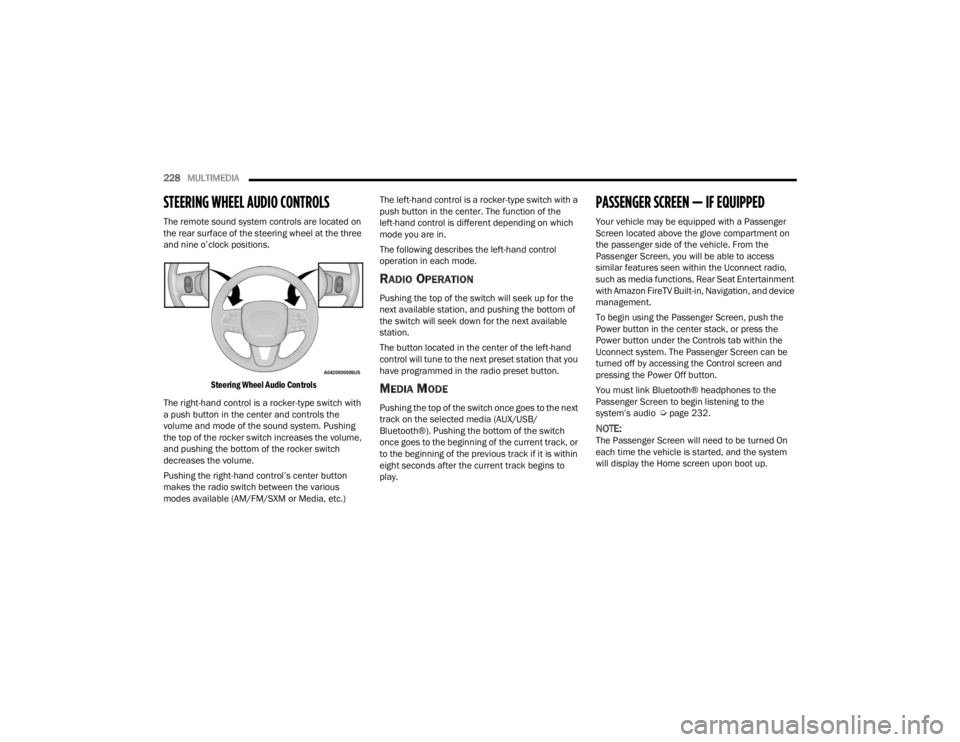
The remote sound system controls are located on
the rear surface of the steering wheel at the three
and nine o’clock positions.
Steering Wheel Audio Controls
The right-hand control is a rocker-type switch with
a push button in the center and controls the
volume and mode of the sound system. Pushing
the top of the rocker switch increases the volume,
and pushing the bottom of the rocker switch
decreases the volume.
Pushing the right-hand control’s center button
makes the radio switch between the various
modes available (AM/FM/SXM or Media, etc.) The left-hand control is a rocker-type switch with a
push button in the center. The function of the
left-hand control is different depending on which
mode you are in.
The following describes the left-hand control
operation in each mode.
RADIO OPERATION
Pushing the top of the switch will seek up for the
next available station, and pushing the bottom of
the switch will seek down for the next available
station.
The button located in the center of the left-hand
control will tune to the next preset station that you
have programmed in the radio preset button.
MEDIA MODE
Pushing the top of the switch once goes to the next
track on the selected media (AUX/USB/
Bluetooth®). Pushing the bottom of the switch
once goes to the beginning of the current track, or
to the beginning of the previous track if it is within
eight seconds after the current track begins to
play.
PASSENGER SCREEN — IF EQUIPPED
Your vehicle may be equipped with a Passenger
Screen located above the glove compartment on
the passenger side of the vehicle. From the
Passenger Screen, you will be able to access
similar features seen within the Uconnect radio,
such as media functions, Rear Seat Entertainment
with Amazon FireTV Built-in, Navigation, and device
management.
To begin using the Passenger Screen, push the
Power button in the center stack, or press the
Power button under the Controls tab within the
Uconnect system. The Passenger Screen can be
turned off by accessing the Control screen and
pressing the Power Off button.
You must link Bluetooth® headphones to the
Passenger Screen to begin listening to the
system’s audio Ú
page 232.
NOTE:The Passenger Screen will need to be turned On
each time the vehicle is started, and the system
will display the Home screen upon boot up.
23_WL_OM_EN_USC_t.book Page 228
Page 233 of 424
MULTIMEDIA231
To change the media source, press the Source
button and then press on the desired source. The
available sources are:
Live Radio (FM, AM, SXM)
Bluetooth®
USB 1
USB 2
AUX
AV 1 — If Equipped
AV 2 — If Equipped
Rear Screen 1 Listen In — If Equipped
Rear Screen 2 Listen In — If Equipped
NOTE:
Audio devices connected via Bluetooth® must
be done through the Device Manager in the
radio. For more information on pairing a device,
refer to your Uconnect Radio Instruction
Manual.
If the driver is listening to “Live Radio”, the
option will not be available in the Passenger
Screen. Select “Now Playing On Radio” to listen
to the currently playing station. If the driver
selects a radio station while the Passenger
Screen is playing live radio content, the feed will
end on the Passenger Screen and control will be
given to the Uconnect system. On the Preset menu, you will be able to listen to
saved radio presets. Press the desired preset to
begin listening.
The Browse tab will let you browse through
different radio stations or audio saved onto a USB
or audio device. Press “Browse” and select from
the different folders. You can scroll up and down to
view the options within those folders. Press on the
desired radio station or audio track to begin
playing it.
When the USB source is selected, you can chose a
video file to play if saved to a USB device. Press
“Browse” and locate the folder with the video file.
Press the video file name, and it will begin to play
on the Passenger Screen.
NOTE:Not all video files will be supported from a USB.
Certain video files may require digital rights to view
or play. These may be unavailable for playback on
the Passenger Screen.
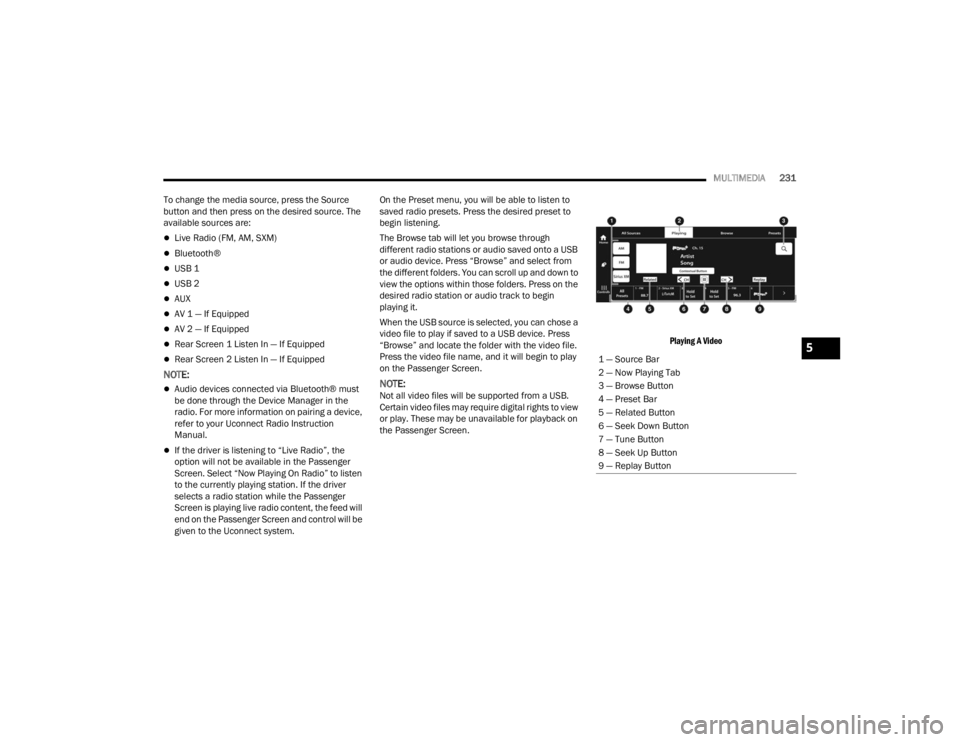
Playing A Video
1 — Source Bar
2 — Now Playing Tab
3 — Browse Button
4 — Preset Bar
5 — Related Button
6 — Seek Down Button
7 — Tune Button
8 — Seek Up Button
9 — Replay Button
5
23_WL_OM_EN_USC_t.book Page 231
Page 237 of 424
MULTIMEDIA235
music, get information, and watch downloaded
programs all while on the road. Two Voice Remotes
with Alexa are included with the system. Press the
Microphone button on the Voice Remote with Alexa
to easily find, launch, and control content. Check
sports scores, play music, control smart home
devices, or see your live camera feeds (compatible
smart home device required and sold separately).
In addition to streaming and downloaded content,
changing the input in Fire TV also enables you to:
Mirror what’s on your phone or tablet to Fire TV
via Miracast capable devices
Stream your favorite shows with Fire TV
Plug and play a variety of standard video games
or devices into the HDMI port
Listen to audio over wired or wireless head -
phones (not included, customer will have to
provide their own)
Plug and play a variety of devices into the front
seat Video USB port. USB ports located under
the rear screens are charge only
Watch content individually on each rear display
or mirror across both displays to watch together
NOTE:Vehicle must be in an active and usable cellular
range and properly equipped with a Uconnect
5 NAV system and Rear Seat Entertainment with
Fire TV package. Streaming requires a Wi-Fi
connection and registered Amazon account to run Fire TV in the vehicle. Streaming service subscrip
-
tions are not included. Services and features are
subject to change or withdrawal at any time, may
not be available in all areas and languages, and
may require separate subscriptions.
Please review this Owner's Manual to become
familiar with RSE features and operation.
GETTING STARTED
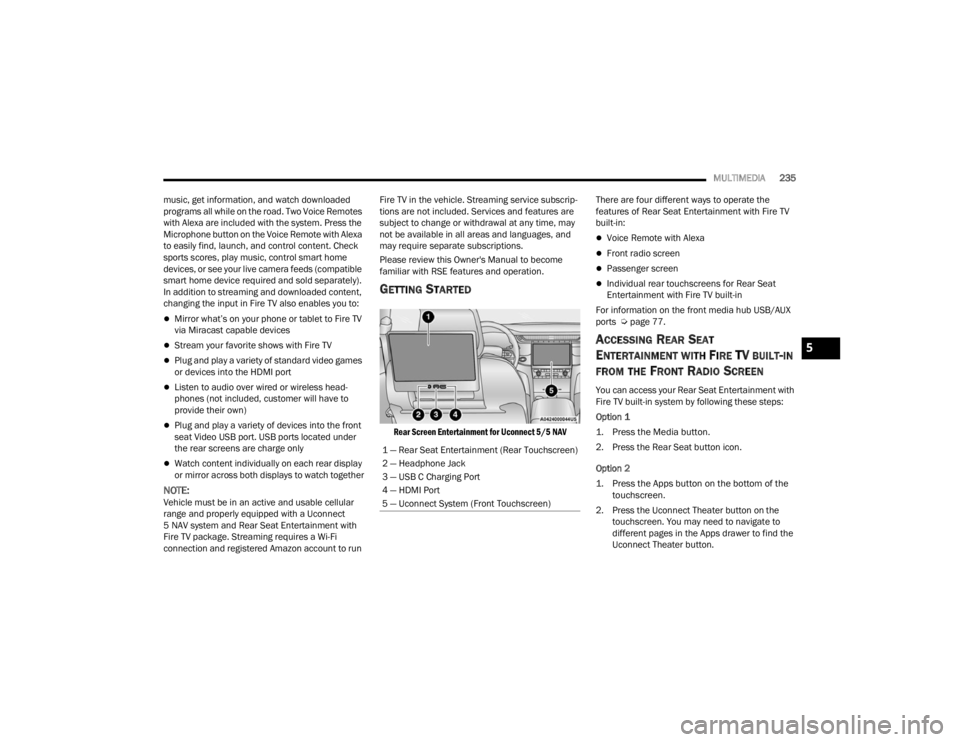
Rear Screen Entertainment for Uconnect 5/5 NAV
There are four different ways to operate the
features of Rear Seat Entertainment with Fire TV
built-in:
Voice Remote with Alexa
Front radio screen
Passenger screen
Individual rear touchscreens for Rear Seat
Entertainment with Fire TV built-in
For information on the front media hub USB/AUX
ports Ú page 77.
ACCESSING REAR SEAT
E
NTERTAINMENT WITH FIRE TV BUILT-IN
FROM THE FRONT RADIO SCREEN
You can access your Rear Seat Entertainment with
Fire TV built-in system by following these steps:
Option 1
1. Press the Media button.
2. Press the Rear Seat button icon.
Option 2
1. Press the Apps button on the bottom of the
touchscreen.
2. Press the Uconnect Theater button on the touchscreen. You may need to navigate to
different pages in the Apps drawer to find the
Uconnect Theater button.
1 — Rear Seat Entertainment (Rear Touchscreen)
2 — Headphone Jack
3 — USB C Charging Port
4 — HDMI Port
5 — Uconnect System (Front Touchscreen)
5
23_WL_OM_EN_USC_t.book Page 235
Page 260 of 424
258SAFETY
AUXILIARY DRIVING SYSTEMS
BLIND SPOT MONITORING (BSM)
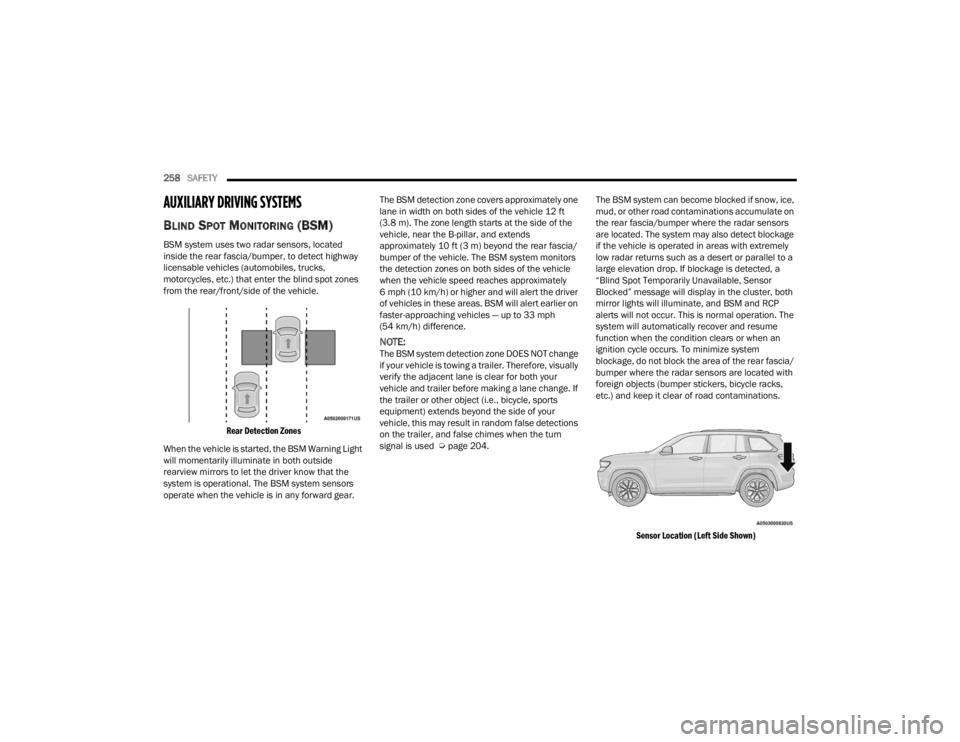
BSM system uses two radar sensors, located
inside the rear fascia/bumper, to detect highway
licensable vehicles (automobiles, trucks,
motorcycles, etc.) that enter the blind spot zones
from the rear/front/side of the vehicle.
Rear Detection Zones
When the vehicle is started, the BSM Warning Light
will momentarily illuminate in both outside
rearview mirrors to let the driver know that the
system is operational. The BSM system sensors
operate when the vehicle is in any forward gear. The BSM detection zone covers approximately one
lane in width on both sides of the vehicle 12 ft
(3.8 m). The zone length starts at the side of the
vehicle, near the B-pillar, and extends
approximately 10 ft (3 m) beyond the rear fascia/
bumper of the vehicle. The BSM system monitors
the detection zones on both sides of the vehicle
when the vehicle speed reaches approximately
6 mph (10 km/h) or higher and will alert the driver
of vehicles in these areas. BSM will alert earlier on
faster-approaching vehicles — up to 33 mph
(54 km/h) difference.
NOTE:The BSM system detection zone DOES NOT change
if your vehicle is towing a trailer. Therefore, visually
verify the adjacent lane is clear for both your
vehicle and trailer before making a lane change. If
the trailer or other object (i.e., bicycle, sports
equipment) extends beyond the side of your
vehicle, this may result in random false detections
on the trailer, and false chimes when the turn
signal is used Ú
page 204. The BSM system can become blocked if snow, ice,
mud, or other road contaminations accumulate on
the rear fascia/bumper where the radar sensors
are located. The system may also detect blockage
if the vehicle is operated in areas with extremely
low radar returns such as a desert or parallel to a
large elevation drop. If blockage is detected, a
“Blind Spot Temporarily Unavailable, Sensor
Blocked” message will display in the cluster, both
mirror lights will illuminate, and BSM and RCP
alerts will not occur. This is normal operation. The
system will automatically recover and resume
function when the condition clears or when an
ignition cycle occurs. To minimize system
blockage, do not block the area of the rear fascia/
bumper where the radar sensors are located with
foreign objects (bumper stickers, bicycle racks,
etc.) and keep it clear of road contaminations.
Sensor Location (Left Side Shown)
23_WL_OM_EN_USC_t.book Page 258