bluetooth JEEP GRAND CHEROKEE LIMITED 2019 Owners Manual
[x] Cancel search | Manufacturer: JEEP, Model Year: 2019, Model line: GRAND CHEROKEE LIMITED, Model: JEEP GRAND CHEROKEE LIMITED 2019Pages: 626, PDF Size: 3.77 MB
Page 516 of 626
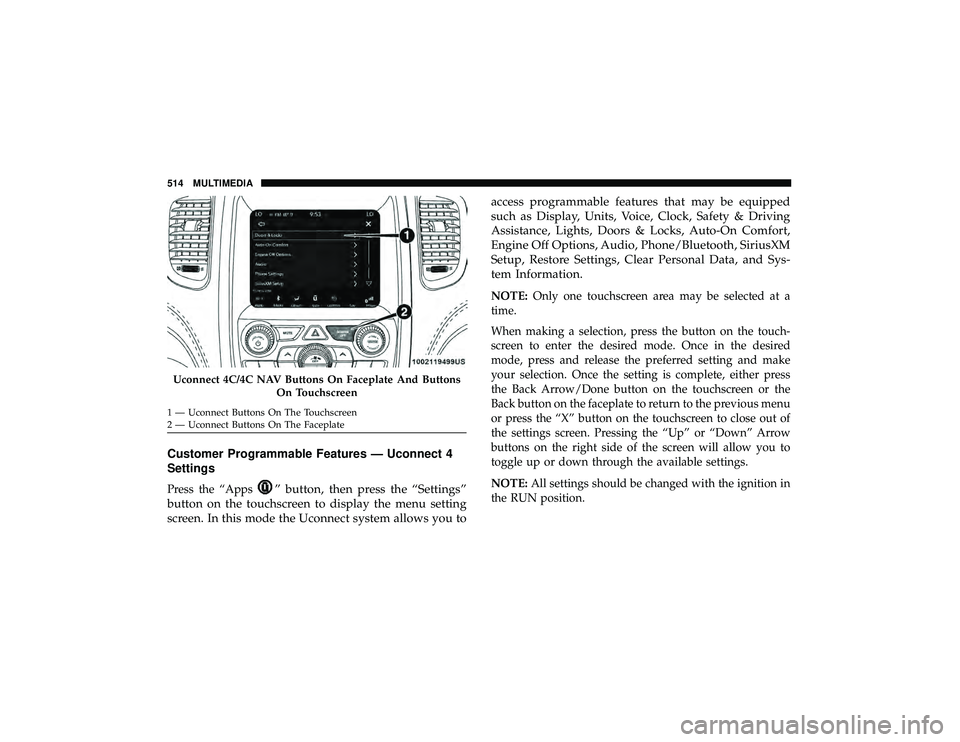
Customer Programmable Features — Uconnect 4
Settings
Press the “Apps” button, then press the “Settings”
button on the touchscreen to display the menu setting
screen. In this mode the Uconnect system allows you to access programmable features that may be equipped
such as Display, Units, Voice, Clock, Safety & Driving
Assistance, Lights, Doors & Locks, Auto-On Comfort,
Engine Off Options, Audio, Phone/Bluetooth, SiriusXM
Setup, Restore Settings, Clear Personal Data, and Sys-
tem Information.
NOTE:
Only one touchscreen area may be selected at a
time.
When making a selection, press the button on the touch-
screen to enter the desired mode. Once in the desired
mode, press and release the preferred setting and make
your selection. Once the setting is complete, either press
the Back Arrow/Done button on the touchscreen or the
Back button on the faceplate to return to the previous menu
or press the “X” button on the touchscreen to close out of
the settings screen. Pressing the “Up” or “Down” Arrow
buttons on the right side of the screen will allow you to
toggle up or down through the available settings.
NOTE: All settings should be changed with the ignition in
the RUN position.
Page 533 of 626
Setting NameSelectable Options
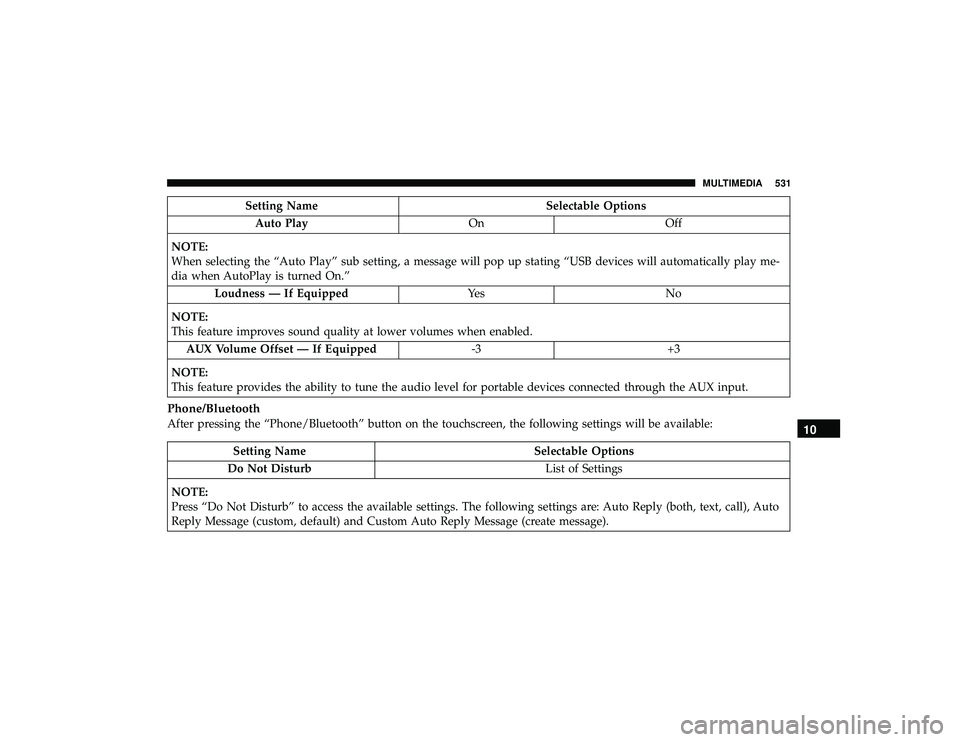
Auto Play OnOff
NOTE:
When selecting the “Auto Play” sub setting, a message will pop up stating “USB devices will automatically play me-
dia when AutoPlay is turned On.” Loudness — If Equipped Ye sN o
NOTE:
This feature improves sound quality at lower volumes when enabled. AUX Volume Offset — If Equipped -3+3
NOTE:
This feature provides the ability to tune the audio level for portable devices connected through the AUX input.
Phone/Bluetooth
After pressing the “Phone/Bluetooth” button on the touchscreen, the following settings will be available:
Page 534 of 626
Setting NameSelectable Options
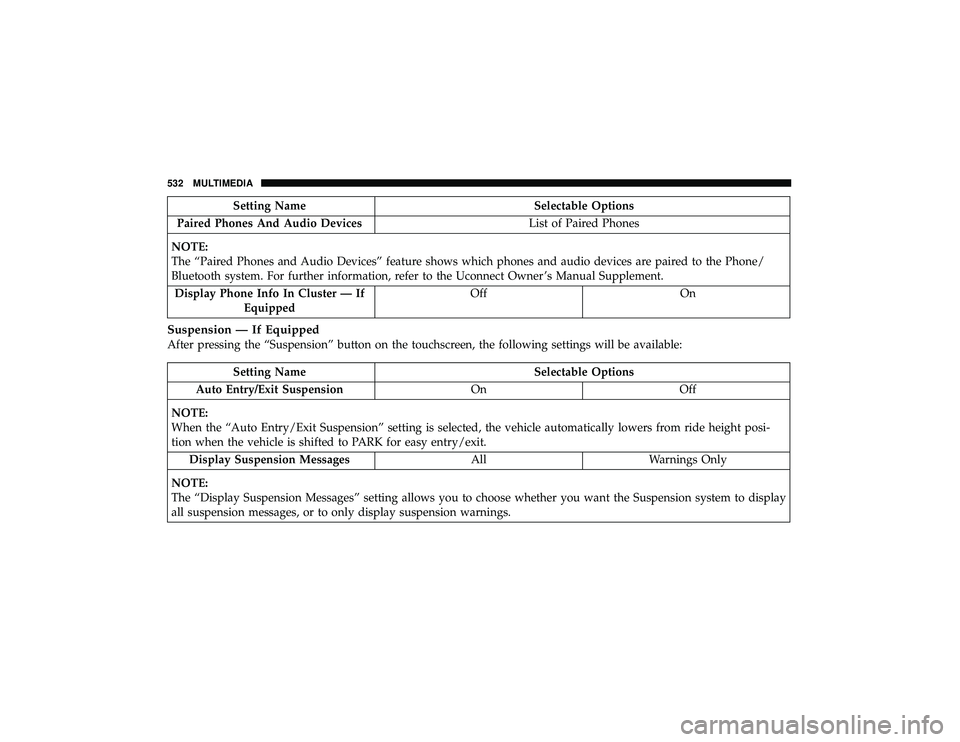
Paired Phones And Audio Devices List of Paired Phones
NOTE:
The “Paired Phones and Audio Devices” feature shows which phones and audio devices are paired to the Phone/
Bluetooth system. For further information, refer to the Uconnect Owner ’s Manual Supplement. Display Phone Info In Cluster — If Equipped Off
On
Suspension — If Equipped
After pressing the “Suspension” button on the touchscreen, the following settings will be available:
Page 538 of 626
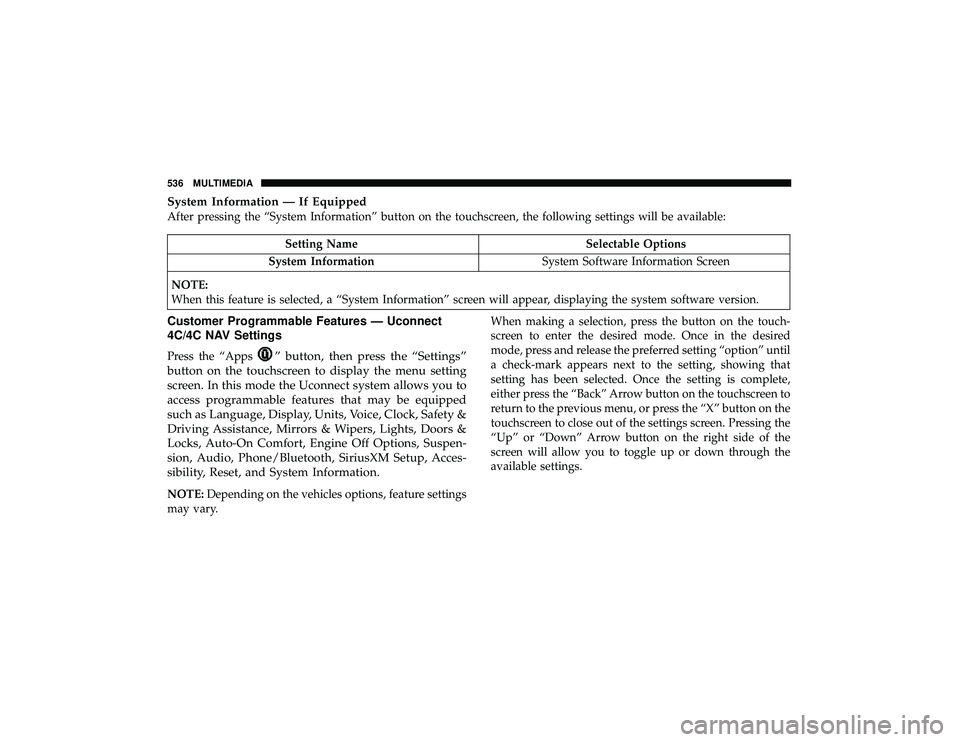
System Information — If Equipped
After pressing the “System Information” button on the touchscreen, the following settings will be available:
” button, then press the “Settings”
button on the touchscreen to display the menu setting
screen. In this mode the Uconnect system allows you to
access programmable features that may be equipped
such as Language, Display, Units, Voice, Clock, Safety &
Driving Assistance, Mirrors & Wipers, Lights, Doors &
Locks, Auto-On Comfort, Engine Off Options, Suspen-
sion, Audio, Phone/Bluetooth, SiriusXM Setup, Acces-
sibility, Reset, and System Information.
NOTE: Depending on the vehicles options, feature settings
may vary. When making a selection, press the button on the touch-
screen to enter the desired mode. Once in the desired
mode, press and release the preferred setting “option” until
a check-mark appears next to the setting, showing that
setting has been selected. Once the setting is complete,
either press the “Back” Arrow button on the touchscreen to
return to the previous menu, or press the “X” button on the
touchscreen to close out of the settings screen. Pressing the
“Up” or “Down” Arrow button on the right side of the
screen will allow you to toggle up or down through the
available settings.
536 MULTIMEDIA
Page 555 of 626
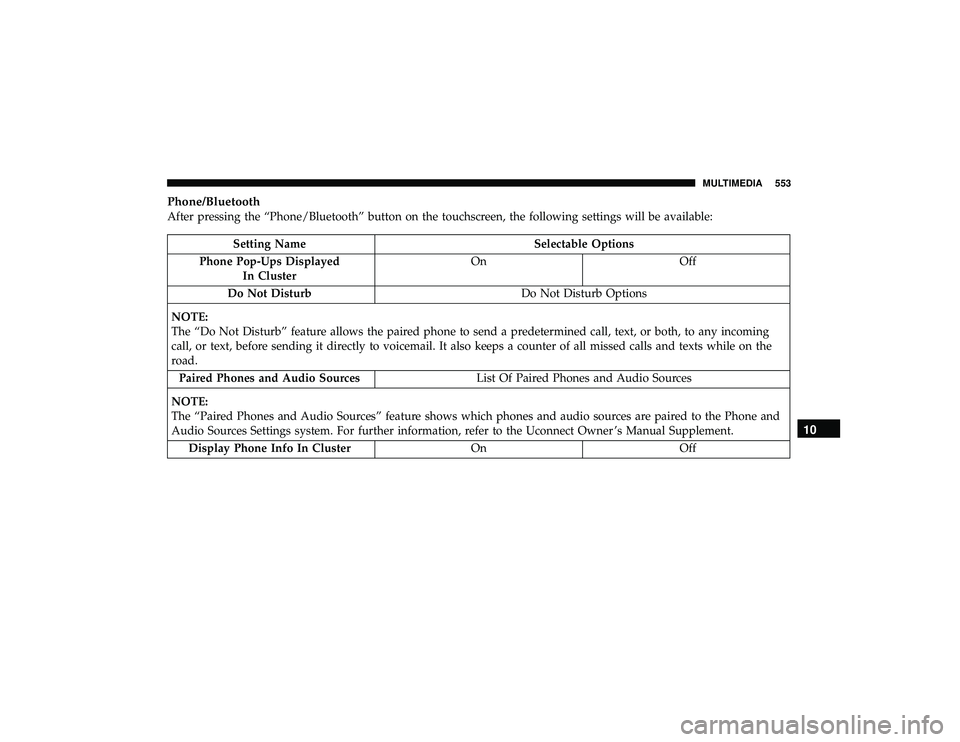
Phone/Bluetooth
After pressing the “Phone/Bluetooth” button on the touchscreen, the following settings will be available:
Page 566 of 626
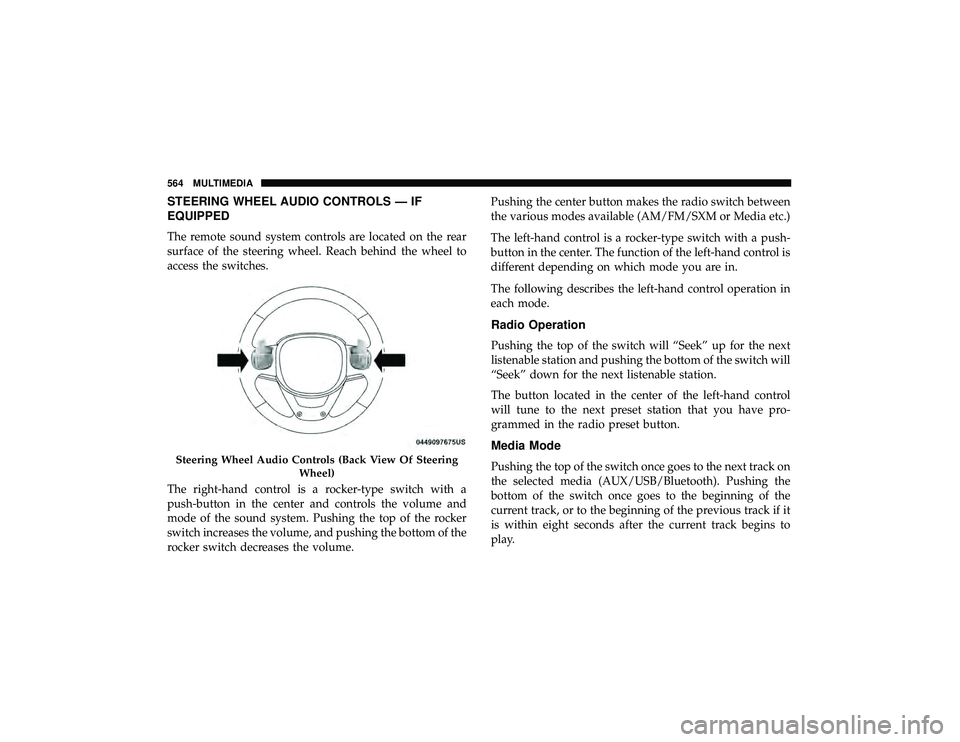
STEERING WHEEL AUDIO CONTROLS — IF
EQUIPPED
The remote sound system controls are located on the rear
surface of the steering wheel. Reach behind the wheel to
access the switches.
The right-hand control is a rocker-type switch with a
push-button in the center and controls the volume and
mode of the sound system. Pushing the top of the rocker
switch increases the volume, and pushing the bottom of the
rocker switch decreases the volume.Pushing the center button makes the radio switch between
the various modes available (AM/FM/SXM or Media etc.)
The left-hand control is a rocker-type switch with a push-
button in the center. The function of the left-hand control is
different depending on which mode you are in.
The following describes the left-hand control operation in
each mode.
Radio Operation
Pushing the top of the switch will “Seek” up for the next
listenable station and pushing the bottom of the switch will
“Seek” down for the next listenable station.
The button located in the center of the left-hand control
will tune to the next preset station that you have pro-
grammed in the radio preset button.
Media Mode
Pushing the top of the switch once goes to the next track on
the selected media (AUX/USB/Bluetooth). Pushing the
bottom of the switch once goes to the beginning of the
current track, or to the beginning of the previous track if it
is within eight seconds after the current track begins to
play.
Page 587 of 626
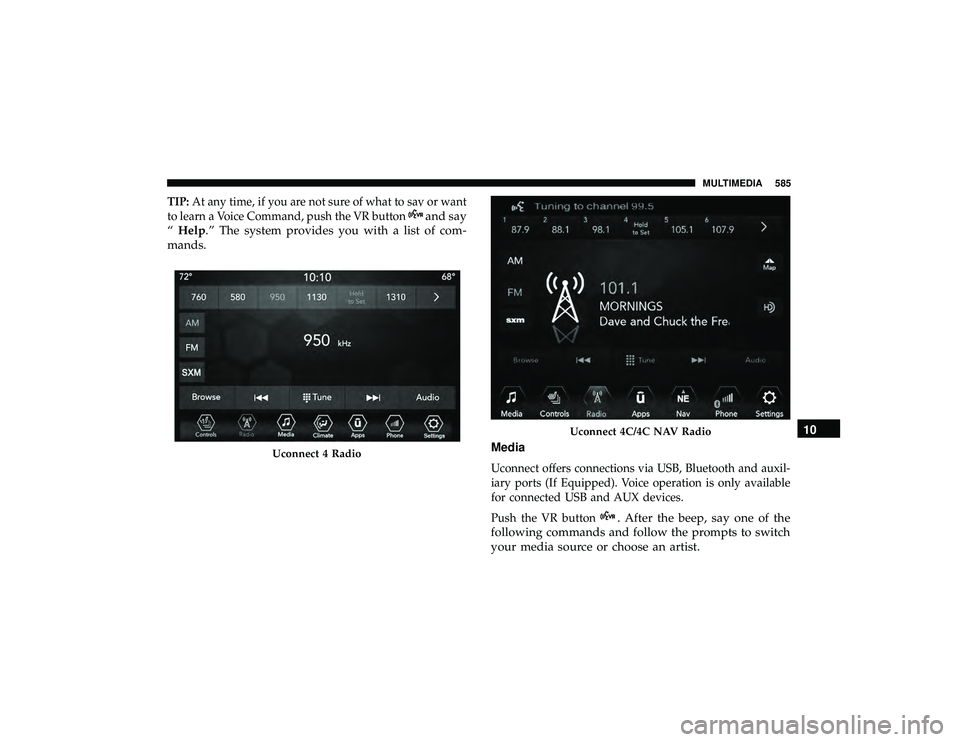
TIP:At any time, if you are not sure of what to say or want
to learn a Voice Command, push the VR button
and say
“ Help.” The system provides you with a list of com-
mands.
Media
Uconnect offers connections via USB, Bluetooth and auxil-
iary ports (If Equipped). Voice operation is only available
for connected USB and AUX devices.
Push the VR button
. After the beep, say one of the
following commands and follow the prompts to switch
your media source or choose an artist.
Uconnect 4C/4C NAV Radio10
MULTIMEDIA 585
Page 588 of 626
•“Change source to Bluetooth”
• “Change source to AUX”
• “Change source to USB”
• “Play artist Beethoven”; “ Play albumGreatest Hits”; “
Play song Moonlight Sonata”; “ Play genreClassical”
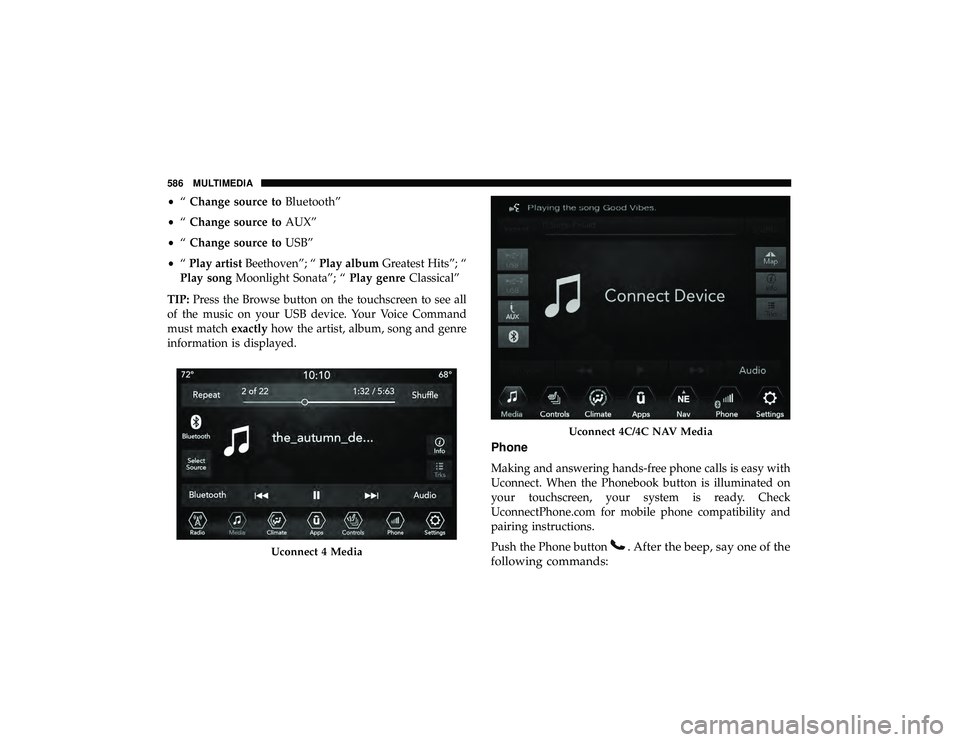
TIP: Press the Browse button on the touchscreen to see all
of the music on your USB device. Your Voice Command
must match exactlyhow the artist, album, song and genre
information is displayed.
Phone
Making and answering hands-free phone calls is easy with
Uconnect. When the Phonebook button is illuminated on
your touchscreen, your system is ready. Check
UconnectPhone.com for mobile phone compatibility and
pairing instructions.
Push the Phone button
. After the beep, say one of the
following commands:
Uconnect 4C/4C NAV Media
586 MULTIMEDIA
Page 597 of 626
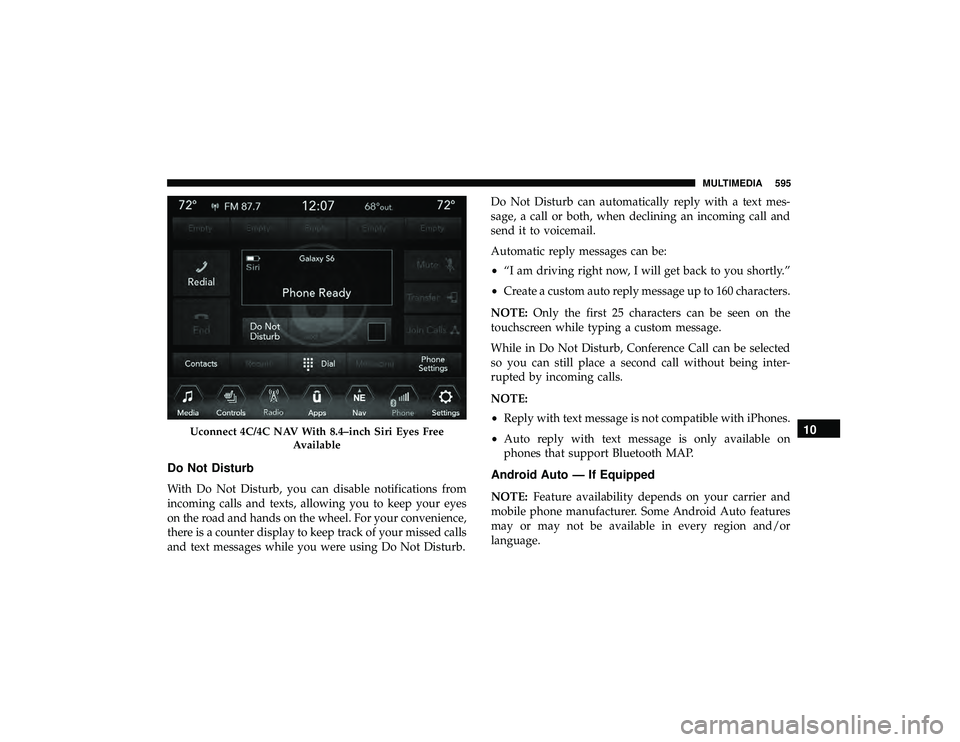
Do Not Disturb
With Do Not Disturb, you can disable notifications from
incoming calls and texts, allowing you to keep your eyes
on the road and hands on the wheel. For your convenience,
there is a counter display to keep track of your missed calls
and text messages while you were using Do Not Disturb.Do Not Disturb can automatically reply with a text mes-
sage, a call or both, when declining an incoming call and
send it to voicemail.
Automatic reply messages can be:
•
“I am driving right now, I will get back to you shortly.”
• Create a custom auto reply message up to 160 characters.
NOTE: Only the first 25 characters can be seen on the
touchscreen while typing a custom message.
While in Do Not Disturb, Conference Call can be selected
so you can still place a second call without being inter-
rupted by incoming calls.
NOTE:
• Reply with text message is not compatible with iPhones.
• Auto reply with text message is only available on
phones that support Bluetooth MAP.
Android Auto — If Equipped
NOTE: Feature availability depends on your carrier and
mobile phone manufacturer. Some Android Auto features
may or may not be available in every region and/or
language.
Page 616 of 626
Switch.................................25
Inside Rearview Mirror ................... .66, 392
Instrument Cluster Descriptions ........................... .160
Display .............................. .136
Engine Oil Reset ........................ .138
Menu Items ........................... .141
Instrument Panel Lens Cleaning ................495
Interior Appearance Care .....................494
Interior Lights ..............................76
Intermittent Wipers (Delay Wipers) ...............80
Introduction ................................4
In Vehicle Help Vehicle User Guide ........................18
Inverter Power ............................... .129
iPod Control ............................. .565
iPod/USB/MP3 Control ..................... .565
Bluetooth Streaming Audio .................565
Jacking Instructions ........................ .415
Jack Location ............................ .414
Jack Operation ..................... .413, 415, 470
Jump Starting ............................ .421Key Fob
Arm The System ..........................34
Disarm The System ........................34
Programming Additional Key Fobs ..........24, 32
Key Fob Battery Service (Remote Keyless Entry) .....22
Key Fob Programming (Remote Keyless Entry) ......24
Key-In Reminder ............................27
Keyless Enter-N-Go ..........................37
Passive Entry ............................37
Keys ....................................20
Replacement ......................... .24, 32
Lane Change Assist ..........................76
LaneSense ............................... .352
Lap/Shoulder Belts ........................ .201
Latches ................................. .248
Hood ................................ .106
Lead Free Gasoline ........................ .501
Leaks, Fluid ............................. .248
Life Of Tires ............................. .482
Liftgate ................................. .107
Closing ............................... .108
Opening .............................. .107
Power ............................... .109
Liftgate W
indow Wiper/Washer .................84
614 INDEX