buttons JEEP LIBERTY 2008 KK / 2.G User Guide
[x] Cancel search | Manufacturer: JEEP, Model Year: 2008, Model line: LIBERTY, Model: JEEP LIBERTY 2008 KK / 2.GPages: 493
Page 158 of 493

This can usually be found where the hanging antenna
wire is attached to the garage door opener motor (it is
NOT the button normally used to open & close the door).6. Firmly press and release the ªlearnº or ªtrainingº
button. The name and color of the button may vary by
manufacturer.
NOTE:There are 30 seconds in which to initiate the next
step after the ªLearnº button has been pressed.
7. Return to the vehicle and press the programmed
HomeLinktbutton twice (holding the button for 2 sec-
onds each time). If the device is plugged in and activates,
programming is complete.
If the device does not activate, press the button a third
time (for 2 seconds) to complete the training.
If you are have any problems, or require assistance,
please call toll-free 1±800±355±3515 or, on the Internet at
www.HomeLink.com for information or assistance.
To program the remaining two HomeLinktbuttons,
repeat each step for each remaining button. DO NOT
erase the channels.
1 Ð Garage Door Opener
2 Ð Training Button 158 UNDERSTANDING THE FEATURES OF YOUR VEHICLE
Page 160 of 493

Reprogramming a Single HomeLinkTButton
To re-program a channel that has been previously
trained, follow these steps:
1. Turn the ignition switch to the ON/RUN position.
2. Press and hold the desired HomeLinktbutton until
the indicator light begins to flash after 20 seconds.Do not
release the button.
3.Without releasing the button,proceed with PRO-
GRAMMING HOMELINKtStep #2 and follow all re-
maining steps.
Security
It is advised to erase all channels before you sell or turn
in your vehicle.
To do this, press and hold the two outside buttons for 20
seconds until the red indicator flashes. Note that all
channels will be erased. Individual channels cannot be
erased.The HomeLinktUniversal Transceiver is disabled when
the Vehicle Security Alarm is active.
Troubleshooting Tips
If you are having trouble programming HomeLinkt, here
are some of the most common solutions:
²Replace the battery in the original transmitter.
²Press the Learn Button on the Garage Door Opener to
complete the training for Rolling Code.
²Did you unplug the device for training, and remember
to plug it back in?
If you are have any problems, or require assistance,
please call toll-free 1±800±355±3515 or, on the Internet at
www.HomeLink.com for information or assistance.
160 UNDERSTANDING THE FEATURES OF YOUR VEHICLE
Page 206 of 493

NOTE:The factory default zone is 8. During program-
ming, the zone value will wrap around from zone 15 to
zone 1.
Calibrating the Compass (Mid Line Cluster Only)
If the compass appears erratic, inaccurate, or abnormal,
you may wish to calibrate it. However, prior to calibrat-
ing the compass, make sure the proper Compass Variance
value is selected.
NOTE:The vehicle speed must be at 0 mph (0 km/h)
(manual transmission) or the gear selector lever in ªPº
(Park) (auto transmission) to enter the calibration mode.
To calibrate the compass, first, start the engine. Next,
press and hold the trip odometer button until the current
variance zone number displays (approximately ten sec-
onds). Then, press and hold the button again until the
direction displays with the ªCALº indicator on continu-
ously (approximately ten seconds). Finally, drive thevehicle in one or more complete circles, at speeds under
5 mph (8 km/h), in an area free from power lines and
large metallic objects, until the ªCALº indicator turns off.
The compass will now function normally.
ELECTRONIC VEHICLE INFORMATION CENTER
(EVIC) Ð IF EQUIPPED
The Electronic Vehicle Information Center (EVIC) fea-
tures a driver-interactive display. It is located at the
bottom of the speedometer in the instrument cluster.
Vehicles equipped with steering wheel mounted buttons
(described in this section) are also equipped with the
EVIC. The EVIC consists of the following:
²System Status
²Vehicle information warning message displays
²Tire Pressure Monitor System (If Equipped)
²Personal Settings (Customer Programmable Features)
206 INSTRUMENT PANEL AND CONTROLS
Page 207 of 493

²Compass display
²Outside temperature display
²Trip computer functions
²UConnectŸ hands-free communication system dis-
plays (If Equipped)
²Navigation system screens (If Equipped)
²Audio mode display
The system allows the driver to select information by
pressing the following buttons mounted on the steering
wheel:
Press and release the MENU button and the
mode displayed will change between Trip
Functions, Navigation (if equipped), System
Status, Personal Settings, and Telephone (if
equipped).Press the SCROLL button to scroll through Trip
Functions, Navigation (if equipped), System
Status Messages, and Personal Settings (Cus-
tomer Programmable Features).
Press and release the COMPASS/
TEMPERATURE button to display one of eight
compass readings and the outside temperature.
Press the FUNCTION SELECT button to accept
a selection.
MENU
Button
SCROLL
Button
FUNC-
TION
SELECT
Button
INSTRUMENT PANEL AND CONTROLS 207
4
Page 223 of 493

Operating Instructions - Radio Mode
NOTE:The ignition switch must be in the ON or ACC
position to operate the radio.
Power Switch/Volume Control (Rotary)
Press the ON/VOL control to turn the radio ON. Press
the ON/VOL a second time to turn OFF the radio.
Electronic Volume Control
The electronic volume control turns continuously (360
degrees) in either direction without stopping. Turning the
volume control to the right increases the volume and to
the left decreases it.
When the audio system is turned on, the sound will be
set at the same volume level as last played.
SEEK Buttons (Radio Mode)
Press and release the SEEK buttons to search for the next
listenable station in AM/FM mode. Press the right switch
to seek up and the left switch to seek down. The radiowill remain tuned to the new station until you make
another selection. Holding either button will bypass
stations without stopping until you release it.
SCAN Button (Radio Mode)
Pressing the SCAN button causes the tuner to search for
the next listenable station, in AM, FM or Satellite (if
equipped) frequencies, pausing for 5 seconds at each
listenable station before continuing to the next. To stop
the search, press the SCAN button a second time.
Voice Recognition Button (UConnectŸ Hands Free
Phone) Ð If Equipped
Press this button to operate the Hand Free Phone (UCon-
nectŸ) feature (if equipped). Refer to ªHands-Free Com-
munication (UConnectŸ)º in Section 3 for more informa-
tion.
If your vehicle is not equipped with or this feature is not
available on your vehicle, a ªUConnectŸ System Not
Availableº message will display on the radio screen.
INSTRUMENT PANEL AND CONTROLS 223
4
Page 230 of 493

NOTE:The user will have to set these defaults before
loading a disc. If changes are made to these settings after
a disc is loaded, changes will not be effective. Also, the
defaults are effective only if the disc supports the
customer-preferred settings.
AM and FM Buttons (Radio Mode)
Press the buttons to select AM or FM Modes.
SET Button (Radio Mode) Ð To Set the
Push-Button Memory
When you are receiving a station that you wish to
commit to push-button memory, press the SET button.
The symbol SET 1 will now show in the display window.
Select the button (1-6) you wish to lock onto this station
and press and release that button. If a button is not
selected within 5 seconds after pressing the SET button,
the station will continue to play but will not be stored
into push-button memory.You may add a second station to each push-button by
repeating the above procedure with this exception: Press
the SET button twice and SET 2 will show in the display
window. Each button can be set for SET 1 and SET 2 in
both AM and FM. This allows a total of 12 AM, 12 FM,
and 12 Satellite (if equipped) stations to be stored into
push-button memory. The stations stored in SET 2
memory can be selected by pressing the push-button
twice.
Every time a preset button is used, a corresponding
button number will display.
Buttons1-6(Radio Mode)
These buttons tune the Radio to the stations that you
commit to push-button memory {12 AM, 12 FM, and 12
Satellite (if equipped) stations}.
DISC Button
Pressing the DISC button will allow you to switch from
AM/FM modes to Disc modes.
230 INSTRUMENT PANEL AND CONTROLS
Page 242 of 493

Operating Instructions - Radio Mode
NOTE:The ignition switch must be in the ON or ACC
position to operate the radio.
Power Switch/Volume Control (Rotary)
Press the ON/VOLUME control knob to turn on the
radio. Press the ON/VOLUME control knob a second
time to turn off the radio.
Electronic Volume Control
The electronic volume control turns continuously (360
degrees) in either direction without stopping. Turning the
ON/VOLUME control knob to the right increases the
volume and to the left decreases it.
When the audio system is turned on, the sound will be
set at the same volume level as last played.
SEEK Buttons
Press and release the SEEK buttons to search for the next
listenable station in AM/FM mode. Press the right switchto seek up and the left switch to seek down. The radio
will remain tuned to the new station until you make
another selection. Holding either button will bypass
stations without stopping until you release it.
SCAN Button
Pressing the SCAN button causes the tuner to search for
the next listenable station in AM or FM frequencies,
pausing for 5 seconds at each listenable station before
continuing to the next. To stop the search, press the
SCAN button a second time.
Voice Recognition Button (UConnectŸ Hands Free
Phone) Ð If Equipped
Press this button to operate the Hand Free Phone (UCon-
nectŸ) feature (if equipped). Refer to ªHands-Free Com-
munication (UConnectŸ)º in Section 3 for more informa-
tion.
242 INSTRUMENT PANEL AND CONTROLS
Page 244 of 493

Step 2. For vehicles not equipped with satellite radio,
press the SETUP button and then follow the above
procedure, starting at Step 2.
INFO Button
Press the INFO button for an RDS station (one with call
letters displayed). The radio will return a Radio Text
message broadcast from an FM station (FM mode only).
RW/FF
Pressing the RW (Rewind) or FF (Fast Forward) buttons
causes the tuner to search for the next frequency in the
direction of the arrows. This feature operates in either
AM or FM frequencies.
TUNE Control
Turn the right side rotary control clockwise to increase or
counter-clockwise to decrease the frequency.
Setting the Tone, Balance, and Fade
Press the rotary TUNE control knob and BASS will
display. Turn the TUNE control knob to the right or left to
increase or decrease the Bass tones.
Press the rotary TUNE control knob a second time and
MID will display. Turn the TUNE control knob to the
right or left to increase or decrease the Mid Range tones.
Press the rotary TUNE control knob a third time and
TREBLE will display. Turn the TUNE control knob to the
right or left to increase or decrease the Treble tones.
Press the rotary TUNE control knob a fourth time and
BALANCE will display. Turn the TUNE control knob to
the right or left to adjust the sound level from the right or
left side speakers.
244 INSTRUMENT PANEL AND CONTROLS
Page 246 of 493
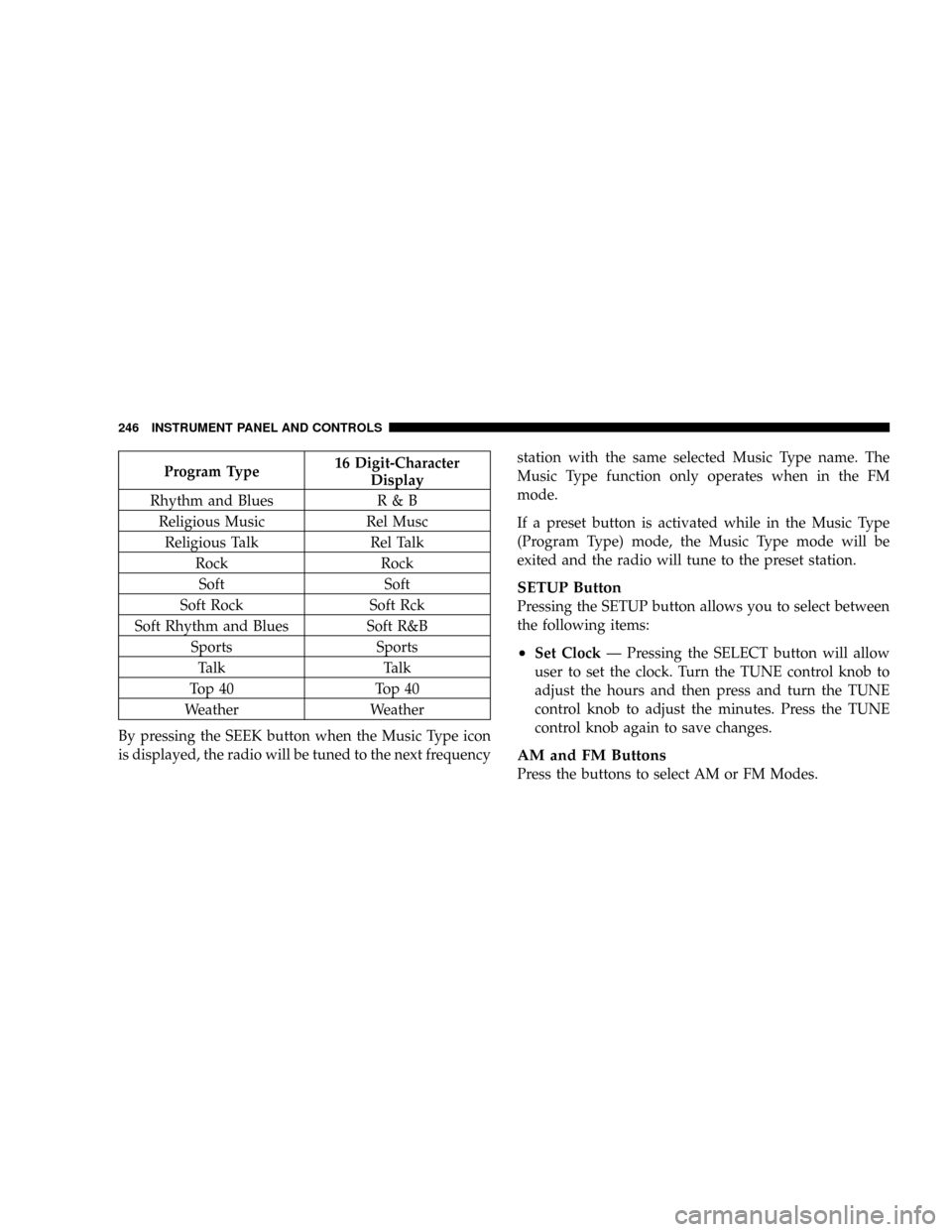
Program Type16 Digit-Character
Display
Rhythm and Blues R & B
Religious Music Rel Musc
Religious Talk Rel Talk
Rock Rock
Soft Soft
Soft Rock Soft Rck
Soft Rhythm and Blues Soft R&B
Sports Sports
Talk Talk
Top 40 Top 40
Weather Weather
By pressing the SEEK button when the Music Type icon
is displayed, the radio will be tuned to the next frequencystation with the same selected Music Type name. The
Music Type function only operates when in the FM
mode.
If a preset button is activated while in the Music Type
(Program Type) mode, the Music Type mode will be
exited and the radio will tune to the preset station.
SETUP Button
Pressing the SETUP button allows you to select between
the following items:
²Set ClockÐ Pressing the SELECT button will allow
user to set the clock. Turn the TUNE control knob to
adjust the hours and then press and turn the TUNE
control knob to adjust the minutes. Press the TUNE
control knob again to save changes.
AM and FM Buttons
Press the buttons to select AM or FM Modes.
246 INSTRUMENT PANEL AND CONTROLS
Page 247 of 493

SET Button Ð To Set the Push-Button Memory
When you are receiving a station that you wish to
commit to push-button memory, press the SET button.
The symbol SET 1 will now show in the display window.
Select the button (1-6) you wish to lock onto this station
and press and release that button. If a button is not
selected within 5 seconds after pressing the SET button,
the station will continue to play but will not be stored
into push-button memory.
You may add a second station to each push-button by
repeating the above procedure with this exception: Press
the SET button twice and SET 2 will show in the display
window. Each button can be set for SET 1 and SET 2 in
both AM and FM. This allows a total of 12 AM and 12 FM
stations to be stored into push-button memory. The
stations stored in SET 2 memory can be selected by
pressing the push-button twice.Every time a preset button is used, a corresponding
button number will display.
Buttons1-6
These buttons tune the radio to the stations that you
commit to push-button memory {12 AM and 12 FM
stations}.
DISC Button
Pressing the DISC button will allow you to switch from
AM/FM modes to Disc modes.
Operation Instructions - CD MODE for CD and
MP3 Audio Play
NOTE:The ignition switch must be in the ON or ACC
position to operate the radio.
NOTE:This Radio is capable of playing compact discs
(CD), recordable compact discs (CD-R), rewritable com-
pact discs (CD-RW) compact discs with MP3 tracks and
multisession compact discs with CD and MP3 tracks.
INSTRUMENT PANEL AND CONTROLS 247
4