display JEEP PATRIOT 2007 1.G Owner's Guide
[x] Cancel search | Manufacturer: JEEP, Model Year: 2007, Model line: PATRIOT, Model: JEEP PATRIOT 2007 1.GPages: 440, PDF Size: 7.26 MB
Page 206 of 440
compact discs (CD-RW) compact discs with MP3 tracks
and multisession compact discs with CD and MP3 tracks.
Inserting Compact Disc(s)
Gently insert one CD into the CD player with the CD
label facing up. The CD will automatically be pulled into
the CD Player and the CD icon will illuminate on the
radio display.
CAUTION!
This CD player will accept 4 3/4 inch (12 cm) discs
only. The use of other sized discs may damage the
CD player mechanism.
You may eject a disc with the radio OFF.
If you insert a disc with the ignition ON and the radio
ON, the unit will switch from radio to CD mode and
begin to play when you insert the disc. The display willshow the disc number, the track number, and index time
in minutes and seconds. Play will begin at the start of
track 1.
SEEK Button (CD MODE for CD Audio Play)
Press the right side of the SEEK button for the next
selection on the CD. Press the left side of the button to
return to the beginning of the current selection, or return
to the beginning of the previous selection if the CD is
within the first 10 seconds of the current selection.
MUTE Button (CD MODE for CD Audio Play)
Press the MUTE button to cancel the sound from the
speakers.9MUTE9will be displayed. Press the MUTE
button a second time and the sound from the speakers
will return. Rotating the volume control, turning the
radio ON/OFF, or turning OFF the ignition will also
return the sound from the speakers.
UNDERSTANDING YOUR INSTRUMENT PANEL 205
4
Page 207 of 440
SCAN Button (CD MODE for CD Audio Play)
Press the Scan button to scan through each track on the
CD currently playing.
LOAD/EJECT Button (CD Mode for CD Audio
Play)
LOAD/ EJECT - Load
Press the LOAD/ EJECT button and the push-
button with the corresponding number where
the CD is being loaded. The radio will display
PLEASE WAIT and prompt when to INSERT
DISC. After the radio displays9LOAD DISC9insert the
CD into the player.
Radio display will show9LOADING DISC9when the disc
is loading, and ªREADING DISCº when the radio is
reading the disc.
LOAD / EJT - Eject
Press the LOAD/ EJT button and the push-
button with the corresponding number where
the CD was loaded and the disc will unload
and move to the entrance for easy removal.
Radio display will show9EJECTING DISC9when the disc
is being ejected and prompt the user to remove the disc.
Press and hold the LOAD/ EJT button for 5 seconds and
all CDs will be ejected from the radio.
If you have ejected a disc and have not removed it within
15 seconds, it will be reloaded. If the CD is not removed,
the radio will continue to play the non-removed CD. If
the CD is removed and there are other CD's in the radio,
the radio will play the next CD after a 2 minute timeout.
If the CD is removed and there are no other CD's in the
radio, the radio will remain in CD mode and display
206 UNDERSTANDING YOUR INSTRUMENT PANEL
Page 208 of 440
9INSERT DISCº for 10 seconds. If no discs are inserted
within 10 seconds ªNO DISCS LOADEDº will be dis-
played.
On some vehicles a disc can be ejected with the radio and
ignition OFF.
TIME Button (CD MODE for CD Audio Play)
Press this button to change the display from a large CD
playing time display to a small CD playing time display.
RW/FF (CD MODE for CD Audio Play)
Press and hold FF (Fast Forward) and the CD player will
begin to fast forward until FF is released or RW or
another CD button is pressed. The RW (Reverse) button
works in a similar manner.
TUNE Control (CD MODE for CD Audio Play)
Pressing the TUNE control allows the setting of the Tone,
Fade, and Balance. See Radio Mode.
AM/FM Button (CD MODE for CD Audio Play)
Switches the Radio to the Radio mode.
RND/PTY Button (Random Play Button) (CD
MODE for CD Audio Play)
Press this button while the CD is playing to activate
Random Play. This feature plays the selections on the
compact disc in random order to provide an interesting
change of pace.
Press the SEEK button to move to the next randomly
selected track.
Press and hold the FF button to fast forward through the
tracks. Release the FF button to stop the fast forward
feature.
Press the RND button a second time to stop Random
Play.
Buttons1-6(CDMODE for CD Audio Play)
Selects disc positions1-6forPlay/Load/Eject.
UNDERSTANDING YOUR INSTRUMENT PANEL 207
4
Page 211 of 440
Playback of MP3 Files
When a medium containing MP3 data is loaded, the
radio checks all files on the medium. If the medium
contains a lot of folders or files, the radio will take more
time to start playing the MP3 files.
Loading times for playback of MP3 files may be affected
by the following:
²Media - CD-RW media may take longer to load than
CD-R media
²Medium formats - Multisession discs may take longer
to load than non-multisession discs
²Number of files and folders - Loading times will
increase with more files and folders
To increase the speed of disc loading, it is recommended
to use CD-R media and single-session discs. To create a
single-session disc, enable the Disc at Once option before
writing to the disc.
Operation Instructions - (CD Mode for MP3 Audio
Play)
SEEK Button (CD Mode for MP3 Play)
Pressing the right side of the SEEK button plays the next
MP3 File. Pressing the left side of the SEEK button plays
the beginning of the MP3 file. Pressing the button within
the first ten seconds plays the previous file.
LOAD/EJECT Button (CD Mode for MP3 Play)
LOAD/ EJECT - Load
Press the LOAD/ EJECT button and the push-
button with the corresponding number where
the CD is being loaded. The radio will display
PLEASE WAIT and prompt when to INSERT
DISC. After the radio displays9LOAD DISC9insert the
CD into the player.
Radio display will show9LOADING DISC9when the disc
is loading.
210 UNDERSTANDING YOUR INSTRUMENT PANEL
Page 212 of 440
LOAD / EJECT - Eject
Press the LOAD/ EJECT button and the push-
button with the corresponding number where
the CD was loaded and the disc will unload
and move to the entrance for easy removal.
Radio display will show9EJECTING DISC9when the disc
is being ejected and prompt the user to remove the disc.
If you have ejected a disc and have not removed it within
15 seconds, it will be reloaded. If the CD is not removed,
the radio will continue to play the non-removed CD. If
the CD is removed and there are other CD's in the radio,
the radio will play the next CD after a 2 minute timeout.
If the CD is removed and there are no other CD's in the
radio, the radio will remain in CD mode and display
9INSERT DISCº for 2 minutes. After 2 minutes the radio
will go to the previous tuner mode.
MSG or INFO Button (CD Mode for MP3 Play)
Press and MSG or INFO button while playing MP3 disc.
The radio scrolls through the following TAG information:
Song Title, Artist, File Name, and Folder Name (if avail-
able).
Press the MSG or INFO button once more to return to
9elapsed time9priority mode.
Press and hold the MSG or INFO button while in the
message display priority mode or elapsed time display
priority mode will display the song title for each file.
RW/FF (CD Mode for MP3 Play)
Press the FF side of the button to move forward through
the MP3 selection.
TUNE Control (CD Mode for MP3 Play)
Pressing the TUNE Control allows the adjustment of
Tone, Balance, and Fade.
UNDERSTANDING YOUR INSTRUMENT PANEL 211
4
Page 213 of 440
AM/FM Button (CD Mode for MP3 Play)
Switches back to Radio mode.
RND/ PTY Button (CD Mode for MP3 Play)
Pressing this button plays files randomly.
SET/DIR Button (CD Mode for MP3 Play)
Press the SET/DIR Button to display folders, when
playing an MP3 discs that have a file/folder structure.
Turn the TUNE control to display available folders or
move through available folders. Press the TUNE control
to select a folder.
Buttons1-6(CDMode for MP3 Play)
Selects disc positions1-6forPlay/Load/Eject.
Operating Instructions - Hands Free Phone (If
Equipped)
Refer to Hands Free Phone in Section 3 of the Owner's
Manual.
Operating Instructions - Satellite Radio Mode (If
Equipped)
Refer to the Satellite Radio section of the Owner's
Manual.
Operating Instructions - Video Entertainment
System (VESt) (If Equipped)
Refer to separate Video Entertainment System (VESt)
Guide.
212 UNDERSTANDING YOUR INSTRUMENT PANEL
Page 215 of 440
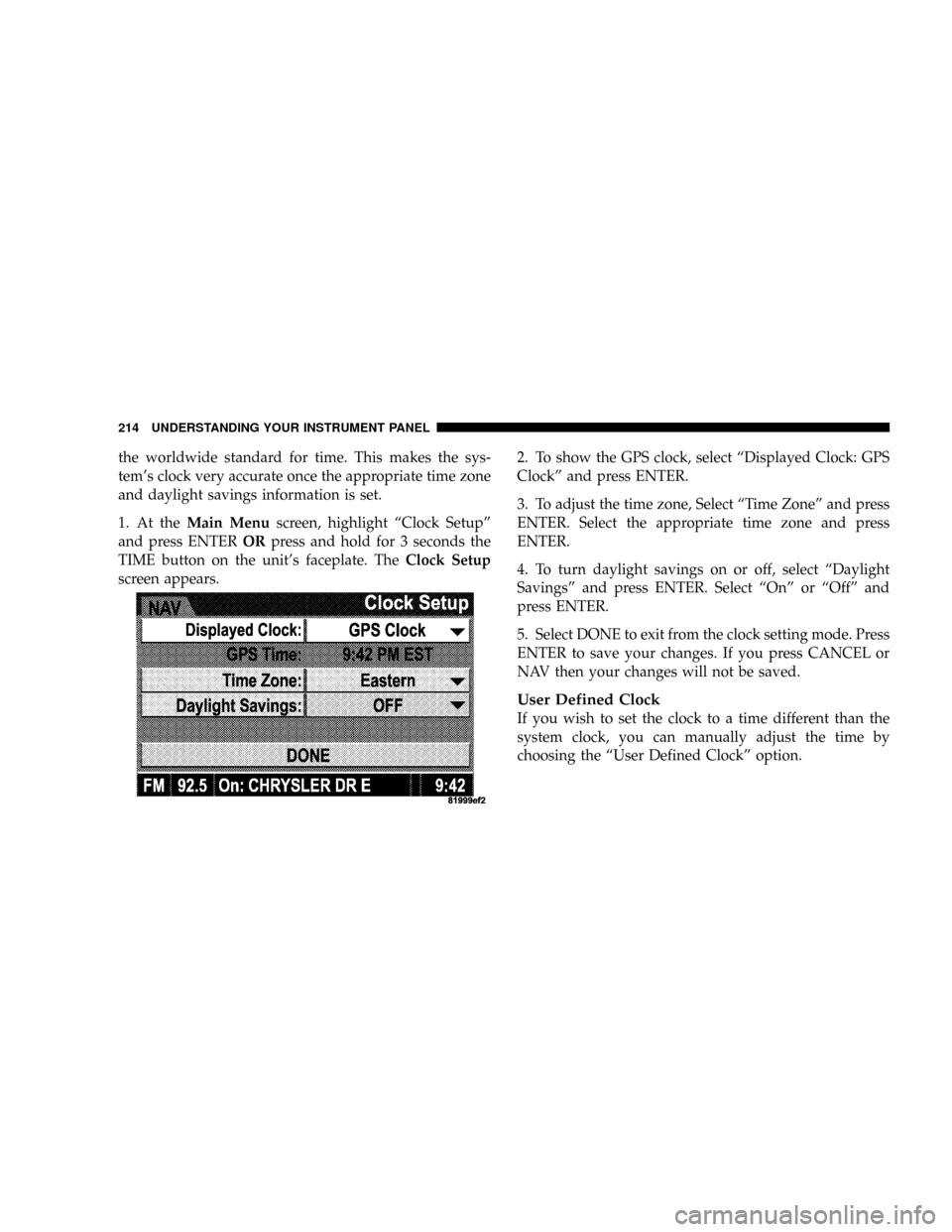
the worldwide standard for time. This makes the sys-
tem's clock very accurate once the appropriate time zone
and daylight savings information is set.
1. At theMain Menuscreen, highlight ªClock Setupº
and press ENTERORpress and hold for 3 seconds the
TIME button on the unit's faceplate. TheClock Setup
screen appears.2. To show the GPS clock, select ªDisplayed Clock: GPS
Clockº and press ENTER.
3. To adjust the time zone, Select ªTime Zoneº and press
ENTER. Select the appropriate time zone and press
ENTER.
4. To turn daylight savings on or off, select ªDaylight
Savingsº and press ENTER. Select ªOnº or ªOffº and
press ENTER.
5. Select DONE to exit from the clock setting mode. Press
ENTER to save your changes. If you press CANCEL or
NAV then your changes will not be saved.
User Defined Clock
If you wish to set the clock to a time different than the
system clock, you can manually adjust the time by
choosing the ªUser Defined Clockº option.
214 UNDERSTANDING YOUR INSTRUMENT PANEL
Page 216 of 440
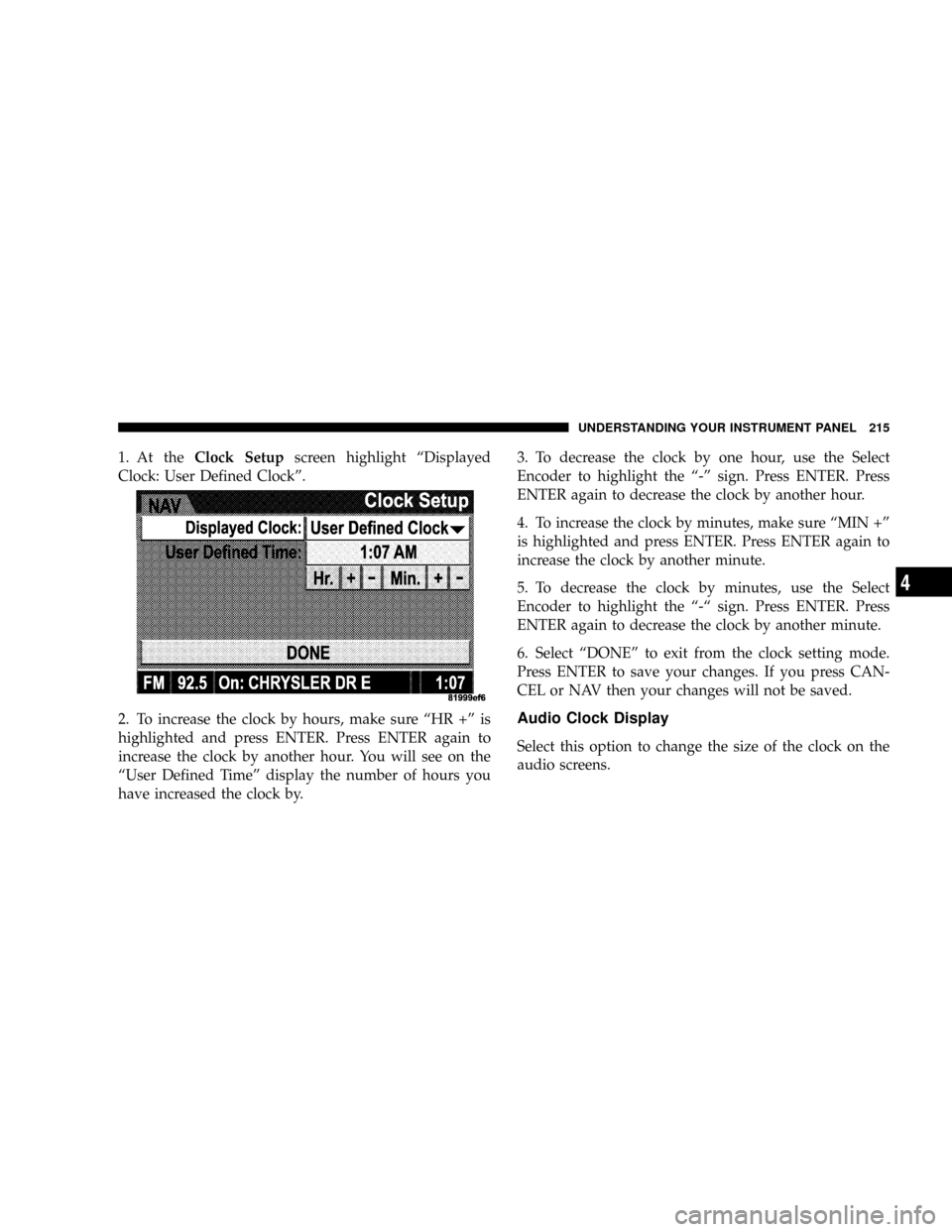
1. At theClock Setupscreen highlight ªDisplayed
Clock: User Defined Clockº.
2. To increase the clock by hours, make sure ªHR +º is
highlighted and press ENTER. Press ENTER again to
increase the clock by another hour. You will see on the
ªUser Defined Timeº display the number of hours you
have increased the clock by.3. To decrease the clock by one hour, use the Select
Encoder to highlight the ª-º sign. Press ENTER. Press
ENTER again to decrease the clock by another hour.
4. To increase the clock by minutes, make sure ªMIN +º
is highlighted and press ENTER. Press ENTER again to
increase the clock by another minute.
5. To decrease the clock by minutes, use the Select
Encoder to highlight the ª-ª sign. Press ENTER. Press
ENTER again to decrease the clock by another minute.
6. Select ªDONEº to exit from the clock setting mode.
Press ENTER to save your changes. If you press CAN-
CEL or NAV then your changes will not be saved.
Audio Clock Display
Select this option to change the size of the clock on the
audio screens.
UNDERSTANDING YOUR INSTRUMENT PANEL 215
4
Page 218 of 440
SATELLITE RADIO Ð IF EQUIPPED
Satellite radio uses direct satellite to receiver broadcast-
ing technology to provide clear digital sound, coast to
coast. The subscription service provider is SiriusŸ Satel-
lite Radio. This service offers over 100 channels of music,
sports, news, entertainment, and programming for chil-
dren, directly from its satellites and broadcasting studios.
System Activation
To activate your Sirius Satellite Radio service, call the
toll-free number 888-539-7474, or visit the Sirius web site
at www.sirius.com. Please have the following informa-
tion available when activating your system:
1. The Electronic Serial Number/Sirius Identification
Number (ESN/SID).
2. Credit card information.
3. Your Vehicle Identification Number.
Electronic Serial Number/Sirius Identification
Number (ESN/SID)
The Electronic Serial Number/Sirius Identification Num-
ber is needed to activate your Sirius Satellite Radio
system. To access the ESN/SID, refer to the following
steps:
ESN/SID Access With REF Radios
With the ignition switch in the ACCESSORY position and
the radio OFF, press the CD Eject and Time buttons
simultaneously for 3 seconds. The first four digits of the
twelve-digit ESN/SID number will be displayed. Press
the SEEK UP button to display the next four digits.
Continue to press the SEEK UP button until all twelve
ESN/SID digits have been displayed. The SEEK DOWN
will page down until the first four digits are displayed.
The radio will exit the ESN/SID mode when any other
button is pushed, the ignition is turned OFF, or 5 minutes
has passed since any button was pushed.
UNDERSTANDING YOUR INSTRUMENT PANEL 217
4
Page 219 of 440
ESN/SID Access With RAQ Radios
With the ignition switch in the ACCESSORY position and
the radio OFF, press the CD Eject and TIME buttons
simultaneously for 3 seconds. All twelve ESN/SID num-
bers will be displayed. The radio will exit the ESN/SID
mode when any other button is pushed, the ignition is
turned OFF, or 5 minutes has passed since any button
was pushed.
ESN/SID Access With Navigation Radios
Please refer to your Navigation User's Manual.
Selecting Satellite Mode in REF, and RAQ, Radios
Selecting Satellite Mode Ð REF Radio
Press the MODE button repeatedly until the word9SAT9
appears in the display.
A CD may remain in the radio while in the Satellite radio
mode.
Selecting Satellite Mode Ð RAQ Radio
Press the MODE button repeatedly until the word9SAT9
appears in the display.
These radios will also display the current station name
and program type. For more information such as song
title and artist press the MSG or INFO button.
A CD or tape may remain in the radio while in the
Satellite radio mode.
Selecting a Channel
Press and release the SEEK or TUNE knob to search for
the next channel. Press the top of the button to search up
and the bottom of the button to search down. Holding the
TUNE button causes the radio to bypass channels until
the button is released.
218 UNDERSTANDING YOUR INSTRUMENT PANEL