language JEEP PATRIOT 2014 1.G Owners Manual
[x] Cancel search | Manufacturer: JEEP, Model Year: 2014, Model line: PATRIOT, Model: JEEP PATRIOT 2014 1.GPages: 568, PDF Size: 3.61 MB
Page 113 of 568
For Uconnect® customer support:
•U.S. residents - visit UconnectPhone.com or call
1-877-855-8400.
• Canadian Residents - visit UconnectPhone.com or call,
1-800-465-2001 (English) or 1-800-387-9983 (French).
Uconnect® Phone allows you to transfer calls between
the system and your mobile phone as you enter or exit
your vehicle and enables you to mute the system’s
microphone for private conversation.
The Uconnect® Phone is driven through your Bluetooth®
“Hands-Free Profile” mobile phone. Uconnect® features
Bluetooth® technology - the global standard that enables
different electronic devices to connect to each other without
wires or a docking station. Uconnect® Phone operates no
matter where you stow your mobile phone (be it your purse, pocket, or briefcase), as long as your phone is turned on and
has been paired to the vehicle’s Uconnect® Phone. The
Uconnect® Phone allows up to seven mobile phones to be
linked to the system. Only one linked (or paired) mobile
phone can be used with the system at a time. The system is
available in English, Spanish, or French languages.
WARNING!
Any voice commanded system should be used only
in safe driving conditions following all applicable
laws, including laws regarding phone use. Your at-
tention should be focused on safely operating the
vehicle. Failure to do so may result in a collision
causing serious injury or death.
3
UNDERSTANDING THE FEATURES OF YOUR VEHICLE 111
Page 118 of 568
Add Names To Your Uconnect® Phonebook
NOTE:Adding names to the Uconnect® Phonebook is
recommended when the vehicle is not in motion.
• Press the
button to begin.
•After the “Ready” prompt and the following beep, say
“Phonebook New Entry.”
• When prompted, say the name of the new entry. Use of
long names helps the Voice Command and it is recom-
mended. For example, say “Robert Smith” or “Robert”
instead of “Bob.”
• When prompted, enter the number designation (e.g.,
“Home,” “Work,” “Mobile,” or “Other”). This will
allow you to store multiple numbers for each phone-
book entry, if desired.
• When prompted, recite the phone number for the
phonebook entry that you are adding. After you are finished adding an entry into the phone-
book, you will be given the opportunity to add more
phone numbers to the current entry or to return to the
main menu.
The Uconnect® Phone will allow you to enter up to 32
names in the phonebook with each name having up to
four associated phone numbers and designations. Each
language has a separate 32-name phonebook accessible
only in that language. In addition, if equipped and
supported by your phone, Uconnect® Phone automati-
cally downloads your mobile phone’s phonebook.
116 UNDERSTANDING THE FEATURES OF YOUR VEHICLE
Page 121 of 568
•After you enter the Phonebook Delete menu, you will
then be asked for the name of the entry that you wish
to delete. You can either say the name of a phonebook
entry that you wish to delete or you can say “List
Names” to hear a list of the entries in the phonebook
from which you choose. To select one of the entries
from the list, press the
button while the
Uconnect® Phone is playing the desired entry and
say “Delete.”
• After you enter the name, the Uconnect® Phone will
ask you which designation you wish to delete: home,
work, mobile, other, or all. Say the designation you
wish to delete.
• Note that only the phonebook entry in the current
language is deleted.
• Automatic downloaded phonebook entries cannot be
deleted or edited.
Delete/Erase “All” Uconnect® Phonebook Entries
• Press thebutton to begin.
•After the “Ready” prompt and the following beep, say
“Phonebook Erase All.”
• The Uconnect® Phone will ask you to verify that you
wish to delete all the entries from the phonebook.
• After confirmation, the phonebook entries will be
deleted.
NOTE:
• Only the phonebook in the current language is deleted.
• Automatic downloaded phonebook entries cannot be
deleted or edited.
3
UNDERSTANDING THE FEATURES OF YOUR VEHICLE 119
Page 125 of 568
Call Continuation
Call continuation is the progression of a phone call on the
Uconnect® Phone after the vehicle ignition has been
switched to OFF. Call continuation functionality avail-
able on the vehicle can be any one of three types:
1. After the ignition is switched to OFF, a call cancontinue on the Uconnect® Phone either until the call
ends, or until the vehicle battery condition dictates
cessation of the call on the Uconnect® Phone and
transfer of the call to the mobile phone.
2. After the ignition is cycled to OFF, a call can continue on the Uconnect® Phone for a certain duration, after
which the call is automatically transferred from the
Uconnect® Phone to the mobile phone.
3. An active call is automatically transferred to the mobile phone after the ignition is cycled to OFF.
Uconnect® Phone Features
Language Selection
To change the language that the Uconnect® Phone is
using:
•Press the
button to begin.
•After the “Ready” prompt and the following beep, say
the name of the language you wish to switch to
English, Espanol, or Francais.
• Continue to follow the system prompts to complete the
language selection.
After selecting one of the languages, all prompts and
voice commands will be in that language.
NOTE: After every Uconnect® Phone language change
operation, only the language-specific 32-name phone-
book is usable. The paired phone name is not language-
specific and is usable across all languages.
3
UNDERSTANDING THE FEATURES OF YOUR VEHICLE 123
Page 133 of 568
Voice Training
For users experiencing difficulty with the system recog-
nizing their voice commands or numbers, the Uconnect®
Phone Voice Training feature may be used. To enter this
training mode, follow one of the two following proce-
dures:
From outside the Uconnect® Phone mode (e.g., from
radio mode):
•Press and hold the
button for five seconds until
the session begins, or,
• Press thebutton and say the “Voice Training,”
“System Training,” or “Start Voice Training” com-
mand.
You can either press the Uconnect® Phone button to
restore the factory setting or repeat the words and
phrases when prompted by the Uconnect® Phone. For best results, the Voice Training session should be com-
pleted when the vehicle is parked with the engine
running, all windows closed, and the blower fan
switched off.
This procedure may be repeated with a new user. The
system will adapt to the last trained voice only.
Reset
•
Press thebutton.
•After the “Ready” prompt, and the following beep, say
“Setup,” then “Reset.”
This will delete all phone pairing, phone book entries,
and other settings in all language modes. The System will
prompt you before resetting to factory settings.
3
UNDERSTANDING THE FEATURES OF YOUR VEHICLE 131
Page 138 of 568
Turn Voice Text Reply Incoming Announcement ON/
OFF
Turning the Voice Text Reply Incoming Announcement
OFF will stop the system from announcing the new
incoming messages.
•Press the
button.
•After the “Ready” prompt and the following beep, say
“Setup, Incoming Message Announcement,” you will
then be given a choice to change it.
Bluetooth® Communication Link
Mobile phones have been found to lose connection to the
Uconnect® Phone. When this happens, the connection
can generally be reestablished by switching the phone
off/on. Your mobile phone is recommended to remain in
Bluetooth® ON mode.
Power-Up
After switching the ignition key from OFF to either the
ON or ACC position, or after a language change, you
must wait at least 15 seconds prior to using the system.
136 UNDERSTANDING THE FEATURES OF YOUR VEHICLE
Page 143 of 568
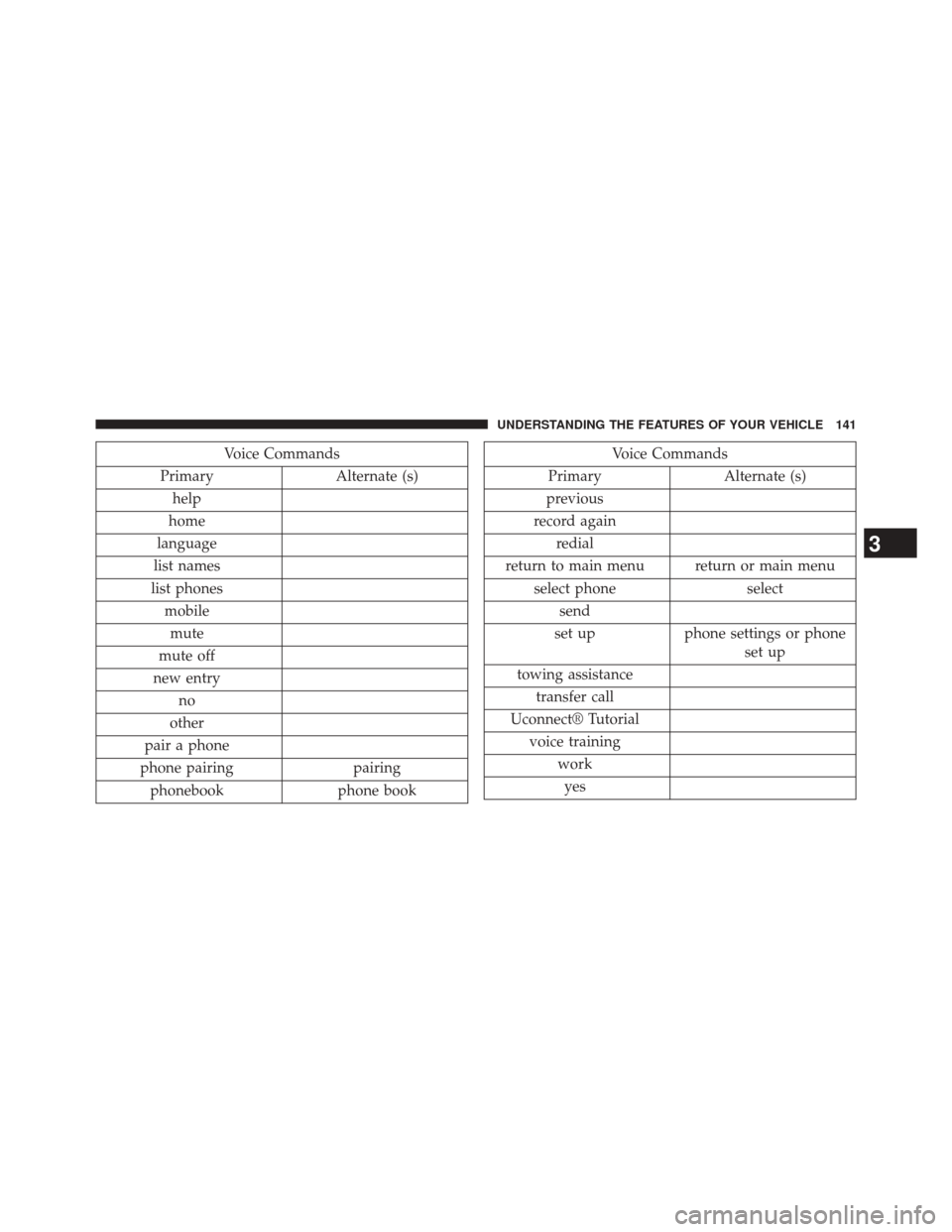
Voice Commands
Primary Alternate (s)
help
home
language
list names
list phones mobilemute
mute off
new entry no
other
pair a phone
phone pairing pairing
phonebook phone bookVoice Commands
Primary Alternate (s)
previous
record again redial
return to main menu return or main menu select phone select
send
set up phone settings or phone
set up
towing assistance transfer call
Uconnect® Tutorial voice training workyes
3
UNDERSTANDING THE FEATURES OF YOUR VEHICLE 141
Page 149 of 568
Memo Mode
To switch to the voice recorder mode, say “Memo.” In
this mode, you may say the following commands:
•
“New Memo” (to record a new memo) — During the
recording, you may press the Voice Command
but-
ton to stop recording. You proceed by saying one of
the following commands:
– “Save” (to save the memo)
– “Continue” (to continue recording)
– “Delete” (to delete the recording)
• “Play Memos” (to play previously recorded memos) —
During the playback you may press the Voice Com-
mand
button to stop playing memos. You pro-
ceed by saying one of the following commands:
– “Repeat” (to repeat a memo)
– “Next” (to play the next memo) – “Previous” (to play the previous memo)
– “Delete” (to delete a memo)
– “Delete All” (to delete all memos)
Setup
To switch to system setup, you may say one of the
following:
•
“Change to setup”
• “Switch to system setup”
• “Main menu setup”
• “Switch to setup”
In this mode, you may say the following commands:
• “Language English”
• “Language French”
• “Language Spanish”3
UNDERSTANDING THE FEATURES OF YOUR VEHICLE 147
Page 239 of 568

Display Units Of Measure In
To make your selection, press and release the SELECT
button until “ENGLISH” or “METRIC” appears.
Personal Settings (Customer-Programmable
Features)
This allows the driver to set and recall features when the
transmission is in PARK (automatic transmission) or the
vehicle is stopped (manual transmission).
Press and release the MENU or DOWN buttons until
“Personal Settings” is displayed in the EVIC then press
the SELECT button.Use the SELECT button to display one of the following
choices:
Language
When in this display you may select different languages
for all display nomenclature, including the trip functions.
Pressing the SELECT button while in this display selects
English, Espanol, Deutsch, Italiano, Francais or NL de-
pending on availability. As you continue, the displayed
information will be shown in the selected language.
NOTE:
Uconnect® language will not change using the
EVIC. Please refer to “Language Selection” in Uconnect®
phone — If Equipped for details.
4
UNDERSTANDING YOUR INSTRUMENT PANEL 237
Page 249 of 568
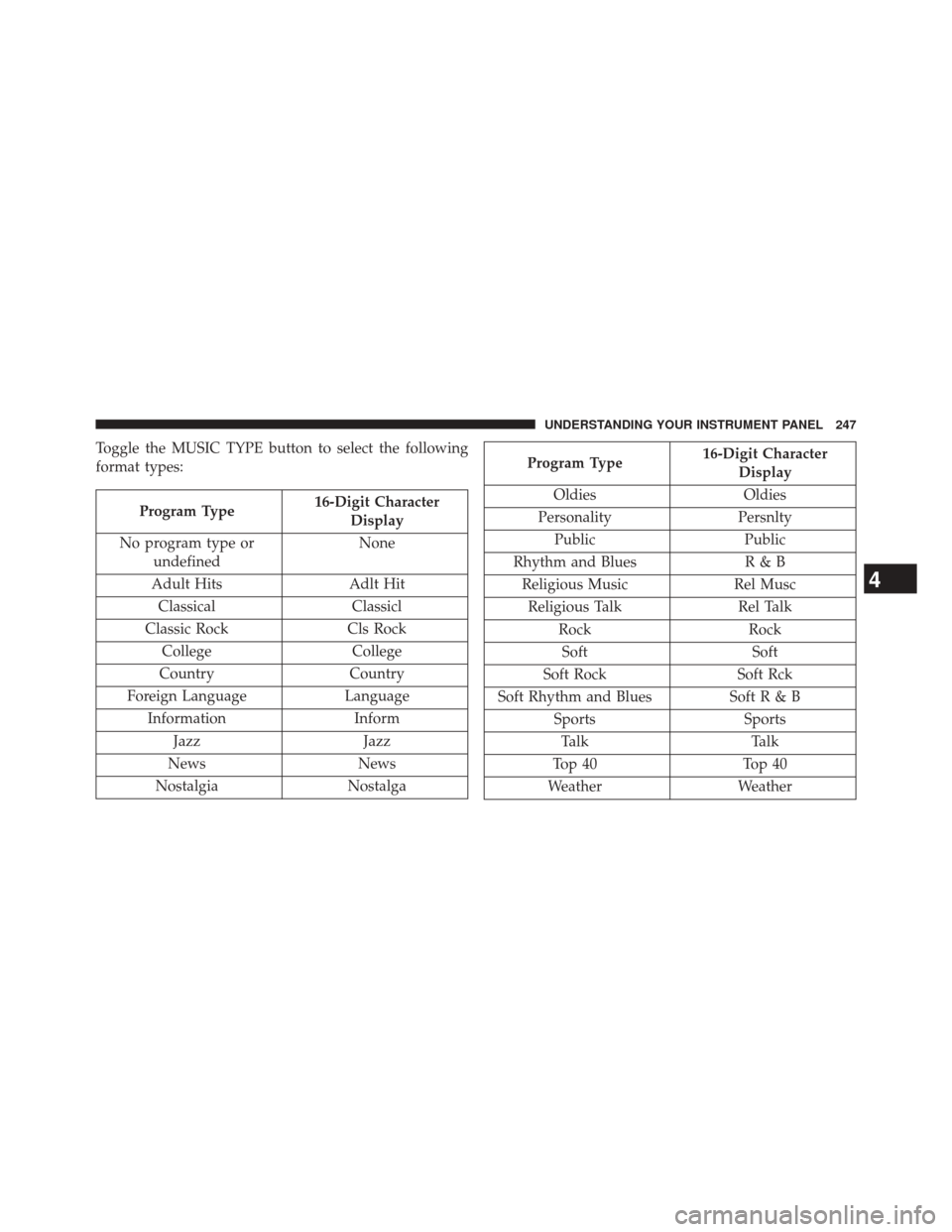
Toggle the MUSIC TYPE button to select the following
format types:
Program Type16-Digit Character
Display
No program type or undefined None
Adult Hits Adlt Hit Classical Classicl
Classic Rock Cls Rock
College College
Country Country
Foreign Language Language
Information Inform
Jazz Jazz
News News
Nostalgia Nostalga
Program Type16-Digit Character
Display
Oldies Oldies
Personality Persnlty
Public Public
Rhythm and Blues R & B
Religious Music Rel Musc
Religious Talk Rel Talk
Rock Rock
Soft Soft
Soft Rock Soft Rck
Soft Rhythm and Blues Soft R & B
Sports Sports
Talk Talk
Top 40 Top 40
Weather Weather
4
UNDERSTANDING YOUR INSTRUMENT PANEL 247