phone JEEP PATRIOT 2016 1.G User Guide
[x] Cancel search | Manufacturer: JEEP, Model Year: 2016, Model line: PATRIOT, Model: JEEP PATRIOT 2016 1.GPages: 148, PDF Size: 8.25 MB
Page 2 of 148
The driver’s primary
responsibility is the
safe operation of the
vehicle. Driving while
distracted can result in
loss of vehicle control,
resulting in a collision
and personal injury.
FCA US LLC strongly
recommends that the
driver use extreme
caution when using any
device or feature that
may take their attention off the road. Use of any
electrical devices, such
as cellular telephones,
computers, portable
radios, vehicle navigation
or other devices, by the
driver while the vehicle is
moving is dangerous
and could lead to a
serious collision. Texting
while driving is also
dangerous and should
never be done while the
vehicle is moving. If you find yourself unable to
devote your full attention
to vehicle operation, pull
off the road to a safe
location and stop your
vehicle. Some states
or provinces prohibit
the use of cellular
telephones or texting
while driving. It is always
the driver’s responsibility
to comply with all
local laws.
Driving and Alcohol:
Drunken driving is one of the most frequent causes of collisions. Your
driving ability can be seriously impaired with blood alcohol levels far below
the legal minimum. If you are drinking, don’t drive. Ride with a designated
non-drinking driver, call a cab, a friend, or use public transportation.
WARNING:
Driving after drinking can lead to a collision. Your perceptions are less sharp,
your reflexes are slower, and your judgment is impaired when you have been
drinking. Never drink and then drive.
If you are the first registered retail owner of your vehicle,
you may obtain a complimentary printed copy of the Owner’s
Manual, Navigation/Uconnect Manuals or Warranty Booklet
by calling 1-877-426-5337 (U.S.) or 1-800-387-1143 (Canada)
or by contacting your dealer.
Important:
This User Guide is intended to familiarize you with the important features of
your vehicle. The DVD enclosed contains your Owner’s Manual, Navigation/
Uconnect Manuals, Warranty Booklets, Tire Warranty and Roadside Assistance
(new vehicles purchased in the U.S.) or Roadside Assistance (new vehicles
purchased in Canada) in electronic format. We hope you find it useful.
Replacement DVD kits may be purchased by visiting www.techauthority.com.
This guide has been prepared to help you
get quickly acquainted with your new Jeep
®
Brand Vehicle and to provide a convenient
reference source for common questions.
However, it is not a substitute for your
Owner’s Manual.
For complete operational instructions,
maintenance procedures and important
safety messages, please consult your
Owner’s Manual, Navigation/Uconnect
Manuals and other Warning Labels in
your vehicle.
Not all features shown in this guide
may apply to your vehicle. For additional
information on accessories to help
personalize your vehicle, visit
www.mopar.com (U. S .), www.mopar.ca
(Canada) or your local Jeep brand dealer.
2126530_16b_Patriot_UG_REV1_080415.indd 28/4/15 2:37 PM
Page 3 of 148
INTRODUCTION/WELCOME
WELCOME FROM FCA US LLC...... 2
CONTROLS AT A GLANCE
DRIVER COCKPIT.............. 6
INSTRUMENT CLUSTER .......... 8
GETTING STARTED
KEYFOB ................... 10
REMOTE START............... 11
VEHICLE SECURITY ALARM ....... 12
SEAT BELT SYSTEMS ........... 13
SUPPLEMENTAL RESTRAINT SYSTEM
(SRS) — AIR BAGS ............ 14
CHILD RESTRAINTS ............ 18
HEAD RESTRAINTS ............. 22
FRONT SEATS ................ 23
REAR SEATS ................ 26
HEATEDSEATS ............... 27
TILT STEERING COLUMN ......... 28
OPERATING YOUR VEHICLE
ENGINE BREAK-IN
RECOMMENDATIONS........... 29
MULTIFUNCTION LEVER ......... 29
WINDSHIELD WIPERS AND WASHERS.. 31
ELECTRONIC SPEED CONTROL ..... 34
PARKVIEW REAR BACK-UP CAMERA... 37
CONTINUOUSLY VARIABLE AUTOMATIC
TRANSMISSION (CVT) ........... 37
SIX-SPEED AUTOMATIC
TRANSMISSION ............... 38
MANUAL CLIMATE CONTROLS ...... 38
AUTOMATIC TEMPERATURE CONTROLS
(ATC) ..................... 39
POWER SUNROOF ............. 40
ELECTRONICS
YOUR VEHICLE'S SOUND SYSTEM . . . 42
UCONNECT 130............... 44
UCONNECT 130 WITH SiriusXM SATELLITE
RADIO ..................... 47
UCONNECT 230 ............... 51
UCONNECT 430/430N ........... 54
SiriusXM SATELLITE RADIO/TRAVEL
LINK ...................... 66
STEERING WHEEL AUDIO CONTROLS.. 71
AUX/USB/MP3 CONTROL ......... 71
UCONNECT PHONE ............. 72
UCONNECT VOICE COMMAND ...... 75
Bluetooth STREAMING AUDIO ...... 77
ELECTRONIC VEHICLE INFORMATION
CENTER (EVIC) ............... 78
PROGRAMMABLE FEATURES ....... 79
UNIVERSAL GARAGE DOOR OPENER
(HomeLink) ................. 81
POWER INVERTER ............. 83
POWER OUTLET .............. 84
OFF-ROAD CAPABILITIES
FOUR-WHEEL DRIVE OPERATION . . . 85
UTILITY
TRAILER TOWING WEIGHTS (MAXIMUM
TRAILER WEIGHT RATINGS) ....... 87
RECREATIONAL TOWING (BEHIND
MOTORHOME, ETC.) ............ 88
WHAT TO DO IN EMERGENCIES
ROADSIDE ASSISTANCE .......... 89
INSTRUMENT CLUSTER WARNING
LIGHTS .................... 89
INSTRUMENT CLUSTER INDICATOR
LIGHTS .................... 94
IF YOUR ENGINE OVERHEATS ...... 95
AUTOMATIC TRANSMISSION
OVERHEATING ............... 96
JACKING AND TIRE CHANGING ..... 96
JUMP-STARTING PROCEDURES .... 103
SHIFT LEVER OVERRIDE ........ 106
TOWING A DISABLED VEHICLE .... 107
FREEING A STUCK VEHICLE ...... 108
ENHANCED ACCIDENT RESPONSE SYSTEM
(EARS) .................... 109
EVENT DATA RECORDER (EDR) .... 109
MAINTAINING YOUR VEHICLE
TO OPEN AND CLOSE THE HOOD . . . 110
ENGINE COMPARTMENT — 2.0L . . . 112
ENGINE COMPARTMENT — 2.4L . . . 114
FLUID CAPACITIES............ 116
FLUIDS, LUBRICANTS, AND GENUINE
PARTS .................... 116
MAINTENANCE PROCEDURES ..... 118
MAINTENANCE SCHEDULE ....... 118
FUSES .................... 123
TIRES — GENERAL INFORMATION . . 125
REPLACEMENT BULBS ......... 128
CUSTOMER ASSISTANCE
FCA US LLC CUSTOMER CENTER . . . 129
FCA CANADA INC. CUSTOMER
CENTER.................. 129
ASSISTANCE FOR THE HEARING
IMPAIRED ................. 129
PUBLICATIONS ORDERING ....... 129
REPORTING SAFETY DEFECTS IN THE
UNITEDSTATES .............. 130
MOPAR® ACCESSORIES
AUTHENTIC ACCESSORIES BY
MOPAR ................... 131
FAQ
FREQUENTLY ASKED QUESTIONS . . . 132
INDEX.................. 134
TABLE OF CONTENTS
Page 7 of 148
USE OF AFTERMARKET PRODUCTS (ELECTRONICS)
The use of aftermarket devices including cell phones, MP3 players, GPS systems, or
chargers may affect the performance of on-board wireless features including Keyless
Enter-N-Go and Remote Start range. If you are experiencing difficulties with any of
your wireless features, try disconnecting your aftermarket devices to see if the
situation improves. If your symptoms persist, please see an authorized dealer.
When it comes to service, remember that your authorized dealer knows your Jeep
®
vehicle best, has factory-trained technicians and genuine MOPAR®parts, and cares
about your satisfaction.
INTRODUCTION/WELCOME
5
Page 44 of 148
YOUR VEHICLE'S SOUND SYSTEM
1. Uconnect Voice Command Button pg. 75
2. Uconnect Phone Button pg. 72
3. Steering Wheel Audio Controls (Right – Behind Steering Wheel) pg. 71
4. Steering Wheel Audio Controls (Left – Behind Steering Wheel) pg. 71
ELECTRONICS
42
Page 49 of 148
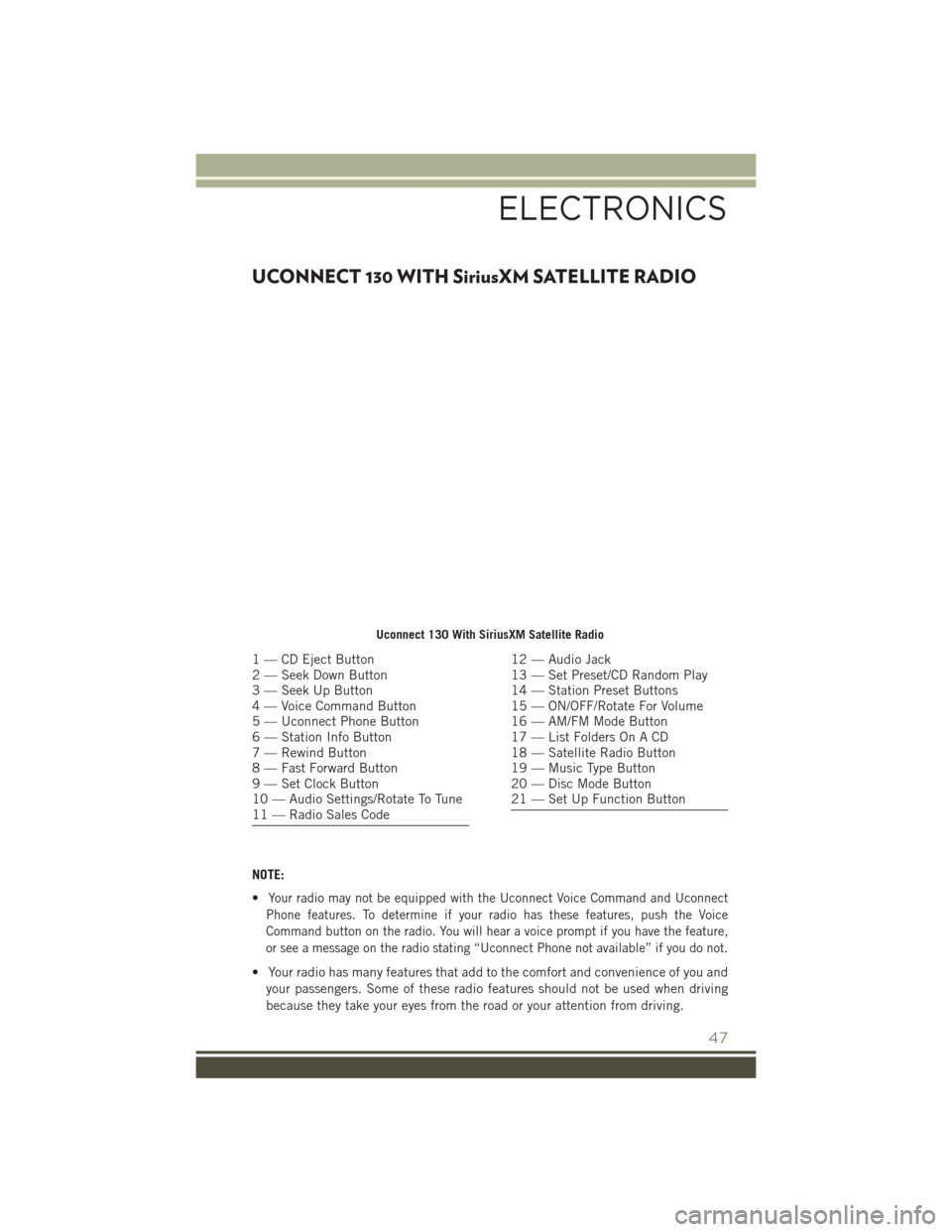
UCONNECT 130 WITH SiriusXM SATELLITE RADIO
NOTE:
•
Your radio may not be equipped with the Uconnect Voice Command and Uconnect
Phone features. To determine if your radio has these features, push the Voice
Command button on the radio. You will hear a voice prompt if you have the feature,
or see a message on the radio stating “Uconnect Phone not available” if you do not.
• Your radio has many features that add to the comfort and convenience of you and your passengers. Some of these radio features should not be used when driving
because they take your eyes from the road or your attention from driving.
Uconnect 130 With SiriusXM Satellite Radio
1 — CD Eject Button
2 — Seek Down Button
3 — Seek Up Button
4 — Voice Command Button
5 — Uconnect Phone Button
6 — Station Info Button
7 — Rewind Button
8 — Fast Forward Button
9 — Set Clock Button
10 — Audio Settings/Rotate To Tune
11 — Radio Sales Code12 — Audio Jack
13 — Set Preset/CD Random Play
14 — Station Preset Buttons
15 — ON/OFF/Rotate For Volume
16 — AM/FM Mode Button
17 — List Folders On A CD
18 — Satellite Radio Button
19 — Music Type Button
20 — Disc Mode Button
21 — Set Up Function Button
ELECTRONICS
47
Page 53 of 148
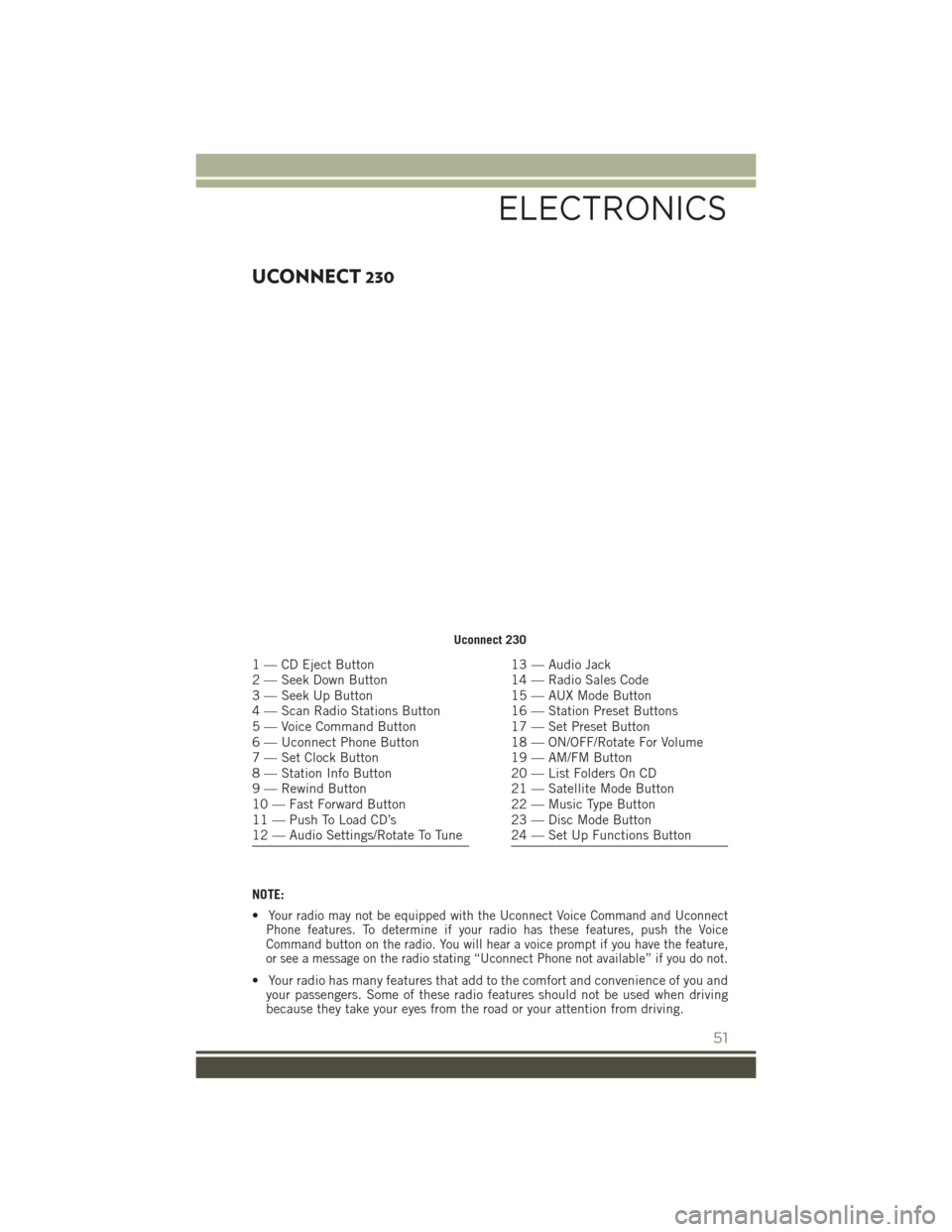
UCONNECT 230
NOTE:
•
Your radio may not be equipped with the Uconnect Voice Command and Uconnect
Phone features. To determine if your radio has these features, push the Voice
Command button on the radio. You will hear a voice prompt if you have the feature,
or see a message on the radio stating “Uconnect Phone not available” if you do not.
• Your radio has many features that add to the comfort and convenience of you and your passengers. Some of these radio features should not be used when driving
because they take your eyes from the road or your attention from driving.
Uconnect 230
1 — CD Eject Button
2 — Seek Down Button
3 — Seek Up Button
4 — Scan Radio Stations Button
5 — Voice Command Button
6 — Uconnect Phone Button
7 — Set Clock Button
8 — Station Info Button
9 — Rewind Button
10 — Fast Forward Button
11 — Push To Load CD’s
12 — Audio Settings/Rotate To Tune13 — Audio Jack
14 — Radio Sales Code
15 — AUX Mode Button
16 — Station Preset Buttons
17 — Set Preset Button
18 — ON/OFF/Rotate For Volume
19 — AM/FM Button
20 — List Folders On CD
21 — Satellite Mode Button
22 — Music Type Button
23 — Disc Mode Button
24 — Set Up Functions Button
ELECTRONICS
51
Page 56 of 148
Audio Jack Operation
The AUX/Audio Jack provides a means to connect a portable audio device, such as an
MP3 player or an iPod, to the vehicle’s sound system. This requires the use of a 3.5
mm stereo audio patch cable.
• Pushing the AUX button will change the mode to auxiliary device if the Audio Jackis connected, allowing the music from your portable device to play through the
vehicle's speakers.
The functions of the portable device are controlled using the device buttons, not the
buttons on the radio. However, the volume may be controlled using the radio or
portable device.
UCONNECT 430/430N
NOTE:
•
Your radio may not be equipped with the Uconnect Voice Command and Uconnect
Phone features. To determine if your radio has these features, push the Voice
Command button on the radio. You will hear a voice prompt if you have the feature,
or see a message on the radio stating “Uconnect Phone not available” if you do not.
• Your radio has many features that add to the comfort and convenience of you and
your passengers. Some of these radio features should not be used when driving
because they take your eyes from the road or your attention from driving.
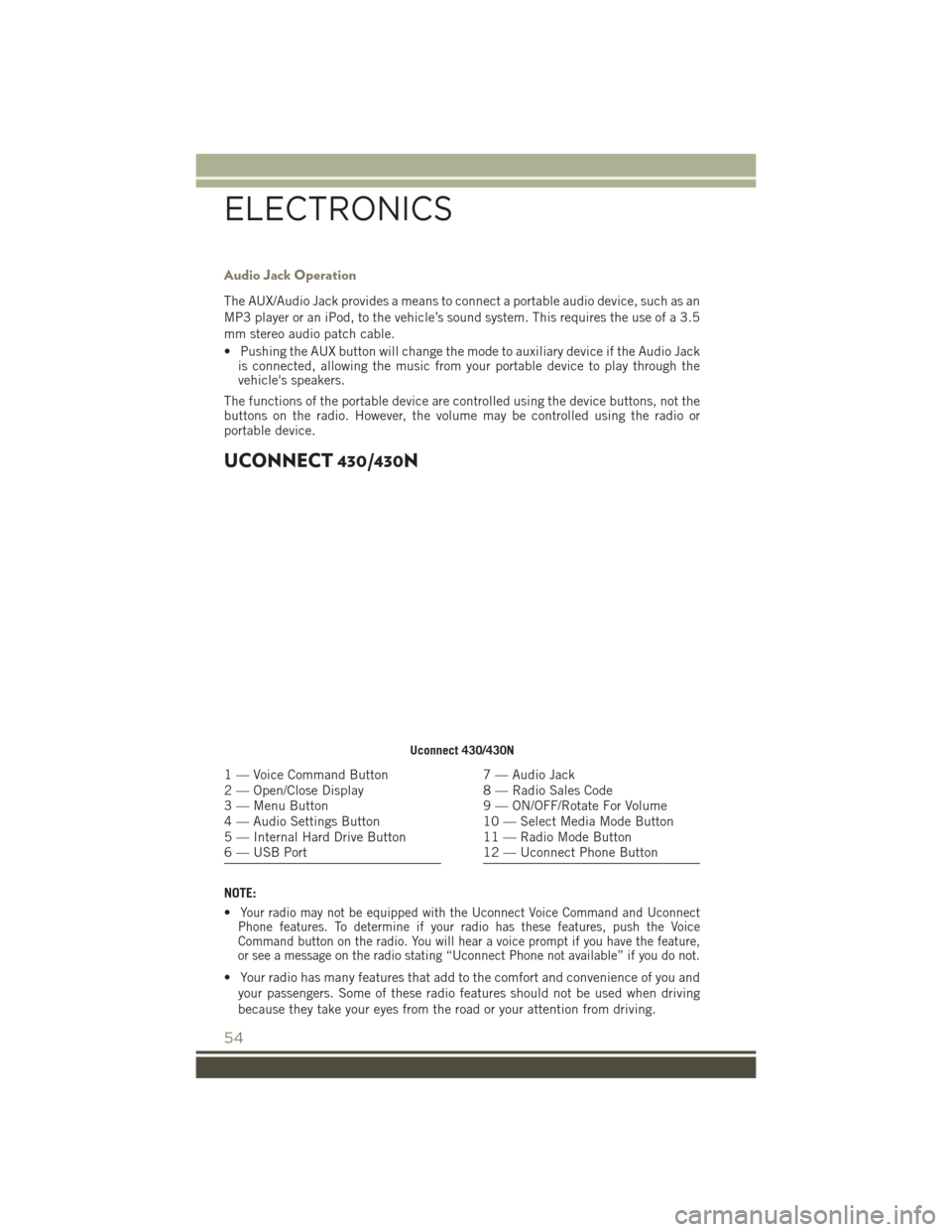
Uconnect 430/430N
1 — Voice Command Button
2 — Open/Close Display
3 — Menu Button
4 — Audio Settings Button
5 — Internal Hard Drive Button
6 — USB Port7 — Audio Jack
8 — Radio Sales Code
9 — ON/OFF/Rotate For Volume
10 — Select Media Mode Button
11 — Radio Mode Button
12 — Uconnect Phone Button
ELECTRONICS
54
Page 74 of 148
• Compatible iPod devices may also be controllable using voice commands. Refer tothe Owner's Manual on the DVD for details.
NOTE:
The USB port supports certain Mini, Classic, Nano, Touch, and iPhone devices. The
USB port also supports playing music from compatible external USB Mass Storage
Class memory devices. For supported audio file formats, refer to the USB Port section
in the Owner's Manual on the DVD. Refer to UconnectPhone.com website for a list of
tested iPods. Some iPod software versions may not fully support the USB port
features. Please visit Apple’s website for iPod software updates.
WARNING!
Do not plug in or remove the iPod or external device while driving. Failure to follow
this warning could result in a collision.
UCONNECT PHONE
The Uconnect Phone is a voice-activated, hands-free, in-vehicle communications
system with Voice Command Capability (see Voice Command section).
• To determine if your vehicle is equipped with Uconnect Phone, push the Uconnect Phone button
located on the radio faceplate. If your vehicle has this feature,
you will hear a voice prompt. If not, you will see a message on the radio stating
“Uconnect phone not available.”
NOTE:
To access the tutorial, push the Uconnect Phone button
and after the BEEP, say
“tutorial.” Push any button on the faceplate or press any button on the touchscreen
to cancel the “tutorial.”
• The Uconnect Phone allows you to dial a phone number with your mobile phone using simple voice commands.
Refer to your vehicle Owner's Manual on the DVD for further details.
NOTE:
The Uconnect Phone requires a mobile phone equipped with the Bluetooth Hands-
Free Profile Version 1.0 or higher. For Uconnect Customer Support: U.S. residents -
visit UconnectPhone.com or call 1-877-855-8400. Canadian Residents - call
1-800-465-2001 (English) or 1-800-387-9983 (French). This site will provide
specific instructions based on the type of mobile phone being paired.
ELECTRONICS
72
Page 75 of 148
Phone Pairing
NOTE:
Pairing is a one-time initial setup before using the phone. Prior to starting the pairing
procedure ensure all additional phones within the vehicle have their Bluetooth
disabled.
• Activate Bluetooth on the mobile phone you are pairing.
• Push the “Phone”
button.
• Wait for the “ready” prompt and BEEP.
• After the BEEP, say ”setup” or “Uconnect device setup.”
• After the BEEP, say “device pairing.”
• After the BEEP, say “pair a device.”
• Follow the audible prompts.
• You will be asked to say a four-digit Personal Identification Number (PIN),
which you will later need to enter into
your mobile phone. You can say any
four-digit PIN. You will not need to
remember this PIN after the initial
pairing process.
• You will then be prompted to give the phone pairing a name (each phone paired should have a unique name).
•
Next you will be asked to give this new pairing a priority of 1 through 7 (up to seven
phones may be paired); 1 is the highest and 7 is the lowest priority. The system will only
connect to the highest priority phone that exists within the proximity of the vehicle.
• You will then need to start the pairing procedure on your cell phone. Follow the
Bluetooth instructions in your cell phone Owner's Manual to complete the phone
pairing setup.
Phonebook
Phonebook Download — Automatic Phonebook Transfer From Mobile Phone
• If equipped and specifically supported by your phone, Uconnect Phone automati-cally downloads names (text names) and number entries from your mobile phone’s
phonebook. Specific Bluetooth Phones with Phone Book Access Profile may
support this feature. Automatic Transfer is indicated by a green arrow at the
bottom of the screen. See UconnectPhone.com for supported phones.
• Automatic download and update, if supported, begins as soon as the Bluetooth wireless phone connection is made to the Uconnect Phone. For example, after you
start the vehicle.
NOTE:
The mobile phone may require authorization prior to download.
Phone Pairing
ELECTRONICS
73
Page 76 of 148
• A maximum of 1,000 entries per phone will be downloaded and updated everytime a phone is connected to the Uconnect Phone.
• Depending on the maximum number of entries downloaded, there may be a short delay before the latest downloaded names can be used. Until then, if available, the
previously downloaded phonebook is available for use.
• Only the phonebook of the currently connected mobile phone is accessible.
• Only the mobile phones phonebook is downloaded. The SIM card phonebook is not part of the Mobile phonebook.
• This downloaded phonebook cannot be edited or deleted on the Uconnect Phone. These can only be edited on the mobile phone. The changes are transferred and
updated to Uconnect Phone on the next phone connection.
Making A Phone Call
• Push the “Phone” button.
• After the BEEP, say “dial” (or “call” a name).
• After the BEEP, say number (or name).
Receiving A Call — Accept (And End)
• When an incoming call rings/is announced on Uconnect, push the “Phone” button
.
• To end a call, push the “Phone” button
.
Mute (Or Unmute) Microphone During Call
• During a call, push the “Voice Command” button.
• After the BEEP, say “mute” (or “mute off”).
Transfer Ongoing Call Between Handset And Vehicle
• During a call, push the “Voice Command” button.
• After the BEEP, say “transfer call.”
Changing The Volume
• Start a dialogue by pushing the “Phone” button, then adjust the volume
during a normal call.
• Use the radio ON/OFF VOLUME rotary knob to adjust the volume to a comfortable level while the Uconnect system is speaking. Please note the volume setting for
Uconnect is different than the audio system.
ELECTRONICS
74