To make your selection, press the “AUX Volume Offset”
button on the touchscreen, select any point on the scale
between the “+” and “–” buttons on the touchscreen.
•Auto-On Radio
The Radio automatically turns on when vehicle is in run
or will recall whether it was on or off at last ignition off.
To make your selection, press the “Loudness” button on
the touchscreen, select “On,” “Off” or “Recall Last”.
Phone/Bluetooth
After pressing the “Phone/Bluetooth” button on the
touchscreen the following settings will be available:
•Paired Phones
This feature shows which mobile phones are paired to the
Phone/Bluetooth system.
•Paired Audio Sources
This feature shows which audio devices are paired to the
Phone/Bluetooth system.
SiriusXM Setup — If Equipped
After pressing the “SiriusXM Setup” button on the touch-
screen, the following settings will be available:
•Channel Skip
SiriusXM can be programmed to designate a group of
channels that are the most desirable to listen to or to
exclude undesirable channels while scanning. To make
your selection, press the “Channel Skip” button on the
touchscreen, select the channels you would like to skip.
•Subscription Information
New vehicle purchasers or lessees will receive a free
limited time subscription to SiriusXM Satellite Radio
with your radio. Following the expiration of the free
services, it will be necessary to access the information on
the Subscription Information screen to re-subscribe.
Press the “Subscription Info” button on the touchscreen
to access the Subscription Information screen.
11
MULTIMEDIA 639
Get Started
All you need to control your Uconnect system with your
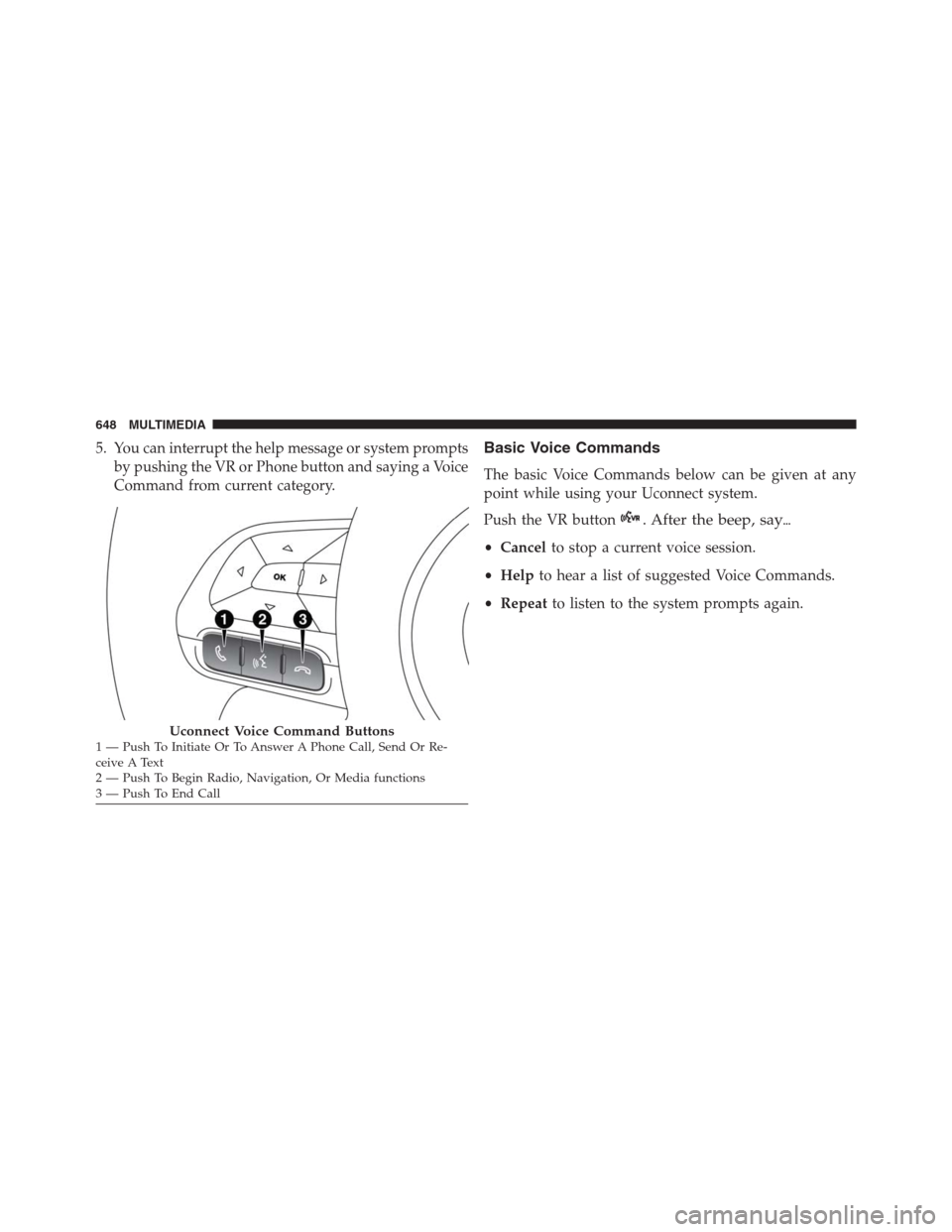
voice are the buttons on your steering wheel.
1. VisitUconnectPhone.com to check mobile device and
feature compatibility and to find phone pairing
instructions.
2. Reduce background noise. Wind and passenger con-
versations are examples of noise that may impact
recognition.
3. Speak clearly at a normal pace and volume while
facing straight ahead. The microphone is positioned
on the rearview mirror and aimed at the driver.
4. Each time you give a Voice Command, you must first
push either the VR or Phone button, wait untilafter
the beep, then say your Voice Command.
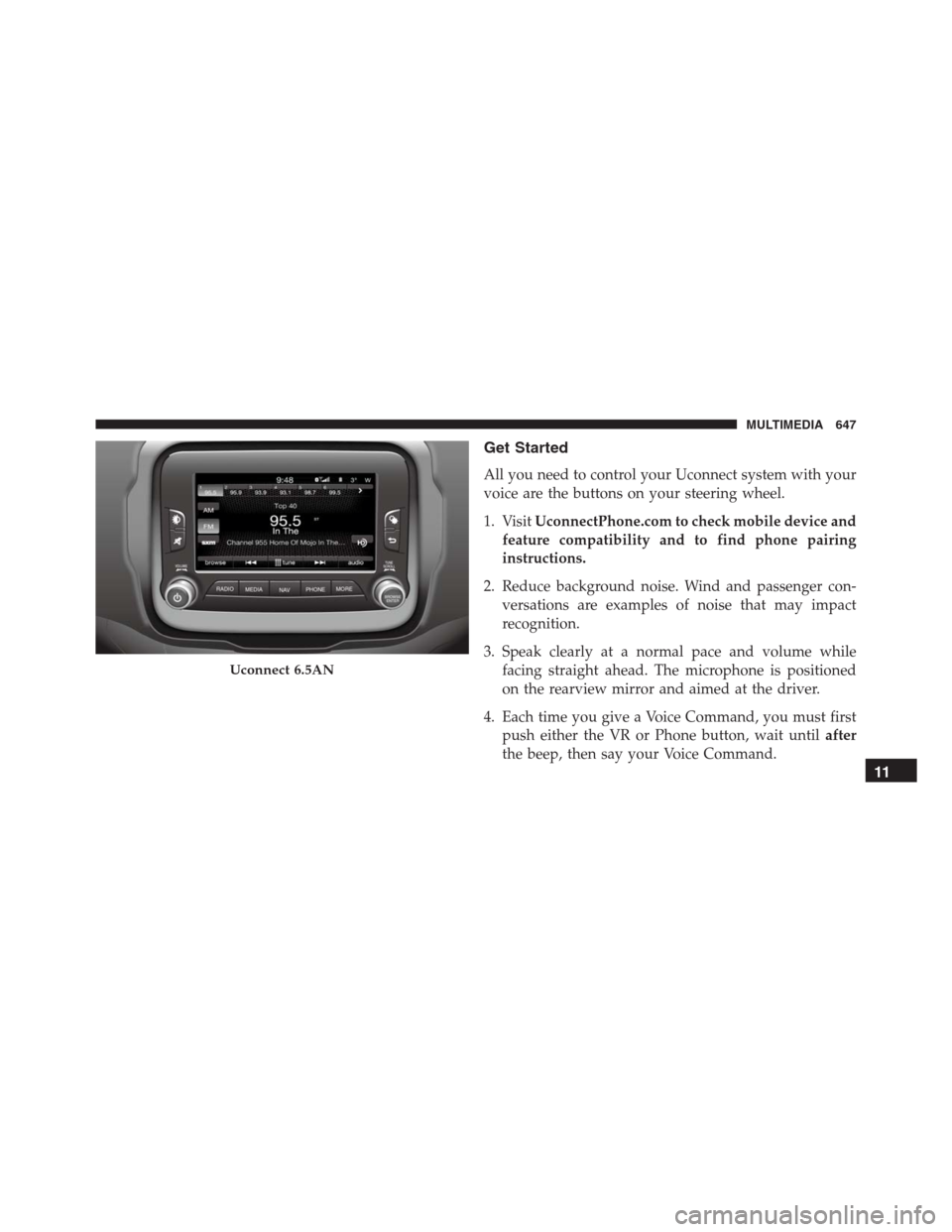
Uconnect 6.5AN
11
MULTIMEDIA 647
5. You can interrupt the help message or system prompts
by pushing the VR or Phone button and saying a Voice
Command from current category.Basic Voice Commands
The basic Voice Commands below can be given at any
point while using your Uconnect system.
Push the VR button
. After the beep, say�
•Cancelto stop a current voice session.
•Helpto hear a list of suggested Voice Commands.
•Repeatto listen to the system prompts again.
Uconnect Voice Command Buttons1 — Push To Initiate Or To Answer A Phone Call, Send Or Re-
ceive A Text
2 — Push To Begin Radio, Navigation, Or Media functions
3 — Push To End Call 648 MULTIMEDIA