headlights JEEP WAGONEER 2023 User Guide
[x] Cancel search | Manufacturer: JEEP, Model Year: 2023, Model line: WAGONEER, Model: JEEP WAGONEER 2023Pages: 396, PDF Size: 15.17 MB
Page 119 of 396
GETTING TO KNOW YOUR INSTRUMENT PANEL117
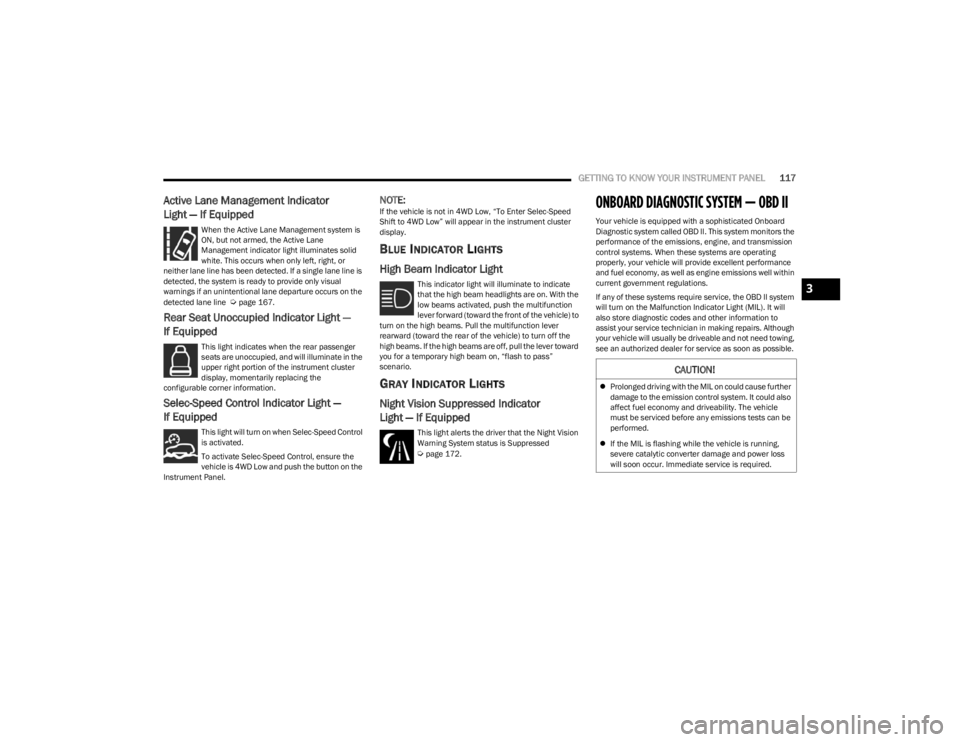
Active Lane Management Indicator
Light — If Equipped
When the Active Lane Management system is
ON, but not armed, the Active Lane
Management indicator light illuminates solid
white. This occurs when only left, right, or
neither lane line has been detected. If a single lane line is
detected, the system is ready to provide only visual
warnings if an unintentional lane departure occurs on the
detected lane line
Úpage 167.
Rear Seat Unoccupied Indicator Light —
If Equipped
This light indicates when the rear passenger
seats are unoccupied, and will illuminate in the
upper right portion of the instrument cluster
display, momentarily replacing the
configurable corner information.
Selec-Speed Control Indicator Light —
If Equipped
This light will turn on when Selec-Speed Control
is activated.
To activate Selec-Speed Control, ensure the
vehicle is 4WD Low and push the button on the
Instrument Panel.
NOTE:If the vehicle is not in 4WD Low, “To Enter Selec-Speed
Shift to 4WD Low” will appear in the instrument cluster
display.
BLUE INDICATOR LIGHTS
High Beam Indicator Light
This indicator light will illuminate to indicate
that the high beam headlights are on. With the
low beams activated, push the multifunction
lever forward (toward the front of the vehicle) to
turn on the high beams. Pull the multifunction lever
rearward (toward the rear of the vehicle) to turn off the
high beams. If the high beams are off, pull the lever toward
you for a temporary high beam on, “flash to pass”
scenario.
GRAY INDICATOR LIGHTS
Night Vision Suppressed Indicator
Light — If Equipped
This light alerts the driver that the Night Vision
Warning System status is Suppressed
Úpage 172.
ONBOARD DIAGNOSTIC SYSTEM — OBD II
Your vehicle is equipped with a sophisticated Onboard
Diagnostic system called OBD II. This system monitors the
performance of the emissions, engine, and transmission
control systems. When these systems are operating
properly, your vehicle will provide excellent performance
and fuel economy, as well as engine emissions well within
current government regulations.
If any of these systems require service, the OBD II system
will turn on the Malfunction Indicator Light (MIL). It will
also store diagnostic codes and other information to
assist your service technician in making repairs. Although
your vehicle will usually be driveable and not need towing,
see an authorized dealer for service as soon as possible.
CAUTION!
Prolonged driving with the MIL on could cause further
damage to the emission control system. It could also
affect fuel economy and driveability. The vehicle
must be serviced before any emissions tests can be
performed.
If the MIL is flashing while the vehicle is running,
severe catalytic converter damage and power loss
will soon occur. Immediate service is required.
3
23_WS_OM_EN_USC_t.book Page 117
Page 135 of 396

STARTING AND OPERATING133
Normal Ride Height (NRH) – This is the standard posi -
tion of the suspension and is meant for normal driving.
Off-Road 1 (OR1) (Raises the vehicle approximately
1.2 inches [30 mm]) – This is the primary position for
all off-road driving until OR2 is needed. A smoother and
more comfortable ride will result. Push the toggle
switch forward once from the NRH position while the
vehicle speed is below 38 mph (61 km/h). When in the
OR1 position, if the vehicle speed remains between
40 mph (64 km/h) and 50 mph (80 km/h) for greater than 20 seconds or if the vehicle speed exceeds
50 mph (80 km/h), the vehicle will be automatically
lowered to NRH
Úpage 193. OR1 is unavailable on
4x2 air suspension vehicles.
Off-Road 2 (OR2) (Raises the vehicle approximately
2.0 inches [51 mm]) – This position is intended for
off-roading use only where maximum ground clearance
is required. To enter OR2, push the toggle switch
forward twice from the NRH position or once from the
OR1 position while vehicle speed is below 20 mph
(32 km/h). While in OR2, if the vehicle speed exceeds
25 mph (40 km/h) the vehicle height will be automati -
cally lowered to OR1
Úpage 193. OR2 is unavailable
on 4x2 air suspension vehicles.
Aero Height (Lowers the vehicle approximately
-0.6 inches [-15 mm]) – This position provides
improved aerodynamics by lowering the vehicle. The
vehicle will automatically enter Aero Height when the
vehicle speed remains between 62 mph (100 km/h)
and 66 mph (106 km/h) for greater than 20 seconds
or if the vehicle speed exceeds 66 mph (106 km/h). The vehicle will return to Default Ride Height from Aero
Height if the vehicle speed remains between 30 mph
(48 km/h) and 35 mph (56 km/h) for greater than
20 seconds or if the vehicle speed falls below 30 mph
(48 km/h). The vehicle will enter Aero Height, regard
-
less of vehicle speed if the vehicle is in “SPORT” mode.
Entry/Exit Height (Lowers the vehicle approximately
-1.6 inches [-40 mm]) – This position lowers the
vehicle for easier passenger entry and exit as well as
lowering the rear of the vehicle for easier loading and
unloading of cargo. To enter Entry/Exit Height, push the
toggle switch down twice from NRH while the vehicle
speed is below 6 mph (10 km/h). To exit Entry/Exit
Height, push the UP button once while in Entry/Exit
Height or drive the vehicle over 4 mph (6 km/h).
NOTE:Automatic lowering of the vehicle into Entry/Exit Height
can be enabled through the Uconnect Touchscreen Radio.
If this feature is enabled, the vehicle will only lower if the
gear selector is in PARK, the terrain switch is in AUTO, the
transfer case is in AUTO and the vehicle level is either in
Normal or Aero Height. The vehicle will not automatically
lower if the air suspension level is in OR2 or OR1. When
towing, the automatic Entry/Exit feature may be disabled
through the Uconnect Touchscreen Radio to prevent
vehicle and trailer movement when gear selector is moved
to PARK. The Selec-Terrain system will automatically change the
vehicle to the proper height based on the position of the
Selec-Terrain switch. The height can be changed from the
default Selec-Terrain setting by normal use of the air
suspension buttons
Úpage 131.
The system requires that the engine be running for all
changes. When lowering the vehicle all of the doors,
including the liftgate, must be closed. If a door is opened
at any time while the vehicle is lowering the change will not
be completed until the open door(s) is/are closed.
The Quadra-Lift Air Suspension system uses a lifting and
lowering pattern which keeps the headlights from
incorrectly shining into oncoming traffic. When raising the
vehicle, the rear of the vehicle will move up first and then
the front. When lowering the vehicle, the front will move
down first and then the rear.
After the engine is turned off, it may be noticed that the air
suspension system operates briefly; this is normal. The
system is correcting the position of the vehicle to ensure a
proper appearance.
To assist with changing a spare tire, the Quadra-Lift Air
Suspension system has a feature which allows the
automatic leveling to be disabled
Úpage 197.
4
23_WS_OM_EN_USC_t.book Page 133
Page 174 of 396
172STARTING AND OPERATING
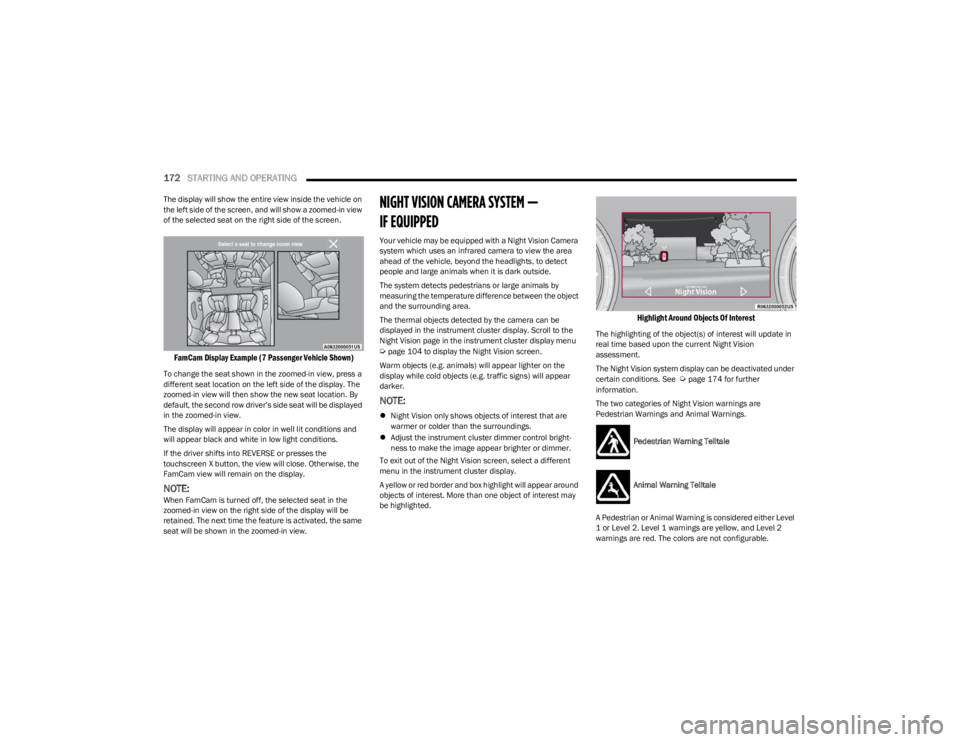
The display will show the entire view inside the vehicle on
the left side of the screen, and will show a zoomed-in view
of the selected seat on the right side of the screen.
FamCam Display Example (7 Passenger Vehicle Shown)
To change the seat shown in the zoomed-in view, press a
different seat location on the left side of the display. The
zoomed-in view will then show the new seat location. By
default, the second row driver’s side seat will be displayed
in the zoomed-in view.
The display will appear in color in well lit conditions and
will appear black and white in low light conditions.
If the driver shifts into REVERSE or presses the
touchscreen X button, the view will close. Otherwise, the
FamCam view will remain on the display.
NOTE:When FamCam is turned off, the selected seat in the
zoomed-in view on the right side of the display will be
retained. The next time the feature is activated, the same
seat will be shown in the zoomed-in view.
NIGHT VISION CAMERA SYSTEM —
IF EQUIPPED
Your vehicle may be equipped with a Night Vision Camera
system which uses an infrared camera to view the area
ahead of the vehicle, beyond the headlights, to detect
people and large animals when it is dark outside.
The system detects pedestrians or large animals by
measuring the temperature difference between the object
and the surrounding area.
The thermal objects detected by the camera can be
displayed in the instrument cluster display. Scroll to the
Night Vision page in the instrument cluster display menu
Úpage 104 to display the Night Vision screen.
Warm objects (e.g. animals) will appear lighter on the
display while cold objects (e.g. traffic signs) will appear
darker.
NOTE:
Night Vision only shows objects of interest that are
warmer or colder than the surroundings.
Adjust the instrument cluster dimmer control bright -
ness to make the image appear brighter or dimmer.
To exit out of the Night Vision screen, select a different
menu in the instrument cluster display.
A yellow or red border and box highlight will appear around
objects of interest. More than one object of interest may
be highlighted.
Highlight Around Objects Of Interest
The highlighting of the object(s) of interest will update in
real time based upon the current Night Vision
assessment.
The Night Vision system display can be deactivated under
certain conditions. See
Úpage 174 for further
information.
The two categories of Night Vision warnings are
Pedestrian Warnings and Animal Warnings.
Pedestrian Warning Telltale
Animal Warning Telltale
A Pedestrian or Animal Warning is considered either Level
1 or Level 2. Level 1 warnings are yellow, and Level 2
warnings are red. The colors are not configurable.
23_WS_OM_EN_USC_t.book Page 172
Page 176 of 396

174STARTING AND OPERATING
(Continued)
The system may not be able to detect pedestrians or
animals in the following situations:
Pedestrian/animal is outside of the detection range
Pedestrian/animal is fully or partially covered
Pedestrian/animal does not reach the minimum detec -
tion height
NOTE:Other objects on the road that meet the height/shape/
temperature (e.g. sun exposure) of pedestrians/animals
may be detected and classified as targets.
SERVICE THE NIGHT VISION SYSTEM
When service conditions are present, the following fault
messages may appear in the instrument cluster display
when the vehicle is placed in the ON position.
If "Night Vision Unavailable Sensor Blocked" appears in
the instrument cluster display, make sure the camera is
clear of snow, ice, mud, dirt or other debris. The camera is
located in the upper fascia/bumper, inside the driver side
grille slot. Clean the camera using a soft wet cloth or by
pressing the Clean Camera button in the Uconnect
system. If the message continues to appear after cycling
the ignition, see an authorized dealer.
If “Night Vision Temporarily Unavailable” or “Night Vision
Unavailable Service Required" appears in the instrument
cluster display after cycling the ignition, see an authorized
dealer.
The camera must be properly aligned to work correctly.
If the camera needs adjustment, see an authorized
dealer. Do not attempt to adjust the camera yourself.
NOTE:Alignment and performance of the Night Vision may be
affected by aftermarket modifications. Mopar® parts
should be used to get the optimal performance of this
system.
NIGHT VISION SYSTEM LIMITATIONS
The Night Vision display is deactivated under the following
conditions:
Vehicle is shifted into REVERSE
The ignition is not in the ON/RUN position
The headlights are off and the vehicle speed is greater
than 8 mph (13 km/h)
The Night Vision display warnings are suppressed under
the following conditions:
Daylight hours
Temperatures above 86°F (30°C)
The system may not be fully functional in the following
situations:
On steep hills
On tight curves of the road
If the camera/sensor is damaged or blocked by dirt,
snow, ice, or other debris
In poor visibility conditions such as heavy fog, rain,
snow, or other weather conditions
If the vehicle has been modified with aftermarket parts
and/or accessories
NOTE:If any of these conditions are present, the system does not
need service.
WARNING!
Night Vision can only detect pedestrians and animals
located within the range of the infrared camera.
Night Vision may not detect pedestrians or animals
and highlight them if:
They are not in an upright position, for example
if they are sitting or lying down, or if the pedes -
trian is riding a bicycle
The figure in the display appears incomplete, for
example because the pedestrian or animal is
partially behind a vehicle
The pedestrian/animal is not directly ahead in
the coverage area
The pedestrian/animal is part of a group
The pedestrian is wearing certain types of
clothing
The pedestrian/animal is moving too quickly
through the field of view
The sensor is blocked by dirt, rain, snow, or ice
WARNING!
23_WS_OM_EN_USC_t.book Page 174
Page 200 of 396

198MULTIMEDIA
Display
When the Display button is pressed on the touchscreen, the system will display the options related to the theme (if equipped), brightness, and color of the touchscreen. The available
settings are:
NOTE:Depending on the vehicle’s options, feature settings may vary.
Setting Name Description
Language This setting will change the language of the Uconnect system and Instrument Cluster
Display. The available languages are English, Italiano, Français, and Español.
Display Mode This setting will allow you to set the brightness manually or have the system set it
automatically. The “Auto” setting has the system automatically adjust the display
brightness. The “Manual” setting will allow the user to adjust the brightness of the
display.
Display Brightness With Headlights ON This setting will allow you to set the brightness when the headlights are on. To access this
setting, Display Mode must be set to Manual. The “+” setting will increase the brightness;
the “-” will decrease the brightness.
Display Brightness With Headlights OFF This setting will allow you to set the brightness when the headlights are off. To access this
setting, Display Mode must be set to Manual. The “+” setting will increase the brightness;
the “-” will decrease the brightness.
Set Theme This setting will allow you to change the display theme.
Theme Mode This setting will allow you to adjust the brightness of your theme. Setting options are
“Light”, “Dark” and “Auto”. Select to show themes in Light or Dark mode. “Auto” changes
the theme with the headlights.
Units This setting will allow you to change the units. The available options are “Speed”
(MPH or km/h), “Distance” (mi or km), “Current Consumption” (MPG [US], MPG [UK],
L/100 km, or km/L), “Pressure” (psi, kPa, or bar), and “Temperature” (°C or °F) units of
measurement independently.
Touchscreen Beep This setting will allow you to turn the touchscreen beep on or off.
23_WS_OM_EN_USC_t.book Page 198
Page 202 of 396

200MULTIMEDIA
My Profile
When the My Profile button is pressed on the touchscreen, the system displays options related to the vehicle’s profiles.
NOTE:Depending on the vehicle’s options, feature settings may vary.
Setting Name Description
Language This setting will change the language of the Uconnect system and Instrument Cluster
Display. The available languages are English, Italiano, Français, and Español.
Display Mode This setting will adjust the display for the radio to “Auto” or “Manual”. “Manual” allows for
more customization with the radio display.
Display Brightness Headlights On This setting will allow you to set the brightness when the headlights are on. To access this
setting, Display Mode must be set to “Manual”. The “+” setting will increase the
brightness; the “-” will decrease the brightness.
Display Brightness Headlights Off This setting will allow you to set the brightness when the headlights are off. To access this
setting, Display Mode must be set to “Manual”. The “+” setting will increase the
brightness; the “-” will decrease the brightness.
Set Theme This setting will allow you to change the display theme.
Theme Mode This setting will allow you to adjust the brightness of your theme. Setting options are
“Light”, “Dark” and “Auto”. Select to show themes in Light or Dark mode. “Auto” changes
the theme with the headlights.
Units This setting will allow you to change the units. The available options are “Speed”
(MPH or km/h), “Distance” (mi or km), “Current Consumption” (MPG [US], MPG [UK],
L/100 km, or km/L), “Pressure” (psi, kPa, or bar), and “Temperature” (°C or °F) units of
measurement independently.
Touchscreen Beep This setting will allow you to turn the touchscreen beep on or off.
Show Main Category Bar Labels This setting will allow the main category bar labels to be shown on or off.
Navigation Next Turn Pop-ups Displayed In Cluster This setting will display Navigation prompts in the Instrument Cluster Display.
23_WS_OM_EN_USC_t.book Page 200
Page 211 of 396

MULTIMEDIA209
Mirrors & Wipers
ParkView Backup Camera Delay This setting will add a timed delay to the ParkView Backup Camera when shifting out of
REVERSE.
ParkView Backup Camera Active Guidelines This setting will turn the ParkView Backup Camera Active Guidelines on or off.
Forward Facing Camera Guidelines This setting will turn the Forward Facing Camera Guidelines on or off.
Setting NameDescription
When the Mirrors & Wipers button is pressed on the touchscreen, the system displays the options related to the vehicle’s mirrors and wipers.
NOTE:Depending on the vehicle’s options, feature settings may vary.
Setting NameDescription
Tilt Side Mirrors In Reverse This setting will tilt the outside side-view mirrors when the ignition is in the ON/RUN
position and the transmission gear selector is in the REVERSE position. The mirrors will
move back to their previous position when the transmission is shifted out of REVERSE.
The available settings are “On” and “Off”.
Rain Sensing Auto Wipers This setting will turn the Rain Sensing Auto Wipers on or off.
Headlights With Wipers This setting will turn the headlights on when the wipers are activated. Setting options are
“On” and “Off”.
Setting Name Description
Auto Folding Side Mirrors This setting will automatically fold and unfold the side-view mirrors when the vehicle is
turned off, the doors are locked, or the key fob button is pushed. The available options
are “On” and “Off”.
5
23_WS_OM_EN_USC_t.book Page 209
Page 212 of 396

210MULTIMEDIA
Lights
When the Lights button is pressed on the touchscreen, the system displays the options related to the vehicle’s exterior and interior lights.
When the “Daytime Running Lights” feature is selected, the daytime running lights can be turned on or off. This feature is only allowed by law in the country of the vehicle purchase.
Depending on the vehicle’s options, feature settings may vary.
Setting Name Description
Ambient Color Personalization This setting will redirect to a new menu that will allow you to change the ambient lighting
color in the cabin.
Interior Ambient Lighting This setting will allow you to adjust the brightness of the interior ambient lights. The
available options are “Level 1” through “Level 6”.
Headlight Off Delay This setting will allow you to set the amount of time it takes for the headlights to shut off
after the vehicle is turned off. The available settings are “0 sec”, “30 sec”, “60 sec”, and
“90 sec”.
Headlight Illumination On Approach This setting will allow you to set the amount of time it takes for the headlights to shut off
after the vehicle is unlocked. “Greeting Lights” must be selected and “Headlight
Illumination On Approach” must be selected above 0 seconds for the feature to be
enabled. The available settings are “0 sec”, “30 sec”, “60 sec”, and “90 sec”.
Headlights with Wipers This setting will turn the headlights on when the wipers are activated.
Proximity Wake-Up Proximity detection is a system which activates specific interior and exterior lights as the
vehicle is approached with a valid key fob. This feature provides an increased sense of
welcome and security as the user enters the vehicle in the dark. This setting will turn the
Proximity Wake-Up on or off.
NOTE:For the exterior lighting to be activated, “Headlight Illumination On Approach” must be set
to a value other than zero.
23_WS_OM_EN_USC_t.book Page 210
Page 213 of 396

MULTIMEDIA211
Brakes
Greeting Lights When the “Greeting Lights” feature is selected, it enables “Headlight Illumination On
Approach”. When “Headlight Illumination On Approach” is selected, it allows the
adjustment of the amount of time the headlights remain on after the doors are unlocked
with the key fob. “Greeting Lights” must be selected and “Headlight Illumination On
Approach” must be selected above zero seconds for the feature to be enabled. The
available settings are “On” and “Off”.
Auto Dim High Beams This setting will allow you to turn the Auto Dim High Beams on or off.
Daytime Running Lights This setting will allow you to turn the Daytime Running Lights on or off.
Cornering Lights When this setting is selected, if the steering wheel rotation angle is large or the turn
signal indicators are on, a light (incorporated in the fog light) will turn on, on the relevant
side to improve visibility at night.
Flash Lights With Lock This setting will allow you to turn the flashing of the lights when the Lock button is pushed
on the key fob on or off. Available settings are “On” and “Off”.
Flash Lights With Suspension Lower This setting will allow you to turn the flashing of the lights when the Suspension Lowering
button is pushed on the key fob on or off.
Setting Name
Description
When the Brakes button is pressed on the touchscreen, the system will display the settings related to the vehicle’s Brake system.
NOTE:Depending on the vehicle’s options, feature settings may vary.
Setting NameDescription
Auto Park Brake This setting will turn the Auto Park Brake on or off.
Brake Service This setting will allow you to set the brakes for service. When the setting is selected, a
pop-up will display “Yes” and “No” options.
5
23_WS_OM_EN_USC_t.book Page 211
Page 216 of 396

214MULTIMEDIA
Key Off Options
When the Key Off Options button is pressed on the touchscreen, the system displays the options related to vehicle shutoff. These settings will only activate when the ignition is set to
OFF.
NOTE:Depending on the vehicle’s options, feature settings may vary.
Setting Name Description
Easy Exit Seat This setting adjusts the seats to make exiting the vehicle easier.
Key Off Power Delay This setting will keep certain electrical features running after the engine is turned off.
When any door is opened, the electronics will deactivate. The available settings are
“0 sec”, “45 sec”, “5 min”, and “10 min”.
Headlight Off Delay This setting will allow you to set the amount of time the headlights remain on after the
vehicle has been turned off. The available settings are “0 sec”, “30 sec”, “60 sec”, and
“90 sec”.
Auto Entry/Exit Suspension This setting will turn the Auto Entry/Exit Suspension system on or off.
Radio Off Delay This setting will keep the radio on for the selected amount of time after vehicle shut off.
The available options are “0 sec”, “45 sec”, “5 min”, and “10 min”.
Radio Off With Door This setting will keep the radio on when a door is opened or until the Radio Off Delay time
is reached. The available settings are “On” and “Off”.
Windows With Key Fob This setting will allow you to control window function while the vehicle is off. The available
options are “On” and “Off”.
23_WS_OM_EN_USC_t.book Page 214