mirror JEEP WAGONEER 2023 User Guide
[x] Cancel search | Manufacturer: JEEP, Model Year: 2023, Model line: WAGONEER, Model: JEEP WAGONEER 2023Pages: 396, PDF Size: 15.17 MB
Page 75 of 396
GETTING TO KNOW YOUR VEHICLE73
INTERIOR STORAGE AND EQUIPMENT
STORAGE
Glove Compartment
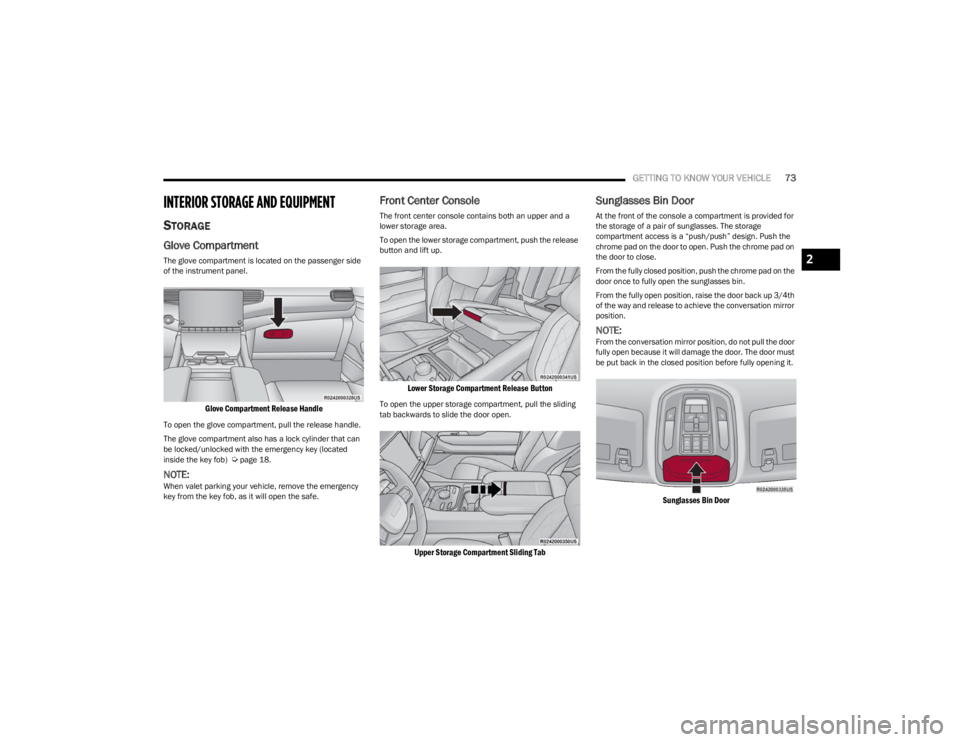
The glove compartment is located on the passenger side
of the instrument panel.
Glove Compartment Release Handle
To open the glove compartment, pull the release handle.
The glove compartment also has a lock cylinder that can
be locked/unlocked with the emergency key (located
inside the key fob)
Úpage 18.
NOTE:When valet parking your vehicle, remove the emergency
key from the key fob, as it will open the safe.
Front Center Console
The front center console contains both an upper and a
lower storage area.
To open the lower storage compartment, push the release
button and lift up.
Lower Storage Compartment Release Button
To open the upper storage compartment, pull the sliding
tab backwards to slide the door open.
Upper Storage Compartment Sliding Tab
Sunglasses Bin Door
At the front of the console a compartment is provided for
the storage of a pair of sunglasses. The storage
compartment access is a “push/push” design. Push the
chrome pad on the door to open. Push the chrome pad on
the door to close.
From the fully closed position, push the chrome pad on the
door once to fully open the sunglasses bin.
From the fully open position, raise the door back up 3/4th
of the way and release to achieve the conversation mirror
position.
NOTE:From the conversation mirror position, do not pull the door
fully open because it will damage the door. The door must
be put back in the closed position before fully opening it.
Sunglasses Bin Door
2
23_WS_OM_EN_USC_t.book Page 73
Page 85 of 396
GETTING TO KNOW YOUR VEHICLE83
Window Lockout Switch
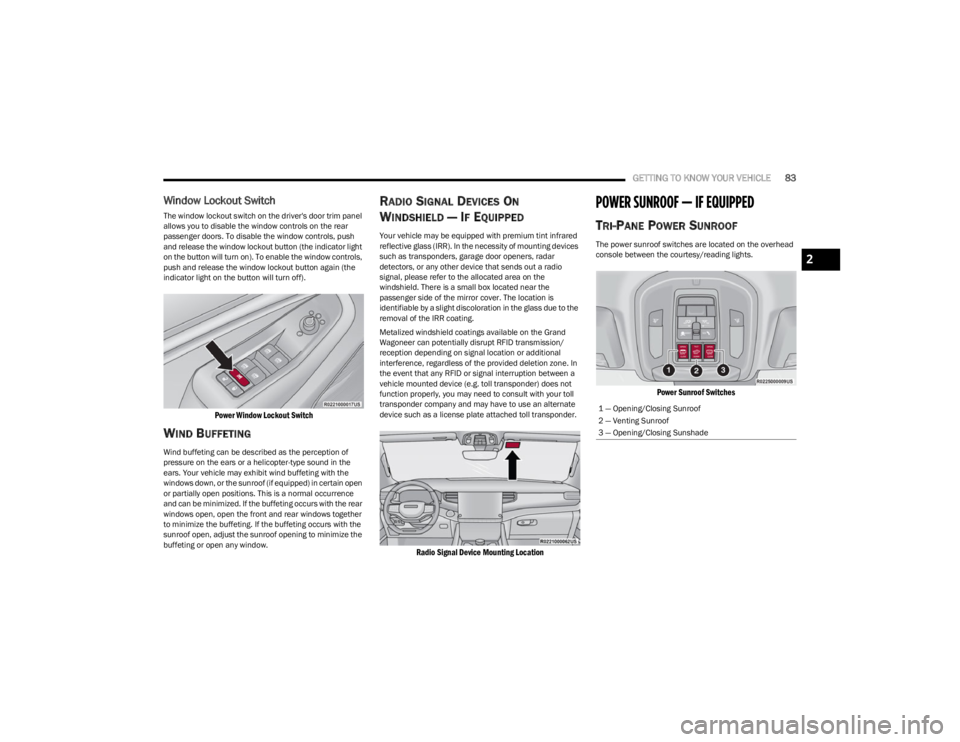
The window lockout switch on the driver's door trim panel
allows you to disable the window controls on the rear
passenger doors. To disable the window controls, push
and release the window lockout button (the indicator light
on the button will turn on). To enable the window controls,
push and release the window lockout button again (the
indicator light on the button will turn off).
Power Window Lockout Switch
WIND BUFFETING
Wind buffeting can be described as the perception of
pressure on the ears or a helicopter-type sound in the
ears. Your vehicle may exhibit wind buffeting with the
windows down, or the sunroof (if equipped) in certain open
or partially open positions. This is a normal occurrence
and can be minimized. If the buffeting occurs with the rear
windows open, open the front and rear windows together
to minimize the buffeting. If the buffeting occurs with the
sunroof open, adjust the sunroof opening to minimize the
buffeting or open any window.
RADIO SIGNAL DEVICES ON
W
INDSHIELD — IF EQUIPPED
Your vehicle may be equipped with premium tint infrared
reflective glass (IRR). In the necessity of mounting devices
such as transponders, garage door openers, radar
detectors, or any other device that sends out a radio
signal, please refer to the allocated area on the
windshield. There is a small box located near the
passenger side of the mirror cover. The location is
identifiable by a slight discoloration in the glass due to the
removal of the IRR coating.
Metalized windshield coatings available on the Grand
Wagoneer can potentially disrupt RFID transmission/
reception depending on signal location or additional
interference, regardless of the provided deletion zone. In
the event that any RFID or signal interruption between a
vehicle mounted device (e.g. toll transponder) does not
function properly, you may need to consult with your toll
transponder company and may have to use an alternate
device such as a license plate attached toll transponder.
Radio Signal Device Mounting Location
POWER SUNROOF — IF EQUIPPED
TRI-PANE POWER SUNROOF
The power sunroof switches are located on the overhead
console between the courtesy/reading lights.
Power Sunroof Switches
1 — Opening/Closing Sunroof
2 — Venting Sunroof
3 — Opening/Closing Sunshade
2
23_WS_OM_EN_USC_t.book Page 83
Page 110 of 396

108GETTING TO KNOW YOUR INSTRUMENT PANEL
When load reduction is activated, the message “Battery
Saver On” or “Battery Saver Mode” will appear in the
instrument cluster.
These messages indicate the vehicle battery has a low
state of charge and continues to lose electrical charge at
a rate that the charging system cannot sustain.
NOTE:
The charging system is independent from load reduc -
tion. The charging system performs a diagnostic on the
charging system continuously.
If the Battery Charge Warning Light is on it may indicate
a problem with the charging system
Úpage 109.
The electrical loads that may be switched off (if equipped),
and vehicle functions which can be affected by load
reduction:
Heated Seat/Vented Seats/Heated Wheel
Rear Defroster And Heated Mirrors
HVAC System
115 Volt AC Power Inverter System
Audio and Telematics System
Loss of the battery charge may indicate one or more of the
following conditions:
The charging system cannot deliver enough electrical
power to the vehicle system because the electrical
loads are larger than the capability of the charging
system. The charging system is still functioning
properly.
Turning on all possible vehicle electrical loads (e.g.
HVAC to max settings, exterior and interior lights, over -
loaded power outlets +12 Volt, 115 Volt AC, USB ports)
during certain driving conditions (city driving, towing,
frequent stopping, etc.).
Installing options like additional lights, upfitter elec -
trical accessories, audio systems, alarms and similar
devices.
Unusual driving cycles (short trips separated by long
parking periods).
The vehicle was parked for an extended period of time
(weeks, months).
The battery was recently replaced and was not charged
completely.
The battery was discharged by an electrical load left on
when the vehicle was parked.
The battery was used for an extended period with the
engine not running to supply radio, lights, chargers,
+12 Volt portable appliances like vacuum cleaners,
game consoles and similar devices.
What to do when an electrical load reduction action
message is present (“Battery Saver On” or “Battery Saver
Mode”)
During a trip:
Reduce power to unnecessary loads if possible:
Turn off redundant lights (interior or exterior)
Check what may be plugged in to power outlets
+12 Volt, 115 Volt AC, USB ports
Check HVAC settings (blower, temperature)
Check the audio settings (volume) After a trip:
Check if any aftermarket equipment was installed
(additional lights, upfitter electrical accessories, audio
systems, alarms) and review specifications if any (load
and Ignition Off Draw currents).
Evaluate the latest driving cycles (distance, driving
time and parking time).
The vehicle should have service performed if the
message is still present during consecutive trips, and if
the evaluation and driving pattern of the vehicle did not
help to identify the cause.WARNING LIGHTS AND MESSAGES
The warning/indicator lights will illuminate in the
instrument panel together with a dedicated message and/
or acoustic signal when applicable. These indications are
indicative and precautionary and as such must not be
considered as exhaustive and/or alternative to the
information contained in the Owner’s Manual, which you
are advised to read carefully in all cases. Always refer to
the information in this chapter in the event of a failure
indication. All active telltales will display first if applicable.
The system check menu may appear different based upon
equipment options and current vehicle status. Some
telltales are optional and may not appear.
23_WS_OM_EN_USC_t.book Page 108
Page 121 of 396
119
STARTING AND OPERATING
STARTING THE ENGINE
Before starting your vehicle, adjust your seat, adjust the inside
and outside mirrors, fasten your seat belt, and if present,
instruct all other occupants to buckle their seat belts.
AUTOMATIC TRANSMISSION
The gear selector must be in the NEUTRAL (N) or PARK (P)
position before you can start the engine. Apply the brakes
before shifting into any driving gear.
KEYLESS ENTER ‘N GO™ — IGNITION
This feature allows the driver to operate the ignition
switch with the push of a button, as long as the Remote
Start/Keyless Enter ‘n Go™ key fob is in the passenger
compartment.
NORMAL STARTING
To Turn On The Engine Using The ENGINE START/STOP
Button
1. The transmission must be in PARK (P).
2. Press and hold the brake pedal while pushing the ENGINE START/STOP button once.
3. The system takes over and attempts to start the vehicle. If the vehicle fails to start, the starter will
disengage automatically after 10 seconds.
4. If you wish to stop the cranking of the engine prior to the engine starting, push the ENGINE START/STOP
button again.
To Turn Off The Engine Using The ENGINE START/STOP
Button
1. Place the gear selector in PARK, then push and release the ENGINE START/STOP button.
2. The ignition will return to the OFF position.
3. If the gear selector is not in PARK, the ENGINE START/STOP button must be held for two seconds or
three short pushes in a row with the vehicle speed
above 5 mph (8 km/h) before the engine will shut off.
The ignition will remain in the ON/RUN position until
the gear selector is in PARK and the button is pushed
twice to the OFF position.
WARNING!
Before exiting a vehicle, always come to a complete
stop, then shift the automatic transmission into PARK
and apply the parking brake.
Always make sure the keyless ignition node is in the
OFF position, key fob is removed from the vehicle and
vehicle is locked.
Never leave children alone in a vehicle, or with access
to an unlocked vehicle. Leaving children in a vehicle
unattended is dangerous for a number of reasons. A
child or others could be seriously or fatally injured.
Children should be warned not to touch the parking
brake, brake pedal or the gear selector.
Do not leave the key fob in or near the vehicle, or in a
location accessible to children, and do not leave the
ignition of a vehicle equipped with Keyless
Enter ‘n Go™ in the ON/RUN position. A child could
operate power windows, other controls, or move the
vehicle.
Do not leave children or animals inside parked vehi -
cles in hot weather. Interior heat build-up may cause
serious injury or death.
CAUTION!
Damage to the transmission may occur if the following
precautions are not observed:
Do not shift from REVERSE (R), PARK, or NEUTRAL
into any forward gear when the engine is above idle
speed.
Shift into PARK only after the vehicle has come to a
complete stop.
Shift into or out of REVERSE only after the vehicle has
come to a complete stop and the engine is at idle
speed.
Before shifting into any gear, make sure your foot is
firmly on the brake pedal.4
23_WS_OM_EN_USC_t.book Page 119
Page 147 of 396
STARTING AND OPERATING145
If weather conditions are not a factor, the driver should
examine the windshield and the camera located on the
back side of the inside rearview mirror. They may require
cleaning or removal of an obstruction.
When the condition that created limited functionality is no
longer present, the system will return to full functionality.
NOTE:If the “ACC Limited Functionality Clean Front Windshield”
message occurs frequently (e.g. more than once on every
trip) without any snow, rain, mud, or other obstruction,
have the windshield and forward facing camera inspected
at an authorized dealer.
SERVICE ACC WARNING
If the system turns off, and the instrument cluster display
reads “ACC Unavailable Service Required” or “Cruise
Unavailable Service Required”, there may be an internal
system fault or a temporary malfunction that limits ACC
functionality. Although the vehicle is still drivable under
normal conditions, ACC will be temporarily unavailable.
If this occurs, try activating ACC again later, following an
ignition cycle. If the problem persists, see an authorized
dealer.
Precautions While Driving With ACC
In certain driving situations, ACC may have detection
issues. In these cases, ACC may brake late or
unexpectedly. The driver needs to stay alert and may need
to intervene. The following are examples of these types of
situations:
TOWING A TRAILER
ACC while towing a trailer is recommended only with an
Integrated Trailer Brake Controller. Aftermarket trailer
brake controllers will not activate the trailer brakes when
ACC is braking.
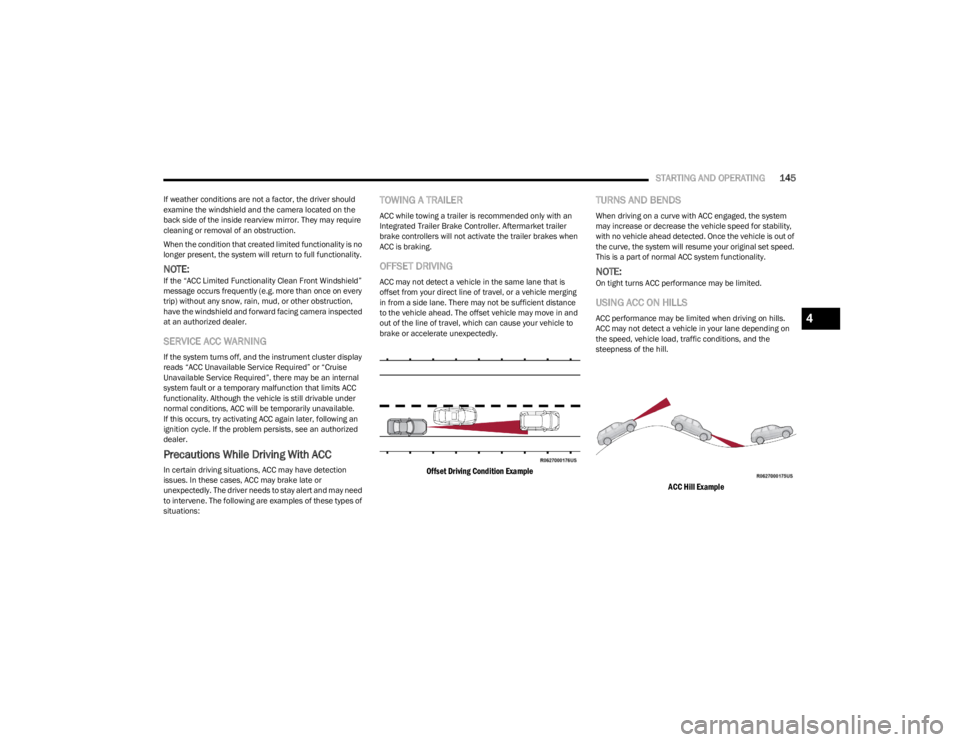
OFFSET DRIVING
ACC may not detect a vehicle in the same lane that is
offset from your direct line of travel, or a vehicle merging
in from a side lane. There may not be sufficient distance
to the vehicle ahead. The offset vehicle may move in and
out of the line of travel, which can cause your vehicle to
brake or accelerate unexpectedly.
Offset Driving Condition Example
TURNS AND BENDS
When driving on a curve with ACC engaged, the system
may increase or decrease the vehicle speed for stability,
with no vehicle ahead detected. Once the vehicle is out of
the curve, the system will resume your original set speed.
This is a part of normal ACC system functionality.
NOTE:On tight turns ACC performance may be limited.
USING ACC ON HILLS
ACC performance may be limited when driving on hills.
ACC may not detect a vehicle in your lane depending on
the speed, vehicle load, traffic conditions, and the
steepness of the hill.
ACC Hill Example
4
23_WS_OM_EN_USC_t.book Page 145
Page 170 of 396
168STARTING AND OPERATING
If the driver crosses the lane marking, the system will
either guide the vehicle back to the center of the lane,
provide a vibration in the steering wheel, or both,
depending on radio settings.
When both lane markings are detected, and the driver
uses the turn signal to indicate a lane change, and a
vehicle is detected in the BSM zone on that side of the
vehicle, the ALM system provides a warning in the form of
steering assist and/or steering vibration (depending on
radio settings) to guide the vehicle back to the center of
the lane.
NOTE:
The system will suppress visual warnings, steering
vibration (if selected in radio settings), and steering
assistance (if selected in radio settings) when the
driver activates the turn signal, the blind spot zone is
clear of vehicles, and a lane change is occurring.
If the Blind Spot Monitoring (BSM) system detects a
vehicle in the adjacent lane, and the turn signal is
applied in that direction, the BSM LED on the mirror will
flash. If the driver continues to attempt the lane
change, steering wheel torque will be provided to keep
the vehicle within its lane markings.
The driver may manually override the steering assist
warning by applying force to the steering wheel at any
time.
When only a single lane marking is detected and the driver
drifts across the lane marking (no turn signal applied), the
Active Lane Management system provides a visual
warning in the instrument cluster, as well as a steering
assist torque (if configured in Uconnect Settings), to
prompt the driver to remain within the lane boundaries. If the driver continues to drift out of the lane, the system
provides a flashing visual warning through the instrument
cluster display as well as a haptic steering wheel vibration
(if configured in Uconnect Settings) when the vehicle
crosses the lane boundary.
NOTE:When operating conditions have been met, the Active
Lane Management system will monitor if the driver’s
hands are on the steering wheel and provides an audible
and visual warning to the driver if removed. The system
will cancel if the driver does not return their hands to the
wheel.
TURNING ACTIVE LANE MANAGEMENT
O
N OR OFF
The Active Lane Management button is located
on the switch panel on the forward part of the
center console, in front of the gear selector. To turn the system on, push the Active Lane
Management button (LED turns off). A message is
shown in the instrument cluster display.
To turn the system off, push the button again (LED turns
on.
NOTE:
The Active Lane Management system will retain the last
system state on or off from the last ignition cycle when the
ignition is placed in the ON/RUN position.
ACTIVE LANE MANAGEMENT WARNING
M
ESSAGE
The Active Lane Management system will indicate the
current lane drift condition through the instrument cluster
display.
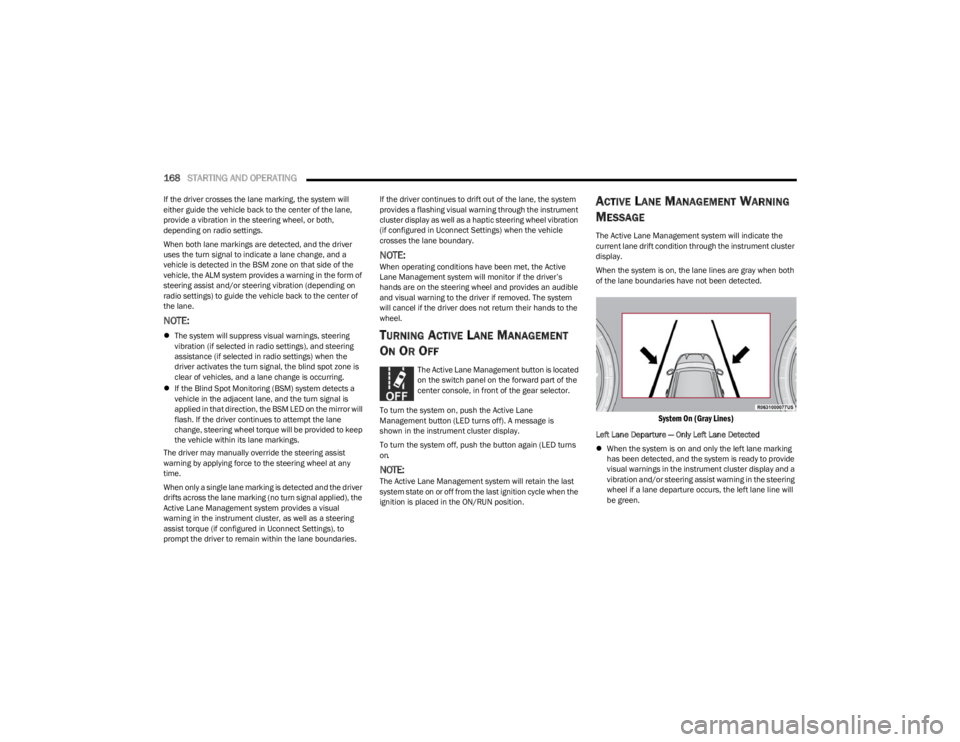
When the system is on, the lane lines are gray when both
of the lane boundaries have not been detected.
System On (Gray Lines)
Left Lane Departure — Only Left Lane Detected
When the system is on and only the left lane marking
has been detected, and the system is ready to provide
visual warnings in the instrument cluster display and a
vibration and/or steering assist warning in the steering
wheel if a lane departure occurs, the left lane line will
be green.
23_WS_OM_EN_USC_t.book Page 168
Page 173 of 396
STARTING AND OPERATING171
NOTE:If snow, ice, mud, or any foreign substance builds up on
the camera lens, clean the lens, rinse with water, and dry
with a soft cloth. Do not cover the lens. Rear Camera Washer
When the rear window washer is activated by pushing the
windshield wiper/washer lever forward, the rear Back Up
and digital rearview mirror (if equipped) cameras are also
washed. For more information, see
Úpage 64.
ZOOM VIEW
When the Rear View Camera image is being
displayed, and the vehicle speed is below
8 mph (13 km/h) while in any gear selector
position, Zoom View is available. By pressing
the “magnifying glass” icon in the upper left of the display
screen, the image will zoom in to four times the standard
view. Pressing the icon a second time will return the view
to the standard Back Up Camera display.
When Zoom View is selected while the vehicle is in
REVERSE, then shifted to DRIVE, the camera delay view
will display the standard Back Up Camera view. If the
vehicle is then returned to REVERSE gear from DRIVE, the
Zoom View selection will automatically resume.
Shifting to NEUTRAL from any gear will maintain the
selected view (Zoom or Standard) as long as the vehicle
speed is below 8 mph (13 km/h).
If the vehicle is in PARK, Zoom View is available until the
gear selector is placed in DRIVE or REVERSE and speeds
are at or above 8 mph (13 km/h).
NOTE:
If the vehicle is in DRIVE, NEUTRAL, or REVERSE, and
speed is greater than or equal to 8 mph (13 km/h),
Zoom View is unavailable and the icon will appear gray.
While in Zoom View, the guidelines will not be visible.
VIEWING AT SPEED
When the vehicle is in PARK, NEUTRAL or
DRIVE, the Rear View Camera can be activated
with the Back Up Camera button in the Controls
menu. This feature allows the customer to
monitor the area directly behind the vehicle (or trailer, if
equipped) for up to 10 seconds while driving. If the vehicle
speed remains below 8 mph (13 km/h), the Rear View
Camera image will be displayed continuously until
deactivated via the touchscreen X button.
FAMCAM SYSTEM — IF EQUIPPED
The FamCam system consists of an interior monitoring
camera mounted on the headliner that allows the driver to
view cargo/passengers in the rear interior of the vehicle
through the Uconnect screen.
To activate the feature, press the FamCam
button in the Controls tab of the Vehicle menu.
The FamCam feature can also be accessed
from the App Drawer, or the status bar at the
top of the Uconnect display.
WARNING!
Drivers must be careful when backing up even when
using the ParkView Rear Back Up Camera. Always
check carefully behind your vehicle, and be sure to
check for pedestrians, animals, other vehicles,
obstructions, or blind spots before backing up. You are
responsible for the safety of your surroundings and
must continue to pay attention while backing up.
Failure to do so can result in serious injury or death.
CAUTION!
To avoid vehicle damage, ParkView should only be
used as a parking aid. The ParkView camera is
unable to view every obstacle or object in your drive
path.
To avoid vehicle damage, the vehicle must be driven
slowly when using ParkView to be able to stop in time
when an obstacle is seen. It is recommended that
the driver look frequently over his/her shoulder when
using ParkView.
4
23_WS_OM_EN_USC_t.book Page 171
Page 177 of 396
STARTING AND OPERATING175
SURROUND VIEW CAMERA SYSTEM —
IF EQUIPPED
Your vehicle may be equipped with the Surround View
Camera system that allows you to see an on-screen image
of the surroundings and Top View of your vehicle whenever
the gear selector is put into REVERSE or a different view is
selected through the touchscreen buttons. The Top View
of the vehicle will show which doors are open. The image
will be displayed on the touchscreen display along with a
caution note “Check Entire Surroundings” across the top
of the screen. After five seconds, this note will disappear.
The Surround View Camera system is comprised of four
sequential cameras located in the front grille, rear liftgate
and side mirrors.
NOTE:The Surround View Camera system has programmable
settings that may be selected through the Uconnect
system
Úpage 197.
Press this button on the touchscreen to enter
the Surround View Camera menu in the
Uconnect system. When the vehicle is shifted into REVERSE, the
Rear View or Top View is the default view of the system.
When the vehicle is shifted out of REVERSE with camera
delay turned on, the camera image will continue to be
displayed for up to 10 seconds unless the vehicle speed
exceeds
8 mph (13 km/h, the vehicle is shifted into PARK
or the ignition is placed in the OFF position. There is a
touchscreen X button to disable the display of the camera
image.
When the vehicle is shifted out of REVERSE with camera
delay turned off, the Surround View Camera mode is
exited and the last known screen appears again.
When enabled, active guidelines are overlaid on the image
to illustrate the width of the vehicle, including the side
view mirrors and its projected back up path based on the
steering wheel position.
Different colored zones indicate the distance to the rear of
the vehicle.
The following table shows the approximate distances for
each zone:
Modes Of Operation
Manual activation of the Surround View Camera is
selected by pressing the Surround View Camera button
located in the Controls menu within the Uconnect system.
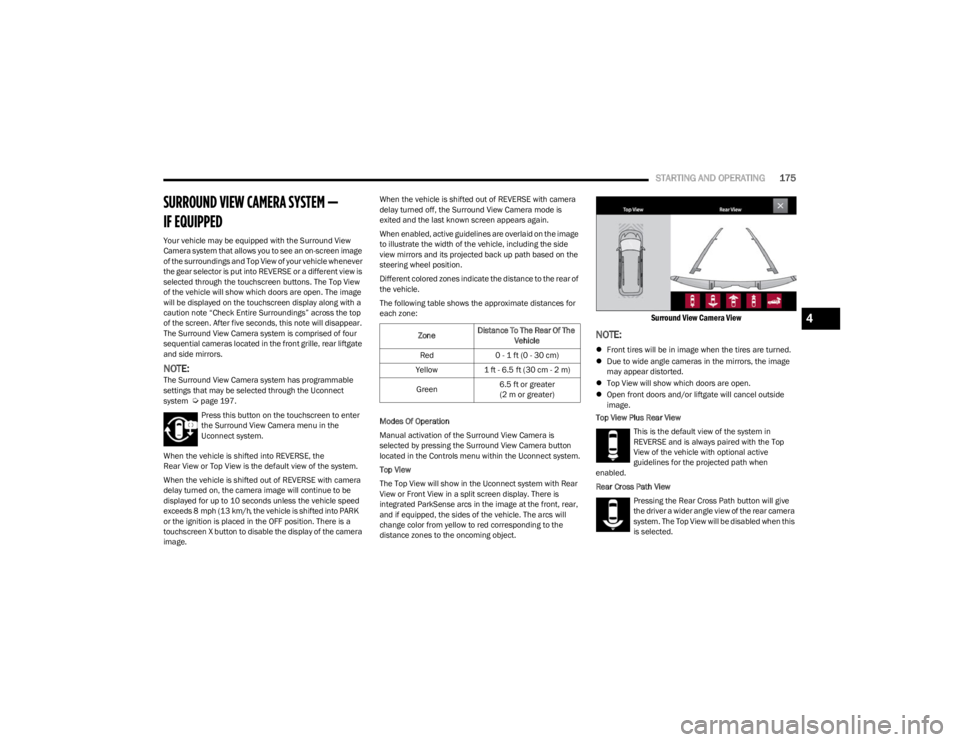
Top View
The Top View will show in the Uconnect system with Rear
View or Front View in a split screen display. There is
integrated ParkSense arcs in the image at the front, rear,
and if equipped, the sides of the vehicle. The arcs will
change color from yellow to red corresponding to the
distance zones to the oncoming object.
Surround View Camera View
NOTE:
Front tires will be in image when the tires are turned.
Due to wide angle cameras in the mirrors, the image
may appear distorted.
Top View will show which doors are open.
Open front doors and/or liftgate will cancel outside
image.
Top View Plus Rear View
This is the default view of the system in
REVERSE and is always paired with the Top
View of the vehicle with optional active
guidelines for the projected path when
enabled.
Rear Cross Path View
Pressing the Rear Cross Path button will give
the driver a wider angle view of the rear camera
system. The Top View will be disabled when this
is selected.
Zone Distance To The Rear Of The
Vehicle
Red 0 - 1 ft (0 - 30 cm)
Yellow 1 ft - 6.5 ft (30 cm - 2 m)
Green 6.5 ft or greater
(2 m or greater)
4
23_WS_OM_EN_USC_t.book Page 175
Page 178 of 396
176STARTING AND OPERATING
Top View Plus Front View
The Front View will show you what is
immediately in front of the vehicle and is
always paired with the Top View of the vehicle.
Front Cross Path View Pressing the Front Cross Path button will give
the driver a wider angle view of the front
camera system. The Top View will be disabled
when this is selected.
Back Up Camera View Pressing the Back Up Camera button will
provide a full screen rear view with Zoom View.
NOTE:If the Rear View Camera view was selected through the
Surround View Camera menu, exiting out of the Rear View
screen will return to the Surround View Camera menu. If
the Back Up Camera was manually activated through the
Controls menu of the Uconnect system, exiting out of the
display screen will return to the Controls menu.
Deactivation
The system can be deactivated under the following
conditions:
The speed of the vehicle is greater than 8 mph
(13 km/h).
The vehicle is shifted into PARK.
The vehicle is in any gear other than REVERSE and the
touchscreen X button is pressed.
The camera delay system is turned off manually
through Uconnect Settings
Úpage 197.
Camera Washers
When the rear window washer is activated, the rear Back
Up and digital rearview mirror (if equipped) cameras are
also washed
Úpage 64.
When the front window washer is activated, the front
cameras will also be washed
Úpage 63.
NOTE:
If snow, ice, mud, or any foreign substance builds up on
the camera lenses, clean the lenses, rinse with water,
and dry with a soft cloth. Do not cover the lenses.
If a malfunction with the system has occurred, see an
authorized dealer.ZOOM VIEW
When the Rear View Camera image is being displayed, and
the vehicle speed is below 8 mph (13 km/h) while in any
gear selector position, Zoom View is available. By pressing the “magnifying glass” icon in the
upper left of the display screen, the image will
zoom in to two times the standard view.
Pressing the icon a second time will return the
view to the standard Back Up Camera display.
When Zoom View is selected while the vehicle
is in
REVERSE, then shifted to DRIVE, the camera delay view
will display the standard Back Up Camera view. If the
vehicle is then returned to REVERSE gear from DRIVE,
the Zoom View selection will automatically resume.
Shifting to NEUTRAL from any gear will maintain the
selected view (Zoom or Standard) as long as the vehicle
is below 8 mph (13 km/h).
WARNING!
Drivers must be careful when backing up even when
using the Surround View Camera. Always check
carefully behind your vehicle, and be sure to check for
pedestrians, animals, other vehicles, obstructions, or
blind spots before backing up. You are responsible for
the safety of your surroundings and must continue to
pay attention while backing up. Failure to do so can
result in serious injury or death.
CAUTION!
To avoid vehicle damage, Surround View should only
be used as a parking aid. The Surround View camera
is unable to view every obstacle or object in your
drive path.
To avoid vehicle damage, the vehicle must be driven
slowly when using Surround View to be able to stop
in time when an obstacle is seen. It is recommended
that the driver look frequently over his/her shoulder
when using Surround View.
23_WS_OM_EN_USC_t.book Page 176
Page 206 of 396
204MULTIMEDIA
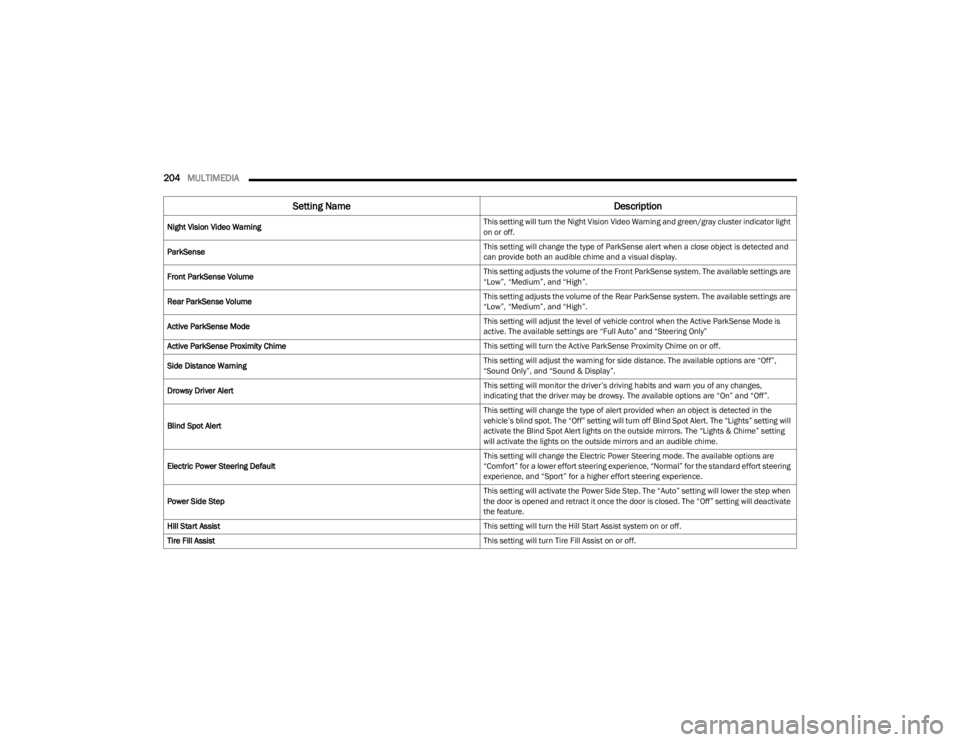
Night Vision Video Warning This setting will turn the Night Vision Video Warning and green/gray cluster indicator light
on or off.
ParkSense This setting will change the type of ParkSense alert when a close object is detected and
can provide both an audible chime and a visual display.
Front ParkSense Volume This setting adjusts the volume of the Front ParkSense system. The available settings are
“Low”, “Medium”, and “High”.
Rear ParkSense Volume This setting adjusts the volume of the Rear ParkSense system. The available settings are
“Low”, “Medium”, and “High”.
Active ParkSense Mode This setting will adjust the level of vehicle control when the Active ParkSense Mode is
active. The available settings are “Full Auto” and “Steering Only”
Active ParkSense Proximity Chime This setting will turn the Active ParkSense Proximity Chime on or off.
Side Distance Warning This setting will adjust the warning for side distance. The available options are “Off”,
“Sound Only”, and “Sound & Display”.
Drowsy Driver Alert This setting will monitor the driver’s driving habits and warn you of any changes,
indicating that the driver may be drowsy. The available options are “On” and “Off”.
Blind Spot Alert This setting will change the type of alert provided when an object is detected in the
vehicle’s blind spot. The “Off” setting will turn off Blind Spot Alert. The “Lights” setting will
activate the Blind Spot Alert lights on the outside mirrors. The “Lights & Chime” setting
will activate the lights on the outside mirrors and an audible chime.
Electric Power Steering Default This setting will change the Electric Power Steering mode. The available options are
“Comfort” for a lower effort steering experience, “Normal” for the standard effort steering
experience, and “Sport” for a higher effort steering experience.
Power Side Step This setting will activate the Power Side Step. The “Auto” setting will lower the step when
the door is opened and retract it once the door is closed. The “Off” setting will deactivate
the feature.
Hill Start Assist This setting will turn the Hill Start Assist system on or off.
Tire Fill Assist This setting will turn Tire Fill Assist on or off.
Setting NameDescription
23_WS_OM_EN_USC_t.book Page 204