steering wheel JEEP WAGONEER 2023 Owner's Manual
[x] Cancel search | Manufacturer: JEEP, Model Year: 2023, Model line: WAGONEER, Model: JEEP WAGONEER 2023Pages: 396, PDF Size: 15.17 MB
Page 129 of 396
STARTING AND OPERATING127
The electronically controlled transmission adapts its shift
schedule based on driver inputs, along with environmental
and road conditions. The transmission electronics are
self-calibrating; therefore, the first few shifts on a new
vehicle may be somewhat abrupt. This is a normal
condition, and precision shifts will develop within a few
hundred miles (kilometers).
Only shift from DRIVE to PARK or REVERSE when the
accelerator pedal is released and the vehicle is stopped.
Be sure to keep your foot on the brake pedal when shifting
between these gears.
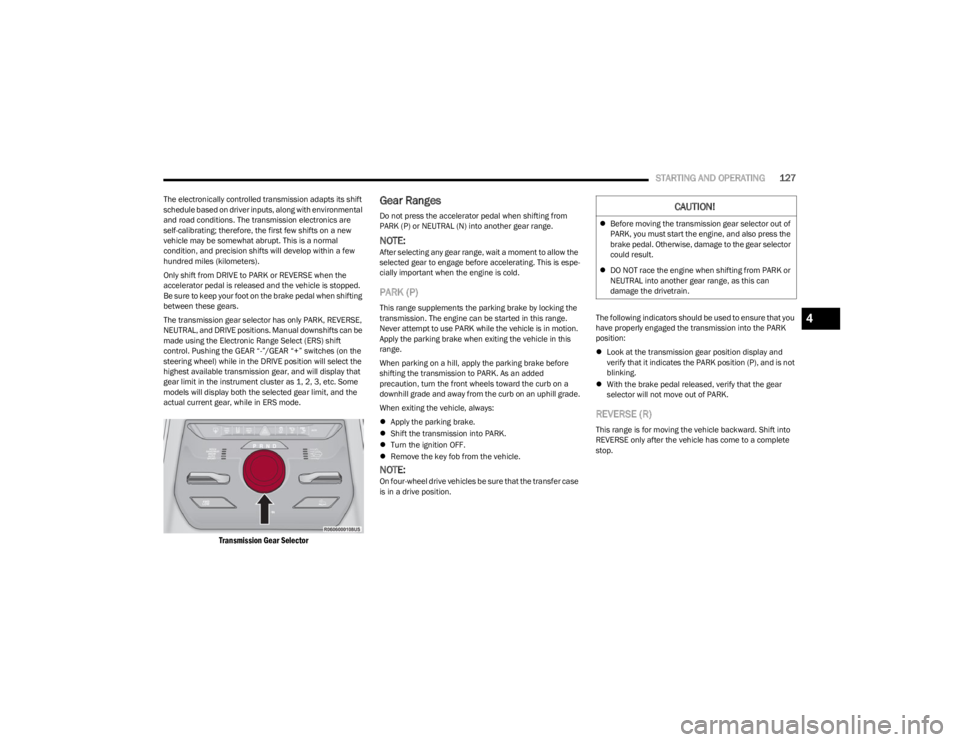
The transmission gear selector has only PARK, REVERSE,
NEUTRAL, and DRIVE positions. Manual downshifts can be
made using the Electronic Range Select (ERS) shift
control. Pushing the GEAR “-”/GEAR “+” switches (on the
steering wheel) while in the DRIVE position will select the
highest available transmission gear, and will display that
gear limit in the instrument cluster as 1, 2, 3, etc. Some
models will display both the selected gear limit, and the
actual current gear, while in ERS mode.
Transmission Gear Selector
Gear Ranges
Do not press the accelerator pedal when shifting from
PARK (P) or NEUTRAL (N) into another gear range.
NOTE:After selecting any gear range, wait a moment to allow the
selected gear to engage before accelerating. This is espe -
cially important when the engine is cold.
PARK (P)
This range supplements the parking brake by locking the
transmission. The engine can be started in this range.
Never attempt to use PARK while the vehicle is in motion.
Apply the parking brake when exiting the vehicle in this
range.
When parking on a hill, apply the parking brake before
shifting the transmission to PARK. As an added
precaution, turn the front wheels toward the curb on a
downhill grade and away from the curb on an uphill grade.
When exiting the vehicle, always:
Apply the parking brake.
Shift the transmission into PARK.
Turn the ignition OFF.
Remove the key fob from the vehicle.
NOTE:On four-wheel drive vehicles be sure that the transfer case
is in a drive position. The following indicators should be used to ensure that you
have properly engaged the transmission into the PARK
position:
Look at the transmission gear position display and
verify that it indicates the PARK position (P), and is not
blinking.
With the brake pedal released, verify that the gear
selector will not move out of PARK.
REVERSE (R)
This range is for moving the vehicle backward. Shift into
REVERSE only after the vehicle has come to a complete
stop.
CAUTION!
Before moving the transmission gear selector out of
PARK, you must start the engine, and also press the
brake pedal. Otherwise, damage to the gear selector
could result.
DO NOT race the engine when shifting from PARK or
NEUTRAL into another gear range, as this can
damage the drivetrain.
4
23_WS_OM_EN_USC_t.book Page 127
Page 131 of 396
STARTING AND OPERATING129
Electronic Range Select (ERS) Operation
The ERS shift control allows the driver to limit the highest
available gear when the transmission is in DRIVE and ERS
mode is not active. For example, if you set the
transmission gear limit to FOURTH gear, the transmission
will not shift above FOURTH gear (except to prevent engine
overspeed), but will shift through the lower gears normally.
You can switch between DRIVE and ERS mode at any
vehicle speed. When the transmission gear selector is in
DRIVE, the transmission will operate automatically,
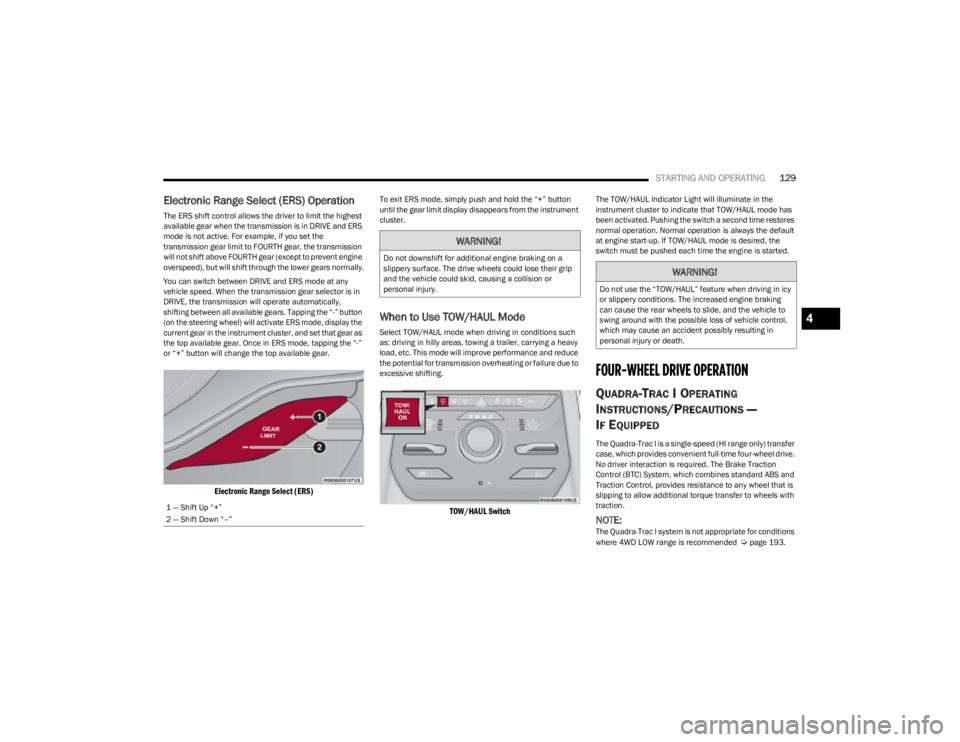
shifting between all available gears. Tapping the “-” button
(on the steering wheel) will activate ERS mode, display the
current gear in the instrument cluster, and set that gear as
the top available gear. Once in ERS mode, tapping the “-”
or “+” button will change the top available gear.
Electronic Range Select (ERS)
To exit ERS mode, simply push and hold the “+” button
until the gear limit display disappears from the instrument
cluster.
When to Use TOW/HAUL Mode
Select TOW/HAUL mode when driving in conditions such
as: driving in hilly areas, towing a trailer, carrying a heavy
load, etc. This mode will improve performance and reduce
the potential for transmission overheating or failure due to
excessive shifting.
TOW/HAUL Switch
The TOW/HAUL Indicator Light will illuminate in the
instrument cluster to indicate that TOW/HAUL mode has
been activated. Pushing the switch a second time restores
normal operation. Normal operation is always the default
at engine start-up. If TOW/HAUL mode is desired, the
switch must be pushed each time the engine is started.
FOUR-WHEEL DRIVE OPERATION
QUADRA-TRAC I OPERATING
I
NSTRUCTIONS/PRECAUTIONS —
I
F EQUIPPED
The Quadra-Trac I is a single-speed (HI range only) transfer
case, which provides convenient full-time four-wheel drive.
No driver interaction is required. The Brake Traction
Control (BTC) System, which combines standard ABS and
Traction Control, provides resistance to any wheel that is
slipping to allow additional torque transfer to wheels with
traction.
NOTE:The Quadra-Trac I system is not appropriate for conditions
where 4WD LOW range is recommended Úpage 193.
1 — Shift Up “+”
2 — Shift Down “–”
WARNING!
Do not downshift for additional engine braking on a
slippery surface. The drive wheels could lose their grip
and the vehicle could skid, causing a collision or
personal injury.
WARNING!
Do not use the “TOW/HAUL” feature when driving in icy
or slippery conditions. The increased engine braking
can cause the rear wheels to slide, and the vehicle to
swing around with the possible loss of vehicle control,
which may cause an accident possibly resulting in
personal injury or death.
4
23_WS_OM_EN_USC_t.book Page 129
Page 134 of 396
132STARTING AND OPERATING
Selec-Terrain consists of the following positions:
ROCK (if equipped) – Off-road calibration is only avail -
able in 4WD LOW. The vehicle is raised (if equipped
with Air Suspension) for improved ground clearance.
Traction-based tuning with improved steerability for
use on high traction off-road surfaces. Use for low
speed obstacles such as large rocks, deep ruts, etc. If
equipped with air suspension, the vehicle level will
change to Off-Road 2 (OR2). If the Selec-Terrain switch
is in ROCK mode, and the transfer case is switched
from 4WD LOW to 4WD HI, the Selec-Terrain system
will return to AUTO.
SAND (if equipped) – Off-road calibration for use on low
traction surfaces such as sand or wet grass. Driveline
is maximized for traction. Some binding may be felt on
less forgiving surfaces. The electronic brake controls
are set to limit traction control management of throttle
and wheel spin. If equipped with air suspension, the
default ride height for SAND is Normal Ride Height
(NRH).
MUD (if equipped) – Off-road calibration for use on low
traction surfaces such as mud. Driveline is maximized
for traction. Some binding may be felt on less forgiving
surfaces. The electronic brake controls are set to limit
traction control management of throttle and wheel
spin. If equipped with air suspension, the level will
change to Off-Road 1 (OR1).
SNOW – Tuning set for additional stability in inclement
weather. Use on and off road on loose traction surfaces
such as snow. When in SNOW mode (depending on
certain operating conditions), the transmission may
use SECOND gear (rather than FIRST gear) during
launches, to minimize wheel slippage. If equipped with
air suspension, the default ride height for SNOW is
Normal Ride Height (NRH).
AUTO – Fully automatic full-time four-wheel drive oper -
ation can be used on and off road. Balances traction
with seamless steering feel to provide improved
handling and acceleration over two-wheel drive vehi -
cles. If equipped with air suspension, the level will
change to Normal Ride Height (NRH).
SPORT – This mode alters the transmission's auto -
matic shift schedule for sportier driving. Upshift speeds
are increased to make full use of available engine
power. Steering efforts are modified for sporty driving.
If equipped with air suspension, the level will change to
Aero Height.
INSTRUMENT CLUSTER DISPLAY
M
ESSAGES
When the appropriate conditions exist, a message will
appear in the instrument cluster Úpage 99.
QUADRA-LIFT — IF EQUIPPED
DESCRIPTION
The Quadra-Lift Air Suspension system provides full-time
load leveling capability along with the benefit of vehicle
height adjustment by a toggle switch. The vehicle will automatically raise and lower the ride
height to adapt to the appropriate driving conditions. At
higher speeds, the vehicle will lower to an aerodynamic
ride height and when operating in off-road modes (if
equipped), the vehicle will raise the ride height
accordingly. The buttons near the terrain switch in the
center console area can be used to set preferred ride
height to match the appropriate conditions.
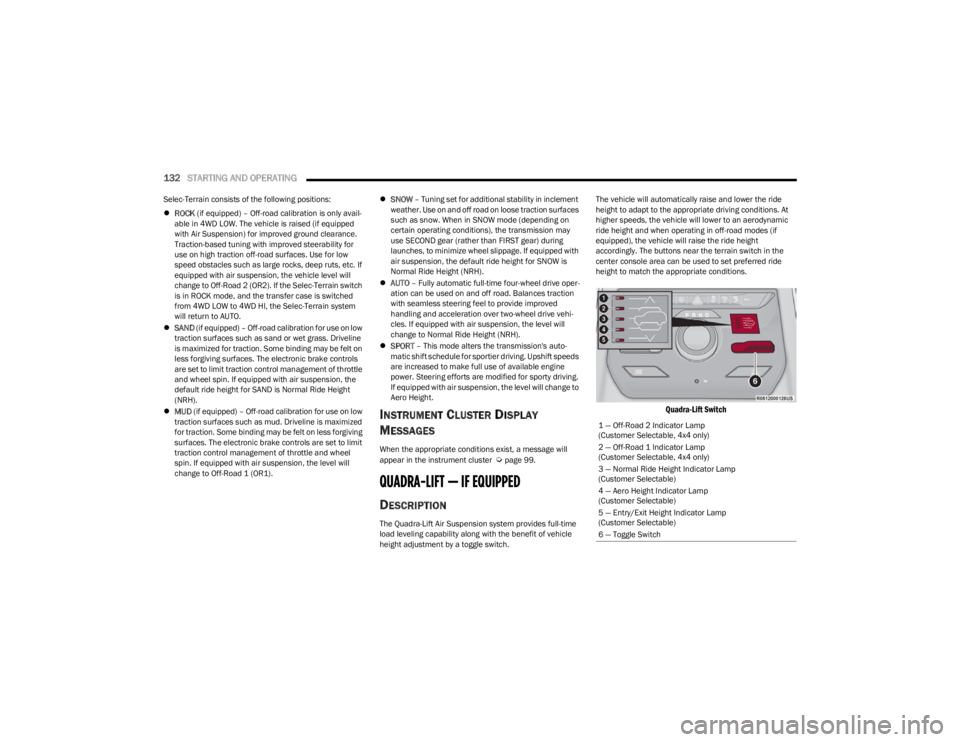
Quadra-Lift Switch
1 — Off-Road 2 Indicator Lamp
(Customer Selectable, 4x4 only)
2 — Off-Road 1 Indicator Lamp
(Customer Selectable, 4x4 only)
3 — Normal Ride Height Indicator Lamp
(Customer Selectable)
4 — Aero Height Indicator Lamp
(Customer Selectable)
5 — Entry/Exit Height Indicator Lamp
(Customer Selectable)
6 — Toggle Switch
23_WS_OM_EN_USC_t.book Page 132
Page 137 of 396

STARTING AND OPERATING135
OPERATION
The indicator lamps 1 through 5 will illuminate to show the
current position of the vehicle. Flashing indicator lamps
will show a position which the system is working to
achieve. When raising, if multiple indicator lamps are
flashing while raising, the highest flashing indicator lamp
is the position the system is working to achieve. When
lowering, if multiple indicators are flashing while lowering
the lowest solid indicator lamp is the position the system
is working to achieve.
Toggle up once moves the suspension one position higher
from the current position, assuming all conditions are met
(i.e., engine running, speed below threshold, etc.). Toggle
up can be pushed multiple times. Each toggle up will raise
the requested level by one position up to a maximum
position of OR2 or the highest position allowed based on
current conditions (i.e., vehicle speed, etc.).
Toggle down once moves the suspension one position
lower from the current level, assuming all conditions are
met (i.e., engine running, doors closed, speed below
threshold, etc.). Toggle down can be pushed multiple
times. Each toggle down will lower the requested level by
one position down to a minimum of Park mode or the
lowest position allowed based on current conditions (i.e.,
vehicle speed, etc.) Automatic height changes will occur based on vehicle
speed and the current vehicle height. The indicator lamps
and instrument cluster display messages will operate the
same for automatic changes and user requested changes.
Off-Road 2 (OR2) – Indicator lamps 1 through 5 will be
illuminated.
Off-Road 1 (OR1) – Indicator lamps 2 through 5 will be
illuminated.
Normal Ride Height (NRH) – Indicator lamps 3 through
5 will be illuminated.
Aero Height – Indicator lamps 4 and 5 will be illumi -
nated.
Entry/Exit Height – Indicator lamp 5 will be illuminated.
Transport Mode – No indicator lamps will be illumi -
nated. Driving or deselecting the mode in the Uconnect
system will disable Transport mode.
Tire/Jack Mode – Indicator lamps 1 and 5 will be illumi -
nated. Driving or deselecting the mode in the Uconnect
system will disable Tire/Jack mode.
Wheel Alignment Mode – Indicator lamps 4 and 5 will
be illuminated. Driving or deselecting the mode in the
Uconnect system will disable Wheel Alignment mode.
FUEL SAVER TECHNOLOGY 5.7L AND 6.4L
ONLY — IF EQUIPPED
This feature offers improved fuel economy by shutting off
four of the engine's eight cylinders during light load and
cruise conditions. The system is automatic with no driver
inputs or additional driving skills required.
NOTE:This system may take some time to return to full function -
ality after a battery disconnect.
POWER STEERING
The electric power steering system is designed to provide
increased vehicle response and ease of maneuverability
in tight spaces. The power steering system adapts to
different driving conditions. If the electric power steering
system experiences a fault that prevents it from providing
assist, you will still have the ability to steer the vehicle
manually.
NOTE:Alternate electric power steering efforts can be selected
through the Uconnect System Úpage 197.
If the Electric Power Steering warning icon is
displayed and the “SERVICE POWER
STEERING” or the “POWER STEERING ASSIST
OFF – SERVICE SYSTEM” message is displayed
within the instrument cluster display, this indicates the
vehicle needs to be taken to an authorized dealer for
service
Úpage 108.
WARNING!
Continued operation with reduced assist could pose a
safety risk to yourself and others. Service should be
obtained as soon as possible.
4
23_WS_OM_EN_USC_t.book Page 135
Page 140 of 396
138STARTING AND OPERATING
CRUISE CONTROL
When engaged, the Cruise Control takes over accelerator
operations at speeds greater than 20 mph (32 km/h).
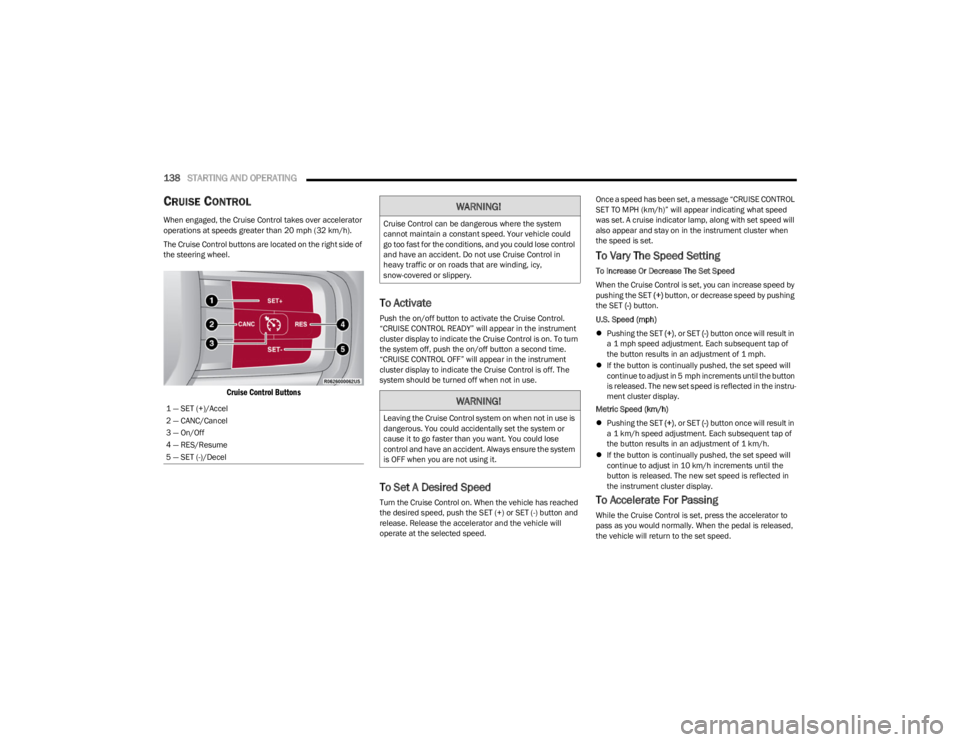
The Cruise Control buttons are located on the right side of
the steering wheel.
Cruise Control Buttons
To Activate
Push the on/off button to activate the Cruise Control.
“CRUISE CONTROL READY” will appear in the instrument
cluster display to indicate the Cruise Control is on. To turn
the system off, push the on/off button a second time.
“CRUISE CONTROL OFF” will appear in the instrument
cluster display to indicate the Cruise Control is off. The
system should be turned off when not in use.
To Set A Desired Speed
Turn the Cruise Control on. When the vehicle has reached
the desired speed, push the SET (+) or SET (-) button and
release. Release the accelerator and the vehicle will
operate at the selected speed. Once a speed has been set, a message “CRUISE CONTROL
SET TO MPH (km/h)” will appear indicating what speed
was set. A cruise indicator lamp, along with set speed will
also appear and stay on in the instrument cluster when
the speed is set.
To Vary The Speed Setting
To Increase Or Decrease The Set Speed
When the Cruise Control is set, you can increase speed by
pushing the SET
(+) button, or decrease speed by pushing
the SET (-) button.
U.S. Speed (mph)
Pushing the SET (+), or SET (-) button once will result in
a 1 mph speed adjustment. Each subsequent tap of
the button results in an adjustment of 1 mph.
If the button is continually pushed, the set speed will
continue to adjust in 5 mph increments until the button
is released. The new set speed is reflected in the instru -
ment cluster display.
Metric Speed (km/h)
Pushing the SET (+), or SET (-) button once will result in
a 1 km/h speed adjustment. Each subsequent tap of
the button results in an adjustment of 1 km/h.
If the button is continually pushed, the set speed will
continue to adjust in 10 km/h increments until the
button is released. The new set speed is reflected in
the instrument cluster display.
To Accelerate For Passing
While the Cruise Control is set, press the accelerator to
pass as you would normally. When the pedal is released,
the vehicle will return to the set speed.
1 — SET (+)/Accel
2 — CANC/Cancel
3 — On/Off
4 — RES/Resume
5 — SET (-)/Decel
WARNING!
Cruise Control can be dangerous where the system
cannot maintain a constant speed. Your vehicle could
go too fast for the conditions, and you could lose control
and have an accident. Do not use Cruise Control in
heavy traffic or on roads that are winding, icy,
snow-covered or slippery.
WARNING!
Leaving the Cruise Control system on when not in use is
dangerous. You could accidentally set the system or
cause it to go faster than you want. You could lose
control and have an accident. Always ensure the system
is OFF when you are not using it.
23_WS_OM_EN_USC_t.book Page 138
Page 142 of 396
140STARTING AND OPERATING
Adaptive Cruise Control (ACC) Operation
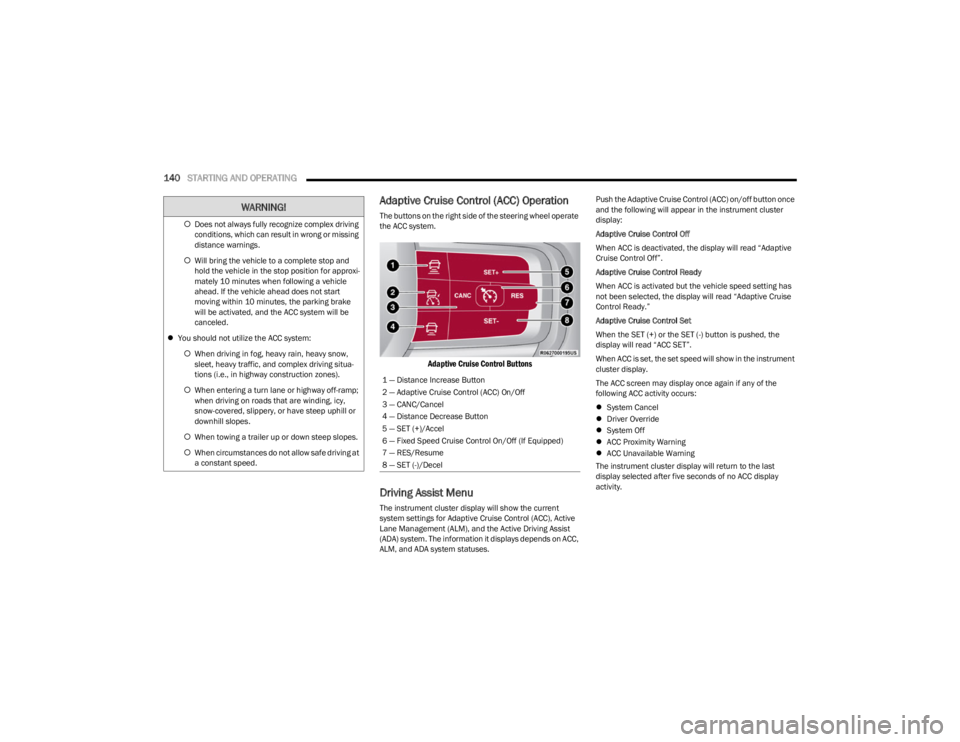
The buttons on the right side of the steering wheel operate
the ACC system.
Adaptive Cruise Control Buttons
Driving Assist Menu
The instrument cluster display will show the current
system settings for Adaptive Cruise Control (ACC), Active
Lane Management (ALM), and the Active Driving Assist
(ADA) system. The information it displays depends on ACC,
ALM, and ADA system statuses. Push the Adaptive Cruise Control (ACC) on/off button once
and the following will appear in the instrument cluster
display:
Adaptive Cruise Control Off
When ACC is deactivated, the display will read “Adaptive
Cruise Control Off”.
Adaptive Cruise Control Ready
When ACC is activated but the vehicle speed setting has
not been selected, the display will read “Adaptive Cruise
Control Ready.”
Adaptive Cruise Control Set
When the SET (+) or the SET (-) button is pushed, the
display will read “ACC SET”.
When ACC is set, the set speed will show in the instrument
cluster display.
The ACC screen may display once again if any of the
following ACC activity occurs:
System Cancel
Driver Override
System Off
ACC Proximity Warning
ACC Unavailable Warning
The instrument cluster display will return to the last
display selected after five seconds of no ACC display
activity.
Does not always fully recognize complex driving
conditions, which can result in wrong or missing
distance warnings.
Will bring the vehicle to a complete stop and
hold the vehicle in the stop position for approxi -
mately 10 minutes when following a vehicle
ahead. If the vehicle ahead does not start
moving within 10 minutes, the parking brake
will be activated, and the ACC system will be
canceled.
You should not utilize the ACC system:
When driving in fog, heavy rain, heavy snow,
sleet, heavy traffic, and complex driving situa-
tions (i.e., in highway construction zones).
When entering a turn lane or highway off-ramp;
when driving on roads that are winding, icy,
snow-covered, slippery, or have steep uphill or
downhill slopes.
When towing a trailer up or down steep slopes.
When circumstances do not allow safe driving at
a constant speed.
WARNING!
1 — Distance Increase Button
2 — Adaptive Cruise Control (ACC) On/Off
3 — CANC/Cancel
4 — Distance Decrease Button
5 — SET (+)/Accel
6 — Fixed Speed Cruise Control On/Off (If Equipped)
7 — RES/Resume
8 — SET (-)/Decel
23_WS_OM_EN_USC_t.book Page 140
Page 150 of 396

148STARTING AND OPERATING
Speed Limit Exceeded
When the vehicle’s speed exceeds the displayed speed
limit by 3 mph (5 km/h), the speed limit sign on the
instrument cluster display will show a red outline to alert
the driver.ACTIVE DRIVING ASSIST SYSTEM —
IF EQUIPPED
OPERATION
The Active Driving Assist (ADA) system is combined with
the Adaptive Cruise Control (ACC) system, and centers the
vehicle in the driving lane while traveling at speeds up to
90 mph (145 km/h).
For ACC system operating instructions and system
limitations, see
Úpage 139.
NOTE:
The driver should always obey traffic laws and speed
limits. Never drive above applicable speed limit restric -
tions.
The driver can override ADA at any time by braking,
accelerating, or steering the vehicle.
Just like ACC, ADA will maintain a set speed as long as the
set distance between your vehicle and the vehicle in front
is maintained. ADA will also keep your vehicle centered
between the lane lines, and monitor for other vehicles in
adjacent lanes by utilizing the Blind Spot Monitoring
sensors.
Two types of Active Driving Assist systems are available:
Base ADA system
Hands-Free ADA system
Base Active Driving Assist System — If Equipped
The Base ADA system uses sensors within the steering
wheel to measure driver attentiveness, and requires that
the driver have their hands on the steering wheel at all
times. The system will generally aim to keep the vehicle centered
in the lane, but when the driver turns the steering wheel
(e.g. to move farther away from a large vehicle in an
adjacent lane) the system will reduce its control and enter
"co-steering" mode. While in co-steering mode, the system
will provide reduced assistance and allow the driver to
control the path of the vehicle. Once the driver stops
providing input to the steering wheel, the system will
require a few seconds to fully resume lane centering
assistance, especially during curves.
Hands-Free Active Driving Assist System — If Equipped
The Hands-Free ADA system uses sensors within the
steering wheel and a driver monitoring camera located on
top of the steering column to monitor driver attentiveness.
The Hands-Free ADA system allows the driver to remove
their hands from the steering wheel when engaged, but
requires that the driver continue to pay attention to the
road.
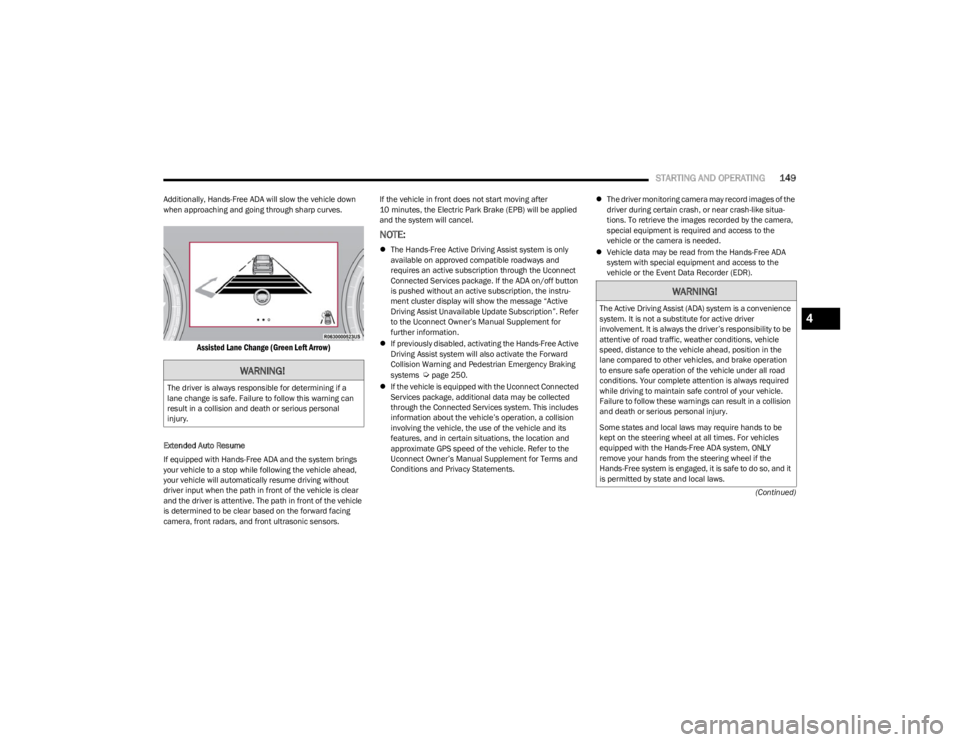
The Hands-Free ADA system will also change lanes when
a turn signal is activated if the adjacent lane in the
direction indicated is clear of another vehicle, and lane
markings are detected (noted by a dashed line in the
direction of the available lane change). The system uses
sensors, including Blind Spot Monitoring (BSM) sensors,
to determine if a lane change is possible. If the assisted
lane change is in progress, a green arrow will appear. If a
lane change is requested but the direction indicated is not
possible, a yellow arrow will appear. Once conditions are
clear, the arrow will turn green and the assisted lane
change will begin.
CAUTION!
Functionality may be limited or the system may not
work if the sensor is obstructed.
The system may have limited operation or not work at
all in weather conditions such as heavy rain, hail, and
thick fog. Strong light contrasts can influence the
recognition capability of the sensor.
The area surrounding the sensor must not be
covered with stickers or any other object.
Do not tamper or perform any operations in the area
of the windshield glass directly surrounding the
sensor.
Clean foreign matters such as bird droppings,
insects, snow or ice on the windshield. Use specific
detergents and clean cloths to avoid scratching the
windshield.
23_WS_OM_EN_USC_t.book Page 148
Page 151 of 396
STARTING AND OPERATING149
(Continued)
Additionally, Hands-Free ADA will slow the vehicle down
when approaching and going through sharp curves.
Assisted Lane Change (Green Left Arrow)
Extended Auto Resume
If equipped with Hands-Free ADA and the system brings
your vehicle to a stop while following the vehicle ahead,
your vehicle will automatically resume driving without
driver input when the path in front of the vehicle is clear
and the driver is attentive. The path in front of the vehicle
is determined to be clear based on the forward facing
camera, front radars, and front ultrasonic sensors. If the vehicle in front does not start moving after
10 minutes, the Electric Park Brake (EPB) will be applied
and the system will cancel.
NOTE:
The Hands-Free Active Driving Assist system is only
available on approved compatible roadways and
requires an active subscription through the Uconnect
Connected Services package. If the ADA on/off button
is pushed without an active subscription, the instru -
ment cluster display will show the message “Active
Driving Assist Unavailable Update Subscription”. Refer
to the Uconnect Owner’s Manual Supplement for
further information.
If previously disabled, activating the Hands-Free Active
Driving Assist system will also activate the Forward
Collision Warning and Pedestrian Emergency Braking
systems
Úpage 250.
If the vehicle is equipped with the Uconnect Connected
Services package, additional data may be collected
through the Connected Services system. This includes
information about the vehicle’s operation, a collision
involving the vehicle, the use of the vehicle and its
features, and in certain situations, the location and
approximate GPS speed of the vehicle. Refer to the
Uconnect Owner’s Manual Supplement for Terms and
Conditions and Privacy Statements.
The driver monitoring camera may record images of the
driver during certain crash, or near crash-like situa -
tions. To retrieve the images recorded by the camera,
special equipment is required and access to the
vehicle or the camera is needed.
Vehicle data may be read from the Hands-Free ADA
system with special equipment and access to the
vehicle or the Event Data Recorder (EDR).WARNING!
The driver is always responsible for determining if a
lane change is safe. Failure to follow this warning can
result in a collision and death or serious personal
injury.
WARNING!
The Active Driving Assist (ADA) system is a convenience
system. It is not a substitute for active driver
involvement. It is always the driver’s responsibility to be
attentive of road traffic, weather conditions, vehicle
speed, distance to the vehicle ahead, position in the
lane compared to other vehicles, and brake operation
to ensure safe operation of the vehicle under all road
conditions. Your complete attention is always required
while driving to maintain safe control of your vehicle.
Failure to follow these warnings can result in a collision
and death or serious personal injury.
Some states and local laws may require hands to be
kept on the steering wheel at all times. For vehicles
equipped with the Hands-Free ADA system, ONLY
remove your hands from the steering wheel if the
Hands-Free system is engaged, it is safe to do so, and it
is permitted by state and local laws.4
23_WS_OM_EN_USC_t.book Page 149
Page 152 of 396
150STARTING AND OPERATING
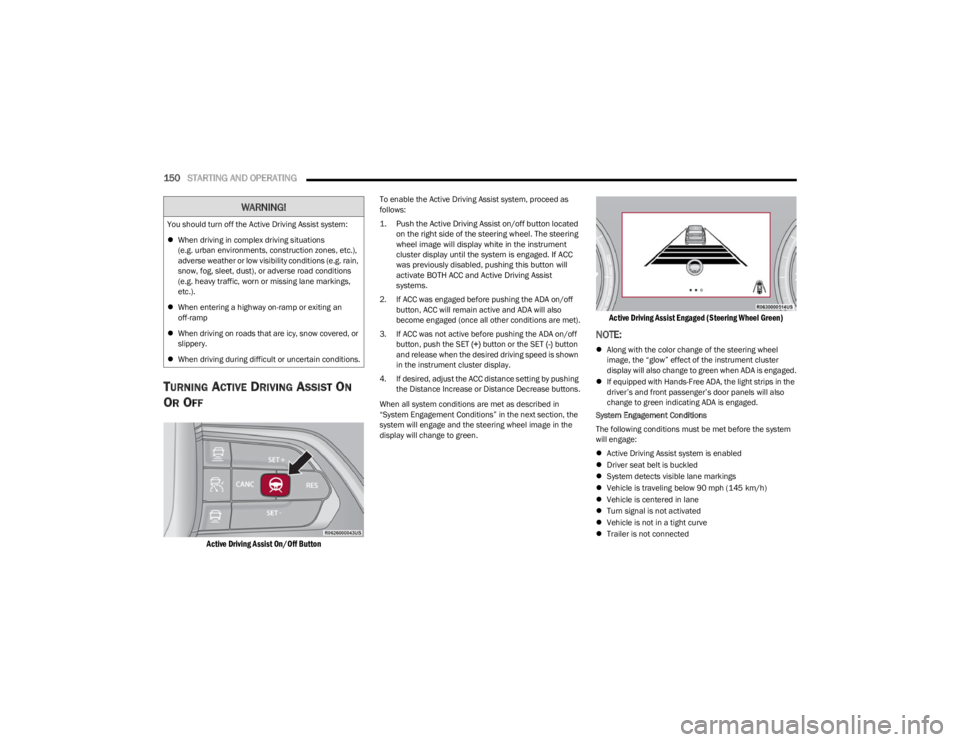
TURNING ACTIVE DRIVING ASSIST ON
O
R OFF
Active Driving Assist On/Off Button
To enable the Active Driving Assist system, proceed as
follows:
1. Push the Active Driving Assist on/off button located
on the right side of the steering wheel. The steering
wheel image will display white in the instrument
cluster display until the system is engaged. If ACC
was previously disabled, pushing this button will
activate BOTH ACC and Active Driving Assist
systems.
2. If ACC was engaged before pushing the ADA on/off button, ACC will remain active and ADA will also
become engaged (once all other conditions are met).
3. If ACC was not active before pushing the ADA on/off button, push the SET (+) button or the SET (-) button
and release when the desired driving speed is shown
in the instrument cluster display.
4. If desired, adjust the ACC distance setting by pushing the Distance Increase or Distance Decrease buttons.
When all system conditions are met as described in
“System Engagement Conditions” in the next section, the
system will engage and the steering wheel image in the
display will change to green.
Active Driving Assist Engaged (Steering Wheel Green)
NOTE:
Along with the color change of the steering wheel
image, the “glow” effect of the instrument cluster
display will also change to green when ADA is engaged.
If equipped with Hands-Free ADA, the light strips in the
driver’s and front passenger’s door panels will also
change to green indicating ADA is engaged.
System Engagement Conditions
The following conditions must be met before the system
will engage:
Active Driving Assist system is enabled
Driver seat belt is buckled
System detects visible lane markings
Vehicle is traveling below 90 mph (145 km/h)
Vehicle is centered in lane
Turn signal is not activated
Vehicle is not in a tight curve
Trailer is not connected
You should turn off the Active Driving Assist system:
When driving in complex driving situations
(e.g. urban environments, construction zones, etc.),
adverse weather or low visibility conditions (e.g. rain,
snow, fog, sleet, dust), or adverse road conditions
(e.g. heavy traffic, worn or missing lane markings,
etc.).
When entering a highway on-ramp or exiting an
off-ramp
When driving on roads that are icy, snow covered, or
slippery.
When driving during difficult or uncertain conditions.
WARNING!
23_WS_OM_EN_USC_t.book Page 150
Page 153 of 396
STARTING AND OPERATING151
Driver has hands on steering wheel and is paying atten -
tion to the road
If equipped with the Hands-Free system, vehicle is
driving on an approved roadway
If equipped with the Hands-Free system, a subscription
is active and the vehicle is receiving a clear cellular
signal
NOTE:
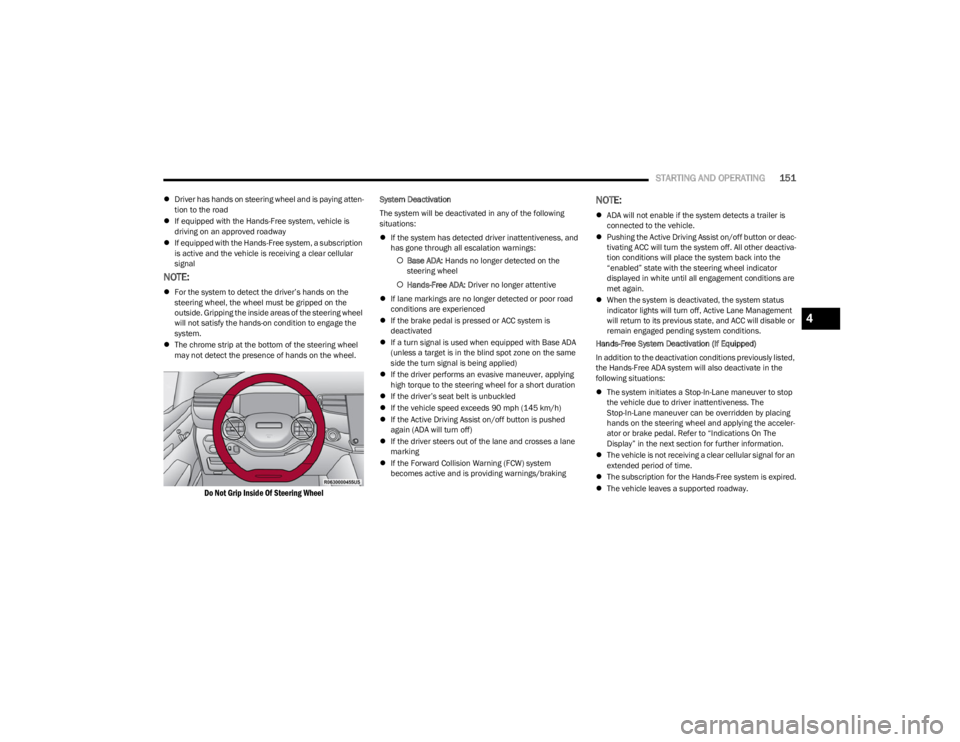
For the system to detect the driver’s hands on the
steering wheel, the wheel must be gripped on the
outside. Gripping the inside areas of the steering wheel
will not satisfy the hands-on condition to engage the
system.
The chrome strip at the bottom of the steering wheel
may not detect the presence of hands on the wheel.
Do Not Grip Inside Of Steering Wheel
System Deactivation
The system will be deactivated in any of the following
situations:
If the system has detected driver inattentiveness, and
has gone through all escalation warnings:
Base ADA: Hands no longer detected on the
steering wheel
Hands-Free ADA: Driver no longer attentive
If lane markings are no longer detected or poor road
conditions are experienced
If the brake pedal is pressed or ACC system is
deactivated
If a turn signal is used when equipped with Base ADA
(unless a target is in the blind spot zone on the same
side the turn signal is being applied)
If the driver performs an evasive maneuver, applying
high torque to the steering wheel for a short duration
If the driver’s seat belt is unbuckled
If the vehicle speed exceeds 90 mph (145 km/h)
If the Active Driving Assist on/off button is pushed
again (ADA will turn off)
If the driver steers out of the lane and crosses a lane
marking
If the Forward Collision Warning (FCW) system
becomes active and is providing warnings/brakingNOTE:
ADA will not enable if the system detects a trailer is
connected to the vehicle.
Pushing the Active Driving Assist on/off button or deac -
tivating ACC will turn the system off. All other deactiva -
tion conditions will place the system back into the
“enabled” state with the steering wheel indicator
displayed in white until all engagement conditions are
met again.
When the system is deactivated, the system status
indicator lights will turn off, Active Lane Management
will return to its previous state, and ACC will disable or
remain engaged pending system conditions.
Hands-Free System Deactivation (If Equipped)
In addition to the deactivation conditions previously listed,
the Hands-Free ADA system will also deactivate in the
following situations:
The system initiates a Stop-In-Lane maneuver to stop
the vehicle due to driver inattentiveness. The
Stop-In-Lane maneuver can be overridden by placing
hands on the steering wheel and applying the acceler -
ator or brake pedal. Refer to “Indications On The
Display” in the next section for further information.
The vehicle is not receiving a clear cellular signal for an
extended period of time.
The subscription for the Hands-Free system is expired.
The vehicle leaves a supported roadway.
4
23_WS_OM_EN_USC_t.book Page 151