video JEEP WAGONEER 2023 Owners Manual
[x] Cancel search | Manufacturer: JEEP, Model Year: 2023, Model line: WAGONEER, Model: JEEP WAGONEER 2023Pages: 396, PDF Size: 15.17 MB
Page 7 of 396

5
SURROUND VIEW CAMERA SYSTEM —
IF EQUIPPED ..................................................................... 175Zoom View ................................................................. 176
REFUELING THE VEHICLE .............................................. 177
VEHICLE LOADING ........................................................ 178 Gross Vehicle Weight Rating (GVWR) ..................... 178
Payload ...................................................................... 178
Gross Axle Weight Rating (GAWR)............................ 178
Tire Size ..................................................................... 178Rim Size ..................................................................... 178Inflation Pressure ...................................................... 178Curb Weight ............................................................... 178
Loading ...................................................................... 178
TRAILER TOWING............................................................. 178 Common Towing Definitions .................................... 179
Trailer Hitch Classification........................................ 182Trailer Towing Weights (Maximum Trailer
Weight Ratings) ......................................................... 182
Trailer Hitch Receiver Cover Removal —
If Equipped ................................................................ 184
Trailer And Tongue Weight ...................................... 185
Towing Requirements .............................................. 185
Towing Tips ............................................................... 189
RECREATIONAL TOWING (BEHIND MOTORHOME) ..... 190 Towing This Vehicle Behind Another Vehicle .......... 190
Recreational Towing — Two-Wheel
Drive Models ............................................................. 190Recreational Towing — Quadra-Trac I
(Single-Speed Transfer Case) Four-Wheel
Drive Models ............................................................. 191Recreational Towing — Quadra–Trac II/
Quadra–Drive II Four-Wheel Drive Models .............. 191
DRIVING TIPS ................................................................... 193 On-Road Driving Tips ................................................ 193Off-Road Driving Tips ................................................ 193MULTIMEDIA
UCONNECT SYSTEMS ..................................................... 196
CYBERSECURITY ............................................................. 196
UCONNECT SETTINGS ..................................................... 197 Customer Programmable Features ......................... 197
STEERING WHEEL AUDIO CONTROLS .......................... 221 Radio Operation ........................................................ 221Media Mode .............................................................. 221
PASSENGER SCREEN — IF EQUIPPED .......................... 221 Passenger Screen Permissions ............................... 222
Home Screen ............................................................ 222
Audio And Video ........................................................ 223Rear Seat Entertainment with Amazon Fire TV
Built-in — If Equipped................................................ 224
HDMI Projecting ........................................................ 225Device Manager........................................................ 225Navigation ................................................................. 226Camera ...................................................................... 226
3RD PARTY APPS — IF EQUIPPED ................................ 226
REAR SEAT ENTERTAINMENT (RSE) WITH
AMAZON FIRE TV BUILT-IN — IF EQUIPPED.................. 228 Overview .................................................................... 228
Getting Started.......................................................... 228
Accessing Rear Seat Entertainment with
Fire TV built-in from the Front Radio Screen........... 228
Accessing Rear Seat Entertainment with
Fire TV built-in from the Rear Screens .................... 229
Accessing Rear Seat Entertainment with
Fire TV built-in from the Passenger Screen —
If Equipped ................................................................ 229 First Time Starting Up
(Using the Rear Screens) .......................................... 229
Alexa Voice Control.................................................... 230
Listen Via Vehicle Speakers ..................................... 230
Quick Menu................................................................ 230
Parental Controls (Using the Rear Screens) ............ 230
Voice Remote with Alexa Pairing
(Using the Rear Screens) .......................................... 230
Media Sources Input (Using the Front Radio
and Rear Screens)..................................................... 230
Voice Remote with Alexa........................................... 231
Replacing the Voice Remote with
Alexa Batteries........................................................... 231
Rear Seat Entertainment with Fire TV Built-In
streaming (Using the Front Radio and
Rear Screens) ............................................................ 232Fire TV Apps/Games
(Using the Rear Screens) .......................................... 233
Are We There Yet? ..................................................... 233Using The Video USB Port ......................................... 233
Play Video Games...................................................... 233Headphones Operation ............................................. 233
Rear Climate Controls ............................................... 234Legal & Compliance .................................................. 235
OFF-ROAD PAGES — IF EQUIPPED .................................236 Off-Road Pages Status Bar ....................................... 236Vehicle Dynamics ...................................................... 236Accessory Gauges ..................................................... 237Pitch & Roll ................................................................ 237
Selec-Terrain — If Equipped ...................................... 237Suspension — If Equipped ........................................ 238
RADIO OPERATION AND MOBILE PHONES ..................238 Regulatory And Safety Information .......................... 238
23_WS_OM_EN_USC_t.book Page 5
Page 11 of 396
9
KNOW & GO
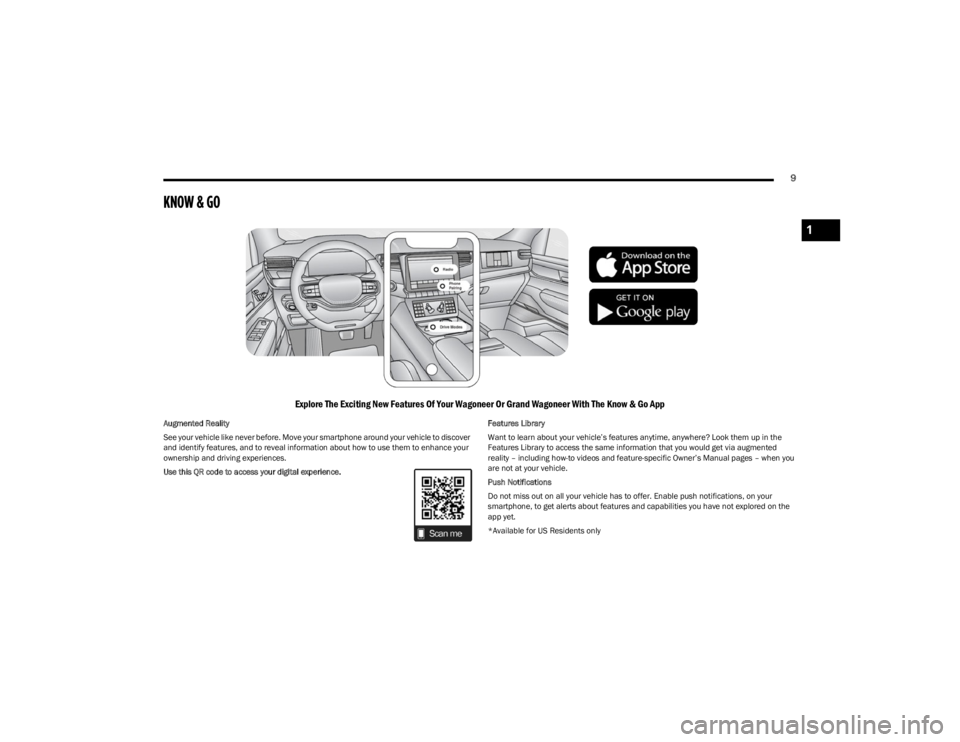
Explore The Exciting New Features Of Your Wagoneer Or Grand Wagoneer With The Know & Go App
Augmented Reality
See your vehicle like never before. Move your smartphone around your vehicle to discover
and identify features, and to reveal information about how to use them to enhance your
ownership and driving experiences.
Use this QR code to access your digital experience.Features Library
Want to learn about your vehicle’s features anytime, anywhere? Look them up in the
Features Library to access the same information that you would get via augmented
reality – including how-to videos and feature-specific Owner’s Manual pages – when you
are not at your vehicle.
Push Notifications
Do not miss out on all your vehicle has to offer. Enable push notifications, on your
smartphone, to get alerts about features and capabilities you have not explored on the
app yet.
*Available for US Residents only
1
23_WS_OM_EN_USC_t.book Page 9
Page 82 of 396
80GETTING TO KNOW YOUR VEHICLE
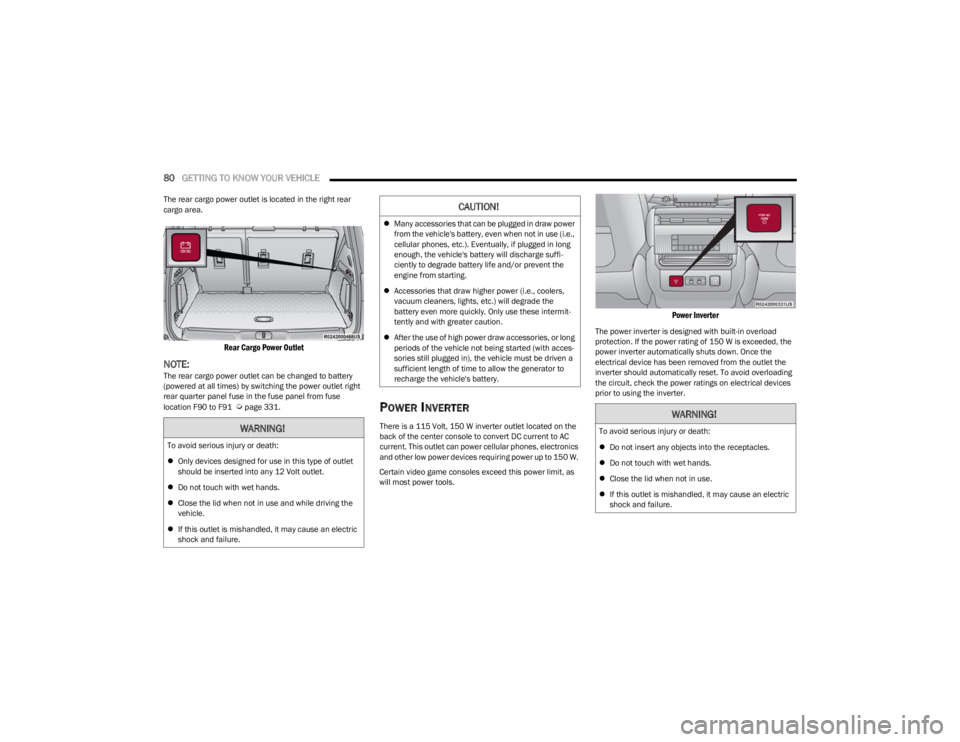
The rear cargo power outlet is located in the right rear
cargo area.
Rear Cargo Power Outlet
NOTE:The rear cargo power outlet can be changed to battery
(powered at all times) by switching the power outlet right
rear quarter panel fuse in the fuse panel from fuse
location F90 to F91
Úpage 331.POWER INVERTER
There is a 115 Volt, 150 W inverter outlet located on the
back of the center console to convert DC current to AC
current. This outlet can power cellular phones, electronics
and other low power devices requiring power up to 150 W.
Certain video game consoles exceed this power limit, as
will most power tools.
Power Inverter
The power inverter is designed with built-in overload
protection. If the power rating of 150 W is exceeded, the
power inverter automatically shuts down. Once the
electrical device has been removed from the outlet the
inverter should automatically reset. To avoid overloading
the circuit, check the power ratings on electrical devices
prior to using the inverter.
WARNING!
To avoid serious injury or death:
Only devices designed for use in this type of outlet
should be inserted into any 12 Volt outlet.
Do not touch with wet hands.
Close the lid when not in use and while driving the
vehicle.
If this outlet is mishandled, it may cause an electric
shock and failure.
CAUTION!
Many accessories that can be plugged in draw power
from the vehicle's battery, even when not in use (i.e.,
cellular phones, etc.). Eventually, if plugged in long
enough, the vehicle's battery will discharge suffi -
ciently to degrade battery life and/or prevent the
engine from starting.
Accessories that draw higher power (i.e., coolers,
vacuum cleaners, lights, etc.) will degrade the
battery even more quickly. Only use these intermit -
tently and with greater caution.
After the use of high power draw accessories, or long
periods of the vehicle not being started (with acces -
sories still plugged in), the vehicle must be driven a
sufficient length of time to allow the generator to
recharge the vehicle's battery.
WARNING!
To avoid serious injury or death:
Do not insert any objects into the receptacles.
Do not touch with wet hands.
Close the lid when not in use.
If this outlet is mishandled, it may cause an electric
shock and failure.
23_WS_OM_EN_USC_t.book Page 80
Page 112 of 396
110GETTING TO KNOW YOUR INSTRUMENT PANEL
Drowsy Driver Detected Warning Light —
If Equipped
The Drowsy Driver Detected (DDD) system,
monitors certain vehicle movement and driver
interactions to identify patterns suggesting
drowsiness. If detected, the system sends the
driver an auditory and visual signal to take precaution. A
pop-up will display continuously until the driver presses
the OK button to clear.
Once the pop-up message is cleared, it is stored until the
condition is no longer true
Úpage 240.
Electric Power Steering (EPS) Fault
Warning Light
This warning light will turn on when there's a
fault with the EPS system Úpage 135.
Electronic Throttle Control (ETC) Warning
Light
This warning light will illuminate to indicate a
problem with the ETC system. If a problem is
detected while the vehicle is running, the light
will either stay on or flash depending on the
nature of the problem. Cycle the ignition when the vehicle is safely and
completely stopped and the transmission is placed in the
PARK position. The light should turn off. If the light
remains on with the vehicle running, your vehicle will
usually be drivable; however, see an authorized dealer for
service as soon as possible.
NOTE:This light may turn on if the accelerator and brake pedals
are pressed at the same time.
If the light continues to flash when the vehicle is running,
immediate service is required and you may experience
reduced performance, an elevated/rough idle, or engine
stall and your vehicle may require towing. The light will
come on when the ignition is placed in the ON/RUN
position and remain on briefly as a bulb check. If the light
does not come on during starting, have the system
checked by an authorized dealer.
Engine Coolant Temperature Warning
Light
This warning light warns of an overheated
engine condition. If the engine coolant
temperature is too high, this indicator will
illuminate and a single chime will sound. If the
temperature reaches the upper limit, a continuous chime
will sound for four minutes or until the engine is able to
cool; whichever comes first.
If the light turns on while driving, safely pull over and stop
the vehicle. If the Air Conditioning (A/C) system is on, turn
it off. Also, shift the transmission into NEUTRAL (N) and
idle the vehicle. If the temperature reading does not return
to normal, turn the engine off immediately and call for
service
Úpage 303.
Hood Open Warning Light
This warning light will illuminate when the hood
is left open and not fully closed.
NOTE:If the vehicle is moving, there will also be a single chime.
Liftgate Open Warning Light
This warning light will illuminate when the
liftgate is open.
NOTE:If the vehicle is moving, there will also be a single chime.
Night Vision Animal Detected Warning
Light — If Equipped
The Night Vision Animal Warning Light will
illuminate in red when an animal is detected
directly in the vehicle’s path, near the
headlights, and a collision is possible.
If enabled, a chime will sound and a video pop-up may
display when a detection occurs.WARNING!
Continued operation with reduced assist could pose a
safety risk to yourself and others. Service should be
obtained as soon as possible.
23_WS_OM_EN_USC_t.book Page 110
Page 113 of 396
GETTING TO KNOW YOUR INSTRUMENT PANEL111
Night Vision Pedestrian Detected Warning
Light — If Equipped
The Night Vision Pedestrian Warning Light will
illuminate in red when a pedestrian is detected
directly in the vehicle’s path, near the
headlights, and a collision is possible.
If enabled, a chime will sound and a video pop-up may
display when a detection occurs.
Oil Pressure Warning Light
This warning light will illuminate to indicate low
engine oil pressure. If the light turns on while
driving, stop the vehicle, shut off the engine as
soon as possible, and contact an authorized
dealer. A chime will sound when this light turns on.
Do not operate the vehicle until the cause is corrected.
This light does not indicate how much oil is in the engine.
Oil Temperature Warning Light
This warning light will illuminate to indicate the
engine oil temperature is high. If the light turns
on while driving, safely pull over and stop the
vehicle (keep engine running). If the
temperature does not return to normal after a few
minutes, turn off the engine and call for service.
Seat Belt Reminder Warning Light
This warning light indicates when the driver or
passenger seat belt is unbuckled. When the
ignition is first placed in the ON/RUN position
and if the driver’s seat belt is unbuckled, a
chime will sound and the light will turn on. When driving, if the driver or front passenger seat belt
remains unbuckled, the Seat Belt Reminder Light will flash
or remain on continuously and a chime will sound
Úpage 256.
Transmission Temperature Warning
Light — If Equipped
This warning light will illuminate to warn of a
high transmission fluid temperature. This may
occur with strenuous usage such as trailer
towing. If this light turns on, stop the vehicle
and run the engine at idle or slightly faster, with the
transmission in PARK (P) or NEUTRAL (N), until the light
turns off. Once the light turns off, you may continue to
drive normally.
Vehicle Security Warning Light —
If Equipped
This light will flash at a fast rate for
approximately 15 seconds when the vehicle
security system is arming, and then will flash
slowly until the vehicle is disarmed.
YELLOW WARNING LIGHTS
Anti-Lock Brake System (ABS)
Warning Light
This warning light monitors the ABS. The light
will turn on when the ignition is placed in the
ON/RUN position and may stay on for as long
as four seconds.
If the ABS light remains on or turns on while driving, then
the Anti-Lock portion of the brake system is not
functioning and service is required as soon as possible.
However, the conventional brake system will continue to
operate normally, assuming the Brake Warning Light is not
also on.
If the ABS light does not turn on when the ignition is placed
in the ON/RUN position, have the brake system inspected
by an authorized dealer.
WARNING!
If you continue operating the vehicle when the
Transmission Temperature Warning Light is illuminated
you could cause the fluid to boil over, come in contact
with hot engine or exhaust components and cause a
fire.
CAUTION!
Continuous driving with the Transmission Temperature
Warning Light illuminated will eventually cause severe
transmission damage or transmission failure.
3
23_WS_OM_EN_USC_t.book Page 111
Page 175 of 396
STARTING AND OPERATING173
(Continued)
Level 1 Warnings:
Yellow telltale in the instrument cluster display
Yellow highlights around the detected
pedestrian/animal
Occurs when the vehicle is moving at speeds greater
than 8 mph (13 km/h) and the target is in or
approaching the vehicle path
Level 2 Warnings:
Red telltale in the instrument cluster display
Red highlights around the detected pedestrian/animal
Occurs when the vehicle is moving at speeds greater
than 8 mph (13 km/h) and a collision with the detected
pedestrian/animal is possible
The pedestrian/animal is directly in the vehicle path,
close to the headlight area
A video pop-up will display when there is a target
detected and the instrument cluster display is not
showing the Night Vision page
A chime will sound for a Level 2 Warning detection
event
Only one telltale can be displayed at a time based upon
priority.
The priority order of the warnings from highest to lowest is:
1. Pedestrian Warning Level 2
2. Animal Warning Level 2
3. Pedestrian Warning Level 1
4. Animal Warning Level 1
Level 2 Warnings may display in the Head Up Display
(if equipped).
NOTE:If the vehicle is stopped, or slowing down, all Level 2
warnings become Level 1 warnings.
You can enable or disable the warnings within the
Uconnect system
Úpage 197.
If the warnings are off, the telltales, chimes, and warning
messages will all be off. Pedestrians and animals can still
be detected by the system, but there will be no warnings. The Night Vision alert status telltale will be gray
when the warnings are suppressed. The telltale
will also turn gray to indicate that the alerts are
suppressed due to environmental factors (e.g.
daylight hours, external temperature is greater than 86°F
(30°C)) or if the gear selector is in REVERSE. When the
Night Vision alerts are active, the telltale will be green
Úpage 108.
Camera Washers
When the front window washer is activated, the Night
Vision camera will also be washed
Úpage 63.DETECTION RANGE
The system can detect people 4 ft (1.25 m) tall or greater
in the upright position. The system can also detect
animals that are four-legged and 3 ft (1 m) tall or greater
in the upright position.
The detection distance for the system is between 26 ft
(8 m) and 328 ft (100 m) from the front of the vehicle.WARNING!
Do not jerk the steering wheel in response to a
warning.
Never attempt to swerve around animals if doing so
would endanger you or others.
Do not stare at the image while driving. You could
crash and you or others could be injured.
The Night Vision system only provides alerts to
objects of interest and cannot serve as a substitute
for the driver’s personal judgment. The warnings are
meant to direct your attention to the detected
objects, but the Night Vision system does not auto -
matically brake the vehicle and may not provide a
warning with enough time to help avoid a crash.
Warnings are only provided if a pedestrian or large
animal is detected by the system.
It is always the driver’s responsibility to be attentive
of road, traffic, and weather conditions, vehicle
speed, distance to the vehicle ahead, and most
importantly, brake operation, to ensure safe opera -
tion of the vehicle under all road conditions. Your
complete attention is always required while driving to
maintain safe control of your vehicle.
WARNING!
4
23_WS_OM_EN_USC_t.book Page 173
Page 206 of 396

204MULTIMEDIA
Night Vision Video Warning This setting will turn the Night Vision Video Warning and green/gray cluster indicator light
on or off.
ParkSense This setting will change the type of ParkSense alert when a close object is detected and
can provide both an audible chime and a visual display.
Front ParkSense Volume This setting adjusts the volume of the Front ParkSense system. The available settings are
“Low”, “Medium”, and “High”.
Rear ParkSense Volume This setting adjusts the volume of the Rear ParkSense system. The available settings are
“Low”, “Medium”, and “High”.
Active ParkSense Mode This setting will adjust the level of vehicle control when the Active ParkSense Mode is
active. The available settings are “Full Auto” and “Steering Only”
Active ParkSense Proximity Chime This setting will turn the Active ParkSense Proximity Chime on or off.
Side Distance Warning This setting will adjust the warning for side distance. The available options are “Off”,
“Sound Only”, and “Sound & Display”.
Drowsy Driver Alert This setting will monitor the driver’s driving habits and warn you of any changes,
indicating that the driver may be drowsy. The available options are “On” and “Off”.
Blind Spot Alert This setting will change the type of alert provided when an object is detected in the
vehicle’s blind spot. The “Off” setting will turn off Blind Spot Alert. The “Lights” setting will
activate the Blind Spot Alert lights on the outside mirrors. The “Lights & Chime” setting
will activate the lights on the outside mirrors and an audible chime.
Electric Power Steering Default This setting will change the Electric Power Steering mode. The available options are
“Comfort” for a lower effort steering experience, “Normal” for the standard effort steering
experience, and “Sport” for a higher effort steering experience.
Power Side Step This setting will activate the Power Side Step. The “Auto” setting will lower the step when
the door is opened and retract it once the door is closed. The “Off” setting will deactivate
the feature.
Hill Start Assist This setting will turn the Hill Start Assist system on or off.
Tire Fill Assist This setting will turn Tire Fill Assist on or off.
Setting NameDescription
23_WS_OM_EN_USC_t.book Page 204
Page 220 of 396

218MULTIMEDIA
SiriusXM® Setup
Accessibility — If Equipped
When the SiriusXM® Setup button is pressed on the touchscreen, the system displays an option related to SiriusXM® satellite radio. These settings can be used to skip specific
radio channels and restart favorite songs from the beginning.
NOTE:
A subscription to SiriusXM® satellite radio is required for these settings to be functional.
Depending on the vehicle’s options, feature settings may vary.
Setting Name Description
SiriusXM® Account, Profile, And Settings This setting will redirect you to the SiriusXM® Settings menu within the SiriusXM® menu.
Block Explicit This setting will skip over content labeled as explicit. The available settings are “On” and
“Off”.
After pressing the Accessibility button on the touchscreen, the following setting will be available:
NOTE:Depending on the vehicle’s options, feature settings may vary.
Setting Name
Description
Video Button Readback This setting will turn the Video Button Readback feature on or off.
23_WS_OM_EN_USC_t.book Page 218
Page 224 of 396
222MULTIMEDIA
PASSENGER SCREEN PERMISSIONS
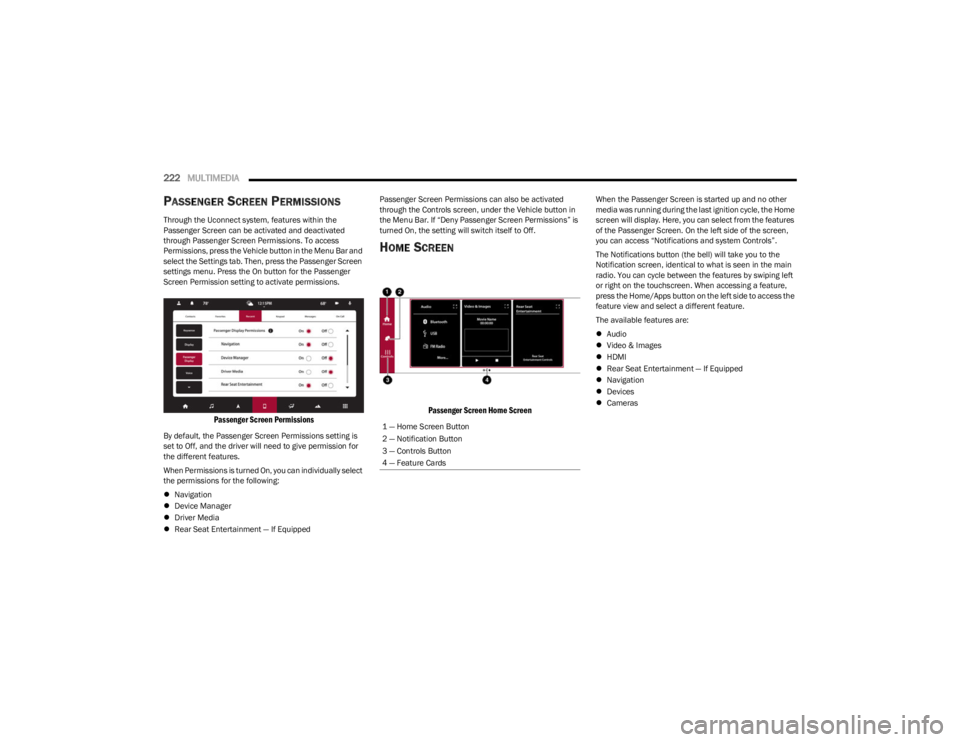
Through the Uconnect system, features within the
Passenger Screen can be activated and deactivated
through Passenger Screen Permissions. To access
Permissions, press the Vehicle button in the Menu Bar and
select the Settings tab. Then, press the Passenger Screen
settings menu. Press the On button for the Passenger
Screen Permission setting to activate permissions.
Passenger Screen Permissions
By default, the Passenger Screen Permissions setting is
set to Off, and the driver will need to give permission for
the different features.
When Permissions is turned On, you can individually select
the permissions for the following:
Navigation
Device Manager
Driver Media
Rear Seat Entertainment — If Equipped Passenger Screen Permissions can also be activated
through the Controls screen, under the Vehicle button in
the Menu Bar. If “Deny Passenger Screen Permissions” is
turned On, the setting will switch itself to Off.
HOME SCREEN
Passenger Screen Home Screen
When the Passenger Screen is started up and no other
media was running during the last ignition cycle, the Home
screen will display. Here, you can select from the features
of the Passenger Screen. On the left side of the screen,
you can access “Notifications and system Controls”.
The Notifications button (the bell) will take you to the
Notification screen, identical to what is seen in the main
radio. You can cycle between the features by swiping left
or right on the touchscreen. When accessing a feature,
press the Home/Apps button on the left side to access the
feature view and select a different feature.
The available features are:
Audio
Video & Images
HDMI
Rear Seat Entertainment — If Equipped
Navigation
Devices
Cameras
1 — Home Screen Button
2 — Notification Button
3 — Controls Button
4 — Feature Cards
23_WS_OM_EN_USC_t.book Page 222
Page 225 of 396
MULTIMEDIA223
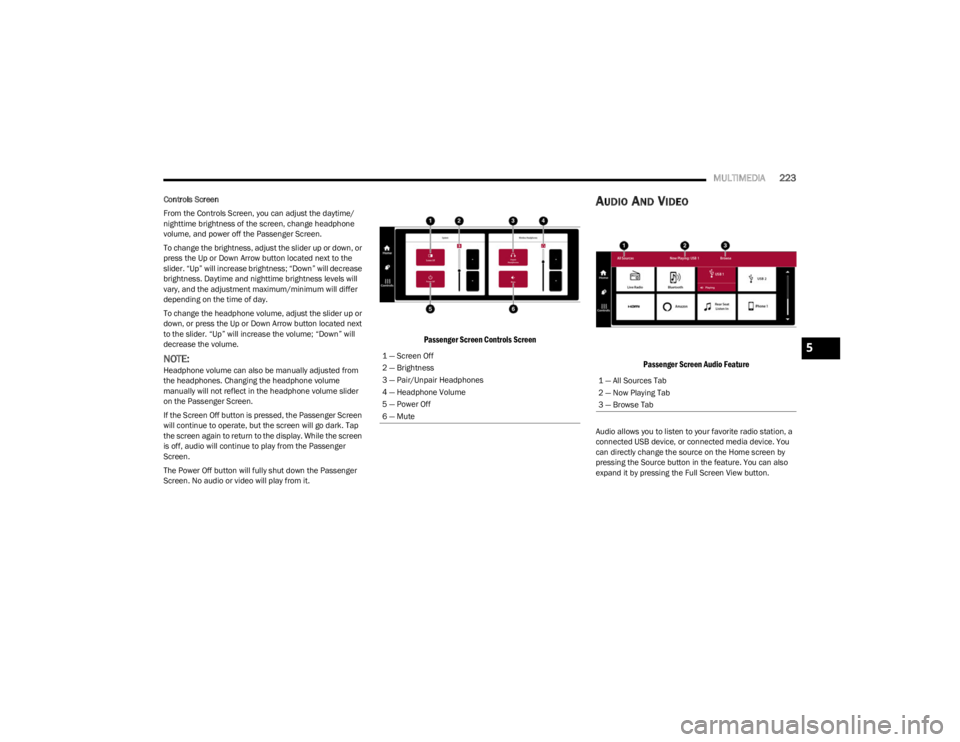
Controls Screen
From the Controls Screen, you can adjust the daytime/
nighttime brightness of the screen, change headphone
volume, and power off the Passenger Screen.
To change the brightness, adjust the slider up or down, or
press the Up or Down Arrow button located next to the
slider. “Up” will increase brightness; “Down” will decrease
brightness. Daytime and nighttime brightness levels will
vary, and the adjustment maximum/minimum will differ
depending on the time of day.
To change the headphone volume, adjust the slider up or
down, or press the Up or Down Arrow button located next
to the slider. “Up” will increase the volume; “Down” will
decrease the volume.
NOTE:Headphone volume can also be manually adjusted from
the headphones. Changing the headphone volume
manually will not reflect in the headphone volume slider
on the Passenger Screen.
If the Screen Off button is pressed, the Passenger Screen
will continue to operate, but the screen will go dark. Tap
the screen again to return to the display. While the screen
is off, audio will continue to play from the Passenger
Screen.
The Power Off button will fully shut down the Passenger
Screen. No audio or video will play from it.
Passenger Screen Controls Screen
AUDIO AND VIDEO
Passenger Screen Audio Feature
Audio allows you to listen to your favorite radio station, a
connected USB device, or connected media device. You
can directly change the source on the Home screen by
pressing the Source button in the feature. You can also
expand it by pressing the Full Screen View button.
1 — Screen Off
2 — Brightness
3 — Pair/Unpair Headphones
4 — Headphone Volume
5 — Power Off
6 — Mute
1 — All Sources Tab
2 — Now Playing Tab
3 — Browse Tab
5
23_WS_OM_EN_USC_t.book Page 223