change time JEEP WRANGLER 2023 User Guide
[x] Cancel search | Manufacturer: JEEP, Model Year: 2023, Model line: WRANGLER, Model: JEEP WRANGLER 2023Pages: 396, PDF Size: 25.15 MB
Page 115 of 396
GETTING TO KNOW YOUR INSTRUMENT PANEL113
Push the SET + or the SET - button (located on the steering
wheel), and the following will display in the instrument
cluster display.
ACC SET
When ACC is set, the set speed will display in the
instrument cluster.
The ACC screen may display once again if any of the
following ACC activity occurs:
System Cancel
Driver Override
System Off
ACC Proximity Warning
ACC Unavailable Warning
NOTE:
The instrument cluster display will return to the last
display selected after five seconds of no ACC display
activity
Úpage 152.
Fuel Economy
Push and release the up or down arrow button
until the Fuel Economy icon is highlighted in the
instrument cluster display. Push and hold the OK button to
reset average fuel economy feature.
Toggle left or right to select a display with or
without Current Fuel Economy Information.
Range – The display shows the estimated distance (mi
or km) that can be traveled with the fuel remaining in
the tank. When the Range value is less than 10 miles
(16 kilometers), the Range display will change to a
“LOW” message. Adding a significant amount of fuel to
the vehicle will turn off the “LOW” message and a new Range value will display. Range cannot be reset
through the
OK button.
NOTE:Significant changes in driving style or vehicle loading will
greatly affect the actual drivable distance of the vehicle,
regardless of the Range displayed value.
Average – The display shows the average fuel economy
(MPG, L/100 km, or km/L) since the last reset.
Current – This display shows the current fuel economy
(MPG, L/100 km, km/L) while driving.
Trip Info
Push and release the up or down arrow button
until the Trip icon/title is highlighted in the instrument
cluster display, then push and release the left or
right arrow button to select Trip A or Trip B.
The Trip A and Trip B information will display the following:
Distance
Average Fuel Economy
Elapsed Time
Hold the OK button to reset all the information.
Stop/Start — If Equipped
Push and release the up or down arrow button
until the Stop/Start icon/title is highlighted in the
instrument cluster display. The screen will display the
Stop/Start status.
Audio
Push and release the up or down arrow button
until the Audio Menu icon/title is highlighted in the
instrument cluster display. This menu will display the
audio source information, including the Song name, Artist
name, and audio source with an accompanying graphic.
Messages
Push and release the up or down arrow button
until the Messages Menu item is highlighted. This feature
shows the number of stored warning messages. Pushing
the right arrow button will allow you to see what the
stored messages are.
When no messages are present, a “No Stored Messages”
will display.
Screen Setup
Push and release the up or down arrow button
until the Screen Setup Menu Icon/Title is highlighted in
the instrument cluster display. Push and release the OK
button to enter the submenus and follow the prompts on
the screen as needed. The Screen Setup feature allows
you to change what information is displayed in the
instrument cluster as well as the location that information
is displayed.
NOTE:Based upon equipment options and current vehicle
status, some of the features may not be available.
3
23_JL_OM_EN_USC_t.book Page 113
Page 129 of 396

STARTING AND OPERATING127
seconds (or three short pushes in a row) to turn the
engine off. The ignition will remain in the ACC position
(NOT the OFF position) if the engine is turned off when
the transmission is not in PARK.
NOTE:The system will automatically time out and the ignition will
cycle to the OFF position after 30 minutes of inactivity if
the ignition is left in the ACC or RUN (engine not running)
position and the transmission is in PARK.
ENGINE START/STOP Button Functions — With Driver’s
Foot OFF The Brake Pedal (In PARK Or NEUTRAL Position)
The ENGINE START/STOP button operates similar to an
ignition switch. It has three positions: OFF, ACC, and RUN.
To change the ignition positions without starting the
vehicle and use the accessories, follow these steps:
1. Start with the ignition in the OFF position.
2. Push the ENGINE START/STOP button once to place
the ignition to the ACC position (instrument cluster
will display “ACC”).
3. Push the ENGINE START/STOP button a second time to place the ignition to the RUN position (instrument
cluster will display “ON/RUN”).
4. Push the ENGINE START/STOP button a third time to return the ignition to the OFF position (instrument
cluster will display “OFF”).
AUTOPARK
AutoPark is a supplemental feature to assist with placing
the vehicle in PARK should the situations on the following
pages occur. It is a back-up system and should not be relied upon as the primary method by which the driver
shifts the vehicle into PARK.
The conditions under which AutoPark will engage are
outlined on the following pages.
If the vehicle is not in PARK and the driver turns off the
engine, the vehicle may AutoPark.
AutoPark will engage when all of these conditions are met:
Vehicle is equipped with an 8-speed transmission
Driver’s door is ajar or if the driver’s door is removed
and the driver is not on the seat (seat pad sensor
detects driver missing)
Vehicle is not in PARK
Vehicle speed is 1.2 mph (1.9 km/h) or less
Ignition is switched from RUN to OFF
NOTE:For Keyless Enter ‘n Go™ equipped vehicles, the engine
will turn off and the ignition switch will change to ACC
position.
If the vehicle is not in PARK and the driver exits the vehicle
with the engine running, the vehicle may AutoPark.
AutoPark will engage when all of these conditions are met:
Vehicle is equipped with an 8-speed transmission
Driver’s door is ajar or if the driver’s door is removed
and the driver is not on the seat (seat pad sensor
detects driver missing)
Vehicle is not in PARK
Vehicle speed is 1.2 mph (1.9 km/h) or less
Driver’s seat belt is unbuckled
Brake pedal is not pressed
The message “ AutoPark Engaged Shift To P Then Shift To
Gear ” will display in the instrument cluster.
NOTE:In some cases the ParkSense graphic will be displayed in
the instrument cluster. In these cases, the gear selector
must be returned to “P” to select desired gear.
If the driver shifts into PARK while moving, the vehicle may
AutoPark.
AutoPark will engage ONLY when vehicle speed is 1.2 mph
(1.9 km/h) or less.
The message “ Vehicle Speed Is Too High To Shift To P ” will
be displayed in the instrument cluster if vehicle speed is
above 1.2 mph (1.9 km/h).
WARNING!
Driver inattention could lead to failure to place the
vehicle in PARK. ALWAYS DO A VISUAL CHECK that
your vehicle is in PARK by verifying that a solid (not
blinking) “P” is indicated in the instrument cluster
display and on the gear selector. If the "P" indicator is
blinking, your vehicle is not in PARK. As an added
precaution, always apply the parking brake when
exiting the vehicle.
AutoPark is a supplemental feature. It is not
designed to replace the need to shift your vehicle
into PARK. It is a back-up system and should not be
relied upon as the primary method by which the
driver shifts the vehicle into PARK.
4
23_JL_OM_EN_USC_t.book Page 127
Page 135 of 396

STARTING AND OPERATING133
Do Not Operate The Engine With Failed
Parts
All engine failures give some warning before the parts fail.
Be on the alert for changes in performance, sounds, and
visual evidence that the engine requires service. Some
important clues are:
Engine misfiring or vibrating severely
Sudden loss of power
Unusual engine noises
Fuel, oil or coolant leaks
Sudden change, outside the normal operating range, in
the engine operating temperature
Excessive smoke
Oil pressure drop
ENGINE BREAK-IN RECOMMENDATIONS —
GASOLINE ENGINE (IF EQUIPPED)
A long break-in period is not required for the engine and
drivetrain (transmission and axle) in your vehicle.
Drive moderately during the first 300 miles (500 km).
After the initial 60 miles (100 km), speeds up to 50 or
55 mph (80 or 90 km/h) are desirable.
While cruising, brief full-throttle acceleration within the
limits of local traffic laws contributes to a good break-in.
Wide-open throttle acceleration in low gear can be
detrimental and should be avoided.
The engine oil installed in the engine at the factory is a
high-quality energy conserving type lubricant. Oil changes
should be consistent with anticipated climate conditions
under which vehicle operations will occur. For the recommended viscosity and quality grades
Úpage 374.
NOTE:A new engine may consume some oil during its first few
thousand miles (kilometers) of operation. This should be
considered a normal part of the break-in and not inter
-
preted as a problem.
ENGINE BREAK-IN RECOMMENDATIONS —
DIESEL ENGINE (IF EQUIPPED)
The diesel engine does not require a break-in period due
to its construction. Normal operation is allowed, providing
the following recommendations are followed:
Warm up the engine before placing it under load.
Do not operate the engine at idle for prolonged periods.
Use the appropriate transmission gear to prevent
engine lugging.
Observe vehicle oil pressure and temperature indica -
tors.
Check the coolant and oil levels frequently.
Vary throttle position at highway speeds when carrying
or towing significant weight.
NOTE:Light duty operation such as light trailer towing or no load
operation will extend the time before the engine is at full
efficiency. Reduced fuel economy and power may be seen
at this time.
The engine oil installed in the engine at the factory is a
high-quality energy conserving type lubricant. Oil changes
should be consistent with anticipated climate conditions
under which vehicle operations will occur. For
recommended viscosity and quality grades see
Úpage 374. NON-DETERGENT OR STRAIGHT MINERAL
OILS MUST NEVER BE USED.
PARKING BRAKE
Before exiting the vehicle, make sure that the parking
brake is fully applied. Also, be certain to leave an
automatic transmission in PARK, or manual transmission
in REVERSE or FIRST gear.
The parking brake lever is located in the center console.
To apply the parking brake, pull the lever up as firmly as
possible. To release the parking brake, pull the lever up
slightly, push the center button, then lower the lever
completely.
CAUTION!
Never use Non-Detergent Oil or Straight Mineral Oil in
the engine or damage may result.
4
23_JL_OM_EN_USC_t.book Page 133
Page 156 of 396

154STARTING AND OPERATING
Adaptive Cruise Control Off
When ACC is deactivated, the display will read “Adaptive
Cruise Control Off.”
Adaptive Cruise Control Ready
When ACC is activated, but the vehicle speed setting has
not been selected, the display will read “Adaptive Cruise
Control Ready.”
Adaptive Cruise Control Set
When the SET (+) or the SET (-) button is pushed, the
display will read “ACC SET.”
When ACC is set, the set speed will show in the instrument
cluster display.
The ACC screen may display once again if any of the
following ACC activity occurs:
System Cancel
Driver Override
System Off
ACC Proximity Warning
ACC Unavailable Warning
The instrument cluster display will return to the last
display selected after five seconds of no ACC display
activity.
Activating Adaptive Cruise Control (ACC)
The minimum set speed for the ACC system is 20 mph
(32 km/h).
When the system is turned on and in the ready state, the
instrument cluster displays “ACC Ready.”
When the system is off, the instrument cluster displays
“Adaptive Cruise Control (ACC) Off.”
NOTE:You cannot engage ACC under the following conditions:
When in 4WD Low
When the brakes are applied
When the parking brake is applied
When the automatic transmission is in PARK, REVERSE
or NEUTRAL
When the manual transmission is in FIRST gear
When the vehicle speed is below 20 mph (32 km/h)
(manual transmission)
When the vehicle speed is below the minimum speed
range
When the brakes are overheated
When the driver’s door is open at low speeds
When the driver’s seat belt is unbuckled at low speeds
When ESC Full Off mode is active
When Off Road+ (if equipped) is active
To Activate/Deactivate
Push and release the Adaptive Cruise Control (ACC) on/off
button. The ACC menu in the instrument cluster display
will read “ACC Ready.”
To turn the system off, push and release the Adaptive
Cruise Control (ACC) on/off button again. At this time, the
system will turn off and the instrument cluster display will
read “Adaptive Cruise Control (ACC) Off.”
To Set A Desired Speed
When the vehicle reaches the speed desired, push the
SET (+) button or the SET (-) button and release. The
instrument cluster display will show the set speed.
NOTE:Fixed Speed Cruise Control can be used without ACC
enabled. To change between the different modes, push
the ACC on/off button which turns the ACC and the Fixed
Speed Cruise Control off. Pushing the Fixed Speed Cruise
Control on/off button will result in turning on (changing to)
Fixed Speed Cruise Control mode.
WARNING!
Leaving the Adaptive Cruise Control (ACC) system on
when not in use is dangerous. You could accidentally
set the system or cause it to go faster than you want.
You could lose control and have a collision. Always leave
the system off when you are not using it.
WARNING!
In Fixed Speed Cruise Control mode, the system will not
react to vehicles ahead. In addition, the proximity
warning does not activate and no alarm will sound even
if you are too close to the vehicle ahead since neither
the presence of the vehicle ahead nor the
vehicle-to-vehicle distance is detected. Be sure to
maintain a safe distance between your vehicle and the
vehicle ahead. Always be aware which mode is
selected.
23_JL_OM_EN_USC_t.book Page 154
Page 158 of 396
156STARTING AND OPERATING
U.S. Speed (mph)
Pushing the SET (+), or SET (-) button once will result in
a 1 mph speed adjustment. Each subsequent tap of
the button results in an adjustment of 1 mph.
If the button is continually pushed, the set speed will
continue to adjust in 5 mph increments until the button
is released. The new set speed is reflected in the instru -
ment cluster display.
Metric Speed (km/h)
Pushing the SET (+), or SET (-) button once will result in
a 1 km/h speed adjustment. Each subsequent tap of
the button results in an adjustment of 1 km/h.
If the button is continually pushed, the set speed will
continue to adjust in 10 km/h increments until the
button is released. The new set speed is reflected in
the instrument cluster display.
NOTE:When you override and push the SET (+) button or SET (-)
buttons, the new set speed will be the current speed of the
vehicle.
When ACC Is Active
When you use the SET (-) button to decelerate, if the
engine’s braking power does not slow the vehicle suffi -
ciently to reach the set speed, the brake system will
automatically slow the vehicle.
The ACC system applies the brake down to a full stop
when following the vehicle in front. If your vehicle
follows the vehicle in front to a standstill, your vehicle
will release the brakes two seconds after coming to a
full stop.
The ACC system maintains set speed when driving
uphill and downhill. However, a slight speed change on moderate hills is normal. In addition, downshifting may
occur while climbing uphill or descending downhill. This
is normal operation and necessary to maintain set
speed. When driving uphill and downhill, the ACC
system will cancel if the braking temperature exceeds
normal range (overheated).
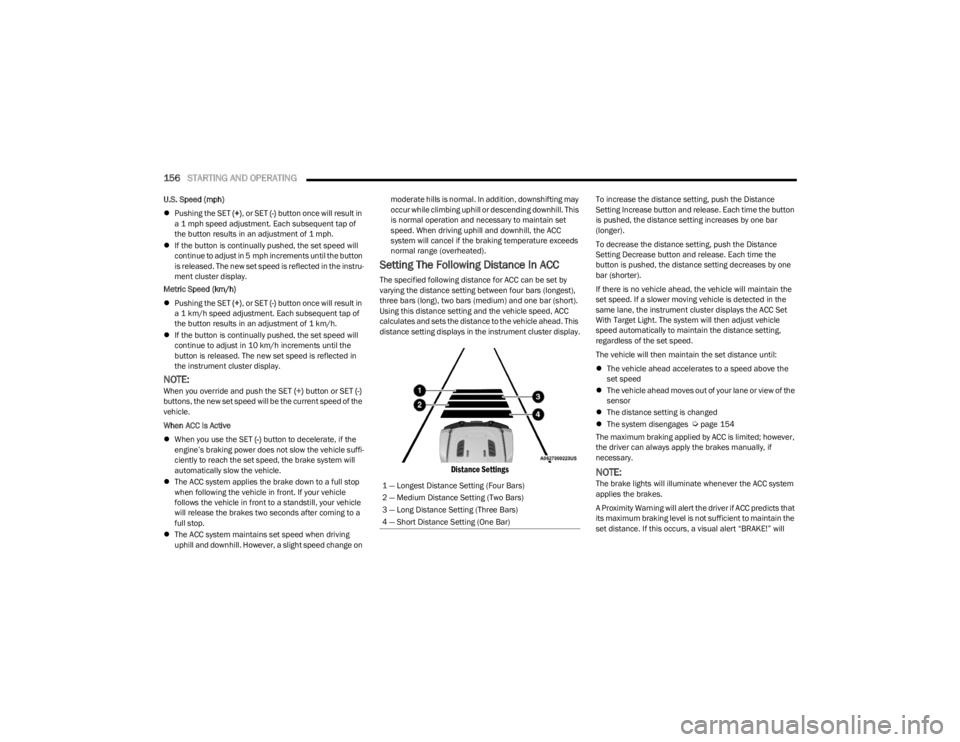
Setting The Following Distance In ACC
The specified following distance for ACC can be set by
varying the distance setting between four bars (longest),
three bars (long), two bars (medium) and one bar (short).
Using this distance setting and the vehicle speed, ACC
calculates and sets the distance to the vehicle ahead. This
distance setting displays in the instrument cluster display.
Distance Settings
To increase the distance setting, push the Distance
Setting Increase button and release. Each time the button
is pushed, the distance setting increases by one bar
(longer).
To decrease the distance setting, push the Distance
Setting Decrease button and release. Each time the
button is pushed, the distance setting decreases by one
bar (shorter).
If there is no vehicle ahead, the vehicle will maintain the
set speed. If a slower moving vehicle is detected in the
same lane, the instrument cluster displays the ACC Set
With Target Light. The system will then adjust vehicle
speed automatically to maintain the distance setting,
regardless of the set speed.
The vehicle will then maintain the set distance until:
The vehicle ahead accelerates to a speed above the
set speed
The vehicle ahead moves out of your lane or view of the
sensor
The distance setting is changed
The system disengages
Úpage 154
The maximum braking applied by ACC is limited; however,
the driver can always apply the brakes manually, if
necessary.
NOTE:The brake lights will illuminate whenever the ACC system
applies the brakes.
A Proximity Warning will alert the driver if ACC predicts that
its maximum braking level is not sufficient to maintain the
set distance. If this occurs, a visual alert “BRAKE!” will
1 — Longest Distance Setting (Four Bars)
2 — Medium Distance Setting (Two Bars)
3 — Long Distance Setting (Three Bars)
4 — Short Distance Setting (One Bar)
23_JL_OM_EN_USC_t.book Page 156
Page 169 of 396
STARTING AND OPERATING167
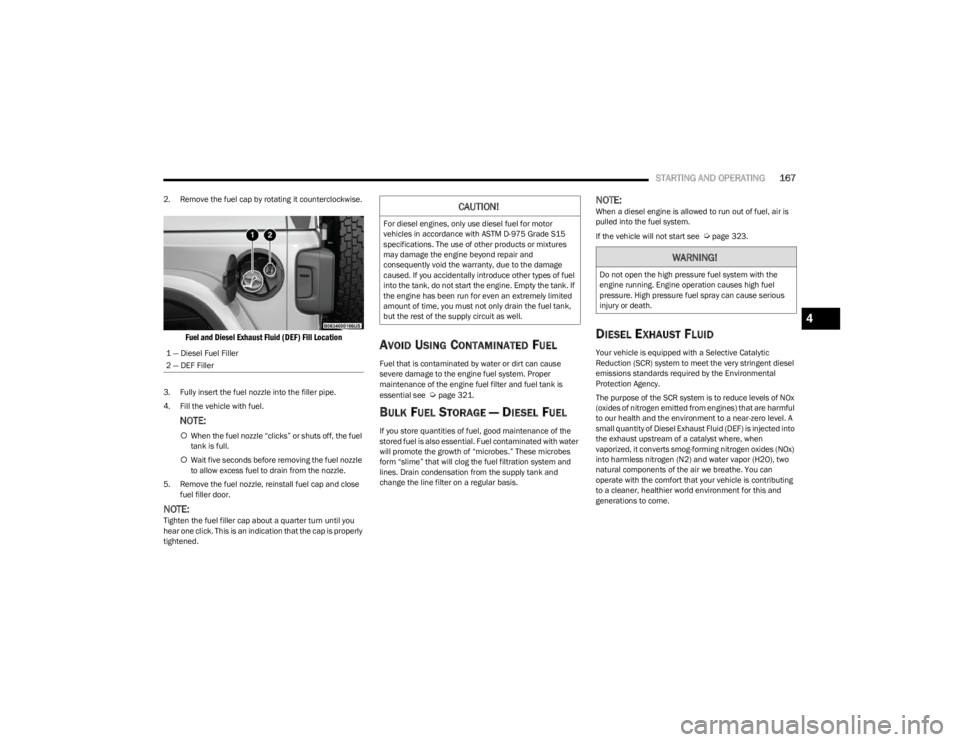
2. Remove the fuel cap by rotating it counterclockwise.
Fuel and Diesel Exhaust Fluid (DEF) Fill Location
3. Fully insert the fuel nozzle into the filler pipe.
4. Fill the vehicle with fuel.
NOTE:
When the fuel nozzle “clicks” or shuts off, the fuel
tank is full.
Wait five seconds before removing the fuel nozzle
to allow excess fuel to drain from the nozzle.
5. Remove the fuel nozzle, reinstall fuel cap and close fuel filler door.
NOTE:Tighten the fuel filler cap about a quarter turn until you
hear one click. This is an indication that the cap is properly
tightened.
AVOID USING CONTAMINATED FUEL
Fuel that is contaminated by water or dirt can cause
severe damage to the engine fuel system. Proper
maintenance of the engine fuel filter and fuel tank is
essential see
Úpage 321.
BULK FUEL STORAGE — DIESEL FUEL
If you store quantities of fuel, good maintenance of the
stored fuel is also essential. Fuel contaminated with water
will promote the growth of “microbes.” These microbes
form “slime” that will clog the fuel filtration system and
lines. Drain condensation from the supply tank and
change the line filter on a regular basis.
NOTE:When a diesel engine is allowed to run out of fuel, air is
pulled into the fuel system.
If the vehicle will not start see
Úpage 323.
DIESEL EXHAUST FLUID
Your vehicle is equipped with a Selective Catalytic
Reduction (SCR) system to meet the very stringent diesel
emissions standards required by the Environmental
Protection Agency.
The purpose of the SCR system is to reduce levels of NOx
(oxides of nitrogen emitted from engines) that are harmful
to our health and the environment to a near-zero level. A
small quantity of Diesel Exhaust Fluid (DEF) is injected into
the exhaust upstream of a catalyst where, when
vaporized, it converts smog-forming nitrogen oxides (NOx)
into harmless nitrogen (N2) and water vapor (H2O), two
natural components of the air we breathe. You can
operate with the comfort that your vehicle is contributing
to a cleaner, healthier world environment for this and
generations to come.
1 — Diesel Fuel Filler
2 — DEF Filler
CAUTION!
For diesel engines, only use diesel fuel for motor
vehicles in accordance with ASTM D-975 Grade S15
specifications. The use of other products or mixtures
may damage the engine beyond repair and
consequently void the warranty, due to the damage
caused. If you accidentally introduce other types of fuel
into the tank, do not start the engine. Empty the tank. If
the engine has been run for even an extremely limited
amount of time, you must not only drain the fuel tank,
but the rest of the supply circuit as well.
WARNING!
Do not open the high pressure fuel system with the
engine running. Engine operation causes high fuel
pressure. High pressure fuel spray can cause serious
injury or death.
4
23_JL_OM_EN_USC_t.book Page 167
Page 172 of 396
170STARTING AND OPERATING
Payload
The payload of a vehicle is defined as the allowable load
weight a truck can carry, including the weight of the driver,
all passengers, options and cargo.
Gross Axle Weight Rating (GAWR)
The GAWR is the maximum permissible load on the front
and rear axles. The load must be distributed in the cargo
area so that the GAWR of each axle is not exceeded.
Each axle GAWR is determined by the components in the
system with the lowest load carrying capacity (axle,
springs, tires or wheels). Heavier axles or suspension
components sometimes specified by purchasers for
increased durability do not necessarily increase the
vehicle's GVWR.
Tire Size
The tire size on the Vehicle Certification Label represents
the actual tire size on your vehicle. Replacement tires
must be equal to the load capacity of this tire size.
Rim Size
This is the rim size that is appropriate for the tire size
listed.
Inflation Pressure
This is the cold tire inflation pressure for your vehicle for
all loading conditions up to full GAWR.
Curb Weight
The curb weight of a vehicle is defined as the total weight
of the vehicle with all fluids, including vehicle fuel, at full
capacity conditions, and with no occupants or cargo
loaded into the vehicle. The front and rear curb weight values are determined by weighing your vehicle on a
commercial scale before any occupants or cargo are
added.
Loading
The actual total weight and the weight of the front and rear
of your vehicle at the ground can best be determined by
weighing it when it is loaded and ready for operation.
The entire vehicle should first be weighed on a commercial
scale to ensure that the GVWR has not been exceeded.
The weight on the front and rear of the vehicle should then
be determined separately to be sure that the load is
properly distributed over the front and rear axle. Weighing
the vehicle may show that the GAWR of either the front or
rear axles has been exceeded but the total load is within
the specified GVWR. If so, weight must be shifted from
front to rear or rear to front as appropriate until the
specified weight limitations are met. Store the heavier
items down low and be sure that the weight is distributed
equally. Stow all loose items securely before driving.
Improper weight distributions can have an adverse effect
on the way your vehicle steers and handles and the way
the brakes operate.
TRAILER TOWING
In this section you will find safety tips and information on
limits to the type of towing you can reasonably do with your
vehicle. Before towing a trailer, carefully review this
information to tow your load as efficiently and safely as
possible.
To maintain the New Vehicle Limited Warranty coverage,
follow the requirements and recommendations in this
manual concerning vehicles used for trailer towing.
COMMON TOWING DEFINITIONS
The following trailer towing related definitions will assist
you in understanding the following information:
Gross Vehicle Weight Rating (GVWR)
The GVWR is the total allowable weight of your vehicle.
This includes driver, passengers, cargo and tongue
weight. The total load must be limited so that you do not
exceed the GVWR
Úpage 169.
Gross Trailer Weight (GTW)
The GTW is the weight of the trailer plus the weight of all
cargo, consumables and equipment (permanent or
temporary) loaded in or on the trailer in its "loaded and
ready for operation" condition.
The recommended way to measure GTW is to put your fully
loaded trailer on a vehicle scale. The entire weight of the
trailer must be supported by the scale.
WARNING!
Do not load your vehicle any heavier than the GVWR or
the maximum front and rear GAWR. If you do, parts on
your vehicle can break, or it can change the way your
vehicle handles. This could cause you to lose control.
Overloading can shorten the life of your vehicle.
23_JL_OM_EN_USC_t.book Page 170
Page 186 of 396
184
MULTIMEDIA
UCONNECT SYSTEMS
For detailed information about your Uconnect 4/4C/4C
NAV With 8.4-inch Display system, refer to your Uconnect
Radio Instruction Manual.
NOTE:Uconnect screen images are for illustration purposes only
and may not reflect exact software for your vehicle.
CYBERSECURITY
Depending on applicability, your vehicle may be able to
send or receive information from a wired or wireless
network. This information allows systems and features in
your vehicle to function properly.
Your vehicle may be equipped with certain security
features to reduce the risk of unauthorized and unlawful
access to vehicle systems and wireless communications.
Vehicle software technology continues to evolve over time
and FCA US LLC, working with its suppliers, evaluates and
takes appropriate steps as needed. As always, if you
experience unusual behavior, contact an authorized
dealer immediately,
Úpage 377, or refer to your
Uconnect Radio Instruction Manual for additional contact
information.
The risk of unauthorized and unlawful access to your
vehicle systems may still exist, even if the most recent
version of vehicle software (such as Uconnect software) is
installed.
NOTE:To help further improve user experience, features,
stability, etc., and minimize the potential risk of a security
breach, vehicle owners should routinely check
www.driveuconnect.com (US Residents) or www.driveuco -
nnect.ca (Canadian Residents) to learn about available
Uconnect software updates.
UCONNECT SETTINGS
The Uconnect system uses a combination of buttons on
the touchscreen and buttons on the faceplate located on
the center of the instrument panel. These buttons allow
you to access and change the Customer Programmable
Features. Many features can vary by vehicle.
Buttons on the faceplate are located below and/or beside
the Uconnect system in the center of the instrument
panel. In addition, there is a SCROLL/ENTER control knob located on the right side. Turn the control knob to scroll
through menus and change settings. Push the center of
the control knob one or more times to select or change a
setting.
Your Uconnect system may also have SCREEN OFF and
MUTE buttons on the faceplate.
Push the SCREEN OFF button on the faceplate to turn off
the Uconnect screen. Push the button again or tap the
screen to turn the screen on.
Press the Back Arrow button to exit out of a Menu or
certain option on the Uconnect system.
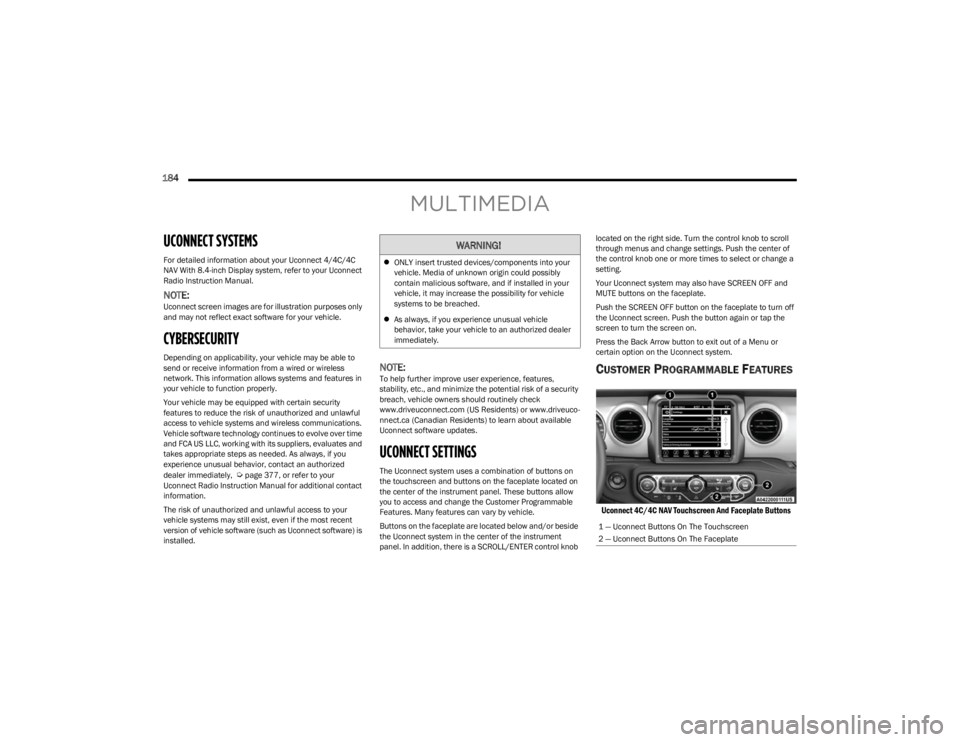
CUSTOMER PROGRAMMABLE FEATURES
Uconnect 4C/4C NAV Touchscreen And Faceplate Buttons
WARNING!
ONLY insert trusted devices/components into your
vehicle. Media of unknown origin could possibly
contain malicious software, and if installed in your
vehicle, it may increase the possibility for vehicle
systems to be breached.
As always, if you experience unusual vehicle
behavior, take your vehicle to an authorized dealer
immediately.
1 — Uconnect Buttons On The Touchscreen
2 — Uconnect Buttons On The Faceplate
23_JL_OM_EN_USC_t.book Page 184
Page 187 of 396

MULTIMEDIA185
For the Uconnect 3 With 5-inch Display, the Uconnect 4
With 7-inch Display, and the Uconnect 4C/4C NAV With
8.4-inch Display
Press the Apps button, then press the Settings button
on the touchscreen to display the menu setting screen. In
this mode the Uconnect system allows you to access
programmable features.NOTE:
Depending on the vehicle’s options, feature settings
may vary.
All settings should be changed with the ignition in the
ON/RUN position.
When making a selection, only press one button at a time
to enter the desired menu. Once in the desired menu, press and release the preferred setting option until a
check mark appears next to the setting, showing that
setting has been selected. Once the setting is complete,
press the X button on the touchscreen to close out of the
settings screen. Pressing the Up or Down Arrow button on
the right side of the screen will allow you to toggle up or
down through the available settings.
Language
Display
When the Language button is pressed on the touchscreen, the system displays the different language options. Once an option is selected, the system will display in the chosen
language. The available setting is:
NOTE:Depending on the vehicle’s options, feature settings may vary.
Setting Name
Description
LanguageThis setting will change the language of the Uconnect system and Instrument Cluster
Display. The available languages are English, Français, and Español.
When the Display button is pressed on the touchscreen, the system will display the options related to the theme (if equipped), brightness, and color of the touchscreen. The available
settings are:
NOTE:Depending on the vehicle’s options, feature settings may vary.
Setting Name
Description
Display ModeThis setting will allow you to set the brightness manually or have the system set it
automatically. The “Auto” setting has the system automatically adjust the display
brightness. The “Manual” setting will allow the user to adjust the brightness of the
display.
5
23_JL_OM_EN_USC_t.book Page 185
Page 188 of 396

186MULTIMEDIA
Display Brightness With Headlights ON/Brightness This setting will allow you to set the brightness when the headlights are on. To access this
setting, Display Mode must be set to Manual. The “+” setting will increase the brightness;
the “-” will decrease the brightness.
Display Brightness With Headlights OFF/Brightness This setting will allow you to set the brightness when the headlights are off. To access this
setting, Display Mode must be set to Manual. The “+” setting will increase the brightness;
the “-” will decrease the brightness.
Set Theme This setting will allow you to change the display theme.
Touchscreen Beep This setting will allow you to turn the touchscreen beep on or off.
Control Screen Timeout This setting allows you to set the Control Screen to turn off automatically after five
seconds or stay open until manually closed.
Navigation Turn-by-Turn Displayed in Cluster This setting will display navigation prompts in the Instrument Cluster Display.
Phone Pop-ups Displayed in Cluster This setting will display smartphone notifications and messages in the Instrument Cluster
Display.
Auto Launch with Off-Road+ This setting will determine how the Off-Road feature is launched through the radio when
turning the vehicle on. The options are “Off”, “Forward Camera” (if equipped), and “Off
Road Pages”.
SiriusXM® Travel Link Weather Alerts This setting will turn the weather alerts on or off.
Setting Name Description
23_JL_OM_EN_USC_t.book Page 186