warning lights JEEP WRANGLER 2023 Owner's Manual
[x] Cancel search | Manufacturer: JEEP, Model Year: 2023, Model line: WRANGLER, Model: JEEP WRANGLER 2023Pages: 396, PDF Size: 25.15 MB
Page 147 of 396
STARTING AND OPERATING145
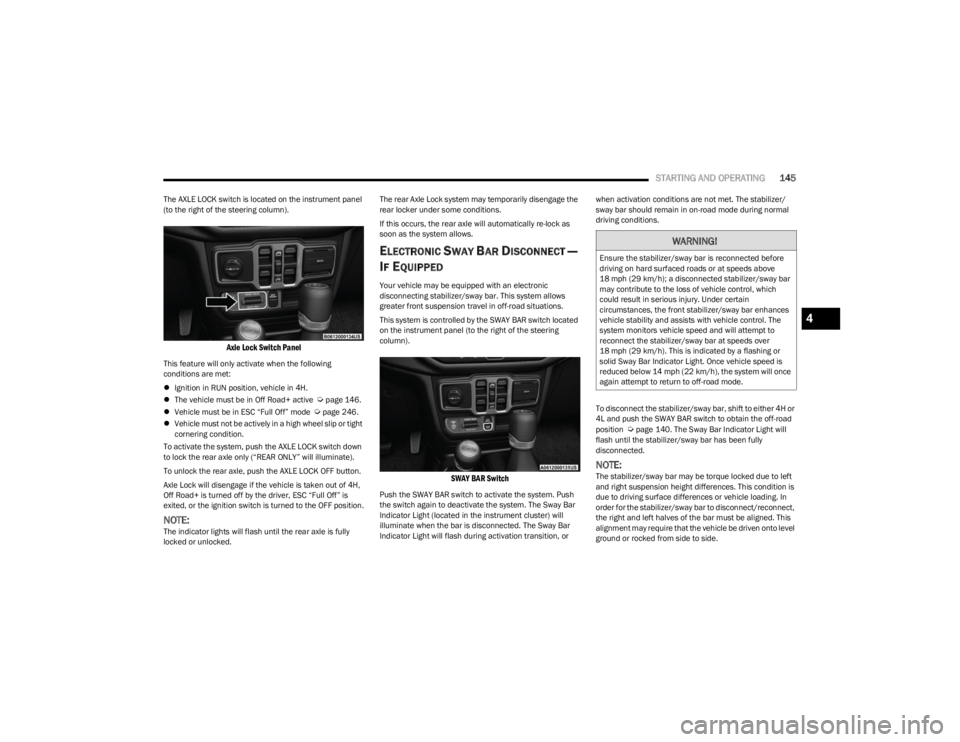
The AXLE LOCK switch is located on the instrument panel
(to the right of the steering column).
Axle Lock Switch Panel
This feature will only activate when the following
conditions are met:
Ignition in RUN position, vehicle in 4H.
The vehicle must be in Off Road+ active
Úpage 146.
Vehicle must be in ESC “Full Off” mode Úpage 246.
Vehicle must not be actively in a high wheel slip or tight
cornering condition.
To activate the system, push the AXLE LOCK switch down
to lock the rear axle only (“REAR ONLY” will illuminate).
To unlock the rear axle, push the AXLE LOCK OFF button.
Axle Lock will disengage if the vehicle is taken out of 4H,
Off Road+ is turned off by the driver, ESC “Full Off” is
exited, or the ignition switch is turned to the OFF position.
NOTE:The indicator lights will flash until the rear axle is fully
locked or unlocked. The rear Axle Lock system may temporarily disengage the
rear locker under some conditions.
If this occurs, the rear axle will automatically re-lock as
soon as the system allows.
ELECTRONIC SWAY BAR DISCONNECT —
I
F EQUIPPED
Your vehicle may be equipped with an electronic
disconnecting stabilizer/sway bar. This system allows
greater front suspension travel in off-road situations.
This system is controlled by the SWAY BAR switch located
on the instrument panel (to the right of the steering
column).
SWAY BAR Switch
Push the SWAY BAR switch to activate the system. Push
the switch again to deactivate the system. The Sway Bar
Indicator Light (located in the instrument cluster) will
illuminate when the bar is disconnected. The Sway Bar
Indicator Light will flash during activation transition, or when activation conditions are not met. The stabilizer/
sway bar should remain in on-road mode during normal
driving conditions.
To disconnect the stabilizer/sway bar, shift to either 4H or
4L and push the SWAY BAR switch to obtain the off-road
position
Úpage 140. The Sway Bar Indicator Light will
flash until the stabilizer/sway bar has been fully
disconnected.
NOTE:The stabilizer/sway bar may be torque locked due to left
and right suspension height differences. This condition is
due to driving surface differences or vehicle loading. In
order for the stabilizer/sway bar to disconnect/reconnect,
the right and left halves of the bar must be aligned. This
alignment may require that the vehicle be driven onto level
ground or rocked from side to side.
WARNING!
Ensure the stabilizer/sway bar is reconnected before
driving on hard surfaced roads or at speeds above
18 mph (29 km/h); a disconnected stabilizer/sway bar may contribute to the loss of vehicle control, which
could result in serious injury. Under certain
circumstances, the front stabilizer/sway bar enhances
vehicle stability and assists with vehicle control. The
system monitors vehicle speed and will attempt to
reconnect the stabilizer/sway bar at speeds over
18 mph (29 km/h). This is indicated by a flashing or solid Sway Bar Indicator Light. Once vehicle speed is
reduced below 14 mph (22 km/h), the system will once
again attempt to return to off-road mode.
4
23_JL_OM_EN_USC_t.book Page 145
Page 158 of 396
156STARTING AND OPERATING
U.S. Speed (mph)
Pushing the SET (+), or SET (-) button once will result in
a 1 mph speed adjustment. Each subsequent tap of
the button results in an adjustment of 1 mph.
If the button is continually pushed, the set speed will
continue to adjust in 5 mph increments until the button
is released. The new set speed is reflected in the instru -
ment cluster display.
Metric Speed (km/h)
Pushing the SET (+), or SET (-) button once will result in
a 1 km/h speed adjustment. Each subsequent tap of
the button results in an adjustment of 1 km/h.
If the button is continually pushed, the set speed will
continue to adjust in 10 km/h increments until the
button is released. The new set speed is reflected in
the instrument cluster display.
NOTE:When you override and push the SET (+) button or SET (-)
buttons, the new set speed will be the current speed of the
vehicle.
When ACC Is Active
When you use the SET (-) button to decelerate, if the
engine’s braking power does not slow the vehicle suffi -
ciently to reach the set speed, the brake system will
automatically slow the vehicle.
The ACC system applies the brake down to a full stop
when following the vehicle in front. If your vehicle
follows the vehicle in front to a standstill, your vehicle
will release the brakes two seconds after coming to a
full stop.
The ACC system maintains set speed when driving
uphill and downhill. However, a slight speed change on moderate hills is normal. In addition, downshifting may
occur while climbing uphill or descending downhill. This
is normal operation and necessary to maintain set
speed. When driving uphill and downhill, the ACC
system will cancel if the braking temperature exceeds
normal range (overheated).
Setting The Following Distance In ACC
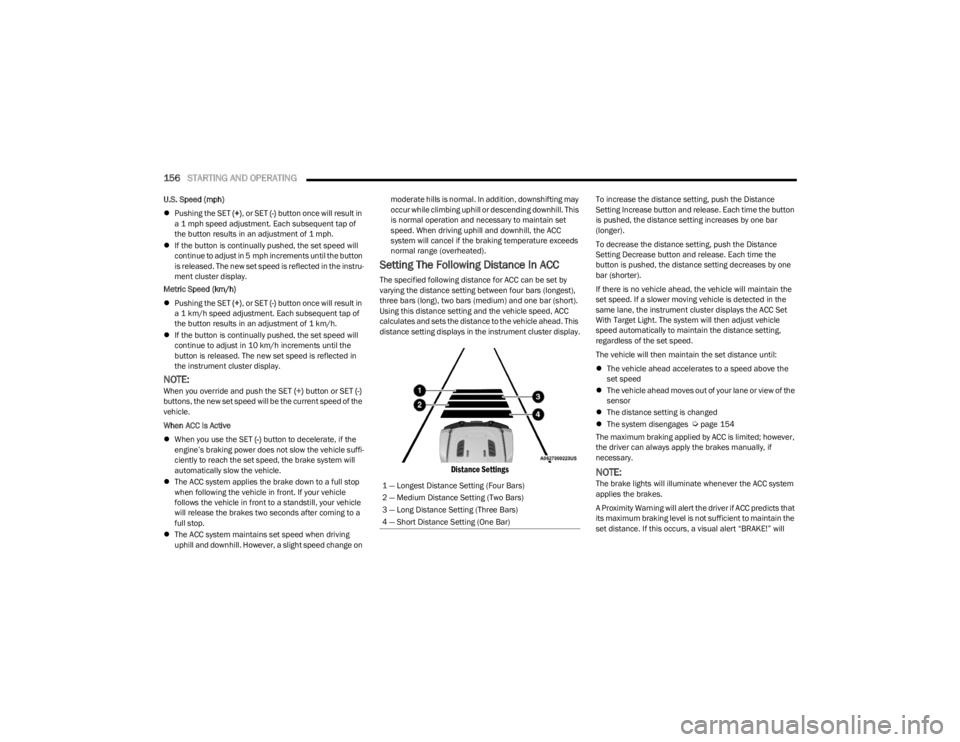
The specified following distance for ACC can be set by
varying the distance setting between four bars (longest),
three bars (long), two bars (medium) and one bar (short).
Using this distance setting and the vehicle speed, ACC
calculates and sets the distance to the vehicle ahead. This
distance setting displays in the instrument cluster display.
Distance Settings
To increase the distance setting, push the Distance
Setting Increase button and release. Each time the button
is pushed, the distance setting increases by one bar
(longer).
To decrease the distance setting, push the Distance
Setting Decrease button and release. Each time the
button is pushed, the distance setting decreases by one
bar (shorter).
If there is no vehicle ahead, the vehicle will maintain the
set speed. If a slower moving vehicle is detected in the
same lane, the instrument cluster displays the ACC Set
With Target Light. The system will then adjust vehicle
speed automatically to maintain the distance setting,
regardless of the set speed.
The vehicle will then maintain the set distance until:
The vehicle ahead accelerates to a speed above the
set speed
The vehicle ahead moves out of your lane or view of the
sensor
The distance setting is changed
The system disengages
Úpage 154
The maximum braking applied by ACC is limited; however,
the driver can always apply the brakes manually, if
necessary.
NOTE:The brake lights will illuminate whenever the ACC system
applies the brakes.
A Proximity Warning will alert the driver if ACC predicts that
its maximum braking level is not sufficient to maintain the
set distance. If this occurs, a visual alert “BRAKE!” will
1 — Longest Distance Setting (Four Bars)
2 — Medium Distance Setting (Two Bars)
3 — Long Distance Setting (Three Bars)
4 — Short Distance Setting (One Bar)
23_JL_OM_EN_USC_t.book Page 156
Page 176 of 396
174STARTING AND OPERATING
(Continued)
Towing Requirements — Tires
Proper tire inflation pressures are essential to the safe
and satisfactory operation of your vehicle.
Check the trailer tires for proper tire inflation pressures
before trailer usage.
Check for signs of tire wear or visible tire damage
before towing a trailer.
Replacing tires with a higher load carrying capacity will
not increase the vehicle's GVWR and GAWR limits.
For further information
Úpage 345.
Towing Requirements — Trailer Brakes
Do not interconnect the hydraulic brake system or
vacuum system of your vehicle with that of the trailer.
This could cause inadequate braking and possible
personal injury.
An electronically actuated trailer brake controller is
required when towing a trailer with electronically actu -
ated brakes. When towing a trailer equipped with a
hydraulic surge actuated brake system, an electronic
brake controller is not required.
Trailer brakes are recommended for trailers over 1,000
lb (453 kg) and required for trailers in excess of 2,000
lb (907 kg).
Towing Requirements — Trailer Lights And
Wiring
Whenever you pull a trailer, regardless of the trailer size,
stop lights and turn signals on the trailer are required for
motoring safety.
The Trailer Tow Package may include a four- and seven-pin
wiring harness. Use a factory approved trailer harness and
connector.
NOTE:Do not cut or splice wiring into the vehicle’s wiring
harness. The electrical connections are all complete to the vehicle
but you must mate the harness to a trailer connector.
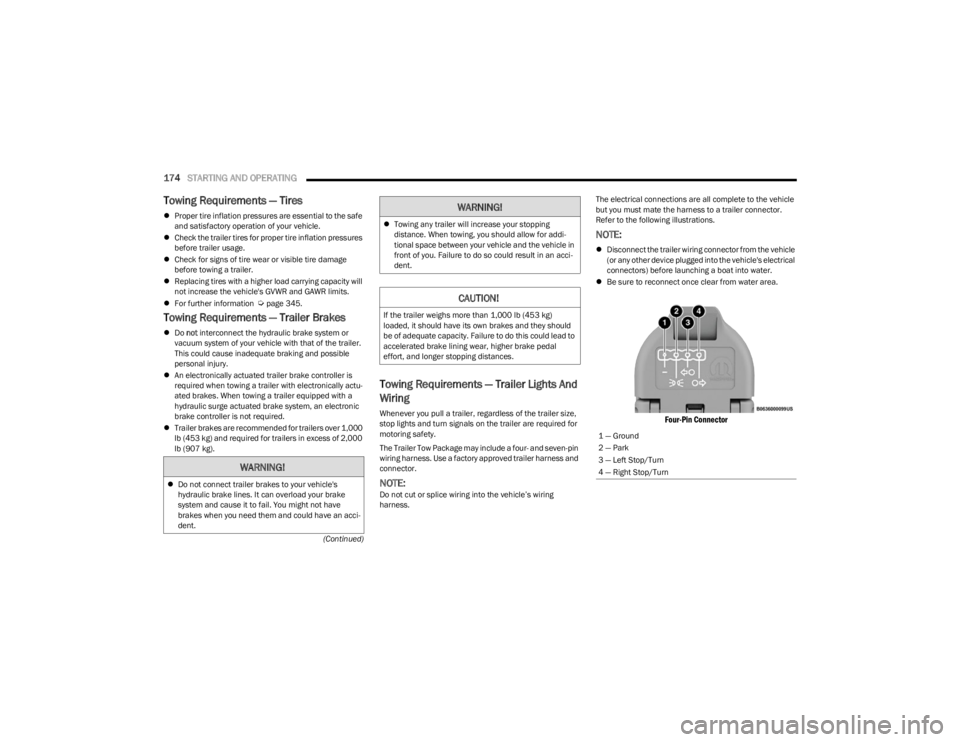
Refer to the following illustrations.
NOTE:
Disconnect the trailer wiring connector from the vehicle
(or any other device plugged into the vehicle's electrical
connectors) before launching a boat into water.
Be sure to reconnect once clear from water area.
Four-Pin Connector
WARNING!
Do not connect trailer brakes to your vehicle's
hydraulic brake lines. It can overload your brake
system and cause it to fail. You might not have
brakes when you need them and could have an acci -
dent.
Towing any trailer will increase your stopping
distance. When towing, you should allow for addi -
tional space between your vehicle and the vehicle in
front of you. Failure to do so could result in an acci -
dent.
CAUTION!
If the trailer weighs more than 1,000 lb (453 kg)
loaded, it should have its own brakes and they should
be of adequate capacity. Failure to do this could lead to
accelerated brake lining wear, higher brake pedal
effort, and longer stopping distances.
WARNING!
1 — Ground
2 — Park
3 — Left Stop/Turn
4 — Right Stop/Turn
23_JL_OM_EN_USC_t.book Page 174
Page 181 of 396
STARTING AND OPERATING179
(Continued)
The Basics Of Off-Road Driving
You will encounter many types of terrain driving off-road.
You should be familiar with the terrain and area before
proceeding. There are many types of surface conditions:
hard-packed dirt, gravel, rocks, grass, sand, mud, snow
and ice. Every surface has a different effect on your
vehicle's steering, handling and traction. Controlling your
vehicle is one of the keys to successful off-road driving, so
always keep a firm grip on the steering wheel and
maintain a good driving posture. Avoid sudden
accelerations, turns or braking. In most cases, there are
no road signs, posted speed limits or signal lights.
Therefore, you will need to use your own good judgment on
what is safe and what is not. When on a trail, you should
always be looking ahead for surface obstacles and
changes in terrain. The key is to plan your future driving
route while remembering what you are currently driving
over.
NOTE:It is recommended that the Stop/Start system and the
Forward Collision Warning (FCW) system (if equipped) be
disabled during off-road use.
When To Use 4L Range
When off-road driving, shift into 4L for additional traction
and control on slippery or difficult terrain, ascending or
descending steep hills, and to increase low speed pulling
power. This range should be limited to extreme situations
such as deep snow, mud, steep inclines, or sand where
additional low speed pulling power is needed. Vehicle
speeds in excess of 25 mph (40 km/h) should be avoided
when in 4L.
Simultaneous Brake And Throttle
Operation
Many off-road driving conditions require the simultaneous
use of the brake and throttle (two-footed driving). When
climbing rocks, logs, or other stepped objects, using light
brake pressure with light throttle will keep the vehicle from
jerking or lurching. This technique is also used when you
need to stop and restart a vehicle on a steep incline.
Driving In Snow, Mud And Sand
SNOW
In heavy snow or for additional control and traction at
slower speeds, shift the transmission into a low gear and
the transfer case into 4L if necessary. Do not shift to a
lower gear than necessary to maintain headway.
Over-revving the engine can spin the wheels and traction
will be lost. If you start to slow to a stop, try turning your
steering wheel no more than a 1/4 turn quickly back and
forth, while still applying throttle. This will allow the tires to
get fresh traction and help maintain your momentum.
MUD
Deep mud creates a great deal of suction around the tires
and is very difficult to get through. You should use DRIVE,
with the transfer case in the 4L position to maintain your
momentum. If you start to slow to a stop, try turning your
steering wheel no more than a 1/4 turn quickly back and
forth for additional traction. Mud holes pose an increased
threat of vehicle damage and getting stuck. They are
normally full of debris from previous vehicles getting
stuck. As a good practice before entering any mud hole,
get out and determine how deep it is, if there are any
hidden obstacles and if the vehicle can be safely
recovered if stuck.
WARNING!
Always wear your seat belt and firmly tie down cargo.
Unsecured cargo can become projectiles in an
off-road situation.
A malfunctioning catalytic converter can reach higher
temperatures than in normal operating conditions.
This can cause a fire if you drive slowly or park over
flammable substances such as dry plants, wood,
cardboard, etc. This could result in death or serious
injury to the driver, occupants or others.
CAUTION!
Do not use 4L when operating the vehicle on dry
pavement. Driveline hardware damage can result.
WARNING!
CAUTION!
On icy or slippery roads, do not downshift at high engine
RPM or vehicle speeds, because engine braking may
cause skidding and loss of control.
4
23_JL_OM_EN_USC_t.book Page 179
Page 230 of 396
228MULTIMEDIA
For customers in Canada, press the My Vehicle button.
Select from “Dashboard”, “Vehicle Health Report”, and
“Recalls”. The website will then prompt you to log in using
your email address and password.
Edit/Edit Profile:
To manage the details of your SiriusXM Guardian™
account, such as your contact information, password
and SiriusXM Guardian™ PIN, click on the Edit/Edit
Profile button to access the details of your account.
Connected Services Status:
This statement will indicate your SiriusXM
Guardian™-equipped vehicle.
Remote Commands:
For vehicles with an active SiriusXM Guardian™
subscription, press one of these icons and enter your
four-digit SiriusXM Guardian™ Security PIN to remotely
start (if equipped), lock/unlock doors or sound the horn
and flash the lights.
Editing Your Notifications
Notifications are an important element of your SiriusXM
Guardian™ account. For example, any time you use your
remote services (such as Remote Door Unlock), you can
elect to receive a text message, push notification, and/or
E-mail to notify you of the event. To set up the
notifications, please follow these instructions.
1. Log on to your Owner’s Account at
https://
www.mopar.com/en-us.html (US Residents) and
select “Dashboard”, or www.mopar.ca
(Canadian
Residents), select “My Vehicle” and then
“Dashboard”.
2. Click the Edit/Edit Profile button. 3. Once there, select “SiriusXM Guardian™” where you
can edit Notification Preferences.
4. You can enter a mobile phone and/or email address to notify you, and you can customize the types of
messages.
USING SIRIUSXM GUARDIAN™
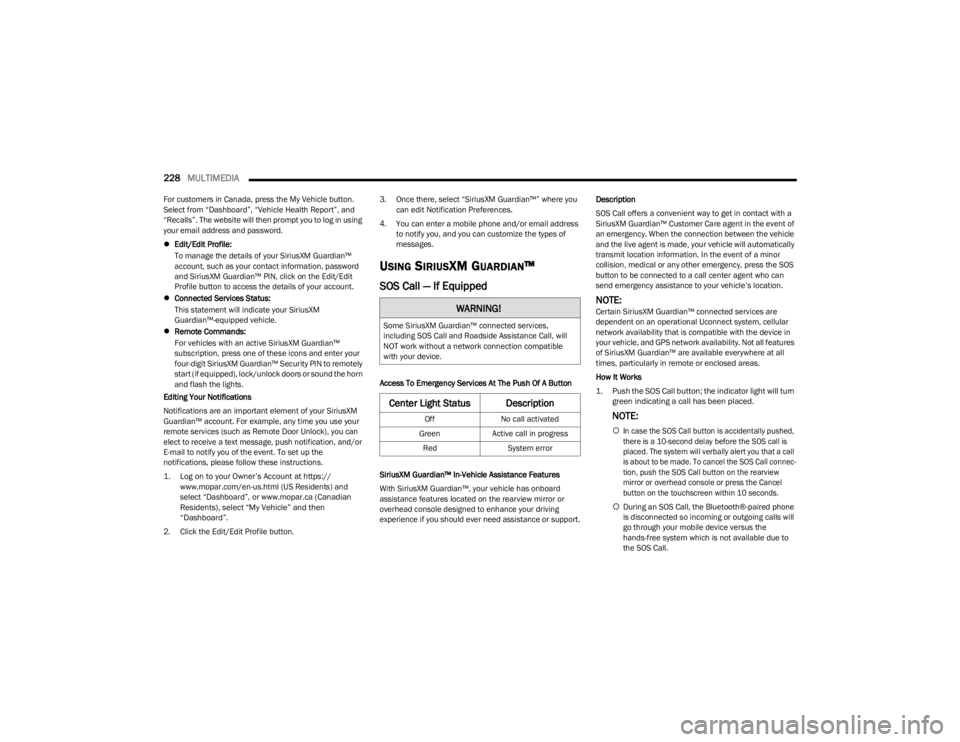
SOS Call — If Equipped
Access To Emergency Services At The Push Of A Button
SiriusXM Guardian™ In-Vehicle Assistance Features
With SiriusXM Guardian™, your vehicle has onboard
assistance features located on the rearview mirror or
overhead console designed to enhance your driving
experience if you should ever need assistance or support. Description
SOS Call offers a convenient way to get in contact with a
SiriusXM Guardian™ Customer Care agent in the event of
an emergency. When the connection between the vehicle
and the live agent is made, your vehicle will automatically
transmit location information. In the event of a minor
collision, medical or any other emergency, press the SOS
button to be connected to a call center agent who can
send emergency assistance to your vehicle’s location.
NOTE:Certain SiriusXM Guardian™ connected services are
dependent on an operational Uconnect system, cellular
network availability that is compatible with the device in
your vehicle, and GPS network availability. Not all features
of SiriusXM Guardian™ are available everywhere at all
times, particularly in remote or enclosed areas.
How It Works
1. Push the SOS Call button; the indicator light will turn green indicating a call has been placed.
NOTE:
In case the SOS Call button is accidentally pushed,
there is a 10-second delay before the SOS call is
placed. The system will verbally alert you that a call
is about to be made. To cancel the SOS Call connec -
tion, push the SOS Call button on the rearview
mirror or overhead console or press the Cancel
button on the touchscreen within 10 seconds.
During an SOS Call, the Bluetooth®-paired phone
is disconnected so incoming or outgoing calls will
go through your mobile device versus the
hands-free system which is not available due to
the SOS Call.
WARNING!
Some SiriusXM Guardian™ connected services,
including SOS Call and Roadside Assistance Call, will
NOT work without a network connection compatible
with your device.
Center Light Status Description
Off No call activated
Green Active call in progress
Red System error
23_JL_OM_EN_USC_t.book Page 228
Page 232 of 396
230MULTIMEDIA
Automatic SOS — If Equipped
Automatic SOS is a hands-free safety service that can
immediately connect you with help in the event that your
vehicle’s airbags deploy. After an accident, a live agent will
contact you through the Uconnect system and alert
emergency services.
NOTE:An active SiriusXM Guardian™ subscription is required for
this feature to function.
After a crash where the airbags deploy:
1. Automatic SOS will initiate a call with an agent.
2. An agent will receive the call and confirm the location
of the emergency.
3. If needed, the agent will request the assistance of emergency services.
4. First responders will arrive on scene. The agent will remain on the call until emergency services arrive.
NOTE:
Agents are available 24/7 to assist you in the case of
an emergency.
On your behalf, agents are able to notify family
members about the collision.
Agents can brief first responders of the situation before
they arrive on scene.
In the event vehicle occupants are unable to speak,
emergency services will be dispatched based on the
last known GPS coordinates.
SiriusXM Guardian™ connected services are depen -
dent upon an operative telematics device, a cellular
connection, navigation map data, and GPS satellite
reception, which can limit the ability to reach the
response center or reach emergency support.
Terms of service of the Uconnect and the SiriusXM
Guardian™ subscriber agreement apply. See terms of
services for complete service limitation.
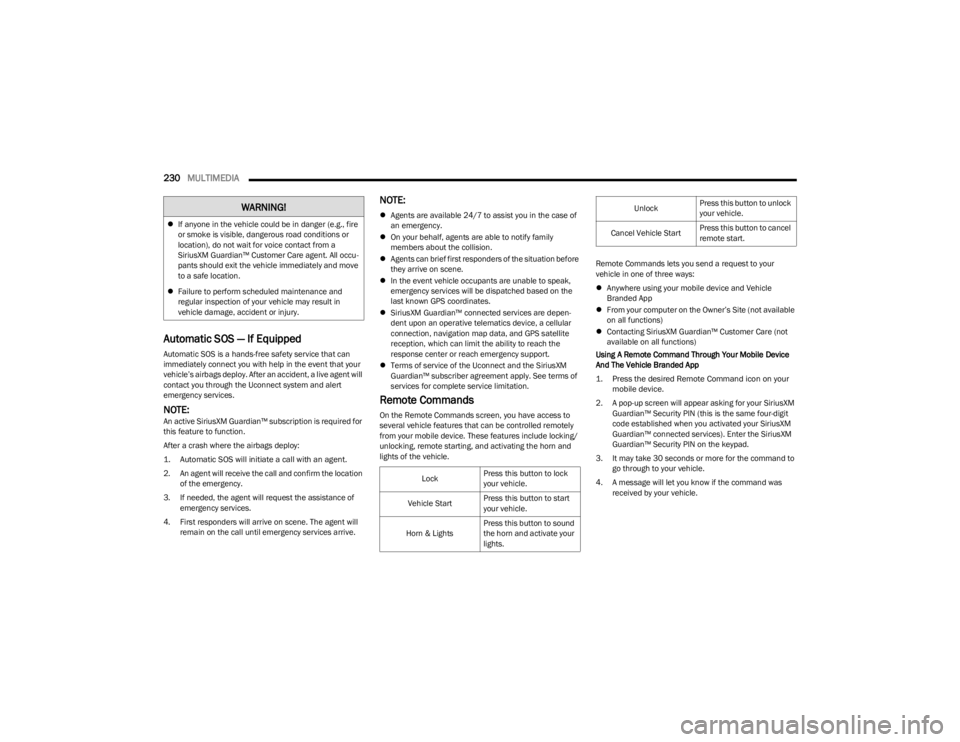
Remote Commands
On the Remote Commands screen, you have access to
several vehicle features that can be controlled remotely
from your mobile device. These features include locking/
unlocking, remote starting, and activating the horn and
lights of the vehicle. Remote Commands lets you send a request to your
vehicle in one of three ways:
Anywhere using your mobile device and Vehicle
Branded App
From your computer on the Owner’s Site (not available
on all functions)
Contacting SiriusXM Guardian™ Customer Care (not
available on all functions)
Using A Remote Command Through Your Mobile Device
And The Vehicle Branded App
1. Press the desired Remote Command icon on your mobile device.
2. A pop-up screen will appear asking for your SiriusXM Guardian™ Security PIN (this is the same four-digit
code established when you activated your SiriusXM
Guardian™ connected services). Enter the SiriusXM
Guardian™ Security PIN on the keypad.
3. It may take 30 seconds or more for the command to go through to your vehicle.
4. A message will let you know if the command was received by your vehicle.
If anyone in the vehicle could be in danger (e.g., fire
or smoke is visible, dangerous road conditions or
location), do not wait for voice contact from a
SiriusXM Guardian™ Customer Care agent. All occu -
pants should exit the vehicle immediately and move
to a safe location.
Failure to perform scheduled maintenance and
regular inspection of your vehicle may result in
vehicle damage, accident or injury.
WARNING!
Lock Press this button to lock
your vehicle.
Vehicle Start Press this button to start
your vehicle.
Horn & Lights Press this button to sound
the horn and activate your
lights.
Unlock
Press this button to unlock
your vehicle.
Cancel Vehicle Start Press this button to cancel
remote start.
23_JL_OM_EN_USC_t.book Page 230
Page 235 of 396
MULTIMEDIA233
Disclaimers
If Roadside Assistance Call is provided to your vehicle, you
agree to be responsible for any additional roadside
assistance service costs that you may incur. In order to
provide SiriusXM Guardian™ connected services to you,
we may record and monitor your conversations with
Roadside Assistance Call, Vehicle Care, Uconnect Care, or
SiriusXM Guardian™ Customer Care, whether such
conversations are initiated through the SiriusXM
Guardian™ connected services in your vehicle, or via a
landline or mobile device, and may share information
obtained through such recording and monitoring in
accordance with regulatory requirements. You
acknowledge, agree and consent to any recording,
monitoring or sharing of information obtained through any
such call recordings.
Send & Go — If Equipped
Description
The Send & Go feature allows you to search for a
destination on your mobile device, and then send the
route to your vehicle’s Navigation system.
How It Works
1. There are multiple ways to find a destination. After
selecting the Location tab at the bottom of the App,
browse through one of the categories provided, or
type the name or keyword in the search box. You can
also select categories such as “Favorites” or
“Contact List”.
2. Select your destination from the list that appears. Location information will then be displayed on the
map. From this screen, you will be able to:
View the location on a map.
See the distance from your current location.
Send the destination to the vehicle (Send & Go).
3. Send the destination to the Uconnect Navigation in your vehicle. You can also call the destination by
pressing the Call button.
4. Confirm your destination in the vehicle through a notification or in the Navigation system.
Requirements
Vehicle must have an operable LTE (voice/data) or 4G
(data) network connection compatible with your device.
Vehicle must have an active subscription that includes
the applicable feature.Vehicle Finder
Description
The Vehicle Finder feature allows you to find the location
of your vehicle.
You can also sound the horn and flash the lights to make
finding your vehicle even easier.
How It Works
Select the Vehicle Finder function within the Vehicle
Branded App and select the Location tab at the bottom of
the App. Then, press the Vehicle icon to find your vehicle. Requirements
Vehicle must be properly equipped with the Uconnect
system.
Vehicle must have an operable LTE (voice/data) or 4G
(data) network connection compatible with your device.
Vehicle must have an active subscription that includes
the applicable feature.
Vehicle ignition must have been turned on within
14 days.
4G Wi-Fi Hotspot — If Equipped
Description
4G Wi-Fi Hotspot is an in-vehicle service that connects
your device to an LTE (voice/data) or 4G (data) network
that is ready to go wherever you are. After you've made
your purchase, turn on your device’s Wi-Fi and connect
your devices.
Enables all your passengers to be simultaneously
connected to the web.
Connect several devices at one time.
Any Wi-Fi-enabled device — such as a laptop or any
other portable-enabled media — can connect over your
private in-vehicle network.
A high-speed, secured connection lets anyone on your
private network access the Web — great for working
and relaxing.
WARNING!
The driver should NEVER use the 4G Wi-Fi Hotspot
while driving the vehicle as doing so may result in an
accident involving serious injury or death.
5
23_JL_OM_EN_USC_t.book Page 233
Page 237 of 396
MULTIMEDIA235
In order to provide the Monthly Vehicle Health Report, the
Uconnect system in your vehicle may collect and transmit
vehicle data to SiriusXM Guardian™ and to FCA, such as
your vehicle’s health and performance, your vehicle’s
location, your utilization of the features in your vehicle,
and other data.
This data collection and transmission begins when you
enroll in SiriusXM Guardian™ and will continue even if you
cancel your SiriusXM Guardian™ subscription unless you
call SiriusXM Guardian™ Customer Care and tell them to
deactivate your Connected Services.
Please see the Uconnect Privacy Policy for more
information, located at www.driveuconnect.com/
connectedservices/privacy.html (US Residents) or
www.driveuconnect.ca (Canadian Residents).
For more information on SiriusXM Guardian™ private
policy, see https://siriusxmcvs.com/privacy-policy.
NOTE:Your vehicle must be enrolled in an active subscription
with Connected Services. If you have concerns about the
operation, function or performance of your vehicle, please
take it to an authorized dealer. This report does not
replace regularly scheduled maintenance. Check the
instrument cluster warning lights and cautions in your
vehicle for the most accurate vehicle health information.
Vehicle Health Alert —If Equipped
Description
Your vehicle will send you an email alert if it senses a
problem with one of your vehicle’s key systems. For further
information, go to your Owner’s website.
NOTE:Vehicle Health Alert emails require you to register and
activate services. During this process you will be asked to
provide an email address to which the reports will be sent.
In-Vehicle Notifications — If Equipped
Description
Your vehicle will send you notifications to remind you when
services are needed, or to alert you of other important
information, such as recall notices. When you receive a
notification through your touchscreen, press OK to dismiss
the message, or press Call Care to speak with a SiriusXM
Guardian™ Customer Care agent.
NOTE:Pressing “OK” or the X button on the pop-up screen will
dismiss or close the pop-up, and the In-Vehicle Messages
mailbox will display. In the Mailbox, you can reopen
messages or delete messages.
Amazon Alexa Skill — If Equipped
Enjoy the convenience of using your voice to command
your vehicle with Amazon Alexa!
With Amazon Alexa, you can connect to your vehicle and
remotely access key services and features.
If your vehicle is equipped with Uconnect Navigation, you
can send a destination directly to your vehicle using Alexa.
If you need assistance, you can always ask Alexa for help,
or complete a list of commands by saying: “Alexa, ask
“Alexa, ask
“Alexa, ask
with your Voice Code.”
“Alexa, ask
Drive, Auburn Hills, Michigan to my
“Alexa, ask
An active subscription to SiriusXM Guardian™ is required.
To use Amazon Alexa, first, register for SiriusXM
Guardian™
Úpage 226.
Next, link the Uconnect system on your vehicle to Amazon
Alexa:
1. Download the Amazon Alexa app on your mobile device (Apple® or Android™).
2. Once in the app, tap MENU and go to SKILLS.
3. Search for
4. Tap SAVE SETTINGS when prompted.
5. Link the vehicle brand name to the
6. Log in using your Owner Account credentials. This will be the same user name and password you used when
registering for SiriusXM Guardian™ connected
services. There will be additional settings to confirm
on the following screen.
7. AUTHORIZE the account to return to the
You can now begin using the
Alexa!
5
23_JL_OM_EN_USC_t.book Page 235
Page 254 of 396
252SAFETY
AUXILIARY DRIVING SYSTEMS
BLIND SPOT MONITORING (BSM) —
I
F EQUIPPED
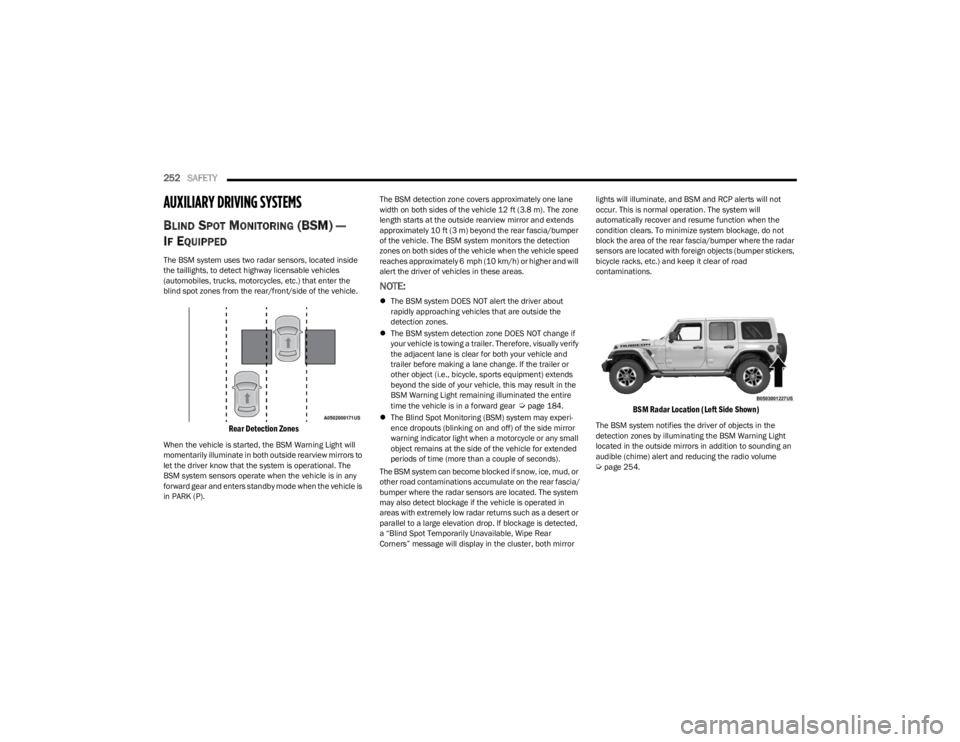
The BSM system uses two radar sensors, located inside
the taillights, to detect highway licensable vehicles
(automobiles, trucks, motorcycles, etc.) that enter the
blind spot zones from the rear/front/side of the vehicle.
Rear Detection Zones
When the vehicle is started, the BSM Warning Light will
momentarily illuminate in both outside rearview mirrors to
let the driver know that the system is operational. The
BSM system sensors operate when the vehicle is in any
forward gear and enters standby mode when the vehicle is
in PARK (P). The BSM detection zone covers approximately one lane
width on both sides of the vehicle 12 ft (3.8 m). The zone
length starts at the outside rearview mirror and extends
approximately 10 ft (3 m) beyond the rear fascia/bumper
of the vehicle. The BSM system monitors the detection
zones on both sides of the vehicle when the vehicle speed
reaches approximately 6 mph (10 km/h) or higher and will
alert the driver of vehicles in these areas.
NOTE:
The BSM system DOES NOT alert the driver about
rapidly approaching vehicles that are outside the
detection zones.
The BSM system detection zone DOES NOT change if
your vehicle is towing a trailer. Therefore, visually verify
the adjacent lane is clear for both your vehicle and
trailer before making a lane change. If the trailer or
other object (i.e., bicycle, sports equipment) extends
beyond the side of your vehicle, this may result in the
BSM Warning Light remaining illuminated the entire
time the vehicle is in a forward gear
Úpage 184.
The Blind Spot Monitoring (BSM) system may experi -
ence dropouts (blinking on and off) of the side mirror
warning indicator light when a motorcycle or any small
object remains at the side of the vehicle for extended
periods of time (more than a couple of seconds).
The BSM system can become blocked if snow, ice, mud, or
other road contaminations accumulate on the rear fascia/
bumper where the radar sensors are located. The system
may also detect blockage if the vehicle is operated in
areas with extremely low radar returns such as a desert or
parallel to a large elevation drop. If blockage is detected,
a “Blind Spot Temporarily Unavailable, Wipe Rear
Corners” message will display in the cluster, both mirror lights will illuminate, and BSM and RCP alerts will not
occur. This is normal operation. The system will
automatically recover and resume function when the
condition clears. To minimize system blockage, do not
block the area of the rear fascia/bumper where the radar
sensors are located with foreign objects (bumper stickers,
bicycle racks, etc.) and keep it clear of road
contaminations.
BSM Radar Location (Left Side Shown)
The BSM system notifies the driver of objects in the
detection zones by illuminating the BSM Warning Light
located in the outside mirrors in addition to sounding an
audible (chime) alert and reducing the radio volume
Úpage 254.
23_JL_OM_EN_USC_t.book Page 252
Page 256 of 396
254SAFETY
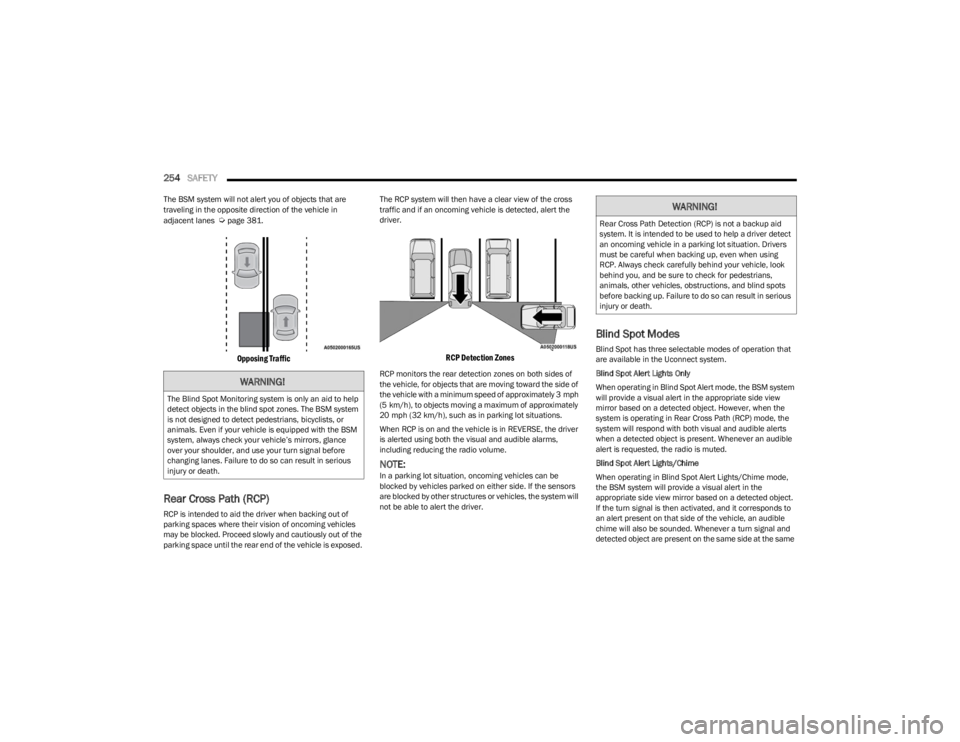
The BSM system will not alert you of objects that are
traveling in the opposite direction of the vehicle in
adjacent lanes
Úpage 381.
Opposing Traffic
Rear Cross Path (RCP)
RCP is intended to aid the driver when backing out of
parking spaces where their vision of oncoming vehicles
may be blocked. Proceed slowly and cautiously out of the
parking space until the rear end of the vehicle is exposed. The RCP system will then have a clear view of the cross
traffic and if an oncoming vehicle is detected, alert the
driver.
RCP Detection Zones
RCP monitors the rear detection zones on both sides of
the vehicle, for objects that are moving toward the side of
the vehicle with a minimum speed of approximately 3 mph
(5 km/h), to objects moving a maximum of approximately
20 mph (32 km/h), such as in parking lot situations.
When RCP is on and the vehicle is in REVERSE, the driver
is alerted using both the visual and audible alarms,
including reducing the radio volume.
NOTE:In a parking lot situation, oncoming vehicles can be
blocked by vehicles parked on either side. If the sensors
are blocked by other structures or vehicles, the system will
not be able to alert the driver.
Blind Spot Modes
Blind Spot has three selectable modes of operation that
are available in the Uconnect system.
Blind Spot Alert Lights Only
When operating in Blind Spot Alert mode, the BSM system
will provide a visual alert in the appropriate side view
mirror based on a detected object. However, when the
system is operating in Rear Cross Path (RCP) mode, the
system will respond with both visual and audible alerts
when a detected object is present. Whenever an audible
alert is requested, the radio is muted.
Blind Spot Alert Lights/Chime
When operating in Blind Spot Alert Lights/Chime mode,
the BSM system will provide a visual alert in the
appropriate side view mirror based on a detected object.
If the turn signal is then activated, and it corresponds to
an alert present on that side of the vehicle, an audible
chime will also be sounded. Whenever a turn signal and
detected object are present on the same side at the same
WARNING!
The Blind Spot Monitoring system is only an aid to help
detect objects in the blind spot zones. The BSM system
is not designed to detect pedestrians, bicyclists, or
animals. Even if your vehicle is equipped with the BSM
system, always check your vehicle’s mirrors, glance
over your shoulder, and use your turn signal before
changing lanes. Failure to do so can result in serious
injury or death.
WARNING!
Rear Cross Path Detection (RCP) is not a backup aid
system. It is intended to be used to help a driver detect
an oncoming vehicle in a parking lot situation. Drivers
must be careful when backing up, even when using
RCP. Always check carefully behind your vehicle, look
behind you, and be sure to check for pedestrians,
animals, other vehicles, obstructions, and blind spots
before backing up. Failure to do so can result in serious
injury or death.
23_JL_OM_EN_USC_t.book Page 254