phone JEEP WRANGLER 2DOORS 2021 Owner handbook (in English)
[x] Cancel search | Manufacturer: JEEP, Model Year: 2021, Model line: WRANGLER 2DOORS, Model: JEEP WRANGLER 2DOORS 2021Pages: 330, PDF Size: 9.16 MB
Page 274 of 330
MULTIMEDIA
272
NOTE:
To use Android Auto™, make sure you are in
an area with cellular coverage. Android
Auto™ may use cellular data and your
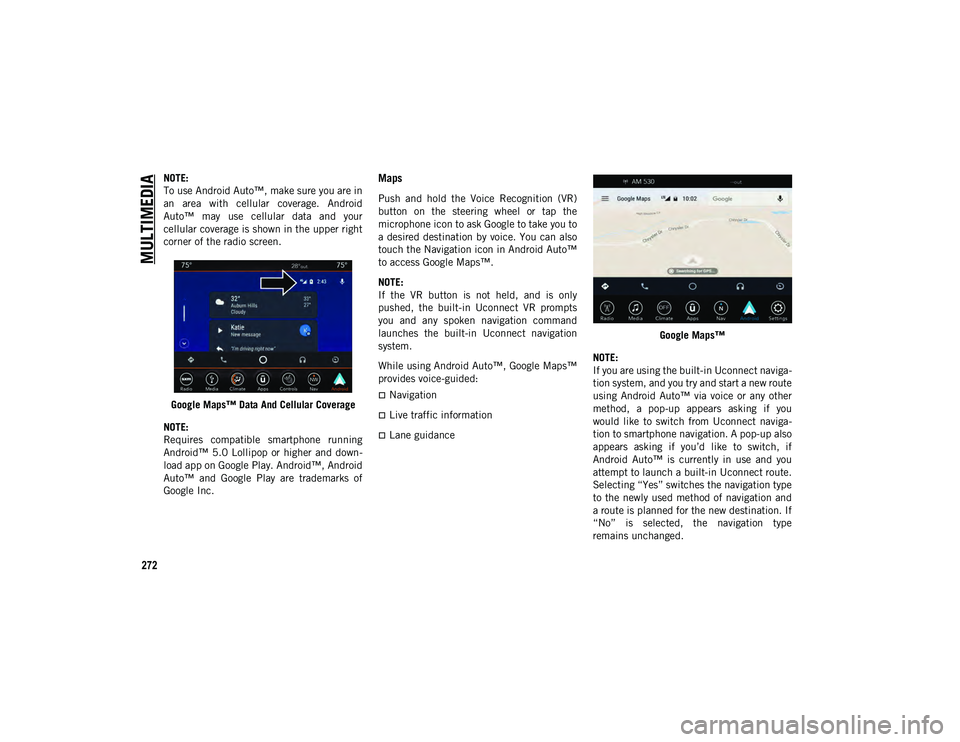
cellular coverage is shown in the upper right
corner of the radio screen.Google Maps™ Data And Cellular Coverage
NOTE:
Requires compatible smartphone running
Android™ 5.0 Lollipop or higher and down -
load app on Google Play. Android™, Android
Auto™ and Google Play are trademarks of
Google Inc.Maps
Push and hold the Voice Recognition (VR)
button on the steering wheel or tap the
microphone icon to ask Google to take you to
a desired destination by voice. You can also
touch the Navigation icon in Android Auto™
to access Google Maps™.
NOTE:
If the VR button is not held, and is only
pushed, the built-in Uconnect VR prompts
you and any spoken navigation command
launches the built-in Uconnect navigation
system.
While using Android Auto™, Google Maps™
provides voice-guided:
Navigation
Live traffic information
Lane guidance Google Maps™
NOTE:
If you are using the built-in Uconnect naviga -
tion system, and you try and start a new route
using Android Auto™ via voice or any other
method, a pop-up appears asking if you
would like to switch from Uconnect naviga -
tion to smartphone navigation. A pop-up also
appears asking if you’d like to switch, if
Android Auto™ is currently in use and you
attempt to launch a built-in Uconnect route.
Selecting “Yes” switches the navigation type
to the newly used method of navigation and
a route is planned for the new destination. If
“No” is selected, the navigation type
remains unchanged.
2020_JEEP_JL_WRANGLER_UG_RHD_UK.book Page 272
Page 275 of 330
273
For further information, refer to
www.android.com/auto/.
For further information on the navigation
function, please refer to https://
support.google.com/android or https://
support.google.com/androidauto/.
Music
Android Auto™ allows you to access and
stream your favorite music with apps like
Google Play Music, iHeartRadio, and Spotify.
Using your smartphone’s data plan, you can
stream endless music on the road.
NOTE:
For music apps, playlists, and stations to
work with Android Auto™, they must be set
up on your smartphone before using Android
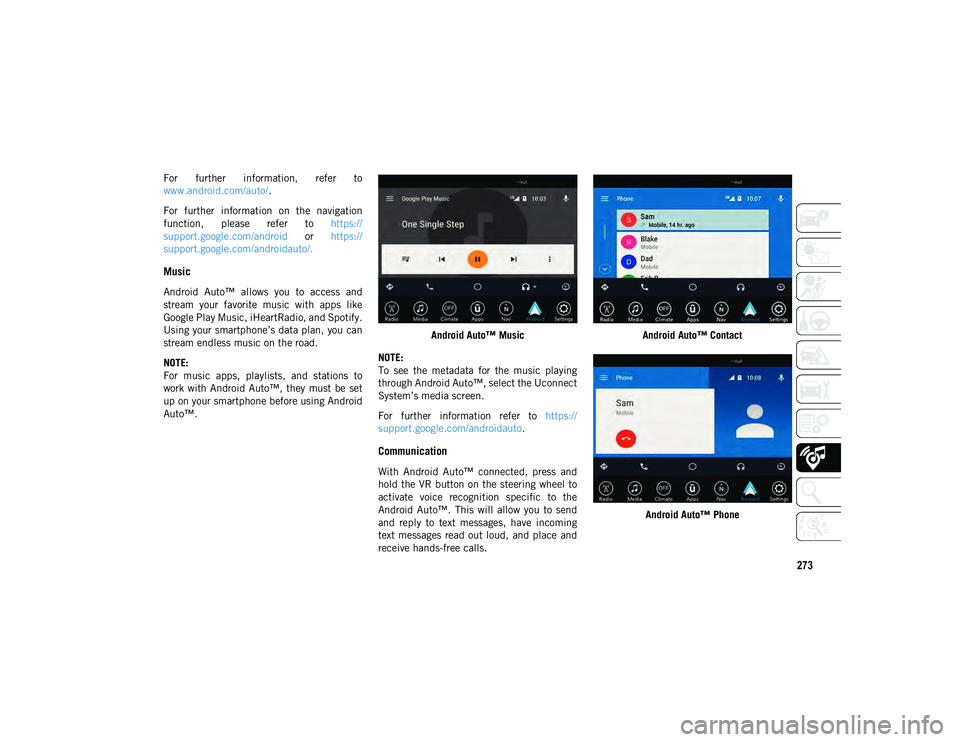
Auto™. Android Auto™ Music
NOTE:
To see the metadata for the music playing
through Android Auto™, select the Uconnect
System’s media screen.
For further information refer to https://
support.google.com/androidauto .
Communication
With Android Auto™ connected, press and
hold the VR button on the steering wheel to
activate voice recognition specific to the
Android Auto™. This will allow you to send
and reply to text messages, have incoming
text messages read out loud, and place and
receive hands-free calls. Android Auto™ Contact
Android Auto™ Phone
2020_JEEP_JL_WRANGLER_UG_RHD_UK.book Page 273
Page 276 of 330
MULTIMEDIA
274
Apps
The Android Auto™ App will display all the
compatible apps that are available to use
with Android Auto™, every time it is
launched. You must have the compatible app
downloaded, and you must be signed in to
the app for it to work with Android Auto™.
Refer to g.co/androidauto to see the latest
list of available apps for Android Auto™.
Apple CarPlay® Integration — If Equipped
NOTE:
Feature availability depends on your carrier
and mobile phone manufacturer. Some
Apple CarPlay® features may or may not be
available in every region and/or language.
Uconnect works seamlessly with Apple
CarPlay®, the smarter, more secure way to
use your iPhone® in the car, and stay
focused on the road. Use your Uconnect
Touchscreen display, the vehicle's knobs and
controls, and your voice with Siri to get
access to Apple® Music, Maps, Messages,
and more. To use Apple CarPlay®, make sure you are
using iPhone® 5 or later, have Siri enabled
in Settings, that your iPhone® is unlocked
for the very first connection only, and then
use the following procedure:
1. Connect your iPhone® to one of the
media USB ports in your vehicle.
NOTE:
Be sure to use the factory-provided Lightning
cable that came with your phone, as after -
market cables may not work.
2. Once the device is connected, the system displays the Apple CarPlay® home
screen. Apple CarPlay® automatically
launches, but if not, refer to the Ucon -
nect Owner’s Manual Supplement for the
procedure to enable the feature “Auto -
Show.” You can also launch it by
pressing the Apple CarPlay® icon located
in the “Apps” menu. If you use Apple
CarPlay® frequently, you can move the
App to the menu bar at the bottom of the
touchscreen. Press the Apps button and
locate the Apple CarPlay® App; then
drag and drop the selected App to
replace an existing shortcut in the main
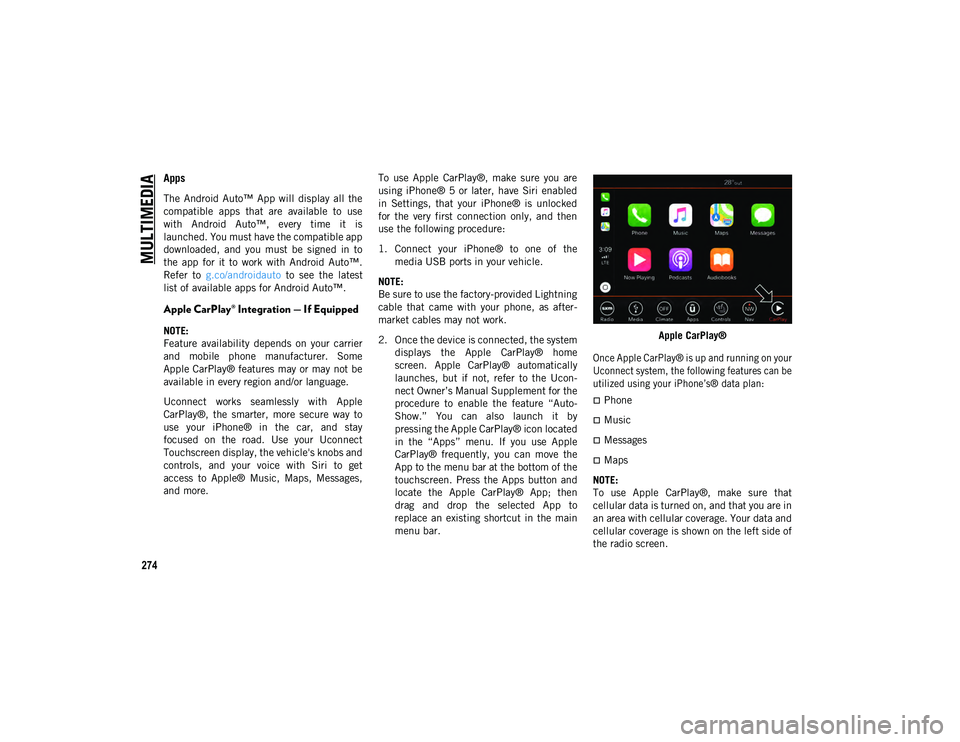
menu bar. Apple CarPlay®
Once Apple CarPlay® is up and running on your
Uconnect system, the following features can be
utilized using your iPhone’s® data plan:
Phone
Music
Messages
Maps
NOTE:
To use Apple CarPlay®, make sure that
cellular data is turned on, and that you are in
an area with cellular coverage. Your data and
cellular coverage is shown on the left side of
the radio screen.
2020_JEEP_JL_WRANGLER_UG_RHD_UK.book Page 274
Page 277 of 330
275
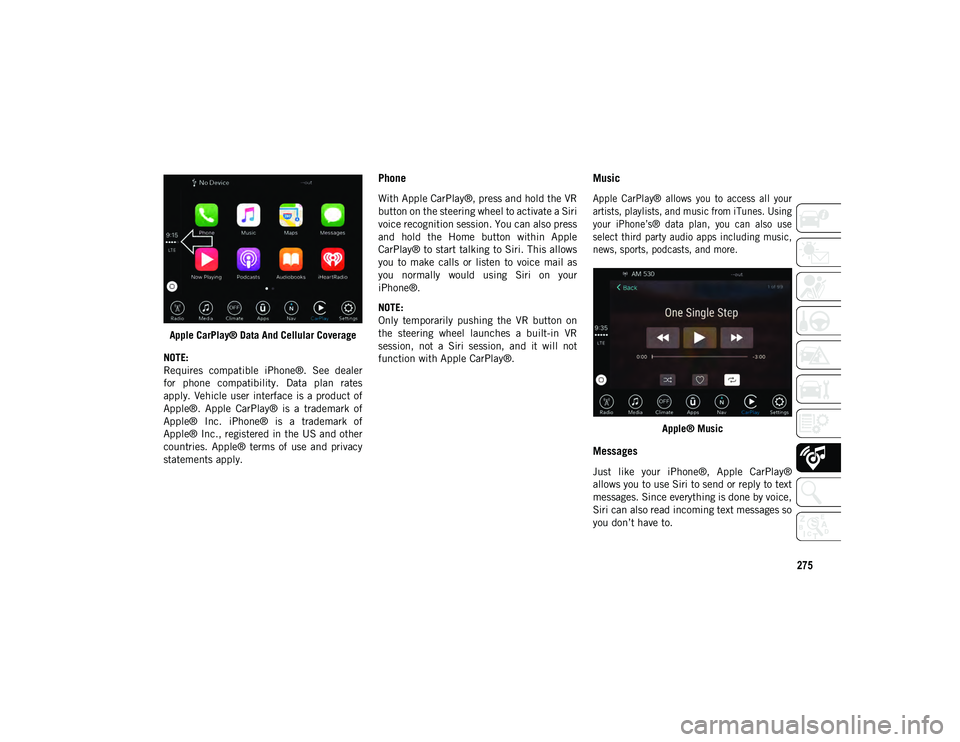
Apple CarPlay® Data And Cellular Coverage
NOTE:
Requires compatible iPhone®. See dealer
for phone compatibility. Data plan rates
apply. Vehicle user interface is a product of
Apple®. Apple CarPlay® is a trademark of
Apple® Inc. iPhone® is a trademark of
Apple® Inc., registered in the US and other
countries. Apple® terms of use and privacy
statements apply.
Phone
With Apple CarPlay®, press and hold the VR
button on the steering wheel to activate a Siri
voice recognition session. You can also press
and hold the Home button within Apple
CarPlay® to start talking to Siri. This allows
you to make calls or listen to voice mail as
you normally would using Siri on your
iPhone®.
NOTE:
Only temporarily pushing the VR button on
the steering wheel launches a built-in VR
session, not a Siri session, and it will not
function with Apple CarPlay®.
Music
Apple CarPlay® allows you to access all your
artists, playlists, and music from iTunes. Using
your iPhone’s® data plan, you can also use
select third party audio apps including music,
news, sports, podcasts, and more.
Apple® Music
Messages
Just like your iPhone®, Apple CarPlay®
allows you to use Siri to send or reply to text
messages. Since everything is done by voice,
Siri can also read incoming text messages so
you don’t have to.
2020_JEEP_JL_WRANGLER_UG_RHD_UK.book Page 275
Page 278 of 330
MULTIMEDIA
276
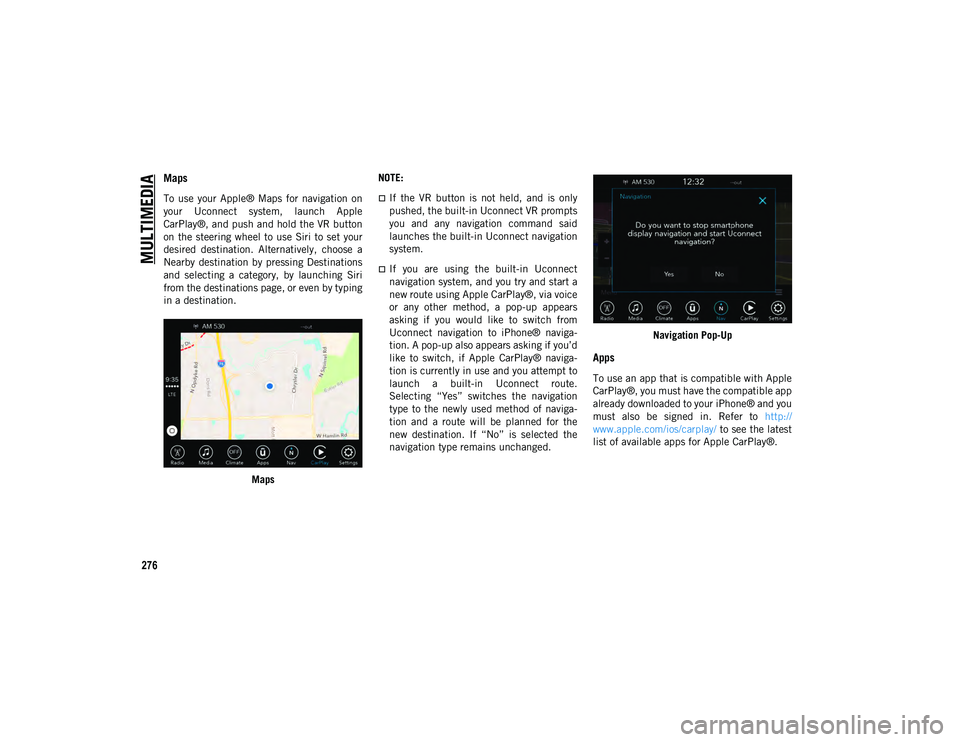
Maps
To use your Apple® Maps for navigation on
your Uconnect system, launch Apple
CarPlay®, and push and hold the VR button
on the steering wheel to use Siri to set your
desired destination. Alternatively, choose a
Nearby destination by pressing Destinations
and selecting a category, by launching Siri
from the destinations page, or even by typing
in a destination.Maps NOTE:If the VR button is not held, and is only
pushed, the built-in Uconnect VR prompts
you and any navigation command said
launches the built-in Uconnect navigation
system.
If you are using the built-in Uconnect
navigation system, and you try and start a
new route using Apple CarPlay®, via voice
or any other method, a pop-up appears
asking if you would like to switch from
Uconnect navigation to iPhone® naviga-
tion. A pop-up also appears asking if you’d
like to switch, if Apple CarPlay® naviga-
tion is currently in use and you attempt to
launch a built-in Uconnect route.
Selecting “Yes” switches the navigation
type to the newly used method of naviga-
tion and a route will be planned for the
new destination. If “No” is selected the
navigation type remains unchanged.
Navigation Pop-Up
Apps
To use an app that is compatible with Apple
CarPlay®, you must have the compatible app
already downloaded to your iPhone® and you
must also be signed in. Refer to
http://
www.apple.com/ios/carplay/ to see the latest
list of available apps for Apple CarPlay®.
2020_JEEP_JL_WRANGLER_UG_RHD_UK.book Page 276
Page 279 of 330
277
Apps — If Equipped
To access Apps, press the Uconnect Apps
button on the touchscreen to browse the list
of applications:
EcoDrive
MyCar
TuneIn
Deezer
Reuters
Twitter
Facebook Check-In
Apple CarPlay®
Android Auto™
TomTom® Live Services, and many more.
UCONNECT SETTINGS
The Uconnect system allows you to access
Customer Programmable feature settings
such as Language, Display, Units, Voice,
Clock, Camera, Safety & Driving Assistance,
Mirrors & Wipers, Lights, Doors & Locks,
Auto-On Comfort, AUX Switches, Engine Off
Options, Audio, Phone/Bluetooth®, Radio
Setup, Restore Settings, and System Infor-
mation through buttons on the touchscreen.
Push the SETTINGS button (Uconnect 3), or
press the Apps button (Uconnect 4/4 NAV)
located near the bottom of the touchscreen,
then press the Settings button on the touch -
screen to access the Settings screen. When
making a selection, scroll up or down until
the preferred setting is highlighted, then
press the preferred setting until a
check-mark appears next to the setting,
showing that setting has been selected.
NOTE:
Depending on the vehicle’s options, feature
settings may vary.
Refer to “Uconnect Settings” in “Multi -
media” in your Owner’s Manual for further
information.
OFF-ROAD PAGES — IF
EQUIPPED
Your vehicle is equipped with Off-Road Pages,
which provides the vehicle status while oper -
ating on off-road conditions. It supplies infor -
mation relating to the vehicle ride height, the
status of the transfer case, the pitch and roll of
the vehicle (if equipped).
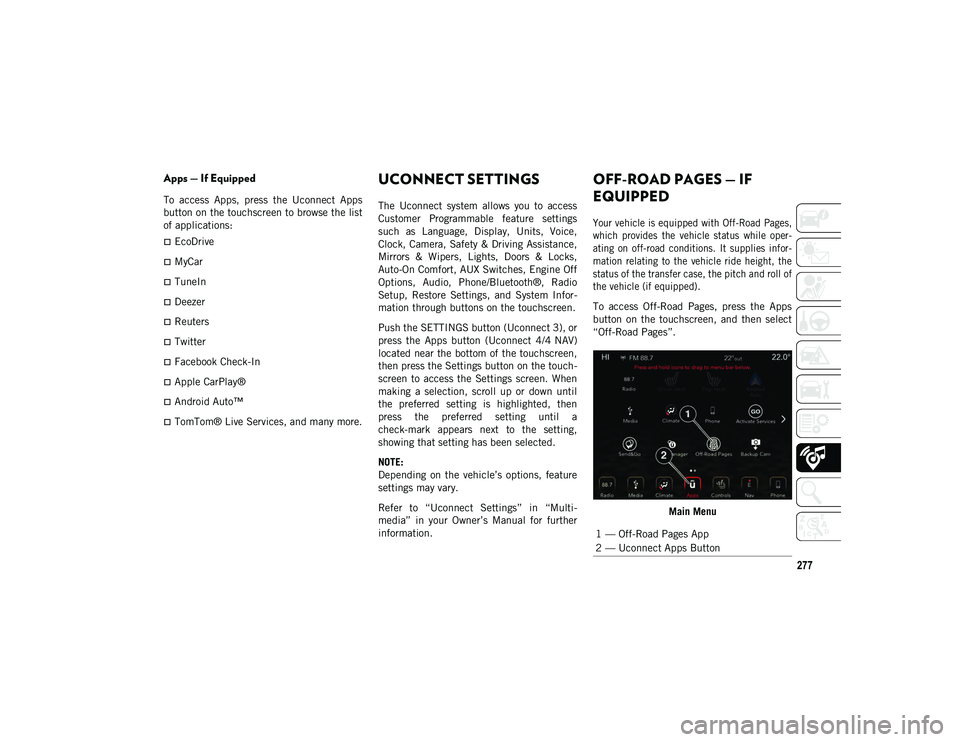
To access Off-Road Pages, press the Apps
button on the touchscreen, and then select
“Off-Road Pages”.
Main Menu
1 — Off-Road Pages App
2 — Uconnect Apps Button
2020_JEEP_JL_WRANGLER_UG_RHD_UK.book Page 277
Page 282 of 330
MULTIMEDIA
280
The left-hand control is a rocker-type switch
with a push-button in the center. The func-
tion of the left-hand control is different
depending on which mode you are in.
The following describes the left-hand control
operation in each mode.
Radio Operation
Pushing the top of the switch will Seek Up
for the next listenable station, and pushing
the bottom of the switch will Seek Down for
the next listenable station.
The button located in the center of the
left-hand control will make the radio switch
between various modes available (AM/FM/
DAB, etc.).
Media Mode
Pushing the top of the switch once goes to
the next track on the selected media (AUX/
USB/Bluetooth®). Pushing the bottom of the
switch once goes to the beginning of the
current track or to the beginning of the
previous track if it is within eight seconds
after the current track begins to play.
AUX/USB/MP3 CONTROL
The Media Hub is located on the instrument
panel, below the climate controls. Behind
the media hub access door, the Media Hub
contains one AUX port, a Type C USB Port
and one standard USB Port. Both USB Ports
allow you to play music from MP3 players /
smartphones or USB devices through the
vehicle’s sound system.
The Smart Charging USB ports provide
power to your device up to an hour after the
vehicle is turned off.
NOTE:
Two devices can be plugged in at the same
time and both ports will provide charging
capabilities. Only one port can transfer
data to the system at a time. A pop-up will
appear and allow you to select the device
transferring data.
Both ports share a single data connection.
The user cannot switch between Type A or
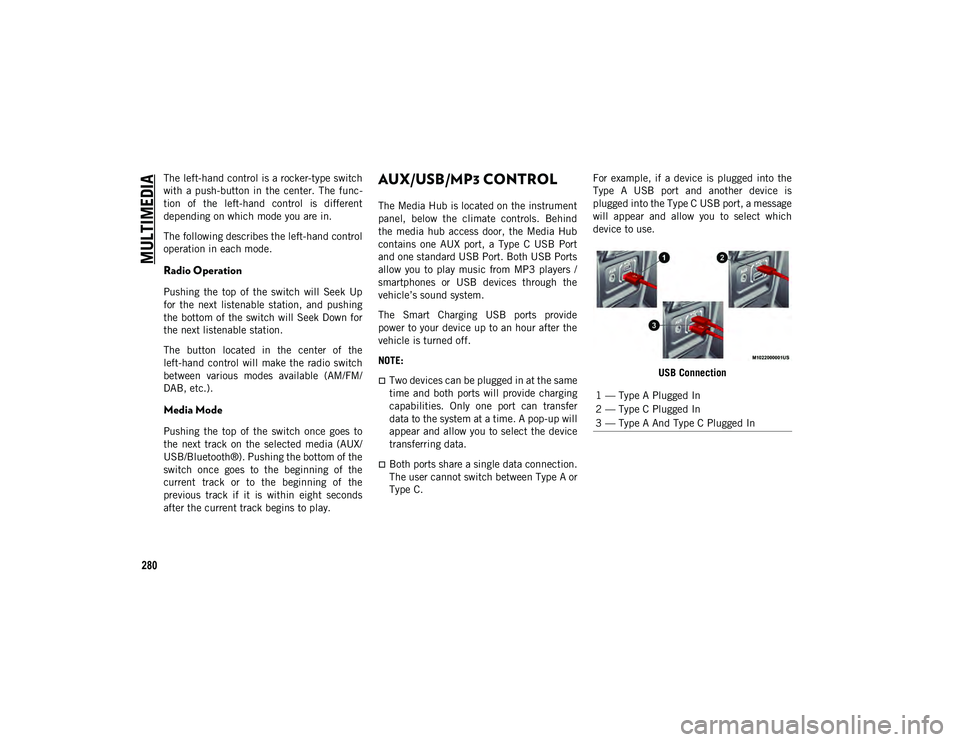
Type C. For example, if a device is plugged into the
Type A USB port and another device is
plugged into the Type C USB port, a message
will appear and allow you to select which
device to use.
USB Connection
1 — Type A Plugged In
2 — Type C Plugged In
3 — Type A And Type C Plugged In
2020_JEEP_JL_WRANGLER_UG_RHD_UK.book Page 280
Page 284 of 330
MULTIMEDIA
282
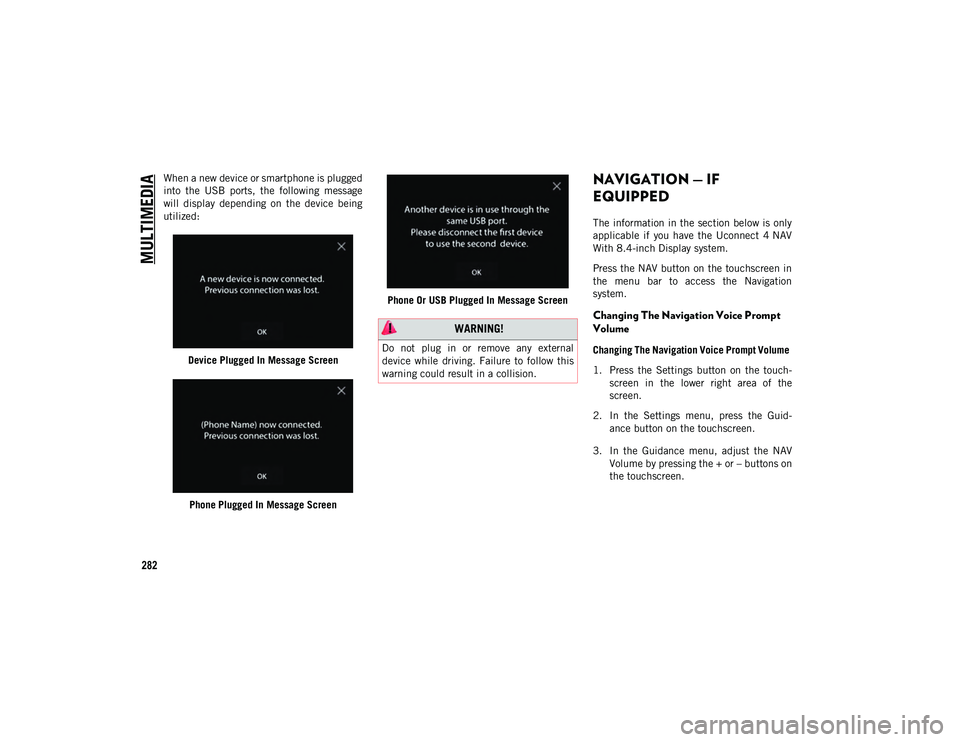
When a new device or smartphone is plugged
into the USB ports, the following message
will display depending on the device being
utilized:Device Plugged In Message Screen
Phone Plugged In Message Screen Phone Or USB Plugged In Message ScreenNAVIGATION — IF
EQUIPPED
The information in the section below is only
applicable if you have the Uconnect 4 NAV
With 8.4-inch Display system.
Press the NAV button on the touchscreen in
the menu bar to access the Navigation
system.
Changing The Navigation Voice Prompt
Volume
Changing The Navigation Voice Prompt Volume
1. Press the Settings button on the touch -
screen in the lower right area of the
screen.
2. In the Settings menu, press the Guid -
ance button on the touchscreen.
3. In the Guidance menu, adjust the NAV Volume by pressing the + or – buttons on
the touchscreen.
WARNING!
Do not plug in or remove any external
device while driving. Failure to follow this
warning could result in a collision.
2020_JEEP_JL_WRANGLER_UG_RHD_UK.book Page 282
Page 287 of 330
285
Taking A Detour
To take a detour you must be navigating a
route.
Press the Detour button on the touch-
screen.
NOTE:
If the route you are currently taking is the
only reasonable option, the device may not
calculate a detour. For more information, see
your Uconnect Owner's Manual Supplement.
Map Update
To update your map, please refer to
www.maps.mopar.eu, or contact an autho -
rized dealer.
UCONNECT PHONE
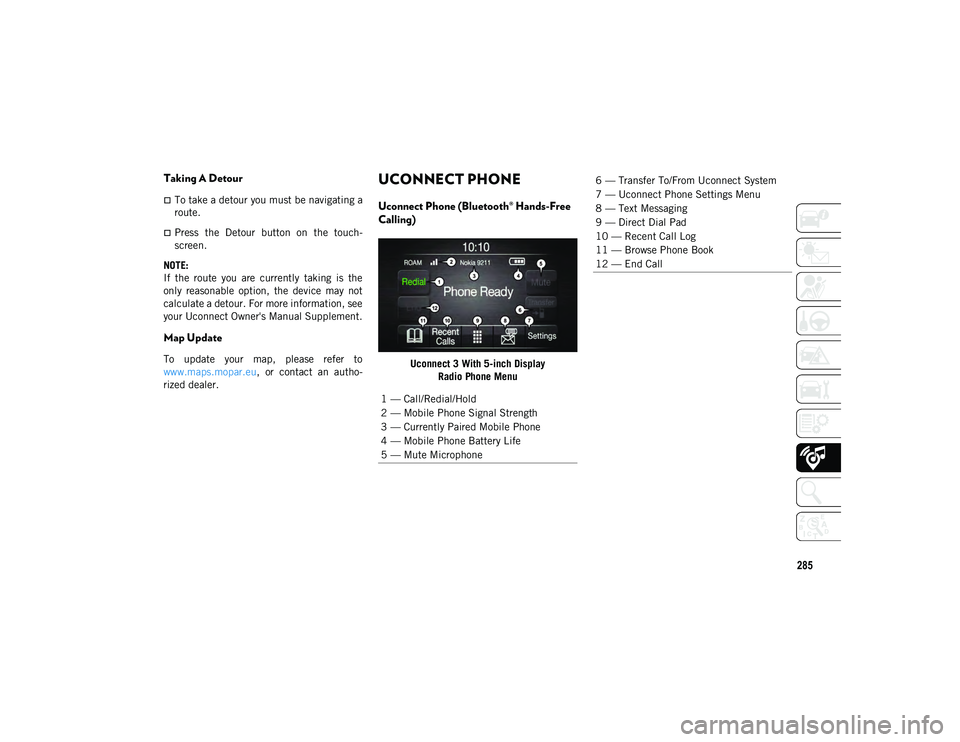
Uconnect Phone (Bluetooth® Hands-Free
Calling)
Uconnect 3 With 5-inch Display Radio Phone Menu
1 — Call/Redial/Hold
2 — Mobile Phone Signal Strength
3 — Currently Paired Mobile Phone
4 — Mobile Phone Battery Life
5 — Mute Microphone
6 — Transfer To/From Uconnect System
7 — Uconnect Phone Settings Menu
8 — Text Messaging
9 — Direct Dial Pad
10 — Recent Call Log
11 — Browse Phone Book
12 — End Call
2020_JEEP_JL_WRANGLER_UG_RHD_UK.book Page 285
Page 288 of 330
MULTIMEDIA
286
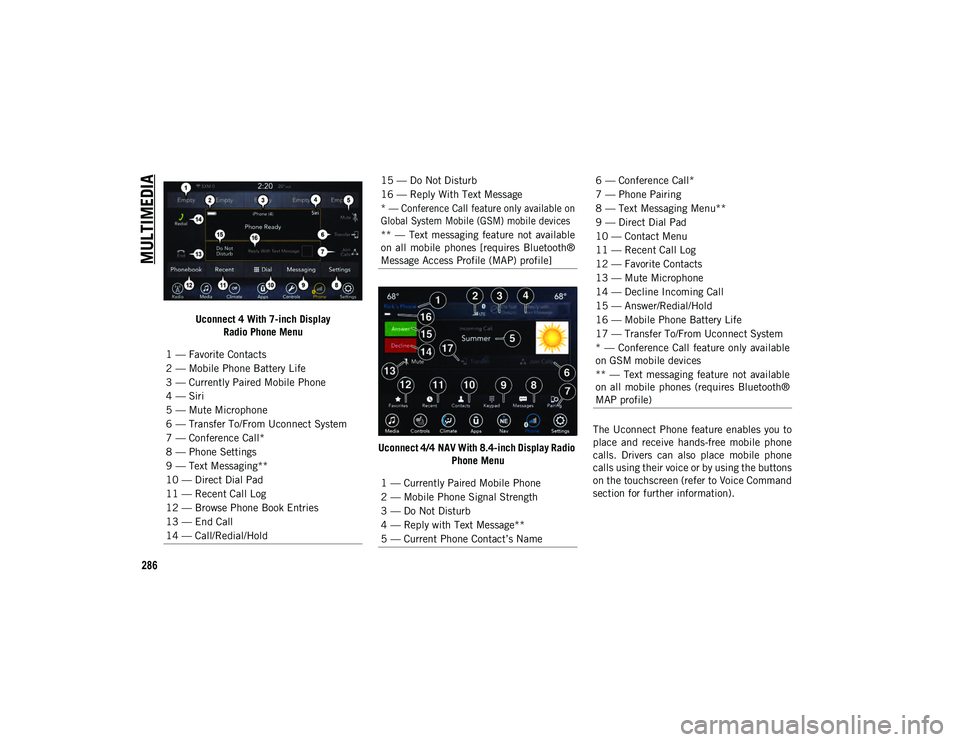
Uconnect 4 With 7-inch DisplayRadio Phone Menu
Uconnect 4/4 NAV With 8.4-inch Display Radio Phone Menu The Uconnect Phone feature enables you to
place and receive hands-free mobile phone
calls. Drivers can also place mobile phone
calls using their voice or by using the buttons
on the touchscreen (refer to Voice Command
section for further information).
1 — Favorite Contacts
2 — Mobile Phone Battery Life
3 — Currently Paired Mobile Phone
4 — Siri
5 — Mute Microphone
6 — Transfer To/From Uconnect System
7 — Conference Call*
8 — Phone Settings
9 — Text Messaging**
10 — Direct Dial Pad
11 — Recent Call Log
12 — Browse Phone Book Entries
13 — End Call
14 — Call/Redial/Hold
15 — Do Not Disturb
16 — Reply With Text Message
* — Conference Call feature only available on
Global System Mobile (GSM) mobile devices
** — Text messaging feature not available
on all mobile phones [requires Bluetooth®
Message Access Profile (MAP) profile]
1 — Currently Paired Mobile Phone
2 — Mobile Phone Signal Strength
3 — Do Not Disturb
4 — Reply with Text Message**
5 — Current Phone Contact’s Name6 — Conference Call*
7 — Phone Pairing
8 — Text Messaging Menu**
9 — Direct Dial Pad
10 — Contact Menu
11 — Recent Call Log
12 — Favorite Contacts
13 — Mute Microphone
14 — Decline Incoming Call
15 — Answer/Redial/Hold
16 — Mobile Phone Battery Life
17 — Transfer To/From Uconnect System
* — Conference Call feature only available
on GSM mobile devices
** — Text messaging feature not available
on all mobile phones (requires Bluetooth®
MAP profile)
2020_JEEP_JL_WRANGLER_UG_RHD_UK.book Page 286