ECO mode JEEP WRANGLER UNLIMITED 2014 Owners Manual
[x] Cancel search | Manufacturer: JEEP, Model Year: 2014, Model line: WRANGLER UNLIMITED, Model: JEEP WRANGLER UNLIMITED 2014Pages: 140, PDF Size: 12.72 MB
Page 19 of 140
Installing The Child Restraints Using The Vehicle Seat Belts • The seat belts in the passenger seating positions are equipped with a Switchable
Automatic Locking Retractor (ALR) that is designed to keep the lap portion of the
seat belt tight around the child restraint. Any seat belt system will loosen with
time, so check the belt occasionally, and pull it tight if necessary.
• Always use the tether anchor when using the seat belt to install a forward facing
child restraint, up to the recommended weight limit of the child restraint.
Installing The Top Tether Strap (With The Lower Anchors Or The Vehicle Seat Belt):• When installing a forward-facing child restraint, the top tether strap should always
to be secured, up to the tether anchor weight limit, whether the child restraint is
installed with the lower anchors or the vehicle seat belt.
To Install A Child Seat Using An ALR: 1. Pull enough of the seat belt webbing from the retractor to pass it through the belt
path of the child restraint. Do not twist the belt webbing in the belt path.
2. Slide the latch plate into the buckle until you hear a “click.”
3. Pull on the webbing to make the lap portion tight against the child seat.
4. To lock the seat belt, pull down on the shoulder part of the belt until you have
pulled all the seat belt webbing out of the retractor. Then, allow the webbing to
retract back into the retractor. As the webbing retracts, you will hear a clicking
sound. This means the seat belt is now in the Automatic Locking mode.
5. Try to pull the webbing out of the retractor. If it is locked, you should not be able
to pull out any webbing. If the retractor is not locked, repeat the last step.
6. Finally, pull up on any extra webbing to tighten the lap portion around the child
restraint while you push the child restraint rearward and downward into the
vehicle seat.
7. If the child restraint has a top tether strap and the seating position has a top tether
anchorage, connect the tether strap to the anchorage and tighten the tether strap.
See below for directions to attach a tether anchor.
8. Test that the child restraint is installed tightly by pulling back and forth on the
child seat at the belt path. It should not move more than 1 inch (25.4 mm) in any
direction.
GETTING STARTED
17
Page 25 of 140
ENGINE BREAK-IN RECOMMENDATIONS • A long break-in period is not required for the engine and drivetrain (transmission
and axle) in your vehicle.
• Drive moderately during the first 300 miles (500 km). After the initial 60 miles
(100 km), speeds up to 50 or 55 mph (80 or 90 km/h) are desirable.
• While cruising, brief full-throttle acceleration within the limits of local traffic laws
contributes to a good break-in. Wide-open throttle acceleration in low gear can be
detrimental and should be avoided.
• The engine oil installed in the engine at the factory is a high-quality energy
conserving type lubricant. Oil changes should be consistent with anticipated
climate conditions under which vehicle operations will occur. For the recom-
mended viscosity and quality grades, refer to “Maintaining Your Vehicle”.
NOTE:
A new engine may consume some oil during its first few thousand miles (kilome-
ters) of operation. This should be considered a normal part of the break-in and not
interpreted as an indication to an engine problem or malfunction.
CAUTION!Never use Non-Detergent Oil or Straight Mineral Oil in the engine or damage may
result.
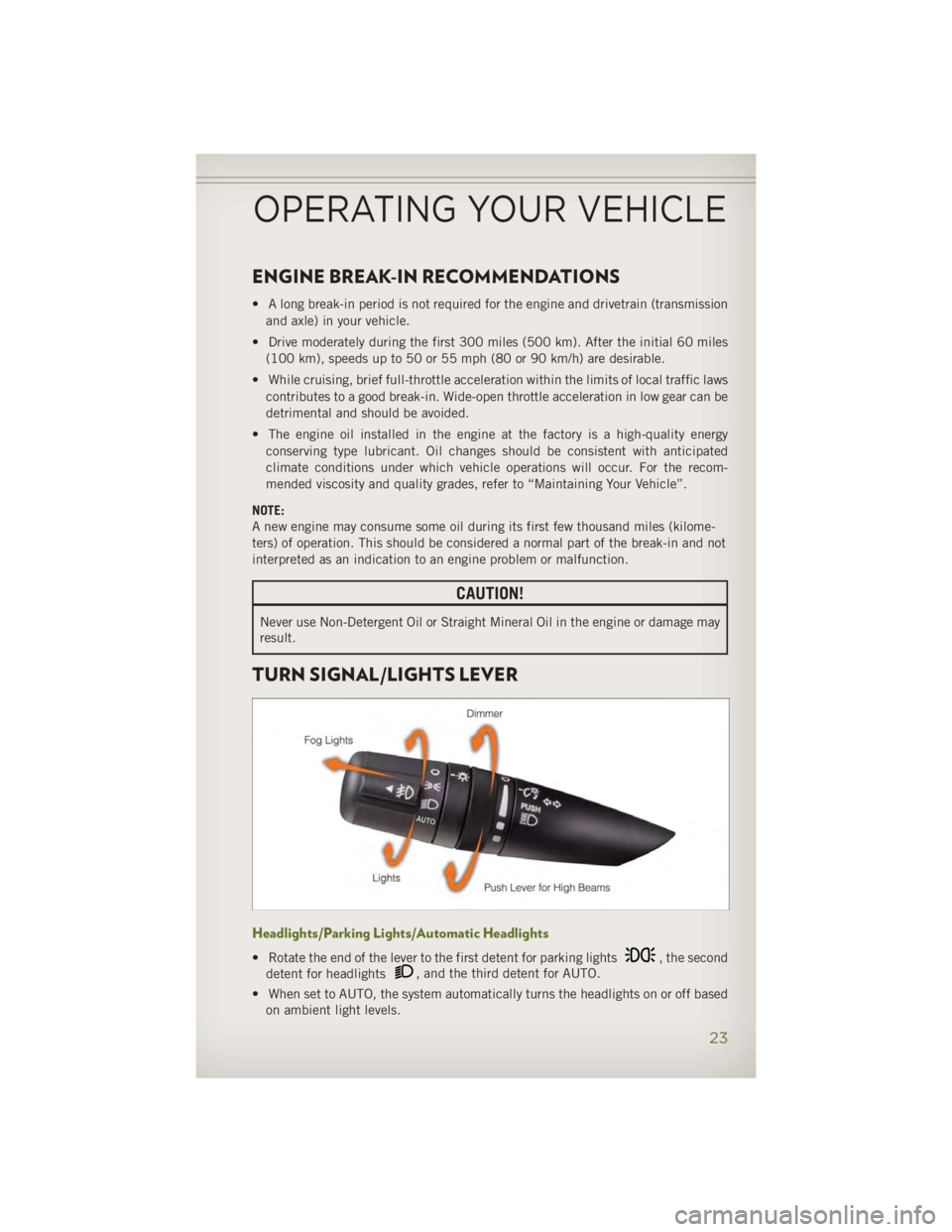
TURN SIGNAL/LIGHTS LEVER
Headlights/Parking Lights/Automatic Headlights
• Rotate the end of the lever to the first detent for parking lights , the second
detent for headlights , and the third detent for AUTO.
• When set to AUTO, the system automatically turns the headlights on or off based
on ambient light levels.OPERATING YOUR VEHICLE
23
Page 47 of 140
Radio Operation Seek Up/Down Buttons
• Press to seek through radio stations in AM or FM bands.
• Hold either button to bypass stations without stopping.
Store Radio Presets
• Press the “SET/RND” or “SET” (depending on the radio) button once and SET 1
will show in the display. Then select button (1–6).
• A second station may be added to each push button. Press the “SET/RND” or
“SET” (depending on the radio) button twice and SET 2 will show in the display.
Then select button (1–6).
CD/DISC Operation Seek Up/Down Buttons
• Press to seek through CD tracks.
• Hold either button to bypass tracks without stopping.
SET/RND or RND (depending on radio) Button (Random Play)
• Press this button while the CD is playing to activate Random Play.
• This feature plays the selections on the CD in random order to provide an
interesting change of pace.
Audio Jack Operation • The AUX/Audio Jack provides a means to connect a portable audio device, such as
an MP3 player or an iPod ®
, to the vehicle’s sound system. This requires the use of
a 3.5 mm stereo audio patch cable.
• Pressing the AUX button will change the mode to auxiliary device if the Audio Jack
is connected, allowing the music from your portable device to play through the
vehicle's speakers.
• The functions of the portable device are controlled using the device buttons, not
the buttons on the radio. However, the volume may be controlled using the radio or
portable device.
ELECTRONICS
45
Page 49 of 140
Equalizer, Balance And Fade • Press the “TUNE/SCROLL” control knob and “BASS” will display. Rotate the
“TUNE/SCROLL” control knob to select the desired setting. Subsequent presses
of the "TUNE/SCROLL" control knob will display, "MID RANGE," "TREBLE,"
"BALANCE" and "FADE".
Radio Operation Seek Up/Down Buttons
• Press to seek through radio stations in AM, FM, or SAT bands.
• Hold either button to bypass stations without stopping.
Store Radio Presets
• Press the “SET/RND” or “SET” (depending on the radio) button once and SET 1
will show in the display. Then select button (1–6).
• A second station may be added to each push button. Press the “SET/RND” or
“SET” (depending on the radio) button twice and SET 2 will show in the display.
Then select button (1–6).
Music Type
NOTE:
The Music Type function only operates when in FM mode.
• Press the “MUSIC TYPE” button to activate this mode. Press the “MUSIC TYPE”
button again or turn the “TUNE/SCROLL” control knob to select the desired music
type (Adult Hits, Country, Jazz, Oldies, Rock, etc.).
• When a music type is chosen and the Music type is displayed, press either “SEEK”
button and the radio will only search for stations with the selected music type.
SETUP Button
• Pressing the “SETUP” button allows you to select between items that are available in
that particular mode.
• Turn the “TUNE/SCROLL” control knob to scroll through the entries. Push the
“AUDIO/SELECT” button to select an entry and make changes.
SiriusXM Satellite Radio
• SiriusXM Satellite Radio gives you over 130 channels, including 100%
commercial-free music from nearly every genre, plus all your favorite sports, news,
talk and entertainment channels–all with crystal clear, coast-to-coast coverage, all
in one place and all at your fingertips.
• To access SiriusXM Satellite Radio, press the “SAT” hard-key.ELECTRONICS
47
Page 52 of 140
Equalizer, Balance And Fade • Press the “TUNE/SCROLL” control knob and “BASS” will display. Rotate the
“TUNE/SCROLL” control knob to select the desired setting. Subsequent presses
of the "TUNE/SCROLL" control knob will display, "MID RANGE," "TREBLE,"
"BALANCE" and "FADE".
Radio Operation Seek Up/Down Buttons
• Press to seek through radio stations in AM, FM, or SAT bands.
• Hold either button to bypass stations without stopping.
Store Radio Presets
• Press the “SET” button once and SET 1 will show in the display. Then select
button (1–6).
• A second station may be added to each push button. Press the “SET” button twice
and SET 2 will show in the display. Then select button (1–6).
Music Type
NOTE:
The Music Type function only operates when in FM mode.
• Press the “MUSIC TYPE” button to activate this mode. Press the “MUSIC TYPE”
button again or turn the “TUNE/SCROLL” control knob to select the desired music
type (Adult Hits, Country, Jazz, Oldies, Rock, etc.).
• Once a music type is chosen and the music type is displayed, press the SEEK
button and the radio will only search for stations with the selected music type.
SETUP Button
• Pressing the “SETUP” button allows you to select between items that are available in
that particular mode.
• Turn the “TUNE/SCROLL” control knob to scroll through the entries. Push the
“AUDIO/SELECT” button to select an entry and make changes.
SiriusXM Satellite Radio
• SiriusXM Satellite Radio gives you over 130 channels, including 100%
commercial-free music from nearly every genre, plus all your favorite sports, news,
talk and entertainment channels–all with crystal clear, coast-to-coast coverage, all
in one place and all at your fingertips.
• To access SiriusXM Satellite Radio, press the “SAT” hard-key.ELECTRONICS
50
Page 57 of 140
CD/DVD Disc Operation
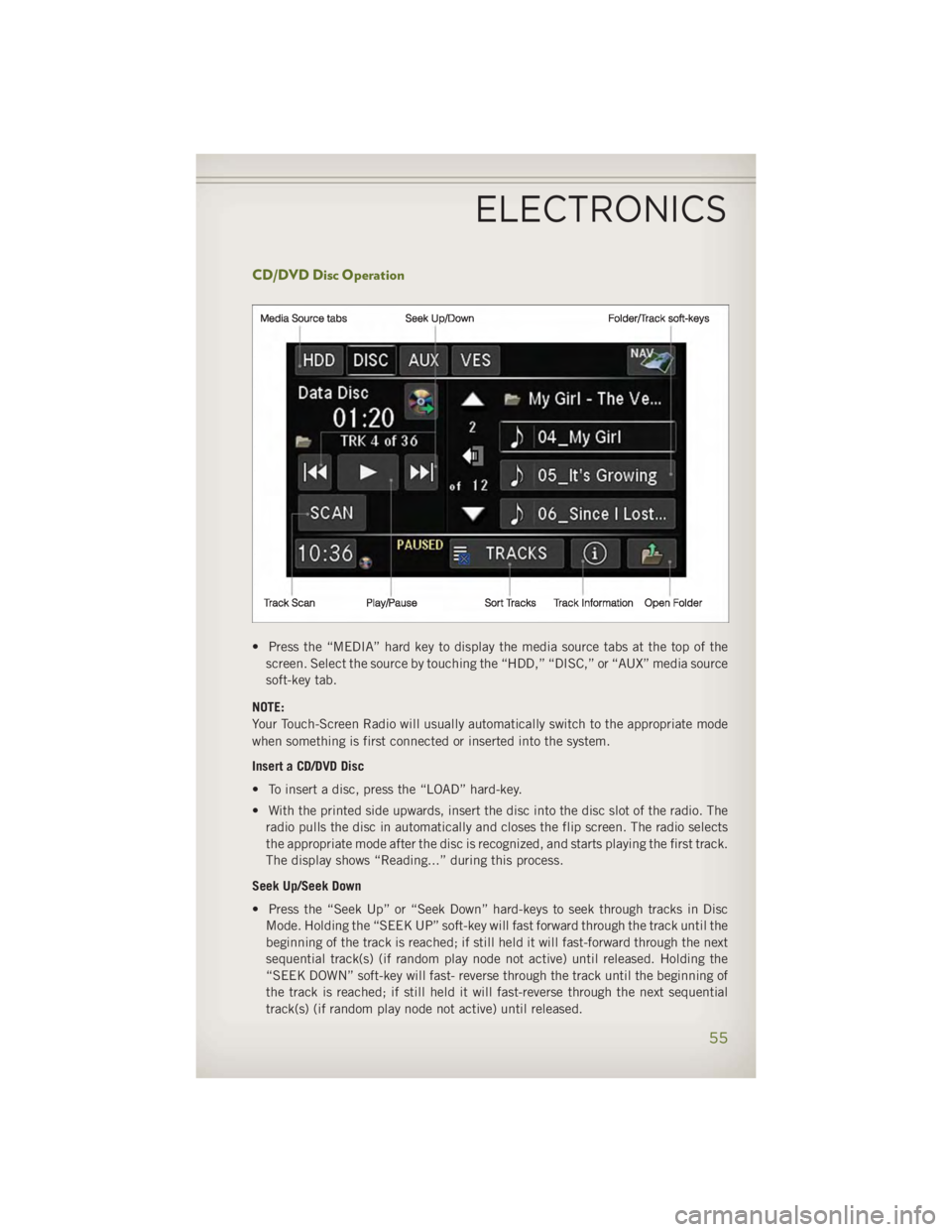
• Press the “MEDIA” hard key to display the media source tabs at the top of the
screen. Select the source by touching the “HDD,” “DISC,” or “AUX” media source
soft-key tab.
NOTE:
Your Touch-Screen Radio will usually automatically switch to the appropriate mode
when something is first connected or inserted into the system.
Insert a CD/DVD Disc
• To insert a disc, press the “LOAD” hard-key.
• With the printed side upwards, insert the disc into the disc slot of the radio. The
radio pulls the disc in automatically and closes the flip screen. The radio selects
the appropriate mode after the disc is recognized, and starts playing the first track.
The display shows “Reading...” during this process.
Seek Up/Seek Down
• Press the “Seek Up” or “Seek Down” hard-keys to seek through tracks in Disc
Mode. Holding the “SEEK UP” soft-key will fast forward through the track until the
beginning of the track is reached; if still held it will fast-forward through the next
sequential track(s) (if random play node not active) until released. Holding the
“SEEK DOWN” soft-key will fast- reverse through the track until the beginning of
the track is reached; if still held it will fast-reverse through the next sequential
track(s) (if random play node not active) until released.ELECTRONICS
55
Page 67 of 140
CD/DVD Disc Operation
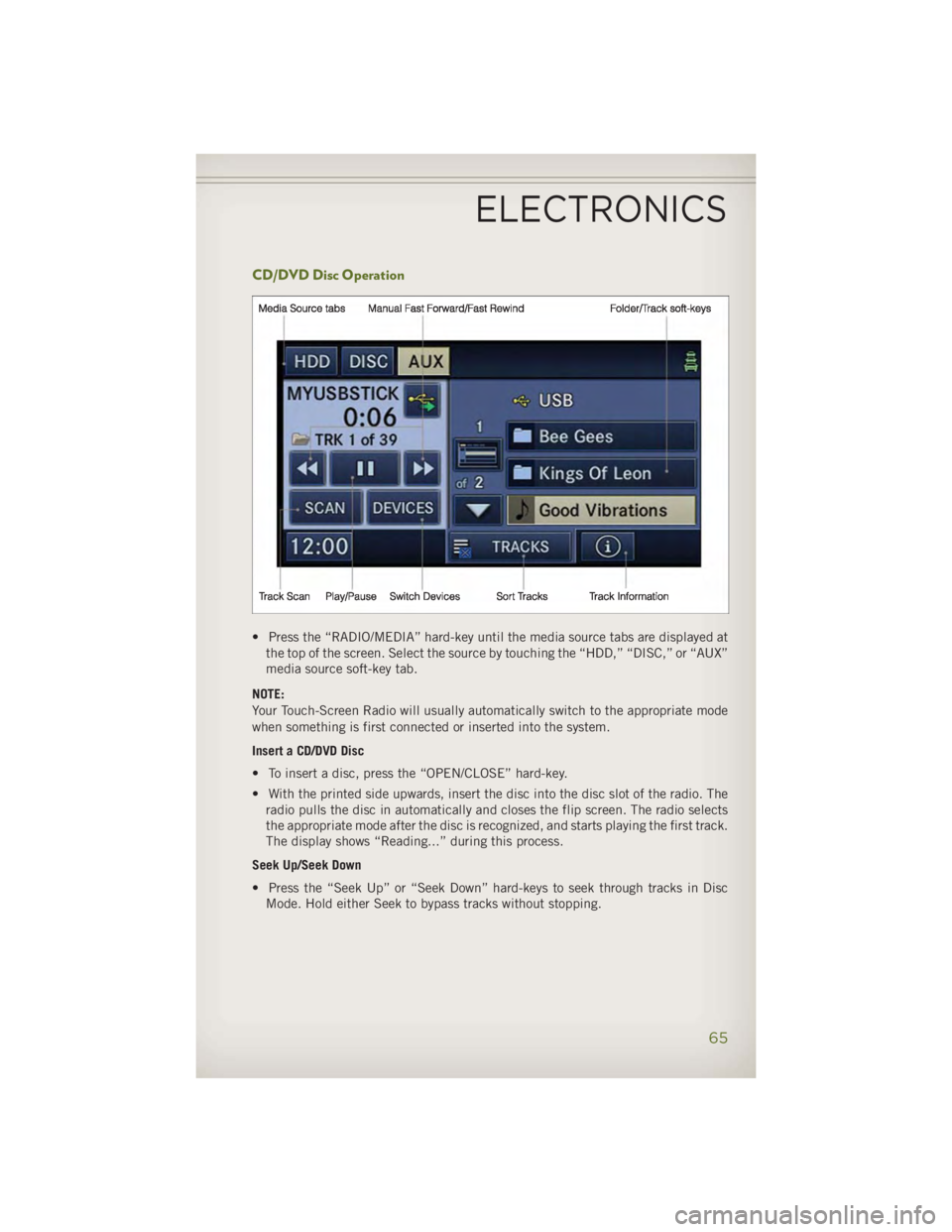
• Press the “RADIO/MEDIA” hard-key until the media source tabs are displayed at
the top of the screen. Select the source by touching the “HDD,” “DISC,” or “AUX”
media source soft-key tab.
NOTE:
Your Touch-Screen Radio will usually automatically switch to the appropriate mode
when something is first connected or inserted into the system.
Insert a CD/DVD Disc
• To insert a disc, press the “OPEN/CLOSE” hard-key.
• With the printed side upwards, insert the disc into the disc slot of the radio. The
radio pulls the disc in automatically and closes the flip screen. The radio selects
the appropriate mode after the disc is recognized, and starts playing the first track.
The display shows “Reading...” during this process.
Seek Up/Seek Down
• Press the “Seek Up” or “Seek Down” hard-keys to seek through tracks in Disc
Mode. Hold either Seek to bypass tracks without stopping.ELECTRONICS
65
Page 77 of 140
Display SAT Favorites List
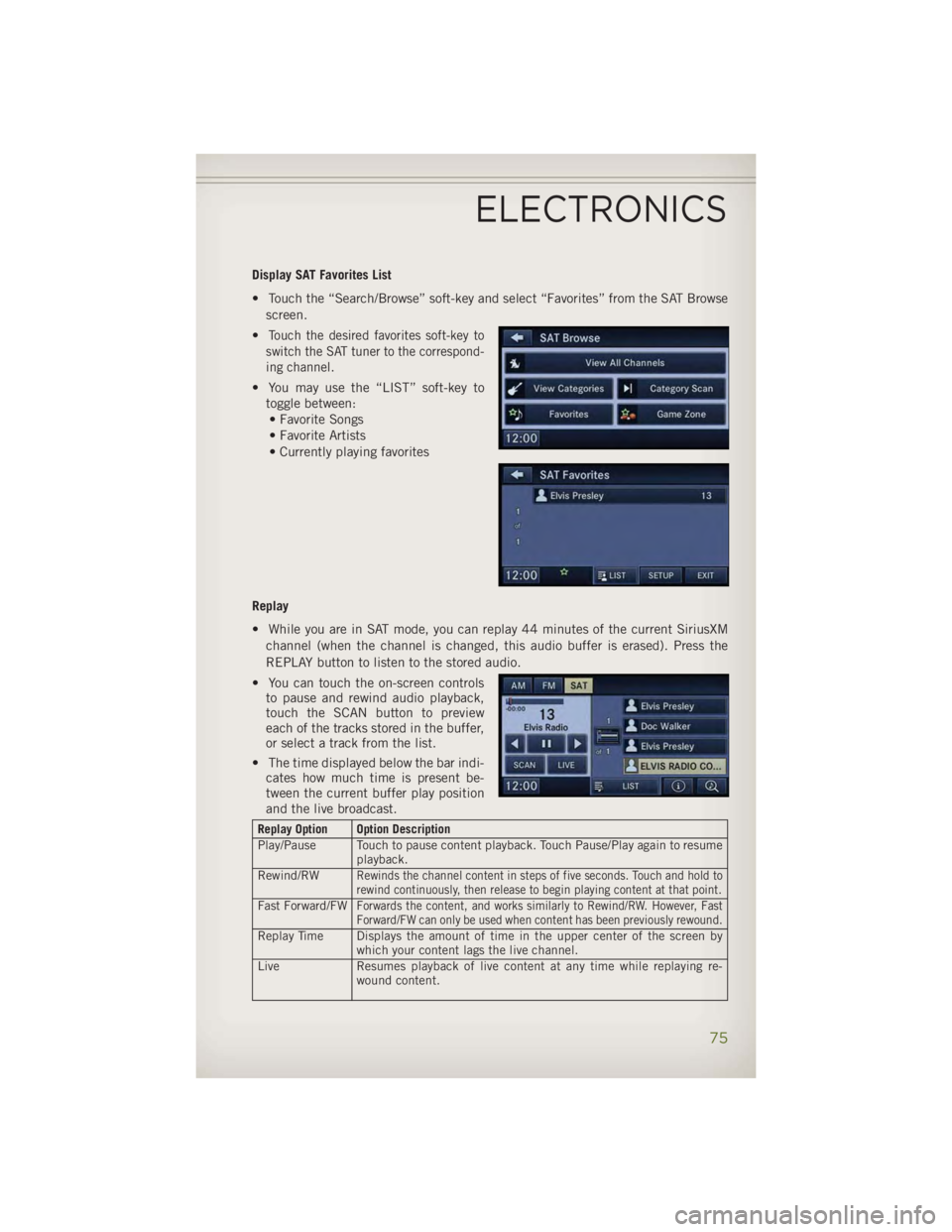
• Touch the “Search/Browse” soft-key and select “Favorites” from the SAT Browse
screen.
• Touch the desired favorites soft-key to
switch the SAT tuner to the correspond-
ing channel.
• You may use the “LIST” soft-key to
toggle between:
• Favorite Songs
• Favorite Artists
• Currently playing favorites
Replay
• While you are in SAT mode, you can replay 44 minutes of the current SiriusXM
channel (when the channel is changed, this audio buffer is erased). Press the
REPLAY button to listen to the stored audio.
• You can touch the on-screen controls
to pause and rewind audio playback,
touch the SCAN button to preview
each of the tracks stored in the buffer,
or select a track from the list.
• The time displayed below the bar indi-
cates how much time is present be-
tween the current buffer play position
and the live broadcast. Replay Option Option Description
Play/Pause Touch to pause content playback. Touch Pause/Play again to resume
playback.
Rewind/RW
Rewinds the channel content in steps of five seconds. Touch and hold to
rewind continuously, then release to begin playing content at that point.
Fast Forward/FW Forwards the content, and works similarly to Rewind/RW. However, Fast
Forward/FW can only be used when content has been previously rewound.
Replay Time Displays the amount of time in the upper center of the screen by
which your content lags the live channel.
Live Resumes playback of live content at any time while replaying re-
wound content.ELECTRONICS
75
Page 84 of 140
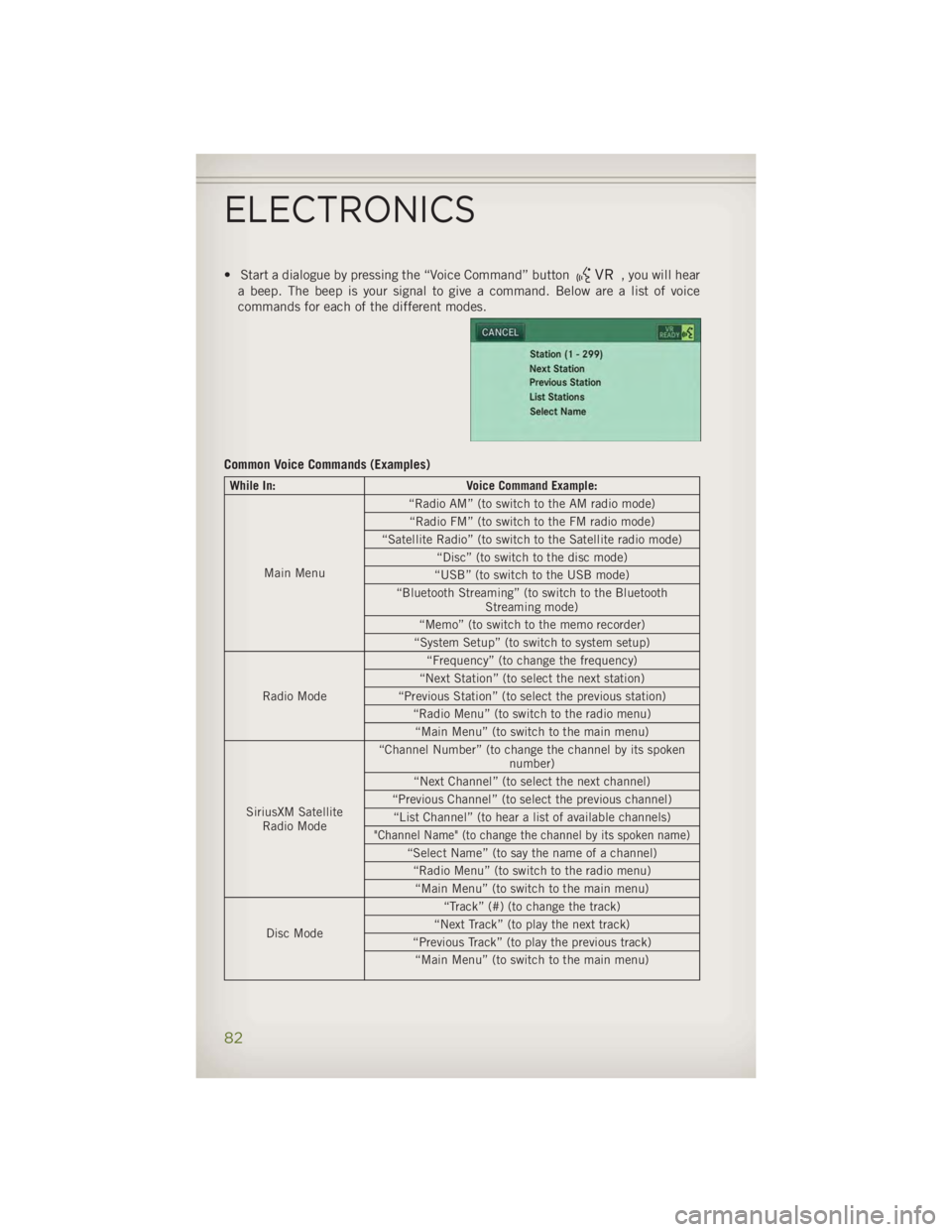
• Start a dialogue by pressing the “Voice Command” button , you will hear
a beep. The beep is your signal to give a command. Below are a list of voice
commands for each of the different modes.
Common Voice Commands (Examples) While In: Voice Command Example:
Main Menu “Radio AM” (to switch to the AM radio mode)
“Radio FM” (to switch to the FM radio mode)
“Satellite Radio” (to switch to the Satellite radio mode)
“Disc” (to switch to the disc mode)
“USB” (to switch to the USB mode)
“Bluetooth Streaming” (to switch to the Bluetooth
Streaming mode)
“Memo” (to switch to the memo recorder)
“System Setup” (to switch to system setup)
Radio Mode “Frequency” (to change the frequency)
“Next Station” (to select the next station)
“Previous Station” (to select the previous station)
“Radio Menu” (to switch to the radio menu)
“Main Menu” (to switch to the main menu)
SiriusXM Satellite
Radio Mode “Channel Number” (to change the channel by its spoken
number)
“Next Channel” (to select the next channel)
“Previous Channel” (to select the previous channel)
“List Channel” (to hear a list of available channels)
"Channel Name" (to change the channel by its spoken name)
“Select Name” (to say the name of a channel)
“Radio Menu” (to switch to the radio menu)
“Main Menu” (to switch to the main menu)
Disc Mode “Track” (#) (to change the track)
“Next Track” (to play the next track)
“Previous Track” (to play the previous track)
“Main Menu” (to switch to the main menu)ELECTRONICS
82
Page 85 of 140
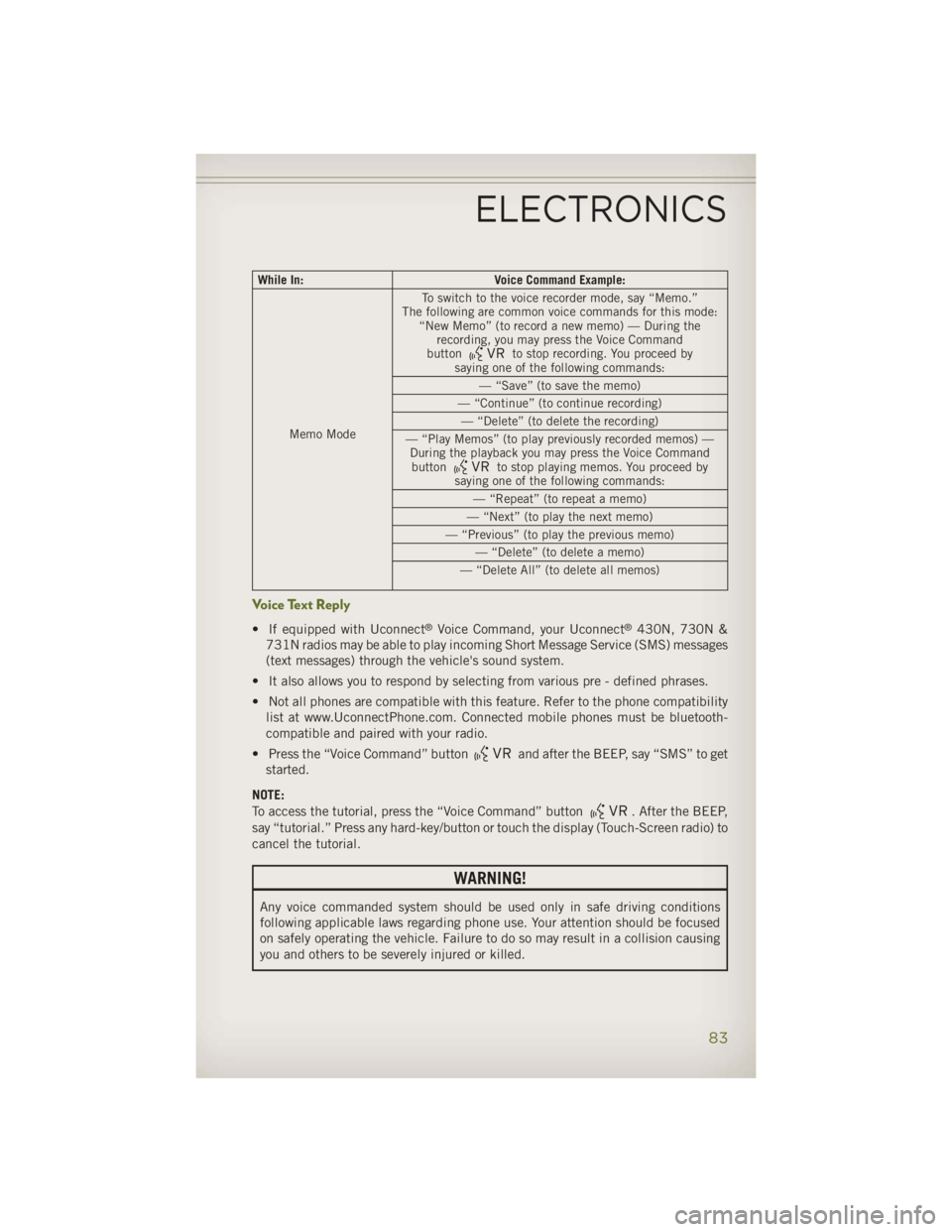
While In: Voice Command Example:
Memo Mode To switch to the voice recorder mode, say “Memo.”
The following are common voice commands for this mode:
“New Memo” (to record a new memo) — During the
recording, you may press the Voice Command
button
to stop recording. You proceed by
saying one of the following commands:
— “Save” (to save the memo)
— “Continue” (to continue recording)
— “Delete” (to delete the recording)
— “Play Memos” (to play previously recorded memos) —
During the playback you may press the Voice Command
button
to stop playing memos. You proceed by
saying one of the following commands:
— “Repeat” (to repeat a memo)
— “Next” (to play the next memo)
— “Previous” (to play the previous memo)
— “Delete” (to delete a memo)
— “Delete All” (to delete all memos)
Voice Text Reply • If equipped with Uconnect ®
Voice Command, your Uconnect ®
430N, 730N &
731N radios may be able to play incoming Short Message Service (SMS) messages
(text messages) through the vehicle's sound system.
• It also allows you to respond by selecting from various pre - defined phrases.
• Not all phones are compatible with this feature. Refer to the phone compatibility
list at www.UconnectPhone.com. Connected mobile phones must be bluetooth-
compatible and paired with your radio.
• Press the “Voice Command” button and after the BEEP, say “SMS” to get
started.
NOTE:
To access the tutorial, press the “Voice Command” button
. After the BEEP,
say “tutorial.” Press any hard-key/button or touch the display (Touch-Screen radio) to
cancel the tutorial.
WARNING!Any voice commanded system should be used only in safe driving conditions
following applicable laws regarding phone use. Your attention should be focused
on safely operating the vehicle. Failure to do so may result in a collision causing
you and others to be severely injured or killed.ELECTRONICS
83