USB KIA Borrego 2011 1.G User Guide
[x] Cancel search | Manufacturer: KIA, Model Year: 2011, Model line: Borrego, Model: KIA Borrego 2011 1.GPages: 464, PDF Size: 12.57 MB
Page 249 of 464
4169
Features of your vehicle
PA910HMU (CDP)
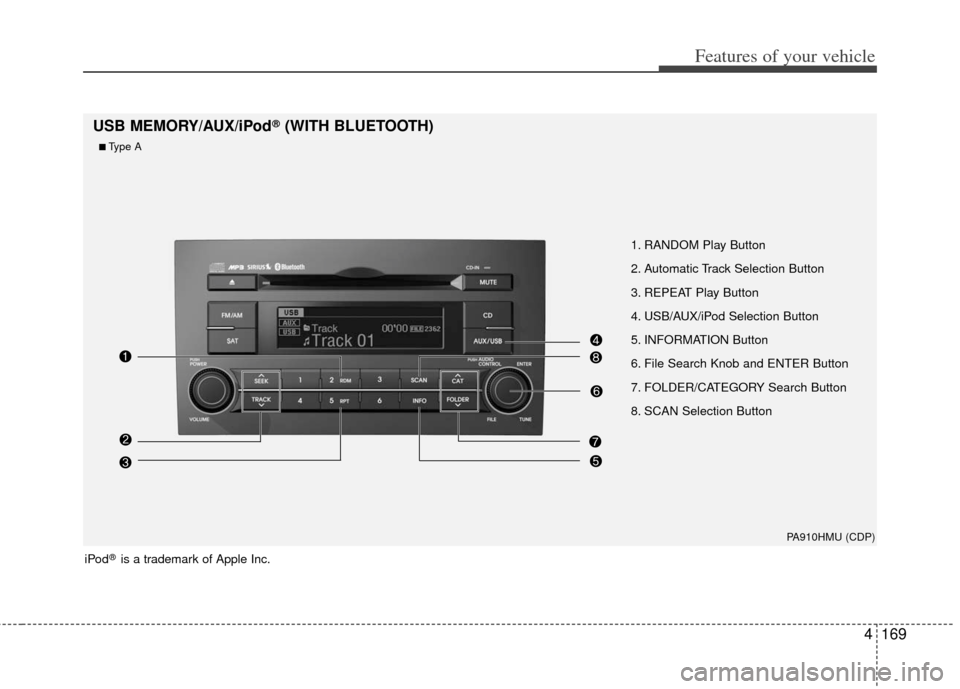
1. RANDOM Play Button
2. Automatic Track Selection Button
3. REPEAT Play Button
4. USB/AUX/iPod Selection Button
5. INFORMATION Button
6. File Search Knob and ENTER Button
7. FOLDER/CATEGORY Search Button
8. SCAN Selection Button
USB MEMORY/AUX/iPod®(WITH BLUETOOTH)
iPod®is a trademark of Apple Inc.
■Type A
Page 250 of 464
Features of your vehicle
170
4
PA960HMU (CDC)
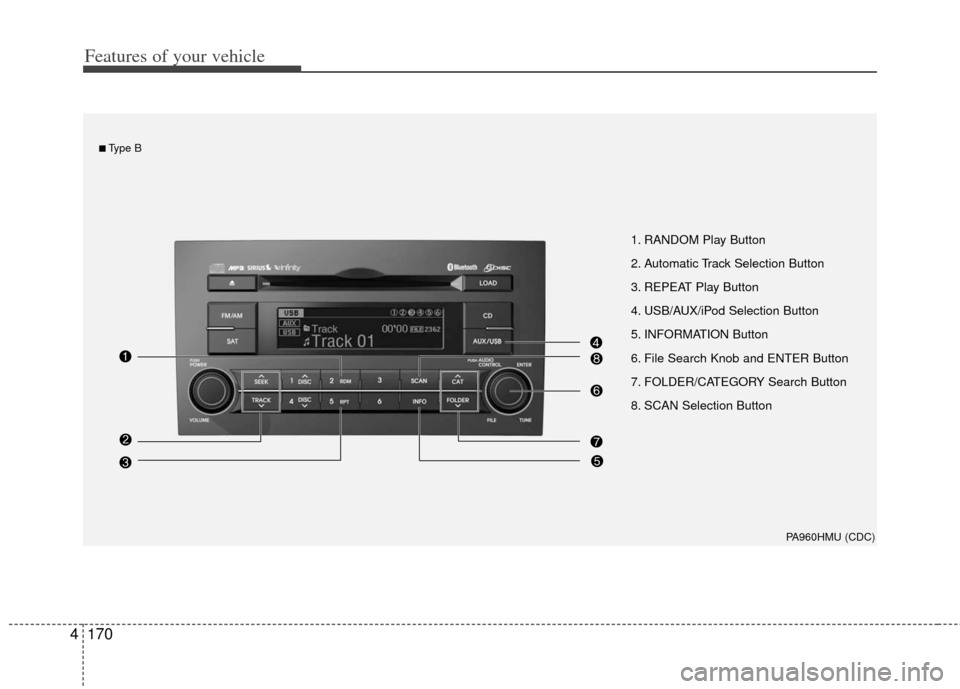
1. RANDOM Play Button
2. Automatic Track Selection Button
3. REPEAT Play Button
4. USB/AUX/iPod Selection Button
5. INFORMATION Button
6. File Search Knob and ENTER Button
7. FOLDER/CATEGORY Search Button
8. SCAN Selection Button
■Type B
Page 251 of 464

4171
Features of your vehicle
1. RANDOM Play Button
2. Automatic Track Selection Button
3. REPEAT Play Button
4. USB/AUX/iPod Selection Button
5. INFORMATION Button
6. File Search Knob and ENTER Button
7. FOLDER/CATEGORY Search Button
8. SCAN Selection Button
PA965HMU (CDC_RSE)
■Type C
Page 252 of 464
Features of your vehicle
172
4
How to Activate USB MEMORY
1. RANDOM Play Button
Press this button for less than 0.8 second
to activate 'RDM' mode and more than
0.8 second to activate 'ALL RDM' mode.
RDM : Only files in a folder are played
back in random sequence.
ALL RDM : All files in a USB memory are played back in random sequence.
2. Automatic Track Selection Button
Press [TRACK ] to return to thebeginning of the current file.
Press again within 1 second to return
the previous file.
Press and hold [TRACK ] to initiate rewind search.
Press [SEEK ] for less than 0.8 sec- ond to advance the next file.
Press and hold [SEEK ] to initiate fast forward search.
3. REPEAT Play Button
Press this button for less than 0.8 second
to activate 'RPT' mode and more than
0.8 second to activate 'FLD RPT' mode.
RPT : Only a file is played repeatedly.
FLD RPT : Only files in a folder areplayed repeatedly.
4. USB/AUX Selection Button
If auxiliary device/USB/ is connected, itturns to USB/AUX mode and toggles
as below when the button is pressed
each time.
AUX/USB : AUX
➟USB➟AUX.......
If no auxiliary device and USB is con- nected, it displays "No Media" for 5
seconds and returns to the previous
mode.
5. INFORMATION Button
Displays the information of the current
CD TRACK(FILE) as below when the
button is pressed each time.
File Name
➟Title➟Artist➟Album
➟Folder Name➟Total File...(not dis-
played if the file has no song)
6. File Search Knob and ENTER Button
Turn this knob clockwise to display File
name after the current song.
Turn this knob counterclockwise to dis- play File Name before the current
song.
To select the displayed song, press the button.
7. FOLDER Search Button
Folder name/File name(the first songin the folder) is moved up or down from
currently playing folder.
To select the displayed folder, press ENTER(NO.6) button.
8. SCAN Play Button
Plays back the first 10 seconds of each
song in the USB memory.
Page 254 of 464
Features of your vehicle
174
4
✽
✽
NOTICE - Using iPod device
• Some iPod models might not support
the communication protocol and the
files will not be played.
• The order of search or playback of songs in the iPod can be different
from the order searched in the audio
system.
• If the iPod crashes due to its own trou- ble, reset the iPod. (Reset: Refer to
iPod manual)
• iPod may not operate normally on low battery.
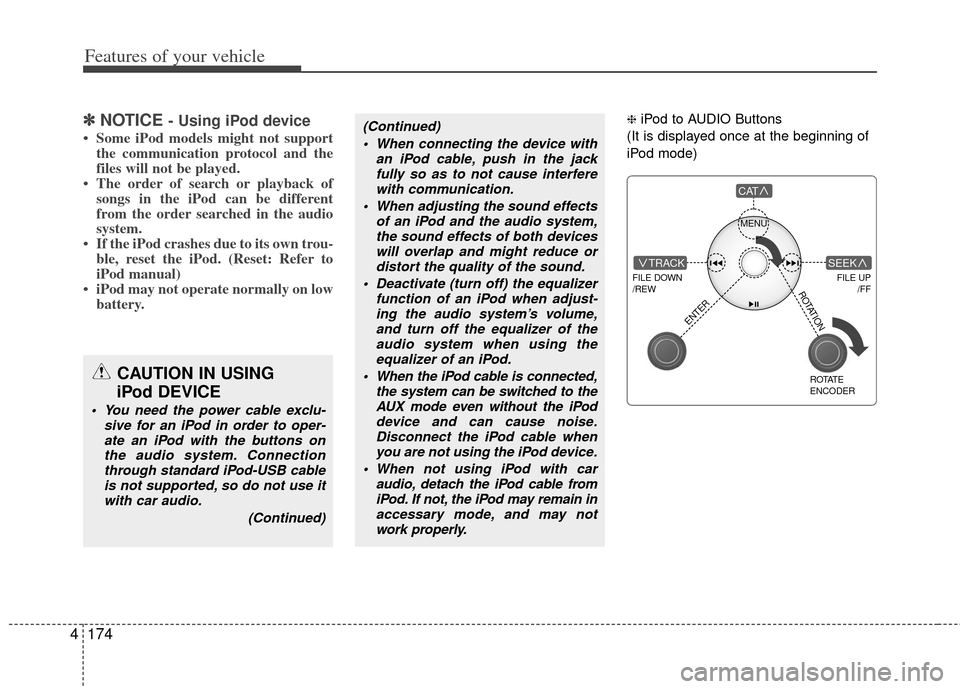
❈ iPod to AUDIO Buttons
(It is displayed once at the beginning of
iPod mode)(Continued) When connecting the device with an iPod cable, push in the jackfully so as to not cause interferewith communication.
When adjusting the sound effects of an iPod and the audio system,the sound effects of both deviceswill overlap and might reduce ordistort the quality of the sound.
Deactivate (turn off) the equalizer function of an iPod when adjust-ing the audio system’s volume,and turn off the equalizer of the audio system when using theequalizer of an iPod.
When the iPod cable is connected, the system can be switched to theAUX mode even without the iPoddevice and can cause noise.Disconnect the iPod cable when you are not using the iPod device.
When not using iPod with car audio, detach the iPod cable fromiPod. If not, the iPod may remain inaccessary mode, and may notwork properly.
CAUTION IN USING
iPod DEVICE
You need the power cable exclu-
sive for an iPod in order to oper-ate an iPod with the buttons onthe audio system. Connectionthrough standard iPod-USB cableis not supported, so do not use itwith car audio.
(Continued)
MENU
FILE DOWN
/REW
FILE UP /FFTRACK
CAT
ENTER
ROTATE
ENCODER
SEEK
ROTATION
Page 274 of 464
Features of your vehicle
194
4
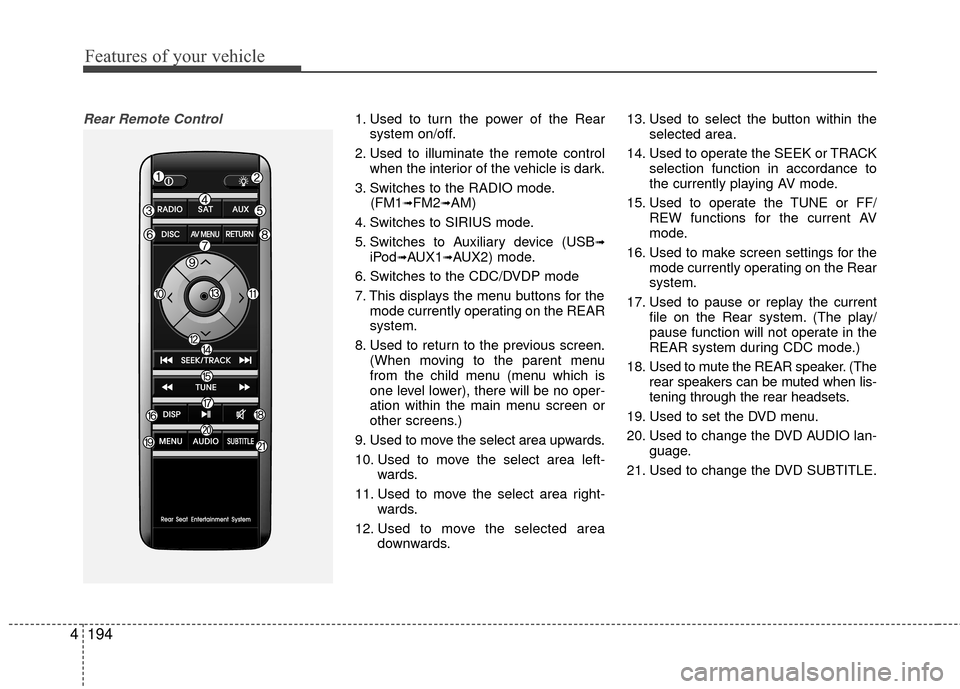
Rear Remote Control1. Used to turn the power of the Rear
system on/off.
2. Used to illuminate the remote control when the interior of the vehicle is dark.
3. Switches to the RADIO mode. (FM1
➟FM2➟AM)
4. Switches to SIRIUS mode.
5. Switches to Auxiliary device (USB
➟iPod➟AUX1➟AUX2) mode.
6. Switches to the CDC/DVDP mode
7. This displays the menu buttons for the mode currently operating on the REAR
system.
8. Used to return to the previous screen. (When moving to the parent menu
from the child menu (menu which is
one level lower), there will be no oper-
ation within the main menu screen or
other screens.)
9. Used to move the select area upwards.
10. Used to move the select area left- wards.
11. Used to move the select area right- wards.
12. Used to move the selected area downwards. 13. Used to select the button within the
selected area.
14. Used to operate the SEEK or TRACK selection function in accordance to
the currently playing AV mode.
15. Used to operate the TUNE or FF/ REW functions for the current AV
mode.
16. Used to make screen settings for the mode currently operating on the Rear
system.
17. Used to pause or replay the current file on the Rear system. (The play/
pause function will not operate in the
REAR system during CDC mode.)
18. Used to mute the REAR speaker. (The rear speakers can be muted when lis-
tening through the rear headsets.
19. Used to set the DVD menu.
20. Used to change the DVD AUDIO lan- guage.
21. Used to change the DVD SUBTITLE.
Page 295 of 464
![KIA Borrego 2011 1.G User Guide 4215
Features of your vehicle
USB mode
Starting USB mode by use of Rearpanel
1. Press the [MODE] button on the REAR panel to display the MODE selection
screen.
2. If the key on the joystick located a](/img/2/2922/w960_2922-294.png "KIA Borrego 2011 1.G User Guide 4215
Features of your vehicle
USB mode
Starting USB mode by use of Rearpanel
1. Press the [MODE] button on the REAR panel to display the MODE selection
screen.
2. If the key on the joystick located a")
4215
Features of your vehicle
USB mode
Starting USB mode by use of Rearpanel
1. Press the [MODE] button on the REAR panel to display the MODE selection
screen.
2. If the key on the joystick located at the far right-side of the REAR panel is
moved in any direction, the select area
will become displayed on the button of
the most recently operated mode.
3. Select the AUX mode button.
4. Select the MUSIC button on the AUX mode screen.
5. The USB will begin playing.
✽ ✽ NOTICE
Refer to the MP3 mode section in
Chapter 5 for additional USB related
operational instructions.
iPod®mode
iPod®is a trademark of Apple Inc.
Starting iPod mode by use of Rear
panel
1. Press the [MODE] button on the REAR panel to display the MODE selection
screen.
2. If the key on the joystick located at the far right-side of the REAR panel is
moved in any direction, the select area
will become displayed on the button of
the most recently operated mode.
3. Select the AUX mode button.
4. Select the iPod button on the AUX mode screen.
5. The iPod will begin playing.
Page 296 of 464
Features of your vehicle
216
4
✽
✽
NOTICE
Refer to the MP3 mode section in
Chapter 5 for additional USB related
operational instructions.
1. Refer to the MP3 mode section in
Chapter 5 for additional iPod related
operational instructions.
2. Some iPod devices may not play if the communication protocol is not sup-
ported by the device. (Supported
iPods : mini, 4G Photo, Nano, 5G).
3. The search and song order on the iPod device may differ with the search and
song order of the AV system.
4. RESET the iPod in the case of errors which occur due to malfunctions on
the iPod device. (Refer to the iPod
manual) CAUTION
1. In order to operate the iPod with
the AV system buttons, a sepa-rately sold iPod connector cablemust be used.
❈Please refrain from using the PCcable in the package as thedevice may not properly operate.
2. When connecting the iPod cable, push the end of the JACK underthe terminal so that it does not cause interference with the com-munication.
3. Having the iPod cable connected even when there is no iPod canconvert the device into AUXmode causing an occurrence ofnoise. Please make sure toremove the iPod cable when aniPod device is not being used.