reset KIA Borrego 2011 1.G User Guide
[x] Cancel search | Manufacturer: KIA, Model Year: 2011, Model line: Borrego, Model: KIA Borrego 2011 1.GPages: 464, PDF Size: 12.57 MB
Page 191 of 464
4111
Features of your vehicle
D250300AHM
Defogging logic
To reduce the possibility of fogging up
the inside of the windshield, the air intake
or air conditioning are controlled auto-
matically according to certain conditions
such as or position. To cancel or
return to the defogging logic, do the fol-
lowing.
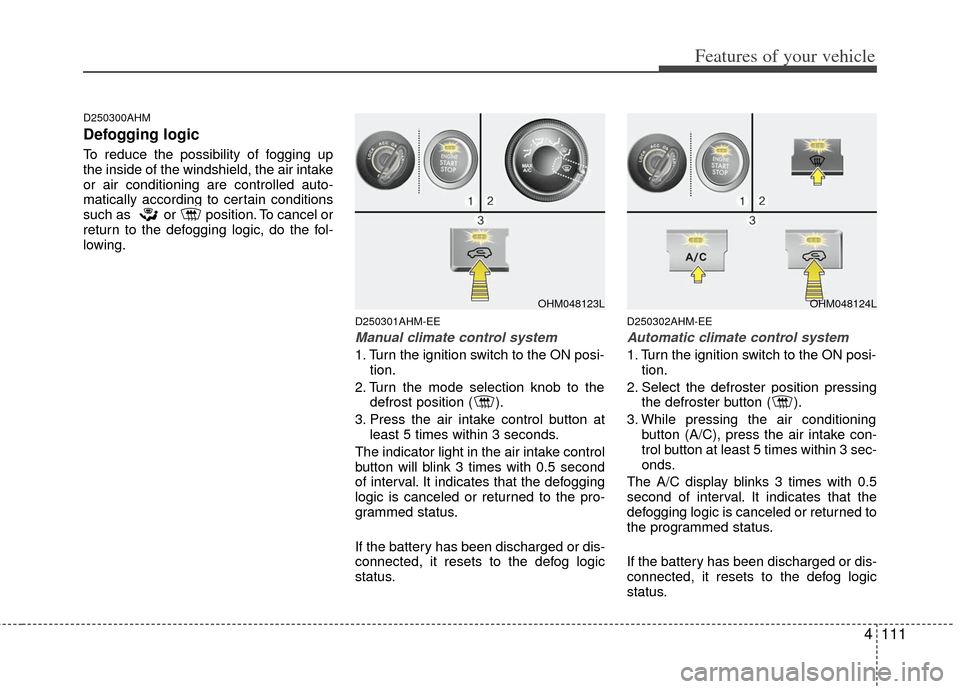
D250301AHM-EE
Manual climate control system
1. Turn the ignition switch to the ON posi-tion.
2. Turn the mode selection knob to the defrost position ( ).
3. Press the air intake control button at least 5 times within 3 seconds.
The indicator light in the air intake control
button will blink 3 times with 0.5 second
of interval. It indicates that the defogging
logic is canceled or returned to the pro-
grammed status.
If the battery has been discharged or dis-
connected, it resets to the defog logic
status.
D250302AHM-EE
Automatic climate control system
1. Turn the ignition switch to the ON posi- tion.
2. Select the defroster position pressing the defroster button ( ).
3. While pressing the air conditioning button (A/C), press the air intake con-
trol button at least 5 times within 3 sec-
onds.
The A/C display blinks 3 times with 0.5
second of interval. It indicates that the
defogging logic is canceled or returned to
the programmed status.
If the battery has been discharged or dis-
connected, it resets to the defog logic
status.
OHM048123LOHM048124L
Page 199 of 464
4119
Features of your vehicle
D280600AEN
Digital clock
Whenever the battery terminals or relat-
ed fuses are disconnected, you must
reset the time.
When the ignition switch is in the ACC or
ON position, the clock buttons operate as
follows:
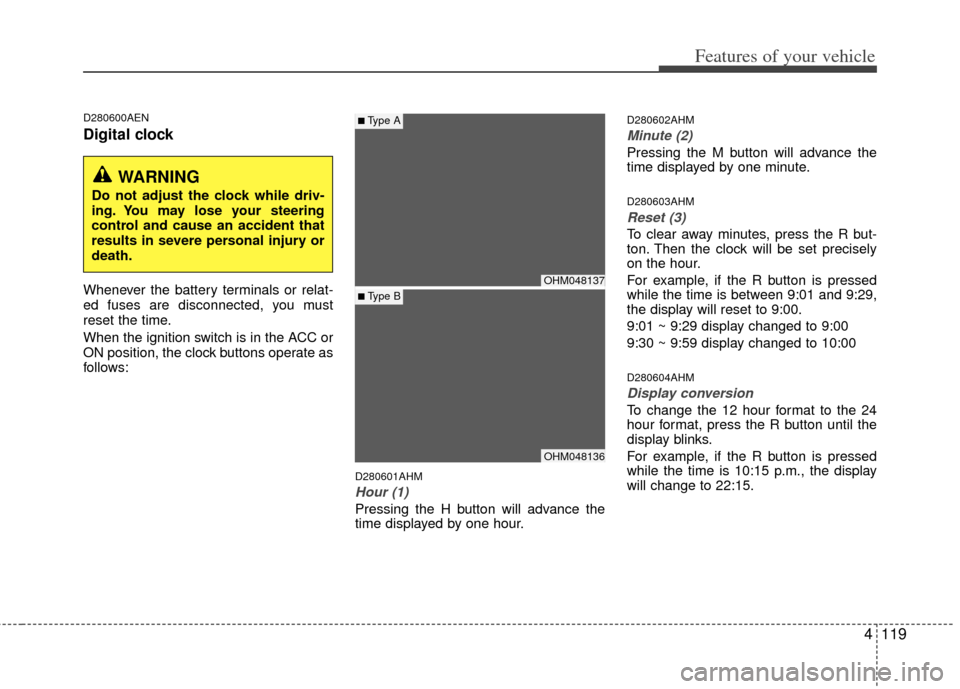
D280601AHM
Hour (1)
Pressing the H button will advance the
time displayed by one hour.
D280602AHM
Minute (2)
Pressing the M button will advance the
time displayed by one minute.
D280603AHM
Reset (3)
To clear away minutes, press the R but-
ton. Then the clock will be set precisely
on the hour.
For example, if the R button is pressed
while the time is between 9:01 and 9:29,
the display will reset to 9:00.
9:01 ~ 9:29 display changed to 9:00
9:30 ~ 9:59 display changed to 10:00
D280604AHM
Display conversion
To change the 12 hour format to the 24
hour format, press the R button until the
display blinks.
For example, if the R button is pressed
while the time is 10:15 p.m., the display
will change to 22:15.
OHM048137
OHM048136
■Type A
■ Type B
WARNING
Do not adjust the clock while driv-
ing. You may lose your steering
control and cause an accident that
results in severe personal injury or
death.
Page 205 of 464
4125
Features of your vehicle
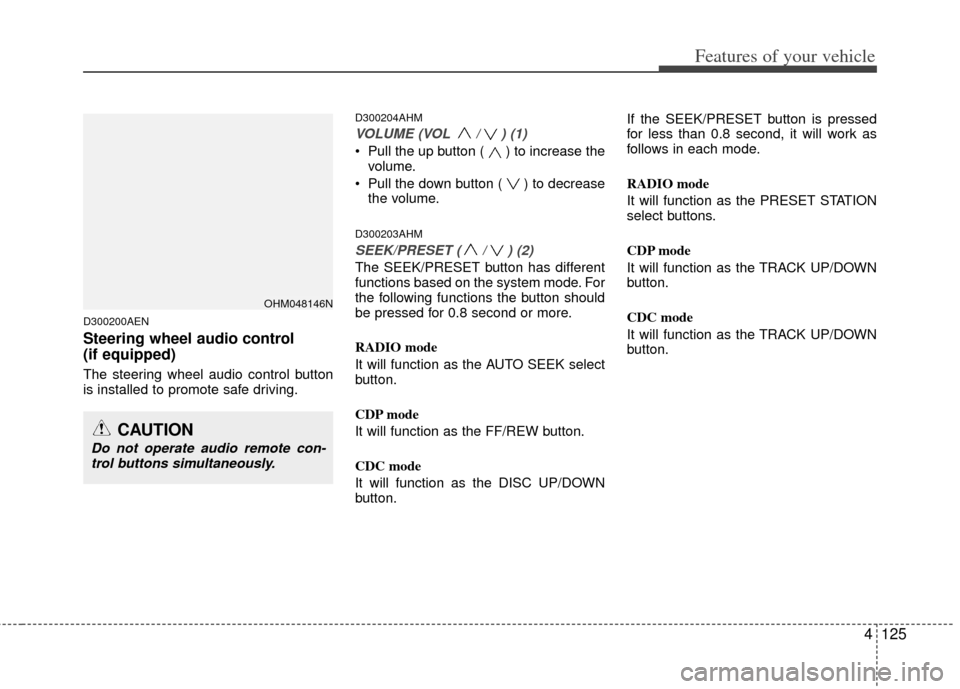
D300200AEN
Steering wheel audio control
(if equipped)
The steering wheel audio control button
is installed to promote safe driving.
D300204AHM
VOLUME (VOL / ) (1)
• Pull the up button ( ) to increase thevolume.
Pull the down button ( ) to decrease the volume.
D300203AHM
SEEK/PRESET ( / ) (2)
The SEEK/PRESET button has different
functions based on the system mode. For
the following functions the button should
be pressed for 0.8 second or more.
RADIO mode
It will function as the AUTO SEEK select
button.
CDP mode
It will function as the FF/REW button.
CDC mode
It will function as the DISC UP/DOWN
button. If the SEEK/PRESET button is pressed
for less than 0.8 second, it will work as
follows in each mode.
RADIO mode
It will function as the PRESET STATION
select buttons.
CDP mode
It will function as the TRACK UP/DOWN
button.
CDC mode
It will function as the TRACK UP/DOWN
button.
OHM048146N
CAUTION
Do not operate audio remote con-
trol buttons simultaneously.
Page 211 of 464
4131
Features of your vehicle
A-200HMU
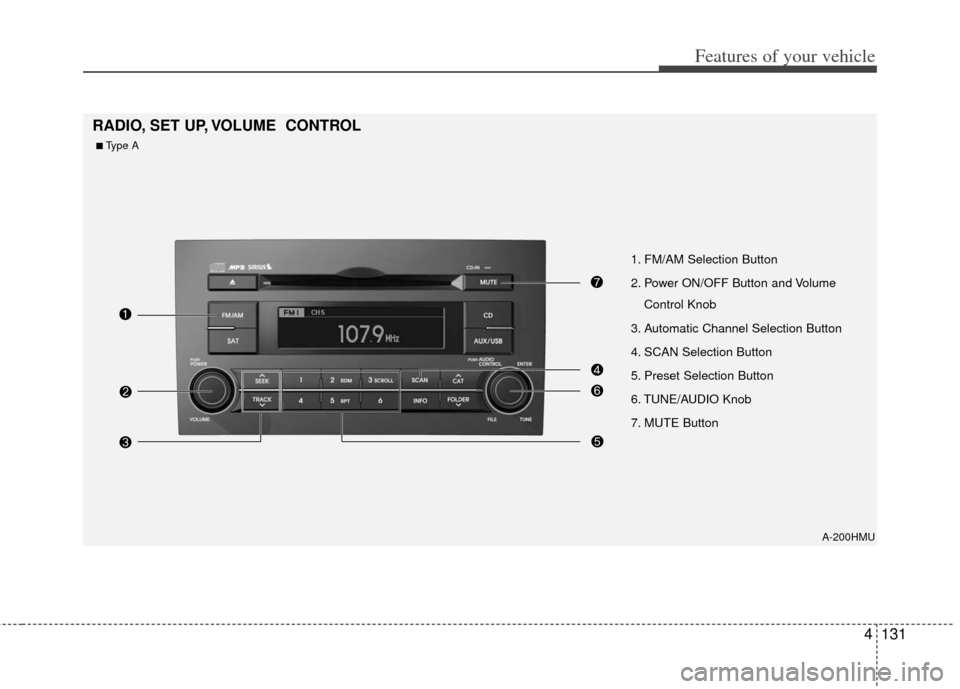
1. FM/AM Selection Button
2. Power ON/OFF Button and VolumeControl Knob
3. Automatic Channel Selection Button
4. SCAN Selection Button
5. Preset Selection Button
6. TUNE/AUDIO Knob
7. MUTE Button
RADIO, SET UP, VOLUME CONTROL
■Type A
Page 212 of 464

Features of your vehicle
132
4
A-300HMU
1. FM/AM Selection Button
2. Power ON/OFF Button and Volume
Control Knob
3. Automatic Channel Selection Button
4. SCAN Selection Button
5. Preset Selection Button
6. TUNE/AUDIO Knob
■Type B
Page 213 of 464

4133
Features of your vehicle
A-350HMU
1. FM/AM Selection Button
2. Power ON/OFF Button and VolumeControl Knob
3. Automatic Channel Selection Button
4. SCAN Selection Button
5. Preset Selection Button
6. TUNE/AUDIO Knob
■Type C
Page 214 of 464
Features of your vehicle
134
4
How to Activate RADIO,
SET UP, VOLUME Control
1. FM/AM Selection Button The FM/AM button toggles between FM
and AM. Listed below are the paths as
the system switches from FM to AM and
back to FM.
FM/AM : FM1
➟FM2➟AM➟FM1...
FM : FM1
➟FM2➟FM1...
2. Power ON/OFF Button & Volume Control Knob
Turns the audio system on/off when
the ignition switch is on ACC or ON.
If the knob is turned clockwise/counter- clockwise, the volume will increase
/decrease.
3. Automatic Channel Selection Button
When the [TRACK ] is pressed, it
will automatically tune to the next lower
station.
When the [SEEK ] is pressed, it will automatically tune to the next higher
station.
4. SCAN Selection Button
When the button is pressed, it auto-matically scans the radio stations
upwards.
The SCAN feature steps through each station, starting from the initial station,
for ten seconds.
Press the [SCAN] button again to stop the scan feature and to listen to the
currently selected channel.
5. Preset Selection Button
Press [1]~[6] buttons less than 0.8 sec-ond to play the station saved in each
button.
Press [1]~[6] b utton more than 0.8 sec-
ond or longer to save the current station
to the respective button with a beep.
6. TUNE/AUDIO Knob
If the knob is turned clockwise/counter-
clockwise, the frequency will increase/
decrease.
(AM 10kHz, FM 200kHz)
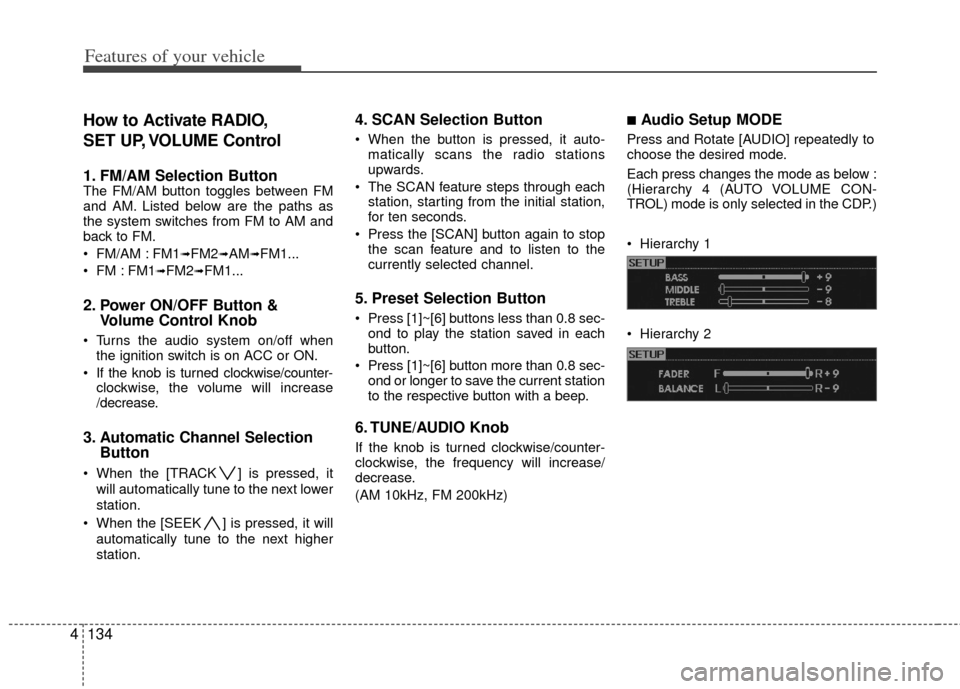
■Audio Setup MODE
Press and Rotate [AUDIO] repeatedly to
choose the desired mode.
Each press changes the mode as below :
(Hierarchy 4 (AUTO VOLUME CON-
TROL) mode is only selected in the CDP.)
Hierarchy 1
Hierarchy 2
Page 228 of 464
Features of your vehicle
148
4
✽
✽
NOTICE - Using iPod device
• Some iPod models might not support
the communication protocol and the
files will not be played. (iPod models
supported: Mini, 4G, Photo, Nano,
5G)
• The order of search or playback of songs in the iPod can be different
from the order searched in the audio
system.
• If the iPod crashes due to its own trou- ble, reset iPod. (Reset: Refer to iPod
manual)
• iPod may not operate normally on low battery.
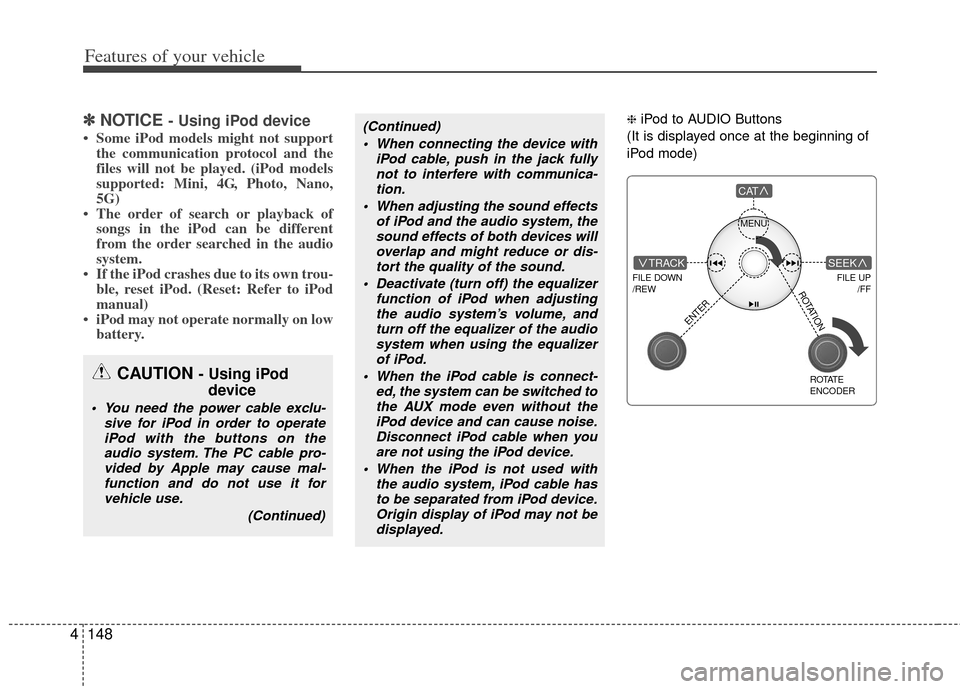
❈ iPod to AUDIO Buttons
(It is displayed once at the beginning of
iPod mode)(Continued) When connecting the device with iPod cable, push in the jack fullynot to interfere with communica-tion.
When adjusting the sound effects of iPod and the audio system, thesound effects of both devices willoverlap and might reduce or dis-tort the quality of the sound.
Deactivate (turn off) the equalizer function of iPod when adjustingthe audio system’s volume, andturn off the equalizer of the audio system when using the equalizerof iPod.
When the iPod cable is connect- ed, the system can be switched tothe AUX mode even without theiPod device and can cause noise.Disconnect iPod cable when you are not using the iPod device.
When the iPod is not used with the audio system, iPod cable hasto be separated from iPod device.Origin display of iPod may not bedisplayed.
CAUTION - Using iPod device
You need the power cable exclu-
sive for iPod in order to operateiPod with the buttons on theaudio system. The PC cable pro-vided by Apple may cause mal-function and do not use it forvehicle use.
(Continued)
MENU
FILE DOWN
/REW
FILE UP /FFTRACK
CAT
ENTER
ROTATE
ENCODER
SEEK
ROTATION
Page 232 of 464
Features of your vehicle
152
4
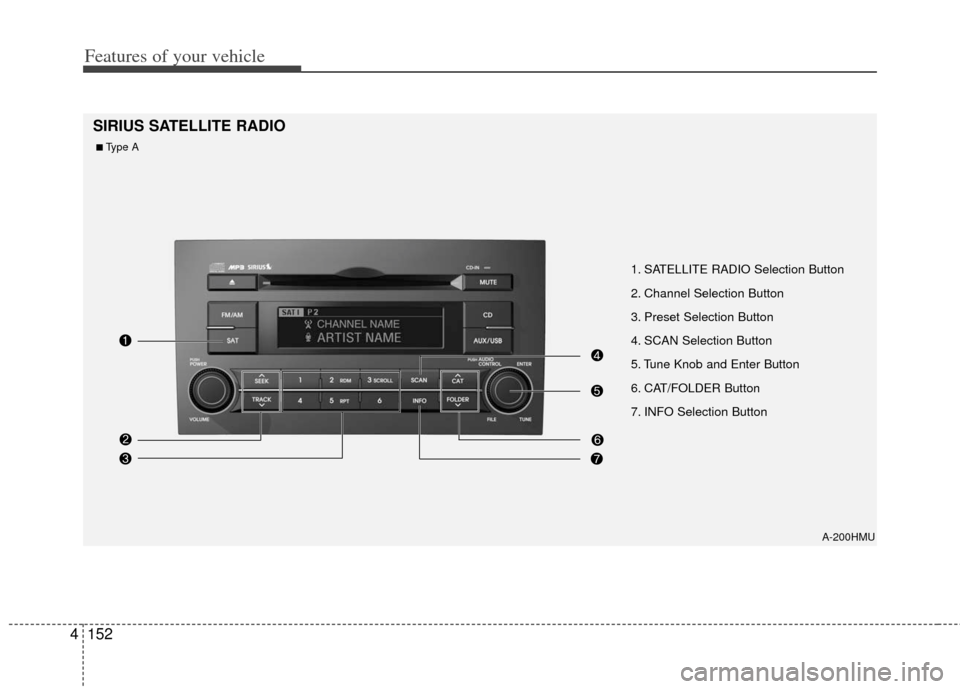
1. SATELLITE RADIO Selection Button
2. Channel Selection Button
3. Preset Selection Button
4. SCAN Selection Button
5. Tune Knob and Enter Button
6. CAT/FOLDER Button
7. INFO Selection Button
SIRIUS SATELLITE RADIO
A-200HMU
■Type A
Page 233 of 464
4153
Features of your vehicle
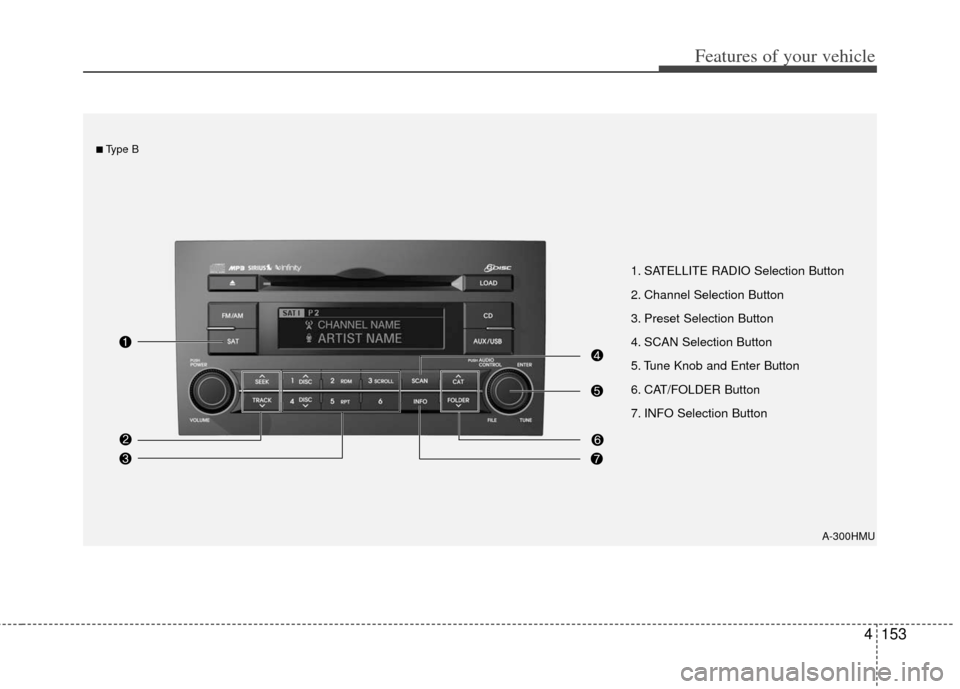
1. SATELLITE RADIO Selection Button
2. Channel Selection Button
3. Preset Selection Button
4. SCAN Selection Button
5. Tune Knob and Enter Button
6. CAT/FOLDER Button
7. INFO Selection Button
A-300HMU
■Type B