radio KIA Borrego 2011 1.G Owner's Guide
[x] Cancel search | Manufacturer: KIA, Model Year: 2011, Model line: Borrego, Model: KIA Borrego 2011 1.GPages: 464, PDF Size: 12.57 MB
Page 259 of 464

4179
Features of your vehicle
1. SATELLITE RADIO Selection Button
2. Channel Selection Button
3. Preset Selection Button
4. SCAN Selection Button
5. Tune Knob and Enter Button
6. CAT/FOLDER Button
7. INFO Selection Button
PA960HMU (CDC)
■Type B
Page 260 of 464

Features of your vehicle
180
4
1. SATELLITE RADIO Selection Button
2. Channel Selection Button
3. Preset Selection Button
4. SCAN Selection Button
5. Tune Knob and Enter Button
6. CAT/FOLDER Button
7. INFO Selection Button
PA965HMU
■Type C
Page 261 of 464
4181
Features of your vehicle
How to Use SIRIUS Satellite
Radio
Your Kia vehicle is equipped with a 3
month complimentary period of SIRIUS
Satellite Radio so you have access to
over 130 channels of music, information,
and entertainment programming.
Activation
In order to extend or reactivate your sub-
scription to SIRIUS Satellite Radio, you
will need to contact SIRIUS Customer
Care at 888-539-7474. Have your 12 digit
SID (Sirius Identification Number)/ESN
(Electronic Serial Number) ready. To
retrieve the SID/ESN, turn on the radio,
press the [SAT] button, and tune to chan-
nel zero. Please note that the vehicle will
need to be turned on, in Sirius mode, and
have an unobstructed view of the sky in
order for the radio to receive the activa-
tion signal.
1. SATELLITE RADIO SelectionButton(SIRIUS Satellite Radio)
Press the [SAT] button to switch to SIR-
IUS Satellite Radio. It cycles through the
different bands as noted below.
SAT1
➟SAT2➟SAT3➟SAT1➟...
2. Channel Selection Button
Press [TRACK ] or [SEEK ] but-
ton for less than 0.8 second to select
previous or next channel.
Press [TRACK ] or [SEEK ] but- ton for 0.8 second or longer to continu-
ously move to previous or next chan-
nel.
if "CATEGORY" Icon is displayed at the top of the screen, channel up/down is
done through the channels within cur-
rent category.
3. Preset Selection Button
Press [1]~[6] buttons less than 0.8 sec-ond to play the channel saved in each
button.
Press [1]~[6] button for 0.8 second or longer to save current channel to the
respective button with a beep.
4. SCAN Selection Button
When the [SCAN] button is pressed, itautomatically scans the radio stations
upwards.
The SCAN feature steps through every channel, starting from the initial chan-
nel, for ten seconds.
Press the [SCAN] button again to stop the scan feature and to listen to the
currently selected channel.
if "CATEGORY" Icon is displayed at the top of the screen, channel changing is
done through the channels within cur-
rent category.
5. Tune Knob and Enter Button
Rotate clockwise to increase the chan-nel number or to scroll down the cate-
gory list.
Rotate counterclockwise to decrease the channel number or to scroll up the
category list.
Press this button to make selection of channels or items.
Page 262 of 464
![KIA Borrego 2011 1.G Owners Guide Features of your vehicle
182
4
6. CAT/FOLDER Button
Press [CAT ] or [FOLDER ] but-
ton to enter the Category List Mode.
The display will indicate the category
items, highlight the category that the
c](/img/2/2922/w960_2922-261.png "KIA Borrego 2011 1.G Owners Guide Features of your vehicle
182
4
6. CAT/FOLDER Button
Press [CAT ] or [FOLDER ] but-
ton to enter the Category List Mode.
The display will indicate the category
items, highlight the category that the
c")
Features of your vehicle
182
4
6. CAT/FOLDER Button
Press [CAT ] or [FOLDER ] but-
ton to enter the Category List Mode.
The display will indicate the category
items, highlight the category that the
current channel belongs to.
In the Category List Mode, press these buttons to navigate category list.
Press [ENTER] Button to select the lowest channel in highlighted category.
If channel is selected by selecting cat- egory "CATEGORY" Icon is displayed
at the top of the screen.
7. INFO Selection Button
Displays the information of the current
channel as below when the button is
pressed each time.
When default display is CAT/CHCategory/Channel
➟Artist/Title➟Composer (if available)➟ Category/
Channel ➟...
When default display is ART/TITLE Artist/Title
➟Category/Channel➟Composer(if available)➟Artist/Title➟...
✽ ✽ Troubleshooting
1. Antenna Error
If this message is displayed, the anten-
na or antenna cable is broken or
unplugged. Please consult with your
KIA dealership.
2. Acquiring Signal If this message is displayed, it means
that the antenna is covered and that
the SIRIUS Satellite Radio signal is
not available. Ensure the antenna is
uncovered and has a clear view of the
sky.
Page 271 of 464

4191
Features of your vehicle
Product Characteristics
This device is a total AV system support-
ing radio (FM1, FM2, AM), SIRIUS, audio
CD, MP3, VCD, and DVD. With a WIDE
VGA LCD (176.7 X 99.4mm.), this device
allows for powerful sound and driving
enjoyment.
Display
Large-size (176.7 X 99.4mm) WIDE VGA
LCD with CCFL installed large-size
(176.7 X 99.4 mm) WIDE VGA LCD pro-
vides high viewing pleasure.
With NORMAL, FULL, WIDE screens,
the display can be selected in accor-
dance to user preference and video suit-
ability.
DVD Player
Auto Play function
Inserting an audio CD, MP3, VCD, DVD
will automatically turn on the device and
begin playing. (Auto conversion to Roof
Monitor)
PBC support (PLAY BACK CONTROL)
The various information encoded in the
Video CD can be enjoyed by using the
interactive menu encoded in MPEG1
Version 2.0 Video CD discs.
Others
Digital screen control function
The brightness, saturation, color and
contrast of the screen can be easily
adjusted.
Page 274 of 464
Features of your vehicle
194
4
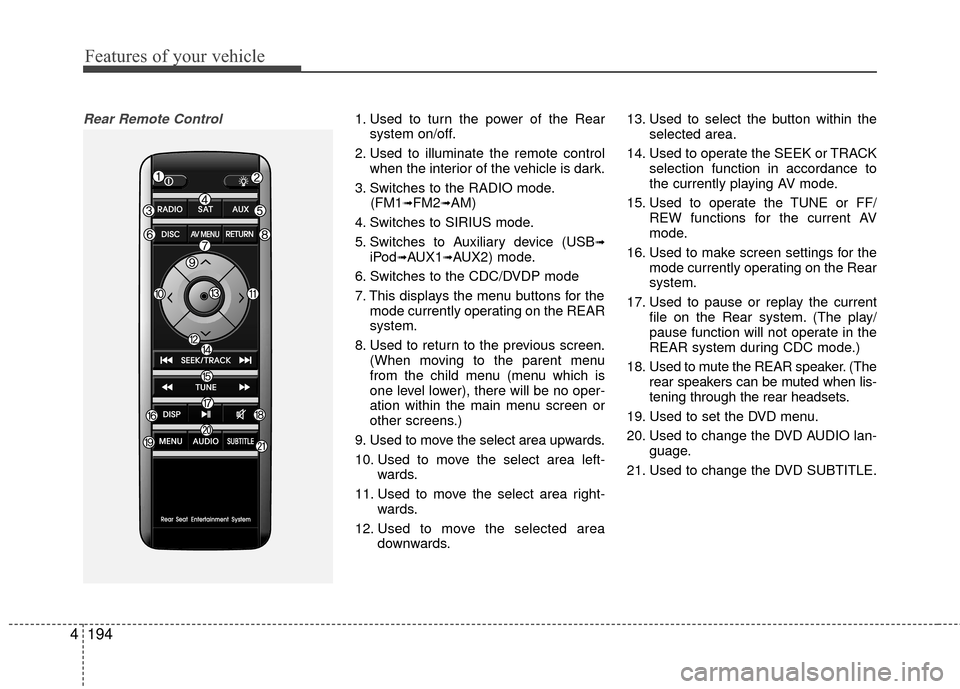
Rear Remote Control1. Used to turn the power of the Rear
system on/off.
2. Used to illuminate the remote control when the interior of the vehicle is dark.
3. Switches to the RADIO mode. (FM1
➟FM2➟AM)
4. Switches to SIRIUS mode.
5. Switches to Auxiliary device (USB
➟iPod➟AUX1➟AUX2) mode.
6. Switches to the CDC/DVDP mode
7. This displays the menu buttons for the mode currently operating on the REAR
system.
8. Used to return to the previous screen. (When moving to the parent menu
from the child menu (menu which is
one level lower), there will be no oper-
ation within the main menu screen or
other screens.)
9. Used to move the select area upwards.
10. Used to move the select area left- wards.
11. Used to move the select area right- wards.
12. Used to move the selected area downwards. 13. Used to select the button within the
selected area.
14. Used to operate the SEEK or TRACK selection function in accordance to
the currently playing AV mode.
15. Used to operate the TUNE or FF/ REW functions for the current AV
mode.
16. Used to make screen settings for the mode currently operating on the Rear
system.
17. Used to pause or replay the current file on the Rear system. (The play/
pause function will not operate in the
REAR system during CDC mode.)
18. Used to mute the REAR speaker. (The rear speakers can be muted when lis-
tening through the rear headsets.
19. Used to set the DVD menu.
20. Used to change the DVD AUDIO lan- guage.
21. Used to change the DVD SUBTITLE.
Page 275 of 464
![KIA Borrego 2011 1.G Owners Guide 4195
Features of your vehicle
Operating the Rear (RSE) System
Starting the System
1. Position the ignition key onto ACC orON.
2. If the [Push Power] button or the [PWR] button on the remote control is](/img/2/2922/w960_2922-274.png "KIA Borrego 2011 1.G Owners Guide 4195
Features of your vehicle
Operating the Rear (RSE) System
Starting the System
1. Position the ignition key onto ACC orON.
2. If the [Push Power] button or the [PWR] button on the remote control is")
4195
Features of your vehicle
Operating the Rear (RSE) System
Starting the System
1. Position the ignition key onto ACC orON.
2. If the [Push Power] button or the [PWR] button on the remote control is pressed,
the AV system will turn on and display
the most recently operated mode. (EX:
turning on the system will display FM1
radio mode if the last operated mode
prior to turning off the system had been
FM1 radio.)
Turning Off the System
1. If the [Push Power] button or the [PWR]button on the remote control is pressed
while the Rear system is operating, the
Rear AV system will stop operation and
turn off.
Methods of RSE System Operation
1. The Rear system is operated by usingthe 4-direction and [ENTER] key on
the Rear panel, 4-dreiction key and
[ENTER] key on the remote control
and the Back key.
Operating the REAR System
1. Press a button on the remote control todisplay a select area.
2. If the 4-direction key button on the remote control is pressed, the select
area will move in the direction of the
pressed button.
Move to the desired direction and
press the select key on the remote
control to select the current button.
3. If there are no operations for 10 sec- onds, the select area will disappear.
Re-pressing one of the 4-direction
keys will re-create the select area.
✽ ✽NOTICE
The 4-direction and ENT keys on the
REAR panel and the 4-direction and
ENT keys on the Remote control are
used to conduct the same functions.
Adjusting the Screen Settings for the
RSE (REAR) System
Adjusting the Video Screen Quality
1. Press the [DISP] button on the REAR panel or the Remote Control to display
the semi-transparent video mode
screen setting menu on the screen.
2. The 4-direction keys on the REAR panel or the Remote Control can be
used to make adjustments to the
brightness, saturation, color, contrast,
day/night modes, auto-light, screen
ratio, etc.
Page 277 of 464
![KIA Borrego 2011 1.G Owners Guide 4197
Features of your vehicle
FM/AM mode
Starting FM/AM mode by use of Rearpanel
1. Press the [MODE] button on the REAR panel to display a screen allowing the 6
modes of FM, AM, SIRIUS, CDC, AUX,
DV](/img/2/2922/w960_2922-276.png "KIA Borrego 2011 1.G Owners Guide 4197
Features of your vehicle
FM/AM mode
Starting FM/AM mode by use of Rearpanel
1. Press the [MODE] button on the REAR panel to display a screen allowing the 6
modes of FM, AM, SIRIUS, CDC, AUX,
DV")
4197
Features of your vehicle
FM/AM mode
Starting FM/AM mode by use of Rearpanel
1. Press the [MODE] button on the REAR panel to display a screen allowing the 6
modes of FM, AM, SIRIUS, CDC, AUX,
DVDP to be selected.
2. While in mode selection screen, use the 4-direction keys on the REAR panel
to move the select area and press the
key to select FM mode.
3. The FM1/FM2/AM mode screen will become displayed. Select the desired
broadcast station to begin listening.
Starting FM/AM mode by use of Rearremote control
1. When operating a different mode, pressing the [RADIO] key on the Rear
Remote Control will display the most
recently operated RADIO mode. In
addition, pressing the RADIO key will
change the mode in FM1
➟FM2➟AM➟FM1➟... order.
FM/AM mode menu screen configura-tion
1. Mode display
This will display the current mode.
FM1/FM2/AM
2. PRESET button
The station can be easily selected by
storing the desired frequency in advance.
3. TUNE button
The frequency/station is increased or
reduced incrementally.
4. SEEK button
The channel is automatically searched
through the SEEK function.
5. BAND button
The mode is changed in FM1
➟FM2➟AM➟FM1➟... order.
6. SCAN/SEEK display
This becomes displayed when the
SCAN/SEEK functions are operating.
(The RSE supports only the AUDIO
SCAN function.)
7. Station display
The station of the currently playing
broadcast is displayed.
Page 279 of 464
![KIA Borrego 2011 1.G Owners Guide 4199
Features of your vehicle
SIRIUS satellite radio mode
Starting SIRIUS mode by use of Rearpanel
1. Press the [MODE] button on the REAR panel to display a screen allowing the
6 modes of FM, AM, SIRI](/img/2/2922/w960_2922-278.png "KIA Borrego 2011 1.G Owners Guide 4199
Features of your vehicle
SIRIUS satellite radio mode
Starting SIRIUS mode by use of Rearpanel
1. Press the [MODE] button on the REAR panel to display a screen allowing the
6 modes of FM, AM, SIRI")
4199
Features of your vehicle
SIRIUS satellite radio mode
Starting SIRIUS mode by use of Rearpanel
1. Press the [MODE] button on the REAR panel to display a screen allowing the
6 modes of FM, AM, SIRIUS, CDC,
AUX, DVDP to be selected.
2. While in mode selection screen, use the 4-direction keys on the REAR
panel to move the cursor to SIRLUS
mode and press the joystick key to
enter SIRIUS mode.
3. The selected SIRIUS1/SIRIUS2/SIR- IUS3 mode screen will be displayed.
Select the desired broadcast station to
begin listening.
Starting SIRIUS mode by use of Rearremote control
1. When operating a different mode, pressing the [SIRIUS] key on the Rear
Remote Control will display the most
recently operated SIRIUS mode.
Pressing the SIRIUS key will change
the mode in SIRIUS1, SIRIUS2, SIR-
IUS3, SIRIUS1 order.
SIRIUS mode menu screen configura-tion
1. Mode display
This displays that the current mode is
SIRIUS1/SIRIUS2/SIRIUS3 mode.
2. PRESET button
The station can be easily selected by
storing the desired station in advance. 3. CHANNEL Search button
The channels within the category are
changed.
(All of the channels will be searched
when set to ALL Category. When in CAT
SEARCHING mode, search will be done
only for the current category.)
4. CATEGORY UP/DOWN Search but-
ton
This button will conduct a cyclic search of
the CATEGORY. The current channel will
be maintained during the search.
5. ENTER button
This button will change the channel to
the desired channel.
6. SAT button
The SIRIUS1/SIRIUS2/SIRIUS3 modes
are changed.
7. INFORMATION button
This button will display the INFORMA-
TION pop-up window for the current
broadcast.
8. SCAN button
This button scans the channels within the
current Category.
Page 281 of 464
![KIA Borrego 2011 1.G Owners Guide 4201
Features of your vehicle
CDC/rear DVDP mode
Starting CDC / DVDP mode by use ofRear panel
1. Press the [MODE] button on the REAR
panel to display the MODE selection
screen.
2. If the joystick loc](/img/2/2922/w960_2922-280.png "KIA Borrego 2011 1.G Owners Guide 4201
Features of your vehicle
CDC/rear DVDP mode
Starting CDC / DVDP mode by use ofRear panel
1. Press the [MODE] button on the REAR
panel to display the MODE selection
screen.
2. If the joystick loc")
4201
Features of your vehicle
CDC/rear DVDP mode
Starting CDC / DVDP mode by use ofRear panel
1. Press the [MODE] button on the REAR
panel to display the MODE selection
screen.
2. If the joystick located at the far right- side of the REAR panel is moved in
any direction, the cursor will highlight
the button of the most recently operat-
ed mode. (EX: The most recent RADIO
FM mode)
3. While in mode selection screen, use the 4-direction keys on the REAR panel
to move the cursor to CDC/DVDP mode
and press the joystick key.
4. If the CDC mode is selected, the DISC selection screen displaying the No. 1 ~
6 DISC will display. If the DVDP mode
is selected, the DISC already inserted
in the DVD PLAYER will begin playing. 5. When in CDC mode, use the 4-direction
joystick to move to the select area of the
desired DISC and press ENTER to
begin playing.
Starting CDC/DVDP mode by use ofRear remote control
1. When operating a different mode,
pressing the [DISC] key on the Rear
Remote Control will display the most
recently operated mode between CDC
mode and DVDP mode. In addition,
pressing the DISC key will change the
mode in CDC
➟DVDP➟CDC order.
2. When in CDC mode, use the 4-direc- tion joystick on the REAR panel to
move the cursor to the desired track of
the Disc and press the select button on
the remote control to begin playing.
✽ ✽ NOTICE
If there are no discs already inserted in
the CD Changer or the DVD player,
pressing the [DISC] key on the remote
control will not begin mode operation.