light KIA Borrego 2011 1.G Manual Online
[x] Cancel search | Manufacturer: KIA, Model Year: 2011, Model line: Borrego, Model: KIA Borrego 2011 1.GPages: 464, PDF Size: 12.57 MB
Page 236 of 464
![KIA Borrego 2011 1.G Manual Online Features of your vehicle
156
4
6. CAT/FOLDER Button
Press [CAT ] or [FOLDER ] but-
ton to enter the Category List Mode.
The display will indicate the category
items, highlight the category that the
c](/img/2/2922/w960_2922-235.png "KIA Borrego 2011 1.G Manual Online Features of your vehicle
156
4
6. CAT/FOLDER Button
Press [CAT ] or [FOLDER ] but-
ton to enter the Category List Mode.
The display will indicate the category
items, highlight the category that the
c")
Features of your vehicle
156
4
6. CAT/FOLDER Button
Press [CAT ] or [FOLDER ] but-
ton to enter the Category List Mode.
The display will indicate the category
items, highlight the category that the
current channel belongs to.
In the Category List Mode, press these buttons to navigate category list.
Press [ENTER] Button to select the lowest channel in highlighted category.
If channel is selected by selecting cat- egory "CATEGORY" Icon is displayed
at the top of the screen.
7. INFO Selection Button
Displays the information of the current
channel as below when the button is
pressed each time.
When default display is CAT/CHCategory/Channel
➟Artist/Title➟Composer (if available)➟ Category/
Channel ➟...
When default display is ART/TITLE Artist/Title
➟Category/Channel➟Composer(if available)➟Artist/Title➟...
✽ ✽ Troubleshooting
1. Antenna Error
If this message is displayed, the anten-
na or antenna cable is broken or
unplugged. Please consult with your
KIA dealership.
2. Acquiring Signal If this message is displayed, it means
that the antenna is covered and that
the SIRIUS Satellite Radio signal is
not available. Ensure the antenna is
uncovered and has a clear view of the
sky.
Page 256 of 464
![KIA Borrego 2011 1.G Manual Online Features of your vehicle
176
4
Using the Rear Seat
Entertainment (RSE)
1. DVD Chapter Selection Button
Press [TRACK ] button to play from
the beginning of current track.
Press [TRACK ] button again](/img/2/2922/w960_2922-255.png "KIA Borrego 2011 1.G Manual Online Features of your vehicle
176
4
Using the Rear Seat
Entertainment (RSE)
1. DVD Chapter Selection Button
Press [TRACK ] button to play from
the beginning of current track.
Press [TRACK ] button again")
Features of your vehicle
176
4
Using the Rear Seat
Entertainment (RSE)
1. DVD Chapter Selection Button
Press [TRACK ] button to play from
the beginning of current track.
Press [TRACK ] button again within 3 seconds to play the previous track.
Press [SEEK ] button for less than 0.8 second to play the next track.
2.DVD Title Selection Button
Press [FOLDER ] b utton to play the
previous track.
Press [CAT ] button to play the next
track.
3. RSE ON/OFF, LOCK/UNLOCK Button
When the RSE ON/OFF, LOCK/UNLOCK
button is pushed for less than 0.8 sec-
ond, the red color LED of the button will
light and RSE unit will be locked. If you
push button for more than 0.8 second,
the green color LED of the button will
light and RSE unit will turn on and [RSE]
will appear on the LCD.
4. DVD/AUX2 Selection Button
In the event there is a DVD inserted and
an auxiliary device is connected to the
RSE system, pressing the DVD/AUX2
button will switch between DVD and
AUX2 modes.
Page 262 of 464
![KIA Borrego 2011 1.G Manual Online Features of your vehicle
182
4
6. CAT/FOLDER Button
Press [CAT ] or [FOLDER ] but-
ton to enter the Category List Mode.
The display will indicate the category
items, highlight the category that the
c](/img/2/2922/w960_2922-261.png "KIA Borrego 2011 1.G Manual Online Features of your vehicle
182
4
6. CAT/FOLDER Button
Press [CAT ] or [FOLDER ] but-
ton to enter the Category List Mode.
The display will indicate the category
items, highlight the category that the
c")
Features of your vehicle
182
4
6. CAT/FOLDER Button
Press [CAT ] or [FOLDER ] but-
ton to enter the Category List Mode.
The display will indicate the category
items, highlight the category that the
current channel belongs to.
In the Category List Mode, press these buttons to navigate category list.
Press [ENTER] Button to select the lowest channel in highlighted category.
If channel is selected by selecting cat- egory "CATEGORY" Icon is displayed
at the top of the screen.
7. INFO Selection Button
Displays the information of the current
channel as below when the button is
pressed each time.
When default display is CAT/CHCategory/Channel
➟Artist/Title➟Composer (if available)➟ Category/
Channel ➟...
When default display is ART/TITLE Artist/Title
➟Category/Channel➟Composer(if available)➟Artist/Title➟...
✽ ✽ Troubleshooting
1. Antenna Error
If this message is displayed, the anten-
na or antenna cable is broken or
unplugged. Please consult with your
KIA dealership.
2. Acquiring Signal If this message is displayed, it means
that the antenna is covered and that
the SIRIUS Satellite Radio signal is
not available. Ensure the antenna is
uncovered and has a clear view of the
sky.
Page 272 of 464
Features of your vehicle
192
4
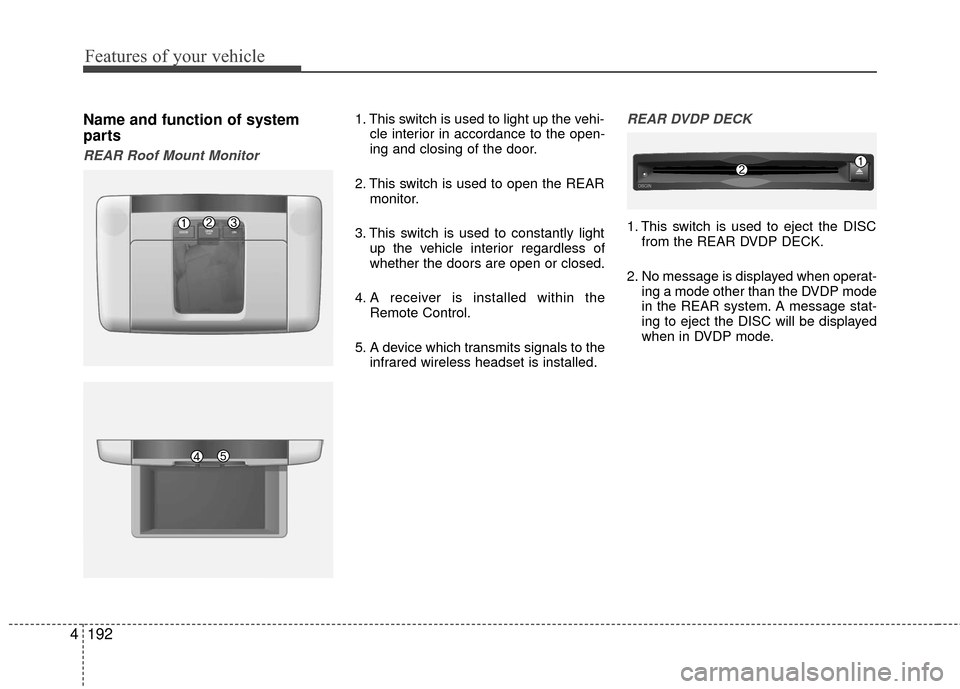
Name and function of system
parts
REAR Roof Mount Monitor
1. This switch is used to light up the vehi-
cle interior in accordance to the open-
ing and closing of the door.
2. This switch is used to open the REAR monitor.
3. This switch is used to constantly light up the vehicle interior regardless of
whether the doors are open or closed.
4. A receiver is installed within the Remote Control.
5. A device which transmits signals to the infrared wireless headset is installed.REAR DVDP DECK
1. This switch is used to eject the DISCfrom the REAR DVDP DECK.
2. No message is displayed when operat- ing a mode other than the DVDP mode
in the REAR system. A message stat-
ing to eject the DISC will be displayed
when in DVDP mode.
DISC -
IN
Page 275 of 464
![KIA Borrego 2011 1.G Manual Online 4195
Features of your vehicle
Operating the Rear (RSE) System
Starting the System
1. Position the ignition key onto ACC orON.
2. If the [Push Power] button or the [PWR] button on the remote control is](/img/2/2922/w960_2922-274.png "KIA Borrego 2011 1.G Manual Online 4195
Features of your vehicle
Operating the Rear (RSE) System
Starting the System
1. Position the ignition key onto ACC orON.
2. If the [Push Power] button or the [PWR] button on the remote control is")
4195
Features of your vehicle
Operating the Rear (RSE) System
Starting the System
1. Position the ignition key onto ACC orON.
2. If the [Push Power] button or the [PWR] button on the remote control is pressed,
the AV system will turn on and display
the most recently operated mode. (EX:
turning on the system will display FM1
radio mode if the last operated mode
prior to turning off the system had been
FM1 radio.)
Turning Off the System
1. If the [Push Power] button or the [PWR]button on the remote control is pressed
while the Rear system is operating, the
Rear AV system will stop operation and
turn off.
Methods of RSE System Operation
1. The Rear system is operated by usingthe 4-direction and [ENTER] key on
the Rear panel, 4-dreiction key and
[ENTER] key on the remote control
and the Back key.
Operating the REAR System
1. Press a button on the remote control todisplay a select area.
2. If the 4-direction key button on the remote control is pressed, the select
area will move in the direction of the
pressed button.
Move to the desired direction and
press the select key on the remote
control to select the current button.
3. If there are no operations for 10 sec- onds, the select area will disappear.
Re-pressing one of the 4-direction
keys will re-create the select area.
✽ ✽NOTICE
The 4-direction and ENT keys on the
REAR panel and the 4-direction and
ENT keys on the Remote control are
used to conduct the same functions.
Adjusting the Screen Settings for the
RSE (REAR) System
Adjusting the Video Screen Quality
1. Press the [DISP] button on the REAR panel or the Remote Control to display
the semi-transparent video mode
screen setting menu on the screen.
2. The 4-direction keys on the REAR panel or the Remote Control can be
used to make adjustments to the
brightness, saturation, color, contrast,
day/night modes, auto-light, screen
ratio, etc.
Page 276 of 464
![KIA Borrego 2011 1.G Manual Online Features of your vehicle
196
4
Adjusting the Non-Video Screen Quality
1. Press the [DISP] button on the REAR
panel or the remote control while non-
video mode is playing to display the
non-video mode](/img/2/2922/w960_2922-275.png "KIA Borrego 2011 1.G Manual Online Features of your vehicle
196
4
Adjusting the Non-Video Screen Quality
1. Press the [DISP] button on the REAR
panel or the remote control while non-
video mode is playing to display the
non-video mode")
Features of your vehicle
196
4
Adjusting the Non-Video Screen Quality
1. Press the [DISP] button on the REAR
panel or the remote control while non-
video mode is playing to display the
non-video mode screen setup menu.
2. Use the 4-direction keys on the REAR panel or the Remote Control to adjust
the brightness, day/night modes and
Auto Light function.
✽ ✽NOTICE
Upon selecting DAY LIGHT, the bright
screen is always maintained regardless
of the on/off state of the car taillights.
However, brightness may be set to 90%
in accordance to the external auto light
sensor.
Upon selecting AUTO LIGHT, the dis-
play is automatically brightened or
darkened in accordance to external
brightness.
Adjusting the Volume
1. Use the [PWR/VOLUME] button on the
REAR panel to adjust the sound vol-
ume in the rear of the vehicle.
2. When adjusting the sound volume, the volume level will be displayed as a
number on the Panel display and Roof
Mount monitor.
✽ ✽NOTICE
The volume for the REAR is controlled
in accordance to the volume level set for
the FRONT.
Although the volume for the REAR can
be set to a level lower than the FRONT,
it cannot be set to a volume level higher
than the FRONT as set through the
FRONT system.
Page 281 of 464
![KIA Borrego 2011 1.G Manual Online 4201
Features of your vehicle
CDC/rear DVDP mode
Starting CDC / DVDP mode by use ofRear panel
1. Press the [MODE] button on the REAR
panel to display the MODE selection
screen.
2. If the joystick loc](/img/2/2922/w960_2922-280.png "KIA Borrego 2011 1.G Manual Online 4201
Features of your vehicle
CDC/rear DVDP mode
Starting CDC / DVDP mode by use ofRear panel
1. Press the [MODE] button on the REAR
panel to display the MODE selection
screen.
2. If the joystick loc")
4201
Features of your vehicle
CDC/rear DVDP mode
Starting CDC / DVDP mode by use ofRear panel
1. Press the [MODE] button on the REAR
panel to display the MODE selection
screen.
2. If the joystick located at the far right- side of the REAR panel is moved in
any direction, the cursor will highlight
the button of the most recently operat-
ed mode. (EX: The most recent RADIO
FM mode)
3. While in mode selection screen, use the 4-direction keys on the REAR panel
to move the cursor to CDC/DVDP mode
and press the joystick key.
4. If the CDC mode is selected, the DISC selection screen displaying the No. 1 ~
6 DISC will display. If the DVDP mode
is selected, the DISC already inserted
in the DVD PLAYER will begin playing. 5. When in CDC mode, use the 4-direction
joystick to move to the select area of the
desired DISC and press ENTER to
begin playing.
Starting CDC/DVDP mode by use ofRear remote control
1. When operating a different mode,
pressing the [DISC] key on the Rear
Remote Control will display the most
recently operated mode between CDC
mode and DVDP mode. In addition,
pressing the DISC key will change the
mode in CDC
➟DVDP➟CDC order.
2. When in CDC mode, use the 4-direc- tion joystick on the REAR panel to
move the cursor to the desired track of
the Disc and press the select button on
the remote control to begin playing.
✽ ✽ NOTICE
If there are no discs already inserted in
the CD Changer or the DVD player,
pressing the [DISC] key on the remote
control will not begin mode operation.
Page 301 of 464
4221
Features of your vehicle
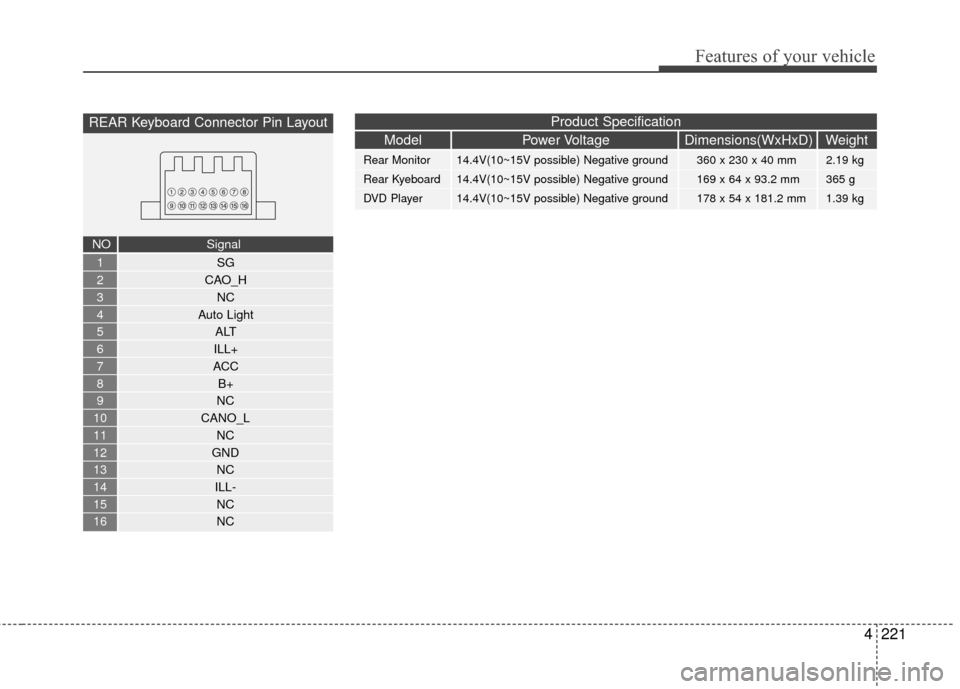
REAR Keyboard Connector Pin Layout
SG
CAO_H NC
Auto Light ALT
ILL+
ACC B+
NC
CANO_L NC
GND NC
ILL- NC
NC1
2
3
4
5
6
7
8
9
10
11
12
13
14
15
16
NO Signal
Model Power Voltage Dimensions(WxHxD) Weight
Rear Monitor 14.4V(10~15V possible) Negative ground 360 x 230 x 40 mm 2.19 kg
Rear Kyeboard 14.4V(10~15V possible) Negative ground 169 x 64 x 93.2 mm 365 g
DVD Player 14.4V(10~15V possible) Negative ground 178 x 54 x 181.2 mm 1.39 kg
Product Specification
Page 304 of 464
53
Driving your vehicle
E020100AUN
Before entering vehicle
• Be sure that all windows, outside mir-ror(s), and outside lights are clean.
Check the condition of the tires.
Check under the vehicle for any sign of leaks.
Be sure there are no obstacles behind you if you intend to back up.
E020200BUN
Necessary inspections
Fluid levels, such as engine oil, engine
coolant, brake fluid, and washer fluid
should be checked on a regular basis,
with the exact interval depending on the
fluid. Further details are provided in sec-
tion 7, “Maintenance”.
E020300BUN
Before starting
Close and lock all doors.
Position the seat so that all controls areeasily reached.
Adjust the inside and outside rearview mirrors.
Be sure that all lights work.
Check all gauges.
Check the operation of warning lights when the ignition switch is turned to
the ON position.
Release the parking brake and make sure the brake warning light goes out.
For safe operation, be sure you are famil-
iar with your vehicle and its equipment.
BEFORE DRIVING
WARNING
All passengers must be properly
belted whenever the vehicle is mov-
ing. Refer to “Seat belts” in section
3 for more information on their
proper use.
WARNING
Always check the surrounding
areas near your vehicle for people,
especially children, before putting a
car into D (Drive) or R (Reverse).
WARNING
Driving while distracted can result
in a loss of vehicle control, that
may lead to an accident, severe
personal injury, and death. The dri-
ver’s primary responsibility is in
the safe and legal operation of a
vehicle, and use of any handheld
devices, other equipment, or vehi-
cle systems which take the driver’s
eyes, attention and focus away
from the safe operation of a vehicle
or which are not permissible by law
should never be used during oper-
ation of the vehicle.
Page 305 of 464
Driving your vehicle
45
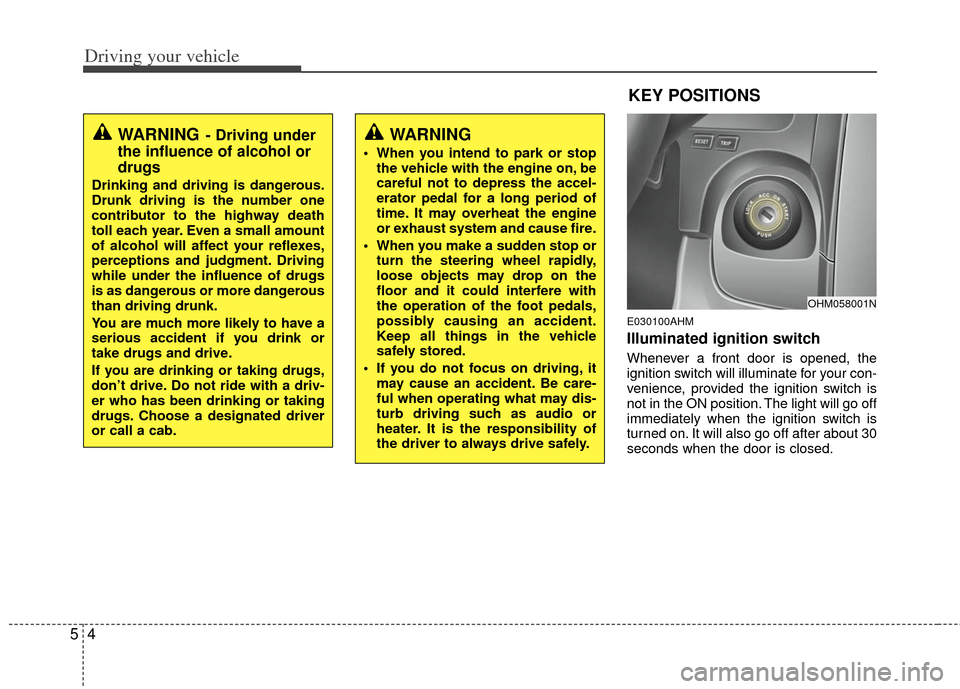
E030100AHM
Illuminated ignition switch
Whenever a front door is opened, the
ignition switch will illuminate for your con-
venience, provided the ignition switch is
not in the ON position. The light will go off
immediately when the ignition switch is
turned on. It will also go off after about 30
seconds when the door is closed.
OHM058001N
WARNING- Driving under
the influence of alcohol or
drugs
Drinking and driving is dangerous.
Drunk driving is the number one
contributor to the highway death
toll each year. Even a small amount
of alcohol will affect your reflexes,
perceptions and judgment. Driving
while under the influence of drugs
is as dangerous or more dangerous
than driving drunk.
You are much more likely to have a
serious accident if you drink or
take drugs and drive.
If you are drinking or taking drugs,
don’t drive. Do not ride with a driv-
er who has been drinking or taking
drugs. Choose a designated driver
or call a cab.
WARNING
When you intend to park or stop
the vehicle with the engine on, be
careful not to depress the accel-
erator pedal for a long period of
time. It may overheat the engine
or exhaust system and cause fire.
When you make a sudden stop or turn the steering wheel rapidly,
loose objects may drop on the
floor and it could interfere with
the operation of the foot pedals,
possibly causing an accident.
Keep all things in the vehicle
safely stored.
If you do not focus on driving, it may cause an accident. Be care-
ful when operating what may dis-
turb driving such as audio or
heater. It is the responsibility of
the driver to always drive safely.
KEY POSITIONS