warning KIA CADENZA 2019 Features and Functions Guide
[x] Cancel search | Manufacturer: KIA, Model Year: 2019, Model line: CADENZA, Model: KIA CADENZA 2019Pages: 54, PDF Size: 4.36 MB
Page 14 of 54
CADENZA FEATURES & FUNCTIONS GUIDE12*IF EQUIPPED †LEGAL DISCL AIMERS ON BACK INSIDE COVER
Lane Keeping Assist (LKA)*†6
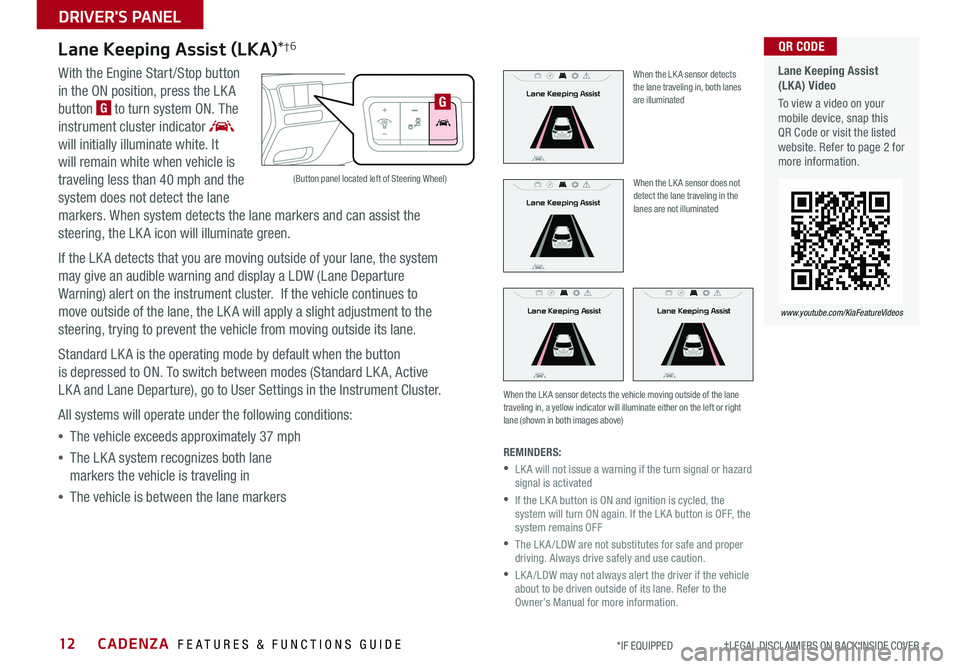
With the Engine Start /Stop button
in the ON position, press the LK A
button G to turn system ON The
instrument cluster indicator
will initially illuminate white It
will remain white when vehicle is
traveling less than 40 mph and the
system does not detect the lane
markers When system detects the lane markers and can assist the
steering, the LK A icon will illuminate green
If the LK A detects that you are moving outside of your lane, the system
may give an audible warning and display a LDW (Lane Departure
Warning) alert on the instrument cluster If the vehicle continues to
move outside of the lane, the LK A will apply a slight adjustment to the
steering, trying to prevent the vehicle from moving outside its lane
Standard LK A is the operating mode by default when the button
is depressed to ON To switch between modes (Standard LK A, Active
LK A and Lane Departure), go to User Settings in the Instrument Cluster
All systems will operate under the following conditions:
•The vehicle exceeds approximately 37 mph
•The LK A system recognizes both lane
markers the vehicle is traveling in
•The vehicle is between the lane markers
When the LK A sensor does not detect the lane traveling in the lanes are not illuminated
When the LK A sensor detects the vehicle moving outside of the lane traveling in, a yellow indicator will illuminate either on the left or right lane (shown in both images above)
Lane Keeping AssistLane Keeping Assist
Lane Keeping Assist
Lane Keeping Assist
Lane Keeping Assist
Lane Keeping Assist
Lane Keeping AssistLane Keeping Assist
Lane Keeping AssistLane Keeping Assist
Lane Keeping Assist
Lane Keeping Assist
Lane Keeping Assist
Lane Keeping Assist
Lane Keeping AssistLane Keeping Assist
When the LK A sensor detects the lane traveling in, both lanes are illuminated
REMINDERS:
•
LK A will not issue a warning if the turn signal or hazard signal is activated
•
If the LK A button is ON and ignition is cycled, the system will turn ON again If the LK A button is OFF, the system remains OFF
•
The LK A /LDW are not substitutes for safe and proper driving Always drive safely and use caution
•
LK A /LDW may not always alert the driver if the vehicle about to be driven outside of its lane Refer to the Owner’s Manual for more information
Lane Keeping Assist (LKA) Video
To view a video on your mobile device, snap this QR Code or visit the listed website Refer to page 2 for more information
QR CODE
www.youtube.com/KiaFeatureVideos
(Button panel located left of Steering Wheel)
G
DRIVER'S PANEL
Page 15 of 54

13ALWAYS CHECK THE OWNER’S MANUAL FOR COMPLETE OPER ATING INFORMATION AND SAFET Y WARNINGS *IF EQUIPPED
Forward Collision-Avoidance Assist (FCA) / Forward Collision Warning (FCW)†9
The FCA is designed to alert the driver, and if necessary apply emergency braking, when rapidly approaching a vehicle that is
slowing down, braking or stopped
Initially, the Forward Collision Warning (FCW ) will provide a warning when it detects a potential collision with a vehicle in front
emitting an audible warning and visual alert on the instrument cluster Adjust the alert settings (Early, Normal, Late) in the User
Settings To turn the FCA /FCW off, go to User Settings again and turn off
If the collision risk increases, the Forward Collision-Avoidance Assist (FCA) automatically applies the brakes to reduce your
speed, helping to minimize the effects of a possible collision
FCA can be turned ON in the User Settings menu on the Instrument Cluster display The FCA /FCW will become active when the:
• Engine Start /Stop button is ON• Vehicle is traveling more than 5 mph • Electronic Stability Control (ESC) is ON
Adjust the alert settings (Early, Normal, Late) in the User Settings To turn the
FCA /FCW off, go to User Settings again and turn off
REMINDERS:
• The FCA /FCW will be activated by default when the ignition is cycled ON, even when previous setting to OFF
• The FCA /FCW will not operate when the vehicle is traveling more than approximately 50 mph
The Forward Collision-Avoidance Assist (FCA)* / Forward Collision Warning System (FCWS) are not substitutes for safe and proper driving. Always drive safely and use caution. FCA and FCW may not always alert the driver when the vehicle is approaching another vehicle.
Power Windows, Window Lock & Central Door Lock
A Pull/Press to operate Driver’s & Passenger's Window Auto Up/Down*
B Press to Unlock /Lock All Doors
C Press to disable Rear Passenger Windows and Rear Sunroof
passenger controls
REMINDER: When pressed C, window controls for the Rear Passenger Windows are disabled
Press button again to stop Auto Up/Down function
QUICK TIP
(Button/switch panel located on Driver's Door )
A
BC
Forward Collision Warning Video
To view a video on your mobile device, snap this QR Code or visit the listed website
Refer to page 2 for more information
QR CODE
www.youtube.com/KiaFeatureVideos
Button configuration may vary depending on vehicle model.
DRIVER'S PANEL
Page 17 of 54
15ALWAYS CHECK THE OWNER’S MANUAL FOR COMPLETE OPER ATING INFORMATION AND SAFET Y WARNINGS *IF EQUIPPED †LEGAL DISCL AIMERS ON BACK INSIDE COVER
Engine Start/Stop Button & Smart Key Video
To view a video on your mobile device, snap this QR Code or visit the listed website
Refer to page 2 for more information
QR CODE
www.youtube.com/KiaFeatureVideos
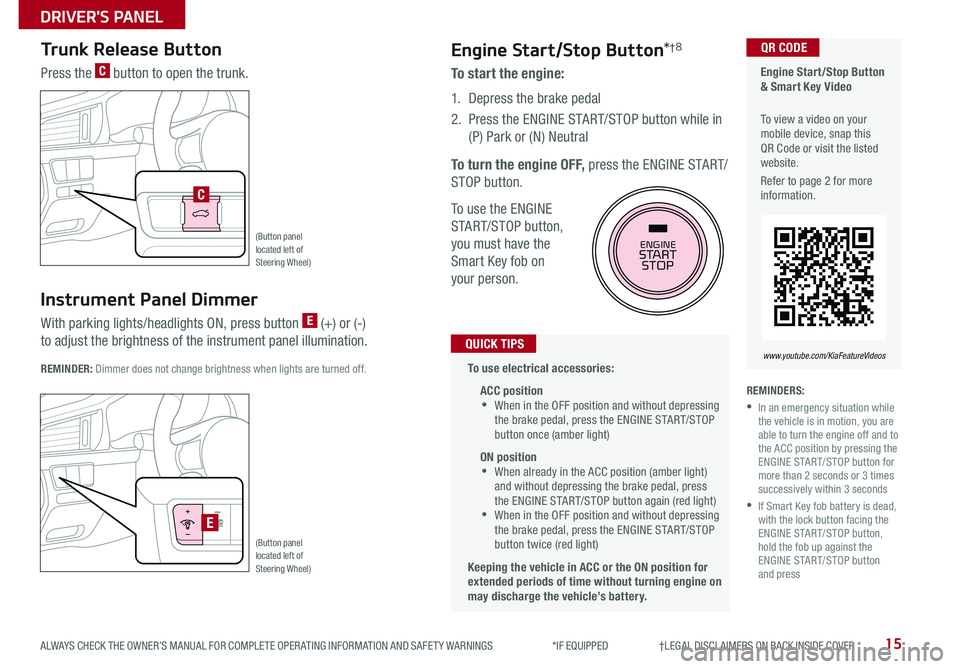
(Button panel located left of Steering Wheel)
(Button panel located left of Steering Wheel)
E
C
REMINDERS:
•
In an emergency situation while the vehicle is in motion, you are able to turn the engine off and to the ACC position by pressing the ENGINE START/STOP button for more than 2 seconds or 3 times successively within 3 seconds
•
If Smart Key fob battery is dead, with the lock button facing the ENGINE START/STOP button, hold the fob up against the ENGINE START/STOP button and press
Instrument Panel Dimmer
With parking lights/headlights ON, press button E (+) or (-)
to adjust the brightness of the instrument panel illumination REMINDER: Dimmer does not change brightness when lights are turned off
Trunk Release Button
Press the C button to open the trunk
Engine Start/Stop Button*†8
To start the engine:
1 Depress the brake pedal
2
Press the ENGINE START/STOP button while in
(P) Park or (N) Neutral
To turn the engine OFF, press the ENGINE START/
STOP button
To use the ENGINE
START/STOP button,
you must have the
Smart Key fob on
your person
To use electrical accessories:
ACC position •When in the OFF position and without depressing the brake pedal, press the ENGINE START/STOP button once (amber light)
ON position •When already in the ACC position (amber light) and without depressing the brake pedal, press the ENGINE START/STOP button again (red light) •
When in the OFF position and without depressing the brake pedal, press the ENGINE START/STOP button twice (red light)
Keeping the vehicle in ACC or the ON position for extended periods of time without turning engine on may discharge the vehicle’s battery.
QUICK TIPS
ENGINESTART
STOP
DRIVER'S PANEL
Page 19 of 54
17ALWAYS CHECK THE OWNER’S MANUAL FOR COMPLETE OPER ATING INFORMATION AND SAFET Y WARNINGS *IF EQUIPPED
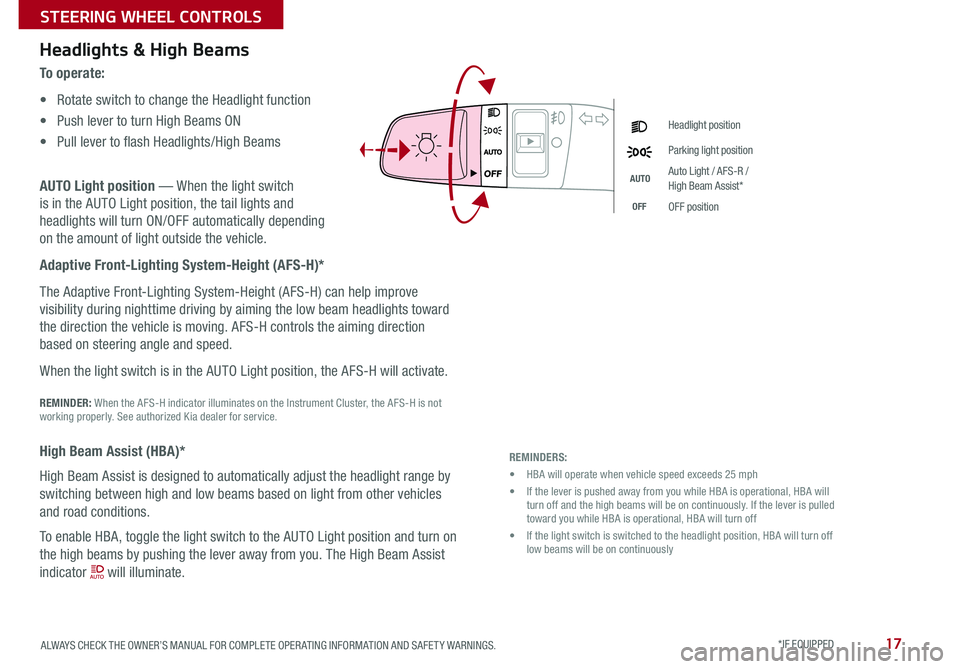
Headlight position
Parking light position
AUTOAuto Light / AFS-R / High Beam Assist*
OFFOFF position
REMINDERS:
• HBA will operate when vehicle speed exceeds 25 mph
• If the lever is pushed away from you while HBA is operational, HBA will turn off and the high beams will be on continuously If the lever is pulled toward you while HBA is operational, HBA will turn off
• If the light switch is switched to the headlight position, HBA will turn off low beams will be on continuously
Headlights & High Beams
To o p e r a t e :
• Rotate switch to change the Headlight function
• Push lever to turn High Beams ON
• Pull lever to flash Headlights/High Beams
AUTO Light position — When the light switch
is in the AUTO Light position, the tail lights and
headlights will turn ON/OFF automatically depending
on the amount of light outside the vehicle
Adaptive Front-Lighting System-Height (AFS-H)*
The Adaptive Front-Lighting System-Height (AFS-H) can help improve
visibility during nighttime driving by aiming the low beam headlights toward
the direction the vehicle is moving AFS-H controls the aiming direction
based on steering angle and speed
When the light switch is in the AUTO Light position, the AFS-H will activate
REMINDER: When the AFS-H indicator illuminates on the Instrument Cluster, the AFS-H is not working properly See authorized Kia dealer for service
High Beam Assist (HBA)*
High Beam Assist is designed to automatically adjust the headlight range by
switching between high and low beams based on light from other vehicles
and road conditions
To enable HBA, toggle the light switch to the AUTO Light position and turn on
the high beams by pushing the lever away from you The High Beam Assist
indicator will illuminate
STEERING WHEEL CONTROLS
Page 21 of 54

19
M I S T: Single wipe
OFF: Wiper off
AUTO: Auto Control* wipe
LO: Slow wipe
HI: Fast wipe
FRONTA
B
Windshield Wipers & Washers
To o p e r a t e :
• Move lever Up/Down to change Wiper modes
• Press button A to adjust intermittent Wipe
• Pull lever to spray and wipe
Auto Control (Rain Sensing)*
The rain sensor located on the upper end of the windshield
glass is designed to sense the amount of rainfall and controls
the wiping cycle for the proper interval The more it rains, the
faster the wiper operates When the rain stops, the wiper stops
To adjust the Auto Rain Sensing speed setting, move the speed
control switch A up/down
Wiper Service Mode:
To inspect or replace the windshield wiper blades to prevent damaging the hood, the
blades need to be moved to the service position A
With the ignition ON, then turning the ignition OFF, within 20 seconds move the wiper
switch to the MIST position B and hold the switch for more than two seconds until the
wiper blade is in the fully up position
To return wipers to normal position, turn the ignition ON, then activate MIST
•With the ENGINE START/STOP button in the ON position and the wiper switch is in AUTO mode, the wiper will operate once to perform a self-check of the system •Moving lever to HI increases Intermittent wipe frequency and wipe speed Moving lever to LO decreases frequency of wipes •When in AUTO mode, pressing button A up increases Intermittent wipe frequency and wipe speed Pressing button down decreases frequency of wipes •Set the wiper to OFF position when the wiper is not in use
QUICK TIPS
ALWAYS CHECK THE OWNER’S MANUAL FOR COMPLETE OPER ATING INFORMATION AND SAFET Y WARNINGS. *IF EQUIPPED
STEERING WHEEL CONTROLS
Page 23 of 54
21ALWAYS CHECK THE OWNER’S MANUAL FOR COMPLETE OPER ATING INFORMATION AND SAFET Y WARNINGS *IF EQUIPPED †LEGAL DISCL AIMERS ON BACK INSIDE COVER
Voice Recognition Tips Video* To view a video on your mobile device, snap this QR Code or visit the listed website
Refer to page 2 for more information
QR CODE
www.youtube.com/KiaFeatureVideos
Voice Recognition and Phone Contact Tips
To help optimize the Bluetooth® Wireless
Technology Voice Recognition system, below
are some tips and reminders Improve the
performance by making a few simple changes to
your phone contacts:
•Use full names (first and last names) vs short
or single-syllable names (“John Smith” vs
“Dad," “Smith Residence” vs “Home”)
•Avoid using special characters, emoji’s or
hyphenated names (@, &, #, /, -, *, +, etc )
•Avoid using acronyms (“In Case of
Emergency” vs “ICE”) or words with all
capital letters
•Spell words completely, no abbreviations
(“Doctor Smith” vs “Dr Smith”)
The system may have difficulty understanding
some accents or uncommon names Below are
other tips to optimize using the voice recognition
• When placing a call, speak in a natural, moderate tone, with clear pronunciation The system may have trouble recognizing commands if you speak too soft or too loud
• Always wait for the beep before speaking any commands
• Close windows and sunroof and turn off A /C - Open windows, sunroof, weather (wind/rain), or an A /C fan operating at higher speeds can interfere with Voice Recognition
• Press the talk button and say “Help” to get a list of available commands
QUICK TIPS
Bluetooth® Wireless Technology*†5,24 (continued)
Pairing a Phone
For instructions on how to pair a phone, refer to the Car Multimedia
System User's Manual or your vehicle’s Quick Start Guide
How to Place a Call
When using the voice command feature, wait for the system BEEP
before speaking the command
There are two options for placing a call:
•O p t i o n 1: Press the Receive/Place Call button C (displays
the keypad or call history)
•Option 2: Press the Talk button A Then say the command
“Call {name}” or “Dial {number}”, followed by contact name
or number
During the pairing process, be sure to accept the connection requests on the phone for phonebook download and to allow acceptance of all future Bluetooth® connection requests
QUICK TIP
STEERING WHEEL CONTROLS
Page 25 of 54

23ALWAYS CHECK THE OWNER’S MANUAL FOR COMPLETE OPER ATING INFORMATION AND SAFET Y WARNINGS *IF EQUIPPED †LEGAL DISCL AIMERS ON BACK INSIDE COVER
CANCELCRUISERES
SET
VOL
VOL
MUTEMODE
CANCELCRUISERES
SET
VOL
VOL
MUTEMODE
CANCELCRUISERES
SETVOLVOL
MUTEMODE
CANCELCRUISERES
SET
VOL
VOL
MUTEMODE
CANCELCRUISERES
SET
VOL
VOL
MUTEMODE
CANCELCRUISERES
SETVOLVOL
MUTEMODE
A
CB
D
E
F
(Type A shown)
Audio Controls†24Cruise Control†24
A Audio MODE button: Press to cycle through FM/AM/SiriusXM®/Media
Modes
B Seek/Preset button:
FM/AM/SiriusXM® – Press up/down to advance through Preset Stations
Press and hold to auto seek
Media Modes – Press up/down to move track up/down
Press and hold to fast forward / rewind
C Volume buttons: Press to raise/lower volume
Mute button: Press to mute all audio
D CRUISE Control ON/OFF button: Press to turn the Cruise Control ON/OFF
E Resume Cruising Speed button: Press up to resume preset speed or
increase cruising speed
Set Cruising Speed button: Press down to set or decrease cruising speed
F Cruise Control CANCEL button: To cancel Cruise Control setting, do one
of the following:
•Press the brake pedal
•Press the CANCEL button
Pressing the Audio System MODE button for more than 1 second will turn Audio Mode ON/OFF
QUICK TIP
Your vehicle’s steering wheel buttons may differ from those in the illustrations. See your Owner’s Manual for more details.
Driving while distracted is dangerous and should be avoided. Drivers should remain attentive to driving and always exercise caution when using the steering-wheel-mounted controls while driving. For further audio system operations, refer to pages 24-26.
•Cruise Control is designed to function above 25 mph •The Cruise Control system will not activate until the brake pedal has been depressed at least once after ignition ON or engine start
QUICK TIPS
REMINDER: Cruise Control is a part of Smart Cruise Control (SCC) with Stop & Go and can be set as the operating mode To switch from SCC to Cruise Control, press and hold the CRUISE button (the SCC system must not be activated to change modes) Repeat to switch back to SCC mode
STEERING WHEEL CONTROLS
Page 27 of 54
ALWAYS CHECK THE OWNER’S MANUAL FOR COMPLETE OPER ATING INFORMATION AND SAFET Y WARNINGS *IF EQUIPPED †LEGAL DISCL AIMERS ON BACK INSIDE COVER25
UVO eServices Video
To view a video on your mobile device, snap this QR Code or visit the listed website Refer to page 2 for more information
QR CODE
www.youtube.com/KiaFeatureVideos
UVO eServices*†1
FM/AM/SiriusXM®†2 2/Media (USB, iPod®†1 4, Aux, Bluetooth® Audio, My Music)
•Navigation may be available when connected to Android Auto or Apple CarPlay supported smartphones
•When using the voice command feature, wait for the system to BEEP before speaking the command
•At any time, you can interrupt Command Feedback by pressing the TALK button
•Prolonged use of the audio control unit in ACC mode may drain the vehicle’s battery
•A warning screen may appear periodically to remind users that the UVO eServices should be operated when the engine is running to prevent battery discharge
QUICK TIPS
REMINDER: Driving while distracted is dangerous and should be avoided Drivers should remain attentive to driving and always exercise caution when using the steering wheel-mounted controls while driving To help minimize driver distraction, some audio system functionalities have been modified while the vehicle is in Drive, Reverse or moved out of Park
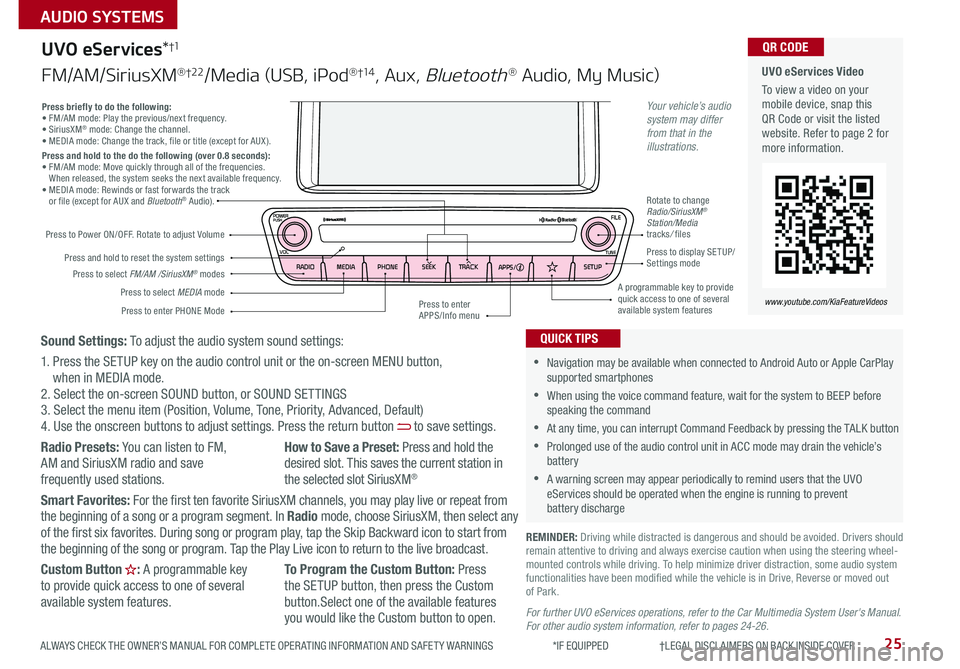
Press to Power ON/OFF Rotate to adjust Volume
Press to enter PHONE Mode
Press to select FM/AM /SiriusXM® modes
Press to select MEDIA mode
Press to display SE TUP/Settings mode
Press briefly to do the following:• FM/AM mode: Play the previous/next frequency • SiriusXM® mode: Change the channel • MEDIA mode: Change the track, file or title (except for AUX ) Press and hold to the do the following (over 0.8 seconds):• FM/AM mode: Move quickly through all of the frequencies When released, the system seeks the next available frequency • MEDIA mode: Rewinds or fast forwards the track or file (except for AUX and Bluetooth® Audio)
Press to enter APPS/Info menu
A programmable key to provide quick access to one of several available system features
Rotate to change Radio/SiriusXM® Station/Media tracks/ files
Press and hold to reset the system settings
CD-INDISP
PWRPUSH
VOL TUNE
FILE
DEST
SEEK TRACK
MEDIA
FM/AM
PHONE S AT
MAP
VOICE
ROUTEMAP
CD-INDISP
PWRPUSH
VOL TUNE
FILE
DEST
SEEK TRACK
MEDIA
FM/AM
PHONE S AT
UVO
ROUTE
N AV
UVOCD-IN
DISP
PWRPUSH
VOL TUNE
FILE
TUNE
DEST
SEEK
TRACK MAP
VOICE N
AV SETUP
SEEK
MEDIA
RADIO
MEDIA
FM/AM
PHONE S AT
MAP
VOICE
ROUTE
MAP
CD-INDISP
PWRPUSH
VOL TUNE
FILE
DEST
SEEK TRACK
MEDIA
FM/AM
PHONE S AT
UVO
ROUTE
VOL
POWER
PUSH
FILE
TUNETRACK
SETUP
SEEK
MEDIA PHONE
RADIOVOL
POWERPUSHB luetooth®
N AV
UVO
APPS/
Sound Settings: To adjust the audio system sound settings:
1 Press the SETUP key on the audio control unit or the on-screen MENU button, when in MEDIA mode 2 Select the on-screen SOUND button, or SOUND SET TINGS3 Select the menu item (Position, Volume, Tone, Priority, Advanced, Default)4 Use the onscreen buttons to adjust settings Press the return button to save settings
Radio Presets: You can listen to FM, AM and SiriusXM radio and save frequently used stations
How to Save a Preset: Press and hold the desired slot This saves the current station in the selected slot SiriusXM®
Smart Favorites: For the first ten favorite SiriusXM channels, you may play live or repeat from the beginning of a song or a program segment In Radio mode, choose SiriusXM, then select any of the first six favorites During song or program play, tap the Skip Backward icon to start from the beginning of the song or program Tap the Play Live icon to return to the live broadcast
Custom Button : A programmable key to provide quick access to one of several available system features
To Program the Custom Button: Press the SETUP button, then press the Custom button Select one of the available features you would like the Custom button to open For further UVO eServices operations, refer to the Car Multimedia System User's Manual. For other audio system information, refer to pages 24-26.
Your vehicle’s audio system may differ from that in the illustrations.
AUDIO SYSTEMS
Page 28 of 54
CADENZA FEATURES & FUNCTIONS GUIDE26*IF EQUIPPED †LEGAL DISCL AIMERS ON BACK INSIDE COVER
CD-INDISP
PWRPUSH
VOLTUNE
FILE
DEST
SEEK TRACK
MEDIA
FM/AM
PHONE S AT
MAP
VOICE
ROUTEMAP
CD-INDISP
PWRPUSH
VOL TUNE
FILE
DEST
SEEK TRACK
MEDIA
FM/AM
PHONE S AT
UVO
ROUTE
N AV
UVO
FILE
TUNE
VOL
TRACKMAPSEEK
MEDIA
RADIO
POWERPUSHN AV SETUP
UVO eServices with Premium Navigation Video
To view a video on your mobile device, snap this QR Code or visit the listed website
Refer to page 2 for more information
QR CODE
www.youtube.com/KiaFeatureVideos
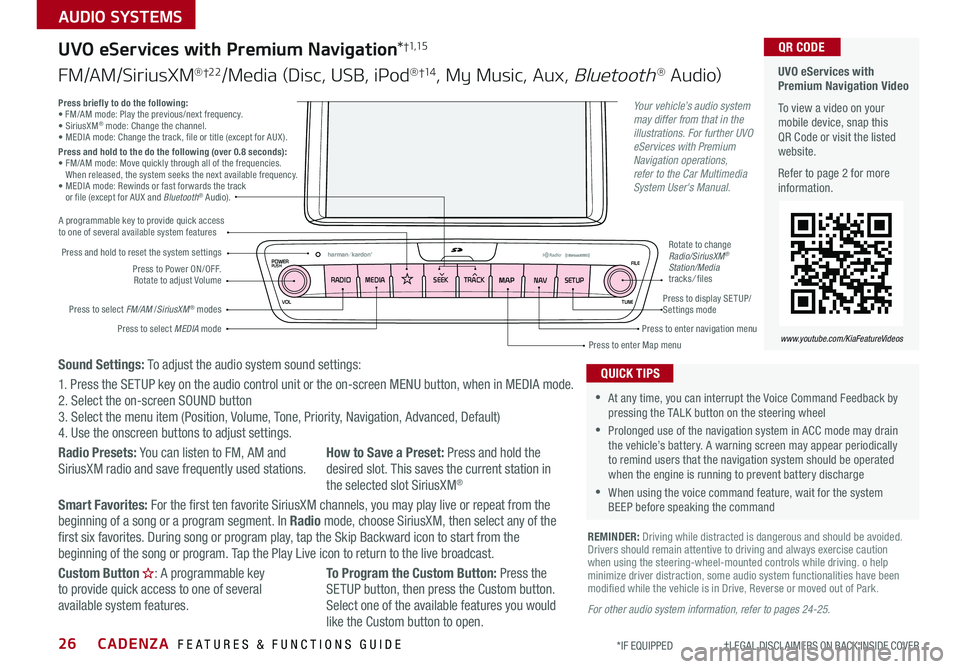
Press to Power ON/OFF Rotate to adjust Volume
A programmable key to provide quick access to one of several available system features
Press to enter Map menu
Press to select FM/AM /SiriusXM® modes
Press and hold to reset the system settings
Press to select MEDIA mode
Press to display SE TUP/ Settings mode
Press to enter navigation menu
Rotate to change Radio/SiriusXM® Station/Media tracks/ files
UVO eServices with Premium Navigation*†1,15
FM/AM/SiriusXM®†2 2/Media (Disc, USB, iPod®†1 4, My Music, Aux, Bluetooth® Au d io)
For other audio system information, refer to pages 24-25.
Press briefly to do the following:• FM/AM mode: Play the previous/next frequency • SiriusXM® mode: Change the channel • MEDIA mode: Change the track, file or title (except for AUX ) Press and hold to the do the following (over 0.8 seconds):• FM/AM mode: Move quickly through all of the frequencies When released, the system seeks the next available frequency • MEDIA mode: Rewinds or fast forwards the track or file (except for AUX and Bluetooth® Audio)
Your vehicle’s audio system may differ from that in the illustrations. For further UVO eServices with Premium Navigation operations, refer to the Car Multimedia System User's Manual.
Sound Settings: To adjust the audio system sound settings:
1 Press the SETUP key on the audio control unit or the on-screen MENU button, when in MEDIA mode 2 Select the on-screen SOUND button 3 Select the menu item (Position, Volume, Tone, Priority, Navigation, Advanced, Default)4 Use the onscreen buttons to adjust settings
Radio Presets: You can listen to FM, AM and SiriusXM radio and save frequently used stations How to Save a Preset: Press and hold the desired slot This saves the current station in the selected slot SiriusXM®
Smart Favorites: For the first ten favorite SiriusXM channels, you may play live or repeat from the beginning of a song or a program segment In Radio mode, choose SiriusXM, then select any of the first six favorites During song or program play, tap the Skip Backward icon to start from the beginning of the song or program Tap the Play Live icon to return to the live broadcast
Custom Button : A programmable key to provide quick access to one of several available system features
To Program the Custom Button: Press the SETUP button, then press the Custom button Select one of the available features you would like the Custom button to open
REMINDER: Driving while distracted is dangerous and should be avoided Drivers should remain attentive to driving and always exercise caution when using the steering-wheel-mounted controls while driving o help minimize driver distraction, some audio system functionalities have been modified while the vehicle is in Drive, Reverse or moved out of Park
•At any time, you can interrupt the Voice Command Feedback by pressing the TALK button on the steering wheel
•Prolonged use of the navigation system in ACC mode may drain the vehicle’s battery A warning screen may appear periodically to remind users that the navigation system should be operated when the engine is running to prevent battery discharge
•When using the voice command feature, wait for the system BEEP before speaking the command
QUICK TIPS
AUDIO SYSTEMS
Page 29 of 54
27ALWAYS CHECK THE OWNER’S MANUAL FOR COMPLETE OPER ATING INFORMATION AND SAFET Y WARNINGS *IF EQUIPPED †LEGAL DISCL AIMERS ON BACK INSIDE COVER
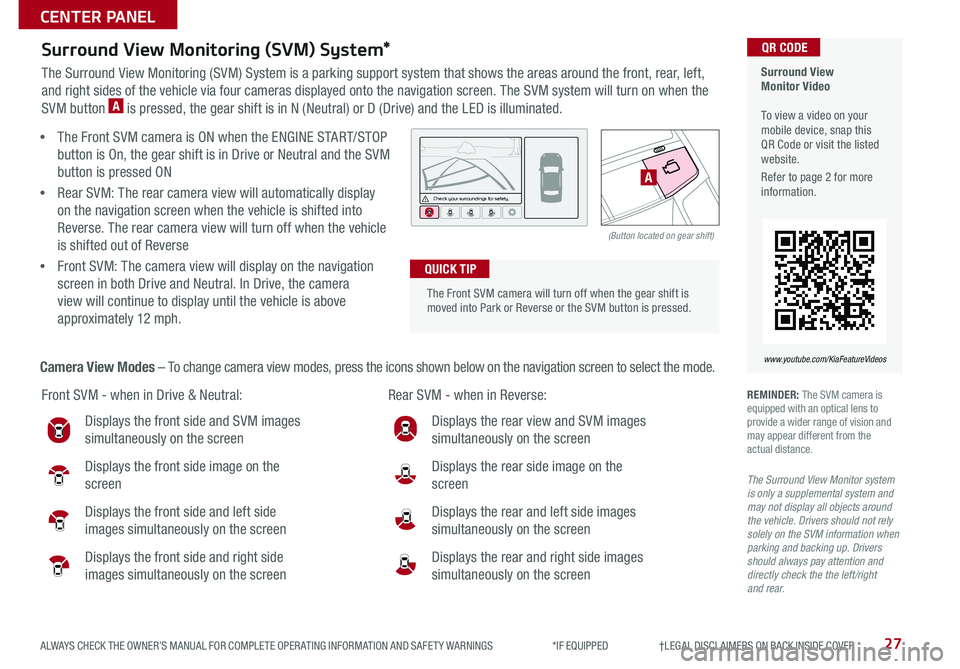
Front SVM - when in Drive & Neutral: Rear SVM - when in Reverse:
Displays the front side and SVM images
simultaneously on the screen
Displays the front side image on the
screen
Displays the front side and left side
images simultaneously on the screen
Displays the front side and right side
images simultaneously on the screen
Displays the rear view and SVM images
simultaneously on the screen
Displays the rear side image on the
screen
Displays the rear and left side images
simultaneously on the screen
Displays the rear and right side images
simultaneously on the screen
The Front SVM camera will turn off when the gear shift is moved into Park or Reverse or the SVM button is pressed
QUICK TIP
Check yo ur sur roun dings for safety.
(Button located on gear shift)
A
Surround View Monitor Video To view a video on your mobile device, snap this QR Code or visit the listed website
Refer to page 2 for more information
QR CODE
www.youtube.com/KiaFeatureVideos
Surround View Monitoring (SVM) System*
The Surround View Monitoring (SVM) System is a parking support system that shows the areas around the front, rear, left,
and right sides of the vehicle via four cameras displayed onto the navigation screen The SVM system will turn on when the
SVM button A is pressed, the gear shift is in N (Neutral) or D (Drive) and the LED is illuminated
• The Front SVM camera is ON when the ENGINE START/STOP
button is On, the gear shift is in Drive or Neutral and the SVM
button is pressed ON
•Rear SVM: The rear camera view will automatically display
on the navigation screen when the vehicle is shifted into
Reverse The rear camera view will turn off when the vehicle
is shifted out of Reverse
•Front SVM: The camera view will display on the navigation
screen in both Drive and Neutral In Drive, the camera
view will continue to display until the vehicle is above
approximately 12 mph
Camera View Modes – To change camera view modes, press the icons shown below on the navigation screen to select the mode
REMINDER: The SVM camera is equipped with an optical lens to provide a wider range of vision and may appear different from the actual distance
The Surround View Monitor system is only a supplemental system and may not display all objects around the vehicle. Drivers should not rely solely on the SVM information when parking and backing up. Drivers should always pay attention and directly check the the left/right and rear.
CENTER PANEL