remote control KIA CARENS RHD 2017 User Guide
[x] Cancel search | Manufacturer: KIA, Model Year: 2017, Model line: CARENS RHD, Model: KIA CARENS RHD 2017Pages: 723, PDF Size: 40.8 MB
Page 393 of 723
Audio system
110
5
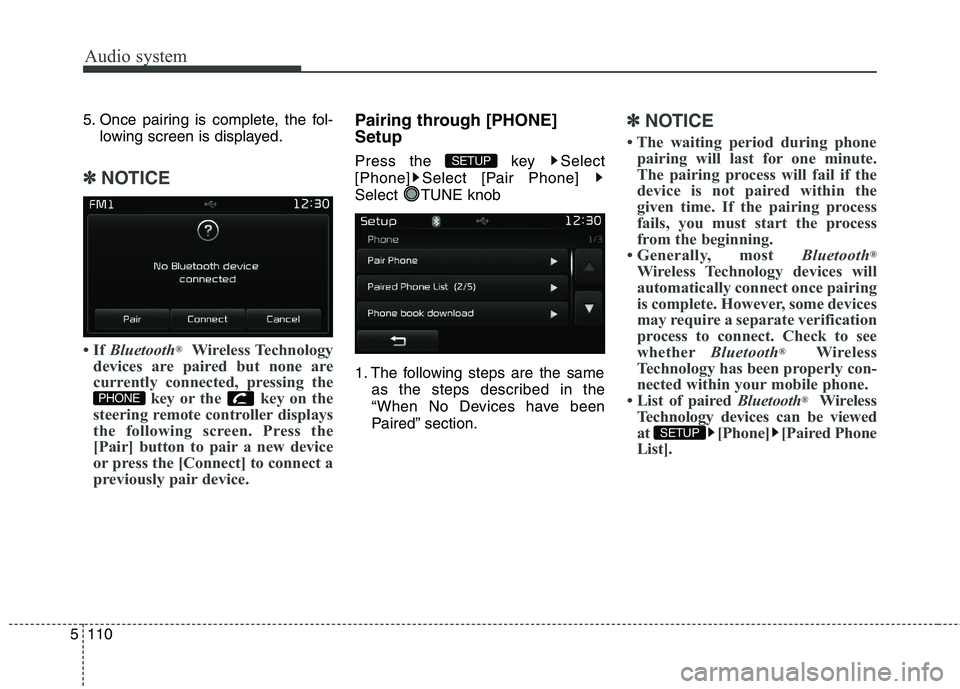
5. Once pairing is complete, the fol-
lowing screen is displayed.
✽✽ NOTICE
If Bluetooth ®
Wireless Technology
devices are paired but none are
currently connected, pressing the key or the key on the
steering remote controller displays
the following screen. Press the
[Pair] button to pair a new device
or press the [Connect] to connect a
previously pair device.
Pairing through [PHONE] Setup
Press the key Select
[Phone] Select [Pair Phone]
Select TUNE knob
1. The following steps are the same
as the steps described in the
“When No Devices have been
Paired” section.✽✽ NOTICE
The waiting period during phone pairing will last for one minute.
The pairing process will fail if the
device is not paired within the
given time. If the pairing process
fails, you must start the process
from the beginning.
Generally, most Bluetooth®
Wireless Technology devices will
automatically connect once pairing
is complete. However, some devices
may require a separate verification
process to connect. Check to see
whether Bluetooth®
Wireless
Technology has been properly con-
nected within your mobile phone.
List of paired Bluetooth®
Wireless
Technology devices can be viewed
at [Phone] [Paired Phone
List].
SETUP
SETUP
PHONE
Page 400 of 723
5117
Audio system
Bluetooth® Wireless Technology
(for Bluetooth®Wireless
Technology equipped model)
Pairing a
Bluetooth®Wireless
Technology wireless technolo-
gy Device What is
Bluetooth®Wireless
Technology Pairing?
Pairing refers to the process of syn-
chronizing your
Bluetooth®Wireless
Technology phone or device with the
car audio system for connection.
Pairing is necessary to connect anduse the
Bluetooth®Wireless
Technology feature. Pairing Key
/ Key
on the Steering Remote
Controller
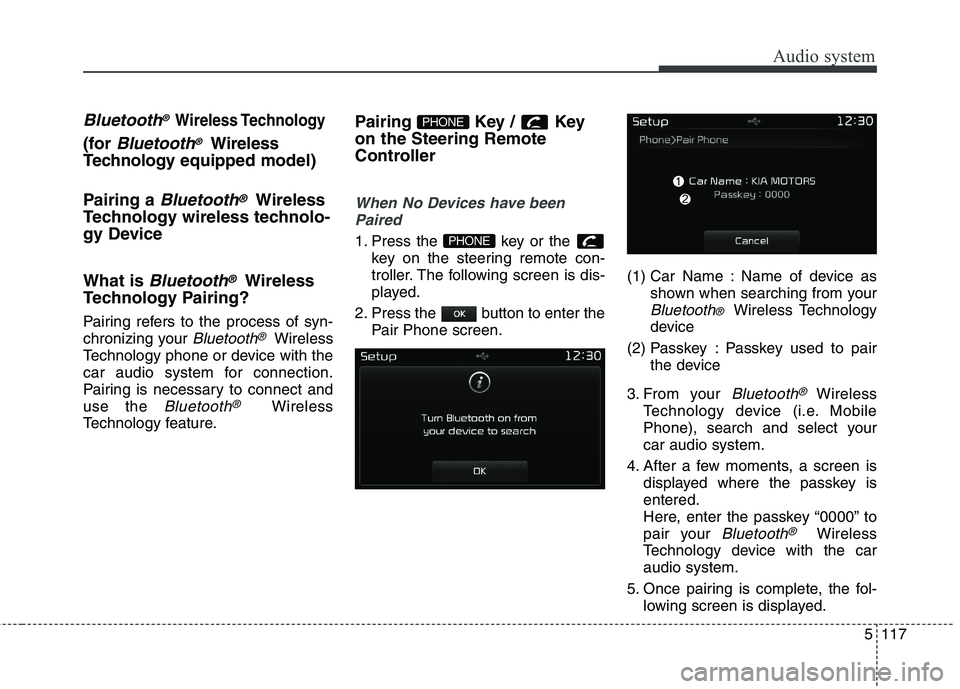
When No Devices have been
Paired
1. Press the key or the key on the steering remote con-
troller. The following screen is dis-
played.
2. Press the button to enter the Pair Phone screen. (1) Car Name : Name of device as
shown when searching from your
Bluetooth® Wireless Technology
device
(2) Passkey : Passkey used to pair the device
3. From your
Bluetooth®Wireless
Technology device (i.e. Mobile
Phone), search and select yourcar audio system.
4. After a few moments, a screen is displayed where the passkey isentered.
Here, enter the passkey “0000” to
pair your
Bluetooth®Wireless
Technology device with the caraudio system.
5. Once pairing is complete, the fol- lowing screen is displayed.
PHONE
PHONE
Page 401 of 723
Audio system
118
5
✽✽
NOTICE
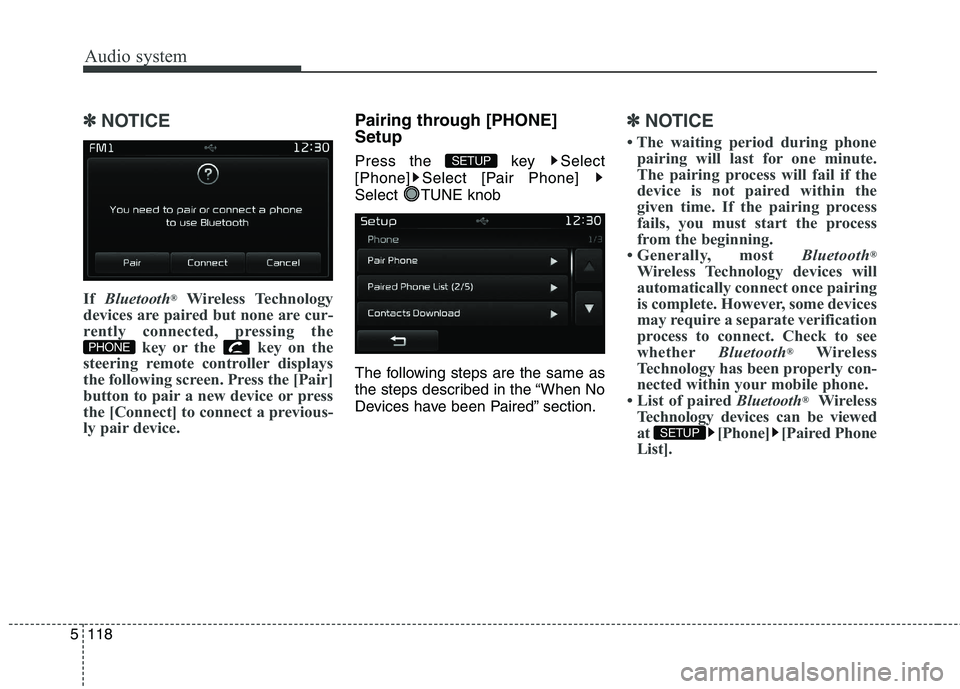
If Bluetooth ®
Wireless Technology
devices are paired but none are cur-
rently connected, pressing the key or the key on the
steering remote controller displays
the following screen. Press the [Pair]
button to pair a new device or press
the [Connect] to connect a previous-
ly pair device.Pairing through [PHONE] Setup
Press the key Select
[Phone] Select [Pair Phone]
Select TUNE knob
The following steps are the same as
the steps described in the “When No
Devices have been Paired” section.✽✽ NOTICE
The waiting period during phone pairing will last for one minute.
The pairing process will fail if the
device is not paired within the
given time. If the pairing process
fails, you must start the process
from the beginning.
Generally, most Bluetooth®
Wireless Technology devices will
automatically connect once pairing
is complete. However, some devices
may require a separate verification
process to connect. Check to see
whether Bluetooth®
Wireless
Technology has been properly con-
nected within your mobile phone.
List of paired Bluetooth®
Wireless
Technology devices can be viewed
at [Phone] [Paired Phone
List].
SETUP
SETUP
PHONE
Page 409 of 723
Audio system
126
5
VOICE RECOGNITION
Using Voice Recognition
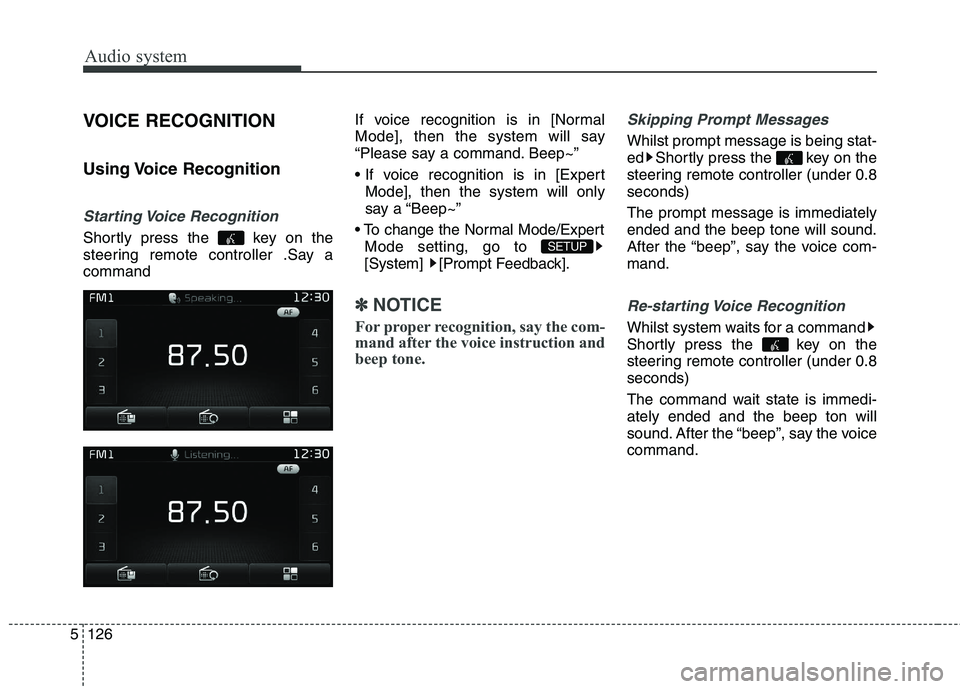
Starting Voice Recognition
Shortly press the key on the
steering remote controller .Say acommand If voice recognition is in [Normal
Mode], then the system will say
“Please say a command. Beep~”
Mode], then the system will only
say a “Beep~”
Mode setting, go to
[System] [Prompt Feedback].
✽✽ NOTICE
For proper recognition, say the com-
mand after the voice instruction and
beep tone.
Skipping Prompt Messages
Whilst prompt message is being stat-
ed Shortly press the key on the
steering remote controller (under 0.8seconds) The prompt message is immediately ended and the beep tone will sound.
After the “beep”, say the voice com-mand.
Re-starting Voice Recognition
Whilst system waits for a command
Shortly press the key on the
steering remote controller (under 0.8seconds)
The command wait state is immedi- ately ended and the beep ton will
sound. After the “beep”, say the voicecommand.
SETUP
Page 410 of 723
5127
Audio system
ENDING VOICE RECOGNITION
Whilst Voice Recognition is operatingPress and hold the key on the
steering remote controller (over 0.8 seconds)
✽✽ NOTICE
Whilst using voice command, pressing a steering wheel remote
control or a different key will end
voice command.
In a state where the system is wait- ing for a voice command, say
“cancel” or “end” to end voice
command.
In a state where the system is wait- ing for a voice command, press
and hold the key on the steer-
ing remote controller to end voice
command.
Page 714 of 723
Index
2
I
Active ECO system........................................................6-43
Active ECO operation ................................................6-43
Limitation of Active ECO operation ..........................6-43
When Active ECO is activated ..................................6-43
Air bag-supplemental restraint system ..........................3-53 Additional safety precautions ....................................3-77
Air bag warning and light ..........................................3-57
Air bag warning label ................................................3-78
Curtain air bag ............................................................3-69
Driver’s and passenger’s front air bag ........................3-62
Front passenger's air bag warning ..............................3-56
Inflation and non-inflation conditions of the air bag ......................................................................3-71
Side air bag ................................................................3-67
SRS Care ....................................................................3-76
SRS components and functions ..................................3-59
Air cleaner air cleaner ..................................................8-40 Filter replacement ......................................................8-40
Air conditioner compressor label ..................................9-13
Appearance care ..........................................................8-101 Exterior care ..............................................................8-101
Interior care ..............................................................8-107
Audio (With Touch Screen) ..........................................5-64 APPENDIX ..............................................................5-151
Bluetooth ®
Wireless Technology
( Bluetooth ®
Wireless Technology equipped model) .. 5-105Bluetooth
®
Wireless Technology
(for RDS, Bluetooth® Wireless Technology equipped model) ......................................................5-106
Feature of Your Audio ................................................5-65
Media Mode ................................................................5-78
Radio Mode ................................................................5-76
Radio Mode (for RDS model) ....................................5-72
Rear View Camera ....................................................5-150
Setup ........................................................................5-143
Setup (for RDS model) ............................................5-134
Voice Recognition ....................................................5-126
Audio (Without Touch Screen) ......................................5-13
Bluetooth ®
Wireless Technology audio ......................5-50
Feature of Your Audio ................................................5-15
Media Mode ................................................................5-43
Phone ..........................................................................5-51
Radio ..........................................................................5-41
Radio (for RDS model) ..............................................5-39
Setup ..........................................................................5-30
Setup (for RDS model) ..............................................5-21
Voice Command ..........................................................5-57
Audio System ..................................................................5-2 Antenna ........................................................................5-2
Audio remote control ....................................................5-3
Caring for disc ..............................................................5-6
How vehicle audio works ............................................5-4
Automatic climate control system ..............................4-150 Automatic heating and air conditioning ..................4-151
A