steering KIA CEED 2013 Owners Manual
[x] Cancel search | Manufacturer: KIA, Model Year: 2013, Model line: CEED, Model: KIA CEED 2013Pages: 1168, PDF Size: 48.01 MB
Page 761 of 1168
Features of your vehicle
98
4
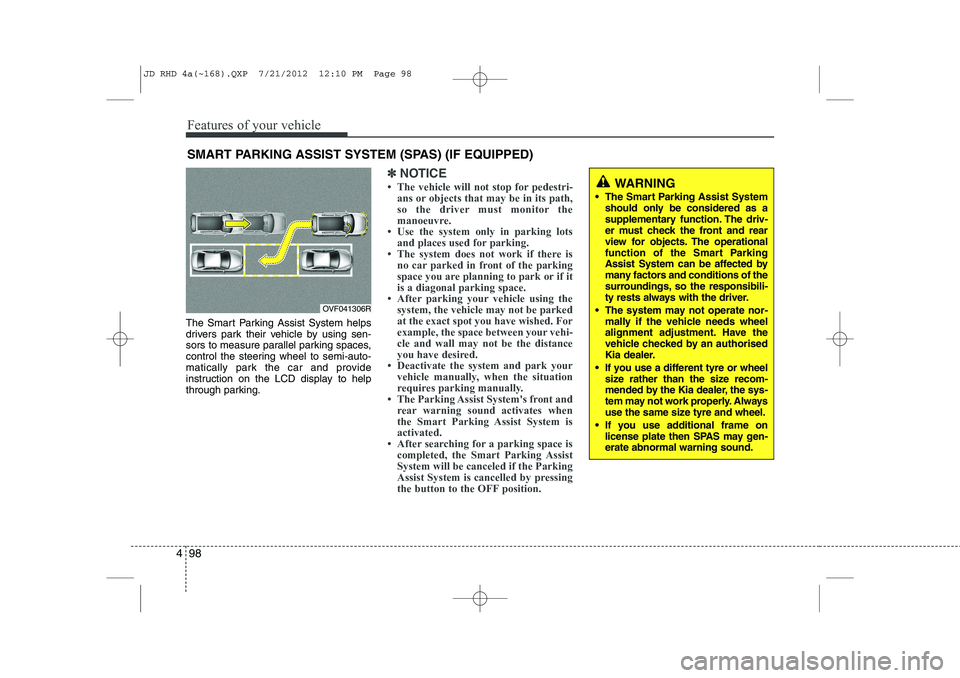
The Smart Parking Assist System helps
drivers park their vehicle by using sen-
sors to measure parallel parking spaces,
control the steering wheel to semi-auto-
matically park the car and provide
instruction on the LCD display to help
through parking.
✽✽
NOTICE
Page 765 of 1168
Features of your vehicle
102
4
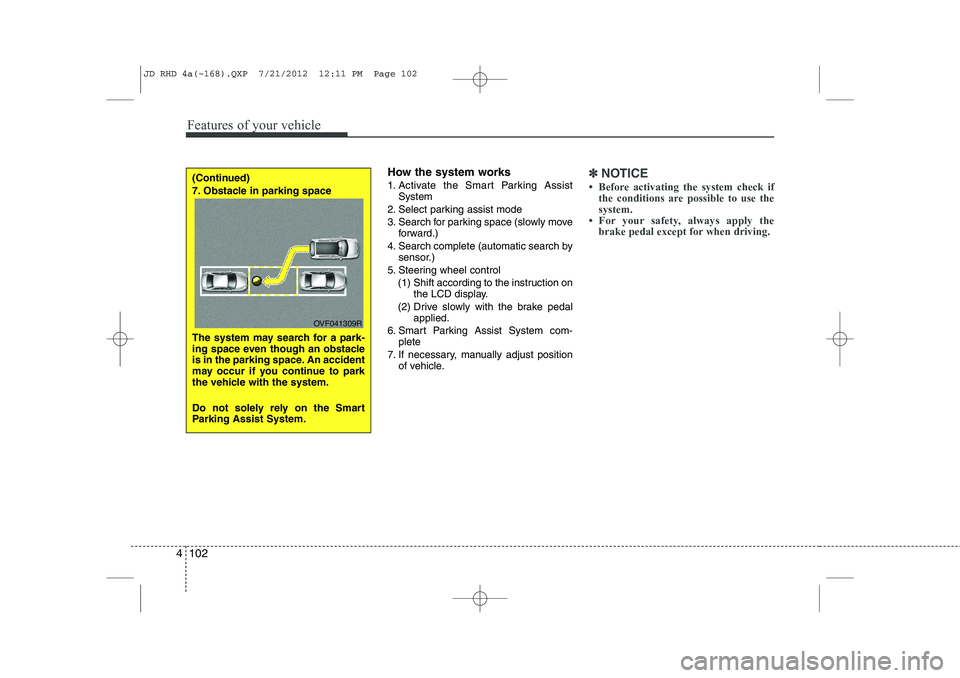
How the system works
1. Activate the Smart Parking Assist
System
2. Select parking assist mode
3. Search for parking space (slowly move forward.)
4. Search complete (automatic search by sensor.)
5. Steering wheel control
(1) Shift according to the instruction on the LCD display.
(2) Drive slowly with the brake pedal applied.
6. Smart Parking Assist System com- plete
7. If necessary, manually adjust position of vehicle.✽✽ NOTICE
Page 768 of 1168
4 105
Features of your vehicle
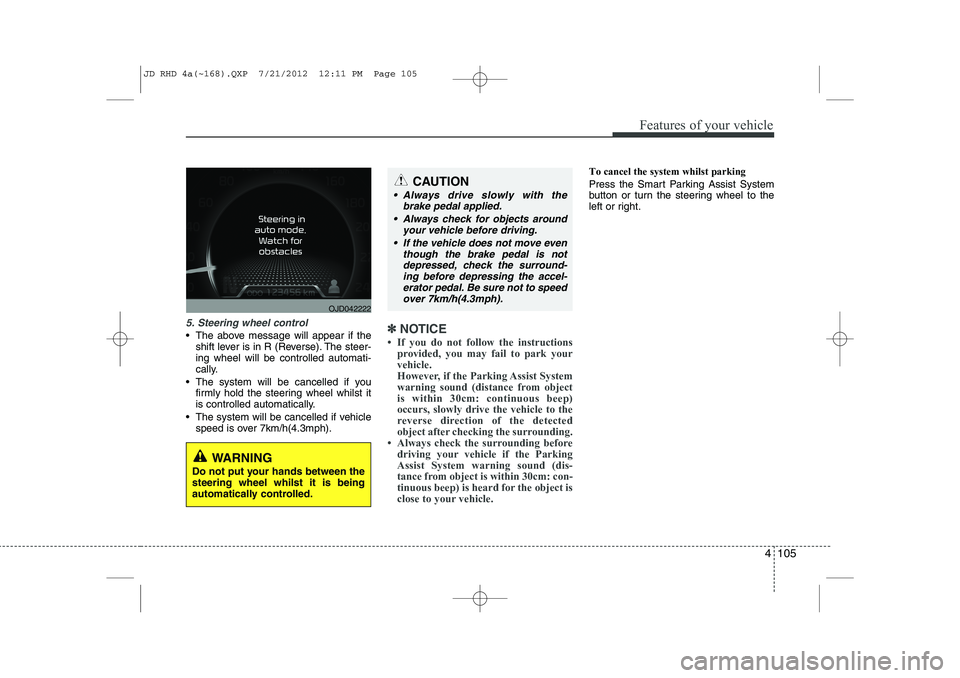
5. Steering wheel control
The above message will appear if theshift lever is in R (Reverse). The steer- ing wheel will be controlled automati-
cally.
The system will be cancelled if you firmly hold the steering wheel whilst it
is controlled automatically.
The system will be cancelled if vehicle speed is over 7km/h(4.3mph).✽✽ NOTICE
Page 769 of 1168
Features of your vehicle
106
4
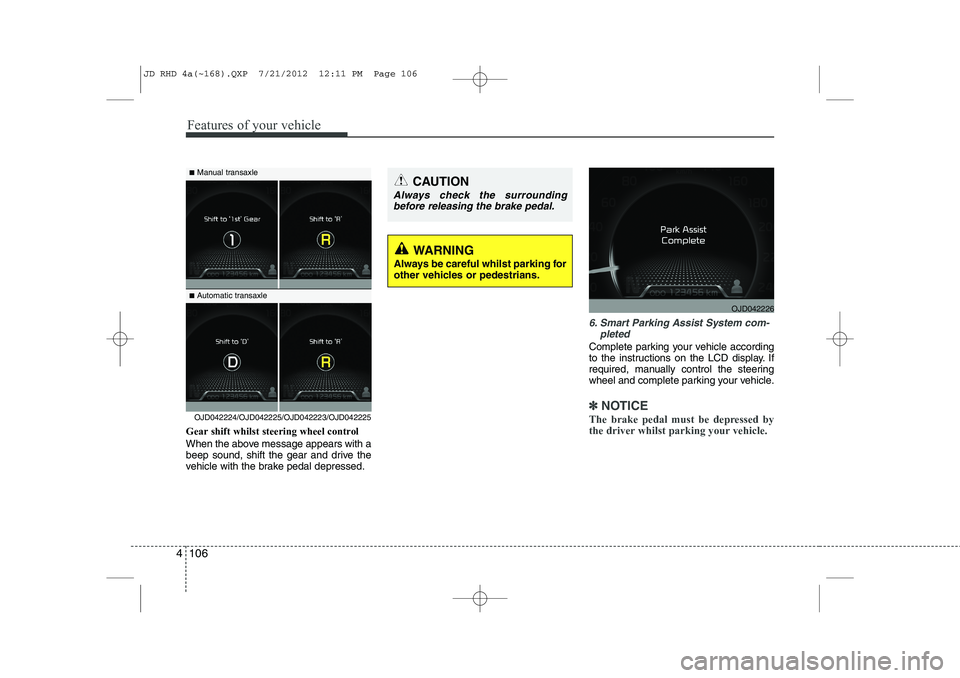
Gear shift whilst steering wheel control
When the above message appears with a
beep sound, shift the gear and drive the
vehicle with the brake pedal depressed.
6. Smart Parking Assist System com-
pleted
Complete parking your vehicle according
to the instructions on the LCD display. If
required, manually control the steering
wheel and complete parking your vehicle.
✽✽NOTICE
The brake pedal must be depressed by
the driver whilst parking your vehicle.OJD042224/OJD042225/OJD042223/OJD042225
WARNING
Always be careful whilst parking for
other vehicles or pedestrians.
■ Manual transaxle
■ Automatic transaxleCAUTION
Always check the surrounding
before releasing the brake pedal.
OJD042226
JD RHD 4a(~168).QXP 7/21/2012 12:11 PM Page 106
Page 773 of 1168
Features of your vehicle
110
4
Battery saver function
The purpose of this feature is to pre-
vent the battery from being dis-
charged. The system automatically
turns off the parking lights when the
driver removes the ignition key (Smart
key : turns off the engine) and opens
the driver- side door.
With this feature, the parking lights will be turned off automatically if the driver
parks on the side of road at night.
If necessary, to keep the lights on
when the ignition key is removed, per-
form the following :
1) Open the driver-side door.
2) Turn the parking lights OFF and ON again using the light switch on the
steering column. Headlamp delay function (if equipped) The headlamps (and/or taillights) remain
on for same minutes (Type A: 20 minutes,
Type B: 5 minutes) after the ignition key
is removed or turned to the ACC or
LOCK position. However, if the driver’sdoor is opened and closed, the head-
lights are turned off after 15 seconds.
The headlights can be turned off by
pressing the lock button on the transmit-
ter or smart key twice or turning off the
light switch from the headlight or Autolight position.
You can activate or deactivate the head-
lamp delay fuction. Refer to “User setting”in this section.
Headlight (Headlamp) welcome function (if equipped)
When the headlight switch is in the ON or
AUTO position and all doors (and tail-
gate) are closed and locked, if you press
the door unlock button on the transmitter
or smart key, the headlights will come on
for about 15 seconds.
If the headlight switch is in the AUTO
position, the function can only operate atnight.
At this time, if you press the door unlock
button again or door lock button on the
transmitter or smart key, the headlights
will turn off immediately.
You can activate or deactivate the head-
lamp welcome fuction. Refer to “User set-
ting” in this section.
LIGHTING
CAUTION
If the driver gets out of the vehicle
through other doors (except driver’s door), the battery saver functiondoes not operate and the headlamp
delay function does not turn offautomatically. Therefore, it causes the battery to be discharged. In this case, make sure to turn off the lampbefore getting out of the vehicle.
JD RHD 4a(~168).QXP 7/21/2012 12:12 PM Page 110
Page 774 of 1168
4 111
Features of your vehicle
Static bending light (if equipped)
Whilst driving the corner, for your sight
and safety, the static bending light turns
on automatically. The system will operate
automatically as follows:
When vehicle speed is under 10km/hand steering wheel angle approximate-
ly 80 degrees.
When vehicle speed is over 10km/h and steering wheel angle approximate-
ly 35 degrees.
When the vehicle is at a standstill.
When moving rearwards with one of the above conditions satisfied the lights will light up the opposite direction. Lighting control
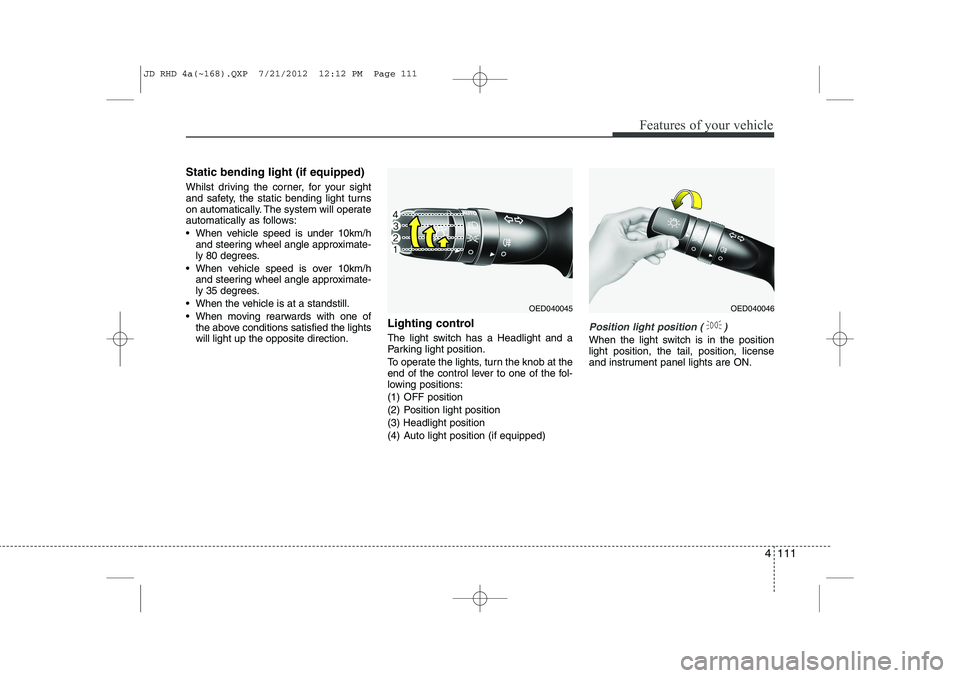
The light switch has a Headlight and a
Parking light position.
To operate the lights, turn the knob at the
end of the control lever to one of the fol-
lowing positions:
(1) OFF position
(2) Position light position(3) Headlight position
(4) Auto light position (if equipped)
Position light position ( )
When the light switch is in the position light position, the tail, position, license
and instrument panel lights are ON.
OED040045OED040046
JD RHD 4a(~168).QXP 7/21/2012 12:12 PM Page 111
Page 780 of 1168
4 117
Features of your vehicle
AFLS (Adaptive Front Lighting System) (if equipped)
Adaptive front lighting system uses the
steering angle and vehicle speed, to
keep your field of vision wide by swiveling
and levelling the headlamp.
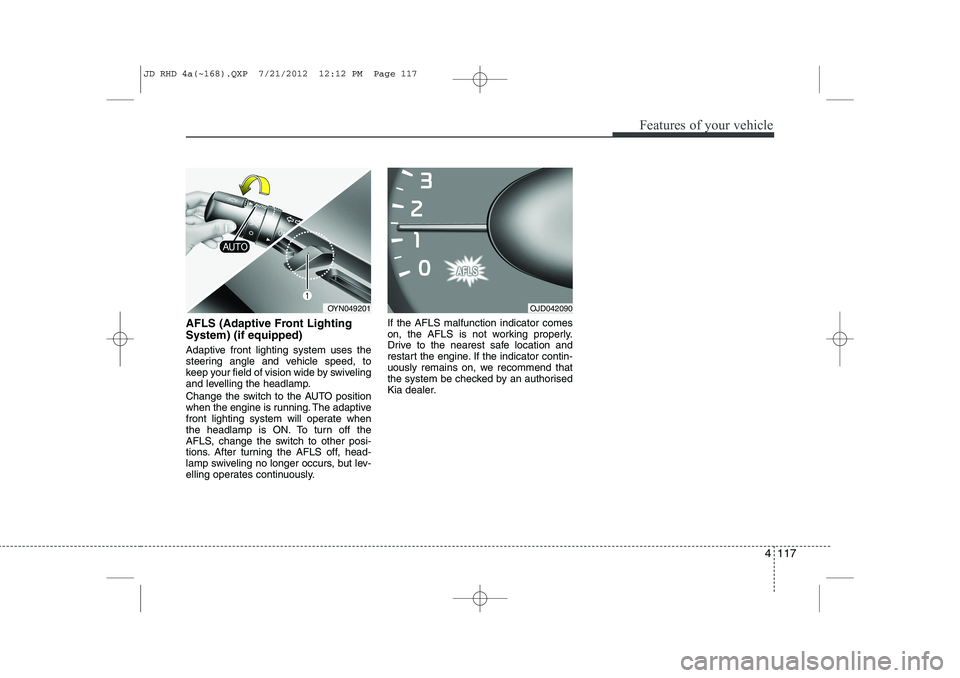
Change the switch to the AUTO position
when the engine is running. The adaptive
front lighting system will operate when
the headlamp is ON. To turn off the
AFLS, change the switch to other posi-
tions. After turning the AFLS off, head-
lamp swiveling no longer occurs, but lev-
elling operates continuously.If the AFLS malfunction indicator comes
on, the AFLS is not working properly.
Drive to the nearest safe location and
restart the engine. If the indicator contin-
uously remains on, we recommend that
the system be checked by an authorised
Kia dealer.
OJD042090OYN049201
JD RHD 4a(~168).QXP 7/21/2012 12:12 PM Page 117
Page 833 of 1168
Features of your vehicle
170
4
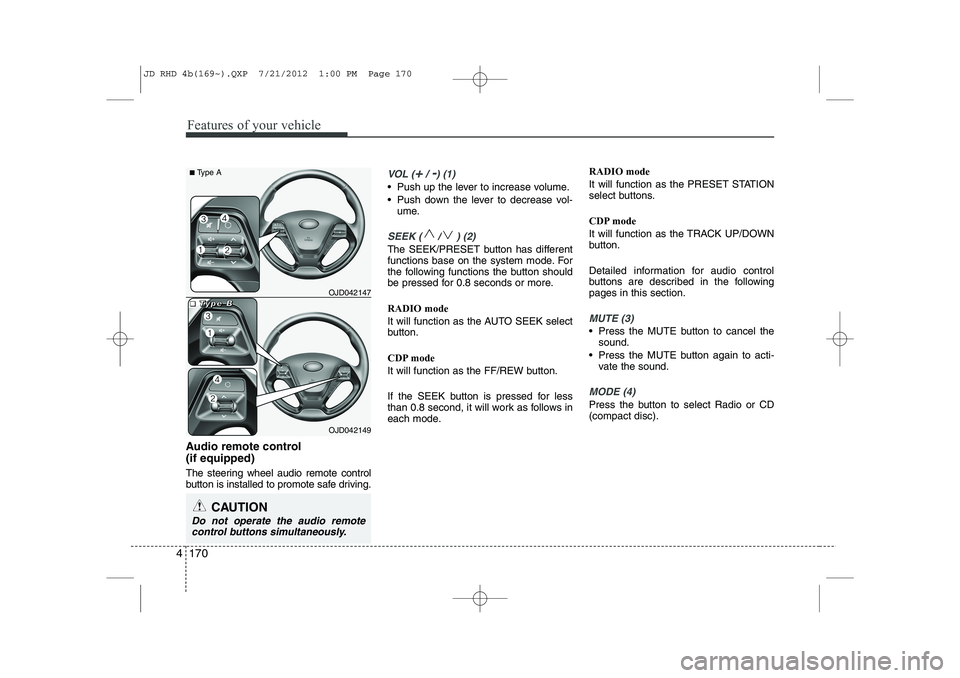
Audio remote control (if equipped)
The steering wheel audio remote control
button is installed to promote safe driving.
VOL (+/ -) (1)
• Push up the lever to increase volume.
Push down the lever to decrease vol-
ume.
SEEK ( / ) (2)
The SEEK/PRESET button has different
functions base on the system mode. For
the following functions the button should
be pressed for 0.8 seconds or more. RADIO mode
It will function as the AUTO SEEK select
button.
CDP mode
It will function as the FF/REW button.
If the SEEK button is pressed for less
than 0.8 second, it will work as follows in
each mode. RADIO mode
It will function as the PRESET STATION
select buttons.
CDP mode
It will function as the TRACK UP/DOWN
button.
Detailed information for audio control
buttons are described in the followingpages in this section.
MUTE (3)
Press the MUTE button to cancel the
sound.
Press the MUTE button again to acti- vate the sound.
MODE (4)
Press the button to select Radio or CD (compact disc).
CAUTION
Do not operate the audio remote
control buttons simultaneously.
OJD042149
■
■■■TTTTyyyyppppeeee BBBBOJD042147
■
Type A
JD RHD 4b(169~).QXP 7/21/2012 1:00 PM Page 170
Page 862 of 1168
4 199
Features of your vehicle
PHONE (if equipped)
Before using the
Bluetooth®Wireless
Technology
phone features
In order to use
Bluetooth®Wireless
Technologyphone, you must first pair
and connect the Bluetooth®Wireless
Technologymobile phone.
If the mobile phone is not paired or con- nected, it is not possible to enter Phone
mode. Once a phone is paired or con-nected, the guidance screen will be dis-
played.
If Priority is set upon vehicle ignition (IGN/ACC ON), the
Bluetooth®Wireless
Technologyphone will be automatically
connected. Even if you are outside, the
Bluetooth®Wireless Technologyphone
will be automatically connected once
you are in the vicinity of the vehicle. If
you do not want automatic
Bluetooth®
Wireless Technologyphone connection,
set the Bluetooth®Wireless Technologyto OFF. Making a call using the Steering
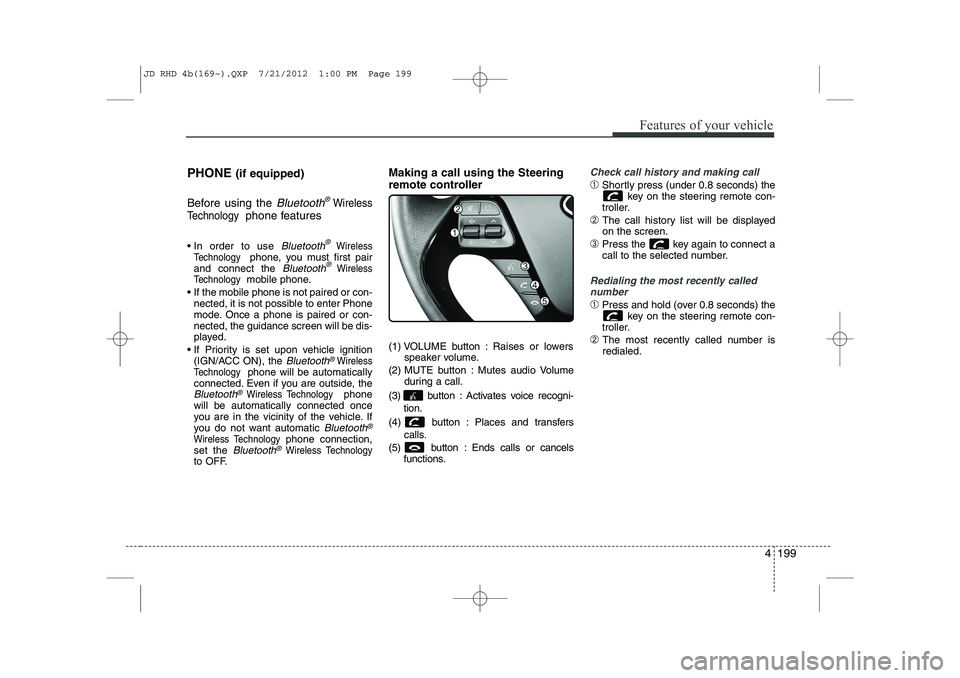
remote controller
(1) VOLUME button : Raises or lowers
speaker volume.
(2) MUTE button : Mutes audio Volume during a call.
(3) button : Activates voice recogni- tion.
(4) button : Places and transfers calls.
(5) button : Ends calls or cancels functions.
Check call history and making call
➀Shortly press (under 0.8 seconds) the
key on the steering remote con-
troller.
➁ The call history list will be displayed on the screen.
➂ Press the key again to connect a
call to the selected number.
Redialing the most recently called
number
➀ Press and hold (over 0.8 seconds) the
key on the steering remote con-
troller.
➁ The most recently called number is redialed.
JD RHD 4b(169~).QXP 7/21/2012 1:00 PM Page 199
Page 866 of 1168
4 203
Features of your vehicle
VOICE COMMAND (if equipped)
The voice recognition feature of this
product supports recognition of the
commands listed within this user’s
manual.
Whilst using voice recognition, operating the steering remote control or the device
will terminate voice recognition and allow
you to manually operate desired func-
tions.
Position of the microphone is above the head of the driver’s seat.
Voice recognition may not function properly due to outside noise. The fol-
lowing conditions can affect the per-
formance of Voice Recognition:
- When the windows and sunroof are open
- When the heating/cooling system is on
- When passing a tunnel
- When driving on rugged and uneven roads
After downloading
Bluetooth®Wireless
Technology phone book, the system
requires some times to convert the
phone book into voice information.
During this time, voice recognition may
not operate properly. Upon inputting your phone book, spe-
cial symbols and numbers cannot be
recognized by voice. For example, “#
John Doe%&” will be recognized as“John Doe”. Starting Voice Command
To start voice command, shortly press
the key on the steering wheel
remote controller.
If voice command is in [Normal Mode], then the system will say “Please say a
command. Beep”
❈ If voice command is in [Expert Mode],
then the system will only say a “Beep-”
❈ Setting Voice command [Normal
Mode]/[Expert Mode]:
Press the key Select [ System]
through the TUNE knob or key
Select [Prompt Feedback] through the
TUNE knob Set [Normal Mode]/[ExpertMode]
Say the voice command.
For proper voice recognition, say the
voice command after the guidance
message and the “Beep” sound.
4
SETUP
JD RHD 4b(169~).QXP 7/21/2012 1:00 PM Page 203