Audio KIA CEED 2013 Owner's Guide
[x] Cancel search | Manufacturer: KIA, Model Year: 2013, Model line: CEED, Model: KIA CEED 2013Pages: 1168, PDF Size: 48.01 MB
Page 298 of 1168
4 219
Features of your vehicle
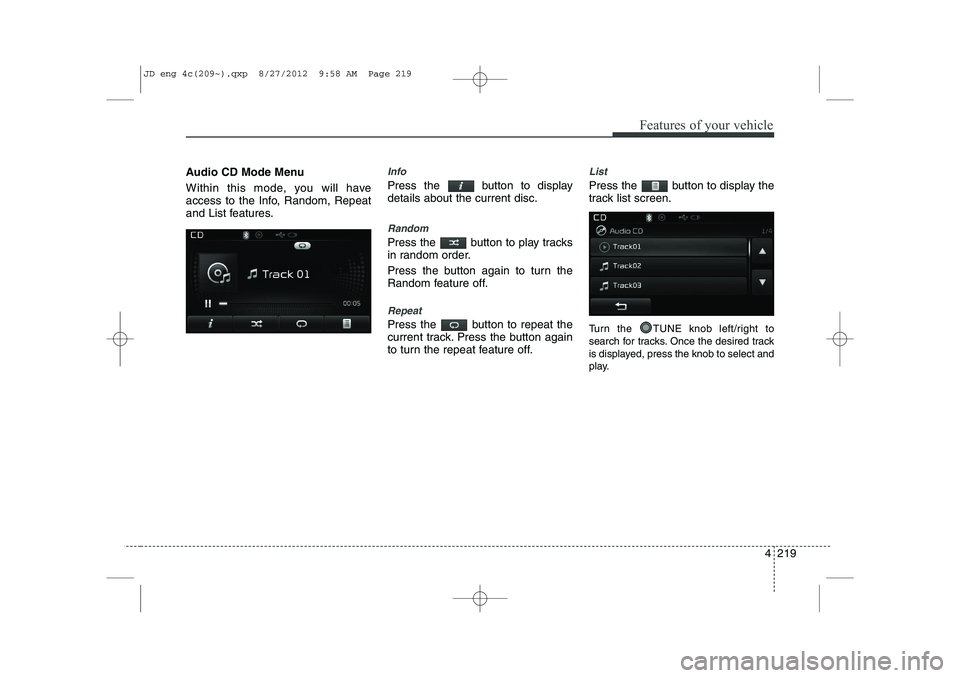
Audio CD Mode Menu
Within this mode, you will have
access to the Info, Random, Repeat
and List features.Info
Press the button to display details about the current disc.
Random
Press the button to play tracks
in random order.
Press the button again to turn the
Random feature off.
Repeat
Press the button to repeat the
current track. Press the button again
to turn the repeat feature off.
List
Press the button to display the
track list screen.
Turn the TUNE knob left/right to
search for tracks. Once the desired track
is displayed, press the knob to select and
play.
JD eng 4c(209~).qxp 8/27/2012 9:58 AM Page 219
Page 308 of 1168
4 229
Features of your vehicle
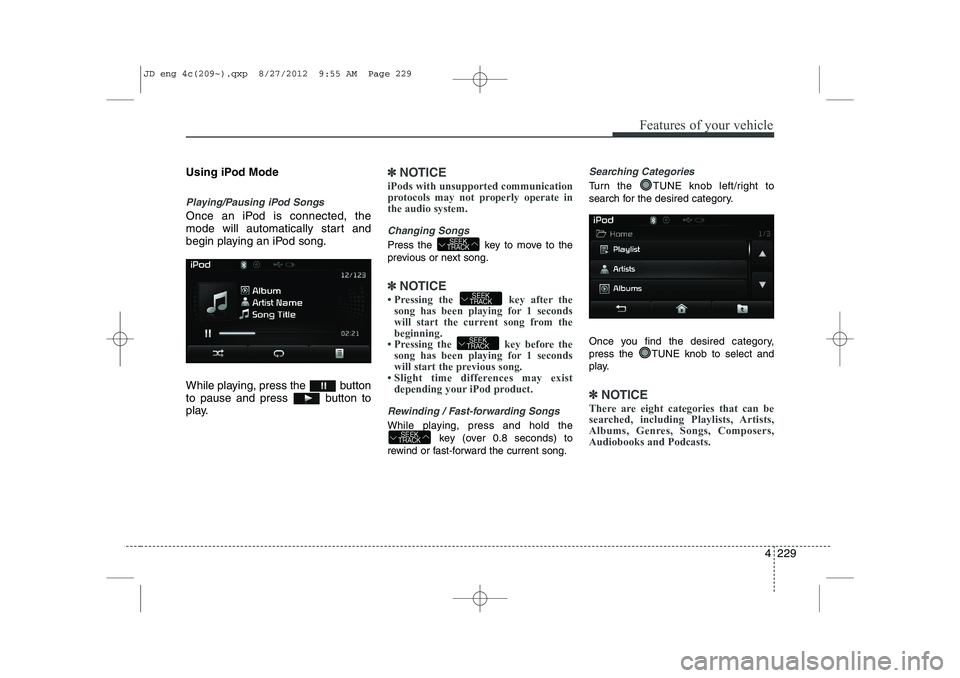
Using iPod Mode
Playing/Pausing iPod Songs
Once an iPod is connected, the
mode will automatically start and
begin playing an iPod song.
While playing, press the button
to pause and press button to
play.
✽✽NOTICE
iPods with unsupported communication
protocols may not properly operate inthe audio system.
Changing Songs
Press the key to move to the
previous or next song.
✽✽ NOTICE
Page 310 of 1168

4 231
Features of your vehicle
List
Press the button to display the
Category Menu.
Turn the TUNE knob left/right to
search for the desired category.
Once you find the desired category,
press the TUNE knob to select
and play.AUX MODE
Using AUX Mode
Press the key Select [AUX]
An external device can be connected to
play music.
Connecting an External Device
External audio players (Camcorders, car
VCR, etc.) can be played through a ded-
icated cable.
✽✽
NOTICE
Page 316 of 1168
4 237
Features of your vehicle
Bluetooth®Wireless Technology
Using Bluetooth®Wireless
Technology Handsfree
Bluetooth®Wireless Technology
refers to a short-distance wireless
networking technology which uses a
2.45GHz frequency to connect vari-
ous devices within a certain distance.
Supported within PCs, external
devices,
Bluetooth®Wireless
Technology phones, PDAs, various
electronic devices, and automotive
environments,
Bluetooth®Wireless
Technology allows data to be trans-
mitted at high speeds without hav-
ing to use a connector cable.
Bluetooth®Wireless Technology
Handsfree refers to a device which
allows the user to conveniently
make phone calls with
Bluetooth®
Wireless Technology mobilephones through the audio system.
CAUTION
Bluetooth®Wireless Technology
Handsfree is a feature that
enables drivers to practice safe driving. Connecting the car audiosystem with a Bluetooth
®
Wireless Technology phone allows the user to convenientlymake calls, receive calls, and
manage the phone book. Beforeusing the Bluetooth
®Wireless
Technology , carefully read the contents of this user’s manual.
Excessive use or operations while driving may lead to negli-gent driving practices and be the cause of accidents.
Do not operate the device exces- sively while driving.
Viewing the screen for prolonged periods of time is dangerous andmay lead to accidents. When driv-ing, view the screen only for short
periods of time.
JD eng 4c(209~).qxp 8/27/2012 9:55 AM Page 237
Page 318 of 1168
4 239
Features of your vehicle
Bluetooth® Wireless Technology
Pairing a Bluetooth®Wireless
Technology wireless technology
Device What is
Bluetooth®Wireless
Technology Pairing?
Pairing refers to the process of syn-
chronizing your
Bluetooth®Wireless
Technology phone or device with the
car audio system for connection.
Pairing is necessary to connect anduse the
Bluetooth®Wireless
Technology feature. Pairing Key / Key on
the Steering Remote Controller
When No Devices have been Paired
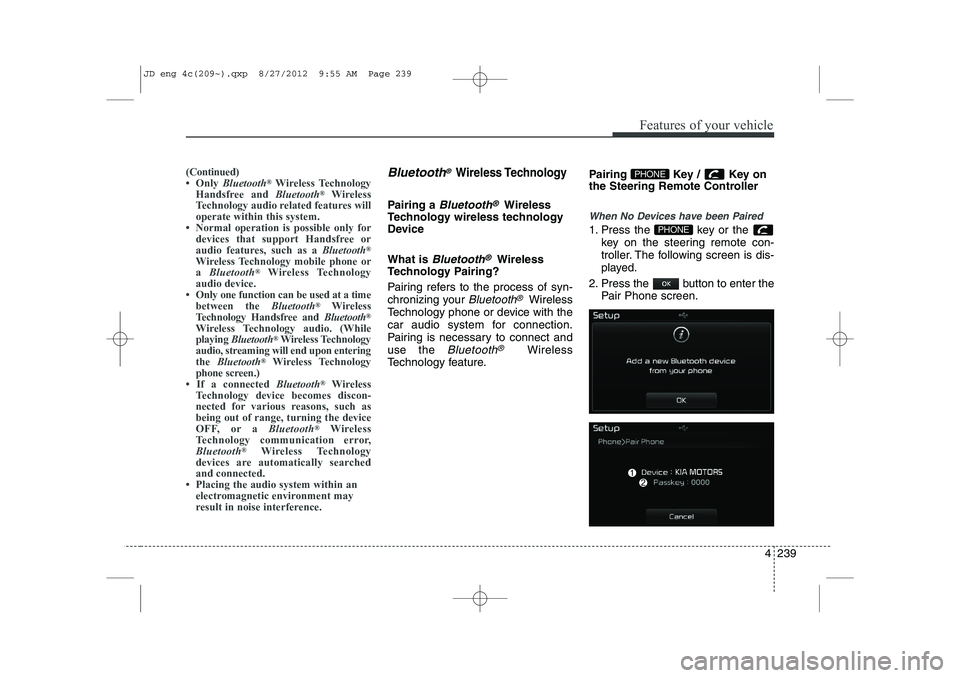
1. Press the key or the
key on the steering remote con-
troller. The following screen is dis-
played.
2. Press the button to enter the Pair Phone screen.PHONE
PHONE(Continued)
Page 319 of 1168
Features of your vehicle
240
4
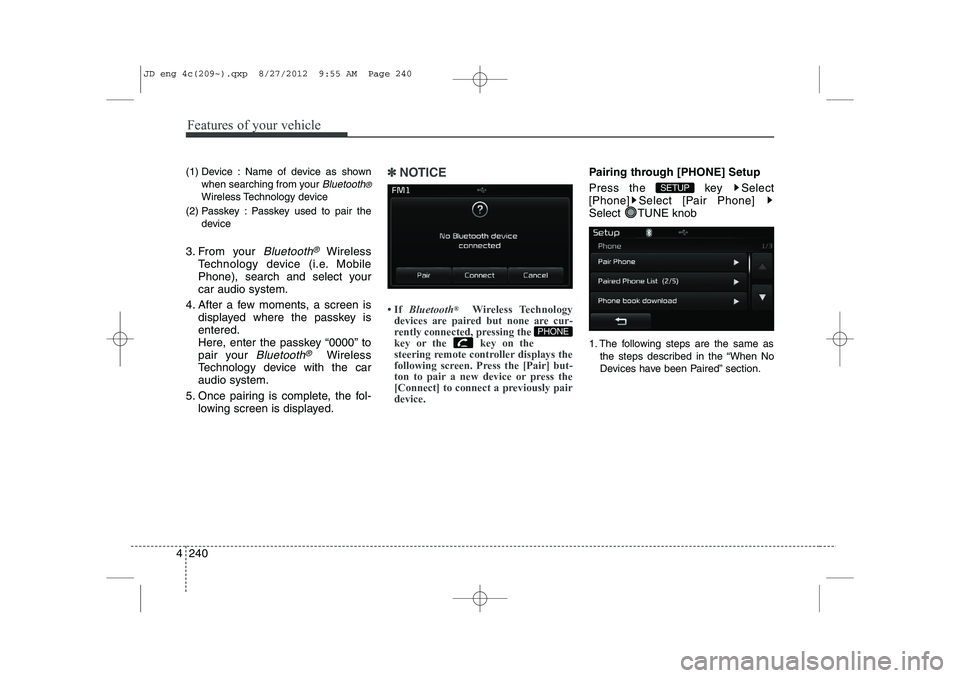
(1) Device : Name of device as shown
when searching from your
Bluetooth®
Wireless Technology device
(2) Passkey : Passkey used to pair the device
3. From your
Bluetooth®Wireless
Technology device (i.e. Mobile
Phone), search and select yourcar audio system.
4. After a few moments, a screen is displayed where the passkey isentered.
Here, enter the passkey “0000” to
pair your
Bluetooth®Wireless
Technology device with the caraudio system.
5. Once pairing is complete, the fol- lowing screen is displayed.
✽✽NOTICE
Page 321 of 1168
Features of your vehicle
242
4
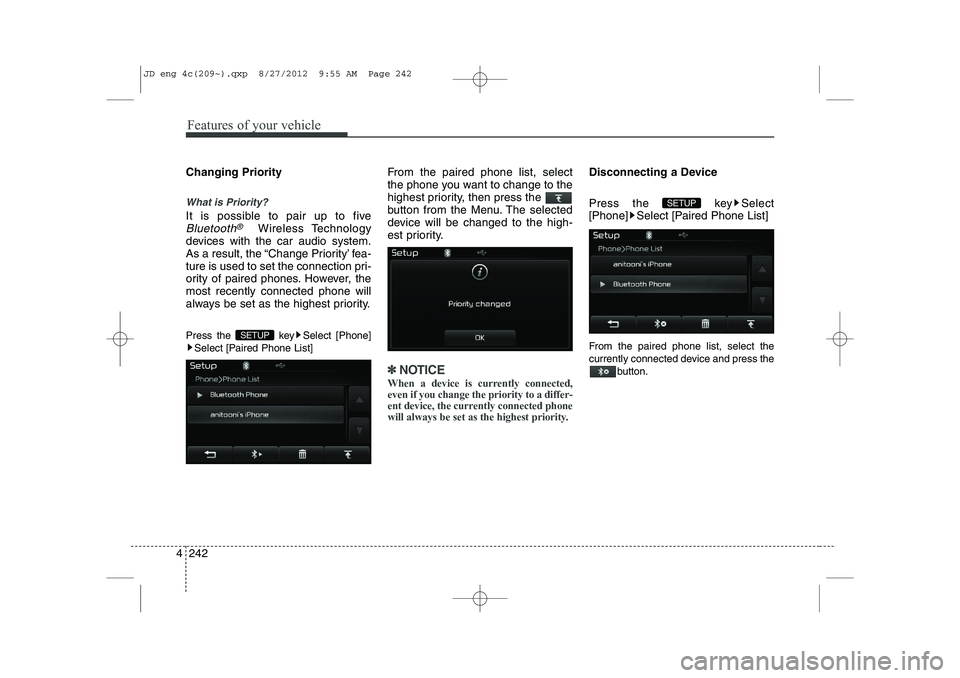
Changing Priority
What is Priority?
It is possible to pair up to five
Bluetooth®Wireless Technology
devices with the car audio system.
As a result, the “Change Priority’ fea-
ture is used to set the connection pri-
ority of paired phones. However, themost recently connected phone will
always be set as the highest priority.
Press the key Select [Phone] Select [Paired Phone List] From the paired phone list, select
the phone you want to change to the
highest priority, then press the
button from the Menu. The selected
device will be changed to the high-
est priority.
✽✽
NOTICE
When a device is currently connected, even if you change the priority to a differ-
ent device, the currently connected phone
will always be set as the highest priority.
Disconnecting a Device
Press the key Select
[Phone] Select [Paired Phone List]
From the paired phone list, select the
currently connected device and press the button.
SETUP
SETUP
JD eng 4c(209~).qxp 8/27/2012 9:55 AM Page 242
Page 330 of 1168
![KIA CEED 2013 Owners Guide 4 251
Features of your vehicle
Scroll Text
Press the key Select
[Display] Select [Scroll text]
This feature is used to scroll text dis-
played on the screen when it is too long
to be displayed at](/img/2/57944/w960_57944-329.png "KIA CEED 2013 Owners Guide 4 251
Features of your vehicle
Scroll Text
Press the key Select
[Display] Select [Scroll text]
This feature is used to scroll text dis-
played on the screen when it is too long
to be displayed at")
4 251
Features of your vehicle
Scroll Text
Press the key Select
[Display] Select [Scroll text]
This feature is used to scroll text dis-
played on the screen when it is too long
to be displayed at once.
When turned on, the text is repeatedly
scrolled. When turned off, the text is
scrolled just once.
MP3 Information Display
Press the key Select
[Display] Select [Song Info]
This feature is used to change the infor-
mation displayed within USB and MP3
CD modes.
(1) Folder File : Displays file name andfolder name
(2) Album Artist Song : Displays album name/artist name/song Sound Settings
Sound Settings
Press the key Select
[Sound] Select [Audio Setting]
Use the , , , buttons to
adjust the Fader/Balance settings.
Use the , buttons to adjust the
Bass/Middle/Treble settings.
Press the button to reset.
Default
SETUP
SETUP
SETUP
JD eng 4c(209~).qxp 8/27/2012 9:56 AM Page 251
Page 332 of 1168
![KIA CEED 2013 Owners Guide 4 253
Features of your vehicle
Bluetooth®Wireless Technology
Setting
Pairing a New Device
Press the key Select
[Phone] Select [Pair Phone]
Bluetooth®Wireless Technology devices
can be paired with](/img/2/57944/w960_57944-331.png "KIA CEED 2013 Owners Guide 4 253
Features of your vehicle
Bluetooth®Wireless Technology
Setting
Pairing a New Device
Press the key Select
[Phone] Select [Pair Phone]
Bluetooth®Wireless Technology devices
can be paired with")
4 253
Features of your vehicle
Bluetooth®Wireless Technology
Setting
Pairing a New Device
Press the key Select
[Phone] Select [Pair Phone]
Bluetooth®Wireless Technology devices
can be paired with the audio system.
For more information, refer to the “Pairing
through Phone Setup” section within
Bluetooth®Wireless Technology.
Viewing Paired Phone List
Press the key Select
[Phone] Select [Paired Phone List]
This feature is used to view mobile
phones that have been paired with the
audio system. Upon selecting a paired
phone, the setup menu is displayed.
For more information, refer to the “Setting
Bluetooth®Wireless Technology
Connection” section within
Bluetooth®
Wireless Technology. ( 1) : Moves to the previous screen
( 2) Connect/Disconnect Phone :
Connect/ disconnects currently selected phone
( 3) Delete : Deletes the currently select-
ed phone (
4) Change Priority : Sets currently select-
ed phone to highest connection priority
✽✽NOTICE BEFORE DOWN-
LOADING PHONE BOOKS
Page 334 of 1168
![KIA CEED 2013 Owners Guide 4 255
Features of your vehicle
Outgoing Volume
Press the key Select
[Phone] Select [Outgoing Volume]
Use the , buttons to adjust the
outgoing volume level.
Turning Bluetooth System Off
Press the](/img/2/57944/w960_57944-333.png "KIA CEED 2013 Owners Guide 4 255
Features of your vehicle
Outgoing Volume
Press the key Select
[Phone] Select [Outgoing Volume]
Use the , buttons to adjust the
outgoing volume level.
Turning Bluetooth System Off
Press the")
4 255
Features of your vehicle
Outgoing Volume
Press the key Select
[Phone] Select [Outgoing Volume]
Use the , buttons to adjust the
outgoing volume level.
Turning Bluetooth System Off
Press the key Select
[Phone] Select [Bluetooth SystemOff] Once
Bluetooth®Wireless Technology is
turned off,
Bluetooth®Wireless
Technology related features will not be
supported within the audio system.
✽✽ NOTICE
To turn Bluetooth ®
Wireless Technology
back on, go to [Phone] and
press “Yes”.
SETUP SETUP SETUP
CAUTION
Bluetooth®Wireless Technologyaudio streaming may not be sup-
ported in some Bluetooth®
Wireless Technologyphones.
JD eng 4c(209~).qxp 8/27/2012 9:56 AM Page 255