steering KIA CEED 2013 Owner's Guide
[x] Cancel search | Manufacturer: KIA, Model Year: 2013, Model line: CEED, Model: KIA CEED 2013Pages: 1168, PDF Size: 48.01 MB
Page 190 of 1168
4 111
Features of your vehicle
Static bending light (if equipped)
While driving the corner, for your sight
and safety, the static bending light turns
on automatically. The system will operate
automatically as follows:
When vehicle speed is under 10km/hand steering wheel angle approximate-
ly 80 degrees.
When vehicle speed is over 10km/h and steering wheel angle approximate-
ly 35 degrees.
When the vehicle is at a standstill.
When moving rearwards with one of the above conditions satisfied the lights will light up the opposite direction. Lighting control
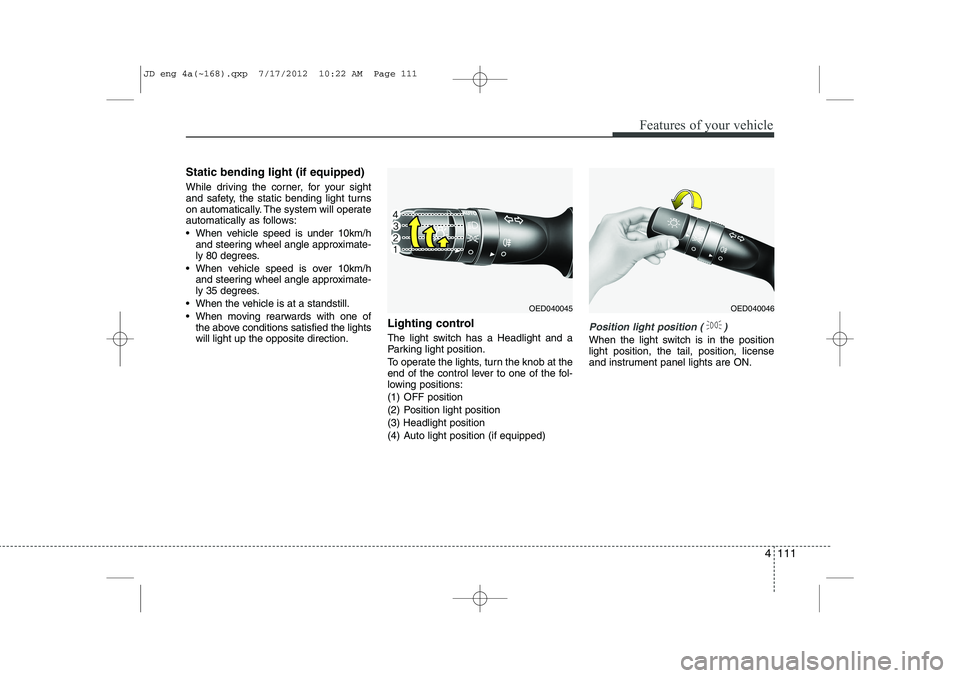
The light switch has a Headlight and a
Parking light position.
To operate the lights, turn the knob at the
end of the control lever to one of the fol-
lowing positions:
(1) OFF position
(2) Position light position(3) Headlight position
(4) Auto light position (if equipped)
Position light position ( )
When the light switch is in the position light position, the tail, position, license
and instrument panel lights are ON.
OED040045OED040046
JD eng 4a(~168).qxp 7/17/2012 10:22 AM Page 111
Page 196 of 1168
4 117
Features of your vehicle
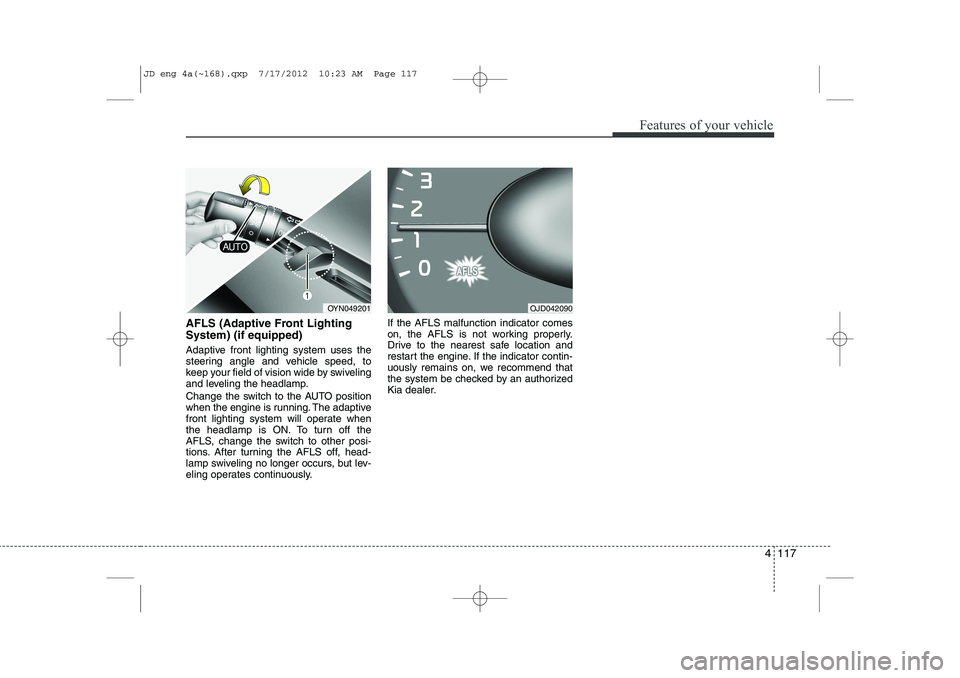
AFLS (Adaptive Front Lighting System) (if equipped)
Adaptive front lighting system uses the
steering angle and vehicle speed, to
keep your field of vision wide by swiveling
and leveling the headlamp.
Change the switch to the AUTO position
when the engine is running. The adaptive
front lighting system will operate when
the headlamp is ON. To turn off the
AFLS, change the switch to other posi-
tions. After turning the AFLS off, head-
lamp swiveling no longer occurs, but lev-
eling operates continuously.If the AFLS malfunction indicator comes
on, the AFLS is not working properly.
Drive to the nearest safe location and
restart the engine. If the indicator contin-
uously remains on, we recommend that
the system be checked by an authorized
Kia dealer.
OJD042090OYN049201
JD eng 4a(~168).qxp 7/17/2012 10:23 AM Page 117
Page 249 of 1168
Features of your vehicle
170
4
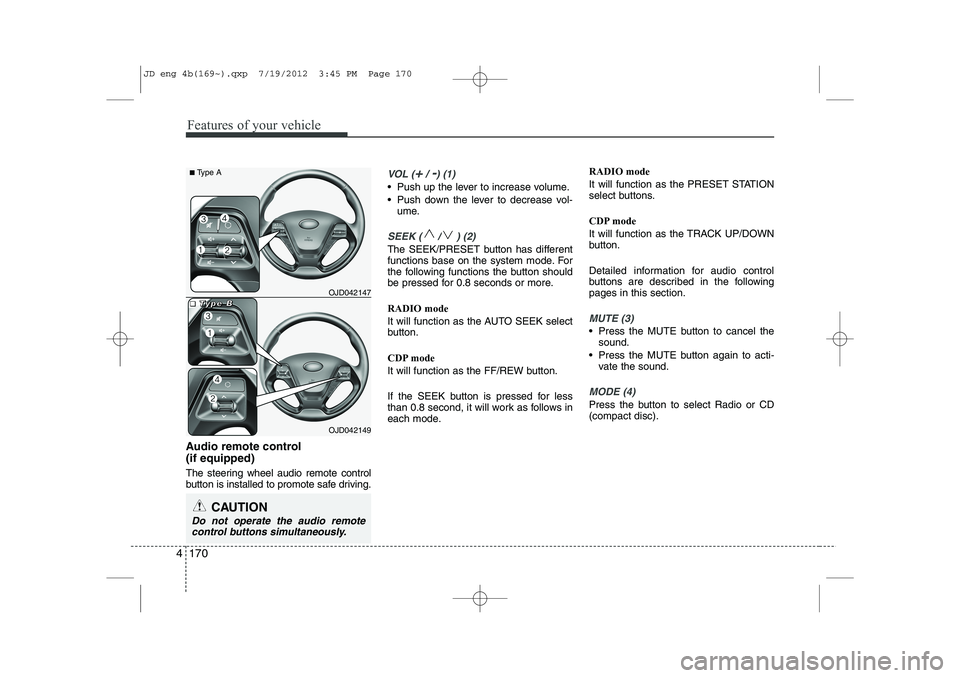
Audio remote control (if equipped)
The steering wheel audio remote control
button is installed to promote safe driving.
VOL (+/ -) (1)
• Push up the lever to increase volume.
Push down the lever to decrease vol-
ume.
SEEK ( / ) (2)
The SEEK/PRESET button has different
functions base on the system mode. For
the following functions the button should
be pressed for 0.8 seconds or more. RADIO mode
It will function as the AUTO SEEK select
button.
CDP mode
It will function as the FF/REW button.
If the SEEK button is pressed for less
than 0.8 second, it will work as follows in
each mode. RADIO mode
It will function as the PRESET STATION
select buttons.
CDP mode
It will function as the TRACK UP/DOWN
button.
Detailed information for audio control
buttons are described in the followingpages in this section.
MUTE (3)
Press the MUTE button to cancel the
sound.
Press the MUTE button again to acti- vate the sound.
MODE (4)
Press the button to select Radio or CD (compact disc).
CAUTION
Do not operate the audio remote
control buttons simultaneously.
OJD042149
■
■■■TTTTyyyyppppeeee BBBBOJD042147
■
Type A
JD eng 4b(169~).qxp 7/19/2012 3:45 PM Page 170
Page 278 of 1168
4 199
Features of your vehicle
PHONE (if equipped)
Before using the
Bluetooth®Wireless
Technology
phone features
In order to use
Bluetooth®Wireless
Technologyphone, you must first pair
and connect the Bluetooth®Wireless
Technologymobile phone.
If the mobile phone is not paired or con- nected, it is not possible to enter Phone
mode. Once a phone is paired or con-nected, the guidance screen will be dis-
played.
If Priority is set upon vehicle ignition (IGN/ACC ON), the
Bluetooth®Wireless
Technologyphone will be automatically
connected. Even if you are outside, the
Bluetooth®Wireless Technologyphone
will be automatically connected once
you are in the vicinity of the vehicle. If
you do not want automatic
Bluetooth®
Wireless Technologyphone connection,
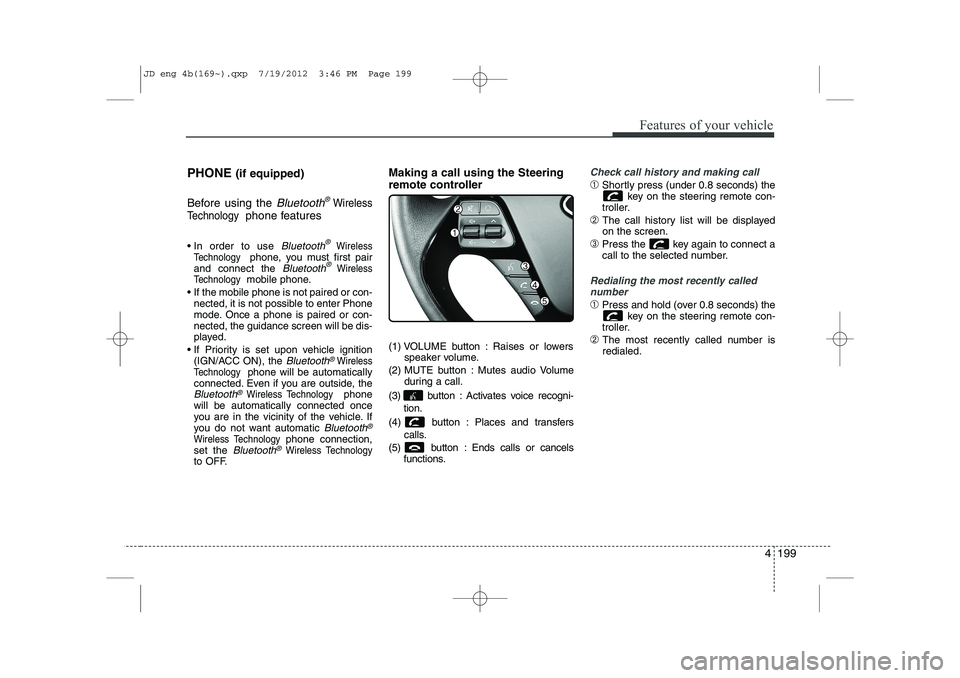
set the Bluetooth®Wireless Technologyto OFF. Making a call using the Steering
remote controller
(1) VOLUME button : Raises or lowers
speaker volume.
(2) MUTE button : Mutes audio Volume during a call.
(3) button : Activates voice recogni- tion.
(4) button : Places and transfers calls.
(5) button : Ends calls or cancels functions.
Check call history and making call
➀Shortly press (under 0.8 seconds) the
key on the steering remote con-
troller.
➁ The call history list will be displayed on the screen.
➂ Press the key again to connect a
call to the selected number.
Redialing the most recently called
number
➀ Press and hold (over 0.8 seconds) the
key on the steering remote con-
troller.
➁ The most recently called number is redialed.
JD eng 4b(169~).qxp 7/19/2012 3:46 PM Page 199
Page 282 of 1168
4 203
Features of your vehicle
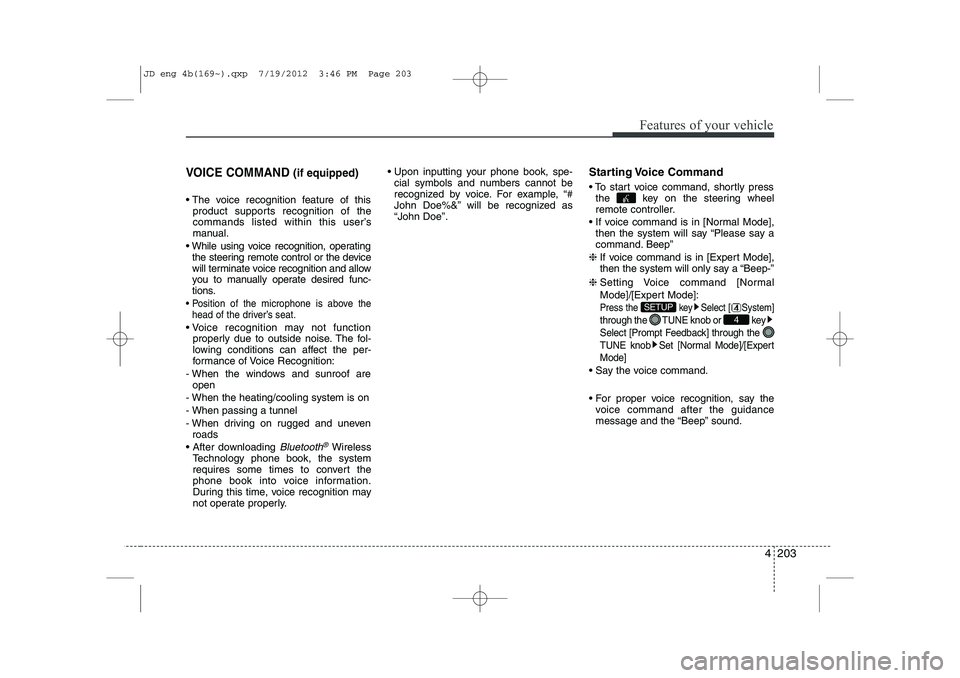
VOICE COMMAND (if equipped)
The voice recognition feature of this
product supports recognition of the
commands listed within this user’s
manual.
While using voice recognition, operating the steering remote control or the device
will terminate voice recognition and allow
you to manually operate desired func-
tions.
Position of the microphone is above the head of the driver’s seat.
Voice recognition may not function properly due to outside noise. The fol-
lowing conditions can affect the per-
formance of Voice Recognition:
- When the windows and sunroof are open
- When the heating/cooling system is on
- When passing a tunnel
- When driving on rugged and uneven roads
After downloading
Bluetooth®Wireless
Technology phone book, the system
requires some times to convert the
phone book into voice information.
During this time, voice recognition may
not operate properly. Upon inputting your phone book, spe-
cial symbols and numbers cannot be
recognized by voice. For example, “#
John Doe%&” will be recognized as“John Doe”. Starting Voice Command
To start voice command, shortly press
the key on the steering wheel
remote controller.
If voice command is in [Normal Mode], then the system will say “Please say a
command. Beep”
❈ If voice command is in [Expert Mode],
then the system will only say a “Beep-”
❈ Setting Voice command [Normal
Mode]/[Expert Mode]:
Press the key Select [ System]
through the TUNE knob or key
Select [Prompt Feedback] through the
TUNE knob Set [Normal Mode]/[ExpertMode]
Say the voice command.
For proper voice recognition, say the
voice command after the guidance
message and the “Beep” sound.
4
SETUP
JD eng 4b(169~).qxp 7/19/2012 3:46 PM Page 203
Page 283 of 1168
Features of your vehicle
204
4
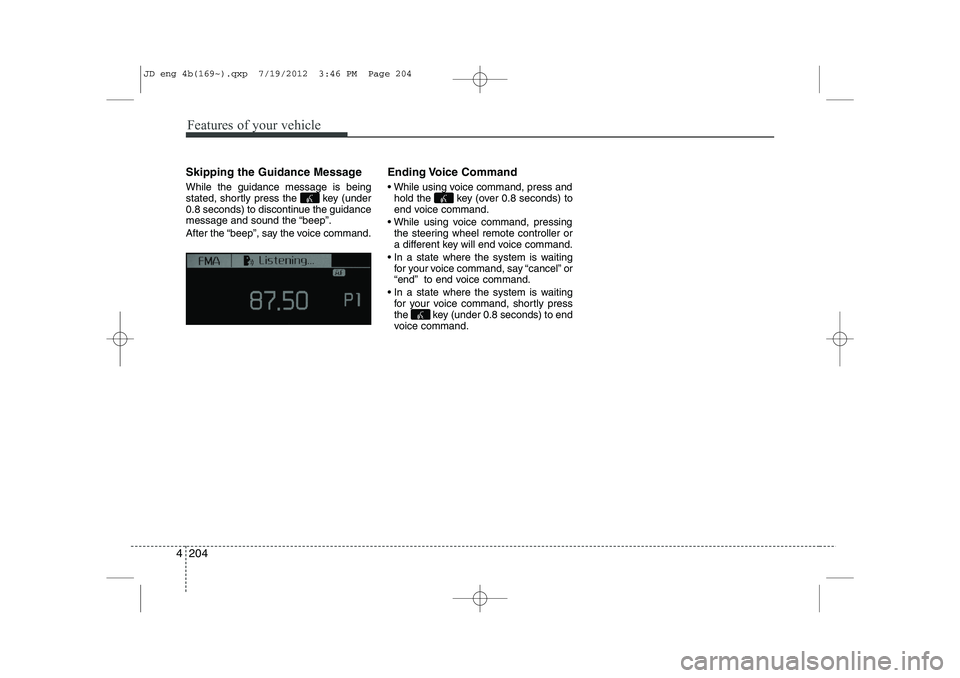
Skipping the Guidance Message While the guidance message is being
stated, shortly press the key (under
0.8 seconds) to discontinue the guidance
message and sound the “beep”.
After the “beep”, say the voice command. Ending Voice Command
While using voice command, press and
hold the key (over 0.8 seconds) to
end voice command.
While using voice command, pressing the steering wheel remote controller or
a different key will end voice command.
In a state where the system is waiting for your voice command, say “cancel” or
“end” to end voice command.
In a state where the system is waiting for your voice command, shortly press
the key (under 0.8 seconds) to end
voice command.
JD eng 4b(169~).qxp 7/19/2012 3:46 PM Page 204
Page 286 of 1168
4 207
Features of your vehicle
System?activated
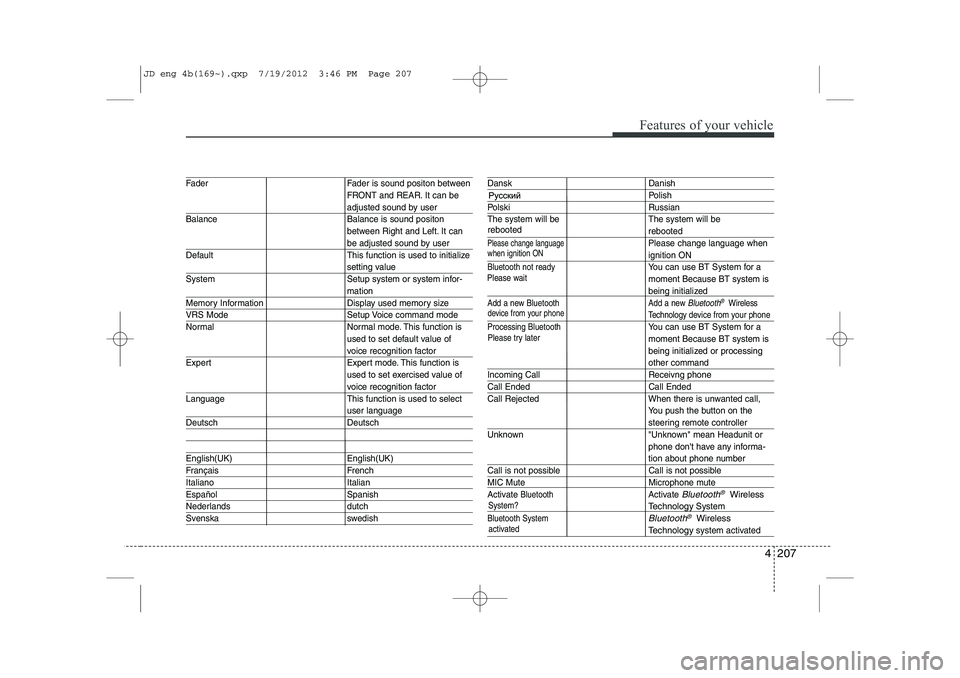
Fader Fader is sound positon between FRONT and REAR. It can be
adjusted sound by user
Balance Balance is sound positon between Right and Left. It can
be adjusted sound by user
Default This function is used to initialize
setting value
System Setup system or system infor-
mation
Memory Information Display used memory size
VRS Mode Setup Voice command mode
Normal Normal mode. This function is used to set default value of
voice recognition factor
Expert Expert mode. This function is used to set exercised value of
voice recognition factor
Language This function is used to select
user language
Deutsch Deutsch
English(UK) English(UK)
Français French
Italiano Italian
Español Spanish
Nederlands dutch
Svenska swedish
Dansk Danish
Polish
Polski Russian
The system will be The system will be
rebooted
Please change languagePlease change language when
ignition ON
Bluetooth not readyYou can use BT System for a moment Because BT system is
being initialized
Add a new Bluetooth Add a new Bluetooth®Wireless
Technology de vice from your phone
Processing Bluetooth
You can use BT System for a moment Because BT system is
being initialized or processing
other command
Incoming Call Receivng phone
Call Ended Call Ended
Call Rejected When there is unwanted call, You push the button on the
steering remote controller
Unknown "Unknown" mean Headunit or phone don't have any informa-
tion about phone number
Call is not possible Call is not possible
MIC Mute Microphone mute
Activate
BluetoothActivate Bluetooth®Wireless
TechnologySystem
Bluetooth SystemBluetooth®Wireless
Technologysystem activated
when ignition ON
device from your phone
Please try later
Please wait
rebooted
JD eng 4b(169~).qxp 7/19/2012 3:46 PM Page 207
Page 291 of 1168
Features of your vehicle
212
4
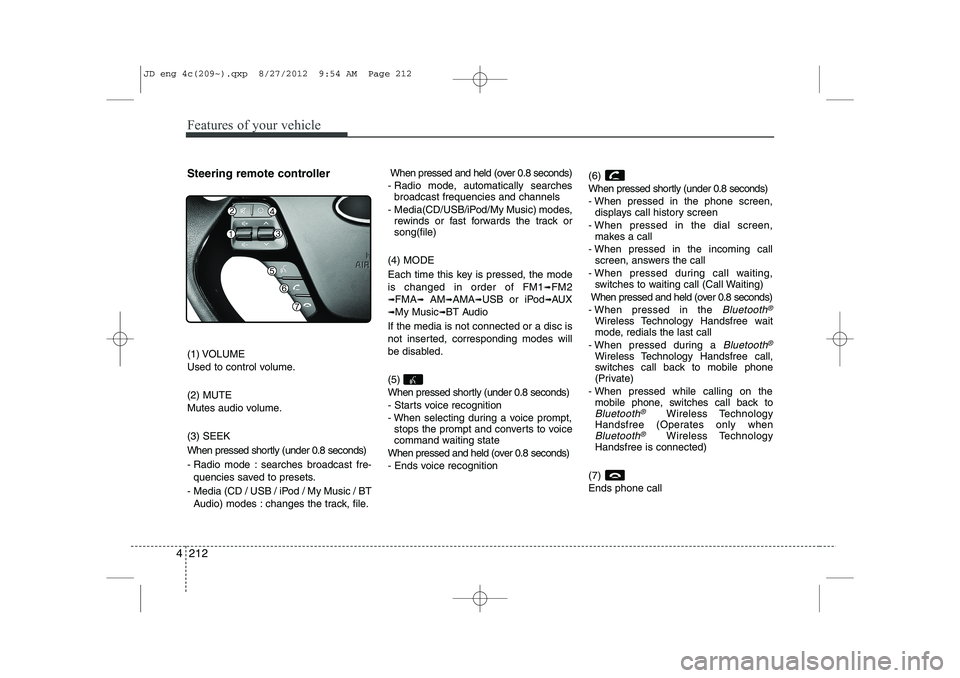
Steering remote controller
(1) VOLUME
Used to control volume. (2) MUTE
Mutes audio volume. (3) SEEK
When pressed shortly (under 0.8 seconds)
- Radio mode : searches broadcast fre-
quencies saved to presets.
- Media (CD / USB / iPod / My Music / BT Audio) modes : changes the track, file. When pressed and held (over 0.8 seconds)
- Radio mode, automatically searches broadcast frequencies and channels
- Media(CD/USB/iPod/My Music) modes, rewinds or fast forwards the track or song(file)
(4) MODE
Each time this key is pressed, the mode is changed in order of FM1
➟FM2
➟FMA➟AM➟AMA➟USB or iPod➟AUX
➟My Music➟BT Audio
If the media is not connected or a disc is
not inserted, corresponding modes will
be disabled. (5)
When pressed shortly (under 0.8 seconds)
- Starts voice recognition
- When selecting during a voice prompt, stops the prompt and converts to voice
command waiting state
When pressed and held (over 0.8 seconds)
- Ends voice recognition (6)
When pressed shortly (under 0.8 seconds)
- When pressed in the phone screen,
displays call history screen
- When pressed in the dial screen, makes a call
- When pressed in the incoming call screen, answers the call
- When pressed during call waiting, switches to waiting call (Call Waiting)
When pressed and held (over 0.8 seconds)
- When pressed in the Bluetooth®
Wireless Technology Handsfree wait
mode, redials the last call
- When pressed during a
Bluetooth®
Wireless Technology Handsfree call,
switches call back to mobile phone
(Private)
- When pressed while calling on the mobile phone, switches call back to
Bluetooth®Wireless Technology
Handsfree (Operates only when
Bluetooth®Wireless Technology
Handsfree is connected)
(7) Ends phone call
JD eng 4c(209~).qxp 8/27/2012 9:54 AM Page 212
Page 318 of 1168
4 239
Features of your vehicle
Bluetooth® Wireless Technology
Pairing a Bluetooth®Wireless
Technology wireless technology
Device What is
Bluetooth®Wireless
Technology Pairing?
Pairing refers to the process of syn-
chronizing your
Bluetooth®Wireless
Technology phone or device with the
car audio system for connection.
Pairing is necessary to connect anduse the
Bluetooth®Wireless
Technology feature. Pairing Key / Key on
the Steering Remote Controller
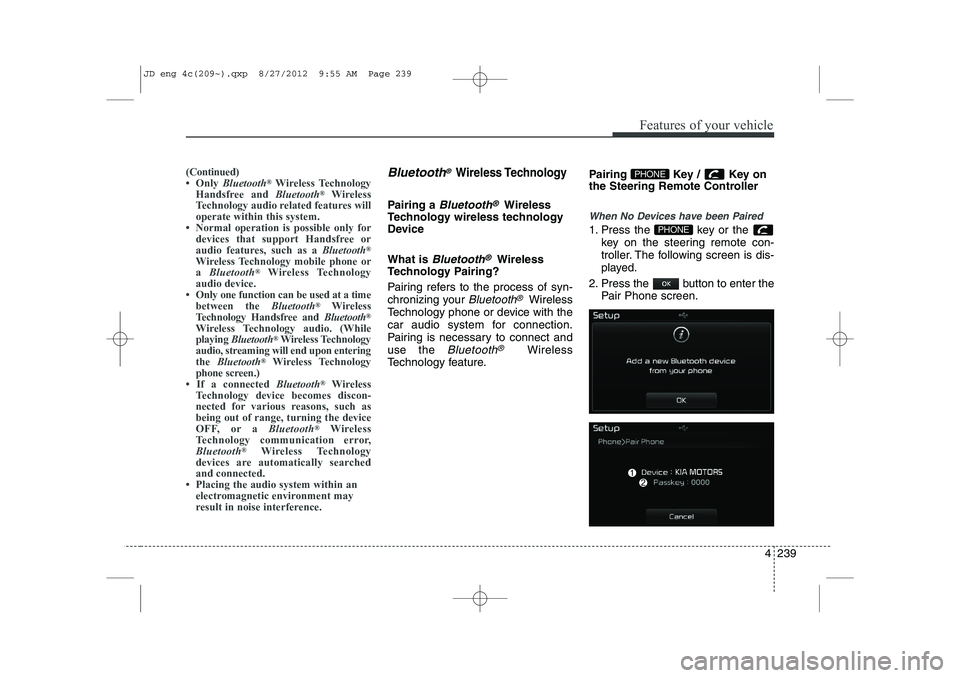
When No Devices have been Paired
1. Press the key or the
key on the steering remote con-
troller. The following screen is dis-
played.
2. Press the button to enter the Pair Phone screen.PHONE
PHONE(Continued)
Page 327 of 1168
Features of your vehicle
248
4
VOICE RECOGNITION
Using Voice Recognition
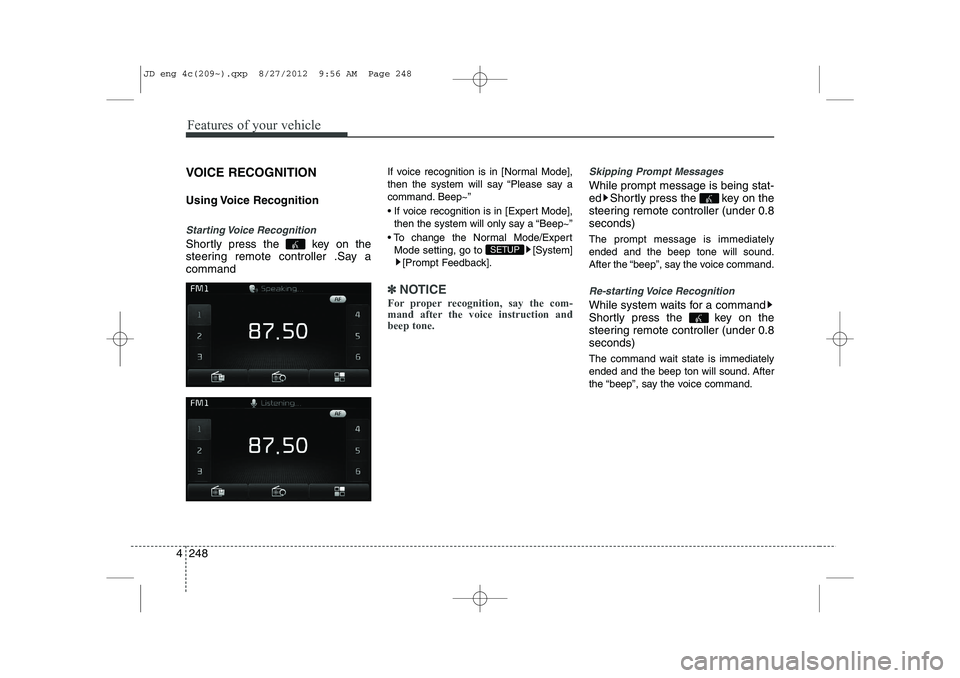
Starting Voice Recognition
Shortly press the key on the
steering remote controller .Say acommand If voice recognition is in [Normal Mode],
then the system will say “Please say a
command. Beep~”
If voice recognition is in [Expert Mode],
then the system will only say a “Beep~”
To change the Normal Mode/Expert Mode setting, go to [System] [Prompt Feedback].
✽✽ NOTICE
For proper recognition, say the com-
mand after the voice instruction andbeep tone.
Skipping Prompt Messages
While prompt message is being stat-
ed Shortly press the key on the
steering remote controller (under 0.8seconds) The prompt message is immediately ended and the beep tone will sound.
After the “beep”, say the voice command.
Re-starting Voice Recognition
While system waits for a command
Shortly press the key on the
steering remote controller (under 0.8seconds)
The command wait state is immediately
ended and the beep ton will sound. After
the “beep”, say the voice command.
SETUP
JD eng 4c(209~).qxp 8/27/2012 9:56 AM Page 248