screen KIA Cerato 2015 2.G Owner's Manual
[x] Cancel search | Manufacturer: KIA, Model Year: 2015, Model line: Cerato, Model: KIA Cerato 2015 2.GPages: 452, PDF Size: 7.85 MB
Page 115 of 452
Features of your vehicle
44
4
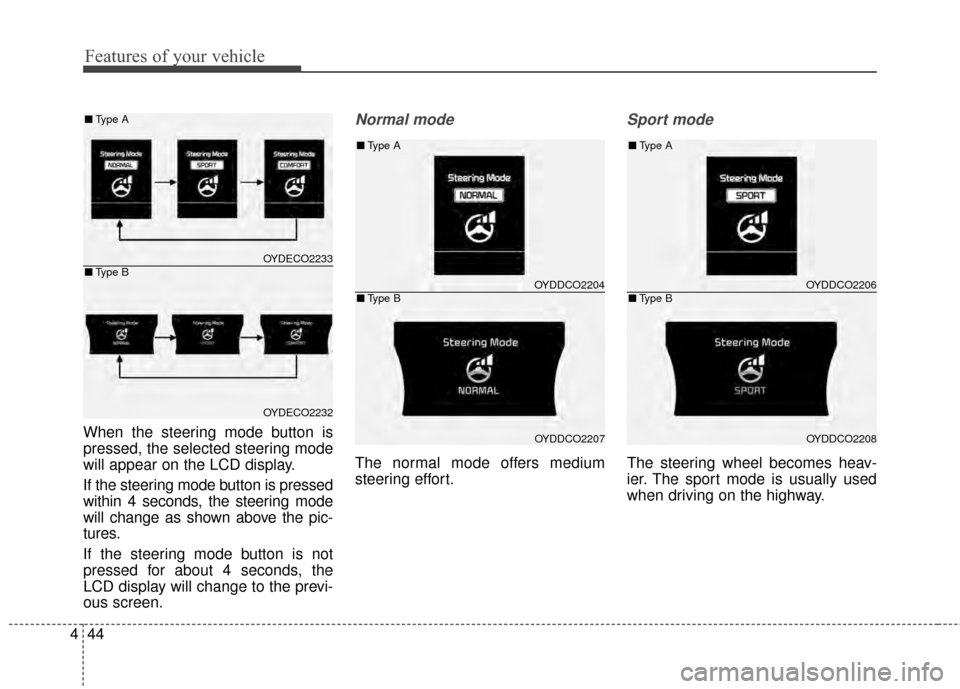
When the steering mode button is
pressed, the selected steering mode
will appear on the LCD display.
If the steering mode button is pressed
within 4 seconds, the steering mode
will change as shown above the pic-
tures.
If the steering mode button is not
pressed for about 4 seconds, the
LCD display will change to the previ-
ous screen.
Normal mode
The normal mode offers medium
steering effort.
Sport mode
The steering wheel becomes heav-
ier. The sport mode is usually used
when driving on the highway.
OYDDCO2204
OYDDCO2207
■ Type A
■Type B
OYDECO2233
OYDECO2232
■Type A
■Type BOYDDCO2206
OYDDCO2208
■Type A
■Type B
Page 225 of 452
Features of your vehicle
154
4
WARNING - Driver
Distraction
Do not stare at the screen while driving. Staring at the
screen for prolonged periods
of time could lead to traffic
accidents.
Using the phone while driving may lead to a lack of attention
of traffic conditions and
increase the likelihood of
accidents. Use the phone fea-
ture after parking the vehicle.WARNING - Audio
System
Do not disassemble, assem- ble, or modify the audio sys-
tem. Such acts could result in
accidents, fire, or electric
shock.
Heed caution not to spill water or introduce foreign objects
into the device. Such acts
could lead to smoke, fire, or
product malfunction.WARNING - Antenna
Do not touch the antenna dur-
ing thunder or lightening as
such acts may lead to lightning
induced electric shock.
CAUTION
Please refrain from use if the screen is blank or no soud canbe hear as these signs may indi-cate product malfunction.
Page 226 of 452
4155
Features of your vehicle
Adjust the volume to levels thatallow the driver to hear sounds
from outside of the vehicle. Driving
in a state where external sounds
cannot be heard may lead to acci-
dents.
Pay attention to the volume setting when turning the device on. A sud-
den output of extreme volume
upon turning the device on could
lead to hearing impairment. (Adjust
the volume to a suitable levels
before turning off the device.) If you want to change the position
of device installation, please
inquire with your place of purchase
or service maintenance center.
Technical expertise is required to
install or disassemble the device.
Turn on the car ignition before using this device. Do not operate
the audio system for long periods
of time with the ignition turned off
as such operations may lead to
battery discharge.
In case of product malfunction, please contact your place of pur-
chase or After Service center.
Placing the audio system within an electromagnetic environment may
result in noise interference.
WARNING - Driver dis-
traction
Operating the device while driv-
ing could lead to accidents due
to a lack of attention to external
surroundings. First park the
vehicle before operating the
device.CAUTION
Do not subject the device to severe shock or impact. Directpressure onto the front side ofthe monitor may cause dam-age to the LCD or touchscreen.
When cleaning the device, make sure to turn off thedevice and use a dry andsmooth cloth. Never use toughmaterials, chemical cloths, orsolvents (alcohol, benzene,thinners, etc.) as such materi-als may damage the devicepanel or cause color/qualitydeterioration
Do not place beverages close to the audio system. Spillingbeverages may lead to systemmalfunction.
Prevent caustic solutions such as perfume and cosmetic oilfrom contacting the dashboardbecause they may cause dam-age or discoloration.
Page 230 of 452
4159
Features of your vehicle
Bluetooth®Wireless
Technology
Bluetooth®Wireless Technology
The Bluetooth®word mark and logos
are registered trademarks owned by
Bluetooth SIG, lnc. and any use of
such marks by Kia is under license.
A
Bluetooth®enabled call phone is
required to use
Bluetooth®wireless
technology.
Before Using the Bluetooth®
Handsfree
What is Bluetooth®?
Bluetooth®refers to a short-dis-
tance wireless networking technol-
ogy which uses a 2.45GHz fre-
quency to connect various devices
within a certain distance.
devices,
Bluetooth®phones, PDAs,
various electronic devices, and
automotive environments,
Bluetooth®allows data to be trans-
mitted at high speeds without hav-
ing to use a connector cable.
Bluetooth®Handsfree refers to a
device which allows the user to con-
veniently make phone calls with
Bluetooth®mobile phones through
the AV/Navigation system.
Bluetooth®Handsfree may not be
supported in some mobile phones.
To learn more about mobile device
compatibility, visit www
.kia.com.
Precautions for Safe Driving
Bluetooth®Handsfree is a feature
that enables drivers to practice safe
driving. Connecting the head unit
with a
Bluetooth®phone allows the
user to conveniently make and
receive calls and use contacts.
Before using
Bluetooth®, carefully
read the contents of this user’s
manual.
driving may lead to negligent driv-
ing practices and result in acci-
dents. Refrain from excessive oper-
ations while driving.
periods of time is dangerous and
may lead to accidents. When driv-
ing, view the screen only for short
periods of time.
WARNING
Driving while distracted can result in a loss of vehicle con-
trol that may lead to an acci-
dent, severe personal injury,
and death. The driver’s primary
responsibility is in the safe
and legal operation of a vehi-
cle, and use of any handheld
devices, other equipment, or
vehicle systems which take
the driver’s eyes, attention and
focus away from the safe oper-
ation of a vehicle or which are
not permissible by law should
never be used during opera-
tion of the vehicle.
Page 234 of 452
4163
Features of your vehicle
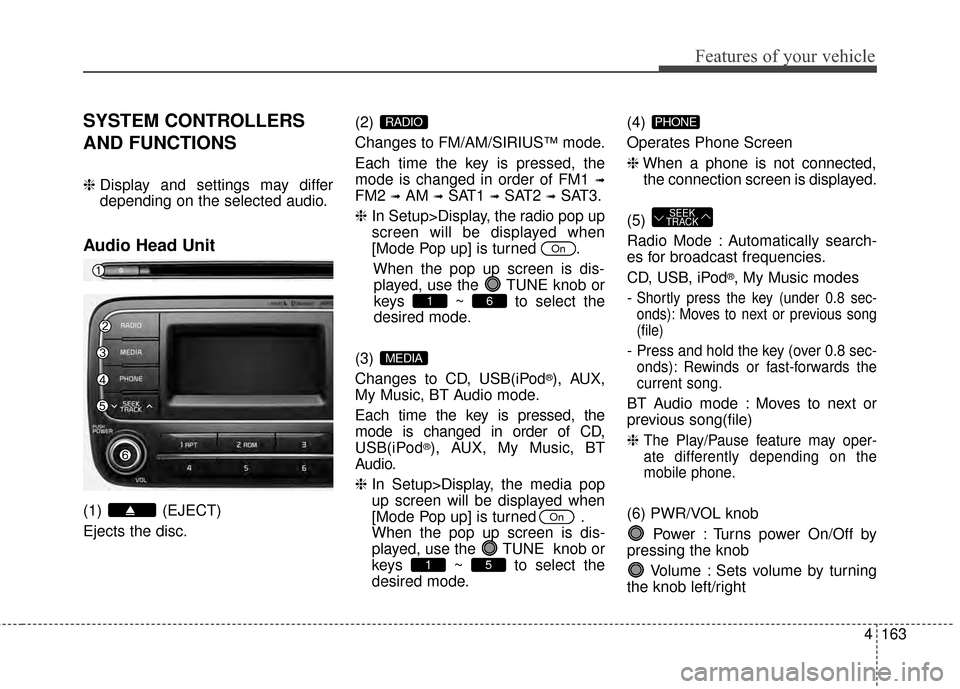
SYSTEM CONTROLLERS
AND FUNCTIONS
❈Display and settings may differ
depending on the selected audio.
Audio Head Unit
(1) (EJECT)
Ejects the disc. (2)
Changes to FM/AM/SIRIUS
™mode.
Each time the key is pressed, the
mode is changed in order of FM1
➟
FM2 ➟AM ➟SAT1 ➟SAT2 ➟SAT3.
❈ In Setup>Display, the radio pop up
screen will be displayed when
[Mode Pop up] is turned .
When the pop up screen is dis-played, use the TUNE knob or
keys ~ to select the
desired mode.
(3)
Changes to CD, USB(iPod
®), AUX,
My Music, BT Audio mode.
Each time the key is pressed, the
mode is changed in order of CD,
USB(iPod
®), AUX, My Music, BT
Audio.
❈ In Setup>Display, the media pop
up screen will be displayed when
[Mode Pop up] is turned .
When the pop up screen is dis-
played, use the TUNE knob or
keys ~ to select the
desired mode. (4)
Operates Phone Screen
❈
When a phone is not connected,
the connection screen is displayed.
(5)
Radio Mode : Automatically search-
es for broadcast frequencies.
CD, USB, iPod
®, My Music modes
-
Shortly press the key (under 0.8 sec-
onds): Moves to next or previous song
(file)
- Press and hold the key (over 0.8 sec-
onds): Rewinds or fast-forwards the
current song.
BT Audio mode : Moves to next or
previous song(file)
❈
The Play/Pause feature may oper-
ate differently depending on the
mobile phone.
(6) PWR/VOL knob Power : Turns power On/Off by
pressing the knob
Volume : Sets volume by turning
the knob left/right
SEEK
TRACK
PHONE
51
On
MEDIA
61
On
RADIO
Page 235 of 452
Features of your vehicle
164
4
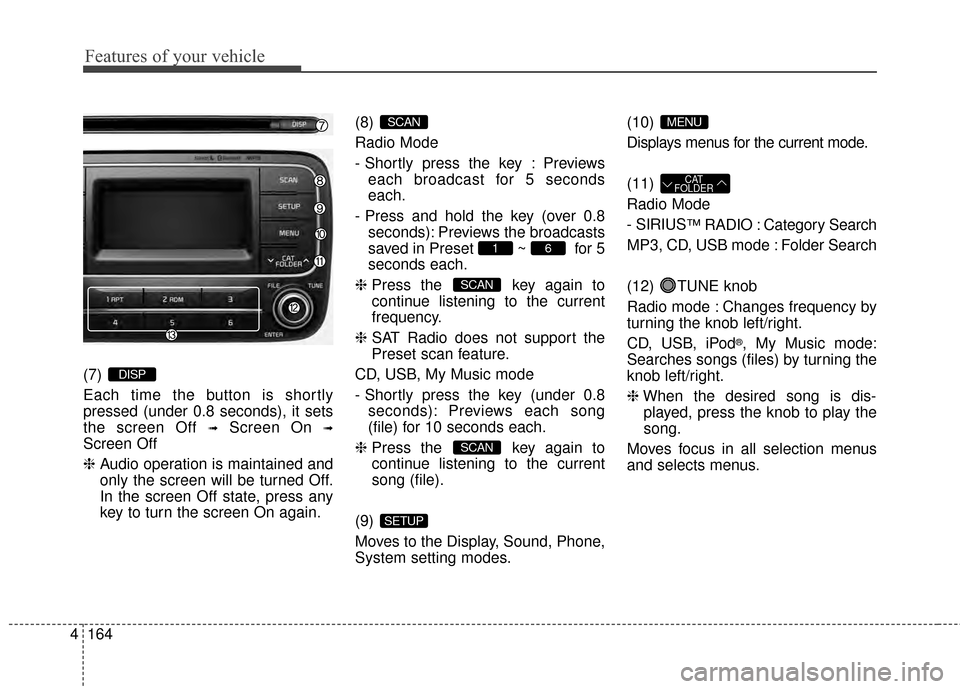
(7)
Each time the button is shortly
pressed (under 0.8 seconds), it sets
the screen Off
➟Screen On ➟
Screen Off
❈ Audio operation is maintained and
only the screen will be turned Off.
In the screen Off state, press any
key to turn the screen On again. (8)
Radio Mode
-
Shortly press the key : Previews
each broadcast for 5 seconds
each.
- Press and hold the key (over 0.8 seconds): Previews the broadcasts
saved in Preset ~ for 5
seconds each.
❈ Press the key again to
continue listening to the current
frequency.
❈ SAT Radio does not support the
Preset scan feature.
CD, USB, My Music mode
- Shortly press the key (under 0.8 seconds): Previews each song
(file) for 10 seconds each.
❈ Press the key again to
continue listening to the current
song (file).
(9)
Moves to the Display, Sound, Phone,
System setting modes. (10)
Displays menus for the current mode.
(11)
Radio Mode
- SIRIUS
™RADIO : Category Search
MP3, CD, USB mode : Folder Search
(12) TUNE knob
Radio mode : Changes frequency by
turning the knob left/right.
CD, USB, iPod
®, My Music mode:
Searches songs (files) by turning the
knob left/right.
❈ When the desired song is dis-
played, press the knob to play the
song.
Moves focus in all selection menus
and selects menus.
CAT
FOLDER
MENU
SETUP
SCAN
SCAN
61
SCAN
DISP
Page 236 of 452
4165
Features of your vehicle
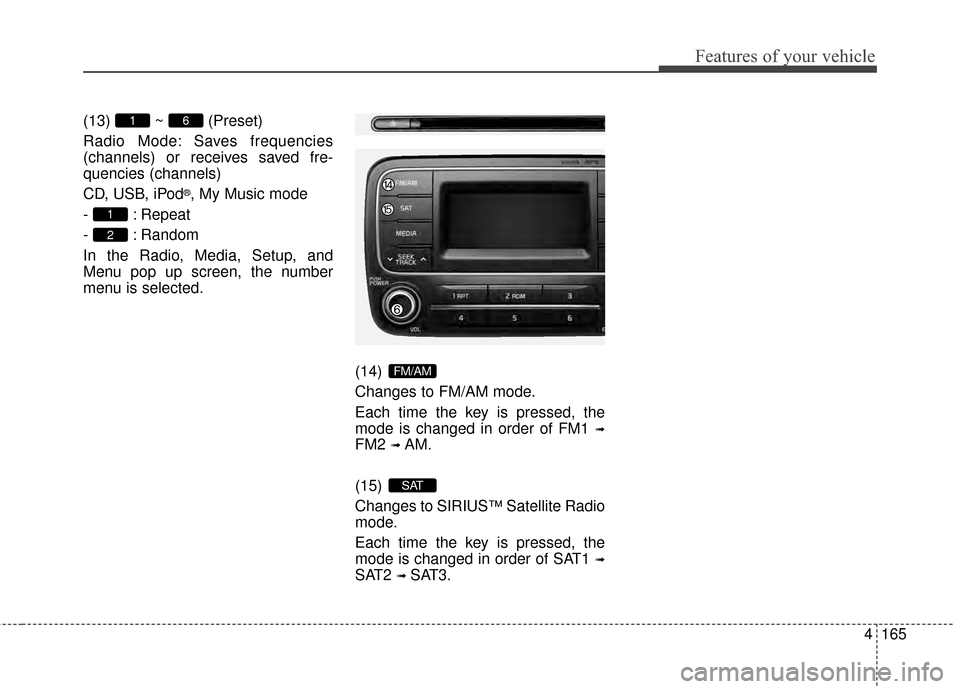
(13) ~ (Preset)
Radio Mode: Saves frequencies
(channels) or receives saved fre-
quencies (channels)
CD, USB, iPod
®, My Music mode
- : Repeat
- : Random
In the Radio, Media, Setup, and
Menu pop up screen, the number
menu is selected.
(14)
Changes to FM/AM mode.
Each time the key is pressed, the
mode is changed in order of FM1
➟
FM2 ➟ AM.
(15)
Changes to SIRIUS
™Satellite Radio
mode.
Each time the key is pressed, the
mode is changed in order of SAT1
➟
SAT2 ➟ SAT3.
SAT
FM/AM
2
1
61
Page 237 of 452
![KIA Cerato 2015 2.G Owners Manual Features of your vehicle
166
4
SETUP
Display Settings
Press the key Select [Display]
through TUNE knob or key
Select menu through TUNE knob
Mode Pop up
[Mode Pop up] Changes /
selection mode
or](/img/2/2961/w960_2961-236.png "KIA Cerato 2015 2.G Owners Manual Features of your vehicle
166
4
SETUP
Display Settings
Press the key Select [Display]
through TUNE knob or key
Select menu through TUNE knob
Mode Pop up
[Mode Pop up] Changes /
selection mode
or")
Features of your vehicle
166
4
SETUP
Display Settings
Press the key Select [Display]
through TUNE knob or key
Select menu through TUNE knob
Mode Pop up
[Mode Pop up] Changes /
selection mode
or key to display the mode
change pop up screen.
Text Scroll
[Text Scroll] Set /
Maintains scroll
: Scrolls only one (1) time.
Media Display
When playing an MP3 file, select the
desired display info from ‘Folder/File’
or ‘Album/Artist/Song’.
Off
On
OffOn
MEDIA
RADIO
OffOn
1
SETUP
Page 240 of 452
4169
Features of your vehicle
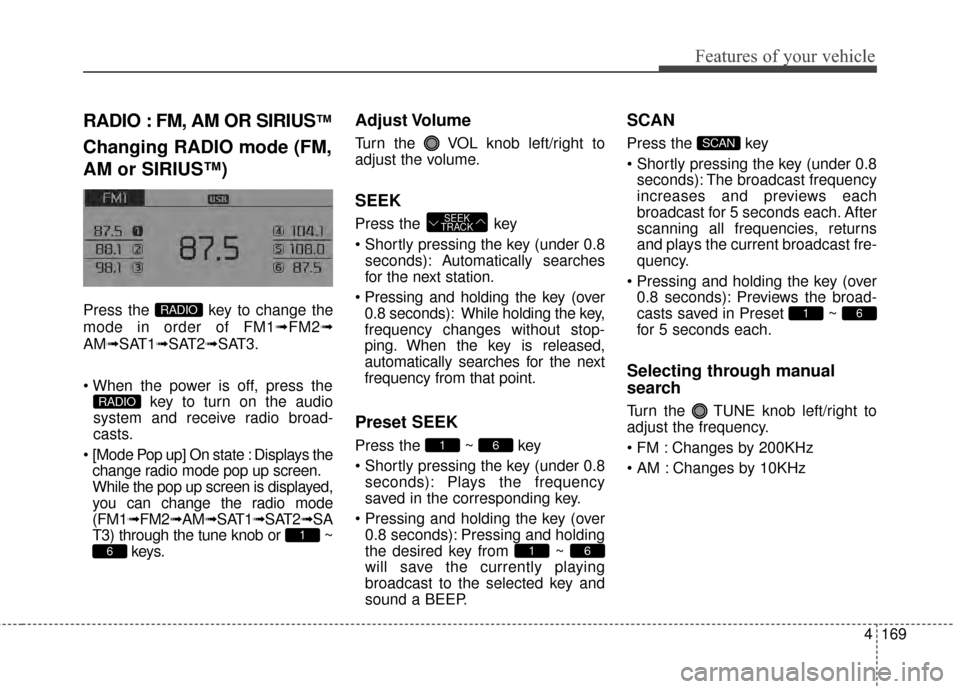
RADIO : FM, AM OR SIRIUS™
Changing RADIO mode (FM,
AM or SIRIUS™)
Press the key to change the
mode in order of FM1➟FM2➟
AM➟SAT1➟SAT2➟SAT3.
key to turn on the audio
system and receive radio broad-
casts.
[Mode Pop up] On state : Displays the change radio mode pop up screen.
While the pop up screen is displayed,
you can change the radio mode
(FM1➟ FM2➟AM➟SAT1➟ SAT2➟SA
T3) through the tune knob or ~ keys.
Adjust Volume
Turn the VOL knob left/right to
adjust the volume.
SEEK
Press the key
Shortly pressing the key (under 0.8
seconds): A utomatically searches
for the next station.
Pressing and holding the key (over
0.8 seconds): While holding the key,
frequency changes without stop-
ping. When the key is released,
automatically searches for the next
frequency from that point.
Preset SEEK
Press the ~ key
seconds): Plays the frequency
saved in the corresponding key.
0.8 seconds): Pressing and holding
the desired key from ~
will save the currently playing
broadcast to the selected key and
sound a BEEP.
SCAN
Press the key
seconds): The broadcast frequency
increases and previews each
broadcast for 5 seconds each. After
scanning all frequencies, returns
and plays the current broadcast fre-
quency.
0.8 seconds): Previews the broad-
casts saved in Preset ~
for 5 seconds each.
Selecting through manual
search
Turn the TUNE knob left/right to
adjust the frequency.
Changes by 200KHz
Changes by 10KHz
61
SCAN
61
61
SEEK
TRACK
6
1
RADIO
RADIO
Page 243 of 452
Features of your vehicle
172
4
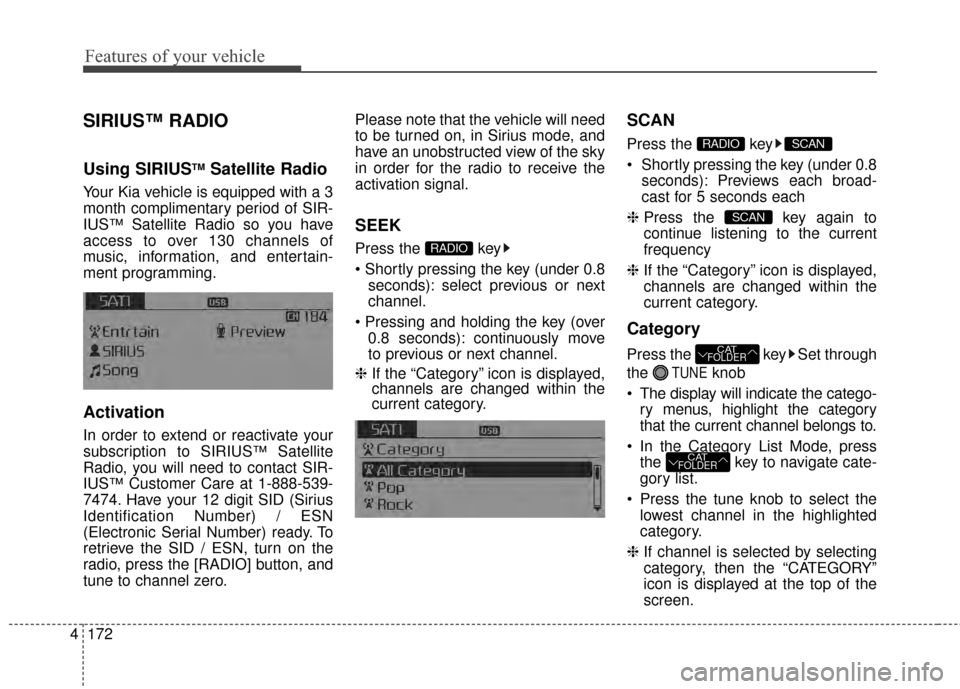
SIRIUS™ RADIO
Using SIRIUSTMSatellite Radio
Your Kia vehicle is equipped with a 3
month complimentary period of SIR-
IUS
™Satellite Radio so you have
access to over 130 channels of
music, information, and entertain-
ment programming.
Activation
In order to extend or reactivate your
subscription to SIRIUS
™Satellite
Radio, you will need to contact SIR-
IUS
™Customer Care at 1-888-539-
7474. Have your 12 digit SID (Sirius
Identification Number) / ESN
(Electronic Serial Number) ready. To
retrieve the SID / ESN, turn on the
radio, press the [RADIO] button, and
tune to channel zero. Please note that the vehicle will need
to be turned on, in Sirius mode, and
have an unobstructed view of the sky
in order for the radio to receive the
activation signal.
SEEK
Press the key
seconds): select previous or next
channel.
0.8 seconds): continuously move
to previous or next channel.
❈ If the “Category” icon is displayed,
channels are changed within the
current category.
SCAN
Press the key
Shortly pressing the key (under 0.8
seconds): Previews each broad-
cast for 5 seconds each
❈ Press the key again to
continue listening to the current
frequency
❈ If the “Category” icon is displayed,
channels are changed within the
current category.
Category
Press the key Set through
the
TUNEknob
The display will indicate the catego- ry menus, highlight the category
that the current channel belongs to.
In the Category List Mode, press the key to navigate cate-
gory list.
Press the tune knob to select the lowest channel in the highlighted
category.
❈ If channel is selected by selecting
category, then the “CATEGORY”
icon is displayed at the top of the
screen.
CATFOLDER
CATFOLDER
SCAN
SCANRADIO
RADIO