lock KIA Forte 2010 1.G Service Manual
[x] Cancel search | Manufacturer: KIA, Model Year: 2010, Model line: Forte, Model: KIA Forte 2010 1.GPages: 321, PDF Size: 6.3 MB
Page 135 of 321
Features of your vehicle70
4Operation Tips
To prevent dust or unpleasant fumes
from entering the vehicle through the
ventilation system, temporarily set the
air intake control to the recirculated air
position. Be sure to return the control
to the fresh air position when the irrita-
tion has passed to keep fresh air in the
vehicle. This will help keep the driver
alert and comfortable.
Air for the heating/cooling system is drawn in through the grilles just ahead
of the windshield. Care should be
taken that these are not blocked by
leaves, snow, ice or other obstructions.
To prevent interior fog on the wind- shield, set the air intake control to the
fresh air position and fan speed to the
desired position, turn on the air condi-
tioning system, and adjust the temper-
ature control to desired temperature.
D230503ATDAir conditioning (if equipped) All KIA Air Conditioning Systems are
filled with environmentally friendly
R-134a refrigerant which does not dam-
age the ozone layer.
1. Start the engine. Push the air condi- tioning button.
2. Set the mode to the position.
3. Set the air intake control to the recir- culated air position. However, pro-
longed operation of the reticulated air
position will excessively dry the air. In
this case, change the air position.
4. Adjust the fan speed control and tem- perature control to maintain maximum
comfort.
When maximum cooling is desired, set the temperature control to the extreme
left position, set the mode control to
the MAX A/C position, then set the fan
speed control to the highest speed.
✽ ✽ NOTICE• While using the air conditioning sys-
tem, monitor the temperature gauge
closely while driving up hills or in
heavy traffic when outside tempera-
tures are high. Air conditioning sys-
tem operation may cause engine over-
heating. Continue to use the blower
fan but turn the air conditioning sys-
tem off if the temperature gauge indi-
cates engine overheating.
• While opening the windows in humid weather air conditioning may create
water droplets inside the vehicle.
Since excessive water droplets may
cause damage to electrical equipment,
air conditioning should only be used
with the windows closed.
Page 149 of 321
Features of your vehicle84
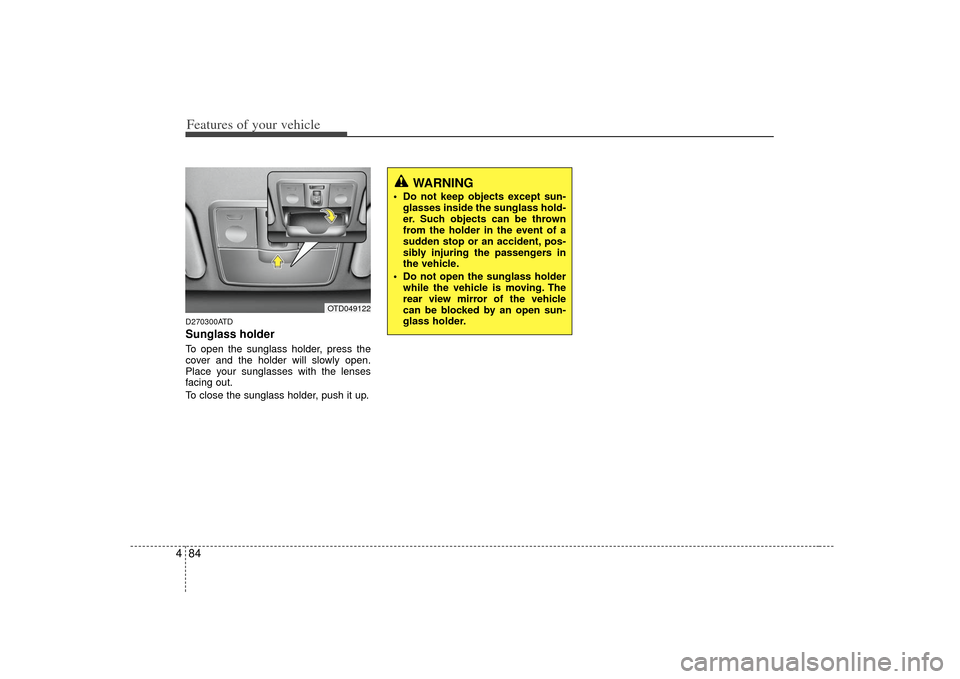
4D270300ATDSunglass holder To open the sunglass holder, press the
cover and the holder will slowly open.
Place your sunglasses with the lenses
facing out.
To close the sunglass holder, push it up.
OTD049122
WARNING
Do not keep objects except sun-
glasses inside the sunglass hold-
er. Such objects can be thrown
from the holder in the event of a
sudden stop or an accident, pos-
sibly injuring the passengers in
the vehicle.
Do not open the sunglass holder while the vehicle is moving. The
rear view mirror of the vehicle
can be blocked by an open sun-
glass holder.
Page 152 of 321
487
Features of your vehicle
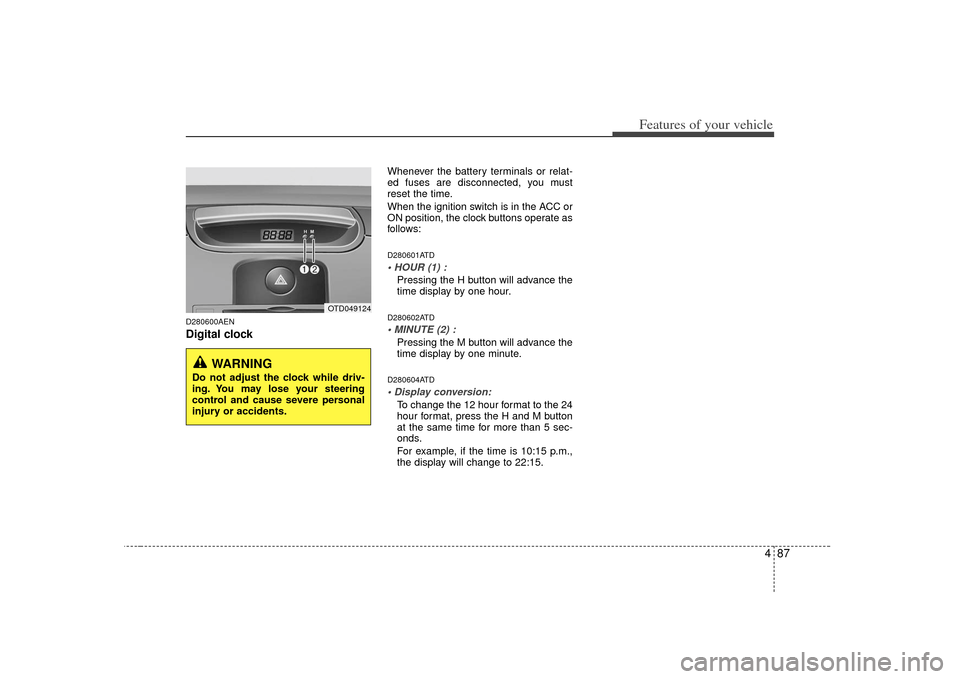
D280600AENDigital clock
Whenever the battery terminals or relat-
ed fuses are disconnected, you must
reset the time.
When the ignition switch is in the ACC or
ON position, the clock buttons operate as
follows:D280601ATDPressing the H button will advance the
time display by one hour.D280602ATDPressing the M button will advance the
time display by one minute.D280604ATDTo change the 12 hour format to the 24
hour format, press the H and M button
at the same time for more than 5 sec-
onds.
For example, if the time is 10:15 p.m.,
the display will change to 22:15.
OTD049124
WARNING
Do not adjust the clock while driv-
ing. You may lose your steering
control and cause severe personal
injury or accidents.
Page 153 of 321
Features of your vehicle88
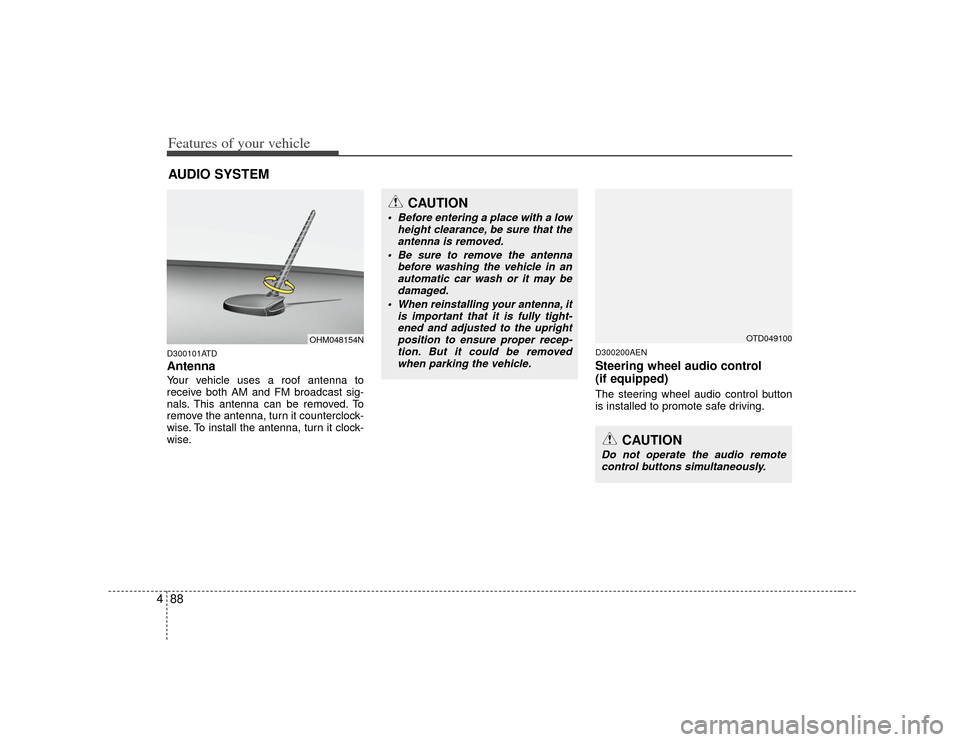
4D300101ATDAntennaYour vehicle uses a roof antenna to
receive both AM and FM broadcast sig-
nals. This antenna can be removed. To
remove the antenna, turn it counterclock-
wise. To install the antenna, turn it clock-
wise.
D300200AENSteering wheel audio control
(if equipped) The steering wheel audio control button
is installed to promote safe driving.
AUDIO SYSTEM
OHM048154N
CAUTION
• Before entering a place with a low
height clearance, be sure that theantenna is removed.
Be sure to remove the antenna before washing the vehicle in anautomatic car wash or it may bedamaged.
When reinstalling your antenna, it is important that it is fully tight-ened and adjusted to the uprightposition to ensure proper recep- tion. But it could be removedwhen parking the vehicle.
CAUTION
Do not operate the audio remote control buttons simultaneously.
OTD049100
Page 156 of 321
491
Features of your vehicle
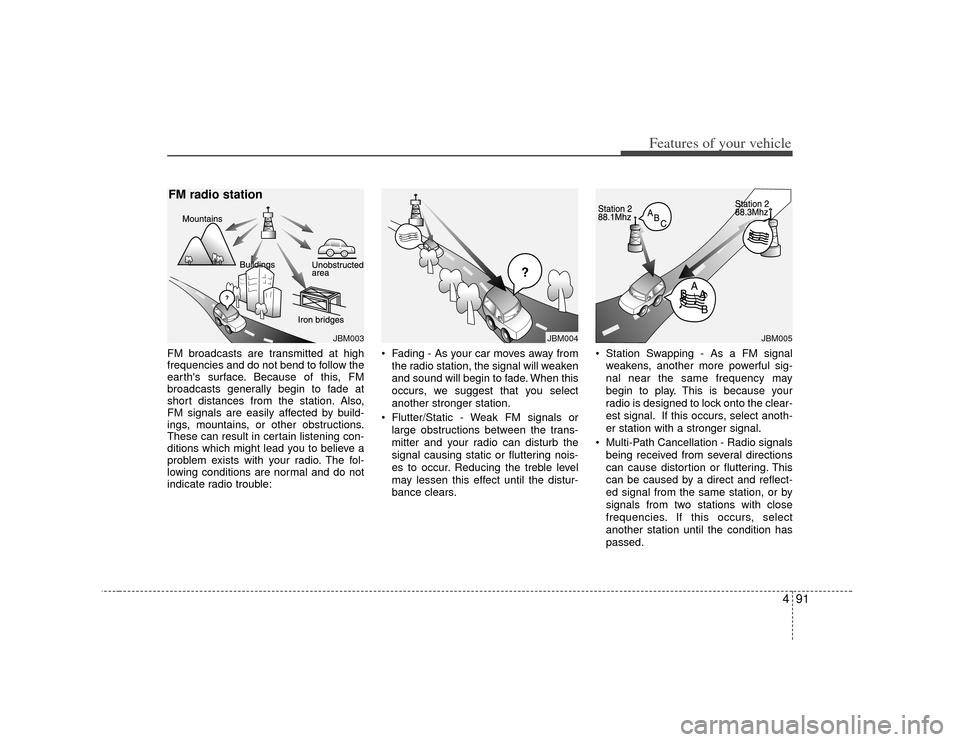
FM broadcasts are transmitted at high
frequencies and do not bend to follow the
earth's surface. Because of this, FM
broadcasts generally begin to fade at
short distances from the station. Also,
FM signals are easily affected by build-
ings, mountains, or other obstructions.
These can result in certain listening con-
ditions which might lead you to believe a
problem exists with your radio. The fol-
lowing conditions are normal and do not
indicate radio trouble: Fading - As your car moves away from
the radio station, the signal will weaken
and sound will begin to fade. When this
occurs, we suggest that you select
another stronger station.
Flutter/Static - Weak FM signals or large obstructions between the trans-
mitter and your radio can disturb the
signal causing static or fluttering nois-
es to occur. Reducing the treble level
may lessen this effect until the distur-
bance clears. Station Swapping - As a FM signal
weakens, another more powerful sig-
nal near the same frequency may
begin to play. This is because your
radio is designed to lock onto the clear-
est signal. If this occurs, select anoth-
er station with a stronger signal.
Multi-Path Cancellation - Radio signals being received from several directions
can cause distortion or fluttering. This
can be caused by a direct and reflect-
ed signal from the same station, or by
signals from two stations with close
frequencies. If this occurs, select
another station until the condition has
passed.
¢¢¢
JBM004
JBM005
JBM003
FM radio station
Page 160 of 321
495
Features of your vehicle
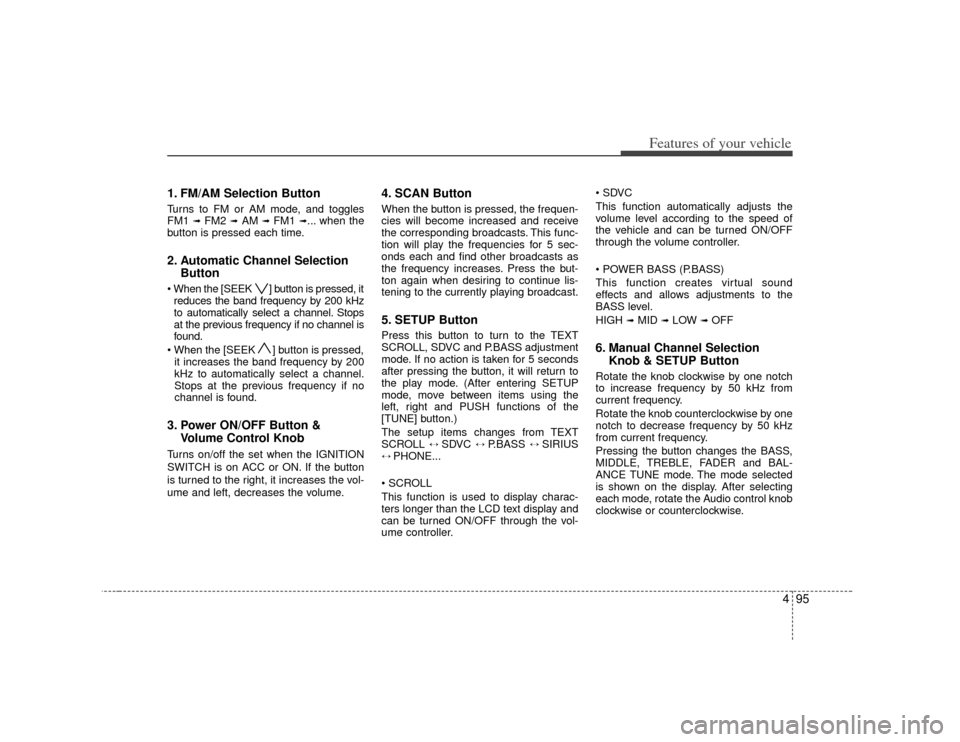
1. FM/AM Selection ButtonTurns to FM or AM mode, and toggles
FM1
➟ FM2
➟AM
➟ FM1
➟... when the
button is pressed each time.
2. Automatic Channel Selection Button ] button is pressed, it
reduces the band frequency by 200 kHz
to automatically select a channel. Stops
at the previous frequency if no channel is
found.
] button is pressed, it increases the band frequency by 200
kHz to automatically select a channel.
Stops at the previous frequency if no
channel is found.3. Power ON/OFF Button & Volume Control KnobTurns on/off the set when the IGNITION
SWITCH is on ACC or ON. If the button
is turned to the right, it increases the vol-
ume and left, decreases the volume.
4. SCAN ButtonWhen the button is pressed, the frequen-
cies will become increased and receive
the corresponding broadcasts. This func-
tion will play the frequencies for 5 sec-
onds each and find other broadcasts as
the frequency increases. Press the but-
ton again when desiring to continue lis-
tening to the currently playing broadcast.5. SETUP ButtonPress this button to turn to the TEXT
SCROLL, SDVC and P.BASS adjustment
mode. If no action is taken for 5 seconds
after pressing the button, it will return to
the play mode. (After entering SETUP
mode, move between items using the
left, right and PUSH functions of the
[TUNE] button.)
The setup items changes from TEXT
SCROLL
↔
SDVC
↔
P.BASS
↔
SIRIUS
↔ PHONE...
This function is used to display charac-
ters longer than the LCD text display and
can be turned ON/OFF through the vol-
ume controller.
This function automatically adjusts the
volume level according to the speed of
the vehicle and can be turned ON/OFF
through the volume controller.
This function creates virtual sound
effects and allows adjustments to the
BASS level.
HIGH
➟MID
➟LOW
➟OFF
6. Manual Channel Selection
Knob & SETUP ButtonRotate the knob clockwise by one notch
to increase frequency by 50 kHz from
current frequency.
Rotate the knob counterclockwise by one
notch to decrease frequency by 50 kHz
from current frequency.
Pressing the button changes the BASS,
MIDDLE, TREBLE, FADER and BAL-
ANCE TUNE mode. The mode selected
is shown on the display. After selecting
each mode, rotate the Audio control knob
clockwise or counterclockwise.
Page 161 of 321
Features of your vehicle96
4
To increase the BASS, rotate the knob
clockwise, while to decrease the BASS,
rotate the knob counterclockwise.
To increase the MIDDLE, rotate the knob
clockwise, while to decrease the MID-
DLE, rotate the knob counterclockwise.
Control
To increase the TREBLE, rotate the knob
clockwise, while to decrease the TRE-
BLE, rotate the knob counterclockwise.
Turn the control knob clockwise to
emphasize rear speaker sound (front
speaker sound will be attenuated). When
the control knob is turned counterclock-
wise, front speaker sound will be empha-
sized (rear speaker sound will be attenu-
ated).
Rotate the knob clockwise to emphasize
right speaker sound (left speaker sound
will be attenuated). When the control
knob is turned counter clockwise, left
speaker sound will be emphasized (right
speaker sound will be attenuated).
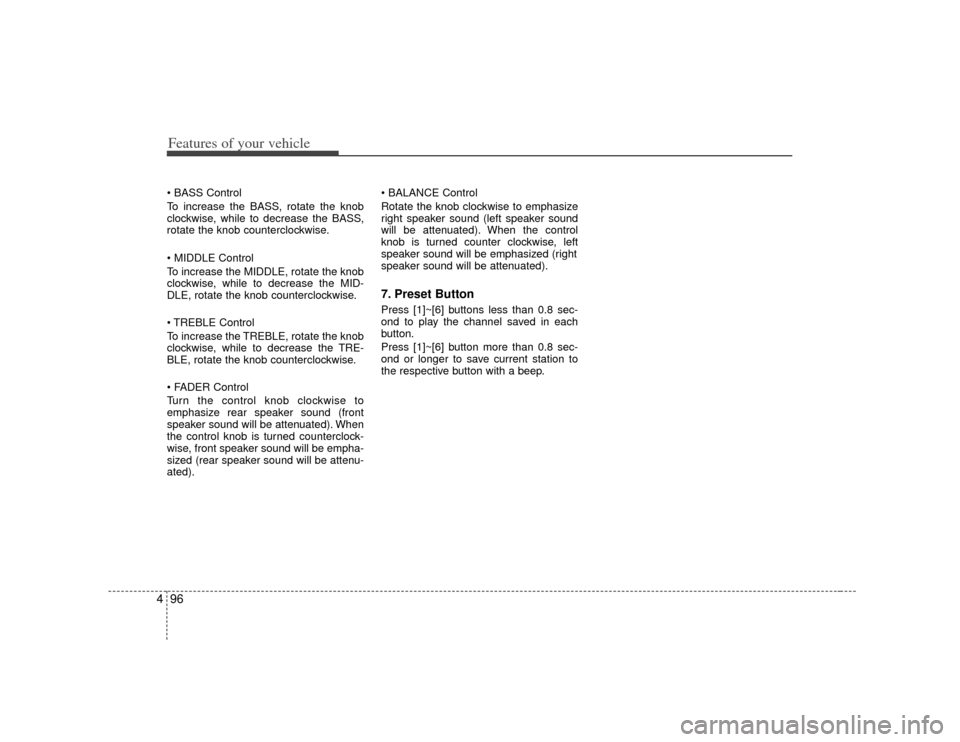
7. Preset ButtonPress [1]~[6] buttons less than 0.8 sec-
ond to play the channel saved in each
button.
Press [1]~[6] button more than 0.8 sec-
ond or longer to save current station to
the respective button with a beep.
Page 165 of 321
![KIA Forte 2010 1.G Service Manual Features of your vehicle100
4 Press [FOLDER ] button to move to
parent folder of the current folder and
display the first song in the folder.
Press TUNE/ENTER knob to move to
the folder displayed.11.](/img/2/2915/w960_2915-164.png "KIA Forte 2010 1.G Service Manual Features of your vehicle100
4 Press [FOLDER ] button to move to
parent folder of the current folder and
display the first song in the folder.
Press TUNE/ENTER knob to move to
the folder displayed.11.")
Features of your vehicle100
4 Press [FOLDER ] button to move to
parent folder of the current folder and
display the first song in the folder.
Press TUNE/ENTER knob to move to
the folder displayed.11. SEARCH Knob & ENTER ButtonTurn this button clockwise to display
songs after current song.
Also, turn this button counterclockwise to
display songs before current song.
To listen to the displayed song, press the
button to skip to the song and play.
Pressing the button changes the BASS,
MIDDLE, TREBLE, FADER and BAL-
ANCE TUNE mode. The mode selected
is shown on the display. After selecting
each mode, rotate the Audio control knob
clockwise or counterclockwise.
To increase the BASS, rotate the knob
clockwise, while to decrease the BASS,
rotate the knob counterclockwise.
To increase the MIDDLE, rotate the knob
clockwise, while to decrease the MID-
DLE, rotate the knob counterclockwise.
Control
To increase the TREBLE, rotate the knob
clockwise, while to decrease the TRE-
BLE, rotate the knob counterclockwise.
Turn the control knob clockwise to empha-
size rear speaker sound (front speaker
sound will be attenuated). When the con-
trol knob is turned counterclockwise, front
speaker sound will be emphasized (rear
speaker sound will be attenuated).
Rotate the knob clockwise to emphasize
right speaker sound (left speaker sound
will be attenuated). When the control
knob is turned counter clockwise, left
speaker sound will be emphasized (right
speaker sound will be attenuated).
12. DISC Selection Button (PA760) Press [DISC ] button to change disc
to the previous disc.
Press [DISC ] button to change disc to the next disc.13. CD LOAD Button (PA760)Press [LO AD] button to load CDs into
available CDC slots (from 1~6).
Press [LOAD] button for 2 seconds or
longer to load into all available decks. The
last CD will play. Idle status for 10 sec-
onds will terminate the loading process.
Page 168 of 321
4103
Features of your vehicle
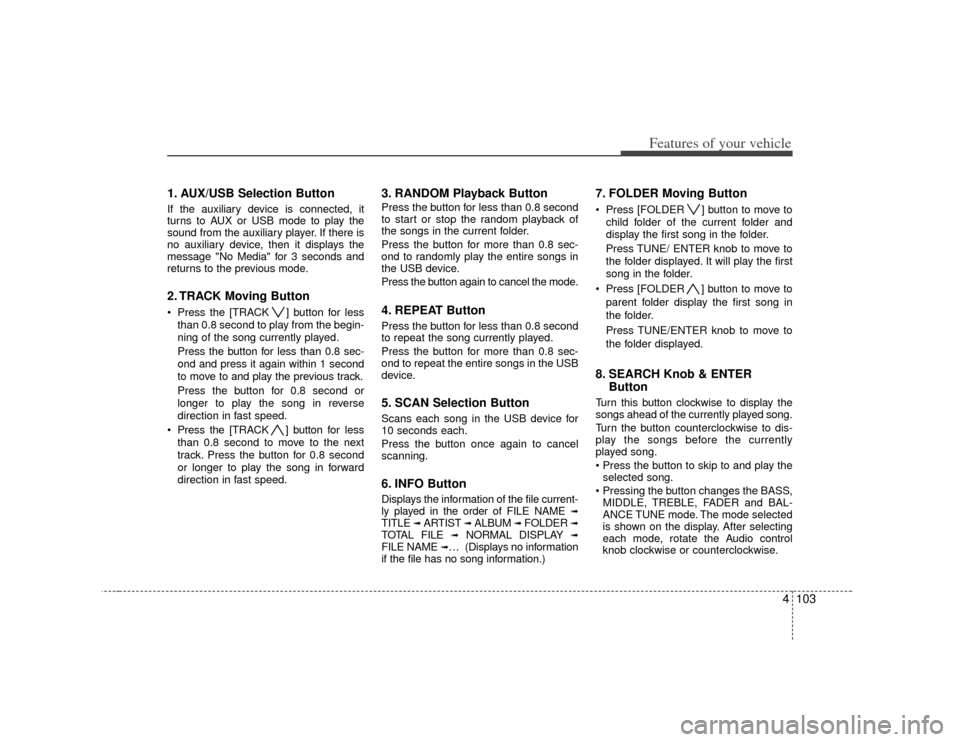
1. AUX/USB Selection ButtonIf the auxiliary device is connected, it
turns to AUX or USB mode to play the
sound from the auxiliary player. If there is
no auxiliary device, then it displays the
message "No Media" for 3 seconds and
returns to the previous mode.2. TRACK Moving Button Press the [TRACK ] button for lessthan 0.8 second to play from the begin-
ning of the song currently played.
Press the button for less than 0.8 sec-
ond and press it again within 1 second
to move to and play the previous track.
Press the button for 0.8 second or
longer to play the song in reverse
direction in fast speed.
Press the [TRACK ] button for less
than 0.8 second to move to the next
track. Press the button for 0.8 second
or longer to play the song in forward
direction in fast speed.
3. RANDOM Playback ButtonPress the button for less than 0.8 second
to start or stop the random playback of
the songs in the current folder.
Press the button for more than 0.8 sec-
ond to randomly play the entire songs in
the USB device.
Press the button again to cancel the mode.4. REPEAT ButtonPress the button for less than 0.8 second
to repeat the song currently played.
Press the button for more than 0.8 sec-
ond to repeat the entire songs in the USB
device.5. SCAN Selection ButtonScans each song in the USB device for
10 seconds each.
Press the button once again to cancel
scanning.6. INFO ButtonDisplays the information of the file current-
ly played in the order of FILE NAME
➟
TITLE
➟ ARTIST
➟ ALBUM
➟ FOLDER
➟
TOTAL FILE
➟
NORMAL DISPLAY
➟
FILE NAME
➟… (Displays no information
if the file has no song information.)
7. FOLDER Moving Button Press [FOLDER ] button to move to
child folder of the current folder and
display the first song in the folder.
Press TUNE/ ENTER knob to move to
the folder displayed. It will play the first
song in the folder.
Press [FOLDER ] button to move to parent folder display the first song in
the folder.
Press TUNE/ENTER knob to move to
the folder displayed.8. SEARCH Knob & ENTER ButtonTurn this button clockwise to display the
songs ahead of the currently played song.
Turn the button counterclockwise to dis-
play the songs before the currently
played song.
selected song.
MIDDLE, TREBLE, FADER and BAL-
ANCE TUNE mode. The mode selected
is shown on the display. After selecting
each mode, rotate the Audio control
knob clockwise or counterclockwise.
Page 173 of 321
Features of your vehicle108
41. iPod Selection ButtonIf iPod is connected, it switches to the
iPod mode from the previous mode to
play the song files stored in the iPod.
If there is no iPod connected, then it dis-
plays the message "No Media" for 3 sec-
onds and returns to the previous mode.2. TRACK Moving Button Press the [TRACK ] but ton for less
than 0.8 second to play from the begin-
ning of the song currently played.
Press the button for less than 0.8 sec-
ond and press it again within 1 second
to move to and play the previous track.
Press the button for 0.8 second or
longer to play the song in reverse
direction in fast speed.
Press the [TRACK ] button for less than 0.8 second to move to the next
track.
Press the button for 0.8 second or
longer to play the song in forward direc-
tion in fast speed.
3. REPEAT ButtonRepeats the song currently played.4. RANDOM Playback ButtonPress the button for less than 0.8 second
to start or stop the random playback of
the songs within the current category.
Press the button for longer than 0.8 sec-
ond to randomly play all songs in the
entire album of the iPod.
Press the button once again to cancel
the mode.5. INFO ButtonDisplays the information of the file cur-
rently played in the order of TITLE
➟
ARTIST
➟ALBUM
➟NORMAL DISPLAY
➟TITLE
➟... (Displays no information if
the file has no song information.)
6. SEARCH Knob & ENTER ButtonWhen you turn the button clockwise, it
will display the songs (category) ahead
of the song currently played (category in
the same level).
Also, when you turn the button counter-
clockwise, it will display the songs (cate-
gory) before the song currently played
(category in the same level).
To listen to the song displayed in the
song category, press the button to skip to
and play the selected song.
Pressing the button changes the BASS,
MIDDLE, TREBLE, FADER and BAL-
ANCE TUNE mode. The mode selected
is shown on the display. After selecting
each mode, rotate the Audio control knob
clockwise or counterclockwise.7. CATEGORY Selection ButtonMoves to the upper category from cur-
rently played category of the iPod.
To move to (play) the category (song) dis-
played, press TUNE/ENTER knob.
You will be able to search through the
lower category of the selected category.
The order of iPod’s category is SONG,
ALBUMS, ARTISTS, GENRES, and iPod.