audio KIA Forte 2013 2.G User Guide
[x] Cancel search | Manufacturer: KIA, Model Year: 2013, Model line: Forte, Model: KIA Forte 2013 2.GPages: 353, PDF Size: 7.3 MB
Page 180 of 353
Features of your vehicle
102
4
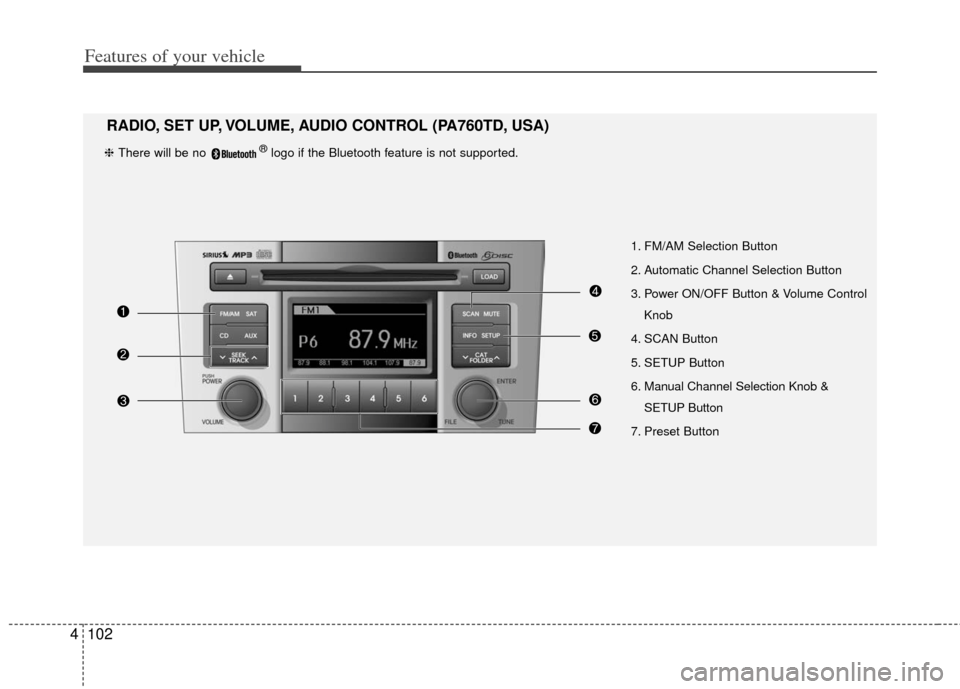
1. FM/AM Selection Button
2. Automatic Channel Selection Button
3. Power ON/OFF Button & Volume Control
Knob
4. SCAN Button
5. SETUP Button
6. Manual Channel Selection Knob & SETUP Button
7. Preset Button
RADIO, SET UP, VOLUME, AUDIO CONTROL (PA760TD, USA)
❈ There will be no ®logo if the Bluetooth feature is not supported.
Page 181 of 353
4103
Features of your vehicle
1. FM/AM Selection Button
Turns to FM or AM mode, and toggles
FM1 ➟ FM2 ➟AM ➟ FM1 ➟... when the
button is pressed each time.
2. Automatic Channel Selection Button
] button is pressed, it
reduces the band frequency by 200 kHz
to automatically select a channel. Stops
at the previous frequency if no channel is
found.
] button is pressed, it increases the band frequency by 200
kHz to automatically select a channel.
Stops at the previous frequency if no
channel is found.
3. Power ON/OFF Button & Volume Control Knob
Turns on/off the set when the IGNITION
SWITCH is on ACC or ON. If the button
is turned to the right, it increases the vol-
ume and left, decreases the volume.
4. SCAN Button
When the button is pressed, the frequen-
cies will become increased and receive
the corresponding broadcasts. This func-
tion will play the frequencies for 5 sec-
onds each and find other broadcasts as
the frequency increases. Press the but-
ton again when desiring to continue lis-
tening to the currently playing broadcast.
5. SETUP Button
Press this button to turn to the TEXT
SCROLL, SDVC and P.BASS adjustment
mode. If no action is taken for 5 seconds
after pressing the button, it will return to
the play mode. (After entering SETUP
mode, move between items using the
left, right and PUSH functions of the
[TUNE] button.)
The setup items changes from TEXT
SCROLL
↔ SDVC ↔ P.BASS ↔ SIRIUS↔ PHONE...
This function is used to display charac-
ters longer than the LCD text display and
can be turned ON/OFF through the vol-
ume controller.
This function automatically adjusts the
volume level according to the speed of
the vehicle and can be turned ON/OFF
through the volume controller.
This function creates virtual sound
effects and allows adjustments to the
BASS level.
HIGH
➟MID ➟LOW ➟OFF
6. Manual Channel Selection
Knob & SETUP Button
Rotate the knob clockwise by one notch
to increase frequency by 50 kHz from
current frequency.
Rotate the knob counterclockwise by one
notch to decrease frequency by 50 kHz
from current frequency.
Pressing the button changes the BASS,
MIDDLE, TREBLE, FADER and BAL-
ANCE TUNE mode. The mode selected
is shown on the display. After selecting
each mode, rotate the Audio control knob
clockwise or counterclockwise.
Page 186 of 353
![KIA Forte 2013 2.G User Guide Features of your vehicle
108
4
Press [FOLDER ] button to move to
parent folder of the current folder and
display the first song in the folder.
Press TUNE/ENTER knob to move to
the folder displayed.
1](/img/2/2941/w960_2941-185.png "KIA Forte 2013 2.G User Guide Features of your vehicle
108
4
Press [FOLDER ] button to move to
parent folder of the current folder and
display the first song in the folder.
Press TUNE/ENTER knob to move to
the folder displayed.
1")
Features of your vehicle
108
4
Press [FOLDER ] button to move to
parent folder of the current folder and
display the first song in the folder.
Press TUNE/ENTER knob to move to
the folder displayed.
11. SEARCH Knob & ENTER Button
Turn this button clockwise to display
songs after current song.
Also, turn this button counterclockwise to
display songs before current song.
To listen to the displayed song, press the
button to skip to the song and play.
Pressing the button changes the BASS,
MIDDLE, TREBLE, FADER and BAL-
ANCE TUNE mode. The mode selected
is shown on the display. After selecting
each mode, rotate the Audio control knob
clockwise or counterclockwise.
To increase the BASS, rotate the knob
clockwise, while to decrease the BASS,
rotate the knob counterclockwise.
To increase the MIDDLE, rotate the knob
clockwise, while to decrease the MID-
DLE, rotate the knob counterclockwise.
Control
To increase the TREBLE, rotate the knob
clockwise, while to decrease the TRE-
BLE, rotate the knob counterclockwise.
Turn the control knob clockwise to empha-
size rear speaker sound (front speaker
sound will be attenuated). When the con-
trol knob is turned counterclockwise, front
speaker sound will be emphasized (rear
speaker sound will be attenuated).
Rotate the knob clockwise to emphasize
right speaker sound (left speaker sound
will be attenuated). When the control
knob is turned counter clockwise, left
speaker sound will be emphasized (right
speaker sound will be attenuated).
12. DISC Selection Button (PA760)
Press [DISC ] button to change disc
to the previous disc.
Press [DISC ] button to change disc to the next disc.
13. CD LOAD Button (PA760)
Press [LO AD] button to load CDs into
available CDC slots (from 1~6).
Press [LOAD] button for 2 seconds or
longer to load into all available decks. The
last CD will play. Idle status for 10 sec-
onds will terminate the loading process.
Page 189 of 353
4111
Features of your vehicle
1. AUX/USB Selection Button
If the auxiliary device is connected, it
turns to AUX or USB mode to play the
sound from the auxiliary player. If there is
no auxiliary device, then it displays the
message "No Media" for 3 seconds and
returns to the previous mode.
2. TRACK Moving Button
Press the [TRACK ] button for lessthan 0.8 second to play from the begin-
ning of the song currently played.
Press the button for less than 0.8 sec-
ond and press it again within 1 second
to move to and play the previous track.
Press the button for 0.8 second or
longer to play the song in reverse
direction in fast speed.
Press the [TRACK ] button for less
than 0.8 second to move to the next
track. Press the button for 0.8 second
or longer to play the song in forward
direction in fast speed.
3. RANDOM Playback Button
Press the button for less than 0.8 second
to start or stop the random playback of
the songs in the current folder.
Press the button for more than 0.8 sec-
ond to randomly play the entire songs in
the USB device.
Press the button again to cancel the mode.
4. REPEAT Button
Press the button for less than 0.8 second
to repeat the song currently played.
Press the button for more than 0.8 sec-
ond to repeat the entire songs in the USB
device.
5. SCAN Selection Button
Scans each song in the USB device for
10 seconds each.
Press the button once again to cancel
scanning.
6. INFO Button
Displays the information of the file current-
ly played in the order of FILE NAME ➟TITLE ➟ ARTIST ➟ ALBUM ➟ FOLDER ➟TOTAL FILE ➟NORMAL DISPLAY ➟FILE NAME ➟… (Displays no information
if the file has no song information.)
7. FOLDER Moving Button
Press [FOLDER ] button to move to
child folder of the current folder and
display the first song in the folder.
Press TUNE/ ENTER knob to move to
the folder displayed. It will play the first
song in the folder.
Press [FOLDER ] button to move to parent folder display the first song in
the folder.
Press TUNE/ENTER knob to move to
the folder displayed.
8. SEARCH Knob & ENTER Button
Turn this button clockwise to display the
songs ahead of the currently played song.
Turn the button counterclockwise to dis-
play the songs before the currently
played song.
selected song.
MIDDLE, TREBLE, FADER and BAL-
ANCE TUNE mode. The mode selected
is shown on the display. After selecting
each mode, rotate the Audio control
knob clockwise or counterclockwise.
Page 190 of 353
Features of your vehicle
112
4
CAUTION IN USING
USB DEVICE
To use an external USB device,
make sure the device is not con-nected when starting up the vehi-cle and connect the device afterstarting up.
If you start the vehicle when the USB device is connected, it maydamage the USB device. (USB isnot ESA)
If the vehicle is started up or turned off while the external USBdevice is connected, the external USB device may not work.
It may not play inauthentic MP3 or WMA files.
1) It can only play MP3 files with the compression rate between8Kbps~320Kbps.
2) It can only play WMA music files with the compression ratebetween 8Kbps~320Kbps.
Take cautions for static electricity when connecting or disconnect-ing the external USB device.
An encoded MP3 player is not recognizable.
(Continued)
(Continued) Depending on the condition of the external USB device, the con-nected external USB device canbe unrecognizable.
When the formatted byte/sector setting of External USB devices isnot either 512BYTE or 2048BYTE,then the device will not be recog-nized.
Use only a USB device formatted to FAT 12/16/32.
USB devices without USB I/F authentication may not be recog-nizable.
Make sure the USB connection terminal does not come in contactwith a human body or any object.
If you repeat connecting or dis- connecting USB device in a shortperiod of time, it may break the device.
You might hear a strange noise when connecting or disconnect-ing a USB device.
(Continued)(Continued) If you disconnect the external USB device during playback in USBmode, the external USB device canbe damaged or malfunction. Therefore, connect the externalUSB device when the engine is turned off or in another mode.
Depending on the type and capac- ity of the external USB device orthe type of the files stored in thedevice, there is a difference in thetime taken for recognition of the device, but this is not an indicatorof trouble and you only have to wait.
Do not use the USB device for other purposes than playing music files.
Use of USB accessories such as recharger or heater using USB I/Fmay lower performance or causetrouble.
If you use devices such as a USB hub you purchased separately,the vehicle’s audio system may not recognize the USB device.Connect the USB device directlyto the multimedia terminal of the vehicle.
(Continued)
Page 191 of 353
4113
Features of your vehicle
(Continued) If USB device is divided by logical drives, only the music files on thehighest-priority drive are recog-nized by the car audio.
Devices, such as MP3 players, cellular phones, or digital cam-eras not recognized by standardUSB I/F may not be recognized.
USB devices other than standard- ized goods (METAL COVER TYPEUSB) can be unrecognizable.
USB flash memory reader (such as CF, SD, microSD, etc.) or exter-nal-HDD type devices may beunrecognized.
Music files protected by DRM (DIGITAL RIGHTS MANAGEMENT)are not recognizable.
The data in the USB memory may be lost while using this AUDIO. Itis recommeded to back up impor-tant data on a personal storagedevice.
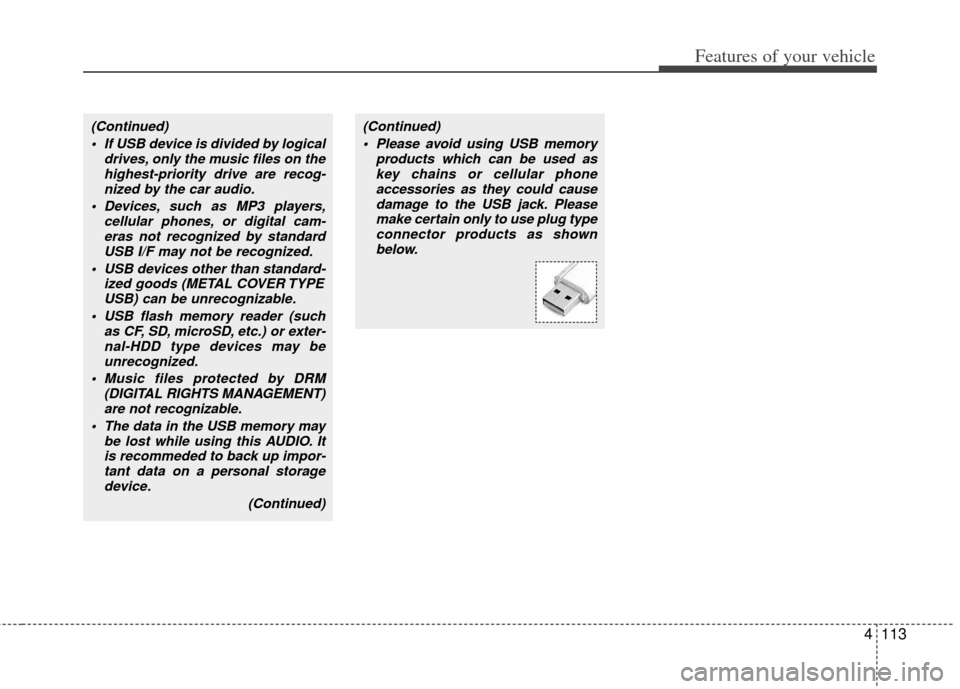
(Continued)(Continued) Please avoid using USB memory products which can be used askey chains or cellular phoneaccessories as they could cause damage to the USB jack. Pleasemake certain only to use plug typeconnector products as shownbelow.
Page 194 of 353
Features of your vehicle
116
4
1. iPod Selection Button
If iPod is connected, it switches to the
iPod mode from the previous mode to
play the song files stored in the iPod.
If there is no iPod connected, then it dis-
plays the message "No Media" for 3 sec-
onds and returns to the previous mode.
2. TRACK Moving Button
Press the [TRACK ] button for less
than 0.8 second to play from the begin-
ning of the song currently played.
Press the button for less than 0.8 sec-
ond and press it again within 1 second
to move to and play the previous track.
Press the button for 0.8 second or
longer to play the song in reverse
direction in fast speed.
Press the [TRACK ] button for less than 0.8 second to move to the next
track.
Press the button for 0.8 second or
longer to play the song in forward direc-
tion in fast speed.
3. REPEAT Button
Repeats the song currently played.
4. RANDOM Playback Button
Press the button for less than 0.8 second
to start or stop the random playback of
the songs within the current category.
Press the button for longer than 0.8 sec-
ond to randomly play all songs in the
entire album of the iPod.
Press the button once again to cancel
the mode.
5. INFO Button
Displays the information of the file cur-
rently played in the order of TITLE ➟ARTIST ➟ALBUM ➟NORMAL DISPLAY➟TITLE ➟... (Displays no information if
the file has no song information.)
6. SEARCH Knob & ENTER Button
When you turn the button clockwise, it
will display the songs (category) ahead
of the song currently played (category in
the same level).
Also, when you turn the button counter-
clockwise, it will display the songs (cate-
gory) before the song currently played
(category in the same level).
To listen to the song displayed in the
song category, press the button to skip to
and play the selected song.
Pressing the button changes the BASS,
MIDDLE, TREBLE, FADER and BAL-
ANCE TUNE mode. The mode selected
is shown on the display. After selecting
each mode, rotate the Audio control knob
clockwise or counterclockwise.
7. CATEGORY Selection Button
Moves to the upper category from cur-
rently played category of the iPod.
To move to (play) the category (song) dis-
played, press TUNE/ENTER knob.
You will be able to search through the
lower category of the selected category.
The order of iPod’s category is SONG,
ALBUMS, ARTISTS, GENRES, and iPod.
Page 195 of 353
4117
Features of your vehicle
✽
✽NOTICE FOR USING THE
iPod®DEVICE
• Some iPod models might not sup-
port the communication protocol
and the files will not be played.
Supported iPod models:
- iPod Mini
- iPod 4th(Photo) ~ 6th(Classic)
generation
- iPod Nano 1st~4th generation
- iPod Touch 1st~2nd generation
• The order of search or playback of songs in the iPod can be different
from the order searched in the
audio system.
• If the iPod disabled due to its own malfunction, reset the iPod. (Reset:
Refer to iPod manual)
• An iPod may not operate normally on low battery.
• Some iPod devices, such as the iPhone, can be connected through the
Bluetooth
®interface. The device
must have audio Bluetooth®capabili-
ty (such as for stereo headphone
Bluetooth
®). The device can play, but
it will not be controlled by the audio
system.
CAUTION IN USING
iPod®DEVICE
You need the power cable exclu-
sive for an iPod in order to oper-ate an iPod with the buttons onthe audio system. The PC cableprovided by Apple may cause amalfunction and do not use it forvehicle use.
When connecting the device with an iPod cable, push in the jackfully not to interfere with commu-nication.
When adjusting the sound effects of an iPod and the audio system,the sound effects of both deviceswill overlap and might reduce ordistort the quality of the sound.
Deactivate (turn off) the equalizer function of an iPod when adjust-ing the audio system’s volume,and turn off the equalizer of the audio system when using theequalizer of an iPod.
(Continued)
(Continued) When the iPod cable is connected, the system can be switched to theAUX mode even without the iPoddevice and can cause noise. Disconnect the iPod cable whenyou are not using the iPod device.
When the iPod is not used for the audio system, the iPod cable hasto be separate from iPod devices.Original display of iPod may not bedisplayed.
Page 200 of 353
Features of your vehicle
122
4
CAUTION IN USING
BLUETOOTH®CELLULAR
PHONE
Do not use a cellular phone or
perform Bluetooth®settings (e.g.
pairing a phone) while driving.
Some Bluetooth
®-enabled phones
may not be recognized by the system or fully compatible withthe system.
Before using Bluetooth
®related
features of the audio system, refer your phone’s User’s Manual for phone-side Bluetooth
®opera-
tions.
The phone must be paired to the audio system to use Bluetooth®
related features.
You will not be able to use the hands-free feature when yourphone (in the car) is outside ofthe cellular service area (e.g. in atunnel, in a underground, in amountainous area, etc.).
If the cellular phone signal is poor or the vehicles interior noise istoo loud, it may be difficult to hearthe other person’s voice during a call.
(Continued)
(continued) Do not place the phone near or inside metallic objects, otherwise
communications with Bluetooth
®
system or cellular service sta-tions can be disturbed.
While a phone is connected through Bluetooth
®your phone
may discharge quicker than usual for additional Bluetooth
®-related
operations.
Some cellular phones or other devices may cause interferencenoise or malfunction to audiosystem. In this case, store thedevice in a different location mayresolve the situation.
Page 201 of 353
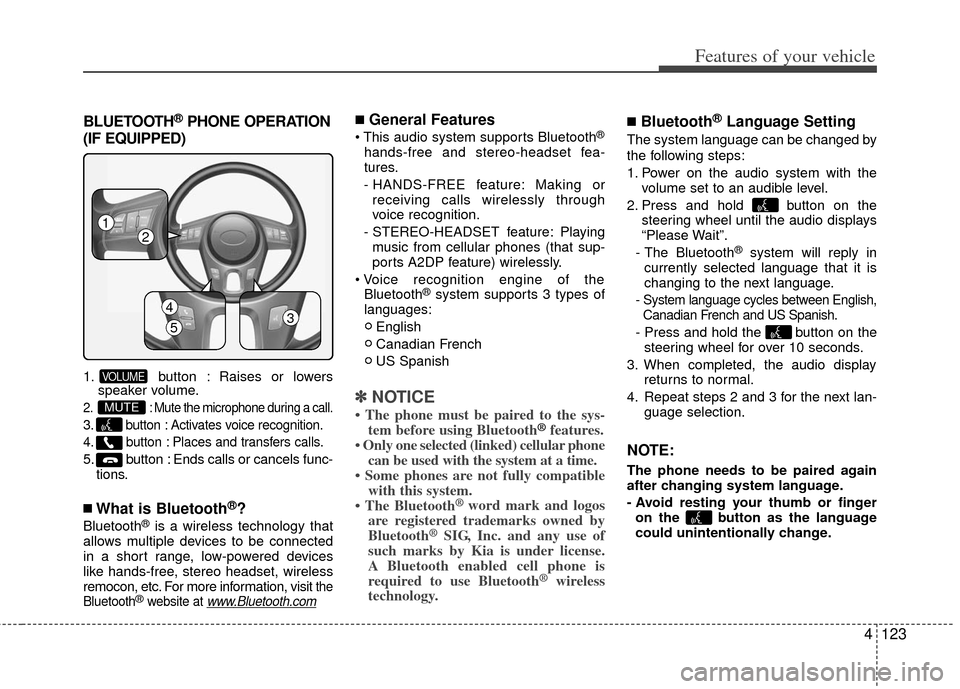
BLUETOOTH®PHONE OPERATION
(IF EQUIPPED)
1. button : Raises or lowers speaker volume.
2. : Mute the microphone during a call.
3. button : Activates voice recognition.
4. button : Places and transfers calls.
5. button : Ends calls or cancels func-
tions.
■What is Bluetooth®?
Bluetooth®is a wireless technology that
allows multiple devices to be connected
in a short range, low-powered devices
like hands-free, stereo headset, wireless
remocon, etc. For more information, visit
the
Bluetooth®website at www.Bluetooth.com
■General Features
®
hands-free and stereo-headset fea-
tures.
- HANDS-FREE feature: Making or receiving calls wirelessly through
voice recognition.
- STEREO-HEADSET feature: Playing music from cellular phones (that sup-
ports A2DP feature) wirelessly.
Bluetooth
®system supports 3 types of
languages:
English
Canadian French
US Spanish
✽ ✽ NOTICE
• The phone must be paired to the sys-
tem before using Bluetooth®features.
• Only one selected (linked) cellular phone can be used with the system at a time.
• Some phones are not fully compatible with this system.
• The Bluetooth
® word mark and logos
are registered trademarks owned by
Bluetooth
®SIG, Inc. and any use of
such marks by Kia is under license.
A Bluetooth enabled cell phone is
required to use Bluetooth
®wireless
technology.
■Bluetooth®Language Setting
The system language can be changed by
the following steps:
1. Power on the audio system with the
volume set to an audible level.
2. Press and hold button on the steering wheel until the audio displays
“Please Wait”.
- The Bluetooth
®system will reply in
currently selected language that it is
changing to the next language.
- System language cycles between English, Canadian French and US Spanish.
- Press and hold the button on the steering wheel for over 10 seconds.
3. When completed, the audio display returns to normal.
4. Repeat steps 2 and 3 for the next lan- guage selection.
NOTE:
The phone needs to be paired again
after changing system language.
- Avoid resting your thumb or fingeron the button as the language
could unintentionally change.
MUTE
VOLUME
4123
Features of your vehicle
12
4
53