ECU KIA FORTE 2018 Owner's Manual
[x] Cancel search | Manufacturer: KIA, Model Year: 2018, Model line: FORTE, Model: KIA FORTE 2018Pages: 584, PDF Size: 15.14 MB
Page 162 of 584
487
Features of your vehicle
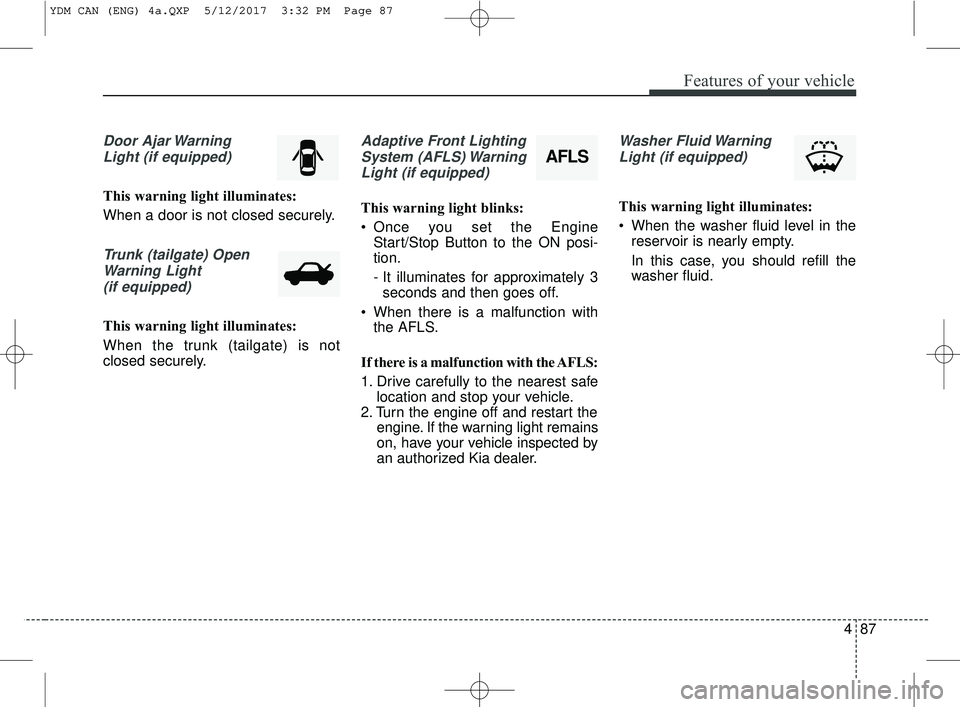
Door Ajar WarningLight (if equipped)
This warning light illuminates:
When a door is not closed securely.
Trunk (tailgate) OpenWarning Light(if equipped)
This warning light illuminates:
When the trunk (tailgate) is not
closed securely.
Adaptive Front LightingSystem (AFLS) WarningLight (if equipped)
This warning light blinks:
Once you set the Engine Start/Stop Button to the ON posi-
tion.
- It illuminates for approximately 3seconds and then goes off.
When there is a malfunction with the AFLS.
If there is a malfunction with the AFLS:
1. Drive carefully to the nearest safe location and stop your vehicle.
2. Turn the engine off and restart the engine. If the warning light remains
on, have your vehicle inspected by
an authorized Kia dealer.
Washer Fluid Warning
Light (if equipped)
This warning light illuminates:
When the washer fluid level in the reservoir is nearly empty.
In this case, you should refill the
washer fluid.
AFLS
YDM CAN (ENG) 4a.QXP 5/12/2017 3:32 PM Page 87
Page 180 of 584
4105
Features of your vehicle
- The room lamp will stay on forapproximately 20 minutes if a
door is opened with the ignition
switch in the ACC or LOCK/OFF
position.
- The room lamp will stay on con- tinuously if the door is opened
with the ignition switch in the ON
position.
- The room lamp will go out imme- diately if the ignition switch is
changed to the ON position or all
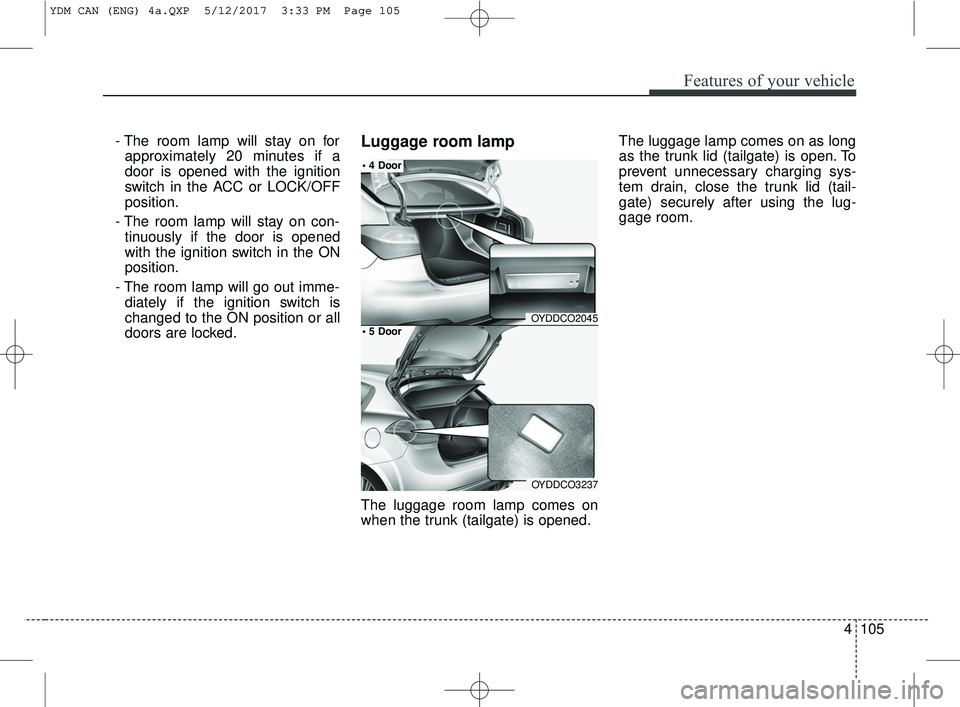
doors are locked.Luggage room lamp
The luggage room lamp comes on
when the trunk (tailgate) is opened. The luggage lamp comes on as long
as the trunk lid (tailgate) is open. To
prevent unnecessary charging sys-
tem drain, close the trunk lid (tail-
gate) securely after using the lug-
gage room.
OYDDCO2045
OYDDCO3237
YDM CAN (ENG) 4a.QXP 5/12/2017 3:33 PM Page 105
Page 181 of 584

Features of your vehicle
106
4
Glove box lamp (if equipped)
The glove box lamp comes on when
the glove box is opened. To prevent
unnecessary charging system drain,
close the glove box securely after
use.
Vanity mirror lamp (if equipped)
Push the switch to turn the light on or
off.
• : The lamp will turn on if this
button is pressed.
: The lamp will turn off if this button is pressed.
Always have the switch in the off
position when the vanity mirror lamp
is not in use. If the sunvisor is closed
without turning the lamp off, it may
discharge the battery or damage the
sunvisor.
OLM049105OYDECO2046CN
YDM CAN (ENG) 4a.QXP 5/15/2017 10:15 AM Page 106
Page 213 of 584
Features of your vehicle
138
4
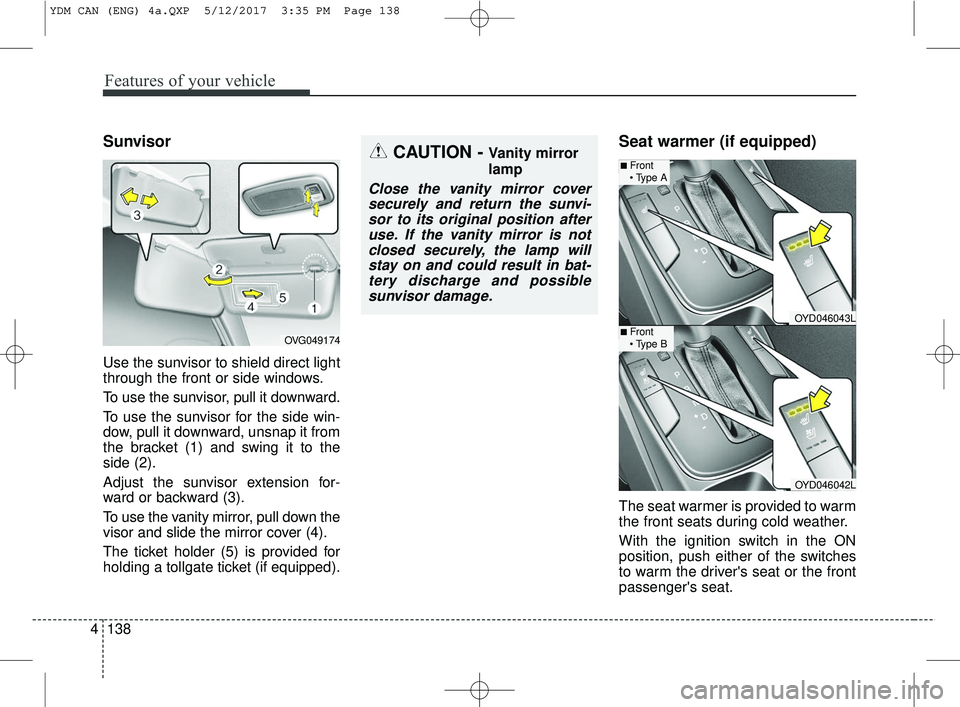
Sunvisor
Use the sunvisor to shield direct light
through the front or side windows.
To use the sunvisor, pull it downward.
To use the sunvisor for the side win-
dow, pull it downward, unsnap it from
the bracket (1) and swing it to the
side (2).
Adjust the sunvisor extension for-
ward or backward (3).
To use the vanity mirror, pull down the
visor and slide the mirror cover (4).
The ticket holder (5) is provided for
holding a tollgate ticket (if equipped).
Seat warmer (if equipped)
The seat warmer is provided to warm
the front seats during cold weather.
With the ignition switch in the ON
position, push either of the switches
to warm the driver's seat or the front
passenger's seat.
CAUTION - Vanity mirror
lamp
Close the vanity mirror cover
securely and return the sunvi-sor to its original position afteruse. If the vanity mirror is notclosed securely, the lamp willstay on and could result in bat-tery discharge and possiblesunvisor damage.
OVG049174
OYD046043L
OYD046042L
■Front
■Front
YDM CAN (ENG) 4a.QXP 5/12/2017 3:35 PM Page 138
Page 218 of 584

4143
Features of your vehicle
Clothes hanger (if equipped)
To use the hanger, pull down the
upper portion of the hanger.
Floor mat anchor(s)
When using a floor mat on the floor
carpet, make sure it attaches to the
floor mat anchor(s) in the front and
rear floor carpet of your vehicle. This
keeps the floor mat from sliding for-
ward.
OUN026348
CAUTION - Hanging clothing
Do not hang heavy clothes, sincethose may damage the hook.
ODMECO2034
WARNING - After market
floor mat
Do not install aftermarket floor
mats that are not capable of
being securely attached to the
vehicle's floor mat anchors.
Unsecured floor mats can inter-
fere with pedal operation.
WARNING
Do not hang other objects such
as hangers or hard objects
except clothes. Also, do not put
heavy, sharp or breakable
objects in the cloth pockets. In
an accident or when the curtain
air bag is inflated, it may cause
vehicle damage or personal
injury.
OPS046500
YDM CAN (ENG) 4a.QXP 5/12/2017 3:35 PM Page 143
Page 219 of 584
Features of your vehicle
144
4
The following must be observed
when installing ANY floor mat in the
vehicle.
Ensure that the floor mats are
securely attached to the vehicle's
floor mat anchor(s) before driving
the vehicle.
Do not use ANY floor mat that can- not be firmly attached to the vehi-
cle's floor mat anchors.
Do not stack floor mats on top of one another (e.g. ,all-weather rub-
ber mat on top of a carpeted floor
mat). Only a single floor mat should
be installed in each position.
✽ ✽ NOTICE
Your vehicle was manufactured with
driver's side floor mat anchors that
are designed to securely hold the
floor mat in place. To avoid any
interference with pedal operation,
Kia recommends that only the Kia
floor mat designed for use in your
vehicle be installed.
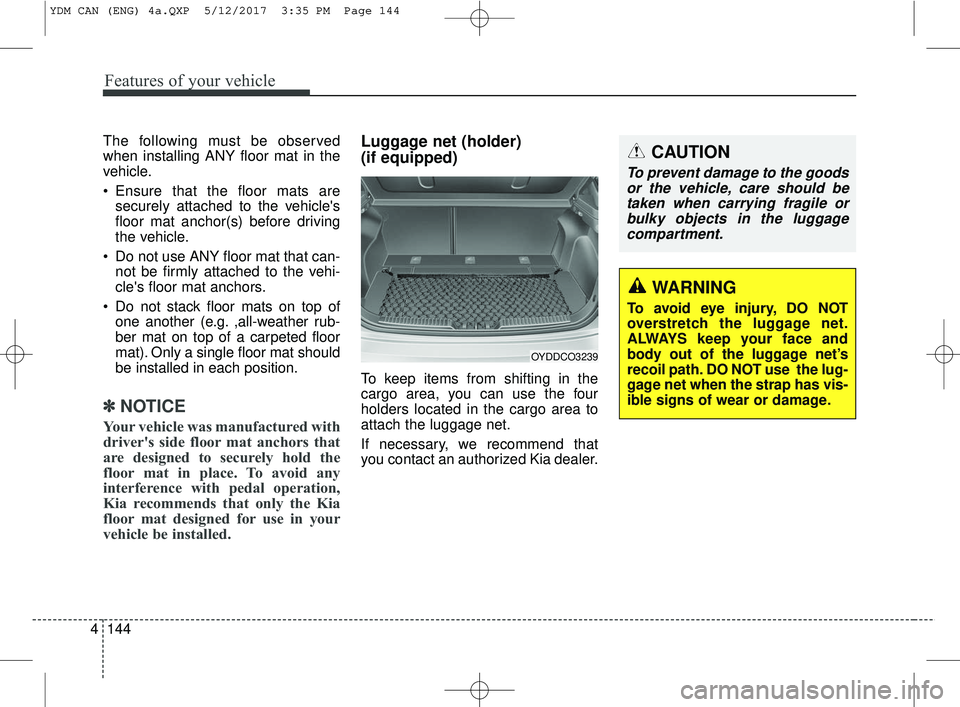
Luggage net (holder)
(if equipped)
To keep items from shifting in the
cargo area, you can use the four
holders located in the cargo area to
attach the luggage net.
If necessary, we recommend that
you contact an authorized Kia dealer.
OYDDCO3239
CAUTION
To prevent damage to the goods
or the vehicle, care should betaken when carrying fragile orbulky objects in the luggagecompartment.
WARNING
To avoid eye injury, DO NOT
overstretch the luggage net.
ALWAYS keep your face and
body out of the luggage net’s
recoil path. DO NOT use the lug-
gage net when the strap has vis-
ible signs of wear or damage.
YDM CAN (ENG) 4a.QXP 5/12/2017 3:35 PM Page 144
Page 262 of 584
187
4
Features of your vehicle
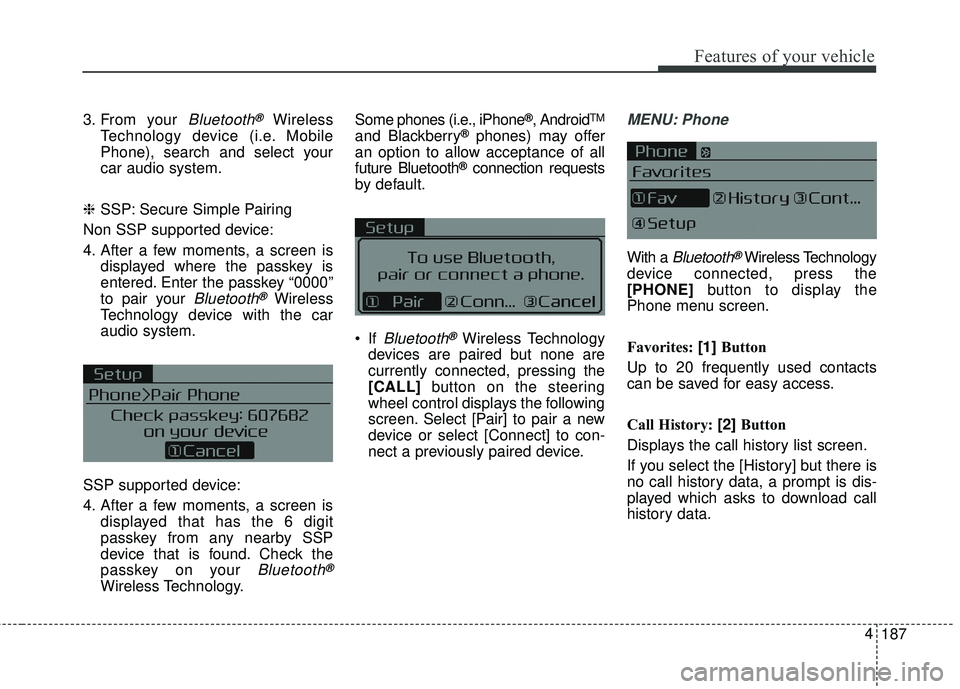
3. From your Bluetooth®Wireless
Technology device (i.e. Mobile
Phone), search and select your
car audio system.
❈ SSP: Secure Simple Pairing
Non SSP supported device:
4. After a few moments, a screen is displayed where the passkey is
entered. Enter the passkey “0000”
to pair your
Bluetooth®Wireless
Technology device with the car
audio system.
SSP supported device:
4. After a few moments, a screen is displayed that has the 6 digit
passkey from any nearby SSP
device that is found. Check the
passkey on your
Bluetooth®
Wireless Technology. Some phones (i.e., iPhone
®, AndroidTM
and Blackberry®phones) may offer
an option to allow acceptance of all
future Bluetooth
®connection requests
by default.
If
Bluetooth®Wireless Technology
devices are paired but none are
currently connected, pressing the
[CALL] button on the steering
wheel control displays the following
screen. Select [Pair] to pair a new
device or select [Connect] to con-
nect a previously paired device.
MENU: Phone
With a Bluetooth®Wireless Technology
device connected, press the
[PHONE] button to display the
Phone menu screen.
Favorites: [1] Button
Up to 20 frequently used contacts
can be saved for easy access.
Call History: [2] Button
Displays the call history list screen.
If you select the [History] but there is
no call history data, a prompt is dis-
played which asks to download call
history data.
Page 269 of 584
4 194
Features of your vehicle
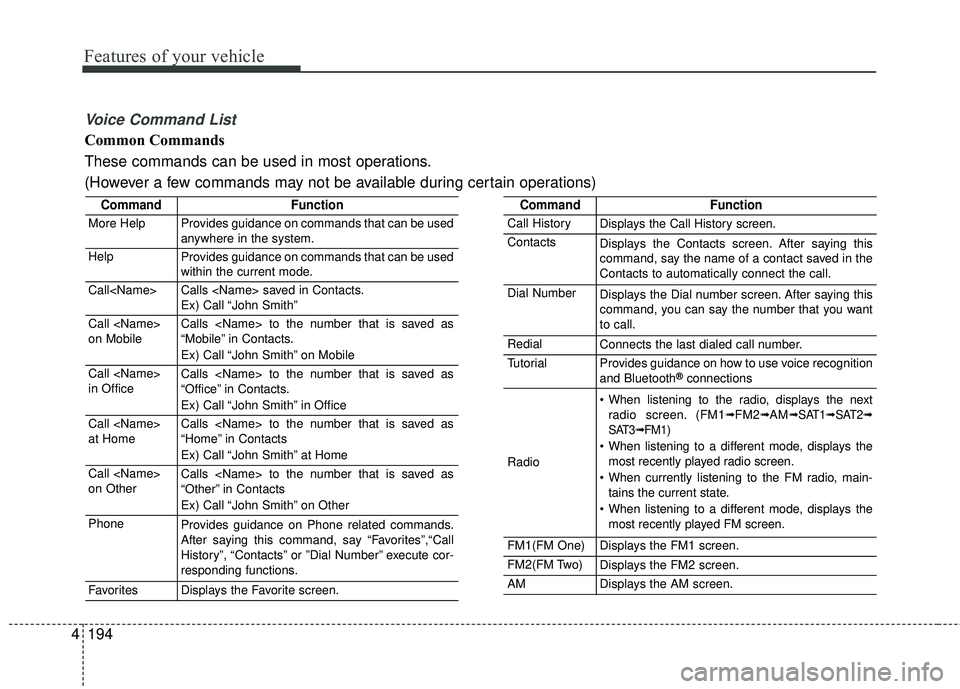
Voice Command List
Common Commands
These commands can be used in most operations.
(However a few commands may not be available during certain operations)
CommandFunction
More HelpProvides guidance on commands that can be used
anywhere in the system.
HelpProvides guidance on commands that can be used
within the current mode.
Call
Ex) Call “John Smith”
Call
on MobileCalls
“Mobile” in Contacts.
Ex) Call “John Smith” on Mobile
Call
in OfficeCalls
“Office” in Contacts.
Ex) Call “John Smith” in Office
Call
at HomeCalls
“Home” in Contacts
Ex) Call “John Smith” at Home
Call
on OtherCalls
“Other” in Contacts
Ex) Call “John Smith” on Other
PhoneProvides guidance on Phone related commands.
After saying this command, say “Favorites”,“Call
History”, “Contacts” or ”Dial Number” execute cor-
responding functions.
FavoritesDisplays the Favorite screen.
CommandFunction
Call HistoryDisplays the Call History screen.
ContactsDisplays the Contacts screen. After saying this
command, say the name of a contact saved in the
Contacts to automatically connect the call.
Dial NumberDisplays the Dial number screen. After saying this
command, you can say the number that you want
to call.
RedialConnects the last dialed call number.
TutorialProvides guidance on how to use voice recognition
and Bluetooth®connections
Radio
When listening to the radio, displays the nextradio screen. (FM1➟FM2➟AM➟ SAT1➟ SAT2➟
SAT3➟ FM1)
When listening to a different mode, displays the most recently played radio screen.
When currently listening to the FM radio, main- tains the current state.
When listening to a different mode, displays the most recently played FM screen.
FM1(FM One)Displays the FM1 screen.
FM2(FM Two)Displays the FM2 screen.
AMDisplays the AM screen.
Page 318 of 584
![KIA FORTE 2018 Owners Manual 243
4
Features of your vehicle
Bluetooth®Wireless Technology
When No Devices have been
Paired
➀ Press the [PHONE] button or the
[CALL] button on the steering
wheel controls. The following
screen is](/img/2/40397/w960_40397-317.png "KIA FORTE 2018 Owners Manual 243
4
Features of your vehicle
Bluetooth®Wireless Technology
When No Devices have been
Paired
➀ Press the [PHONE] button or the
[CALL] button on the steering
wheel controls. The following
screen is")
243
4
Features of your vehicle
Bluetooth®Wireless Technology
When No Devices have been
Paired
➀ Press the [PHONE] button or the
[CALL] button on the steering
wheel controls. The following
screen is displayed.
\b Press the [OK] to enter the Pair
Phone screen. Vehicle Name: Name of device as
shown when searching from your
Bluetooth®Wireless Technology
device.
Passkey: Passkey used to pair the device.
➂ From your
Bluetooth®Wireless
Technology device (i.e. Mobile
Phone), search and select your
car audio system.
❈ SSP: Secure Simple Pairing
Non SSP supported device:
➃ After a few moments, a screen is
displayed where the passkey is
entered.
Enter the passkey “0000” to pair your
Bluetooth®Wireless Technology
device with the car audio system. SSP supported device:
➃
After a few moments, a screen is
displayed 6 digits passkey.
Check the passkey on your
Bluetooth®Wireless Technology
device and confirm.
➄ Once pairing is complete, the fol-
lowing screen is displayed.
Page 327 of 584
4 252
Features of your vehicle
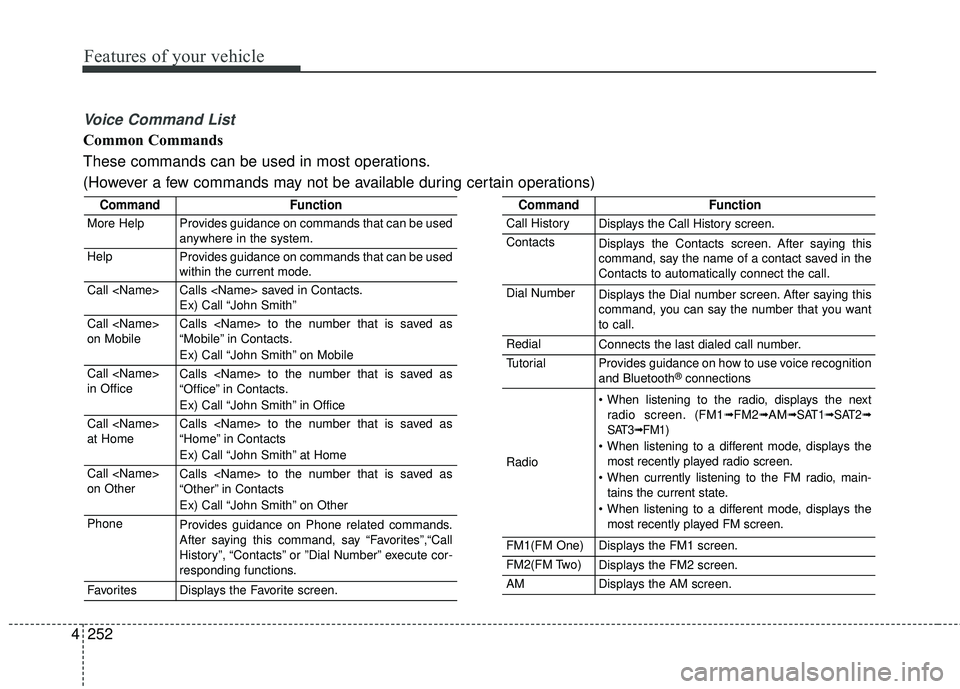
Voice Command List
Common Commands
These commands can be used in most operations.
(However a few commands may not be available during certain operations)
CommandFunction
More HelpProvides guidance on commands that can be used
anywhere in the system.
HelpProvides guidance on commands that can be used
within the current mode.
Call
Ex) Call “John Smith”
Call
on MobileCalls
“Mobile” in Contacts.
Ex) Call “John Smith” on Mobile
Call
in OfficeCalls
“Office” in Contacts.
Ex) Call “John Smith” in Office
Call
at HomeCalls
“Home” in Contacts
Ex) Call “John Smith” at Home
Call
on OtherCalls
“Other” in Contacts
Ex) Call “John Smith” on Other
PhoneProvides guidance on Phone related commands.
After saying this command, say “Favorites”,“Call
History”, “Contacts” or ”Dial Number” execute cor-
responding functions.
FavoritesDisplays the Favorite screen.
CommandFunction
Call HistoryDisplays the Call History screen.
ContactsDisplays the Contacts screen. After saying this
command, say the name of a contact saved in the
Contacts to automatically connect the call.
Dial NumberDisplays the Dial number screen. After saying this
command, you can say the number that you want
to call.
RedialConnects the last dialed call number.
TutorialProvides guidance on how to use voice recognition
and Bluetooth®connections
Radio
When listening to the radio, displays the nextradio screen. (FM1➟FM2➟AM➟ SAT1➟ SAT2➟
SAT3➟ FM1)
When listening to a different mode, displays the most recently played radio screen.
When currently listening to the FM radio, main- tains the current state.
When listening to a different mode, displays the most recently played FM screen.
FM1(FM One)Displays the FM1 screen.
FM2(FM Two)Displays the FM2 screen.
AMDisplays the AM screen.