reset KIA Magnetis 2009 2.G User Guide
[x] Cancel search | Manufacturer: KIA, Model Year: 2009, Model line: Magnetis, Model: KIA Magnetis 2009 2.GPages: 326, PDF Size: 4.37 MB
Page 162 of 326
Features of your vehicle96
4VOL (
▲/▼)
Press the up button (▲) to increase
volume.
Press the down button (▼) to decease volume.MODE Press the button to select Radio, USB (if
equipped) or CD (compact disc).
SEEK (
▲/▼)
If the SEEK button is pressed for 0.8 sec-
ond or more, it will work as follows in
each mode.
RADIO mode
It will function as the AUTO SEEK select
button.
CDP mode
It will function as the FF/REW button.
CDC mode
It will function as the DISC UP/DOWN
button. If the SEEK button is pressed for less
than 0.8 second, it will work as follows in
each mode.
RADIO mode
It will function as the PRESET STATION
select buttons.
CDP mode
It will function as the TRACK UP/DOWN
button.
CDC mode
It will function as the TRACK UP/DOWN
button.
Detailed information for audio control
buttons is described in the following
pages in this section.
CAUTION
Do not operate audio remote con-
trol buttons simultaneously.
Page 166 of 326
Features of your vehicle100
4
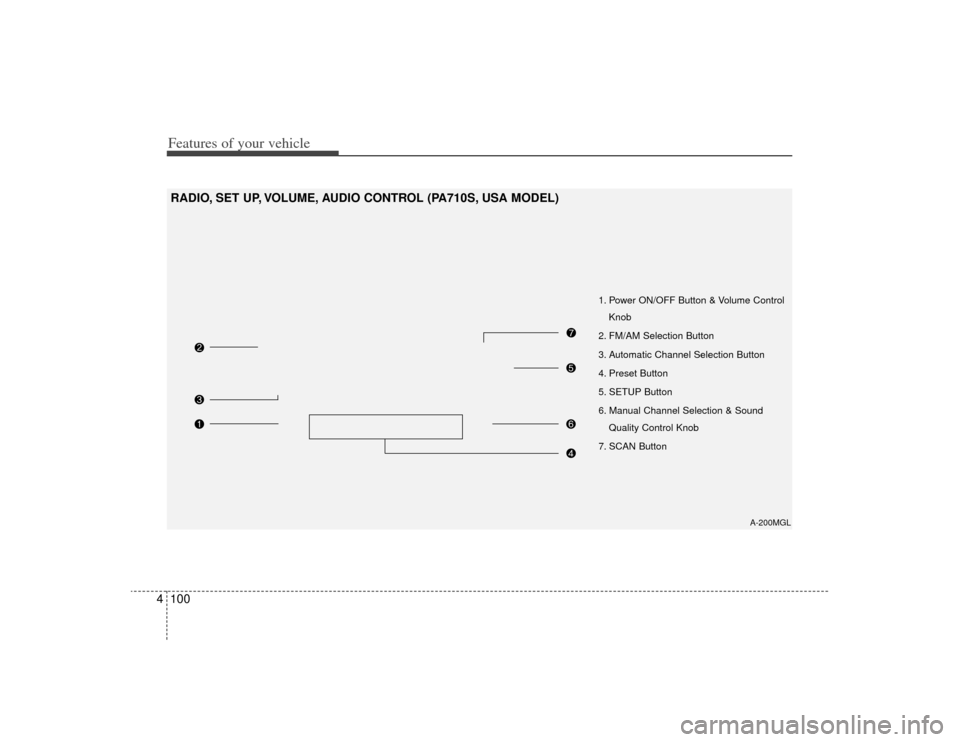
A-200MGL
1. Power ON/OFF Button & Volume Control
Knob
2. FM/AM Selection Button
3. Automatic Channel Selection Button
4. Preset Button
5. SETUP Button
6. Manual Channel Selection & Sound Quality Control Knob
7. SCAN Button
RADIO, SET UP, VOLUME, AUDIO CONTROL (PA710S, USA MODEL)
Page 167 of 326
4101
Features of your vehicle
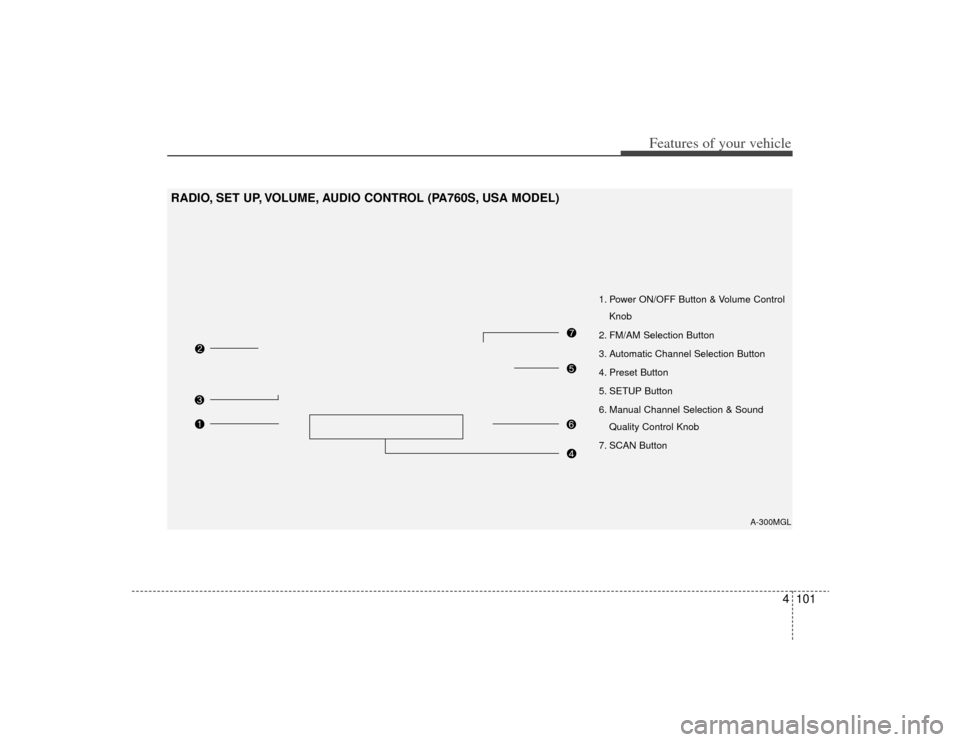
1. Power ON/OFF Button & Volume ControlKnob
2. FM/AM Selection Button
3. Automatic Channel Selection Button
4. Preset Button
5. SETUP Button
6. Manual Channel Selection & Sound Quality Control Knob
7. SCAN Button
RADIO, SET UP, VOLUME, AUDIO CONTROL (PA760S, USA MODEL)
A-300MGL
Page 168 of 326
Features of your vehicle102
41. Power ON/OFF Button &
Volume Control KnobTurns the set on/off when the IGNITION
SWITH is on ACC or ON. If the button is
turned to the right, it increases the vol-
ume and left,decreases the volume.2. FM/AM Selection ButtonTurns to FM or AM mode, and toggles in
the order of FM1
➟ FM2
➟ AM
➟ FM1...
when the button is pressed each time.
3. Automatic Channel Selection Button ] button is pressed,
it increases the band frequency to auto-
matically select a channel. Stops at the
previous frequency if no channel is
found.
] button is press- ed, it reduces the band frequency to
automatically select a channel. Stops at
the previous frequency if no channel is
found.
4. Preset ButtonPush [1]~[6] buttons less than 0.8 sec-
ond to play the channel saved in each
button. Push Preset button for 0.8 sec-
ond or longer to save current channel to
the respective button with a beep.5. SETUP Button USA MODEL (PA710S ONLY)
Press this button to turn to the SIRIUS,
TEXT SCROLL and SDVC adjustment
mode. If no action is taken for 5 seconds
after pressing the button, it will return to
the play mode. (After entering SETUP
mode, move between items using the
left, right and PUSH functions of the
[TUNE] button.)
The setup item changes from TEXT
SCROLL
↔ SDVC
↔ SAT
↔ RETURN...
USA MODEL
Press this button to turn to the TEXT
SCROLL and SDVC adjustment mode. If
no action is taken for 5 seconds after
pressing the button, it will return to the
play mode.(After entering SETUP mode,
move between items using the left, right
and PUSH functions of the [TUNE] but-
ton.)
The setup item changes from TEXT
SCROLL
↔ SDVC
↔ RETURN...
6. Manual Channel Selection & Sound Quality Control KnobTurn this control while listening to a radio
channel to manually adjust frequency.
Turn clockwise to increase frequency and
counterclockwise to reduce frequency.
Pressing the button changes the BASS,
MIDDLE, TREBLE, FADER and BAL-
ANCE TUNE mode. The mode selected
is shown on the display. After selecting
each mode, rotate the Audio control knob
clockwise or counterclockwise.
BASS Control
To increase the BASS, rotate the knob
clockwise, while to decrease the BASS,
rotate the knob counterclockwise.
MIDDLE Control
To increase the MIDDLE, rotate the knob
clockwise, while to decrease the MID-
DLE, rotate the knob counterclockwise.
TREBLE Control
To increase the TREBLE, rotate the knob
clockwise, while to decrease the TRE-
BLE, rotate the knob counterclockwise.
Page 181 of 326
4115
Features of your vehicle
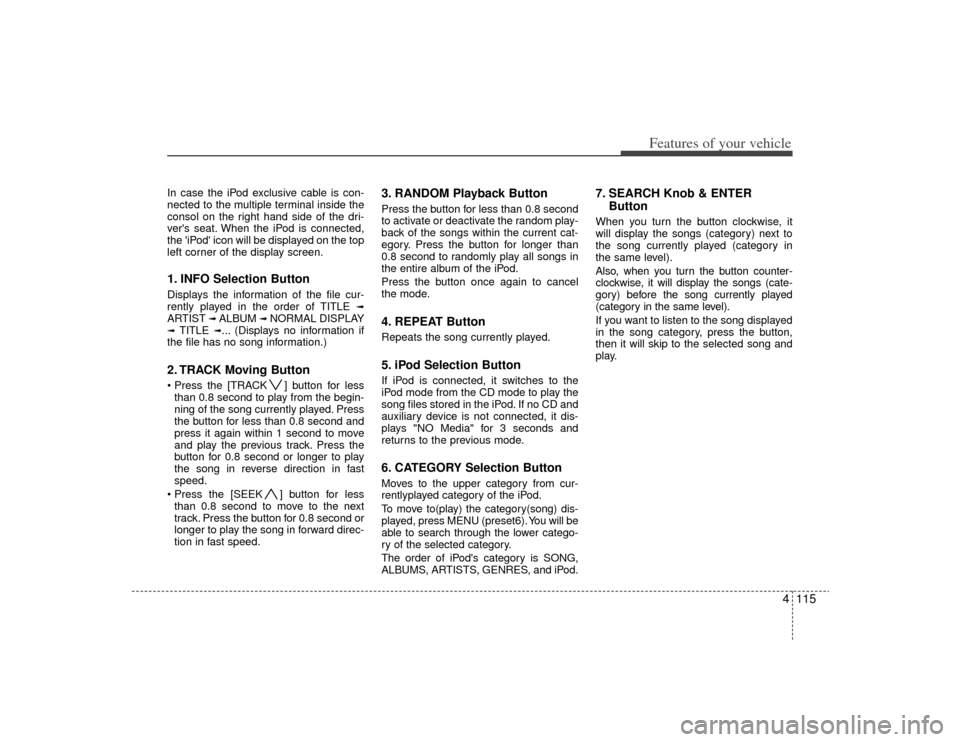
In case the iPod exclusive cable is con-
nected to the multiple terminal inside the
consol on the right hand side of the dri-
ver's seat. When the iPod is connected,
the 'iPod' icon will be displayed on the top
left corner of the display screen.1. INFO Selection ButtonDisplays the information of the file cur-
rently played in the order of TITLE
➟
ARTIST
➟ ALBUM
➟ NORMAL DISPLAY
➟ TITLE
➟... (Displays no information if
the file has no song information.)
2. TRACK Moving Button ] button for less than 0.8 second to play from the begin-
ning of the song currently played. Press
the button for less than 0.8 second and
press it again within 1 second to move
and play the previous track. Press the
button for 0.8 second or longer to play
the song in reverse direction in fast
speed.
] button for less than 0.8 second to move to the next
track. Press the button for 0.8 second or
longer to play the song in forward direc-
tion in fast speed.
3. RANDOM Playback ButtonPress the button for less than 0.8 second
to activate or deactivate the random play-
back of the songs within the current cat-
egory. Press the button for longer than
0.8 second to randomly play all songs in
the entire album of the iPod.
Press the button once again to cancel
the mode.4. REPEAT ButtonRepeats the song currently played.5. iPod Selection ButtonIf iPod is connected, it switches to the
iPod mode from the CD mode to play the
song files stored in the iPod. If no CD and
auxiliary device is not connected, it dis-
plays "NO Media" for 3 seconds and
returns to the previous mode.6. CATEGORY Selection ButtonMoves to the upper category from cur-
rentlyplayed category of the iPod.
To move to(play) the category(song) dis-
played, press MENU (preset6). You will be
able to search through the lower catego-
ry of the selected category.
The order of iPod's category is SONG,
ALBUMS, ARTISTS, GENRES, and iPod.
7. SEARCH Knob & ENTER ButtonWhen you turn the button clockwise, it
will display the songs (category) next to
the song currently played (category in
the same level).
Also, when you turn the button counter-
clockwise, it will display the songs (cate-
gory) before the song currently played
(category in the same level).
If you want to listen to the song displayed
in the song category, press the button,
then it will skip to the selected song and
play.
Page 182 of 326
Features of your vehicle116
4✽
✽
NOTICE FOR USING iPod
DEVICE• Some iPod models might not sup- port the communication protocol
and the files will not be played.
(iPod models supported: Mini, 4G,
Photo, Nano, 5G)
• The order of search or playback of songs in the iPod can be different
from the order searched in the
audio system.
• If the iPod crashes due to its own trouble, reset the iPod. (Reset:
Refer to iPod manual)
• An iPod may not operate normally on low battery.
CAUTION IN USING
iPod DEVICE
You need the power cable exclu-
sive for an iPod in order to oper-ate an iPod with the buttons on the audio system. The PC cableprovided by Apple may cause a malfunction and do not use it forvehicle use.
When connecting the device with an iPod cable, push in the jackfully to not to interfere with com- munication.
When adjusting the sound effects of an iPod and the audio system,the sound effects of both devices will overlap and might reduce ordistort the quality of the sound.
Deactivate (turn off) the equalizer function of an iPod when adjust-ing the audio system’s volume,and turn off the equalizer of theaudio system when using theequalizer of an iPod.
(Continued)
(Continued) When the iPod cable is connected, the system can be switched to theAUX mode even without the iPoddevice and can cause noise. Disconnect the iPod cable whenyou are not using the iPod device.
When the iPod is not used for the audio system, the iPod cable hasto be separate from iPod devies.Origin display of iPod may not be displayed.
Page 183 of 326
4117
Features of your vehicle
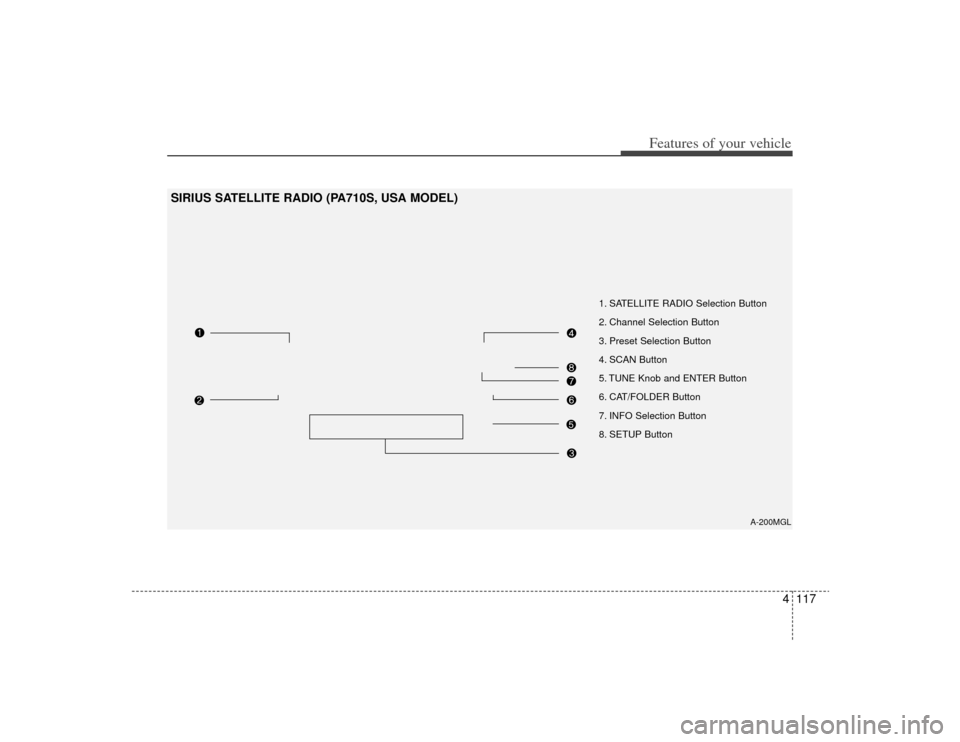
1. SATELLITE RADIO Selection Button
2. Channel Selection Button
3. Preset Selection Button
4. SCAN Button
5. TUNE Knob and ENTER Button
6. CAT/FOLDER Button
7. INFO Selection Button
8. SETUP Button
SIRIUS SATELLITE RADIO (PA710S, USA MODEL)
A-200MGL
Page 184 of 326
Features of your vehicle118
4SIRIUS SATELLITE RADIO (PA760S, USA MODEL)
A-300MGL
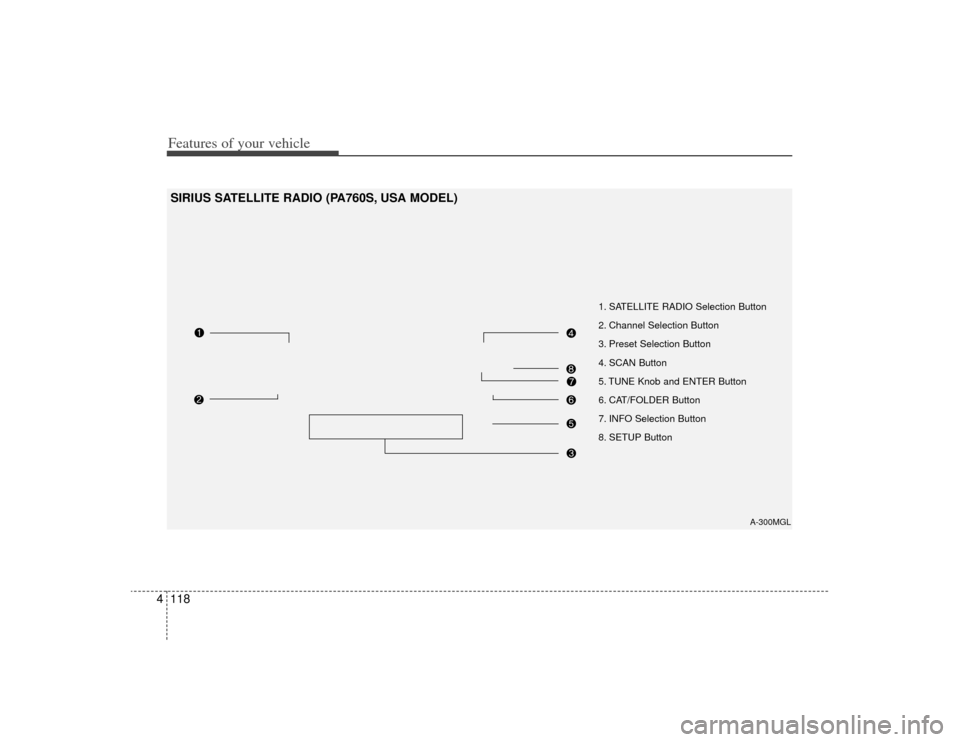
1. SATELLITE RADIO Selection Button
2. Channel Selection Button
3. Preset Selection Button
4. SCAN Button
5. TUNE Knob and ENTER Button
6. CAT/FOLDER Button
7. INFO Selection Button
8. SETUP Button
Page 185 of 326
4119
Features of your vehicle
How to Use SIRIUS Satellite
RadioYour Kia vehicle is equipped with 3 months
complimentary period of SIRIUS Satellite
Radio so you have access to over 130
channels of music, information, and enter-
tainment programming.ActivationIn order to extend or reactivate your sub-
scription to SIRIUS Satellite Radio, you
will need to contact SIRIUS Customer
Care at 888-539-7474. Have your 12 digit
SID (Sirius Identification Number)/ESN
(Electronic Serial Number) ready. To
retrieve the SID/ESN, turn on the radio,
press the [SAT] button and tune to chan-
nel zero. Please note that the vehicle will
need to be turned on, in Sirius mode, and
have an unobstructed view of the sky in
order for the radio to receive the activa-
tion signal.1. SATELLITE RADIO SelectionButton (SIRIUS Satellite Radio)Press the [SAT] button to switch to SIR-
IUS Satellite Radio. It cycles through the
different bands as noted below.
SAT1
➟ SAT2
➟ SAT3
➟ SAT1
➟...
2. Channel Selection Button ] or [SEEK ] but-
ton for less than 0.8 second to select
previous or next channel.
] or [SEEK ] but- ton for 0.8 second or longer to continu-
ously move to previous or next channel.
top of the screen, channel up/down is
done through the channels within cur-
rent category.3. Preset Selection Buttonond to play the channel saved in each
button.
second or longer to save current chan-
nel. An audible beep will play to confirm
the preset is stored.4. SCAN Button ically scans the radio stations upwards.
channel, starting from the initial chan-
nel, for ten seconds.
the scan feature and to listen to the cur-
rently selected channel.
top of the screen, channel changing is
done through the channels in current
category.
5. TUNE Knob and ENTER ButtonWhile listening to SIRIUS broadcast,
rotate this knob to the right or left to
search other channels while listening to
current channels and push this knob to
select what you want to listen to.
(Turn to the right to search higher chan-
nels and left lower channels)6. CAT/FOLDER Button ] or [FOLDER ] buttonto enter the Category List Mode, it dis-
plays cateogry items and highlights the
category that currently tuned channel
belongs to.
buttons to navigate category list.
Press [ENTER] button to select the low- est channel in highlighted category.
gory "CATEGORY" Icon is displayed at
the top of the screen.
Page 214 of 326
Driving your vehicle28
5E090400AUNTo temporarily accelerate with the
cruise control on:If you want to speed up temporarily when
the cruise control is on, depress the
accelerator pedal. Increased speed will
not interfere with cruise control operation
or change the set speed.
To return to the set speed, take your foot
off the accelerator.
E090500ANFTo cancel cruise control, do one
of the following: Press the brake pedal.
Press the clutch pedal with a manual
transaxle.
Shift into N (Neutral) with an automatic transaxle.
Press the CANCEL switch located on the steering wheel.
Decrease the vehicle speed lower than the memory speed by 15 km/h (9
mph).
Decrease the vehicle speed to less than approximately 40 km/h (25 mph).
Each of these actions will cancel cruisecontrol operation (the SET indicator light in the instrument cluster will go off), but itwill not turn the system off. If you wish to resume cruise control operation, pushthe RES/+ switch located on your steer-ing wheel. You will return to your previ- ously preset speed.
OMG059103L