lock KIA Magnetis 2010 3.G Workshop Manual
[x] Cancel search | Manufacturer: KIA, Model Year: 2010, Model line: Magnetis, Model: KIA Magnetis 2010 3.GPages: 336, PDF Size: 6.46 MB
Page 158 of 336
Features of your vehicle
92
4
D270000AUN
These compartments can be used to
store small items required by the driver
or passengers.
D270100AFD-EU
Center console storage
These compartments can be used to
store small items required by the driver
or front passenger.
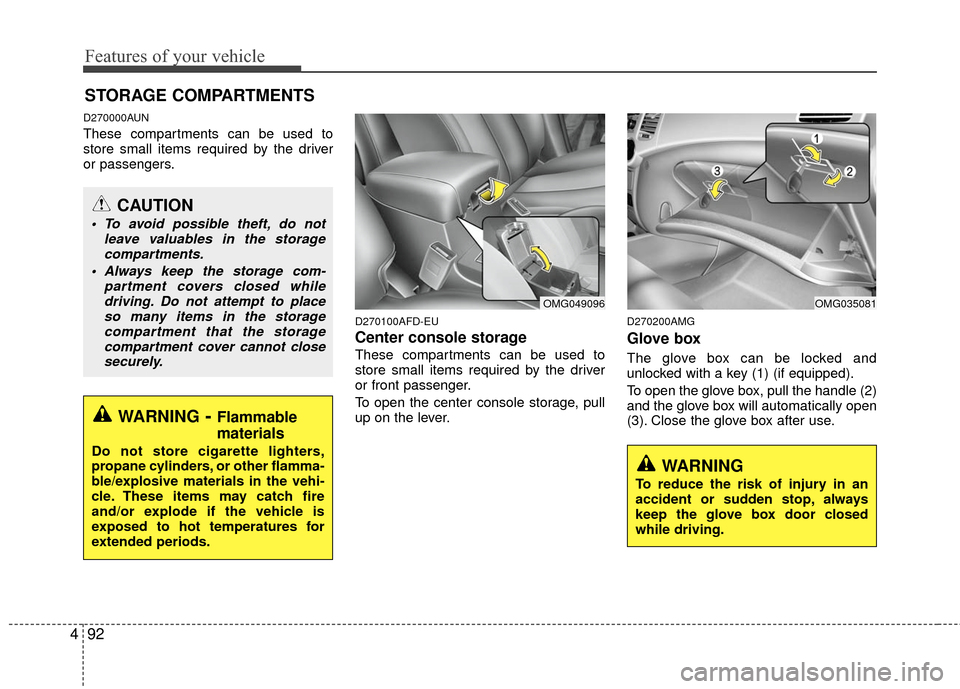
To open the center console storage, pull
up on the lever.
D270200AMG
Glove box
The glove box can be locked and
unlocked with a key (1) (if equipped).
To open the glove box, pull the handle (2)
and the glove box will automatically open
(3). Close the glove box after use.
STORAGE COMPARTMENTS
OMG035081
WARNING
To reduce the risk of injury in an
accident or sudden stop, always
keep the glove box door closed
while driving.
OMG049096
WARNING- Flammable
materials
Do not store cigarette lighters,
propane cylinders, or other flamma-
ble/explosive materials in the vehi-
cle. These items may catch fire
and/or explode if the vehicle is
exposed to hot temperatures for
extended periods.
CAUTION
To avoid possible theft, do not
leave valuables in the storagecompartments.
Always keep the storage com- partment covers closed whiledriving. Do not attempt to place so many items in the storagecompartment that the storagecompartment cover cannot closesecurely.
Page 159 of 336
493
Features of your vehicle
D270300AUN
Sunglass holder
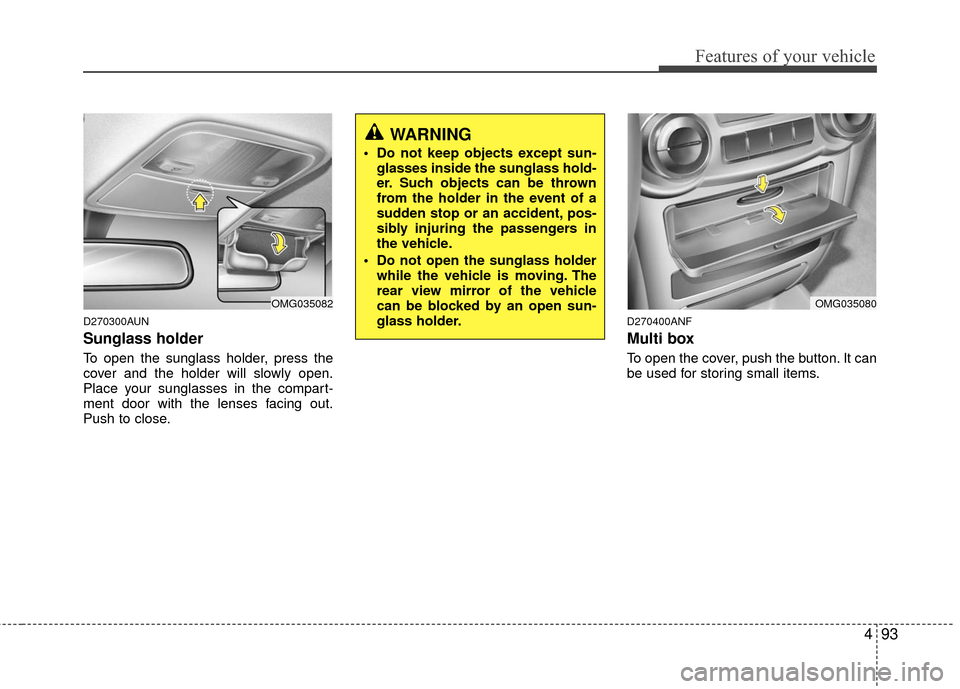
To open the sunglass holder, press the
cover and the holder will slowly open.
Place your sunglasses in the compart-
ment door with the lenses facing out.
Push to close.
D270400ANF
Multi box
To open the cover, push the button. It can
be used for storing small items.
WARNING
Do not keep objects except sun-glasses inside the sunglass hold-
er. Such objects can be thrown
from the holder in the event of a
sudden stop or an accident, pos-
sibly injuring the passengers in
the vehicle.
Do not open the sunglass holder while the vehicle is moving. The
rear view mirror of the vehicle
can be blocked by an open sun-
glass holder.
OMG035080OMG035082
Page 162 of 336
Features of your vehicle
96
4
D280500AEN
Power outlet
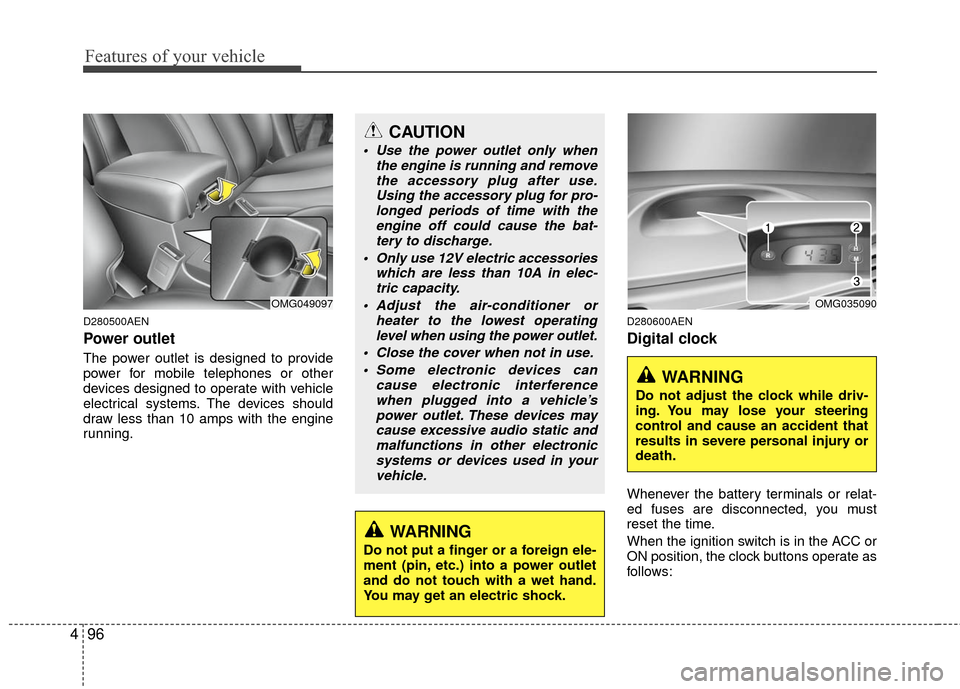
The power outlet is designed to provide
power for mobile telephones or other
devices designed to operate with vehicle
electrical systems. The devices should
draw less than 10 amps with the engine
running.
D280600AEN
Digital clock
Whenever the battery terminals or relat-
ed fuses are disconnected, you must
reset the time.
When the ignition switch is in the ACC or
ON position, the clock buttons operate as
follows:
CAUTION
Use the power outlet only when
the engine is running and removethe accessory plug after use.Using the accessory plug for pro-longed periods of time with the engine off could cause the bat-tery to discharge.
Only use 12V electric accessories which are less than 10A in elec-tric capacity.
Adjust the air-conditioner or heater to the lowest operatinglevel when using the power outlet.
Close the cover when not in use. Some electronic devices can cause electronic interferencewhen plugged into a vehicle’spower outlet. These devices maycause excessive audio static andmalfunctions in other electronicsystems or devices used in yourvehicle.
WARNING
Do not put a finger or a foreign ele-
ment (pin, etc.) into a power outlet
and do not touch with a wet hand.
You may get an electric shock.
OMG049097OMG035090
WARNING
Do not adjust the clock while driv-
ing. You may lose your steering
control and cause an accident that
results in severe personal injury or
death.
Page 163 of 336

497
Features of your vehicle
D280603AUN
Reset (1)
To clear away minutes, press the R but-
ton with your finger, a pencil or similar
object. Then the clock will be set precise-
ly on the hour.
For example, if the R button is pressed
while the time is between 9:01 and 9:29,
the display will be reset to 9:00.
9:01 ~ 9:29 display changed to 9:00
9:30 ~ 9:59 display changed to 10:00
D280601AUN
Hour (2)
Pressing the H button with your finger, a
pencil or similar object will advance the
time displayed by one hour.
D280602AUN
Minute (3)
Pressing the M button with your finger, a
pencil or similar object will advance the
time displayed by one minute.
D280604AEN
Display conversion
To change the 12 hour format to the 24
hour format, press the R button until the
display blinks.
For example, if the R button is pressed
while the time is 10:15 p.m., the display
will be changed to 22:15.
D280800AEN
Clothes hanger (if equipped)Floor mat anchor(s) (if equipped)When using a floor mat on the front floor
carpet, make sure it attaches to the floor
mat anchor(s) in your vehicle. This keeps
the floor mat from sliding forward.
OMG049201
CAUTION
Do not hang heavy clothes, since
those may damage the hook.
WARNING
Make sure the floor mat is proper-
ly placed on the floor carpet. If the
floor mat slips and interferes with
the movement of the pedals during
driving, it may cause an accident.
Don't put an additional floor mat on the top of the anchored floor
mat, otherwise the additional mat
may slide forward and interfere
with the movement of the pedals.
B570A01JM-A
Page 168 of 336

Features of your vehicle
102
4
Fading - As your car moves away from
the radio station, the signal will weaken
and sound will begin to fade. When this
occurs, we suggest that you select
another stronger station.
Flutter/Static - Weak FM signals or large obstructions between the trans-
mitter and your radio can disturb the
signal causing static or fluttering nois-
es to occur. Reducing the treble level
may lessen this effect until the distur-
bance clears. Station Swapping - As a FM signal
weakens, another more powerful sig-
nal near the same frequency may
begin to play. This is because your
radio is designed to lock onto the clear-
est signal. If this occurs, select another
station with a stronger signal.
Multi-Path Cancellation - Radio signals being received from several directions
can cause distortion or fluttering. This
can be caused by a direct and reflect-
ed signal from the same station, or by
signals from two stations with close
frequencies. If this occurs, select
another station until the condition has
passed.
Satellite radio reception
You may experience problems in receiv-
ing SIRIUS satellite radio signals in the
following situations.
If you are driving in a tunnel or a cov-
ered parking area.
If you are driving beneath the top level of a multi-level freeway.
If you drive under a bridge.
If you are driving next to a tall vechi- cle(such as a truck or a bus) that block
the signal.
If you are driving in a valley where the surrounding hills or peaks block the sig-
nal from the satellite.
JBM005
¢¢¢
JBM004
SATELITE1
Page 169 of 336

4103
Features of your vehicle
If you are driving on a mountain roadwhere is blocked by mountains.
If you are driving in an area with tall trees that block the signal(10m or
more), for example on an road that
goes through a dense forset.
The signal can become weak in some areas that are not covered by the
repeater station network.
Please note that these may be other
unforeseen circumstances when there
are problems with the reception of SIR-
IUS satellite radio signal.Using a cellular phone or a two-way radio
When a cellular phone is used inside the
vehicle, noise may be produced from the
audio equipment. This does not mean
that something is wrong with the audio
equipment. In such a case, use the cellu-
lar phone at a place as far as possible
from the audio equipment.
Care of discs
If the temperature inside the car is too high, open the car windows for ventila-
tion before using your car audio.
It is illegal to copy and use MP3/WMA files without permission. Use CDs that
are created only by lawful means.
Do not apply volatile agents such as benzene and thinner, normal cleaners
and magnetic sprays made for ana-
logue discs onto CDs.
To prevent the disc surface from get- ting damaged, hold and carry CDs by
the edges or the edges of the center
hole only.
Clean the disc surface with a piece of soft cloth before playback (wipe it from
the center to the outside edge).
Do not damage the disc surface or attach pieces of sticky tape or paper
onto it.
Make sure nothing other than CDs are inserted into the CD player (Do not
insert more than one CD at a time).
CAUTION
When using a communication sys-tem such a cellular phone or a radioset inside the vehicle, a separateexternal antenna must be fitted.When a cellular phone or a radio setis used with an internal antenna alone, it may interfere with the vehi-cle's electrical system and adverse- ly affect safe operation of the vehi-cle.
WARNING
Don't use a cellular phone when
you are driving. You should stop at
a safe place to use a cellular phone.
SATELITE2
Page 173 of 336

4107
Features of your vehicle
1. Power ON/OFF Button &Volume Control Knob
Turns the set on/off when the IGNITION
SWITH is on ACC or ON. If the button is
turned to the right, it increases the vol-
ume and left,decreases the volume.
2. FM/AM Selection Button
Turns to FM or AM mode, and toggles in
the order of FM1
➟ FM2 ➟ AM ➟ FM1...
when the button is pressed each time.
3. Automatic Channel Selection Button
] button is pressed,
it increases the band frequency to auto-
matically select a channel. Stops at the
previous frequency if no channel is
found.
] button is press- ed, it reduces the band frequency to
automatically select a channel. Stops at
the previous frequency if no channel is
found.
4. Preset Button
Push [1]~[6] buttons less than 0.8 sec-
ond to play the channel saved in each
button. Push Preset button for 0.8 sec-
ond or longer to save current channel to
the respective button with a beep.
5. SETUP Button
USA MODEL (PA710S ONLY)
Press this button to turn to the SIRIUS,
TEXT SCROLL and SDVC adjustment
mode. If no action is taken for 5 seconds
after pressing the button, it will return to
the play mode. (After entering SETUP
mode, move between items using the
left, right and PUSH functions of the
[TUNE] button.)
The setup item changes from TEXT
SCROLL
↔ SDVC ↔ SAT ↔ RETURN...
USA MODEL
Press this button to turn to the TEXT
SCROLL and SDVC adjustment mode. If
no action is taken for 5 seconds after
pressing the button, it will return to the
play mode.(After entering SETUP mode,
move between items using the left, right
and PUSH functions of the [TUNE] but-
ton.)
The setup item changes from TEXT
SCROLL
↔ SDVC↔ RETURN...
6. Manual Channel Selection & Sound Quality Control Knob
Turn this control while listening to a radio
channel to manually adjust frequency.
Turn clockwise to increase frequency and
counterclockwise to reduce frequency.
Pressing the button changes the BASS,
MIDDLE, TREBLE, FADER and BAL-
ANCE TUNE mode. The mode selected
is shown on the display. After selecting
each mode, rotate the Audio control knob
clockwise or counterclockwise.
BASS Control
To increase the BASS, rotate the knob
clockwise, while to decrease the BASS,
rotate the knob counterclockwise.
MIDDLE Control
To increase the MIDDLE, rotate the knob
clockwise, while to decrease the MID-
DLE, rotate the knob counterclockwise.
TREBLE Control
To increase the TREBLE, rotate the knob
clockwise, while to decrease the TRE-
BLE, rotate the knob counterclockwise.
Page 174 of 336
Features of your vehicle
108
4
FADER Control
Turn the control knob clockwise to
emphasize rear speaker sound (front
speaker sound will be attenuated). When
the control knob is turned counterclock-
wise, front speaker sound will be empha-
sized (rear speaker sound will be attenu-
ated).
BALANCE Control
Rotate the knob clockwise to emphasize
right speaker sound (left speaker sound
will be attenuated). When the control
knob is turned counter clockwise, left
speaker sound will be emphasized (right
speaker sound will be attenuated).
7. SCAN Button
If this button is pressed, the frequencies
will become increased and receive the
corresponding broadcasts. This function
will play the frequencies for 5 seconds
each and find other broadcasts as the
frequency increases. Press the button
again when desiring to continue listening
to the currently playing broadcast.
Page 178 of 336

Features of your vehicle
112
4
8. CD Indicator (CDP Only)
When the ignition switch is in ACC or ON
and if the CD is loaded, this indicator is
lighted. If the CD is ejected the light is
turned off.
9. FOLDER Moving Button
] button child folder
of the current folder and displays the
first song in the folder. Press TUNE/
ENTER knob to move to the folder dis-
played. It will play the first song in the
folder.
], [PTY ], [FOLDER ] button parent folder and displays
the first song in the folder. Press
TUNE/ENTER knob to move to the fold-
er displayed.
10. SEARCH Knob & ENTER Button
Turn this button clockwise to display the
songs next to the currently played song.
Turn the button counterclockwise to dis-
play the songs before the currently
played song. Press the button to skip and
play the selected song.
11. SCAN Play Button
Plays first 10 seconds of each song in
the DISC. To cancel the mode, press the
button once again.
12. AUX Selection Button
If the auxiliary device is connected, it
turns to AUX mode from the other mode
to play the sound from the auxiliary play-
er. If no auxiliary device is connected, it
displays "NO Media" for 3 seconds and
returns to the previous mode.
13. DISC Selection Button
] Change button
Changes disc to the previous disc.
] Change button Changes disc to the next disc.
14. CD LOAD Button
Push [LOAD] button to load CDs to avail-
able CDC deck (from 1~6). Push [LOAD]
button for more than 2 seconds to load
into all available decks. The last CD will
play. 10 seconds idle status will disable
loading process.
Page 183 of 336

4117
Features of your vehicle
1. INFO Selection Button
Displays the information of the file cur-
rently played in the order of FILE NAME
➟ TITLE ➟ ARTIST ➟ ALBUM ➟ FOLD-
ER ➟ TOTAL FILE ➟ NORMAL DISPLAY➟ FILE NAME ➟... (Displays no informa-
tion if the file has no song information.)
2. TRACK Moving Button
] button for less than 0.8 second to play from the begin-
ning of the song currently played. Press
the button for less than 0.8 second and
press it again within 1 second to move
and play the previous track. Press the
button for 0.8 second or longer to play
the song in reverse direction in fast
speed.
] button for less than 0.8 second to move to the next-
track. Press the button for 0.8 second or
longer to play the song in forward direc-
tion in fast speed.
3. RANDOM Playback Button
Press this button for less than 0.8 second
to activate 'RDM' mode and more than
0.8 second to activate 'ALL RDM' mode.
Only files in a folder are playedback in a random sequence.
ALL RDM : All files in a USB memory are played back in the random sequence.
4. REPEAT Button
Press this button for less than 0.8 second
to activate 'RPT' mode and more than
0.8 second to activate 'FLD RPT' mode.
Only a file is repeatedly playedback.
Only files in a folder are repeatedly played back.
5. USB Selection Button
If USB is connected, it switches to the
USB mode from the other mode to play
the song files stored in the USB.
If no CD and auxiliary device is not con-
nected, it displays "NO Media" for 3 sec-
onds and returns to the previous mode.
6. FOLDER Moving Button
] button sub folderof the current folder and displays the
first song in the folder.
Press TUNE/ENTER knob to move to
the folder displayed. It will play the first
song in the folder.
] button main folder and displays the first song in the folder.
Press TUNE/ENTER knob to move to
the folder displayed.
7. SEARCH Button & ENTER Button
Turn this button clockwise to display the
songs next to the currently played song.
Turn the button counterclockwise to dis-
play the songs before the currently
played song.
Press the button to skip and play the
selected song.
8. SCAN Selection Button
Plays 10 seconds of each song in the
USB device.
Press the button once again to cancel
scanning.