ECO mode KIA MORNING 2015 Owner's Manual
[x] Cancel search | Manufacturer: KIA, Model Year: 2015, Model line: MORNING, Model: KIA MORNING 2015Pages: 420, PDF Size: 42.6 MB
Page 201 of 420
Features of your vehicle
128 4
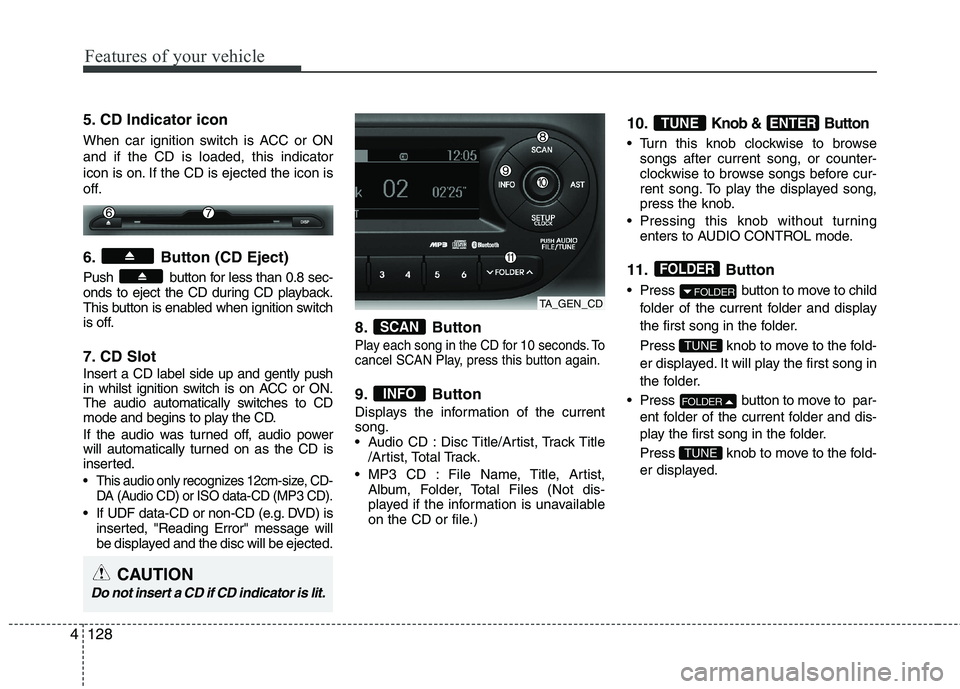
5. CD Indicator icon
When car ignition switch is ACC or ON
and if the CD is loaded, this indicator
icon is on. If the CD is ejected the icon is
off.
6. Button (CD Eject)
Push button for less than 0.8 sec-
onds to eject the CD during CD playback.
This button is enabled when ignition switch
is off.
7. CD Slot
Insert a CD label side up and gently push
in whilst ignition switch is on ACC or ON.
The audio automatically switches to CD
mode and begins to play the CD.
If the audio was turned off, audio power
will automatically turned on as the CD is
inserted.
This audio only recognizes 12cm-size, CD-
DA (Audio CD) or ISO data-CD (MP3 CD).
If UDF data-CD or non-CD (e.g. DVD) is
inserted, "Reading Error" message will
be displayed and the disc will be ejected.
8. Button
Play each song in the CD for 10 seconds. To
cancel SCAN Play, press this button again.
9. Button
Displays the information of the current
song.
Audio CD : Disc Title/Artist, Track Title
/Artist, Total Track.
MP3 CD : File Name, Title, Artist,
Album, Folder, Total Files (Not dis-
played if the information is unavailable
on the CD or file.)
10.Knob & Button
Turn this knob clockwise to browse
songs after current song, or counter-
clockwise to browse songs before cur-
rent song. To play the displayed song,
press the knob.
Pressing this knob without turning
enters to AUDIO CONTROL mode.
11. Button
Press button to move to child
folder of the current folder and display
the first song in the folder.
Press knob to move to the fold-
er displayed. It will play the first song in
the folder.
Press button to move to par-
ent folder of the current folder and dis-
play the first song in the folder.
Press knob to move to the fold-
er displayed.
TUNE
FOLDER
TUNE
FOLDER
FOLDER
ENTERTUNE
INFO
SCAN
TA_GEN_CD
CAUTION
Do not insert a CD if CD indicator is lit.
Page 203 of 420
Features of your vehicle
130 4
CAUTION IN USING
USB DEVICE
To use an external USB device,
make sure the device is not con-
nected when starting up the vehi-
cle. Connect the device after
starting up.
If you start the engine when the
USB device is connected, it may
damage the USB device. (USB
flashdrives are very sensitive to
electric shock.)
If the engine is started up or
turned off whilst the external USB
device is connected, the external
USB device may not work.
It may not play inauthentic MP3 or
WMA files.
1) It can only play MP3 files with
the compression rate between
8Kbps~320Kbps.
2) It can only play WMA music
files with the compression rate
between 8Kbps~320Kbps.
Take precautions for static electrici-
ty when connecting or disconnect-
ing the external USB device.
(Continued)
(Continued)
An encrypted MP3 PLAYER is not
recognizable.
Depending on the condition of
the external USB device, the con-
nected external USB device can
be unrecognizable.
When the formatted byte/sector
setting of External USB device is
not either 512BYTE or 2048BYTE,
then the device will not be recog-
nized.
Use only a USB device formatted
to FAT 12/16/32.
USB devices without USB I/F
authentication may not be recog-
nizable.
Make sure the USB connection
terminal does not come in contact
with the human body or other
objects.
If you repeatedly connect or dis-
connect the USB device in a short
period of time, it may break the
device.
You may hear a strange noise
when connecting or disconnect-
ing a USB device.
(Continued)(Continued)
If you disconnect the external USB
device during playback in USB
mode, the external USB device can
be damaged or may malfunction.
Therefore, disconnect the external
USB device when the audio is
turned off or in another mode. (e.g,
Radio or CD)
Depending on the type and capacity
of the external USB device or the
type of the files stored in the device,
there is a difference in the time
taken for recognition of the device.
Do not use the USB device for pur-
poses other than playing music files.
Playing videos through the USB is
not supported.
Use of USB accessories such as
rechargers or heaters using USB
I/F may lower performance or
cause trouble.
If you use devices such as a USB
hub purchased separately, the
vehicle’s audio system may not
recognize the USB device. In that
case, connect the USB device
directly to the multimedia termi-
nal of the vehicle.
(Continued)
Page 205 of 420
Features of your vehicle
132 4
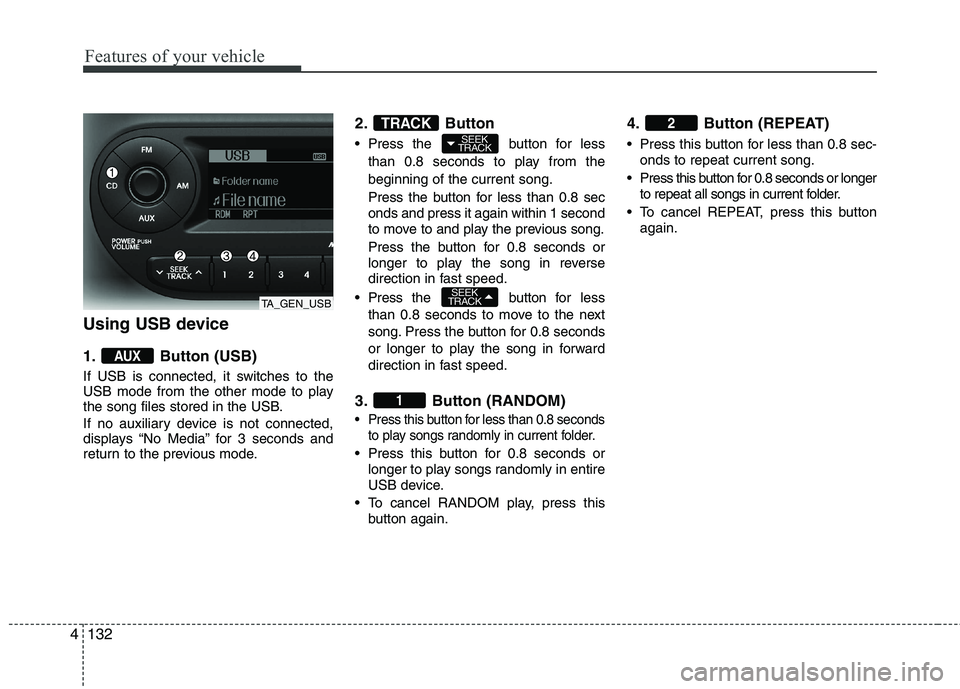
Using USB device
1. Button (USB)
If USB is connected, it switches to the
USB mode from the other mode to play
the song files stored in the USB.
If no auxiliary device is not connected,
displays “No Media” for 3 seconds and
return to the previous mode.
2. Button
Press the button for less
than 0.8 seconds to play from the
beginning of the current song.
Press the button for less than 0.8 sec
onds and press it again within 1 second
to move to and play the previous song.
Press the button for 0.8 seconds or
longer to play the song in reverse
direction in fast speed.
Press the button for less
than 0.8 seconds to move to the next
song. Press the button for 0.8 seconds
or longer to play the song in forward
direction in fast speed.
3. Button (RANDOM)
Press this button for less than 0.8 seconds
to play songs randomly in current folder.
Press this button for 0.8 seconds or
longer to play songs randomly in entire
USB device.
To cancel RANDOM play, press this
button again.
4. Button (REPEAT)
Press this button for less than 0.8 sec-
onds to repeat current song.
Press this button for 0.8 seconds or longer
to repeat all songs in current folder.
To cancel REPEAT, press this button
again.
2
1
SEEK
TRACK
SEEK
TRACKTRACK
AUX
TA_GEN_USB
Page 206 of 420
4133
Features of your vehicle
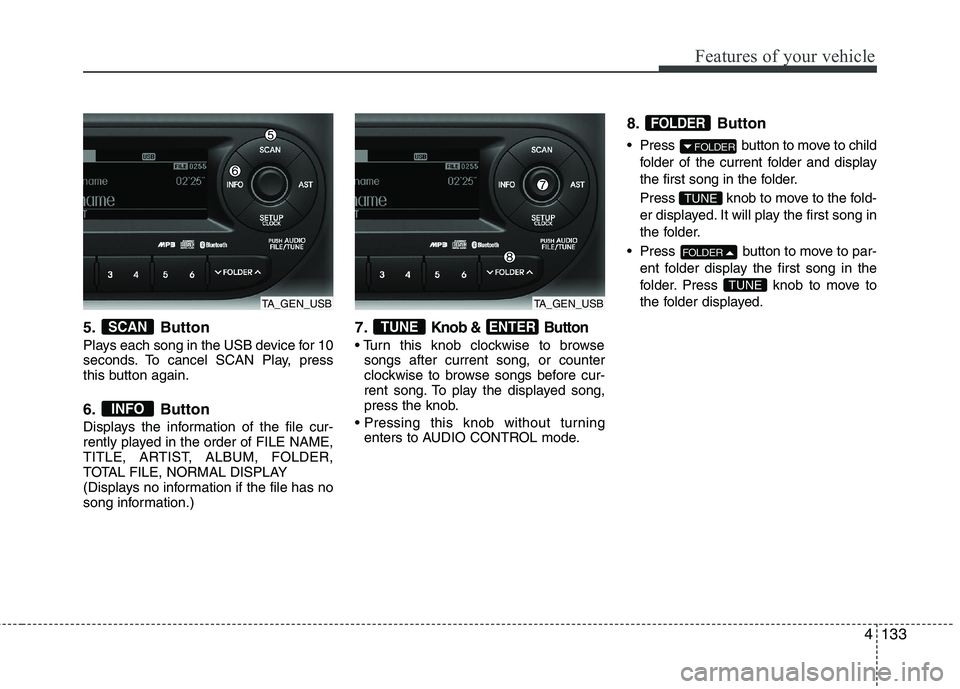
5. Button
Plays each song in the USB device for 10
seconds. To cancel SCAN Play, press
this button again.
6. Button
Displays the information of the file cur-
rently played in the order of FILE NAME,
TITLE, ARTIST, ALBUM, FOLDER,
TOTAL FILE, NORMAL DISPLAY
(Displays no information if the file has no
song information.)
7.Knob & Button
songs after current song, or counter
clockwise to browse songs before cur-
rent song. To play the displayed song,
press the knob.
enters to AUDIO CONTROL mode.
8. Button
Press button to move to child
folder of the current folder and display
the first song in the folder.
Press knob to move to the fold-
er displayed. It will play the first song in
the folder.
Press button to move to par-
ent folder display the first song in the
folder. Press knob to move to
the folder displayed.
TUNE
FOLDER
TUNE
FOLDER
FOLDER
ENTERTUNE
INFO
SCAN
TA_GEN_USBTA_GEN_USB
Page 208 of 420
4135
Features of your vehicle
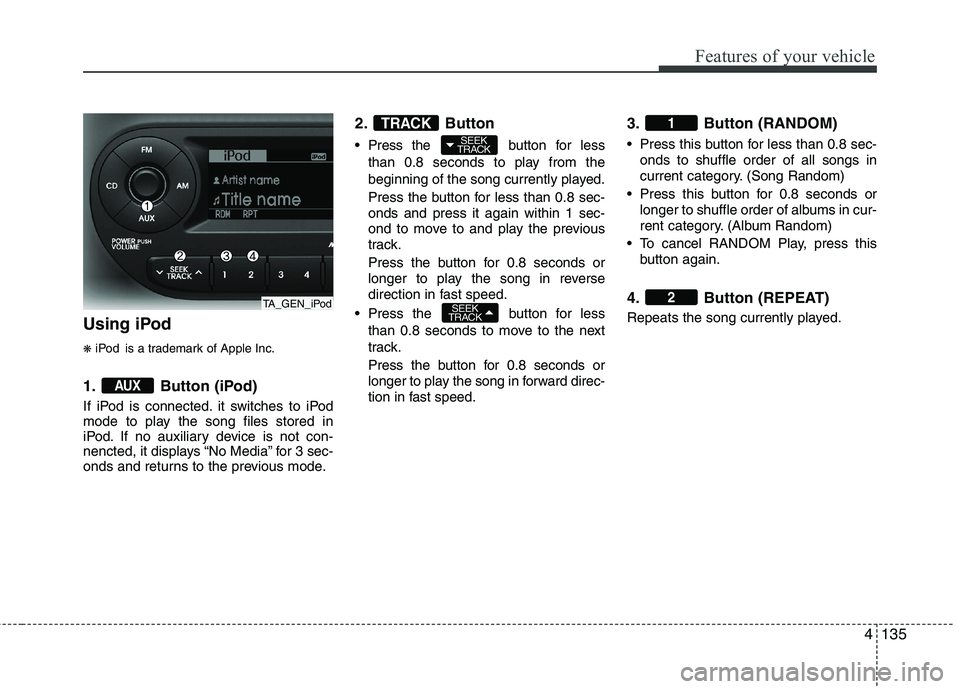
Using iPod
❋iPod is a trademark of Apple Inc.
1. Button (iPod)
If iPod is connected. it switches to iPod
mode to play the song files stored in
iPod. If no auxiliary device is not con-
nencted, it displays “No Media” for 3 sec-
onds and returns to the previous mode.
2. Button
Press the button for less
than 0.8 seconds to play from the
beginning of the song currently played.
Press the button for less than 0.8 sec-
onds and press it again within 1 sec-
ond to move to and play the previous
track.
Press the button for 0.8 seconds or
longer to play the song in reverse
direction in fast speed.
Press the button for less
than 0.8 seconds to move to the next
track.
Press the button for 0.8 seconds or
longer to play the song in forward direc-
tion in fast speed.
3. Button (RANDOM)
Press this button for less than 0.8 sec-
onds to shuffle order of all songs in
current category. (Song Random)
Press this button for 0.8 seconds or
longer to shuffle order of albums in cur-
rent category. (Album Random)
To cancel RANDOM Play, press this
button again.
4. Button (REPEAT)
Repeats the song currently played.
2
1
SEEK
TRACK
SEEK
TRACK
TRACK
AUX
TA_GEN_iPod
Page 209 of 420
Features of your vehicle
136 4
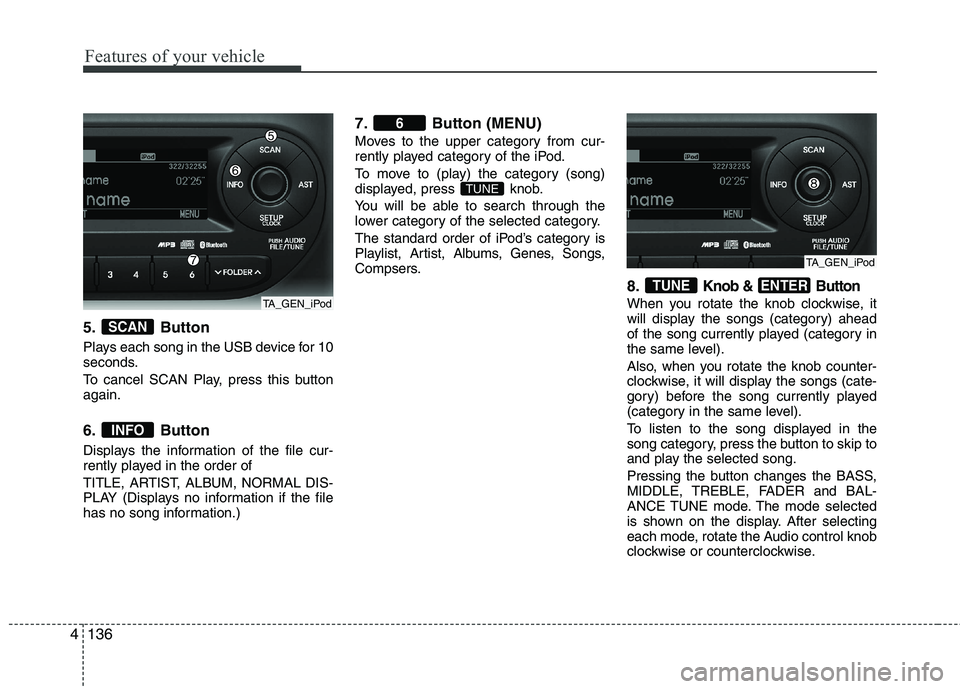
5. Button
Plays each song in the USB device for 10
seconds.
To cancel SCAN Play, press this button
again.
6. Button
Displays the information of the file cur-
rently played in the order of
TITLE, ARTIST, ALBUM, NORMAL DIS-
PLAY (Displays no information if the file
has no song information.)
7. Button (MENU)
Moves to the upper category from cur-
rently played category of the iPod.
To move to (play) the category (song)
displayed, press knob.
You will be able to search through the
lower category of the selected category.
The standard order of iPod’s category is
Playlist, Artist, Albums, Genes, Songs,
Compsers.
8.Knob & Button
When you rotate the knob clockwise, it
will display the songs (category) ahead
of the song currently played (category in
the same level).
Also, when you rotate the knob counter-
clockwise, it will display the songs (cate-
gory) before the song currently played
(category in the same level).
To listen to the song displayed in the
song category, press the button to skip to
and play the selected song.
Pressing the button changes the BASS,
MIDDLE, TREBLE, FADER and BAL-
ANCE TUNE mode. The mode selected
is shown on the display. After selecting
each mode, rotate the Audio control knob
clockwise or counterclockwise.
ENTERTUNE
TUNE
6
INFO
SCAN
TA_GEN_iPod
TA_GEN_iPod
Page 216 of 420
4143
Features of your vehicle
Using RADIO, SETUP, VOLUME
and AUDIO CONTROL
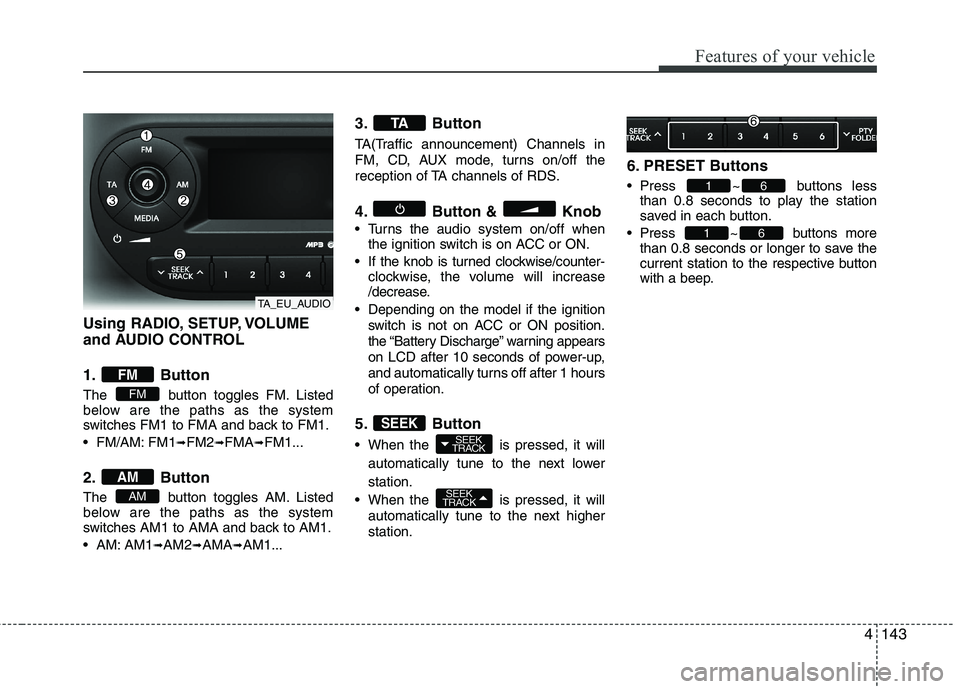
1. Button
The button toggles FM. Listed
below are the paths as the system
switches FM1 to FMA and back to FM1.
FM/AM: FM1
➟FM2➟FMA➟FM1...
2. Button
The button toggles AM. Listed
below are the paths as the system
switches AM1 to AMA and back to AM1.
AM: AM1
➟AM2➟AMA➟AM1...
3. Button
TA(Traffic announcement) Channels in
FM, CD, AUX mode, turns on/off the
reception of TA channels of RDS.
4. Button & Knob
Turns the audio system on/off when
the ignition switch is on ACC or ON.
If the knob is turned clockwise/counter-
clockwise, the volume will increase
/decrease.
Depending on the model if the ignition
switch is not on ACC or ON position.
the “Battery Discharge” warning appears
on LCD after 10 seconds of power-up,
and automatically turns off after 1 hours
of operation.
5. Button
When the is pressed, it will
automatically tune to the next lower
station.
When the is pressed, it will
automatically tune to the next higher
station.
6. PRESET Buttons
Press ~ buttons less
than 0.8 seconds to play the station
saved in each button.
Press ~ buttons more
than 0.8 seconds or longer to save the
current station to the respective button
with a beep.
61
61
SEEK
TRACK
SEEK
TRACKSEEK
TA
AM
AM
FM
FM
TA_EU_AUDIO
Page 217 of 420
Features of your vehicle
144 4
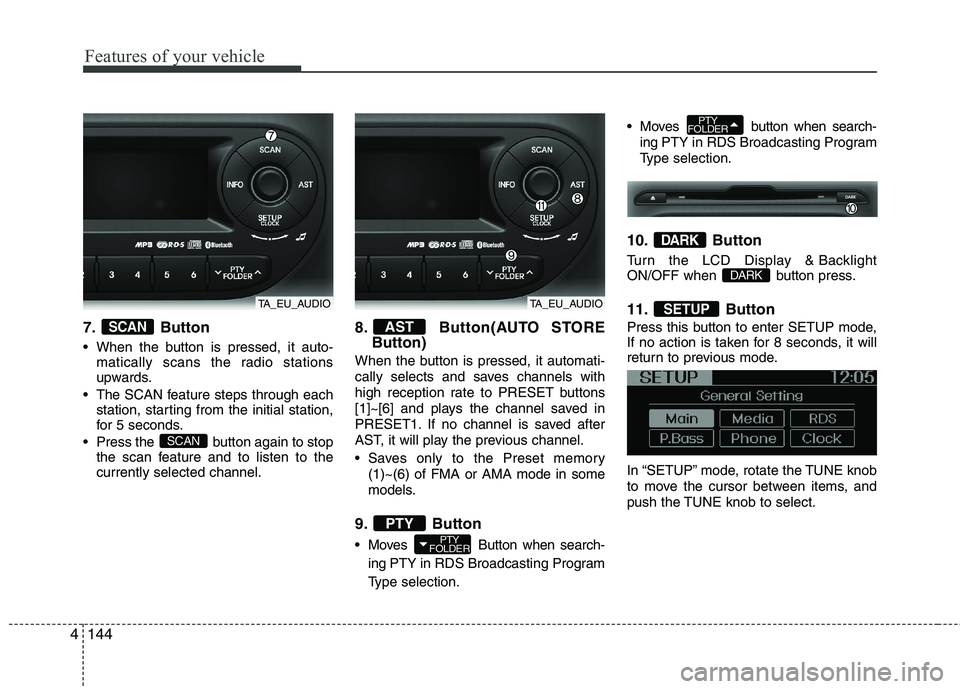
7. Button
When the button is pressed, it auto-
matically scans the radio stations
upwards.
The SCAN feature steps through each
station, starting from the initial station,
for 5 seconds.
Press the button again to stop
the scan feature and to listen to the
currently selected channel.
8. Button(AUTO STORE
Button)
When the button is pressed, it automati-
cally selects and saves channels with
high reception rate to PRESET buttons
[1]~[6] and plays the channel saved in
PRESET1. If no channel is saved after
AST, it will play the previous channel.
Saves only to the Preset memory
(1)~(6) of FMA or AMA mode in some
models.
9. Button
Moves Button when search-
ing PTY in RDS Broadcasting Program
Type selection. Moves button when search-
ing PTY in RDS Broadcasting Program
Type selection.
10. Button
Turn the LCD Display & Backlight
ON/OFF when button press.
11. Button
Press this button to enter SETUP mode,
If no action is taken for 8 seconds, it will
return to previous mode.
In “SETUP” mode, rotate the TUNE knob
to move the cursor between items, and
push the TUNE knob to select.
SETUP
DARK
DARK
PTY
FOLDER
PTY
FOLDERPTY
AST
SCAN
SCAN
TA_EU_AUDIOTA_EU_AUDIO
Page 221 of 420
Features of your vehicle
148 4
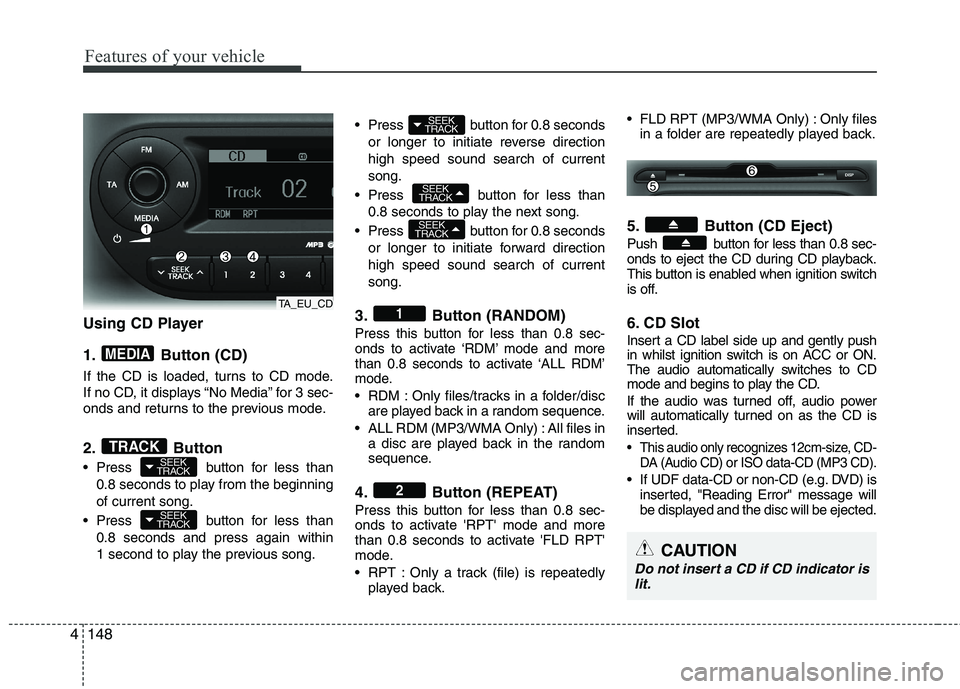
Using CD Player
1. Button (CD)
If the CD is loaded, turns to CD mode.
If no CD, it displays “No Media” for 3 sec-
onds and returns to the previous mode.
2. Button
Press button for less than
0.8 seconds to play from the beginning
of current song.
Press button for less than
0.8 seconds and press again within
1 second to play the previous song. Press button for 0.8 seconds
or longer to initiate reverse direction
high speed sound search of current
song.
Press button for less than
0.8 seconds to play the next song.
Press button for 0.8 seconds
or longer to initiate forward direction
high speed sound search of current
song.
3. Button (RANDOM)
Press this button for less than 0.8 sec-
onds to activate ‘RDM’ mode and more
than 0.8 seconds to activate ‘ALL RDM’
mode.
RDM : Only files/tracks in a folder/disc
are played back in a random sequence.
ALL RDM (MP3/WMA Only) : All files in
a disc are played back in the random
sequence.
4. Button (REPEAT)
Press this button for less than 0.8 sec-
onds to activate 'RPT' mode and more
than 0.8 seconds to activate 'FLD RPT'
mode.
RPT : Only a track (file) is repeatedly
played back. FLD RPT (MP3/WMA Only) : Only files
in a folder are repeatedly played back.
5. Button (CD Eject)
Push button for less than 0.8 sec-
onds to eject the CD during CD playback.
This button is enabled when ignition switch
is off.
6. CD Slot
Insert a CD label side up and gently push
in whilst ignition switch is on ACC or ON.
The audio automatically switches to CD
mode and begins to play the CD.
If the audio was turned off, audio power
will automatically turned on as the CD is
inserted.
This audio only recognizes 12cm-size, CD-
DA (Audio CD) or ISO data-CD (MP3 CD).
If UDF data-CD or non-CD (e.g. DVD) is
inserted, "Reading Error" message will
be displayed and the disc will be ejected.2
1
SEEK
TRACK
SEEK
TRACK
SEEK
TRACK
SEEK
TRACK
SEEK
TRACKTRACK
MEDIA
TA_EU_CD
CAUTION
Do not insert a CD if CD indicator is
lit.
Page 222 of 420
4149
Features of your vehicle
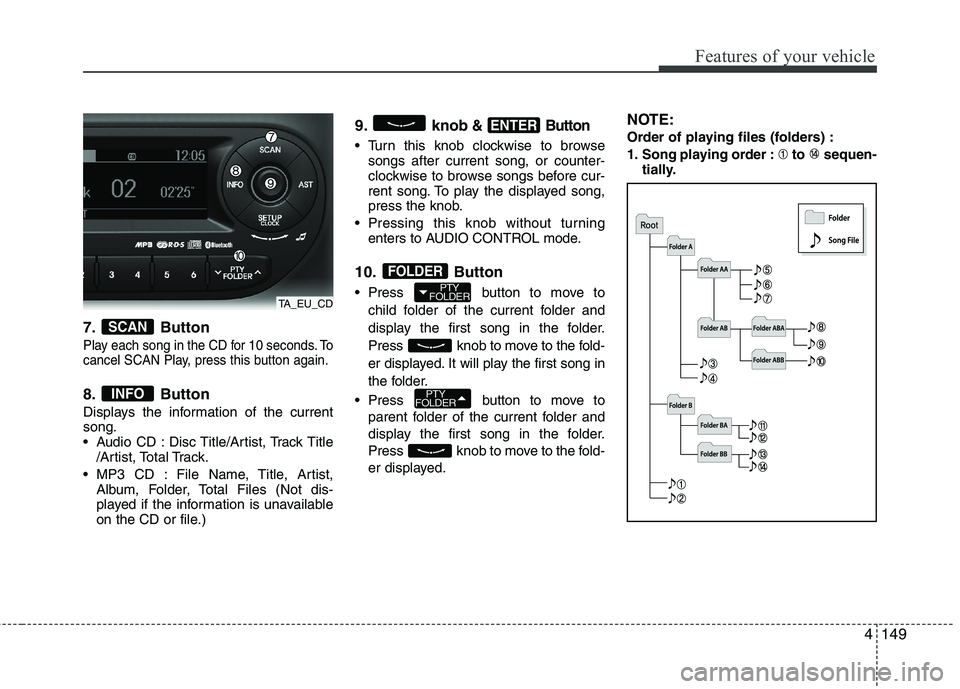
7. Button
Play each song in the CD for 10 seconds. To
cancel SCAN Play, press this button again.
8. Button
Displays the information of the current
song.
Audio CD : Disc Title/Artist, Track Title
/Artist, Total Track.
MP3 CD : File Name, Title, Artist,
Album, Folder, Total Files (Not dis-
played if the information is unavailable
on the CD or file.)
9. knob& Button
Turn this knob clockwise to browse
songs after current song, or counter-
clockwise to browse songs before cur-
rent song. To play the displayed song,
press the knob.
Pressing this knob without turning
enters to AUDIO CONTROL mode.
10. Button
Press button to move to
child folder of the current folder and
display the first song in the folder.
Press knob to move to the fold-
er displayed. It will play the first song in
the folder.
Press button to move to
parent folder of the current folder and
display the first song in the folder.
Press knob to move to the fold-
er displayed.
NOTE:
Order of playing files (folders) :
1. Song playing order : to sequen-
tially.
PTY
FOLDER
PTY
FOLDER
FOLDER
ENTER
INFO
SCAN
TA_EU_CD