AUX KIA MORNING 2015 Owners Manual
[x] Cancel search | Manufacturer: KIA, Model Year: 2015, Model line: MORNING, Model: KIA MORNING 2015Pages: 420, PDF Size: 42.6 MB
Page 182 of 420
4109
Features of your vehicle
MODE ( ) (3)
Press the button to change audio source.
FM(1~2)
➟ AM ➟ CD ➟ USB AUX(iPod)➟ FM...
In addition to mode change, Power on/off
can be made by pressing this button
when the ignition switch is on ACC or
ON.
- Power ON : Press the button when the
audio is off
- Power OFF : Press the button for more
than 0.8 seconds when the audio is on.
MUTE ( ) (4, if equipped)
Press the button to mute the sound.
Press the button to turn off the micro-
phone during a telephone call.
Detailed information for audio control
buttons are described in the following
pages in this section.
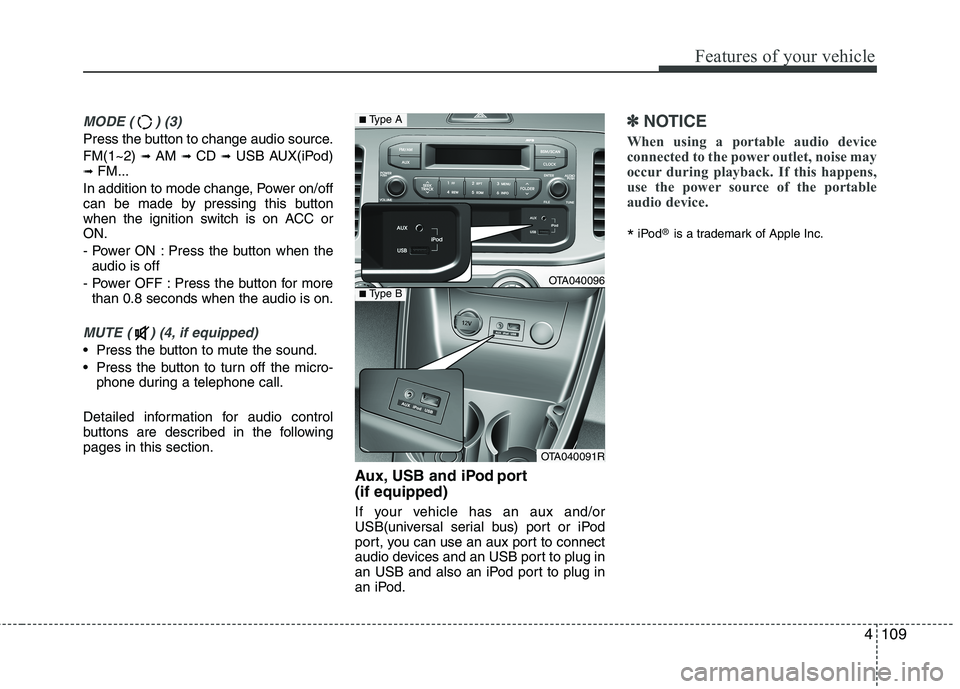
Aux, USB and iPod port
(if equipped)
If your vehicle has an aux and/or
USB(universal serial bus) port or iPod
port, you can use an aux port to connect
audio devices and an USB port to plug in
an USB and also an iPod port to plug in
an iPod.
✽ ✽
NOTICE
When using a portable audio device
connected to the power outlet, noise may
occur during playback. If this happens,
use the power source of the portable
audio device.
*iPod®is a trademark of Apple Inc.
OTA040096
OTA040091R
■Type A
■Type B
Page 190 of 420
4117
Features of your vehicle
(Continued)
If the USB device is divided by
logical drives, only the music files
on the highest-priority drive are
recognized by car audio.
Devices such as MP3 Player/
Mobile phone/Digital camera can
be unrecognizable by standard
USB I/F can be unrecognizable.
Charging through the USB may
not be supported in some mobile
devices.
❋ A car exclusive cable (Provided or
sold separately : USB / AUX detach-
able cable only) is required to use
the iPod.
Some non-standard USB devices
(METAL COVER TYPE USB) can be
unrecognizable.
Some USB flash memory readers
(such as CF, SD, microSD, etc.) or
external-HDD type devices can be
unrecognizable.
Music files protected by DRM
(DIGITAL RIGHTS MANAGEMENT)
are not recognizable.
(Continued)
(Continued)
The data in the USB memory may
be lost whilst using this audio.
Always back up important data on
a personal storage device.
Please avoid using USB memory
products which can be used as
key chains or mobile phone
accessories as they could cause
damage to the USB jack. Please
make certain only to use plug type
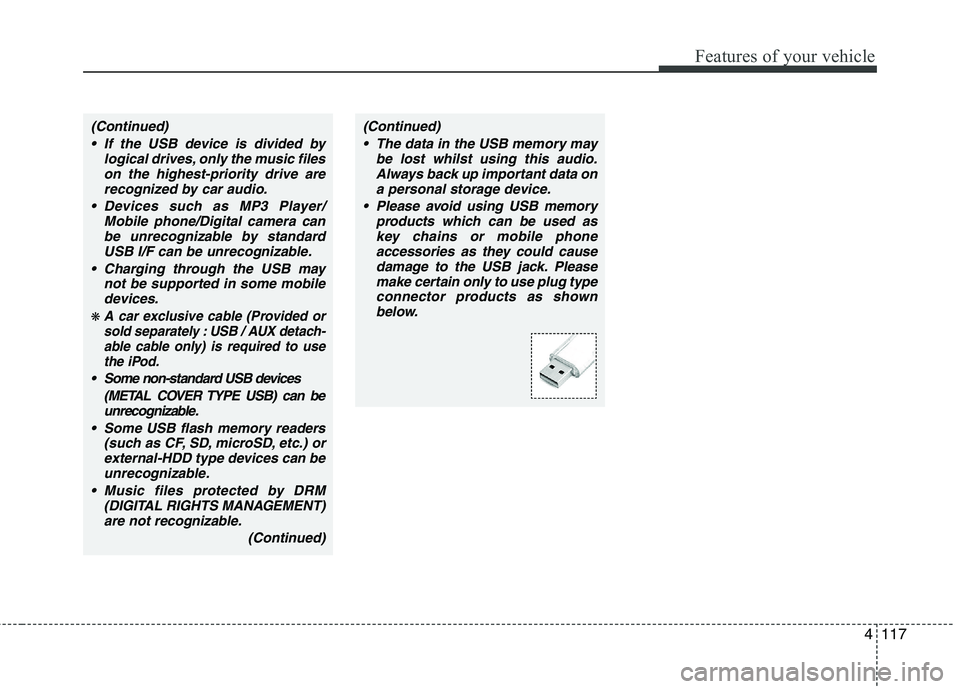
connector products as shown
below.
Page 191 of 420
Features of your vehicle
118 4
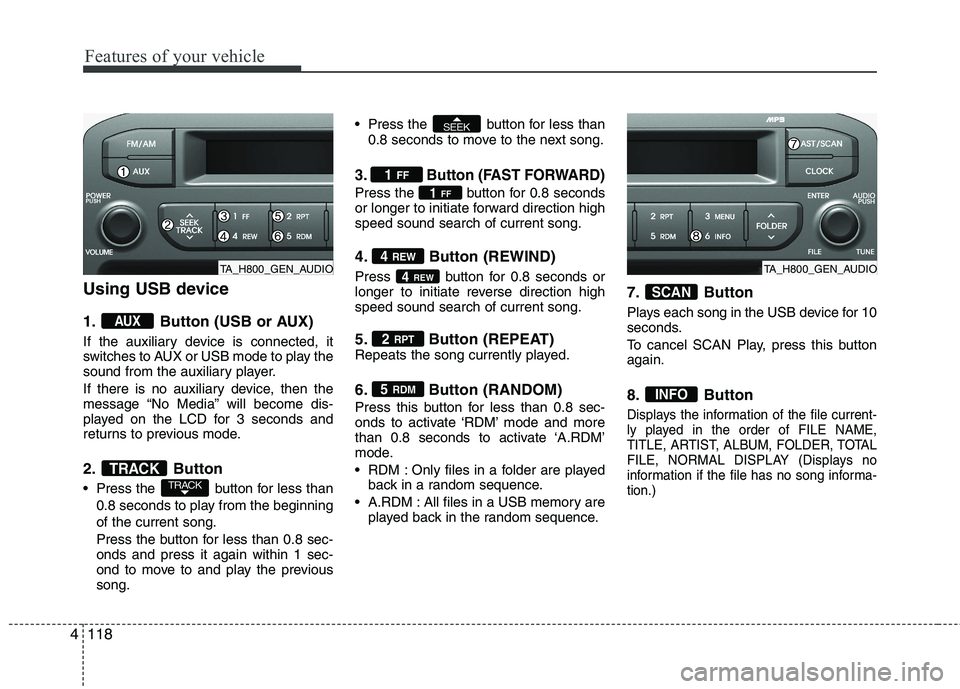
Using USB device
1. Button (USB or AUX)
If the auxiliary device is connected, it
switches to AUX or USB mode to play the
sound from the auxiliary player.
If there is no auxiliary device, then the
message “No Media” will become dis-
played on the LCD for 3 seconds and
returns to previous mode.
2. Button
Press the button for less than
0.8 seconds to play from the beginning
of the current song.
Press the button for less than 0.8 sec-
onds and press it again within 1 sec-
ond to move to and play the previous
song. Press the button for less than
0.8 seconds to move to the next song.
3. Button (FAST FORWARD)
Press the button for 0.8 seconds
or longer to initiate forward direction high
speed sound search of current song.
4. Button (REWIND)
Press button for 0.8 seconds or
longer to initiate reverse direction high
speed sound search of current song.
5. Button (REPEAT)Repeats the song currently played.
6. Button (RANDOM)
Press this button for less than 0.8 sec-
onds to activate ‘RDM’ mode and more
than 0.8 seconds to activate ‘A.RDM’
mode.
RDM : Only files in a folder are played
back in a random sequence.
A.RDM : All files in a USB memory are
played back in the random sequence.
7. Button
Plays each song in the USB device for 10
seconds.
To cancel SCAN Play, press this button
again.
8. Button
Displays the information of the file current-
ly played in the order of FILE NAME,
TITLE, ARTIST, ALBUM, FOLDER, TOTAL
FILE, NORMAL DISPLAY (Displays no
information if the file has no song informa-
tion.)
INFO
SCAN
5 RDM
2 RPT
4REW
4 REW
1FF
1 FF
SEEK
TRACKTRACK
AUX
TA_H800_GEN_AUDIOTA_H800_GEN_AUDIO
Page 193 of 420
Features of your vehicle
120 4
CAUTION IN USING THE
iPod DEVICE
The Kia iPod Power Cable is
needed in order to operate iPod
with the audio buttons on the
audio system. The USB cable pro-
vided by Apple may cause mal-
function and should not be used
for Kia vehicles.
❋ The Kia iPod Power Cable may
be purchased through your Kia
Dealership.
When connecting iPod with the
iPod Power Cable, insert the con-
nector to the multimedia socket
completely. If not inserted com-
pletely, communications between
iPod and audio may be interrupted.
When adjusting the sound effects of
the iPod and the audio system, the
sound effects of both devices will
overlap and might reduce or distort
the quality of the sound.
Deactivate (turn off) the equalizer
function of an iPod when adjust-
ing the audio system’s volume,
and turn off the equalizer of the
audio system when using the
equalizer of an iPod.
(Continued)
(Continued)
When the iPod cable is connected,
the system can be switched to AUX
mode even without iPod device
and may cause noise.Disconnect
the iPod cable when you are not
using the iPod device.
When not using iPod with car
audio, detach the iPod cable from
iPod. Otherwise, iPod may remain
in accessory mode, and may not
work properly.
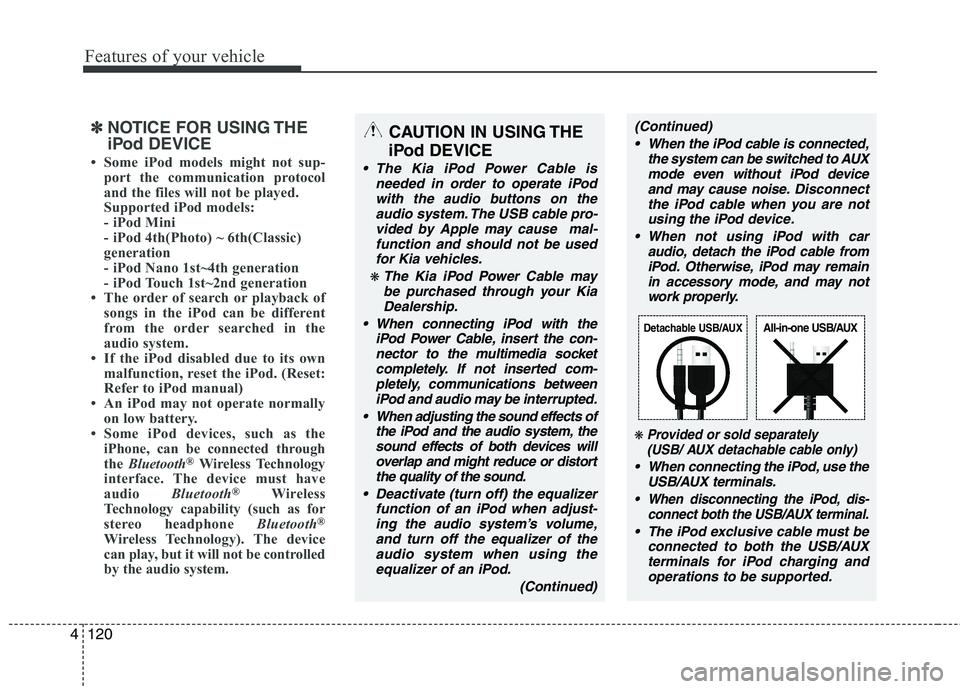
❋ Provided or sold separately
(USB/ AUX detachable cable only)
When connecting the iPod, use the
USB/AUX terminals.
When disconnecting the iPod, dis-
connect both the USB/AUX terminal.
The iPod exclusive cable must be
connected to both the USB/AUX
terminals for iPod charging and
operations to be supported.
Detachable USB/AUXAll-in-one USB/AUX
✽ ✽
NOTICE FOR USING THE
iPod DEVICE
• Some iPod models might not sup-
port the communication protocol
and the files will not be played.
Supported iPod models:
- iPod Mini
- iPod 4th(Photo) ~ 6th(Classic)
generation
- iPod Nano 1st~4th generation
- iPod Touch 1st~2nd generation
• The order of search or playback of
songs in the iPod can be different
from the order searched in the
audio system.
• If the iPod disabled due to its own
malfunction, reset the iPod. (Reset:
Refer to iPod manual)
• An iPod may not operate normally
on low battery.
• Some iPod devices, such as the
iPhone, can be connected through
the Bluetooth
®Wireless Technology
interface. The device must have
audio Bluetooth
®Wireless
Technology capability (such as for
stereo headphone Bluetooth
®
Wireless Technology). The device
can play, but it will not be controlled
by the audio system.
Page 194 of 420
4121
Features of your vehicle
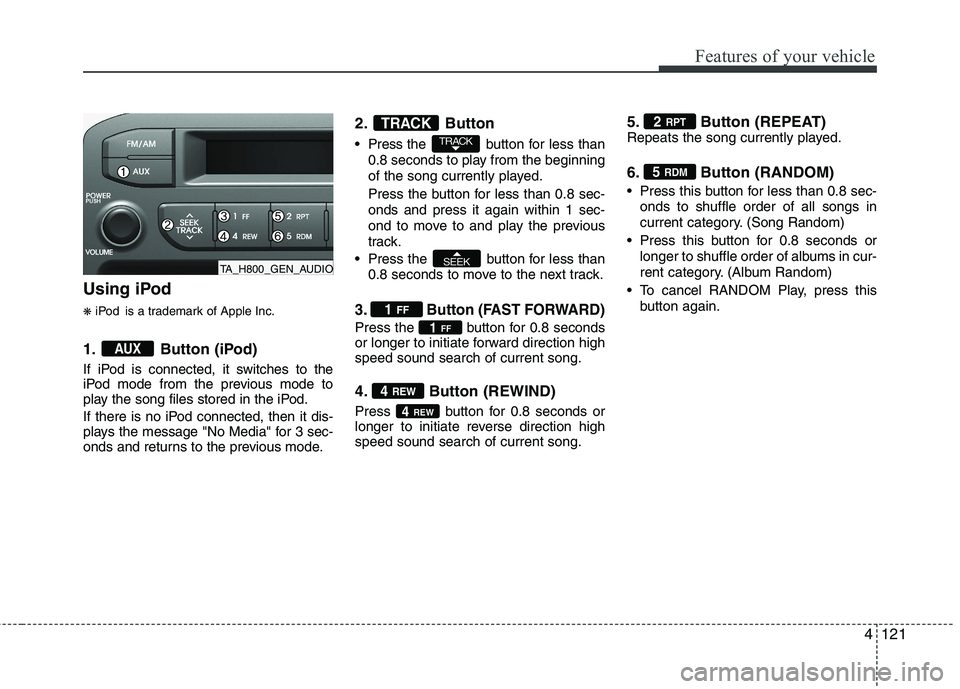
Using iPod
❋iPod is a trademark of Apple Inc.
1. Button (iPod)
If iPod is connected, it switches to the
iPod mode from the previous mode to
play the song files stored in the iPod.
If there is no iPod connected, then it dis-
plays the message "No Media" for 3 sec-
onds and returns to the previous mode.
2. Button
Press the button for less than
0.8 seconds to play from the beginning
of the song currently played.
Press the button for less than 0.8 sec-
onds and press it again within 1 sec-
ond to move to and play the previous
track.
Press the button for less than
0.8 seconds to move to the next track.
3. Button (FAST FORWARD)
Press the button for 0.8 seconds
or longer to initiate forward direction high
speed sound search of current song.
4. Button (REWIND)
Press button for 0.8 seconds or
longer to initiate reverse direction high
speed sound search of current song.
5. Button (REPEAT)Repeats the song currently played.
6. Button (RANDOM)
Press this button for less than 0.8 sec-
onds to shuffle order of all songs in
current category. (Song Random)
Press this button for 0.8 seconds or
longer to shuffle order of albums in cur-
rent category. (Album Random)
To cancel RANDOM Play, press this
button again.
5 RDM
2 RPT
4REW
4 REW
1FF
1 FF
SEEK
TRACK
TRACK
AUX
TA_H800_GEN_AUDIO
Page 204 of 420
4131
Features of your vehicle
(Continued)
If the USB device is divided by
logical drives, only the music files
on the highest-priority drive are
recognized by car audio.
Devices such as MP3 Player/
Mobile phone/Digital camera can
be unrecognizable by standard
USB I/F can be unrecognizable.
Charging through the USB may
not be supported in some mobile
devices.
❋ A car exclusive cable (Provided or
sold separately : USB / AUX detach-
able cable only) is required to use
the iPod.
Some non-standard USB devices
(METAL COVER TYPE USB) can be
unrecognizable.
Some USB flash memory readers
(such as CF, SD, microSD, etc.) or
external-HDD type devices can be
unrecognizable.
Music files protected by DRM
(DIGITAL RIGHTS MANAGEMENT)
are not recognizable.
(Continued)
(Continued)
The data in the USB memory may
be lost whilst using this audio.
Always back up important data on
a personal storage device.
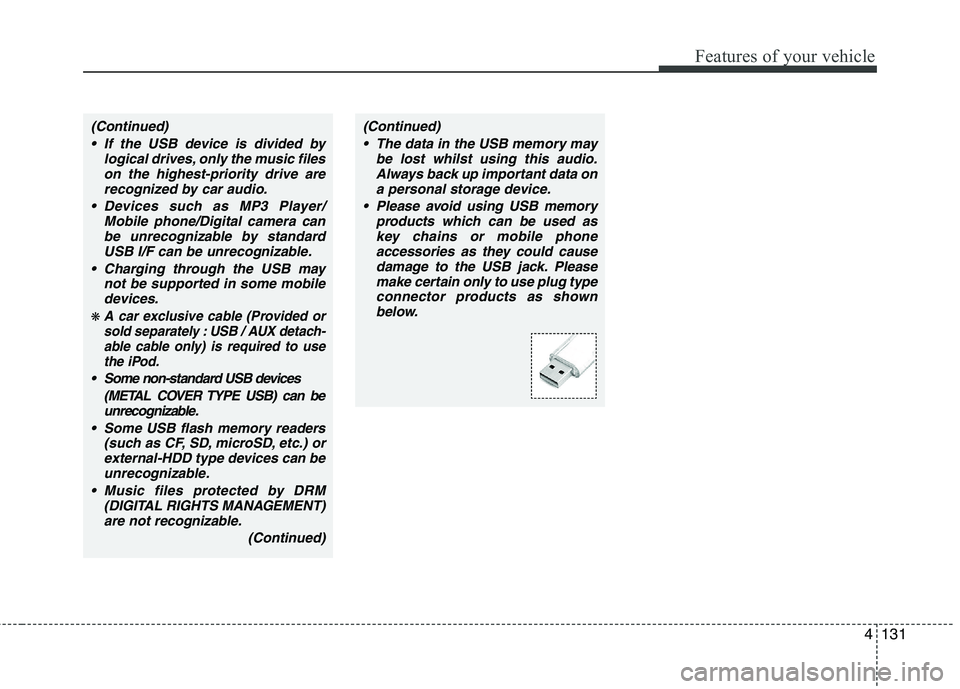
Please avoid using USB memory
products which can be used as
key chains or mobile phone
accessories as they could cause
damage to the USB jack. Please
make certain only to use plug type
connector products as shown
below.
Page 205 of 420
Features of your vehicle
132 4
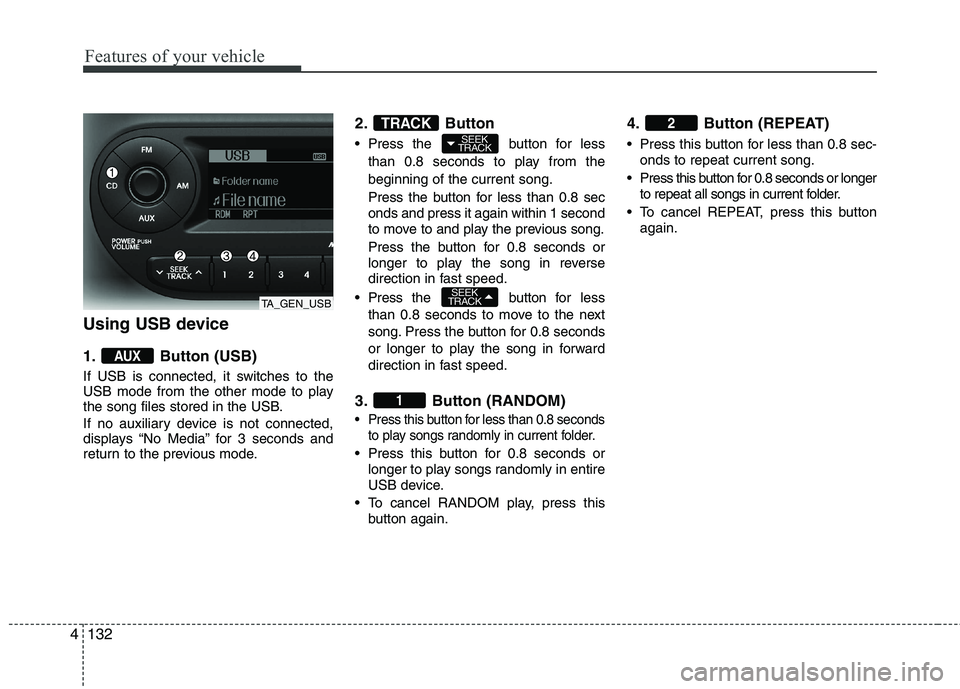
Using USB device
1. Button (USB)
If USB is connected, it switches to the
USB mode from the other mode to play
the song files stored in the USB.
If no auxiliary device is not connected,
displays “No Media” for 3 seconds and
return to the previous mode.
2. Button
Press the button for less
than 0.8 seconds to play from the
beginning of the current song.
Press the button for less than 0.8 sec
onds and press it again within 1 second
to move to and play the previous song.
Press the button for 0.8 seconds or
longer to play the song in reverse
direction in fast speed.
Press the button for less
than 0.8 seconds to move to the next
song. Press the button for 0.8 seconds
or longer to play the song in forward
direction in fast speed.
3. Button (RANDOM)
Press this button for less than 0.8 seconds
to play songs randomly in current folder.
Press this button for 0.8 seconds or
longer to play songs randomly in entire
USB device.
To cancel RANDOM play, press this
button again.
4. Button (REPEAT)
Press this button for less than 0.8 sec-
onds to repeat current song.
Press this button for 0.8 seconds or longer
to repeat all songs in current folder.
To cancel REPEAT, press this button
again.
2
1
SEEK
TRACK
SEEK
TRACKTRACK
AUX
TA_GEN_USB
Page 207 of 420
Features of your vehicle
134 4
CAUTION IN USING THE
iPod DEVICE
The Kia iPod Power Cable is
needed in order to operate iPod
with the audio buttons on the
audio system. The USB cable pro-
vided by Apple may cause mal-
function and should not be used
for Kia vehicles.
❋ The Kia iPod Power Cable may
be purchased through your Kia
Dealership.
When connecting iPod with the
iPod Power Cable, insert the con-
nector to the multimedia socket
completely. If not inserted com-
pletely, communications between
iPod and audio may be interrupted.
When adjusting the sound effects of
the iPod and the audio system, the
sound effects of both devices will
overlap and might reduce or distort
the quality of the sound.
Deactivate (turn off) the equalizer
function of an iPod when adjust-
ing the audio system’s volume,
and turn off the equalizer of the
audio system when using the
equalizer of an iPod.
(Continued)
(Continued)
When the iPod cable is connected,
the system can be switched to AUX
mode even without iPod device
and may cause noise.Disconnect
the iPod cable when you are not
using the iPod device.
When not using iPod with car
audio, detach the iPod cable from
iPod. Otherwise, iPod may remain
in accessory mode, and may not
work properly.
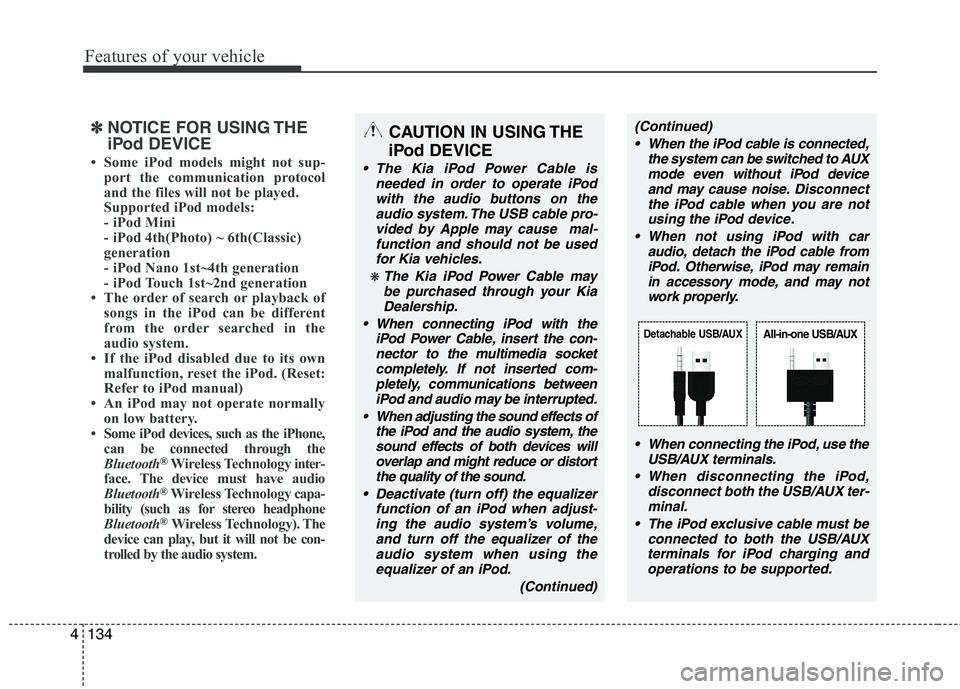
When connecting the iPod, use the
USB/AUX terminals.
When disconnecting the iPod,
disconnect both the USB/AUX ter-
minal.
The iPod exclusive cable must be
connected to both the USB/AUX
terminals for iPod charging and
operations to be supported.
Detachable USB/AUXAll-in-one USB/AUX
✽ ✽
NOTICE FOR USING THE
iPod DEVICE
• Some iPod models might not sup-
port the communication protocol
and the files will not be played.
Supported iPod models:
- iPod Mini
- iPod 4th(Photo) ~ 6th(Classic)
generation
- iPod Nano 1st~4th generation
- iPod Touch 1st~2nd generation
• The order of search or playback of
songs in the iPod can be different
from the order searched in the
audio system.
• If the iPod disabled due to its own
malfunction, reset the iPod. (Reset:
Refer to iPod manual)
• An iPod may not operate normally
on low battery.
• Some iPod devices, such as the iPhone,
can be connected through the
Bluetooth
®Wireless Technologyinter-
face. The device must have audio
Bluetooth
®Wireless Technologycapa-
bility (such as for stereo headphone
Bluetooth
®Wireless Technology). The
device can play, but it will not be con-
trolled by the audio system.
Page 208 of 420
4135
Features of your vehicle
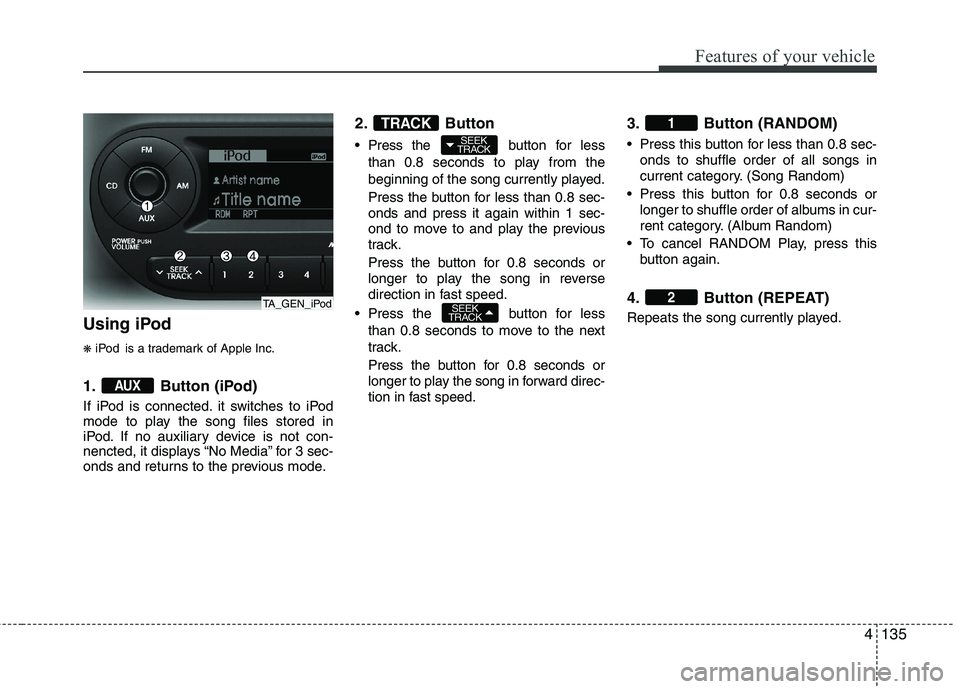
Using iPod
❋iPod is a trademark of Apple Inc.
1. Button (iPod)
If iPod is connected. it switches to iPod
mode to play the song files stored in
iPod. If no auxiliary device is not con-
nencted, it displays “No Media” for 3 sec-
onds and returns to the previous mode.
2. Button
Press the button for less
than 0.8 seconds to play from the
beginning of the song currently played.
Press the button for less than 0.8 sec-
onds and press it again within 1 sec-
ond to move to and play the previous
track.
Press the button for 0.8 seconds or
longer to play the song in reverse
direction in fast speed.
Press the button for less
than 0.8 seconds to move to the next
track.
Press the button for 0.8 seconds or
longer to play the song in forward direc-
tion in fast speed.
3. Button (RANDOM)
Press this button for less than 0.8 sec-
onds to shuffle order of all songs in
current category. (Song Random)
Press this button for 0.8 seconds or
longer to shuffle order of albums in cur-
rent category. (Album Random)
To cancel RANDOM Play, press this
button again.
4. Button (REPEAT)
Repeats the song currently played.
2
1
SEEK
TRACK
SEEK
TRACK
TRACK
AUX
TA_GEN_iPod
Page 214 of 420
4141
Features of your vehicle
■Using the head unit as Bluetooth®
Wireless Technologymusic
This audio system supports A2DP (Audio
Advanced Distribution Profile) and
AVRCP(Audio Video Remote Control
Profile).
Both profiles are available for listening to
the MP3 music via
Bluetooth®Wireless
Technologymobile phone supporting
above
Bluetooth®Wireless Technology
profiles.
To play MP3 music from the
Bluetooth®
Wireless Technologymobile phone, press
the button until “MP3 Play” is
displayed on the LCD.
Then try playing music by phone.
When playing music from the
Bluetooth®
Wireless Technologymobile phone, the
head unit displays MP3 MODE.
NOTE:
all the sounds
that the phone supports can be
heard by the audio system.
The
Bluetooth®Wireless Technology
mobile phones shall feature A2DP
and AVRCP functions.
Bluetooth®
Wireless Technology mobile phones
may not play music through the head
unit on first try. Please try the below;
i.e : Menu
➟Filemanager➟Music➟Option➟Play via Bluetooth
phone for more.
To stop music, try stop playing
music from the phone then change
the audio mode to other than “MP3
Play” mode (e.g. FM, AM, CD, etc.)AUX