buttons KIA MORNING 2015 Owners Manual
[x] Cancel search | Manufacturer: KIA, Model Year: 2015, Model line: MORNING, Model: KIA MORNING 2015Pages: 420, PDF Size: 42.6 MB
Page 82 of 420
49
Features of your vehicle
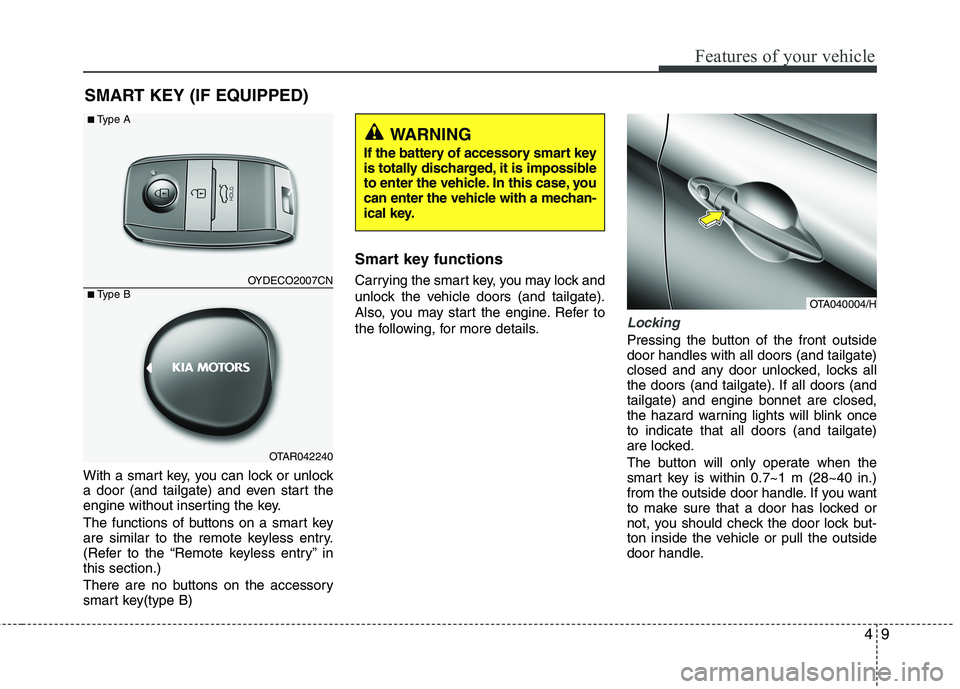
With a smart key, you can lock or unlock
a door (and tailgate) and even start the
engine without inserting the key.
The functions of buttons on a smart key
are similar to the remote keyless entry.
(Refer to the “Remote keyless entry” in
this section.)
There are no buttons on the accessory
smart key(type B)
Smart key functions
Carrying the smart key, you may lock and
unlock the vehicle doors (and tailgate).
Also, you may start the engine. Refer to
the following, for more details.
Locking
Pressing the button of the front outside
door handles with all doors (and tailgate)
closed and any door unlocked, locks all
the doors (and tailgate). If all doors (and
tailgate) and engine bonnet are closed,
the hazard warning lights will blink once
to indicate that all doors (and tailgate)
are locked.
The button will only operate when the
smart key is within 0.7~1 m (28~40 in.)
from the outside door handle. If you want
to make sure that a door has locked or
not, you should check the door lock but-
ton inside the vehicle or pull the outside
door handle.
SMART KEY (IF EQUIPPED)
OTA040004/H
OYDECO2007CN
OTAR042240
■Type A
■Type B
WARNING
If the battery of accessory smart key
is totally discharged, it is impossible
to enter the vehicle. In this case, you
can enter the vehicle with a mechan-
ical key.
Page 83 of 420
Features of your vehicle
10 4
Even though you press the outside door
handle buttons, the doors will not lock
and the chime will sound for 3 seconds if
any of following occur:
The smart key is in the vehicle.
The ENGINE START/STOP button is in
the ACC or ON position.
Any door except the tailgate is open.
Unlocking
Pressing the button of the front outside
door handles with all doors (and tailgate)
closed and locked, unlocks all the doors
(and tailgate). The hazard warning lights
blink twice to indicate that all doors (and
tailgate) are unlocked.
The button will only operate when the
smart key is within 0.7~1 m (28~40 in.)
from the outside door handle.
When the smart key is recognized in the
area of 0.7~1 m (28~40 in.) from the front
outside door handle, other people can
also open the door without possession of
the smart key.
After pressing the button, the doors will
lock automatically unless you open any
door within 30 seconds.
Tailgate unlocking
If you are within 0.7 m ~ 1 m (28 ~ 40 in.)
from the outside tailgate handle, with
your smart key in possession, the tail-
gate will unlock and open when you
press the tailgate handle switch.
The hazard warning lights will blink twice
to indicate that the tailgate is unlocked.
Also, once the tailgate is opened and
then closed, the tailgate will lock auto-
matically.
❈The word “HOLD” is written on the but-
ton to inform you that you must press
and hold the button for 1 second.
Start-up
You can start the engine without inserting
the key. For detailed information refer to
“Starting the engine with a smart key” in
section 5.
Smart key precautions
✽ ✽
NOTICE
• If, for some reason, you happen to lose
your smart key, you will not be able to
start the engine. Tow the vehicle, if
necessary, and contact an authorised
Kia dealer.
• A maximum of 2 smart keys can be
registered to a single vehicle. If you
lose a smart key, you should immedi-
ately take the vehicle and key to your
authorised Kia dealer to protect it
from potential theft.
• The smart key will not work if any of
following occur:
- The smart key is close to a radio
transmitter such as a radio station or
an airport which can interfere with
normal operation of the smart key.
- You keep the smart key near a
mobile two-way radio system or a
mobile phone.
- Another vehicle’s smart key is being
operated close to your vehicle.
When the smart key does not work
correctly, open and close the door with
the mechanical key. If you have a
problem with the smart key, contact
an authorised Kia dealer.
(Continued)
Page 165 of 420
Features of your vehicle
92 4
✽
✽
NOTICE
Never place anything over the sensor
located on the instrument panel to
ensure better control of the heating and
cooling system.
Manual heating and air condition-
ing
The heating and cooling system can be
controlled manually by pushing buttons
other than the AUTO button. In this case,
the system works sequentially according
to the order of buttons selected.
When pressing any button (or turning any
knob) except the AUTO button whilst using
automatic operation, the functions not
selected will be controlled automatically.
1. Start the engine.
2. Set the mode to the desired position.
To improve the effectiveness of heat-
ing and cooling:
- Heating:
- Cooling:
3. Set the temperature control to the
desired position.
4. Set the air intake control to the outside
(fresh) air position.
5. Set the fan speed control to the
desired speed.
6. If air conditioning is desired, turn the
air conditioning system on.
Press the AUTO button in order to convert
to full automatic control of the system.
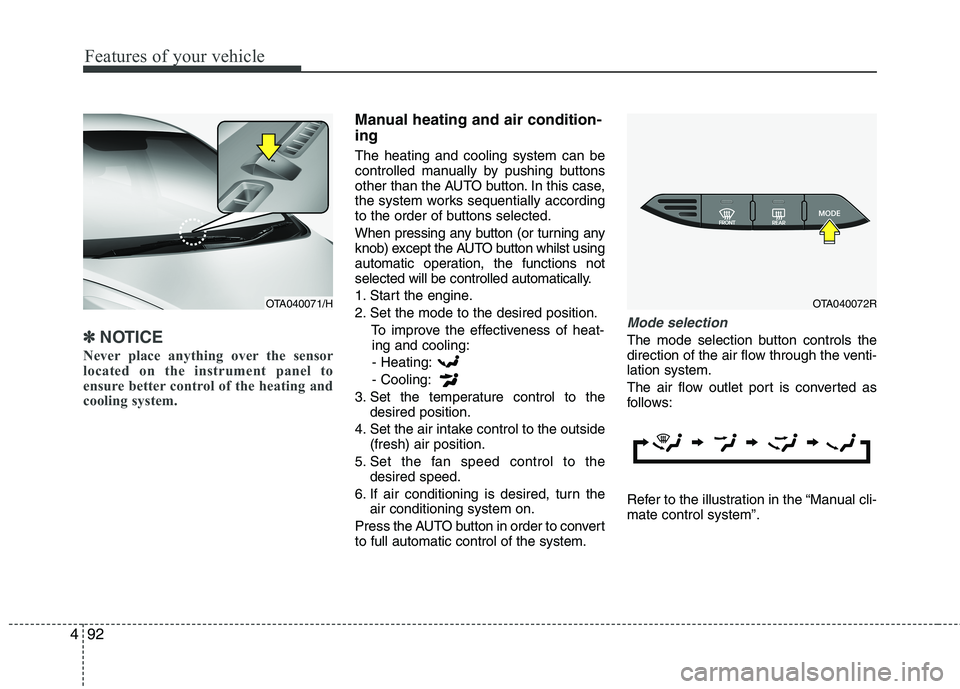
Mode selection
The mode selection button controls the
direction of the air flow through the venti-
lation system.
The air flow outlet port is converted as
follows:
Refer to the illustration in the “Manual cli-
mate control system”.
OTA040072ROTA040071/H
Page 177 of 420
Features of your vehicle
104 4
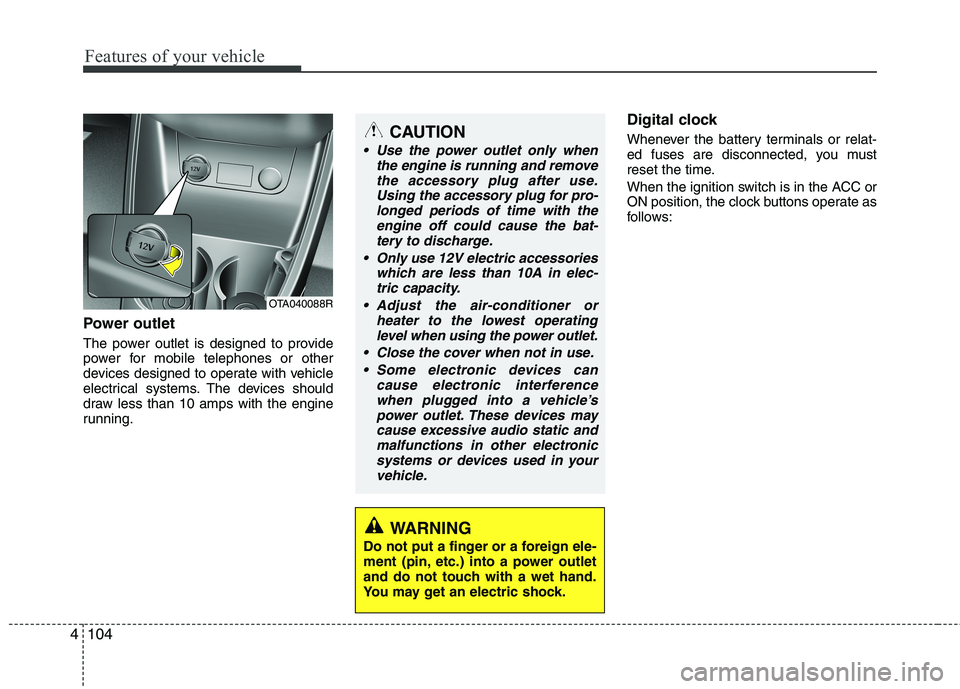
Power outlet
The power outlet is designed to provide
power for mobile telephones or other
devices designed to operate with vehicle
electrical systems. The devices should
draw less than 10 amps with the engine
running.
Digital clock
Whenever the battery terminals or relat-
ed fuses are disconnected, you must
reset the time.
When the ignition switch is in the ACC or
ON position, the clock buttons operate as
follows:CAUTION
Use the power outlet only when
the engine is running and remove
the accessory plug after use.
Using the accessory plug for pro-
longed periods of time with the
engine off could cause the bat-
tery to discharge.
Only use 12V electric accessories
which are less than 10A in elec-
tric capacity.
Adjust the air-conditioner or
heater to the lowest operating
level when using the power outlet.
Close the cover when not in use.
Some electronic devices can
cause electronic interference
when plugged into a vehicle’s
power outlet. These devices may
cause excessive audio static and
malfunctions in other electronic
systems or devices used in your
vehicle.
WARNING
Do not put a finger or a foreign ele-
ment (pin, etc.) into a power outlet
and do not touch with a wet hand.
You may get an electric shock.
OTA040088R
Page 181 of 420
Features of your vehicle
108 4
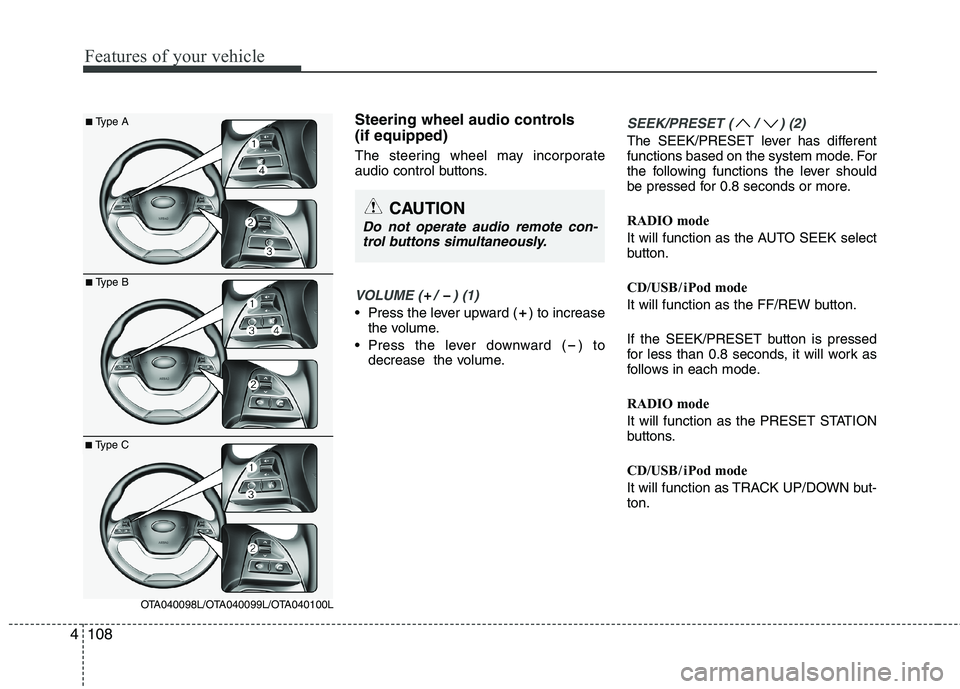
Steering wheel audio controls
(if equipped)
The steering wheel may incorporate
audio control buttons.
VOLUME ( / ) (1)
• Press the lever upward ( ) to increase
the volume.
Press the lever downward ( ) to
decrease the volume.
SEEK/PRESET ( / ) (2)
The SEEK/PRESET lever has different
functions based on the system mode. For
the following functions the lever should
be pressed for 0.8 seconds or more.
RADIO mode
It will function as the AUTO SEEK select
button.
CD/USB/ iPod mode
It will function as the FF/REW button.
If the SEEK/PRESET button is pressed
for less than 0.8 seconds, it will work as
follows in each mode.
RADIO mode
It will function as the PRESET STATION
buttons.
CD/USB/ iPod mode
It will function as TRACK UP/DOWN but-
ton.
CAUTION
Do not operate audio remote con-
trol buttons simultaneously.
■Type A
■Type B
■Type C
OTA040098L/OTA040099L/OTA040100L
Page 182 of 420
4109
Features of your vehicle
MODE ( ) (3)
Press the button to change audio source.
FM(1~2)
➟ AM ➟ CD ➟ USB AUX(iPod)➟ FM...
In addition to mode change, Power on/off
can be made by pressing this button
when the ignition switch is on ACC or
ON.
- Power ON : Press the button when the
audio is off
- Power OFF : Press the button for more
than 0.8 seconds when the audio is on.
MUTE ( ) (4, if equipped)
Press the button to mute the sound.
Press the button to turn off the micro-
phone during a telephone call.
Detailed information for audio control
buttons are described in the following
pages in this section.
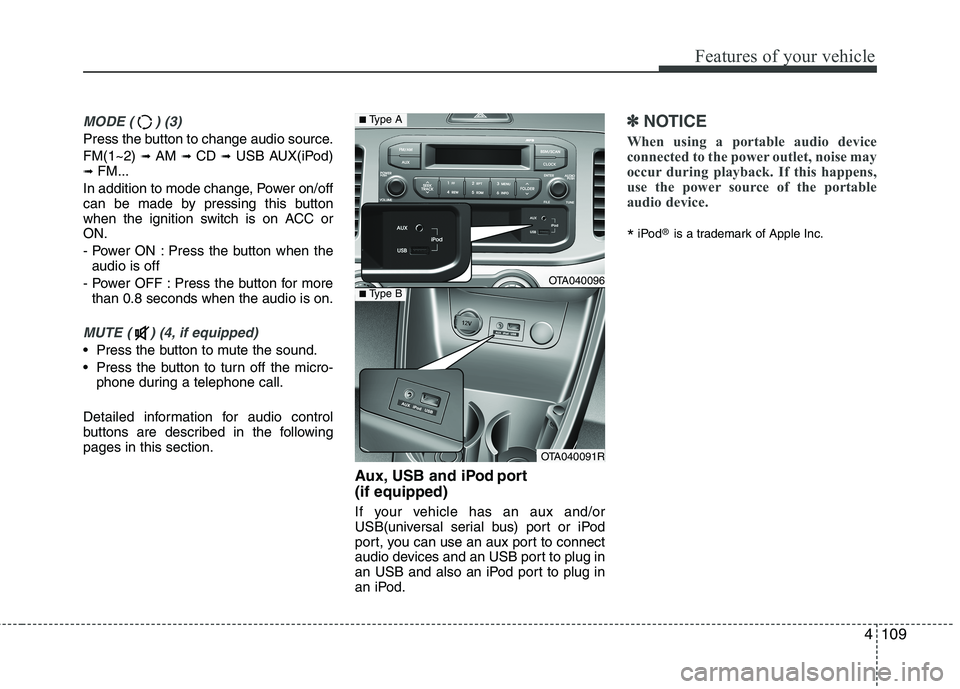
Aux, USB and iPod port
(if equipped)
If your vehicle has an aux and/or
USB(universal serial bus) port or iPod
port, you can use an aux port to connect
audio devices and an USB port to plug in
an USB and also an iPod port to plug in
an iPod.
✽ ✽
NOTICE
When using a portable audio device
connected to the power outlet, noise may
occur during playback. If this happens,
use the power source of the portable
audio device.
*iPod®is a trademark of Apple Inc.
OTA040096
OTA040091R
■Type A
■Type B
Page 188 of 420
4115
Features of your vehicle
To increase the BASS, rotate the knob
clockwise, whilst to decrease the BASS,
rotate the knob counterclockwise.
To increase the MIDDLE, rotate the knob
clockwise, whilst to decrease the MID-
DLE, rotate the knob counterclockwise.
To increase the TREBLE, rotate the knob
clockwise, whilst to decrease the TRE-
BLE, rotate the knob counterclockwise.
Turn the control knob clockwise to
emphasize rear speaker sound(front
speaker sound will be attenuated).
When the control knob is turned counter-
clockwise, front speaker sound will be
emphasized(rear speaker sound will be
attenuated).
Rotate the knob clockwise to emphasize
right speaker sound(left speaker sound
will be attenuated).
When the control knob is turned counter
clockwise, left speaker sound will be
emphasized(right speaker sound will be
attenuated).
6. PRESET Buttons
Press ~ buttons less
than 0.8 seconds to play the station
saved in each button.
Press ~ buttons more
than 0.8 seconds or longer to save the
current station to the respective button
with a beep.
61
61
TA_H800_GEN_AUDIO
Page 193 of 420
Features of your vehicle
120 4
CAUTION IN USING THE
iPod DEVICE
The Kia iPod Power Cable is
needed in order to operate iPod
with the audio buttons on the
audio system. The USB cable pro-
vided by Apple may cause mal-
function and should not be used
for Kia vehicles.
❋ The Kia iPod Power Cable may
be purchased through your Kia
Dealership.
When connecting iPod with the
iPod Power Cable, insert the con-
nector to the multimedia socket
completely. If not inserted com-
pletely, communications between
iPod and audio may be interrupted.
When adjusting the sound effects of
the iPod and the audio system, the
sound effects of both devices will
overlap and might reduce or distort
the quality of the sound.
Deactivate (turn off) the equalizer
function of an iPod when adjust-
ing the audio system’s volume,
and turn off the equalizer of the
audio system when using the
equalizer of an iPod.
(Continued)
(Continued)
When the iPod cable is connected,
the system can be switched to AUX
mode even without iPod device
and may cause noise.Disconnect
the iPod cable when you are not
using the iPod device.
When not using iPod with car
audio, detach the iPod cable from
iPod. Otherwise, iPod may remain
in accessory mode, and may not
work properly.
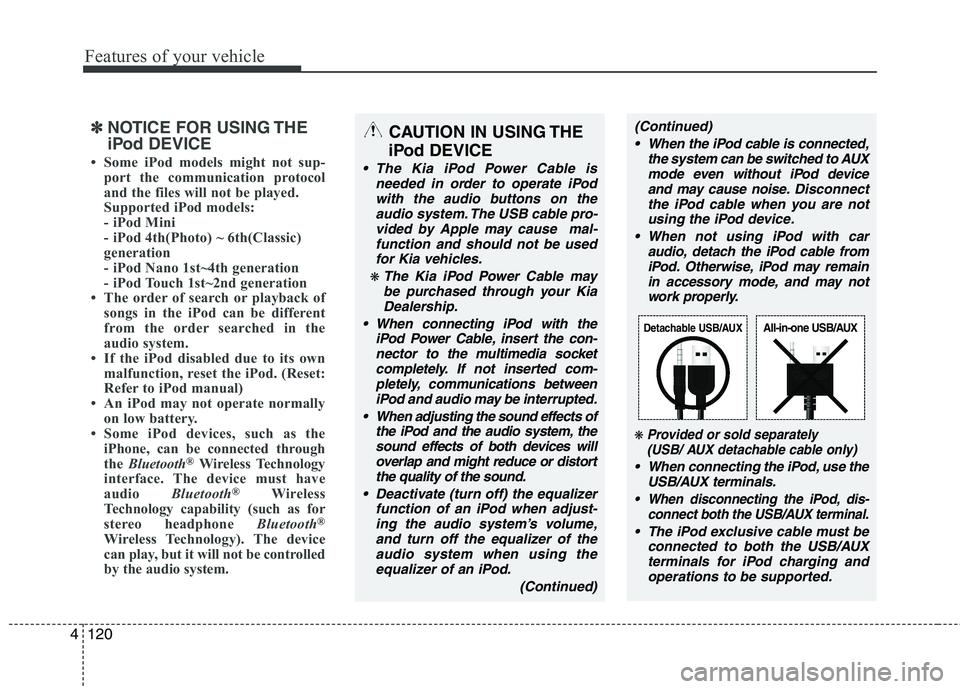
❋ Provided or sold separately
(USB/ AUX detachable cable only)
When connecting the iPod, use the
USB/AUX terminals.
When disconnecting the iPod, dis-
connect both the USB/AUX terminal.
The iPod exclusive cable must be
connected to both the USB/AUX
terminals for iPod charging and
operations to be supported.
Detachable USB/AUXAll-in-one USB/AUX
✽ ✽
NOTICE FOR USING THE
iPod DEVICE
• Some iPod models might not sup-
port the communication protocol
and the files will not be played.
Supported iPod models:
- iPod Mini
- iPod 4th(Photo) ~ 6th(Classic)
generation
- iPod Nano 1st~4th generation
- iPod Touch 1st~2nd generation
• The order of search or playback of
songs in the iPod can be different
from the order searched in the
audio system.
• If the iPod disabled due to its own
malfunction, reset the iPod. (Reset:
Refer to iPod manual)
• An iPod may not operate normally
on low battery.
• Some iPod devices, such as the
iPhone, can be connected through
the Bluetooth
®Wireless Technology
interface. The device must have
audio Bluetooth
®Wireless
Technology capability (such as for
stereo headphone Bluetooth
®
Wireless Technology). The device
can play, but it will not be controlled
by the audio system.
Page 197 of 420
Features of your vehicle
124 4
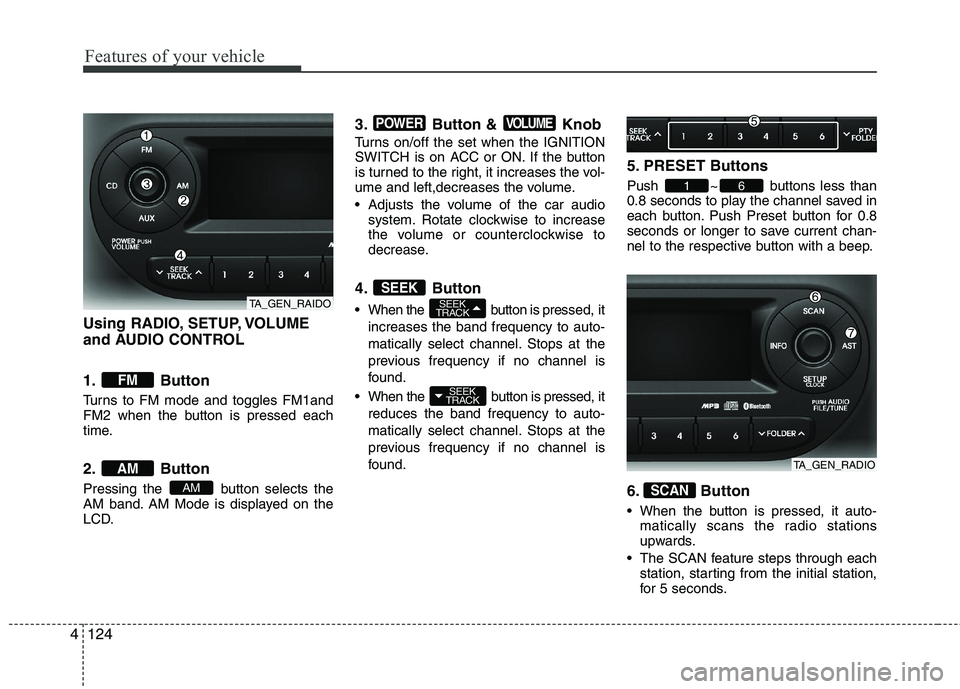
Using RADIO, SETUP, VOLUME
and AUDIO CONTROL
1. Button
Turns to FM mode and toggles FM1and
FM2 when the button is pressed each
time.
2. Button
Pressing the button selects the
AM band. AM Mode is displayed on the
LCD.
3. Button & Knob
Turns on/off the set when the IGNITION
SWITCH is on ACC or ON. If the button
is turned to the right, it increases the vol-
ume and left,decreases the volume.
Adjusts the volume of the car audio
system. Rotate clockwise to increase
the volume or counterclockwise to
decrease.
4. Button
When the button is pressed, it
increases the band frequency to auto-
matically select channel. Stops at the
previous frequency if no channel is
found.
When the button is pressed, it
reduces the band frequency to auto-
matically select channel. Stops at the
previous frequency if no channel is
found.
5. PRESET Buttons
Push ~ buttons less than
0.8 seconds to play the channel saved in
each button. Push Preset button for 0.8
seconds or longer to save current chan-
nel to the respective button with a beep.
6. Button
When the button is pressed, it auto-
matically scans the radio stations
upwards.
The SCAN feature steps through each
station, starting from the initial station,
for 5 seconds.
SCAN
61
SEEK
TRACK
SEEK
TRACKSEEK
VOLUMEPOWER
AM
AM
FM
TA_GEN_RAIDO
TA_GEN_RADIO
Page 198 of 420
4125
Features of your vehicle
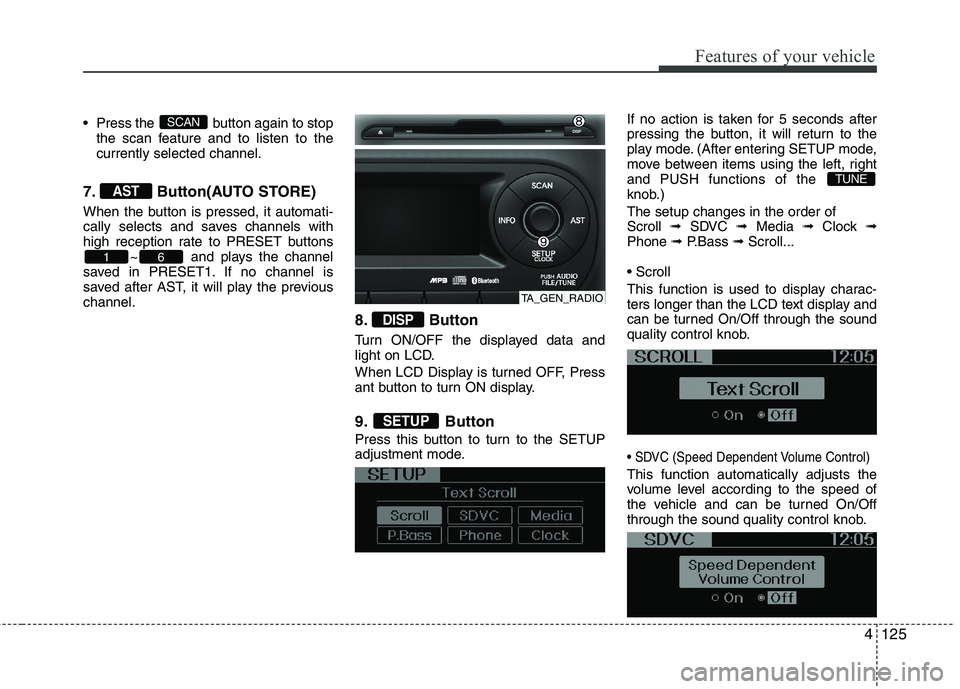
Press the button again to stop
the scan feature and to listen to the
currently selected channel.
7. Button(AUTO STORE)
When the button is pressed, it automati-
cally selects and saves channels with
high reception rate to PRESET buttons
~ and plays the channel
saved in PRESET1. If no channel is
saved after AST, it will play the previous
channel.
8. Button
Turn ON/OFF the displayed data and
light on LCD.
When LCD Display is turned OFF, Press
ant button to turn ON display.
9. Button
Press this button to turn to the SETUP
adjustment mode.If no action is taken for 5 seconds after
pressing the button, it will return to the
play mode. (After entering SETUP mode,
move between items using the left, right
and PUSH functions of the
knob.)
The setup changes in the order of
Scroll ➟ SDVC ➟ Media ➟ Clock ➟
Phone ➟ P.Bass ➟ Scroll...
This function is used to display charac-
ters longer than the LCD text display and
can be turned On/Off through the sound
quality control knob.
This function automatically adjusts the
volume level according to the speed of
the vehicle and can be turned On/Off
through the sound quality control knob.
TUNE
SETUP
DISP
61
AST
SCAN
TA_GEN_RADIO