display KIA NIRO 2017 Owner's Manual
[x] Cancel search | Manufacturer: KIA, Model Year: 2017, Model line: NIRO, Model: KIA NIRO 2017Pages: 552, PDF Size: 14.92 MB
Page 218 of 552
4115
Features of your vehicle
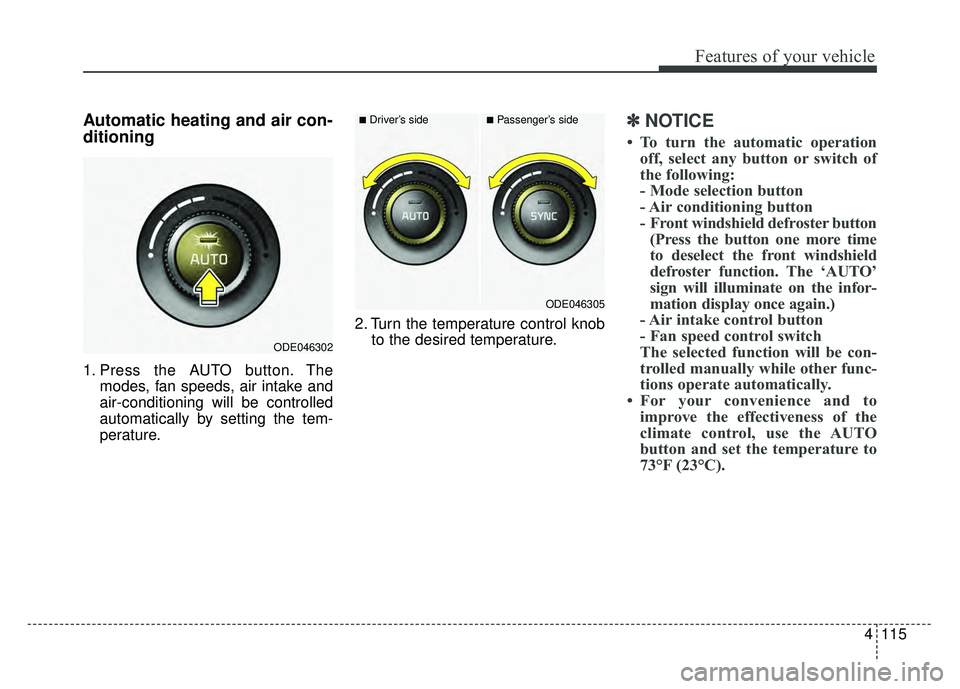
Automatic heating and air con-
ditioning
1. Press the AUTO button. Themodes, fan speeds, air intake and
air-conditioning will be controlled
automatically by setting the tem-
perature. 2. Turn the temperature control knob
to the desired temperature.
✽ ✽NOTICE
• To turn the automatic operation
off, select any button or switch of
the following:
- Mode selection button
- Air conditioning button
- Front windshield defroster button(Press the button one more time
to deselect the front windshield
defroster function. The ‘AUTO’
sign will illuminate on the infor-
mation display once again.)
- Air intake control button
- Fan speed control switch
The selected function will be con-
trolled manually while other func-
tions operate automatically.
• For your convenience and to improve the effectiveness of the
climate control, use the AUTO
button and set the temperature to
73°F (23°C).
ODE046302
■Driver’s side■Passenger’s side
ODE046305
Page 223 of 552
Features of your vehicle
120
4
Adjusting the driver and passenger
side temperature equally
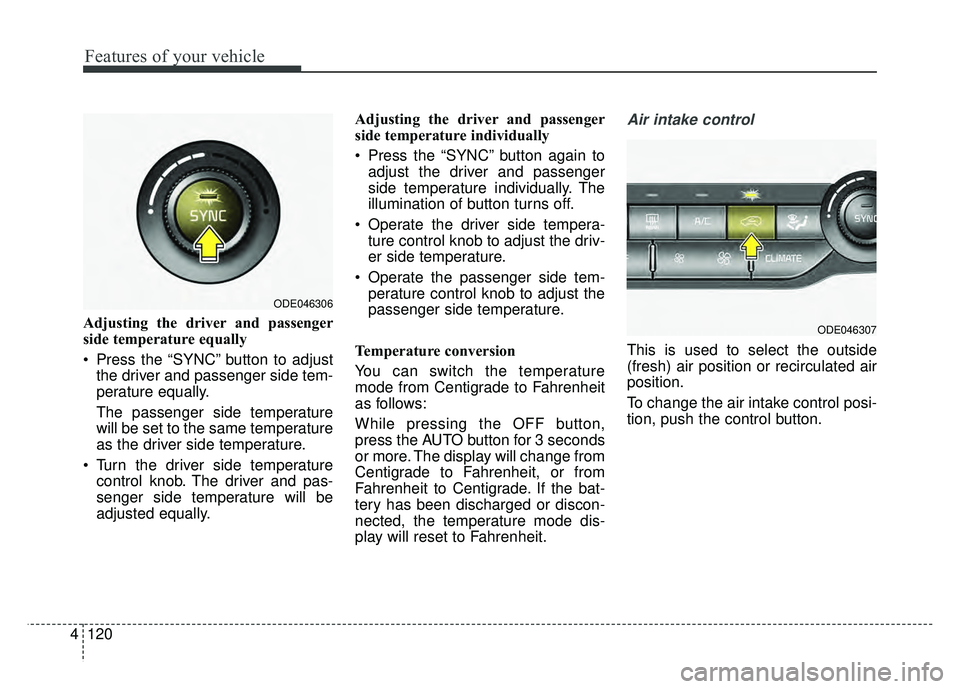
Press the “SYNC” button to adjust
the driver and passenger side tem-
perature equally.
The passenger side temperature
will be set to the same temperature
as the driver side temperature.
Turn the driver side temperature control knob. The driver and pas-
senger side temperature will be
adjusted equally. Adjusting the driver and passenger
side temperature individually
Press the “SYNC” button again to
adjust the driver and passenger
side temperature individually. The
illumination of button turns off.
Operate the driver side tempera- ture control knob to adjust the driv-
er side temperature.
Operate the passenger side tem- perature control knob to adjust the
passenger side temperature.
Temperature conversion
You can switch the temperature
mode from Centigrade to Fahrenheit
as follows:
While pressing the OFF button,
press the AUTO button for 3 seconds
or more. The display will change from
Centigrade to Fahrenheit, or from
Fahrenheit to Centigrade. If the bat-
tery has been discharged or discon-
nected, the temperature mode dis-
play will reset to Fahrenheit.
Air intake control
This is used to select the outside
(fresh) air position or recirculated air
position.
To change the air intake control posi-
tion, push the control button.
ODE046307
ODE046306
Page 226 of 552
4123
Features of your vehicle
Climate information screen selection (if equipped)
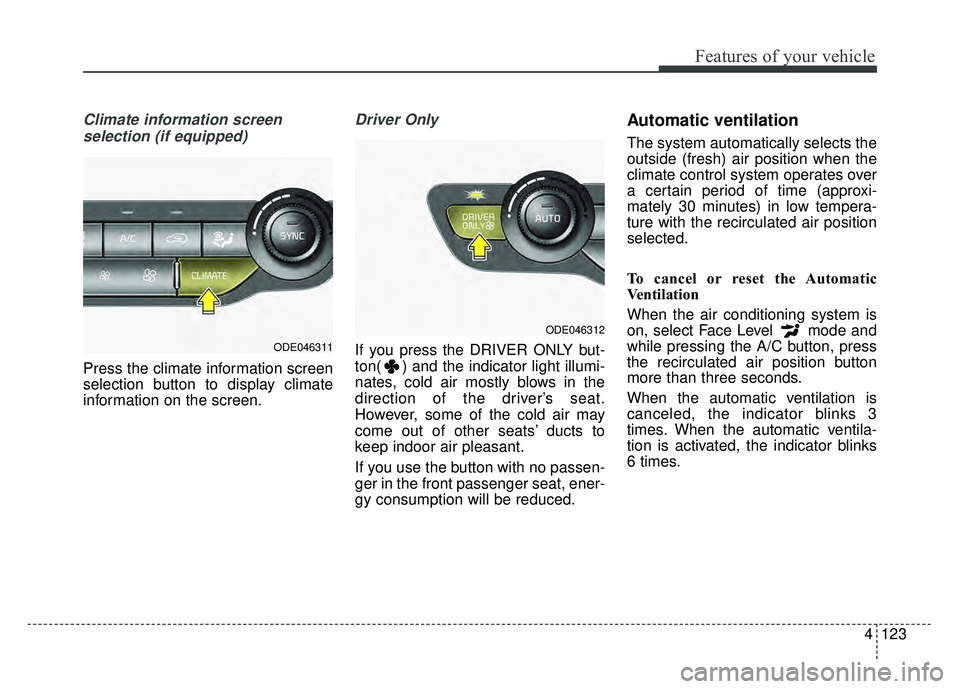
Press the climate information screen
selection button to display climate
information on the screen.
Driver Only
If you press the DRIVER ONLY but-
ton( ) and the indicator light illumi-
nates, cold air mostly blows in the
direction of the driver’s seat.
However, some of the cold air may
come out of other seats’ ducts to
keep indoor air pleasant.
If you use the button with no passen-
ger in the front passenger seat, ener-
gy consumption will be reduced.
Automatic ventilation
The system automatically selects the
outside (fresh) air position when the
climate control system operates over
a certain period of time (approxi-
mately 30 minutes) in low tempera-
ture with the recirculated air position
selected.
To cancel or reset the Automatic
Ventilation
When the air conditioning system is
on, select Face Level mode and
while pressing the A/C button, press
the recirculated air position button
more than three seconds.
When the automatic ventilation is
canceled, the indicator blinks 3
times. When the automatic ventila-
tion is activated, the indicator blinks
6 times.
ODE046312
ODE046311
Page 248 of 552
4145
Features of your vehicle
(Continued)
• The wireless charging will stopwhen the vehicle is turned OFF.
• The wireless charging will stop when the smart phone is not in
complete contact with the wireless
charging pad.
• Items equipped with magnetic components such as credit card,
telephone card, bankbook, any
transportation ticket and such
may become damaged during
wireless charging.
• Place the smart phone on the cen- ter of the charge pad for best
results. The smart phone may not
charge when placed near the rim
of the charging pad. When the
smart phone does get charged, it
may heat up excessively.
• For smart phones without built-in wireless charging system, an
appropriate accessory has to be
equipped. (Continued)(Continued)
• Smart phones of some manufac-
turers may display messages on
weak current. This is due to the
particular characteristic of the
smart phone and does not imply a
malfunction on wireless charging
function.
• The indicator light of some manu- facturers’ smart phones may still
be orange after the smart phone is
fully charged. This is due to the
particular characteristic of the
smart phone and not a malfunc-
tion of the wireless charging.
• When any smart phone without a wireless charging function or a
metallic object is placed on the
charging pad, a small noise may
sound. This small sound is due to
the vehicle discerning compatibili-
ty of the object placed on the
charging pad. It does not affect
your vehicle or the smart phone in
any way. Clothes hanger (if equipped)
❈ This actual feature may differ from the illus-
tration.
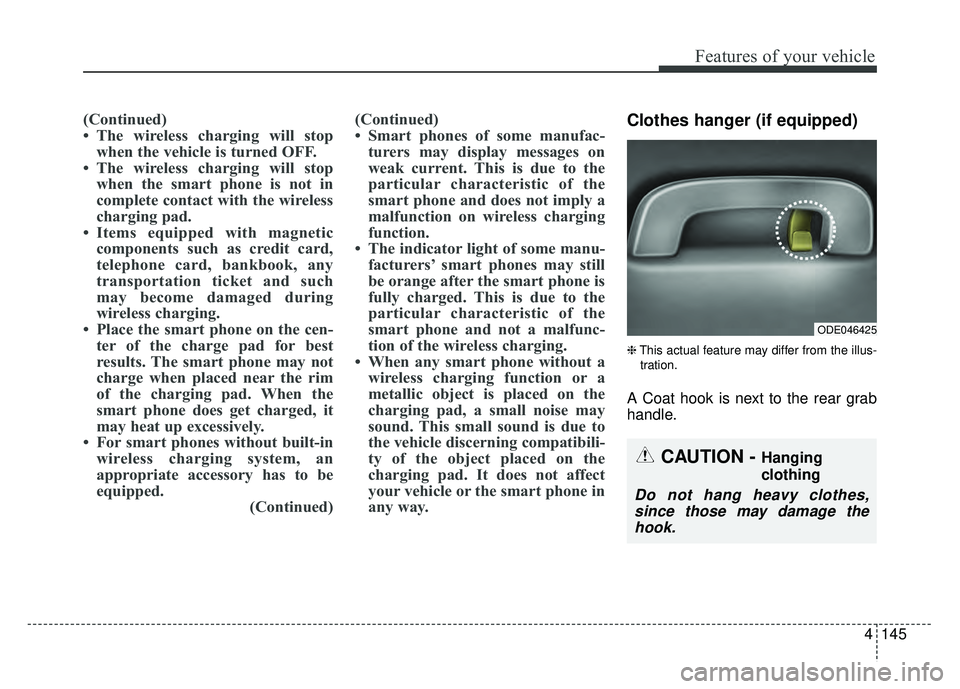
A Coat hook is next to the rear grab
handle.
ODE046425
CAUTION - Hanging
clothing
Do not hang heavy clothes, since those may damage thehook.
Page 259 of 552
Audio system
56
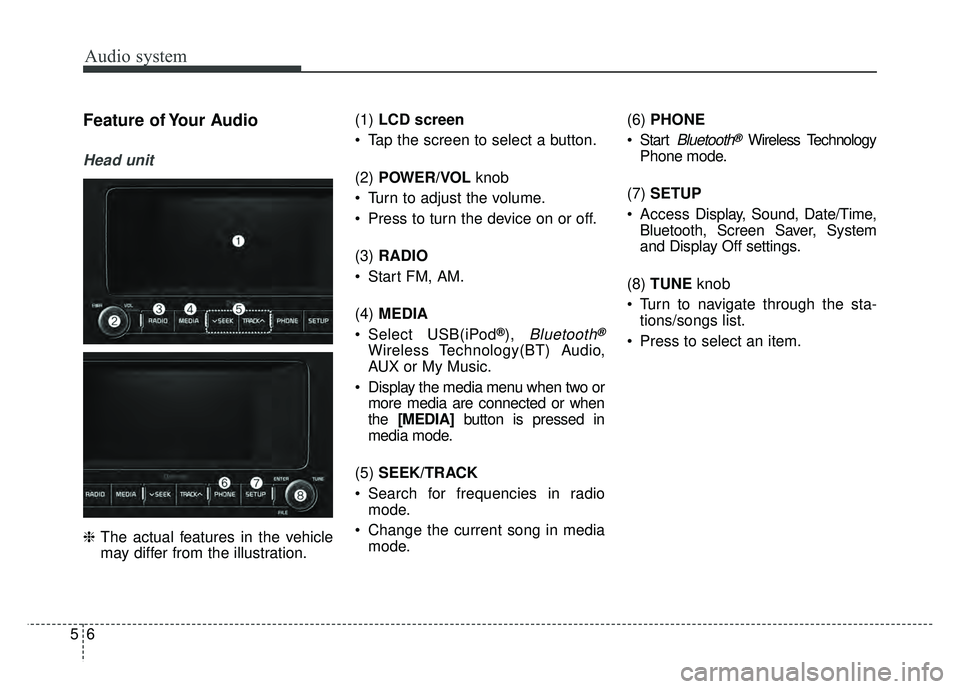
Feature of Your Audio
Head unit
❈The actual features in the vehicle
may differ from the illustration. (1)
LCD screen
Tap the screen to select a button.
(2) POWER/VOL knob
Turn to adjust the volume.
Press to turn the device on or off.
(3) RADIO
Start FM, AM.
(4) MEDIA
Select USB(iPod
®), Bluetooth®
Wireless Technology(BT) Audio,
AUX or My Music.
Display the media menu when two or more media are connected or when
the [MEDIA] button is pressed in
media mode.
(5) SEEK/TRACK
Search for frequencies in radio mode.
Change the current song in media mode. (6)
PHONE
Start
Bluetooth®Wireless Technology
Phone mode.
(7) SETUP
Access Display, Sound, Date/Time,
Bluetooth, Screen Saver, System
and Display Off settings.
(8) TUNE knob
Turn to navigate through the sta- tions/songs list.
Press to select an item.
Page 260 of 552
Audio system
75
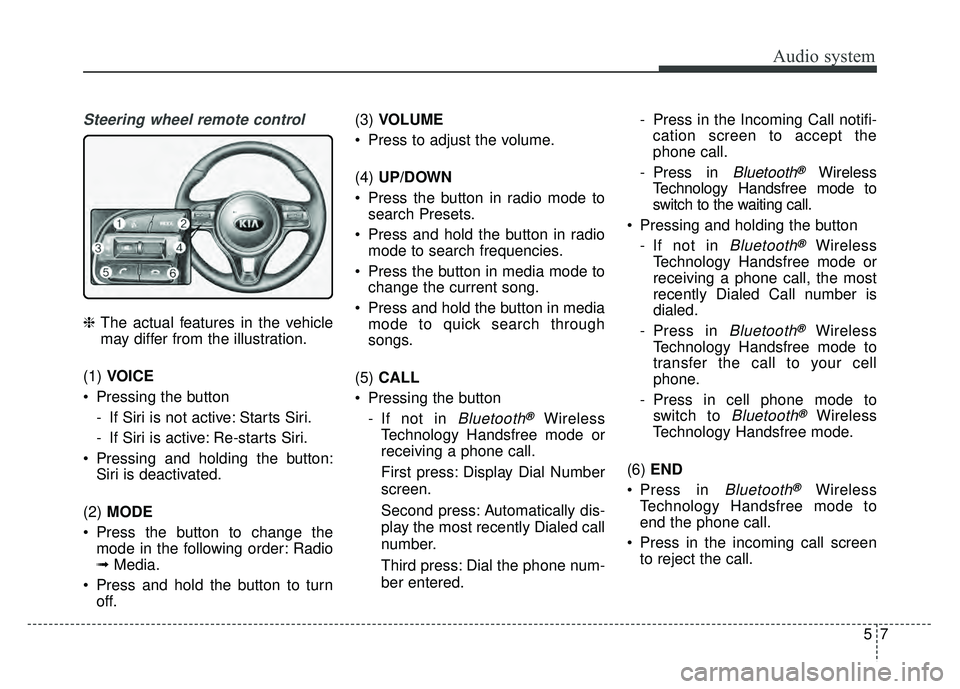
Steering wheel remote control
❈The actual features in the vehicle
may differ from the illustration.
(1) VOICE
Pressing the button - If Siri is not active: Starts Siri.
- If Siri is active: Re-starts Siri.
Pressing and holding the button: Siri is deactivated.
(2) MODE
Press the button to change the mode in the following order: Radio
➟ Media.
Press and hold the button to turn off. (3)
VOLUME
Press to adjust the volume.
(4) UP/DOWN
Press the button in radio mode to search Presets.
Press and hold the button in radio mode to search frequencies.
Press the button in media mode to change the current song.
Press and hold the button in media mode to quick search through
songs.
(5) CALL
Pressing the button - If not in
Bluetooth®Wireless
Technology Handsfree mode or
receiving a phone call.
First press: Display Dial Number
screen.
Second press: Automatically dis-
play the most recently Dialed call
number.
Third press: Dial the phone num-
ber entered. - Press in the Incoming Call notifi-
cation screen to accept the
phone call.
- Press in
Bluetooth®Wireless
Technology Handsfree mode to
switch to the waiting call.
Pressing and holding the button - If not in
Bluetooth®Wireless
Technology Handsfree mode or
receiving a phone call, the most
recently Dialed Call number is
dialed.
- Press in
Bluetooth®Wireless
Technology Handsfree mode to
transfer the call to your cell
phone.
- Press in cell phone mode to switch to
Bluetooth®Wireless
Technology Handsfree mode.
(6) END
Press in
Bluetooth®Wireless
Technology Handsfree mode to
end the phone call.
Press in the incoming call screen to reject the call.
Page 262 of 552
Audio system
95
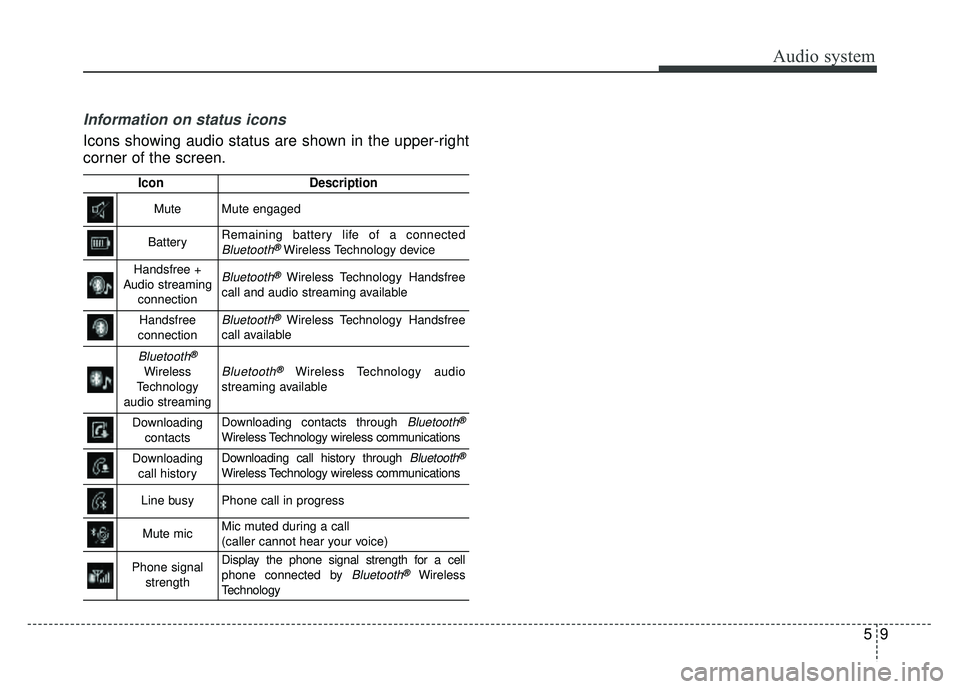
Information on status icons
Icons showing audio status are shown in the upper-right
corner of the screen.
IconDescription
MuteMute engaged
BatteryRemaining battery life of a connectedBluetooth®Wireless Technology device
Handsfree +
Audio streaming connectionBluetooth®Wireless Technology Handsfree
call and audio streaming available
Handsfree
connectionBluetooth®Wireless Technology Handsfree
call available
Bluetooth®
Wireless
Technology
audio streamingBluetooth®Wireless Technology audio
streaming available
Downloading contactsDownloading contacts through Bluetooth®
Wireless Technology wireless communications
Downloading call historyDownloading call history through Bluetooth®
Wireless Technology wireless communications
Line busyPhone call in progress
Mute micMic muted during a call
(caller cannot hear your voice)
Phone signal strengthDisplay the phone signal strength for a cell
phone connected by Bluetooth®Wireless
Technology
Page 263 of 552
Audio system
510
Radio
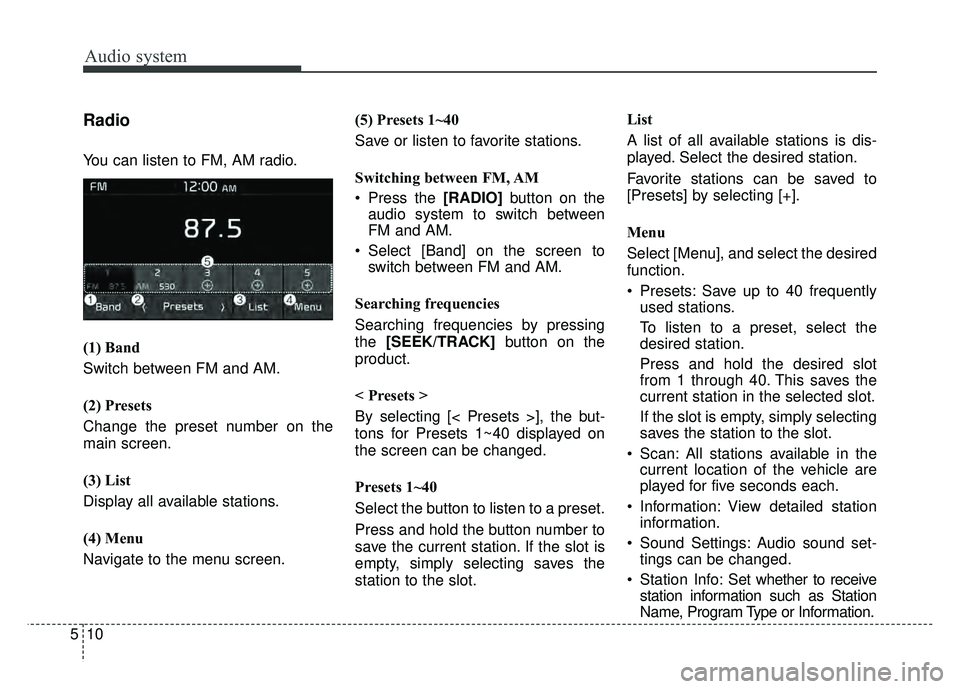
You can listen to FM, AM radio.
(1) Band
Switch between FM and AM.
(2) Presets
Change the preset number on the
main screen.
(3) List
Display all available stations.
(4) Menu
Navigate to the menu screen.(5) Presets 1~40
Save or listen to favorite stations.
Switching between FM, AM
Press the [RADIO]
button on the
audio system to switch between
FM and AM.
Select [Band] on the screen to switch between FM and AM.
Searching frequencies
Searching frequencies by pressing
the [SEEK/TRACK] button on the
product.
< Presets >
By selecting [< Presets >], the but-
tons for Presets 1~40 displayed on
the screen can be changed.
Presets 1~40
Select the button to listen to a preset.
Press and hold the button number to
save the current station. If the slot is
empty, simply selecting saves the
station to the slot. List
A list of all available stations is dis-
played. Select the desired station.
Favorite stations can be saved to
[Presets] by selecting [+].
Menu
Select [Menu], and select the desired
function.
Presets: Save up to 40 frequently
used stations.
To listen to a preset, select the
desired station.
Press and hold the desired slot
from 1 through 40. This saves the
current station in the selected slot.
If the slot is empty, simply selecting
saves the station to the slot.
Scan: All stations available in the current location of the vehicle are
played for five seconds each.
Information: View detailed station information.
Sound Settings: Audio sound set- tings can be changed.
Station Info: Set whether to receive
station information such as Station
Name, Program Type or Information.
Page 264 of 552
Audio system
11
5
Media
MP3
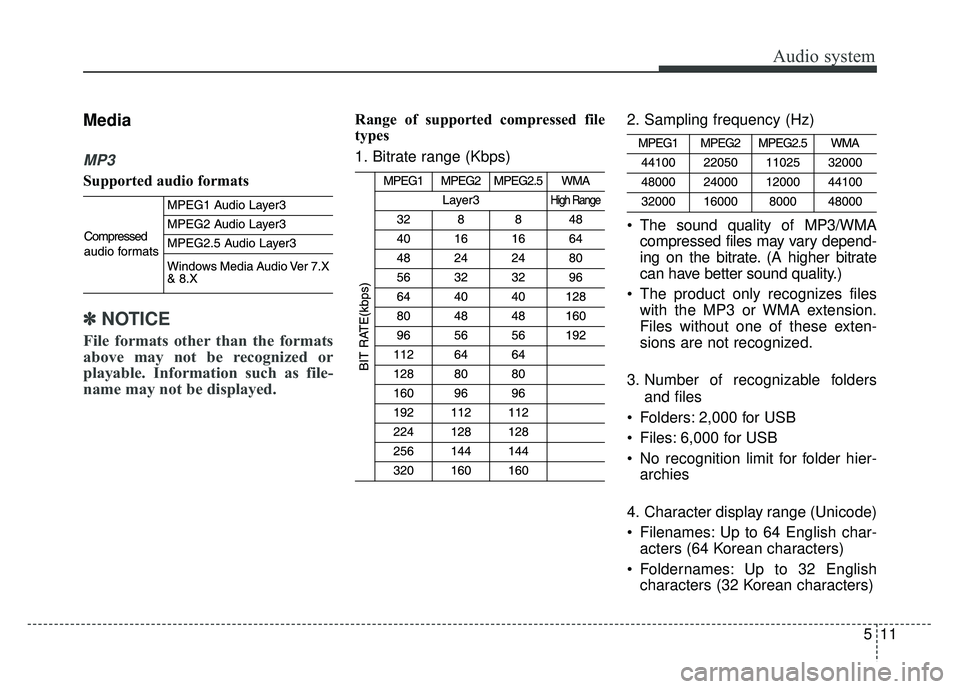
Supported audio formats
✽
✽
NOTICE
File formats other than the formats
above may not be recognized or
playable. Information such as file-
name may not be displayed.
Range of supported compressed file
types
1. Bitrate range (Kbps) 2. Sampling frequency (Hz)
The sound quality of MP3/WMA
compressed files may vary depend-
ing on the bitrate. (A higher bitrate
can have better sound quality.)
The product only recognizes files with the MP3 or WMA extension.
Files without one of these exten-
sions are not recognized.
3. Number of recognizable folders and files
Folders: 2,000 for USB
Files: 6,000 for USB
No recognition limit for folder hier- archies
4. Character display range (Unicode)
Filenames: Up to 64 English char- acters (64 Korean characters)
Foldernames: Up to 32 English characters (32 Korean characters)
Page 265 of 552
Audio system
512Languages supported (Unicode support)
Korean: 2,604 characters
English: 94 characters
Common Chinese characters: 4,888
characters
Special symbols: 986 characters
✽ ✽ NOTICE
Japanese/Simplified Chinese char-
acters are not supported.
✽ ✽NOTICE - Using the USB
Devices
• Starting the vehicle while a USB
device is connected can damage
the device. Please disconnect USB
devices before starting the vehicle.
• Starting the vehicle or stopping the engine while an external USB
device is connected can result in
failure of the external USB device
to operate.
• Be cautious of static electricity when connecting/disconnecting
external USB devices.
• An encrypted MP3 player is not recognized when connected as an
external device.
• External USB devices may not be recognized, depending on the state
of the external USB device.
• Only products with byte/sectors formatted at 4 KB or lower are
recognized.
• Only USB devices in FAT12/16/32 format are recognized; NTFS and
ExFAT file systems are not recog-
nized.
• Some USB devices are not recog- nized due to compatibility issues. (Continued)(Continued)
• Do not touch the USB connections.
• Connecting and disconnecting
USB devices rapidly over a short
period of time can cause equip-
ment failure.
• Abnormal sounds may be audible when the USB device is discon-
nected.
• Turn the audio off before connect- ing or disconnecting external USB
devices.
• Recognition may take longer depending on the type, capacity or
file format of the external USB
device. This is not a product mal-
function.
• Use of USB devices for purposes other than playing music files is
prohibited.
• Image display and video playback are not supported.
• Use of USB accessories, including charge and heat though the USB
I/F, can lead to reduced product
performance or malfunctions. Do
not use USB devices or accessories
for these purposes. (Continued)