Start KIA NIRO 2018 Manual Online
[x] Cancel search | Manufacturer: KIA, Model Year: 2018, Model line: NIRO, Model: KIA NIRO 2018Pages: 616, PDF Size: 18.3 MB
Page 305 of 616
Audio system
56
Feature of Your Audio
Head unit
❈The actual image in the vehicle
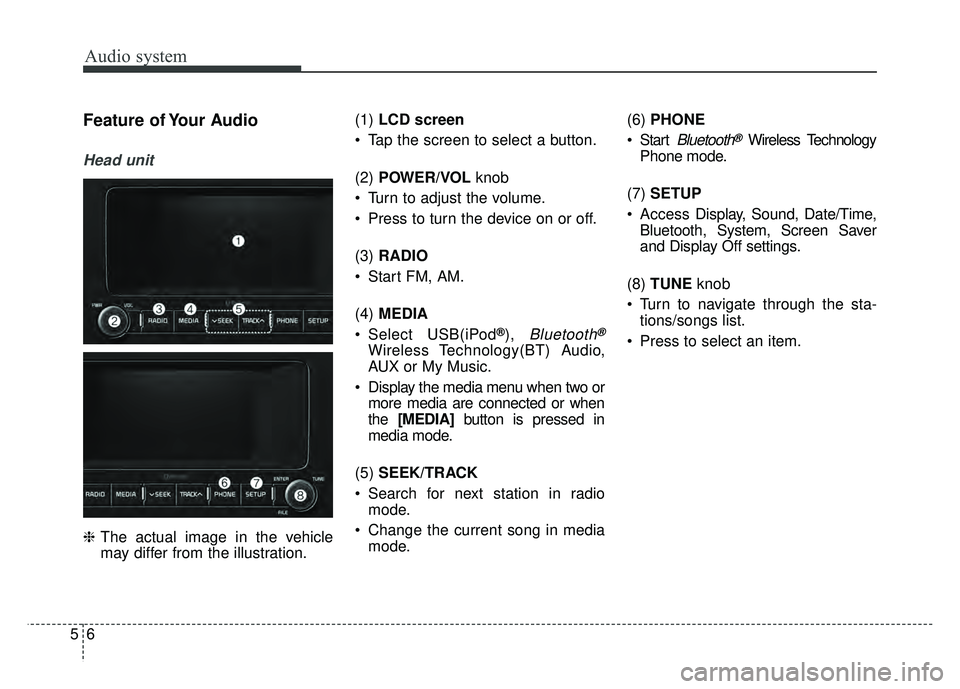
may differ from the illustration. (1)
LCD screen
Tap the screen to select a button.
(2) POWER/VOL knob
Turn to adjust the volume.
Press to turn the device on or off.
(3) RADIO
Start FM, AM.
(4) MEDIA
Select USB(iPod
®), Bluetooth®
Wireless Technology(BT) Audio,
AUX or My Music.
Display the media menu when two or more media are connected or when
the [MEDIA] button is pressed in
media mode.
(5) SEEK/TRACK
Search for next station in radio mode.
Change the current song in media mode. (6)
PHONE
Start
Bluetooth®Wireless Technology
Phone mode.
(7) SETUP
Access Display, Sound, Date/Time,
Bluetooth, System, Screen Saver
and Display Off settings.
(8) TUNE knob
Turn to navigate through the sta- tions/songs list.
Press to select an item.
Page 311 of 616
Audio system
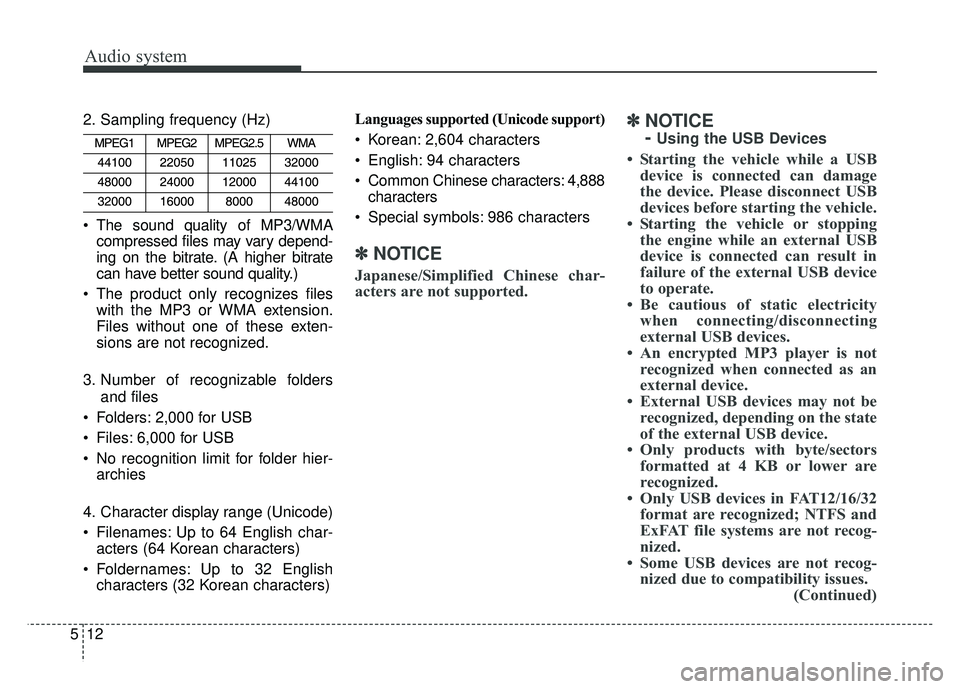
5122. Sampling frequency (Hz)
The sound quality of MP3/WMA
compressed files may vary depend-
ing on the bitrate. (A higher bitrate
can have better sound quality.)
The product only recognizes files with the MP3 or WMA extension.
Files without one of these exten-
sions are not recognized.
3. Number of recognizable folders and files
Folders: 2,000 for USB
Files: 6,000 for USB
No recognition limit for folder hier- archies
4. Character display range (Unicode)
Filenames: Up to 64 English char- acters (64 Korean characters)
Foldernames: Up to 32 English characters (32 Korean characters) Languages supported (Unicode support)
Korean: 2,604 characters
English: 94 characters
Common Chinese characters: 4,888
characters
Special symbols: 986 characters
✽ ✽ NOTICE
Japanese/Simplified Chinese char-
acters are not supported.
✽ ✽NOTICE
-
Using the USB Devices
• Starting the vehicle while a USB
device is connected can damage
the device. Please disconnect USB
devices before starting the vehicle.
• Starting the vehicle or stopping the engine while an external USB
device is connected can result in
failure of the external USB device
to operate.
• Be cautious of static electricity when connecting/disconnecting
external USB devices.
• An encrypted MP3 player is not recognized when connected as an
external device.
• External USB devices may not be recognized, depending on the state
of the external USB device.
• Only products with byte/sectors formatted at 4 KB or lower are
recognized.
• Only USB devices in FAT12/16/32 format are recognized; NTFS and
ExFAT file systems are not recog-
nized.
• Some USB devices are not recog- nized due to compatibility issues. (Continued)
Page 324 of 616
Audio system
25
5
Precautions when connecting Bluetooth®
Wireless Technology devices
The vehicle supports the following
Bluetooth®Wireless Technology
functions. Some
Bluetooth®
Wireless Technology devices may
not support some functions.
1)
Bluetooth®Wireless Technology
Handsfree phone calls
2) Operations during a call (Private, Switch, Out Vol. controls)
3) Download call history saved to the
Bluetooth®Wireless Technology
device
4) Download contacts saved to the
Bluetooth®Wireless Technology
device
5) Automatic contacts/call history download when
Bluetooth®
Wireless Technology is connected
6) Automatic
Bluetooth®Wireless
Technology device connection
when the vehicle is started
7)
Bluetooth®Wireless Technology
audio streaming playback
Before connecting the audio sys- tem to your device, make sure your
device supports
Bluetooth®Wireless
Technology. Even if your device supports
Bluetooth®Wireless Technology, a
Bluetooth®Wireless Technology
connection cannot be established
if the device’s
Bluetooth®Wireless
Technology function is switched off.
Search and connect with the
Bluetooth®
Wireless Technology function enabled.
Pair or connect
Bluetooth®Wireless
Technology devices to the audio
system with the vehicle at a standstill.
If a
Bluetooth®Wireless Technology
connection is lost due to abnormal
conditions while a
Bluetooth®
Wireless Technology device is connect-
ed (communication range exceed-
ed, device power OFF, communi-
cation errors, etc.), the disconnect-
ed
Bluetooth®Wireless Technology
device is searched for and auto-
matically reconnected.
If you want to disable the
Bluetooth®
Wireless Technology device auto-
connect function, turn the
Bluetooth®Wireless Technology
function OFF on your device.
Consult the user manuals for indi-
vidual devices to see whether
Bluetooth®Wireless Technology is
supported. Handsfree call quality and volume
may vary depending on the type of
Bluetooth®Wireless Technology
device.
Some
Bluetooth®Wireless Technology
devices are subject to intermittent
Bluetooth®Wireless Technology
connection failures. In this case,
use the following method.
1) Turn the
Bluetooth®Wireless
Technology function off on your
Bluetooth®Wireless Technology
device ➟Turn it on and try again.
2) Delete the paired device from both the audio system and
Bluetooth®Wireless Technology
device, then pair again.
3) Power down your
Bluetooth®
Wireless Technology device ➟
Turn it on and try again.
4) Completely remove the battery from your
Bluetooth®Wireless
Technology device; reinsert it,
reboot, and attempt connection.
5) Restart the vehicle and reat- tempt connection.
Page 326 of 616
Audio system
27
5
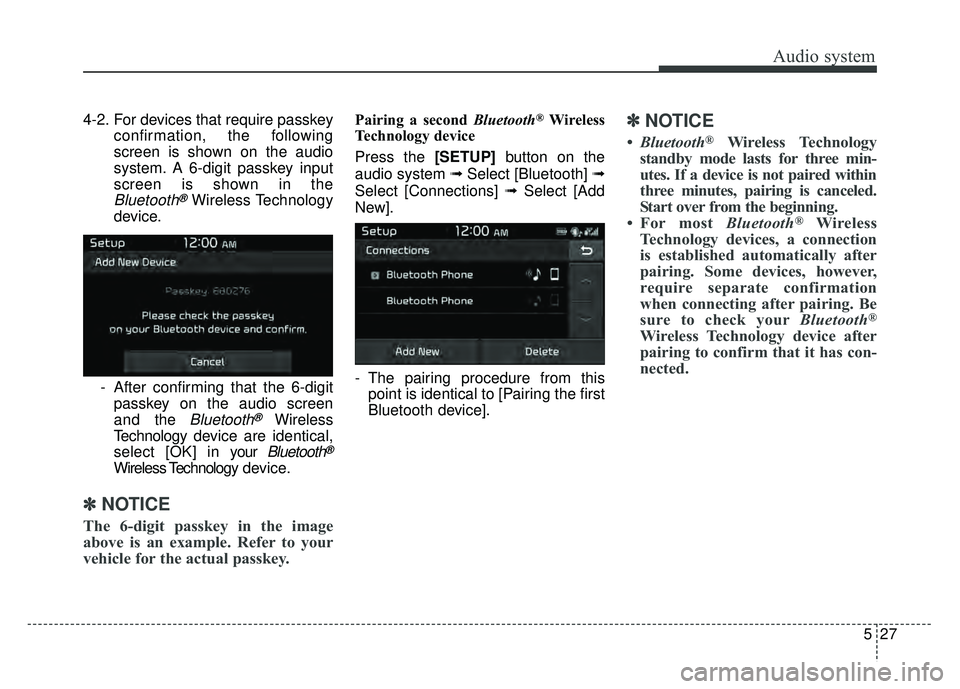
4-2. For devices that require passkey
confirmation, the following
screen is shown on the audio
system. A 6-digit passkey input
screen is shown in the
Bluetooth®Wireless Technology
device.
- After confirming that the 6-digit passkey on the audio screen
and the
Bluetooth®Wireless
Technology de vice are identical,
select [OK] in y our
Bluetooth®
Wireless Technology d e vice.
✽ ✽
NOTICE
The 6-digit passkey in the image
above is an example. Refer to your
vehicle for the actual passkey.
Pairing a second Bluetooth®Wireless
Technology device
Press the [SETUP] button on the
audio system ➟ Select [Bluetooth] ➟
Select [Connections] ➟ Select [Add
New].
- The pairing procedure from this point is identical to [Pairing the first
Bluetooth device].✽ ✽ NOTICE
•Bluetooth®Wireless Technology
standby mode lasts for three min-
utes. If a device is not paired within
three minutes, pairing is canceled.
Start over from the beginning.
• For most Bluetooth
®Wireless
Technology devices, a connection
is established automatically after
pairing. Some devices, however,
require separate confirmation
when connecting after pairing. Be
sure to check your Bluetooth
®
Wireless Technology device after
pairing to confirm that it has con-
nected.
Page 332 of 616
![KIA NIRO 2018 Manual Online Audio system
33
5
Bluetooth
Press the [SETUP] button on the
audio system ➟ Select [Bluetooth].
Connections: Control pairing, dele- tion, connection and disconnection
of
Bluetooth®Wireless Technol](/img/2/54817/w960_54817-331.png "KIA NIRO 2018 Manual Online Audio system
33
5
Bluetooth
Press the [SETUP] button on the
audio system ➟ Select [Bluetooth].
Connections: Control pairing, dele- tion, connection and disconnection
of
Bluetooth®Wireless Technol")
Audio system
33
5
Bluetooth
Press the [SETUP] button on the
audio system ➟ Select [Bluetooth].
Connections: Control pairing, dele- tion, connection and disconnection
of
Bluetooth®Wireless Technology
devices.
Auto Connection Priority: Set the connection priority of
Bluetooth®
Wireless Technology devices when
the vehicle is started.
Download Contacts: Contacts can be downloaded from connected
Bluetooth®Wireless Technology
devices.
Bluetooth Voice Prompts: Play or mute voice prompts for
Bluetooth®
Wireless Technology device pair-
ing, connection and errors.
✽ ✽ NOTICE
• When paired devices are deleted,
the call history and contacts of the
device saved to the audio system
are deleted.
• For Bluetooth
®Wireless Technology
connections with low connection pri-
ority, some time may be required for
the connection to be established.
• Contacts can be downloaded only from the currently connected
Bluetooth
®Wireless Technology
device.
If no Bluetooth
®Wireless Technology
device is connected, the Download
Contacts button is disabled.
WARNING -Date/Time
Setting Distraction
Adjusting the date/time setting
while driving can result in a loss
of vehicle control that may lead
to an accident, severe personal
injury, and death.
Page 335 of 616
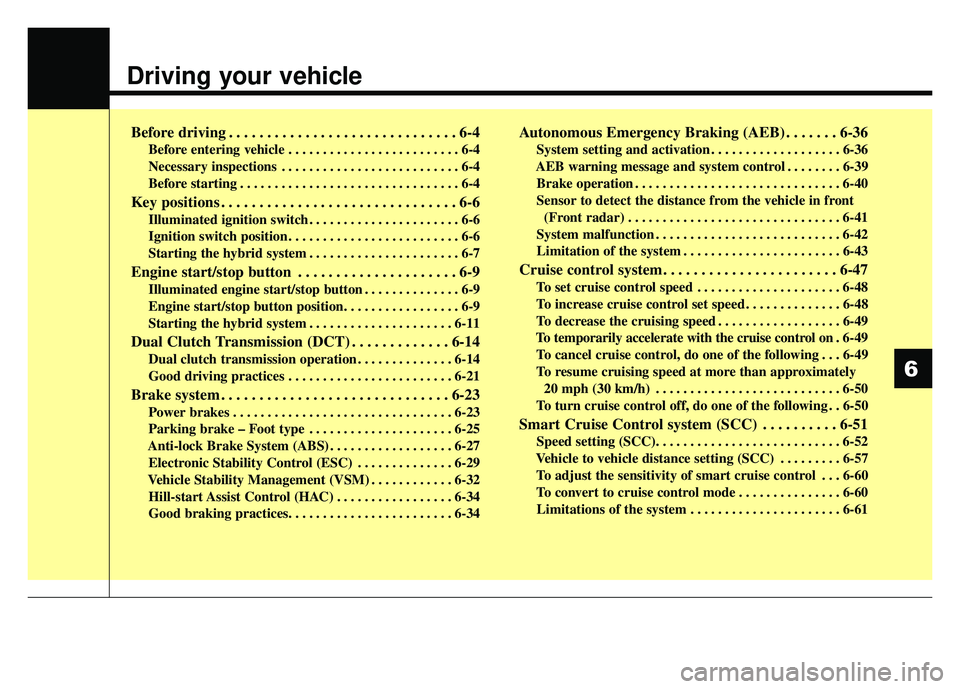
Driving your vehicle
Before driving . . . . . . . . . . . . . . . . . . . . . . . . . . . . . . 6-4
Before entering vehicle . . . . . . . . . . . . . . . . . . . . . . . . . 6-4
Necessary inspections . . . . . . . . . . . . . . . . . . . . . . . . . . 6-4
Before starting . . . . . . . . . . . . . . . . . . . . . . . . . . . . . . . . 6-4
Key positions . . . . . . . . . . . . . . . . . . . . . . . . . . . . . . . 6-6
Illuminated ignition switch . . . . . . . . . . . . . . . . . . . . . . 6-6
Ignition switch position . . . . . . . . . . . . . . . . . . . . . . . . . 6-6
Starting the hybrid system . . . . . . . . . . . . . . . . . . . . . . 6-7
Engine start/stop button . . . . . . . . . . . . . . . . . . . . . 6-9
Illuminated engine start/stop button . . . . . . . . . . . . . . 6-9
Engine start/stop button position. . . . . . . . . . . . . . . . . 6-9
Starting the hybrid system . . . . . . . . . . . . . . . . . . . . . 6-11
Dual Clutch Transmission (DCT) . . . . . . . . . . . . . 6-14
Dual clutch transmission operation . . . . . . . . . . . . . . 6-14
Good driving practices . . . . . . . . . . . . . . . . . . . . . . . . 6-21
Brake system . . . . . . . . . . . . . . . . . . . . . . . . . . . . . . 6-23
Power brakes . . . . . . . . . . . . . . . . . . . . . . . . . . . . . . . . 6-23
Parking brake – Foot type . . . . . . . . . . . . . . . . . . . . . 6-25
Anti-lock Brake System (ABS) . . . . . . . . . . . . . . . . . . 6-27
Electronic Stability Control (ESC) . . . . . . . . . . . . . . 6-29
Vehicle Stability Management (VSM) . . . . . . . . . . . . 6-32
Hill-start Assist Control (HAC) . . . . . . . . . . . . . . . . . 6-34
Good braking practices. . . . . . . . . . . . . . . . . . . . . . . . 6-34
Autonomous Emergency Braking (AEB) . . . . . . . 6-36
System setting and activation . . . . . . . . . . . . . . . . . . . 6-36
AEB warning message and system control . . . . . . . . 6-39
Brake operation . . . . . . . . . . . . . . . . . . . . . . . . . . . . . . 6-40
Sensor to detect the distance from the vehicle in front (Front radar) . . . . . . . . . . . . . . . . . . . . . . . . . . . . . . . 6-41
System malfunction . . . . . . . . . . . . . . . . . . . . . . . . . . . 6-42
Limitation of the system . . . . . . . . . . . . . . . . . . . . . . . 6-43
Cruise control system. . . . . . . . . . . . . . . . . . . . . . . 6-47
To set cruise control speed . . . . . . . . . . . . . . . . . . . . . 6-48
To increase cruise control set speed . . . . . . . . . . . . . . 6-48
To decrease the cruising speed . . . . . . . . . . . . . . . . . . 6-49
To temporarily accelerate with the cruise control on . 6-49
To cancel cruise control, do one of the following . . . 6-49
To resume cruising speed at more than approximately 20 mph (30 km/h) . . . . . . . . . . . . . . . . . . . . . . . . . . . 6-50
To turn cruise control off, do one of the following . . 6-50
Smart Cruise Control system (SCC) . . . . . . . . . . 6-51
Speed setting (SCC). . . . . . . . . . . . . . . . . . . . . . . . . . . 6-52
Vehicle to vehicle distance setting (SCC) . . . . . . . . . 6-57
To adjust the sensitivity of smart cruise control . . . 6-60
To convert to cruise control mode . . . . . . . . . . . . . . . 6-60
Limitations of the system . . . . . . . . . . . . . . . . . . . . . . 6-61
6
Page 338 of 616
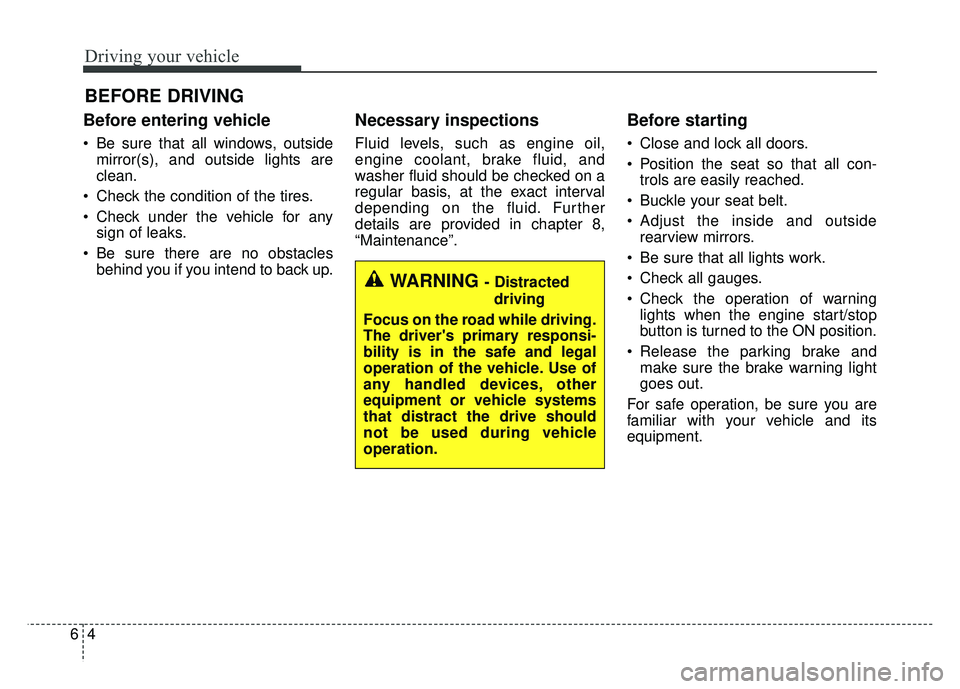
Driving your vehicle
46
Before entering vehicle
• Be sure that all windows, outsidemirror(s), and outside lights are
clean.
Check the condition of the tires.
Check under the vehicle for any sign of leaks.
Be sure there are no obstacles behind you if you intend to back up.
Necessary inspections
Fluid levels, such as engine oil,
engine coolant, brake fluid, and
washer fluid should be checked on a
regular basis, at the exact interval
depending on the fluid. Further
details are provided in chapter 8,
“Maintenance”.
Before starting
Close and lock all doors.
Position the seat so that all con-trols are easily reached.
Buckle your seat belt.
Adjust the inside and outside rearview mirrors.
Be sure that all lights work.
Check all gauges.
Check the operation of warning lights when the engine start/stop
button is turned to the ON position.
Release the parking brake and make sure the brake warning light
goes out.
For safe operation, be sure you are
familiar with your vehicle and its
equipment.
BEFORE DRIVING
WARNING - Distracted driving
Focus on the road while driving.
The driver's primary responsi-
bility is in the safe and legal
operation of the vehicle. Use of
any handled devices, other
equipment or vehicle systems
that distract the drive should
not be used during vehicle
operation.
Page 340 of 616
Driving your vehicle
66
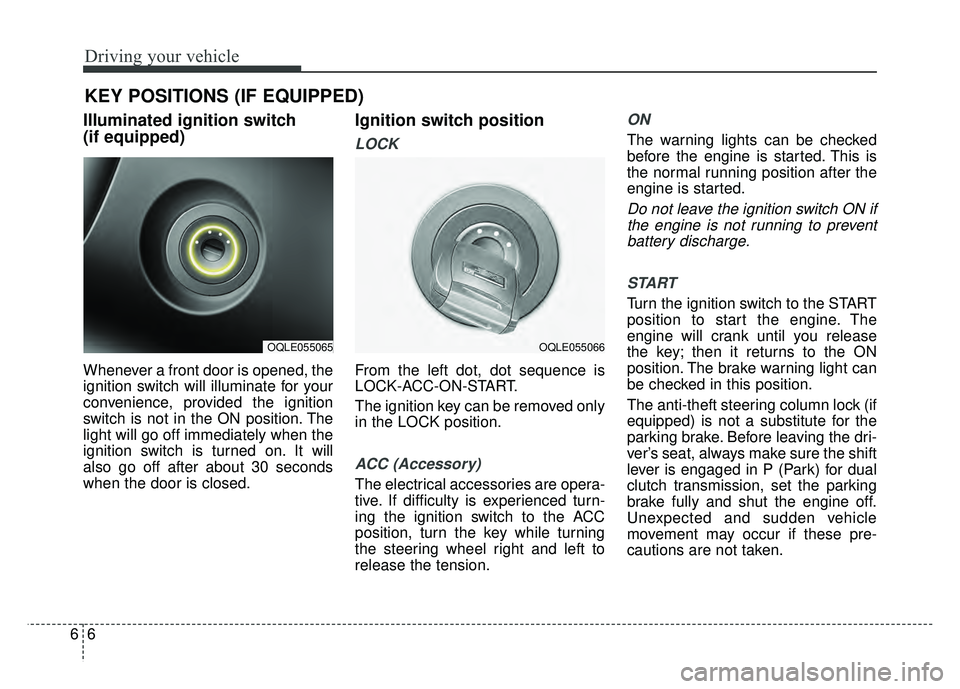
Illuminated ignition switch
(if equipped)
Whenever a front door is opened, the
ignition switch will illuminate for your
convenience, provided the ignition
switch is not in the ON position. The
light will go off immediately when the
ignition switch is turned on. It will
also go off after about 30 seconds
when the door is closed.
Ignition switch position
LOCK
From the left dot, dot sequence is
LOCK-ACC-ON-START.
The ignition key can be removed only
in the LOCK position.
ACC (Accessory)
The electrical accessories are opera-
tive. If difficulty is experienced turn-
ing the ignition switch to the ACC
position, turn the key while turning
the steering wheel right and left to
release the tension.
ON
The warning lights can be checked
before the engine is started. This is
the normal running position after the
engine is started.
Do not leave the ignition switch ON ifthe engine is not running to preventbattery discharge.
START
Turn the ignition switch to the START
position to start the engine. The
engine will crank until you release
the key; then it returns to the ON
position. The brake warning light can
be checked in this position.
The anti-theft steering column lock (if
equipped) is not a substitute for the
parking brake. Before leaving the dri-
ver’s seat, always make sure the shift
lever is engaged in P (Park) for dual
clutch transmission, set the parking
brake fully and shut the engine off.
Unexpected and sudden vehicle
movement may occur if these pre-
cautions are not taken.
KEY POSITIONS (IF EQUIPPED)
OQLE055065OQLE055066
Page 341 of 616
67
Driving your vehicle
Starting the hybrid system
1.Make sure the parking brake isapplied.
2.Place the transaxle shift lever in P (Park). Depress the brake pedal
fully.
You can also start the engine when
the shift lever is in the N (Neutral)
position.
WARNING- Key holder
Do not place small purses, mul-
tiple keys, or other heavy acces-
sories on your vehicle key ring.
The driver can accidently push
these objects causing the ACC
position to change while in
motion and disrupt the proper
operation of some of the vehi-
cle's safety features.
WARNING- Leaving the Vehicle
To avoid unexpected or sudden
vehicle movement, never leave
your vehicle if the transmission
is not locked in the P (Park)
position and the parking brake
is fully engaged. Before leaving
the driver's seat, always make
sure the shift lever is engaged in
P (Park), set the parking brake
fully and shut the engine off.WARNING- Ignition switch
Never turn the ignition switch to
LOCK or ACC while the vehicle
is moving. This would result in
loss of directional control and
braking function, which could
cause an accident.
WARNING- Proper footwear
Always wear appropriate shoes
when operating your vehicle.
Unsuitable shoes (high heels,
ski boots, sandals, etc.) may
interfere with your ability to use
the brake and accelerator pedal.
Page 342 of 616
Driving your vehicle
86
3. Turn the ignition switch to START.If the hybrid system starts, the
“ ” indicator will come on.✽ ✽NOTICE
• Do not wait for the engine to warm
up while the vehicle remains sta-
tionary.
Start driving at moderate engine
speeds. (Steep accelerating and
decelerating should be avoided.)
• Always start the vehicle with your foot on the brake pedal. Do not
depress the accelerator while
starting the vehicle. Do not race
the engine while warming it up.
• If ambient temperature is low, the “ ” indicator may remain illu-
minated longer than the normal
amount of time.
✽ ✽ NOTICE
To prevent damage to the vehicle:
• If the “ ” indicator turns off
while you are in motion, do not
attempt to move the shift lever to
the P (Park) position.
If traffic and road conditions per-
mit, you may put the shift lever in
the N (Neutral) position while the
vehicle is still moving and turn the
ignition switch to START. In an
attempt to restart the hybrid sys-
tem.
• Do not push or tow your vehicle to start the hybrid system.
WARNING- Steering
wheel
Never reach for any controls
through the steering wheel
while the vehicle is in motion.
The presence of your hand or
arm in this area could cause a
loss of vehicle control.