Ac charge KIA NIRO PHEV 2019 Repair Manual
[x] Cancel search | Manufacturer: KIA, Model Year: 2019, Model line: NIRO PHEV, Model: KIA NIRO PHEV 2019Pages: 611, PDF Size: 15.28 MB
Page 292 of 611
4157
Features of your vehicle
Some devices are not supportedfor fast charging but will be
charged with normal speed.
Use the USB charger when the engine is running to prevent bat-
tery discharge.
Only devices that fit the USB port can be used.
The USB charger can be used only for battery charging purposes.
Battery chargers cannot be charged.AC inverter (if equipped)
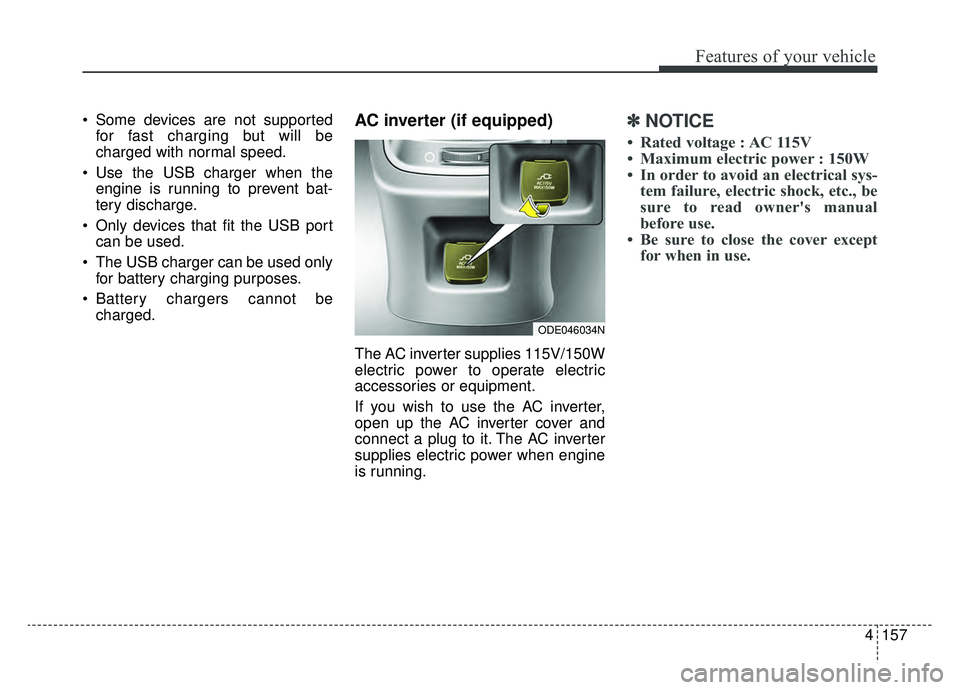
The AC inverter supplies 115V/150W
electric power to operate electric
accessories or equipment.
If you wish to use the AC inverter,
open up the AC inverter cover and
connect a plug to it. The AC inverter
supplies electric power when engine
is running.
✽ ✽ NOTICE
• Rated voltage : AC 115V
• Maximum electric power : 150W
• In order to avoid an electrical sys-
tem failure, electric shock, etc., be
sure to read owner's manual
before use.
• Be sure to close the cover except for when in use.
ODE046034N
Page 293 of 611
Features of your vehicle
158
4
To prevent the battery from being dis-
charged, do not use the AC inverter
while the engine is not running.
After using an electric accessory or equipment, pull the plug out. Leaving
the accessory or equipment plugged
in for a long time may cause battery
discharge.
Do not use an electric accessory or equipment the power consumption of
which is greater than 150W (115V).
When the AC inverter input voltage is less than 11.3V, the power will be
automatically turned off.
AC inverter will operate as normal
when the voltage is increased.
When the AC inverter input voltage is less than 10.7V, power will turn
off. The AC inverter will operate as
normal when the voltage is
increased. While the power consumption of
some electrical devices/appliances
may be within the AC inverter’s
electric power range, it may mal-
function in below cases.
- If the device/appliance requireshigh electric power for initial start
up
- If the device/appliance processes precise/very accurate data
- If the device/appliance requires very stable supply of electricityWireless smart phone charg-
ing system (if equipped)
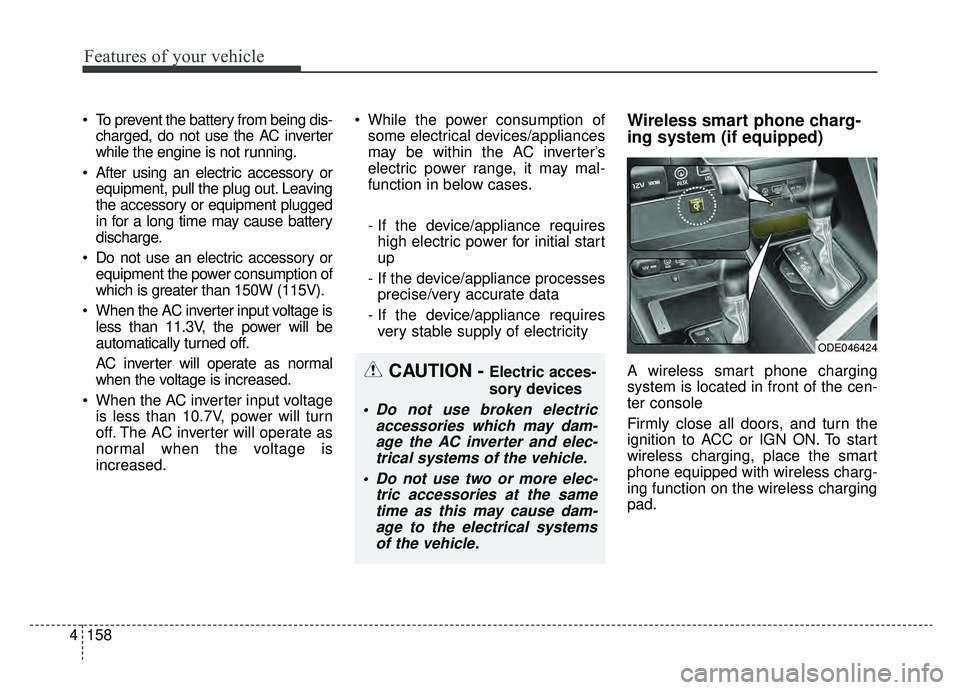
A wireless smart phone charging
system is located in front of the cen-
ter console
Firmly close all doors, and turn the
ignition to ACC or IGN ON. To start
wireless charging, place the smart
phone equipped with wireless charg-
ing function on the wireless charging
pad.CAUTION - Electric acces-
sory devices
Do not use broken electric accessories which may dam-age the AC inverter and elec-trical systems of the vehicle.
Do not use two or more elec- tric accessories at the sametime as this may cause dam-age to the electrical systemsof the vehicle.
ODE046424
Page 295 of 611
Features of your vehicle
160
4
✽ ✽
NOTICE
• When the interior temperature of
the wireless charging system rises
above a set temperature, the wire-
less charging will cease to func-
tion. After the interior tempera-
ture drops below the threshold,
the wireless charging function will
resume.
• The wireless charging may not function properly when there is a
heavy accessory cover on the
smart phone.
• The wireless charging will stop when using the wireless smart key
search function to prevent radio
wave disruption.
• The wireless charging will stop when the smart key is moved out
of the vehicle with the ignition in
ON.
• The wireless charging will stop when any of the doors is opened
(applicable for vehicles equipped
with smart keys). (Continued)CAUTION - Liquid in
Wireless Smart Phone
Charger
To prevent liquid from damag- ing the wireless smart phonecharging system in your vehi-cle, be sure not to spill liquidover the charging system whencharging your phone.
CAUTION - Metal in
Wireless Charging System
If any metallic object such as a coin is located between thewireless charging system andthe smart phone, the chargingmay be disrupted. Also, themetallic object may heat up andpotentially damage the chargingsystem. If there is any metallicobject between the smart phoneand the charging pad, immedi-ately remove the smart phone.Remove the metallic object afterit has cooled down.
WARNING - Distracted
driving
Driving while distracted can
result in a loss of vehicle con-
trol that may lead to an acci-
dent, severe personal injury,
and death. The driver’s primary
responsibility is in the safe and
legal operation of a vehicle, and
use of any handheld devices,
other equipment, or vehicle sys-
tems which take the driver’s
eyes, attention and focus away
from the safe operation of a
vehicle or which are not permis-
sible by law should never be
used during operation of the
vehicle.
Page 296 of 611
4161
Features of your vehicle
(Continued)
• The wireless charging will stopwhen the vehicle is turned OFF.
• The wireless charging will stop when the smart phone is not in
complete contact with the wireless
charging pad.
• Items equipped with magnetic components such as credit card,
telephone card, bankbook or any-
transportation ticket may become
damaged during wireless charg-
ing.
• Place the smart phone on the cen- ter of the charge pad for best
results. The smart phone may not
charge when placed near the rim
of the charging pad. When the
smart phone does get charged, it
may heat up excessively.
• For smart phones without built-in wireless charging system, an
appropriate accessory has to be
equipped in order to use the vehi-
cle's wireless charging system. (Continued)(Continued)
• Smart phones of some manufac-
turers may display messages on
weak current. This is due to the
particular characteristic of the
smart phone and does not imply a
malfunction on wireless charging
function.
• The indicator light of some manu- facturers’ smart phones may still
be orange after the smart phone is
fully charged. This is due to the
particular characteristic of the
smart phone and not a malfunc-
tion of the wireless charging.
• When any smart phone without a wireless charging function or a
metallic object is placed on the
charging pad, a small noise may
sound. This small sound is due to
the vehicle discerning compatibili-
ty of the object placed on the
charging pad. It does not affect
your vehicle or the smart phone in
any way. This device complies with part 15
of the FCC Rules
Operation is subject to the follow-
ing two conditions:
(1) This device may not cause harm- ful interference, and
(2) this device must accept any inter- ference received, including inter-
ference that may cause unde-
sired operation.
Page 309 of 611
Audio system
58 Adjust the volume to levels that
allow the driver to hear sounds
from outside of the vehicle. Driving
in a state where external sounds
cannot be heard may lead to acci-
dents.
Pay attention to the volume setting when turning the device on. A sud-
den output of extreme volume
upon turning the device on could
lead to hearing impairment. (Adjust
the volume to a suitable levels
before turning off the device.)
Turn on the car engine before using this device. Do not operate
the audio system for long periods
of time only with the ignition turned
on as such operations may lead to
battery discharge.
In case of product malfunction, please contact your place of pur-
chase or After Service center.
Placing the audio system within an electromagnetic environment may
result in noise interference.
CAUTION - LCD Monitor
Do not subject the device tosevere shock or impact. Directpressure onto the front side ofthe monitor may cause damageto the LCD.
CAUTION
When cleaning the device, make sure to turn off theaudio system and use a dryand smooth cloth.
Do not place beverages close to the audio system. Spillingbeverages may lead to systemmalfunction.
Never use rough materials, chemical cloths, or solvents(alcohol, benzene, thinners,etc.) as such materials maydamage the device panel orcause color/quality deteriora-tion.
Prevent caustic solutions such as perfume and cosmetic oilfrom contacting the dashboardbecause they may cause dam-age or discoloration.
WARNING - Driver
distraction
Operating the device while driv-
ing could lead to accidents due
to a lack of attention to external
surroundings. First park the
vehicle before operating the
device.
WARNING
Driving while distracted can
result in a loss of vehicle con-
trol that may lead to an acci-
dent, severe personal injury,
and death. The driver’s primary
responsibility is in the safe and
legal operation of a vehicle, and
use of any handheld devices,
other equipment, or vehicle sys-
tems which take the driver’s
eyes, attention and focus away
from the safe operation of a
vehicle or which are not permis-
sible by law should never be
used during operation of the
vehicle.
Page 310 of 611
Audio system
95
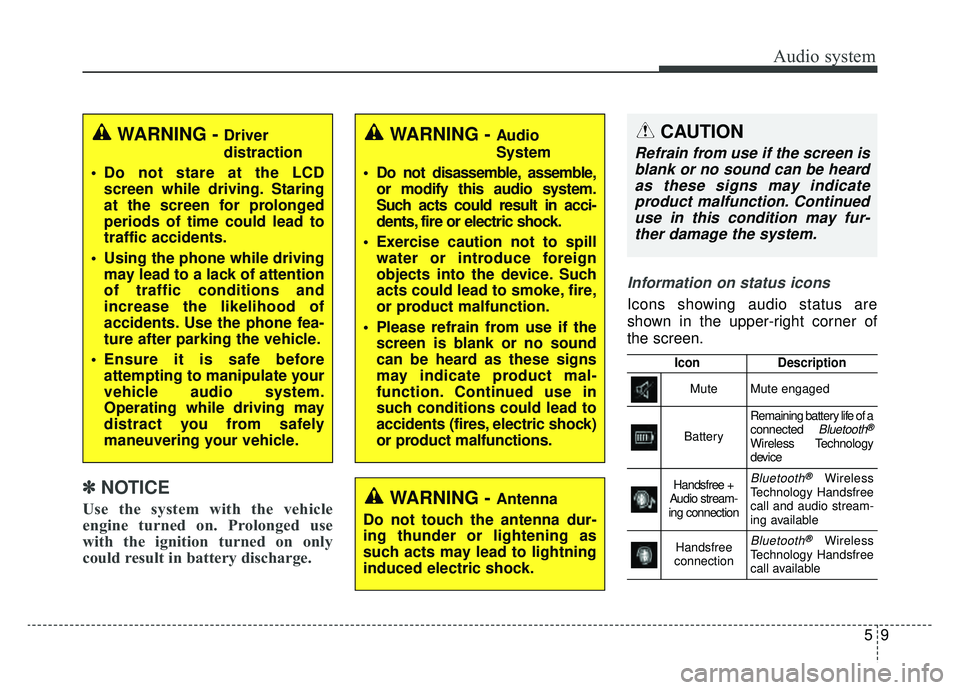
Information on status icons
Icons showing audio status are
shown in the upper-right corner of
the screen.
IconDescription
MuteMute engaged
Battery
Remaining battery life of a
connected Bluetooth®
Wireless Technology
device
Handsfree +
Audio stream-
ing connectionBluetooth®Wireless
Technology Handsfree
call and audio stream-
ing available
Handsfree
connectionBluetooth®Wireless
Technology Handsfree
call available
WARNING - Driver
distraction
Do not stare at the LCD screen while driving. Staring
at the screen for prolonged
periods of time could lead to
traffic accidents.
Using the phone while driving may lead to a lack of attention
of traffic conditions and
increase the likelihood of
accidents. Use the phone fea-
ture after parking the vehicle.
Ensure it is safe before attempting to manipulate your
vehicle audio system.
Operating while driving may
distract you from safely
maneuvering your vehicle.
WARNING - Antenna
Do not touch the antenna dur-
ing thunder or lightening as
such acts may lead to lightning
induced electric shock.
WARNING - Audio
System
Do not disassemble, assemble, or modify this audio system.
Such acts could result in acci-
dents, fire or electric shock.
Exercise caution not to spill water or introduce foreign
objects into the device. Such
acts could lead to smoke, fire,
or product malfunction.
Please refrain from use if the screen is blank or no sound
can be heard as these signs
may indicate product mal-
function. Continued use in
such conditions could lead to
accidents (fires, electric shock)
or product malfunctions.CAUTION
Refrain from use if the screen isblank or no sound can be heardas these signs may indicateproduct malfunction. Continueduse in this condition may fur-ther damage the system.
✽ ✽ NOTICE
Use the system with the vehicle
engine turned on. Prolonged use
with the ignition turned on only
could result in battery discharge.
Page 314 of 611
Audio system
13
5
(Continued)
• Do not touch the USB connections.
• Connecting and disconnecting
USB devices rapidly over a short
period of time can cause equip-
ment failure.
• Abnormal sounds may be audible when the USB device is discon-
nected.
• Turn the audio off before connect- ing or disconnecting external USB
devices.
• Recognition may take longer depending on the type, capacity or
file format of the external USB
device. This is not a product mal-
function.
• Use of USB devices for purposes other than playing music files is
prohibited.
• Image display and video playback are not supported.
• Use of USB accessories, including charge and heat though the USB
I/F, can lead to reduced product
performance or malfunctions. Do
not use USB devices or accessories
for these purposes. (Continued)(Continued)
• Use of aftermarket USB hubs and
extension cables can result in the
vehicle’s audio system failing to rec-
ognize your USB device. Connect
the USB device directly to the mul-
timedia port of your vehicle.
• When using high-capacity USB devices with logical drive divi-
sions, only files saved on the high-
est level logical drive can be
played.
If applications are loaded on a
USB drive, file playback may fail.
• Some MP3 players, cell phones, digital cameras, etc. (USB devices
that are not recognized as mobile
storage) may not operate normally
when connected.
• USB charging may not be sup- ported by some mobile devices.
• Operation is guaranteed only for standard (Metal Cover Type) USB
Memory drives.
• Operation of HDD, CF, SD and memory stick devices is not guar-
anteed. (Continued)(Continued)
• DRM (Digital Rights Management)
files cannot be played.
• SD-type USB memory, CF-type USB memory, and other USB
memory devices that require
adapters for connection are not
supported.
• Proper operation of USB HDDs or USB drives with connectors that
loosen due to vehicle vibrations is
not guaranteed. (iStick, etc.)
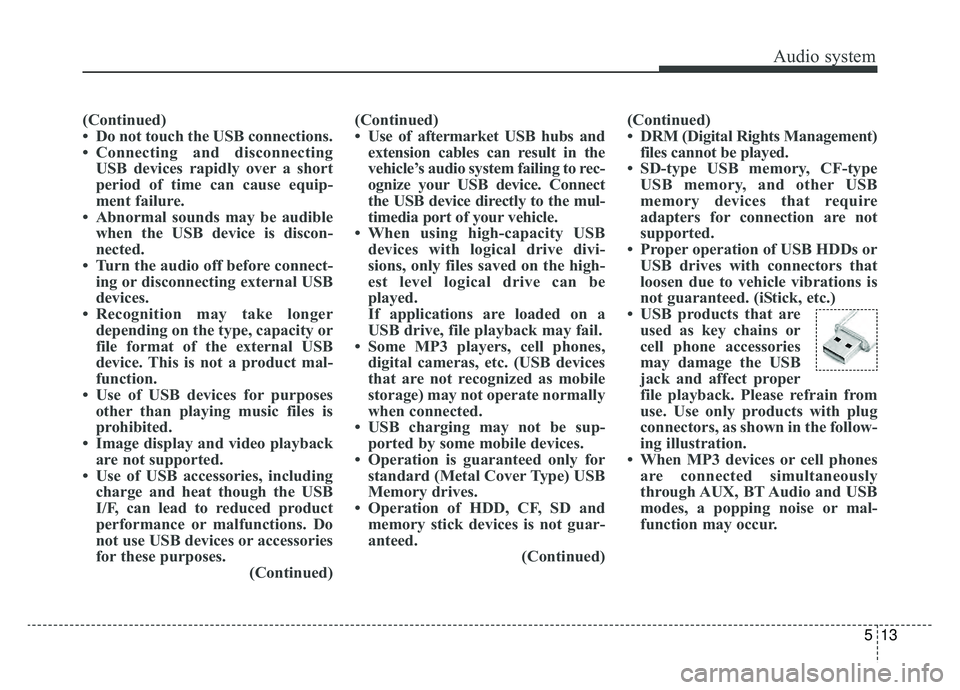
• USB products that are used as key chains or
cell phone accessories
may damage the USB
jack and affect proper
file playback. Please refrain from
use. Use only products with plug
connectors, as shown in the follow-
ing illustration.
• When MP3 devices or cell phones are connected simultaneously
through AUX, BT Audio and USB
modes, a popping noise or mal-
function may occur.
Page 317 of 611
Audio system
516
✽ ✽NOTICE
-
Using the iPod®Devices
• To use the audio system’s iPod®
control function, use the dedicated
cable provided with your iPod®.
• Connecting the iPod®to the vehi-
cle during play may result in a
loud noise that lasts about one to
two seconds. Connect the iPod
®to
the vehicle after stopping or paus-
ing play.
• Connect the iPod
®with the vehicle
in the ACC ON state to begin
charging.
• When connecting the iPod
®cable,
be sure to fully push the cable into
the port.
• When EQ effects are enabled simultaneously on external
devices, such as iPod
®s and the
audio system, the EQ effects may
overlap, causing sound quality
deterioration or distortion.
Deactivate the EQ function for all
external devices, if possible.
• Noise may occur when your iPod
®
or the AUX port is connected.
Disconnect and store separately
when not in use. (Continued)(Continued)
• There may be noise if the audio
system is used with an iPod
®or
AUX external device connected to
the power jack. In these cases, dis-
connect the iPod
®or external
device from the power jack.
• Play may be interrupted, or device malfunctions may occur depend-
ing on the characteristics of your
iPod
®/iPhone®/iPad®.
• Play may fail if your iPhone®is
connected through both
Bluetooth
®Wireless Technology
and USB. In this case, select Dock
connector or Bluetooth
®Wireless
Technology on your iPhone®to
change the sound output settings.
• If your software version does not support the communication proto-
col or your iPod
®is not recognized
due to device failure, anomalies or
defects, iPod
®mode cannot be
used.
• iPod
®nano (5th generation)
devices may not be recognized if
the battery is low. Charge suffi-
ciently before use. (Continued)(Continued)
• The search and song play order in
the iPod
®device may be different
from the search order in the audio
system.
• If the iPod
®has failed due to an
internal defect, please reset the
iPod
®(consult your iPod®manual).
• Depending on the software ver- sion, the iPod
®may fail to sync
with the system. If the media is
removed or disconnected before
recognition, the previous mode
may not be restored (iPad
®cannot
be charged).
• Cables other than the 1-meter cable provided with iPod
®/iPhone®/iPad®
products may not be recognized.
• When other music apps are used on your iPod
®, the system sync
function may fail due to malfunc-
tion of the iPod
®application.
Page 342 of 611
Driving your vehicle
66
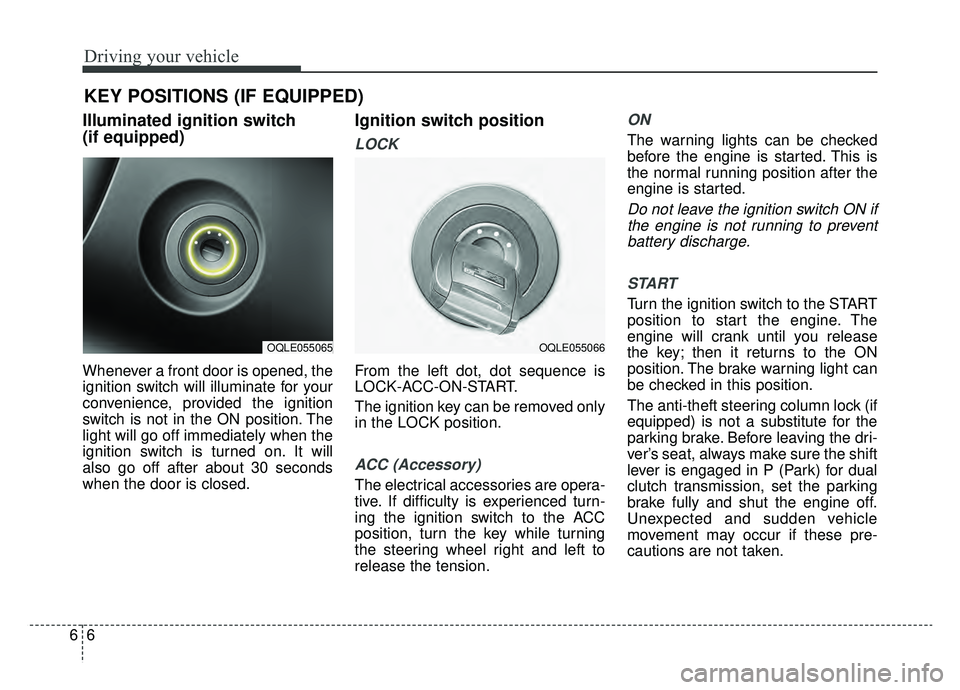
Illuminated ignition switch
(if equipped)
Whenever a front door is opened, the
ignition switch will illuminate for your
convenience, provided the ignition
switch is not in the ON position. The
light will go off immediately when the
ignition switch is turned on. It will
also go off after about 30 seconds
when the door is closed.
Ignition switch position
LOCK
From the left dot, dot sequence is
LOCK-ACC-ON-START.
The ignition key can be removed only
in the LOCK position.
ACC (Accessory)
The electrical accessories are opera-
tive. If difficulty is experienced turn-
ing the ignition switch to the ACC
position, turn the key while turning
the steering wheel right and left to
release the tension.
ON
The warning lights can be checked
before the engine is started. This is
the normal running position after the
engine is started.
Do not leave the ignition switch ON ifthe engine is not running to preventbattery discharge.
START
Turn the ignition switch to the START
position to start the engine. The
engine will crank until you release
the key; then it returns to the ON
position. The brake warning light can
be checked in this position.
The anti-theft steering column lock (if
equipped) is not a substitute for the
parking brake. Before leaving the dri-
ver’s seat, always make sure the shift
lever is engaged in P (Park) for dual
clutch transmission, set the parking
brake fully and shut the engine off.
Unexpected and sudden vehicle
movement may occur if these pre-
cautions are not taken.
KEY POSITIONS (IF EQUIPPED)
OQLE055065OQLE055066
Page 346 of 611
Driving your vehicle
10
6
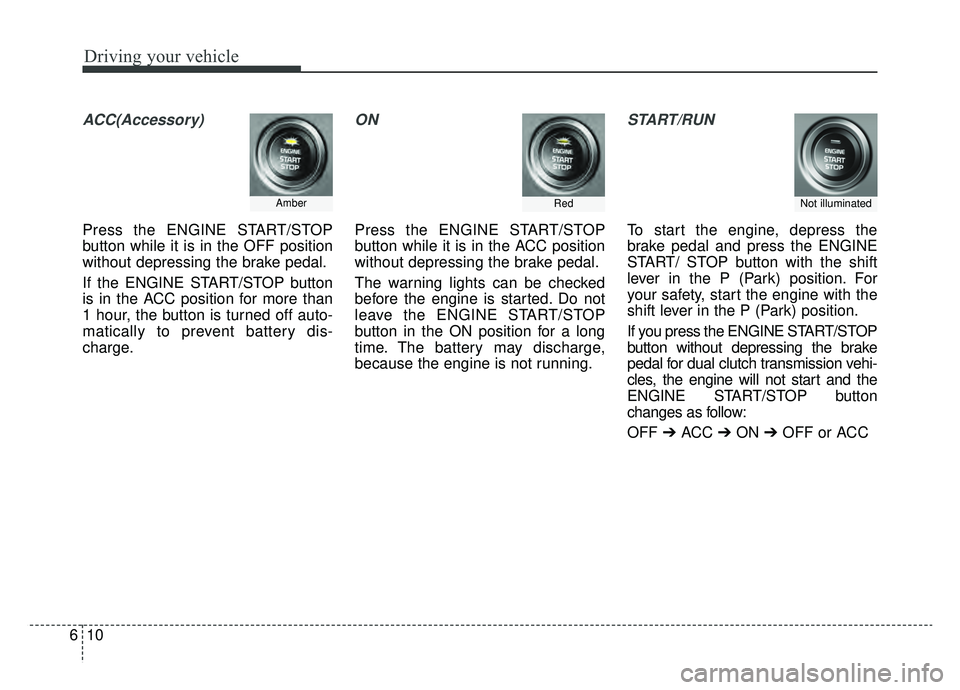
ACC(Accessory)
Press the ENGINE START/STOP
button while it is in the OFF position
without depressing the brake pedal.
If the ENGINE START/STOP button
is in the ACC position for more than
1 hour, the button is turned off auto-
matically to prevent battery dis-
charge.
ON
Press the ENGINE START/STOP
button while it is in the ACC position
without depressing the brake pedal.
The warning lights can be checked
before the engine is started. Do not
leave the ENGINE START/STOP
button in the ON position for a long
time. The battery may discharge,
because the engine is not running.
START/RUN
To start the engine, depress the
brake pedal and press the ENGINE
START/ STOP button with the shift
lever in the P (Park) position. For
your safety, start the engine with the
shift lever in the P (Park) position.
If you press the ENGINE START/STOP
button without depressing the brake
pedal for dual clutch transmission vehi-
cles, the engine will not start and the
ENGINE START/STOP button
changes as follow:
OFF ➔ACC ➔ON ➔OFF or ACC
Not illuminated AmberRed