ECO KIA NIRO PHEV 2023 Navigation System Quick Reference Guide
[x] Cancel search | Manufacturer: KIA, Model Year: 2023, Model line: NIRO PHEV, Model: KIA NIRO PHEV 2023Pages: 372, PDF Size: 13.33 MB
Page 353 of 372

11-15
A
The following files are not played.
Modified files (format-changed files)
Variant files (e.g. MP3 files encoded by WMA audio codec)
DRM (Digital Rights Management)-protected files
Files with no index
A
Sound quality is not guaranteed in case of music files that use the bit-rate exceeding 192
kbps.
A
With the files that do not use the fixed bit rate, some functions may not work properly or
the playback time may not appear accurately.
A
When a trouble occurs while playing or you want to play an incompatible format file, use
the latest encoder software to change the format before using the file.
[USB storage devices
Item
Specifications
Byte/Sector 64 KB or less
Format system FAT16/32 (recommended), exFAT, NTFS
A
With the USB storage devices that are not equipped with a plug-type connector (metal
cover type), proper operation is not guaranteed.
USB storage devices with a plastic plug may not be recognized.
USB memory cards (e.g. CF cards, SD cards) may not be recognized.
A
Problems that are caused by using USB storage devices (not specified in the following
list), are not covered by the warranty.
Product name Manufacturer
XTICK LG
BMK BMK Technology
SKY-DRV Sky Digital
TRANSCEND JetFlash TranScend
Sandisk Cruzer SanDisk
Micro ZyRUS ZyRUS
NEXTIK DIGI Works
A
USB hard drives may not be recognized.
A
When using a USB mass storage device divided into logical drives, only the files saved in
the first drive can be played.
A
When a USB storage device has some Apps, media files may not be played.
Page 358 of 372
11-20
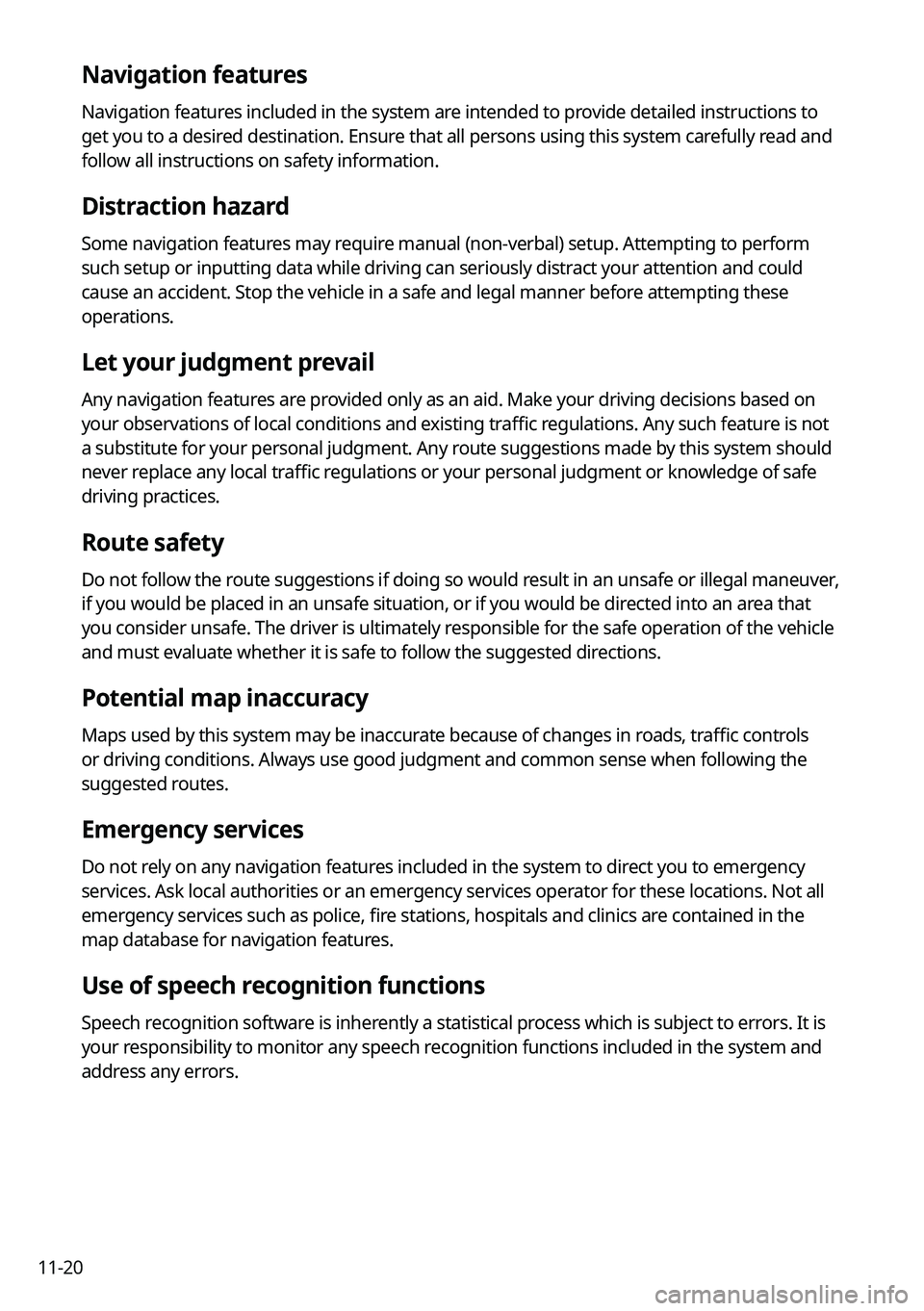
Navigation features
Navigation features included in the system are intended to provide detailed instructions to
get you to a desired destination. Ensure that all persons using this system carefully read and
follow all instructions on safety information.
Distraction hazard
Some navigation features may require manual (non-verbal) setup. Attempting to perform
such setup or inputting data while driving can seriously distract your attention and could
cause an accident. Stop the vehicle in a safe and legal manner before attempting these
operations.
Let your judgment prevail
Any navigation features are provided only as an aid. Make your driving decisions based on
your observations of local conditions and existing traffic regulations. Any such feature is not
a substitute for your personal judgment. Any route suggestions made by this system should
never replace any local traffic regulations or your personal judgment or knowledge of safe
driving practices.
Route safety
Do not follow the route suggestions if doing so would result in an unsafe or illegal maneuver,
if you would be placed in an unsafe situation, or if you would be directed into an area that
you consider unsafe. The driver is ultimately responsible for the safe operation of the vehicle
and must evaluate whether it is safe to follow the suggested directions.
Potential map inaccuracy
Maps used by this system may be inaccurate because of changes in roads, traffic controls
or driving conditions. Always use good judgment and common sense when following the
suggested routes.
Emergency services
Do not rely on any navigation features included in the system to direct you to emergency
services. Ask local authorities or an emergency services operator for these locations. Not all
emergency services such as police, fire stations, hospitals and clinics are contained in the
map database for navigation features.
Use of speech recognition functions
Speech recognition software is inherently a statistical process which is subject to errors. It is
your responsibility to monitor any speech recognition functions included in the system and
address any errors.
Page 359 of 372
11-21
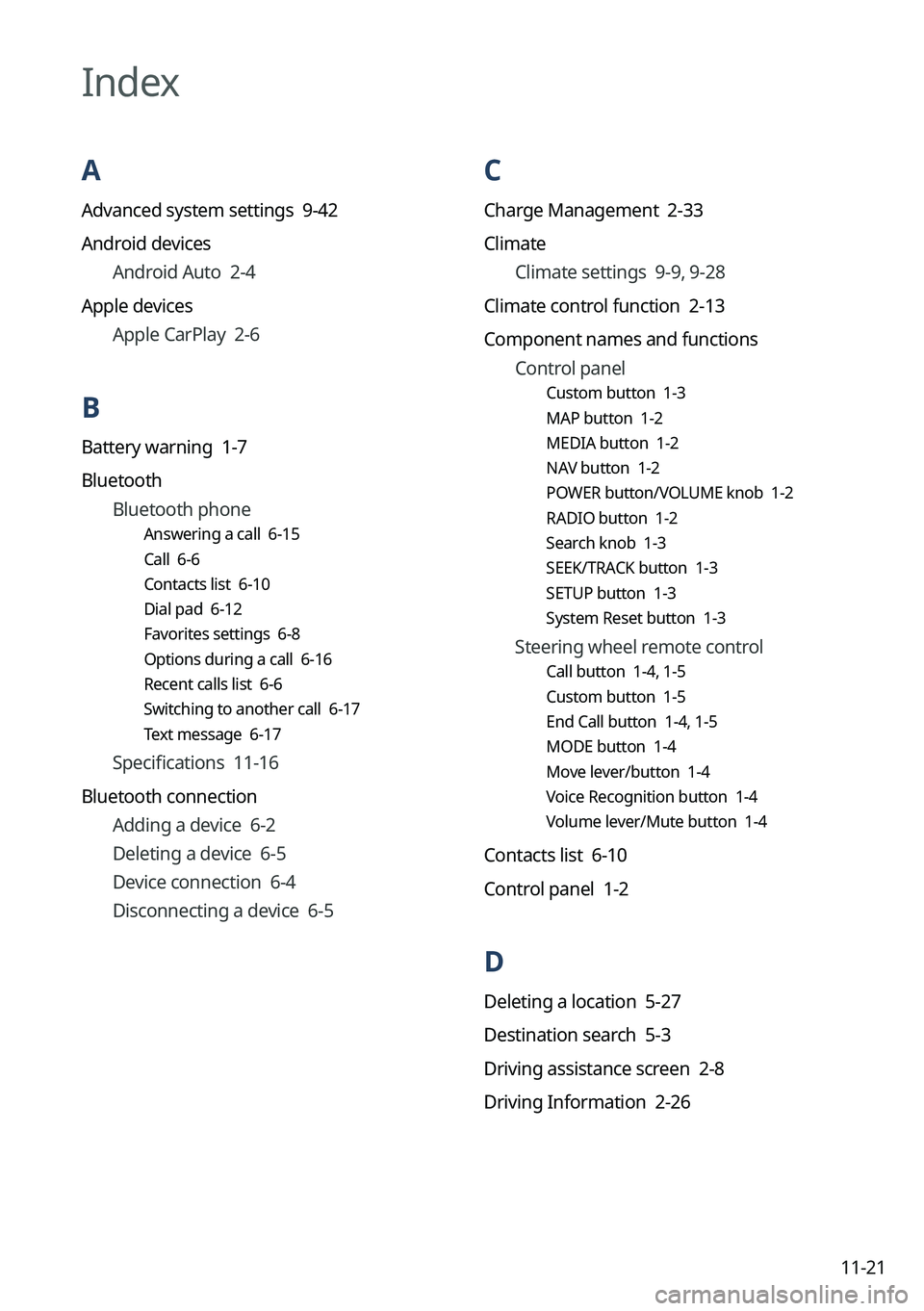
C
Charge Management 2-33
ClimateClimate settings 9-9, 9-28
Climate control function 2-13
Component names and functions Control panel
Custom button 1-3
MAP button 1-2
MEDIA button 1-2
NAV button 1-2
POWER button/VOLUME knob 1-2
RADIO button 1-2
Search knob 1-3
SEEK/TRACK button 1-3
SETUP button 1-3
System Reset button 1-3
Steering wheel remote control
Call button 1-4, 1-5
Custom button 1-5
End Call button 1-4, 1-5
MODE button 1-4
Move lever/button 1-4
Voice Recognition button 1-4
Volume lever/Mute button 1-4
Contacts list 6-10
Control panel 1-2
D
Deleting a location 5-27
Destination search 5-3
Driving assistance screen 2-8
Driving Information 2-26
Index
A
Advanced system settings 9-42
Android devices
Android Auto 2-4
Apple devices Apple CarPlay 2-6
B
Battery warning 1-7
BluetoothBluetooth phone
Answering a call 6-15
Call 6-6
Contacts list 6-10
Dial pad 6-12
Favorites settings 6-8
Options during a call 6-16
Recent calls list 6-6
Switching to another call 6-17
Text message 6-17
Specifications 11-16
Bluetooth connection Adding a device 6-2
Deleting a device 6-5
Device connection 6-4
Disconnecting a device 6-5
Page 360 of 372
11-22
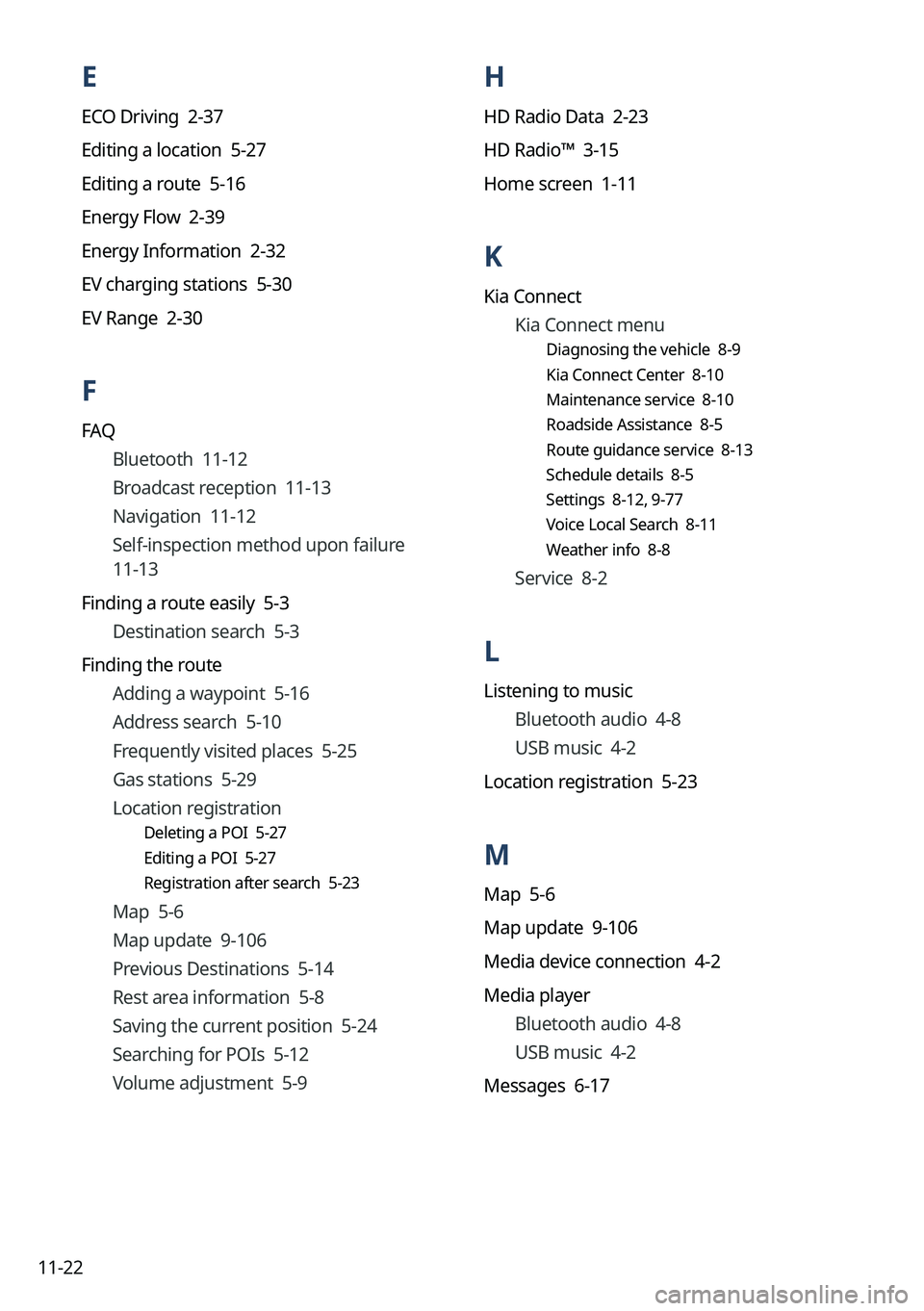
H
HD Radio Data 2-23
HD Radio™ 3-15
Home screen 1-11
K
Kia ConnectKia Connect menu
Diagnosing the vehicle 8-9
Kia Connect Center 8-10
Maintenance service 8-10
Roadside Assistance 8-5
Route guidance service 8-13
Schedule details 8-5
Settings 8-12, 9-77
Voice Local Search 8-11
Weather info 8-8
Service 8-2
L
Listening to music
Bluetooth audio 4-8
USB music 4-2
Location registration 5-23
M
Map 5-6
Map update 9-106
Media device connection 4-2
Media player Bluetooth audio 4-8
USB music 4-2
Messages 6-17
E
ECO Driving 2-37
Editing a location 5-27
Editing a route 5-16
Energy Flow 2-39
Energy Information 2-32
EV charging stations 5-30
EV Range 2-30
F
FAQ Bluetooth 11-12
Broadcast reception 11-13
Navigation 11-12
Self-inspection method upon failure
11-13
Finding a route easily 5-3 Destination search 5-3
Finding the route Adding a waypoint 5-16
Address search 5-10
Frequently visited places 5-25
Gas stations 5-29
Location registration
Deleting a POI 5-27
Editing a POI 5-27
Registration after search 5-23
Map 5-6
Map update 9-106
Previous Destinations 5-14
Rest area information 5-8
Saving the current position 5-24
Searching for POIs 5-12
Volume adjustment 5-9
Page 361 of 372
11-23
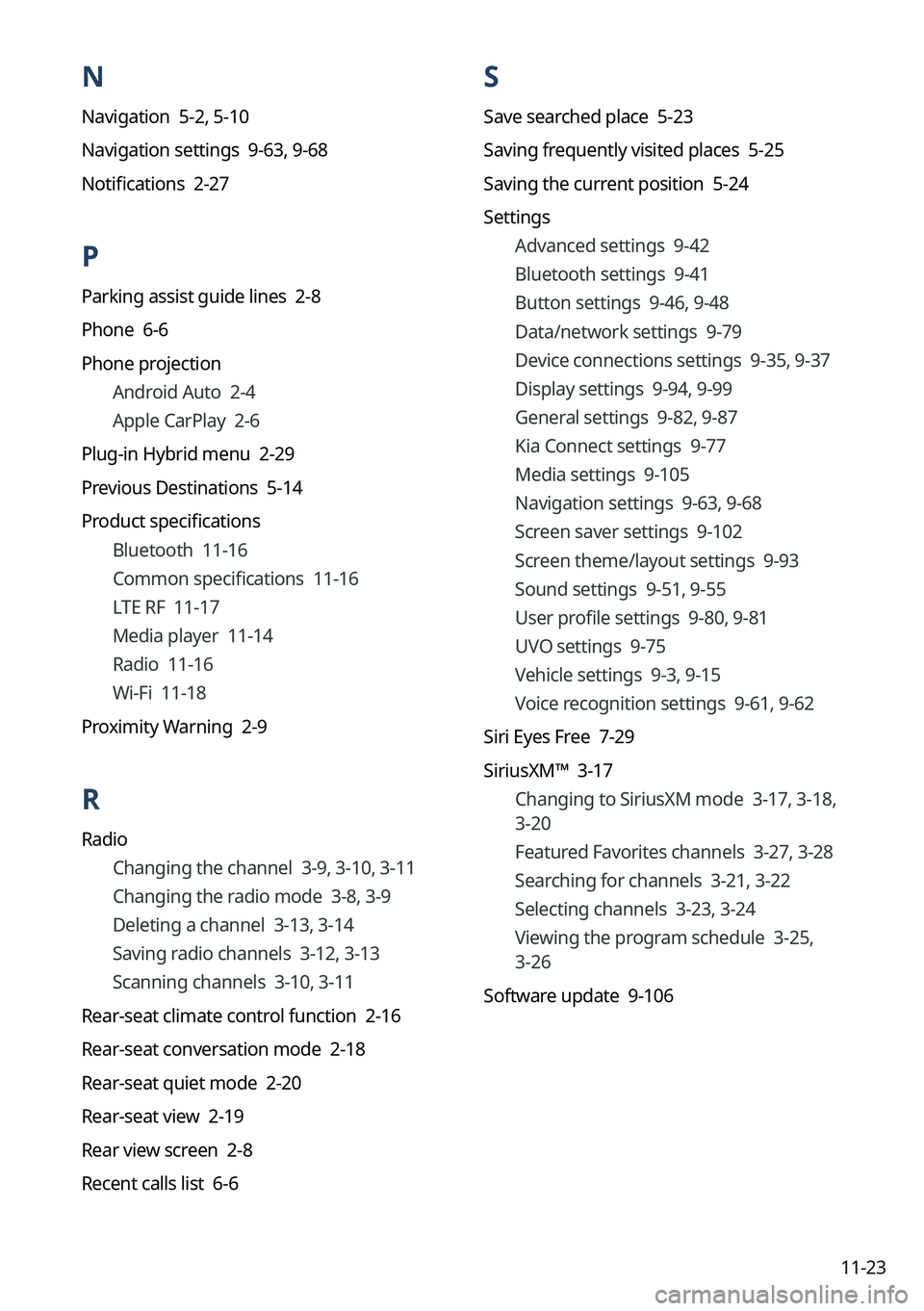
N
Navigation 5-2, 5-10
Navigation settings 9-63, 9-68
Notifications 2-27
P
Parking assist guide lines 2-8
Phone 6-6
Phone projection Android Auto 2-4
Apple CarPlay 2-6
Plug-in Hybrid menu 2-29
Previous Destinations 5-14
Product specifications Bluetooth 11-16
Common specifications 11-16
LTE RF 11-17
Media player 11-14
Radio 11-16
Wi-Fi 11-18
Proximity Warning 2-9
R
Radio Changing the channel 3-9, 3-10, 3-11
Changing the radio mode 3-8, 3-9
Deleting a channel 3-13, 3-14
Saving radio channels 3-12, 3-13
Scanning channels 3-10, 3-11
Rear-seat climate control function 2-16
Rear-seat conversation mode 2-18
Rear-seat quiet mode 2-20
Rear-seat view 2-19
Rear view screen 2-8
Recent calls list 6-6
S
Save searched place 5-23
Saving frequently visited places 5-25
Saving the current position 5-24
Settings Advanced settings 9-42
Bluetooth settings 9-41
Button settings 9-46, 9-48
Data/network settings 9-79
Device connections settings 9-35, 9-37
Display settings 9-94, 9-99
General settings 9-82, 9-87
Kia Connect settings 9-77
Media settings 9-105
Navigation settings 9-63, 9-68
Screen saver settings 9-102
Screen theme/layout settings 9-93
Sound settings 9-51, 9-55
User profile settings 9-80, 9-81
UVO settings 9-75
Vehicle settings 9-3, 9-15
Voice recognition settings
9-61, 9-62
Siri Eyes Free 7-29
SiriusXM™ 3-17 Changing to SiriusXM mode 3-17, 3-18,
3-20
Featured Favorites channels 3-27, 3-28
Searching for channels 3-21, 3-22
Selecting channels 3-23, 3-24
Viewing the program schedule 3-25,
3-26
Software update 9-106
Page 362 of 372
11-24
V
Valet mode 2-28
Voice memo 7-30
Voice recognitionCall commands 7-9, 7-14
Help 7-5
Navigation commands 7-10, 7-15
Other commands 7-13
POI name 7-19
Radio commands 7-11, 7-16
Rear-seat function commands 7-13,
7-18
Search commands 7-13, 7-18
Settings 9-61, 9-62
Use of speech recognition functions
7-3, 7-7
Vehicle control commands 7-11, 7-17
Volume setting 7-5, 7-8
W
Wi-Fi Hotspot
Specifications 11-18
Wireless update 10-2
Solutions
Bluetooth connection 11-5
Navigation system operation 11-8
Phone projection 11-6
Sound and display 11-2
System operation 11-7
USB playback 11-4
Sound Mood Lamp 2-21
Sounds of Nature 2-22
Split screen 1-15
Steering wheel remote control 1-4
Surround view monitor Door opening/mirror folding alert 2-11
Rear view video 2-12
System Info 9-82, 9-87
System status indicator icons 11-9
System update 9-106
T
Touch screen 1-8
Turning on/off the system 1-6
U
Update 9-106
USB file specifications 11-14
USB music 4-2
USB port 4-2
USB storage device specifications 11-15
UVO UVO menu
Settings 9-75