audio KIA Optima 2012 3.G Owner's Guide
[x] Cancel search | Manufacturer: KIA, Model Year: 2012, Model line: Optima, Model: KIA Optima 2012 3.GPages: 382, PDF Size: 8.75 MB
Page 233 of 382
Features of your vehicle
146
4
NOTE:
all music and sound files your cellu-
lar phone supports can be played
by the audio system.
®wireless technology
compatible cellular phones must
include A2DP and AVRCP capabili-
ties.
AVRCP compatible Bluetooth
®wireless technology cel-
lular phones may not play music
through the audio system initially.
These cellular phones may need to
have the Bluetooth
®wireless tech-
nology streaming enabled, for
example;
i.e : Menu
➟Filemanager➟Music➟Option➟Play via Bluetooth®
wireless technology
cellular phone for more information.
To cancel Bluetooth
®wireless tech-
nology cellular phone music
streaming, stop music playback on
the cellular phone or change the
audio mode to AM/FM, SIRIUS, CD,
iPod
®, ect.
■Phone Setup
All Bluetooth®wireless technology relat-
ed operations can be performed in
PHONE menu.
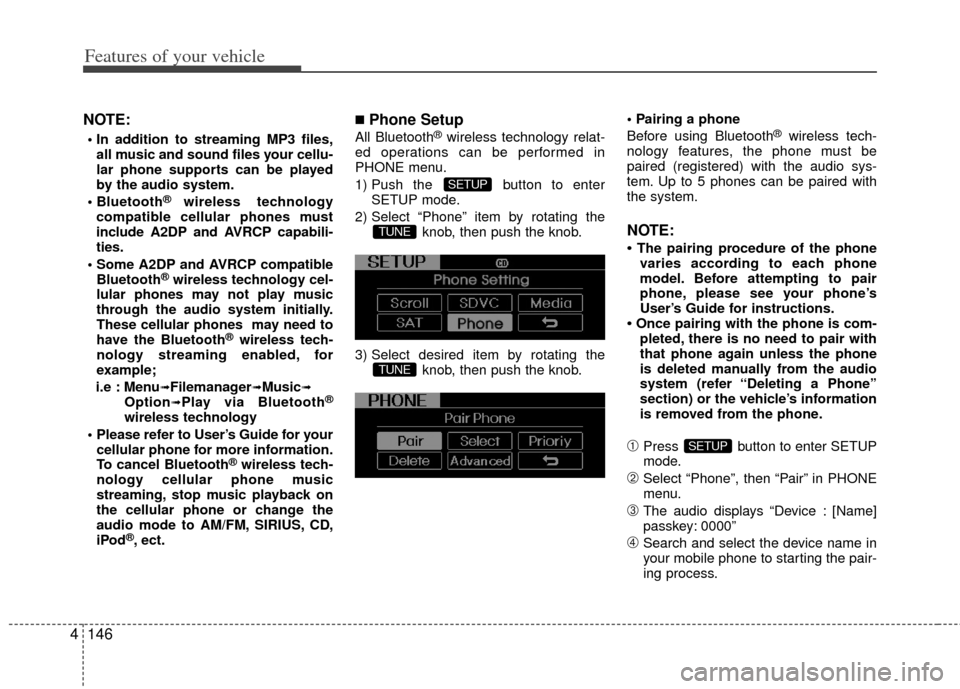
1) Push the button to enter SETUP mode.
2) Select “Phone” item by rotating the knob, then push the knob.
3) Select desired item by rotating the knob, then push the knob.
Before using Bluetooth®wireless tech-
nology features, the phone must be
paired (registered) with the audio sys-
tem. Up to 5 phones can be paired with
the system.
NOTE:
• The pairing procedure of the phone varies according to each phone
model. Before attempting to pair
phone, please see your phone’s
User’s Guide for instructions.
• Once pairing with the phone is com- pleted, there is no need to pair with
that phone again unless the phone
is deleted manually from the audio
system (refer “Deleting a Phone”
section) or the vehicle’s information
is removed from the phone.
➀Press button to enter SETUP
mode.
➁Select “Phone”, then “Pair” in PHONE
menu.
\bThe audio displays “Device : [Name]
passkey: 0000”
➃Search and select the device name in
your mobile phone to starting the pair-
ing process.
SETUP
TUNE
TUNE
SETUP
Page 234 of 382
4147
Features of your vehicle
NOTE:
• If the phone is paired with two ormore vehicles of the same model,
some phones may not handle
Bluetooth
®wireless technology
devices of that name correctly. In
this case, you may need to change
the name displayed on your phone.
For example, if the vehicles' name is
KMC CAR, you may need to change
the name displayed on you phone
from KMC_CAR to JOHNS_CAR or
KMC CAR_1 to avoid ambiguity.
Refer to your phone User’s Guide, or
contact your cellular carrier or phone
manufacturer for instructions.
When the Bluetooth
®wireless technolo-
gy system is enabled, the phone previ-
ously used is automatically selected and
re-connected. If you want to select differ-
ent phone previously paired, the phone
can be selected through “Select Phone”
menu.
Only a selected phone can be used with
the hands-free system at a time.
➀Press button to enter SETUP
mode.
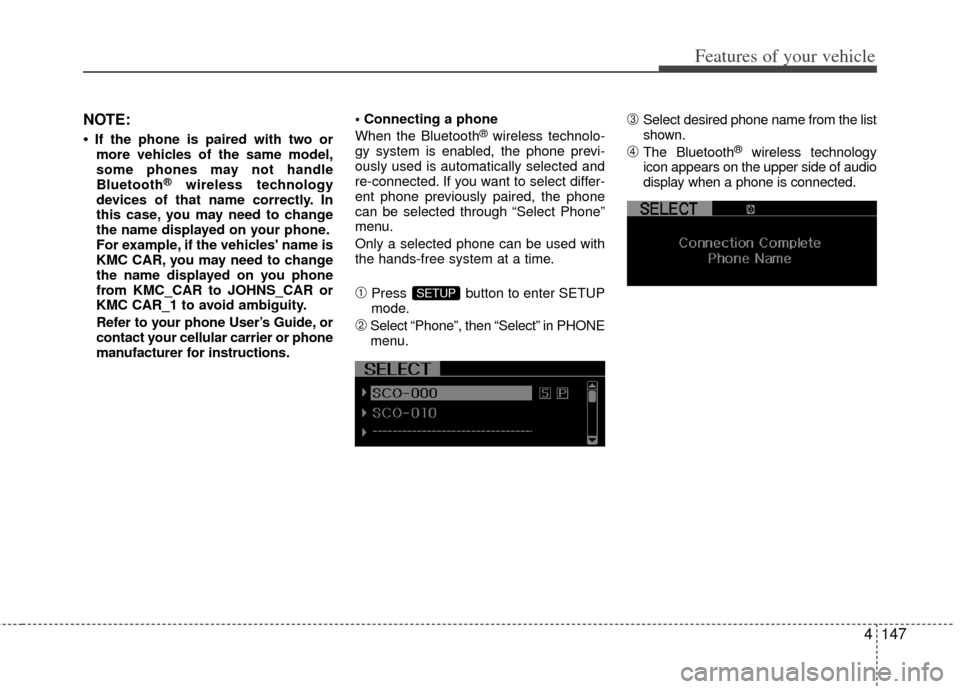
➁Select “Phone”, then “Select” in PHONE
menu.
\bSelect desired phone name from the list
shown.
➃The Bluetooth®wireless technology
icon appears on the upper side of audio
display when a phone is connected.
SETUP
Page 235 of 382
Features of your vehicle
148
4
If several phones are paired with the
audio system, the system attempts to
connect following order when the
Bluetooth
®wireless technology system
is enabled:
1) “Priority” checked phone.
2) Previously connected phone
3) Gives up auto connection.
➀Press button to enter SETUP
mode.
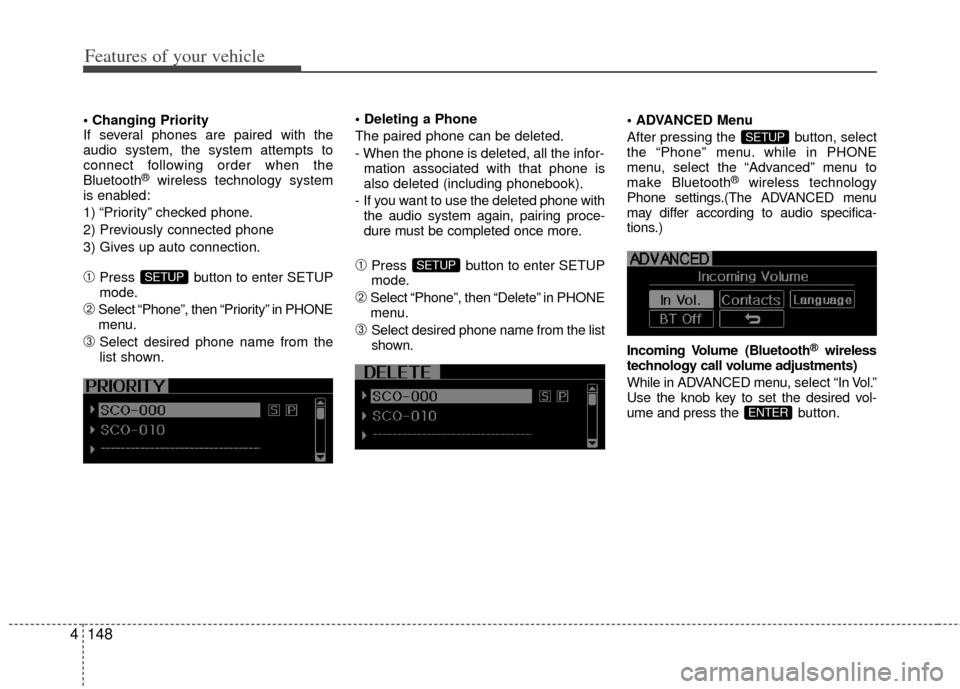
➁Select “Phone”, then “Priority” in PHONE
menu.
\bSelect desired phone name from the
list shown.
The paired phone can be deleted.
- When the phone is deleted, all the infor-
mation associated with that phone is
also deleted (including phonebook).
- If you want to use the deleted phone with the audio system again, pairing proce-
dure must be completed once more.
➀Press button to enter SETUP
mode.
➁Select “Phone”, then “Delete” in PHONE
menu.
\bSelect desired phone name from the list
shown. Menu
After pressing the button, select
the “Phone” menu. while in PHONE
menu, select the “Advanced” menu to
make Bluetooth
®wireless technology
Phone settings.(The ADVANCED menu
may differ according to audio specifica-
tions.)
Incoming Volume (Bluetooth
®wireless
technology call volume adjustments)
While in ADVANCED menu, select “In Vol.”
Use the knob key to set the desired vol-
ume and press the bu tton.
ENTER
SETUP
SETUPSETUP
Page 236 of 382
4149
Features of your vehicle
Contacts Sync (Automatic Phonebook
download setting)
While in ADVANCED menu, select
“Contacts” to automatically save the
contacts and call history in your mobile
phone each time you connect a mobile
device, select ON. If you do not wish for
automatic download, select OFF.
It’s not available to make a phone call by
Bluetooth
®wireless technologyaudio sys-
tem while the phonebook is being down-
loaded.
Language of Bluetooth®wireless technol-
ogy voice recognition
While in ADVANCED menu, press
“Language”. To change the language,
select the desired language and press
the button.
Bluetooth
®wireless technology sys-
tem off
While in ADVANCED menu, press “BT Off ”
To turn off the Bluetooth
®wireless tech-
nology System.
■Voice Recognition Activation
in the Bluetooth®wireless technology
System can be activated in the follow-
ing conditions:
- Button Activation
The voice recognition system will be
active when the button is pressed
and after the sound of a Beep.
- Active Listening The voice recognition system will be
active for a period of time when the
Voice Recognition system has asked
for a customer response.
from zero to nine while number greater
than ten will not be recognized.
tion mode in following cases : When
pressing the button and saying
“cancel” following the beep. When not
making a call and pressing the
button. When voice recognition has
failed 3 consecutive times.
will announce what commands are
available.
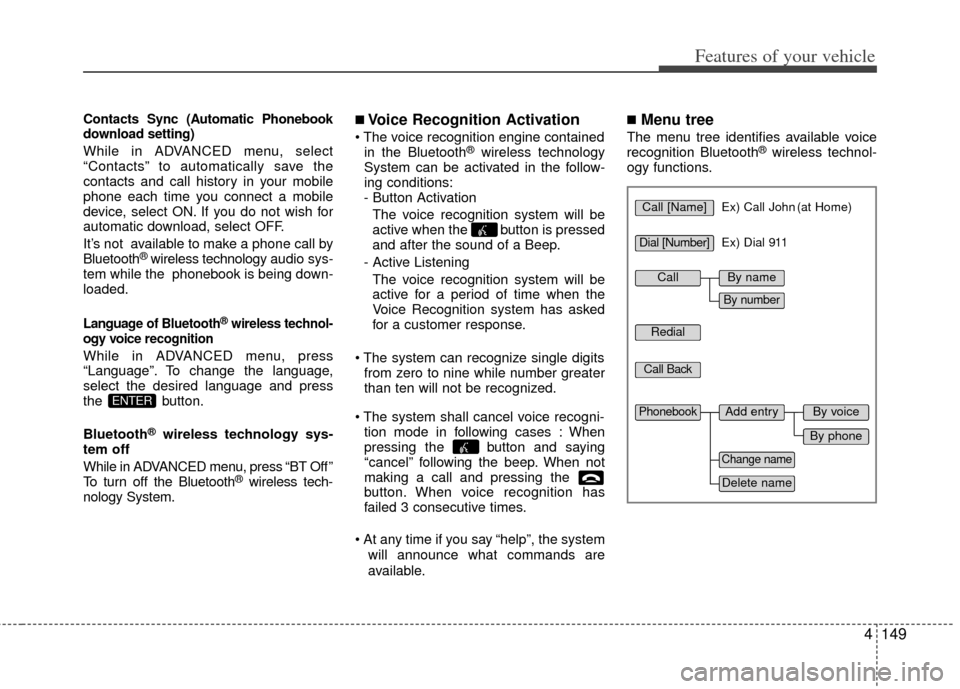
■Menu tree
The menu tree identifies available voice
recognition Bluetooth®wireless technol-
ogy functions.
ENTER
Call [Name]Ex) Call John (at Home)
Ex) Dial 911
Dial [Number]
Redial
Call Back
Add entryPhonebook
Change name
Delete name
By phone
By voice
CallBy name
By number
Page 237 of 382
Features of your vehicle
150
4
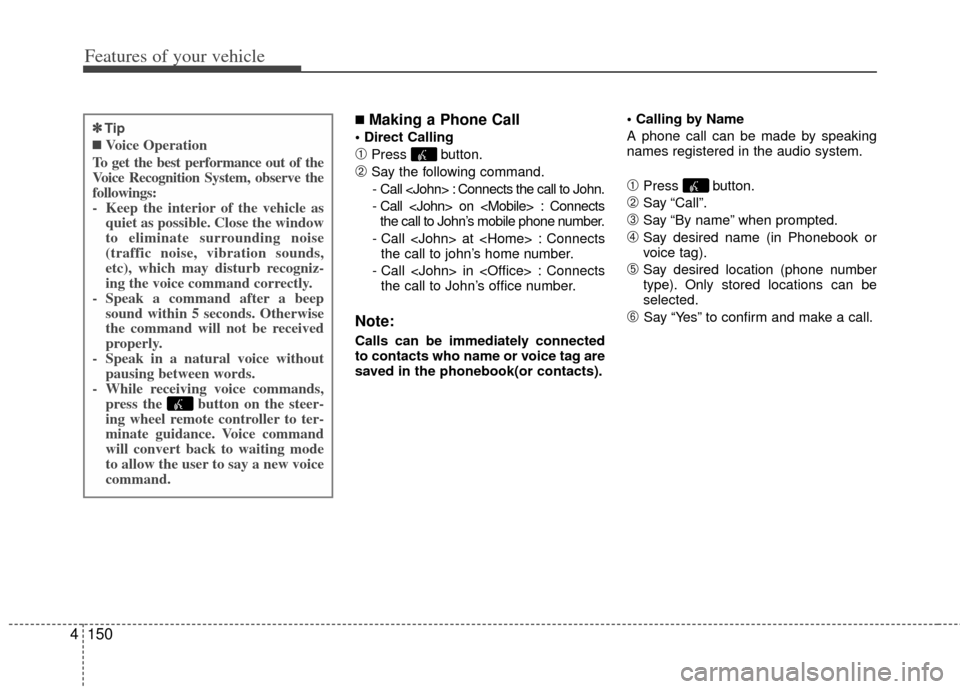
■Making a Phone Call
➀Press button.
➁Say the following command.
- Call
- Call
- Call
- Call
Note:
Calls can be immediately connected
to contacts who name or voice tag are
saved in the phonebook(or contacts).
A phone call can be made by speaking
names registered in the audio system.
➀Press button.
➁Say “Call”.
\bSay “By name” when prompted.
➃Say desired name (in Phonebook or
voice tag).
➄Say desired location (phone number
type). Only stored locations can be
selected.
➅ Say “Yes” to confirm and make a call.
✽
✽
Tip
■Voice Operation
To get the best performance out of the
Voice Recognition System, observe the
followings:
- Keep the interior of the vehicle as quiet as possible. Close the window
to eliminate surrounding noise
(traffic noise, vibration sounds,
etc), which may disturb recogniz-
ing the voice command correctly.
- Speak a command after a beep sound within 5 seconds. Otherwise
the command will not be received
properly.
- Speak in a natural voice without pausing between words.
- While receiving voice commands, press the button on the steer-
ing wheel remote controller to ter-
minate guidance. Voice command
will convert back to waiting mode
to allow the user to say a new voice
command.
Page 239 of 382
Features of your vehicle
152
4
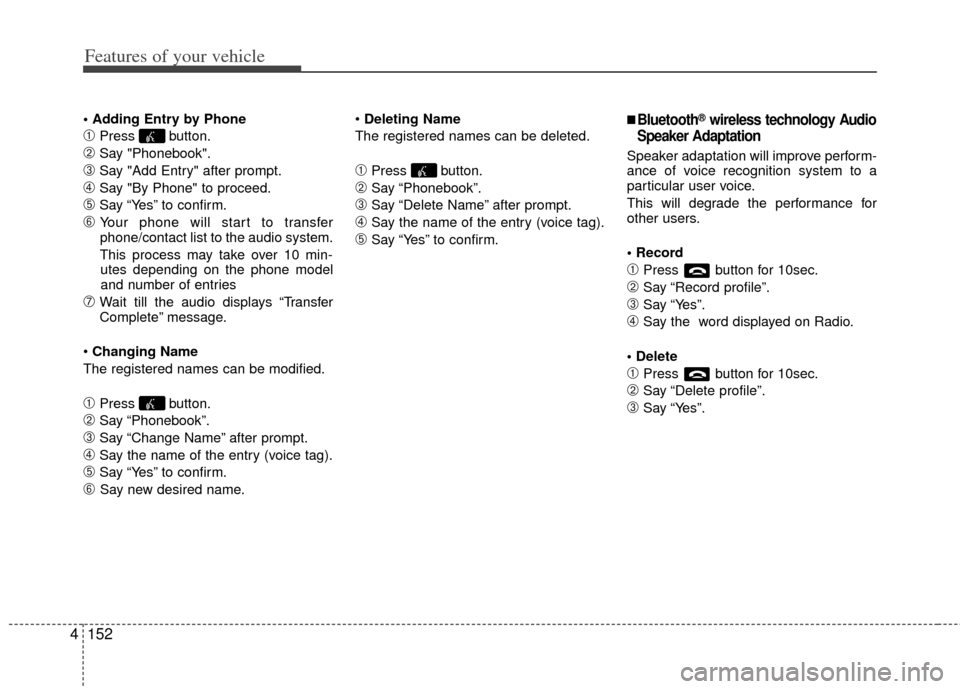
➀Press button.
➁Say "Phonebook".
\bSay "Add Entry" after prompt.
➃Say "By Phone" to proceed.
➄Say “Yes” to confirm.
➅ Your phone will start to transfer
phone/contact list to the audio system.
This process may take over 10 min- utes depending on the phone model
and number of entries
\fWait till the audio displays “Transfer
Complete” message.
Changing Name
The registered names can be modified.
➀Press button.
➁Say “Phonebook”.
\bSay “Change Name” after prompt.
➃Say the name of the entry (voice tag).
➄Say “Yes” to confirm.
➅ Say new desired name.
Deleting Name
The registered names can be deleted.
➀Press button.
➁Say “Phonebook”.
\bSay “Delete Name” after prompt.
➃Say the name of the entry (voice tag).
➄Say “Yes” to confirm.
■Bluetooth®wireless technology Audio
Speaker Adaptation
Speaker adaptation will improve perform-
ance of voice recognition system to a
particular user voice.
This will degrade the performance for
other users.
➀Press button for 10sec.
➁Say “Record profile”.
\bSay “Yes”.
➃Say the word displayed on Radio.
➀Press button for 10sec.
➁Say “Delete profile”.
\bSay “Yes”.
Page 244 of 382
Driving your vehicle
45
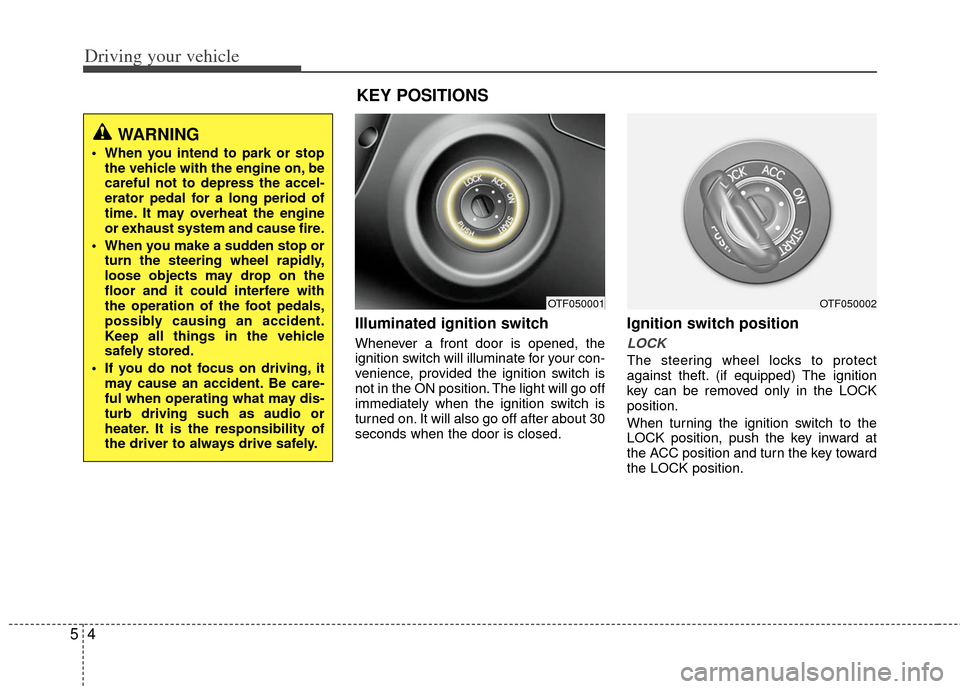
Illuminated ignition switch
Whenever a front door is opened, the
ignition switch will illuminate for your con-
venience, provided the ignition switch is
not in the ON position. The light will go off
immediately when the ignition switch is
turned on. It will also go off after about 30
seconds when the door is closed.
Ignition switch position
LOCK
The steering wheel locks to protect
against theft. (if equipped) The ignition
key can be removed only in the LOCK
position.
When turning the ignition switch to the
LOCK position, push the key inward at
the ACC position and turn the key toward
the LOCK position.
OTF050001
WARNING
When you intend to park or stopthe vehicle with the engine on, be
careful not to depress the accel-
erator pedal for a long period of
time. It may overheat the engine
or exhaust system and cause fire.
When you make a sudden stop or turn the steering wheel rapidly,
loose objects may drop on the
floor and it could interfere with
the operation of the foot pedals,
possibly causing an accident.
Keep all things in the vehicle
safely stored.
If you do not focus on driving, it may cause an accident. Be care-
ful when operating what may dis-
turb driving such as audio or
heater. It is the responsibility of
the driver to always drive safely.
KEY POSITIONS
OTF050002
Page 341 of 382
Maintenance
30
7
Reset items
Items should be reset after the battery
has been discharged or the battery has
been disconnected.
Auto down window (See section 4)
Sunroof (See section 4)
Trip computer (See section 4)
Climate control system
(See section 4)
Clock (See section 4)
Audio (See section 4)(Continued)
Disconnect the battery charger in the following order.
1. Turn off the battery charger main switch.
2. Unhook the negative clamp from the negative battery terminal.
3. Unhook the positive clamp from the positive battery terminal.
Before performing maintenance or recharging the battery, turn off
all accessories and stop the
engine.
The negative battery cable must be removed first and installed
last when the battery is discon-
nected.WARNING- Rechargingbattery
When recharging the battery,
observe the following precautions:
The battery must be removed
from the vehicle and placed in an
area with good ventilation.
Do not allow cigarettes, sparks, or flame near the battery.
Watch the battery during charg- ing, and stop or reduce the charg-
ing rate if the battery cells begin
gassing (boiling) violently or if
the temperature of the electrolyte
of any cell exceeds 49°C (120°F).
Wear eye protection when check- ing the battery during charging.
(Continued)
Page 358 of 382
747
Maintenance
Memory fuse
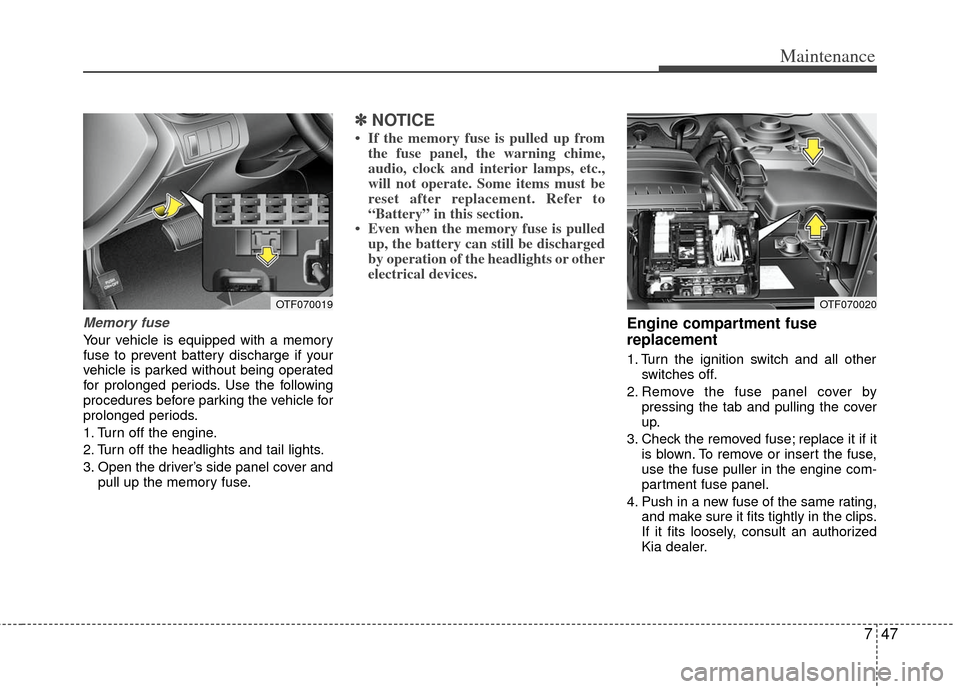
Your vehicle is equipped with a memory
fuse to prevent battery discharge if your
vehicle is parked without being operated
for prolonged periods. Use the following
procedures before parking the vehicle for
prolonged periods.
1. Turn off the engine.
2. Turn off the headlights and tail lights.
3. Open the driver’s side panel cover andpull up the memory fuse.
✽ ✽NOTICE
• If the memory fuse is pulled up from
the fuse panel, the warning chime,
audio, clock and interior lamps, etc.,
will not operate. Some items must be
reset after replacement. Refer to
“Battery” in this section.
• Even when the memory fuse is pulled up, the battery can still be discharged
by operation of the headlights or other
electrical devices.
Engine compartment fuse
replacement
1. Turn the ignition switch and all other
switches off.
2. Remove the fuse panel cover by pressing the tab and pulling the cover
up.
3. Check the removed fuse; replace it if it is blown. To remove or insert the fuse,
use the fuse puller in the engine com-
partment fuse panel.
4. Push in a new fuse of the same rating, and make sure it fits tightly in the clips.
If it fits loosely, consult an authorized
Kia dealer.
OTF070019OTF070020
Page 362 of 382
751
Maintenance
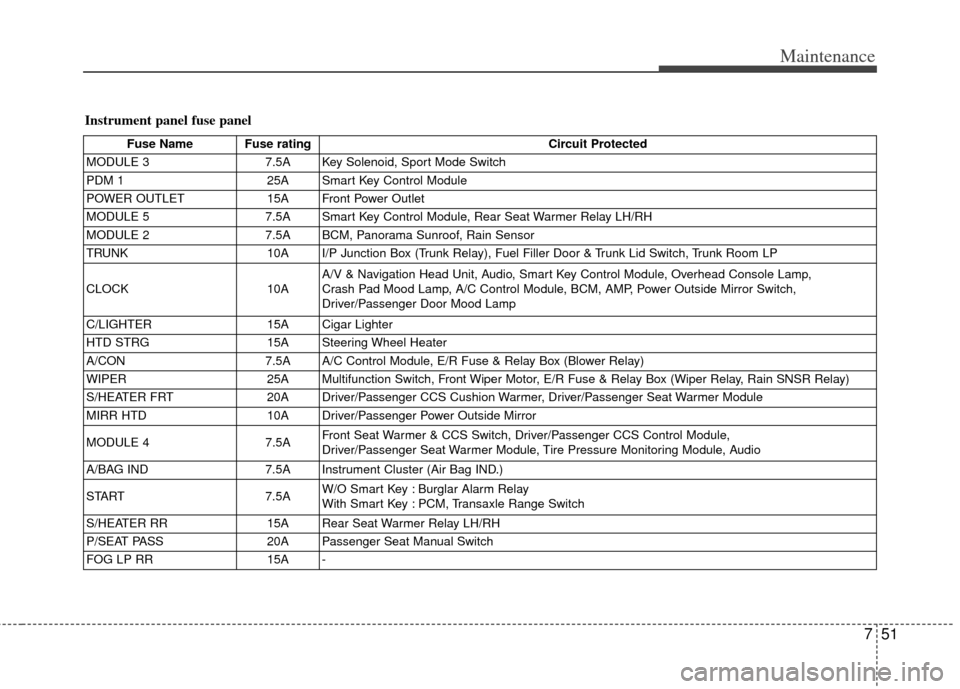
Instrument panel fuse panel
Fuse Name Fuse ratingCircuit Protected
MODULE 3 7.5A Key Solenoid, Sport Mode Switch
PDM 1 25A Smart Key Control Module
POWER OUTLET 15A Front Power Outlet
MODULE 5 7.5A Smart Key Control Module, Rear Seat Warmer Relay LH/RH
MODULE 2 7.5A BCM, Panorama Sunroof, Rain Sensor
TRUNK 10A I/P Junction Box (Trunk Relay), Fuel Filler Door & Trunk Lid Switch, Trunk Room LP
CLOCK 10AA/V & Navigation Head Unit, Audio, Smart Key Control Module, Overhead Console Lamp,
Crash Pad Mood Lamp, A/C Control Module, BCM, AMP, Power Outside Mirror Switch,
Driver/Passenger Door Mood Lamp
C/LIGHTER 15A Cigar Lighter
HTD STRG 15A Steering Wheel Heater
A/CON 7.5A A/C Control Module, E/R Fuse & Relay Box (Blower Relay)
WIPER 25A Multifunction Switch, Front Wiper Motor, E/R Fuse & Relay Box (Wiper Relay, Rain SNSR Relay)
S/HEATER FRT 20A Driver/Passenger CCS Cushion Warmer, Driver/Passenger Seat Warmer Module
MIRR HTD 10A Driver/Passenger Power Outside Mirror
MODULE 4 7.5AFront Seat Warmer & CCS Switch, Driver/Passenger CCS Control Module,
Driver/Passenger Seat Warmer Module, Tire Pressure Monitoring Module, Audio
A/BAG IND 7.5A Instrument Cluster (Air Bag IND.)
START 7.5AW/O Smart Key : Burglar Alarm Relay
With Smart Key : PCM, Transaxle Range Switch
S/HEATER RR 15A Rear Seat Warmer Relay LH/RH
P/SEAT PASS 20A Passenger Seat Manual Switch
FOG LP RR 15A -