ECO mode KIA Optima 2015 4.G Owner's Guide
[x] Cancel search | Manufacturer: KIA, Model Year: 2015, Model line: Optima, Model: KIA Optima 2015 4.GPages: 487, PDF Size: 13.4 MB
Page 229 of 487
Features of your vehicle
156
4
USING THE USB DEVICE
To use an external USB device,
make sure the device is not con-
nected when starting up the
vehicle. Connect the device after
starting up.
If you start the engine when the USB device is connected, it may
damage the USB device. (USB
flashdrives are very sensitive to
electric shock.)
If the engine is started up or turned off while the external USB
device is connected, the external
USB device may not work.
The System may not play unau- thenticated MP3 or WMA files.
1) It can only play MP3 files with the compression rate
between 8Kbps ~ 320Kbps.
2) It can only play WMA music files with the compression
rate between 8Kbps ~
320Kbps.
Take precautions for static elec- tricity when connecting or discon-
necting the external USB device.
(Continued)(Continued)
An encrypted MP3 PLAYER is
not recognizable.
Depending on the condition of the external USB device, the
connected external USB device
can be unrecognizable.
When the formatted byte/sector setting of External USB device is
not either 512BYTE or
2048BYTE, then the device will
not be recognized.
Use only a USB device format- ted to FAT 12/16/32.
USB devices without USB I/F authentication may not be recog-
nizable.
Make sure the USB connection terminal does not come in con-
tact with the human body or
other objects.
If you repeatedly connect or dis- connect the USB device in a
short period of time, it may break
the device.
(Continued)(Continued)
You may hear a strange noise
when connecting or disconnect-
ing a USB device.
If you disconnect the external USB device during playback in
USB mode, the external USB
device can be damaged or may
malfunction. Therefore, discon-
nect the external USB device
when the audio is turned off or in
another mode. (e.g, Radio, CD)
Depending on the type and capacity of the external USB
device or the type of the files
stored in the device, there is a
difference in the time for recogni-
tion the device.
Do not use the USB device for purposes other than playing
music files.
Playing videos through the USB is not supported.
Use of USB accessories such as rechargers or heaters using USB
I/F may lower performance or
cause trouble.
(Continued)
Page 233 of 487
Features of your vehicle
160
4
Precautions for Safe Driving
Bluetooth®Handsfree is a feature
that enables drivers to practice
safe driving. Connecting the head
unit with a
Bluetooth®phone
allows the user to conveniently
make and receive calls and use
contacts. Before using
Bluetooth®,
carefully read the contents of this
user’s manual.
Excessive use or operations while driving may lead to negligent driv-
ing practices and result in acci-
dents. Refrain from excessive
operations while driving.
Viewing the screen for prolonged periods of time is dangerous and
may lead to accidents. When driv-
ing, view the screen only for short
periods of time.
When connecting aBluetooth®
Phone enabled
Before connecting the head unitwith the mobile phone, check to
see that the mobile phone sup-
ports
Bluetooth®features.
Even if the phone supports
Bluetooth®, the phone will not be
found during device searches if the
phone has been set to hidden state
or the
Bluetooth®power is turned
off. Disable the hidden state or turn
on the
Bluetooth®power prior to
searching/connecting with the
Head unit.
If you do not want automatic con- nection with your
Bluetooth®
device, turn off the Bluetooth®fea-
ture within your mobile phone.
The Handsfree call volume and quality may differ depending on the
mobile phone. Park the vehicle when connecting
the head unit with the mobile
phone.
Bluetooth®connection may
become intermittently disconnect-
ed in some mobile phones. Follow
these steps to try again.
1. Within the mobile phone, turn the
Bluetooth®function off/on
and try again.
2. Turn the mobile phone power Off/On and try again.
3. Reboot the audio system and try again.
4. Delete all paired devices, pair and try again.
Handsfree call quality and volume may differ depending on the model
of your mobile phone.
Page 234 of 487
4161
Features of your vehicle
Voice Recognition
feature, only commands listed with-
in the user's manual are supported.
of the voice recognition system,
pressing any key other than the key terminate voice recognition
mode.
For superior voice recognition per- formance, position the microphone
used for voice recognition above
the head of the driver’s seat and
maintain a proper position when
saying commands.
voice recognition may not function
properly due to external sound.
- When the windows and sunroof are open
- When the blower AC/heater is set to high
- When entering and passing through tunnels
(Continued)(Continued)
- When driving on rugged and uneven roads
- During severe rain (heavy rains, windstorms)
can be used only when a
Bluetooth®Wireless Technology
device is connected.
name, the corresponding contact
must be downloaded and stored
within the audio system.
downloading the
Bluetooth®
Wireless Technology phone book, it
takes some times to convert the
phone book data into voice infor-
mation. During this time, voice
recognition may not properly oper-
ate.
naturally and clearly as if in a nor-
mal conversation.
Page 237 of 487
Features of your vehicle
164
4
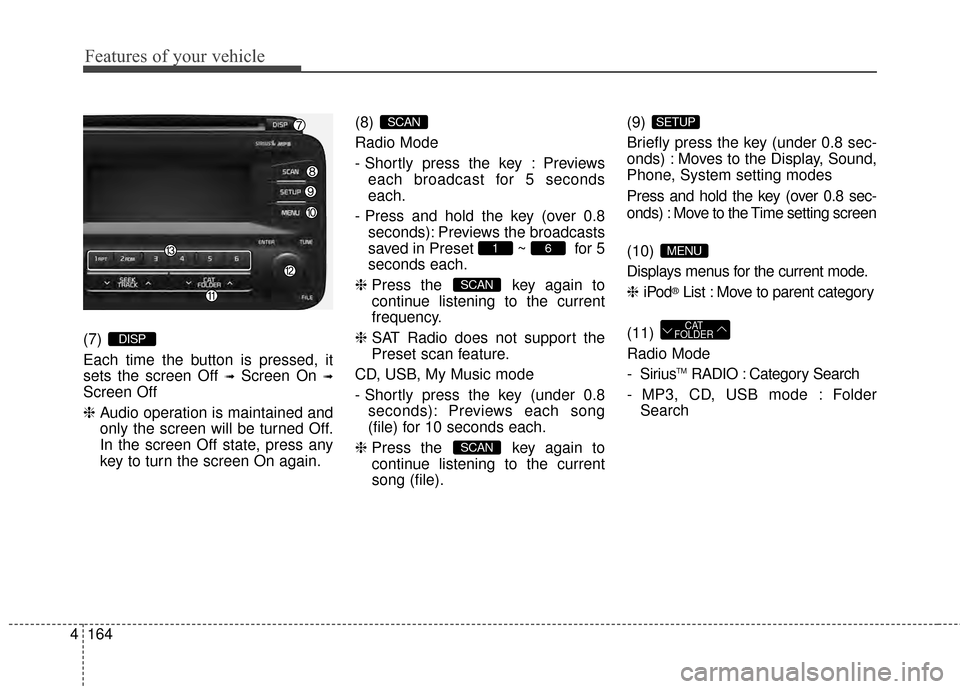
(7)
Each time the button is pressed, it
sets the screen Off
➟Screen On ➟
Screen Off
❈ Audio operation is maintained and
only the screen will be turned Off.
In the screen Off state, press any
key to turn the screen On again. (8)
Radio Mode
- Shortly press the key : Previews
each broadcast for 5 seconds
each.
- Press and hold the key (over 0.8 seconds): Previews the broadcasts
saved in Preset ~ for 5
seconds each.
❈ Press the key again to
continue listening to the current
frequency.
❈ SAT Radio does not support the
Preset scan feature.
CD, USB, My Music mode
- Shortly press the key (under 0.8 seconds): Previews each song
(file) for 10 seconds each.
❈ Press the key again to
continue listening to the current
song (file). (9)
Briefly press the key (under 0.8 sec-
onds) : Moves to the Display, Sound,
Phone, System setting modes
Press and hold the key (over 0.8 sec-
onds) : Move to the Time setting screen
(10)
Displays menus for the current mode.
❈
iPod
®List : Move to parent category
(11)
Radio Mode
- Sirius
TMRADIO : Category Search
- MP3, CD, USB mode : Folder Search
CAT
FOLDER
MENU
SETUP
SCAN
SCAN
61
SCAN
DISP
Page 241 of 487
![KIA Optima 2015 4.G Owners Guide Features of your vehicle
168
4
SYSTEM SETTINGS
Press the key Select
[System] thr ough TUNE knob or
key Select menu through
TUNE knob
Memory Information
Displays currently used memory and
total sy](/img/2/2963/w960_2963-240.png "KIA Optima 2015 4.G Owners Guide Features of your vehicle
168
4
SYSTEM SETTINGS
Press the key Select
[System] thr ough TUNE knob or
key Select menu through
TUNE knob
Memory Information
Displays currently used memory and
total sy")
Features of your vehicle
168
4
SYSTEM SETTINGS
Press the key Select
[System] thr ough TUNE knob or
key Select menu through
TUNE knob
Memory Information
Displays currently used memory and
total system memory.
Select [Memory Information] OK
The currently used memory is dis-
played on the left side while the total
system memory is displayed on the
right side.
Prompt Feedback
This feature is used to change voice
command feedback between Normal
and Expert modes.
Select [Prompt Feedback] Set
through TUNE knob
On : This mode is for beginner users and provides detailed
instructions during voice command
operation. : This mode is for expert users
and omits some information during
voice command operation. (When
using Expert mode, guidance
instructions can be heard through
the [Help] or [Menu] commands.
Language
This menu is used to set the display
and voice recognition language.
Select [Language] Set through TUNE knob
❈ The system will reboot after the
language is changed.
❈ Language support by region
4
SETUP
-
Page 245 of 487
Features of your vehicle
172
4
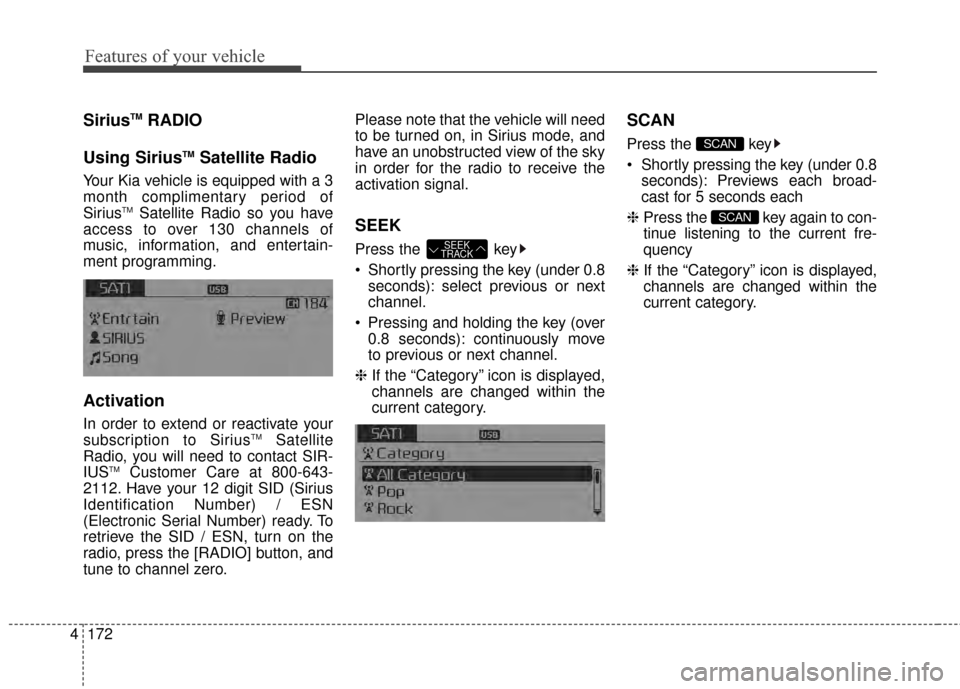
SiriusTMRADIO
Using Sirius
TMSatellite Radio
Your Kia vehicle is equipped with a 3
month complimentary period of
Sirius
TMSatellite Radio so you have
access to over 130 channels of
music, information, and entertain-
ment programming.
Activation
In order to extend or reactivate your
subscription to SiriusTMSatellite
Radio, you will need to contact SIR-
IUS
TMCustomer Care at 800-643-
2112. Have your 12 digit SID (Sirius
Identification Number) / ESN
(Electronic Serial Number) ready. To
retrieve the SID / ESN, turn on the
radio, press the [RADIO] button, and
tune to channel zero. Please note that the vehicle will need
to be turned on, in Sirius mode, and
have an unobstructed view of the sky
in order for the radio to receive the
activation signal.
SEEK
Press the key
Shortly pressing the key (under 0.8
seconds): select previous or next
channel.
Pressing and holding the key (over 0.8 seconds): continuously move
to previous or next channel.
❈ If the “Category” icon is displayed,
channels are changed within the
current category.
SCAN
Press the key
seconds): Previews each broad-
cast for 5 seconds each
❈ Press the key again to con-
tinue listening to the current fre-
quency
❈ If the “Category” icon is displayed,
channels are changed within the
current category.
SCAN
SCAN
SEEK
TRACK
Page 246 of 487
4173
Features of your vehicle
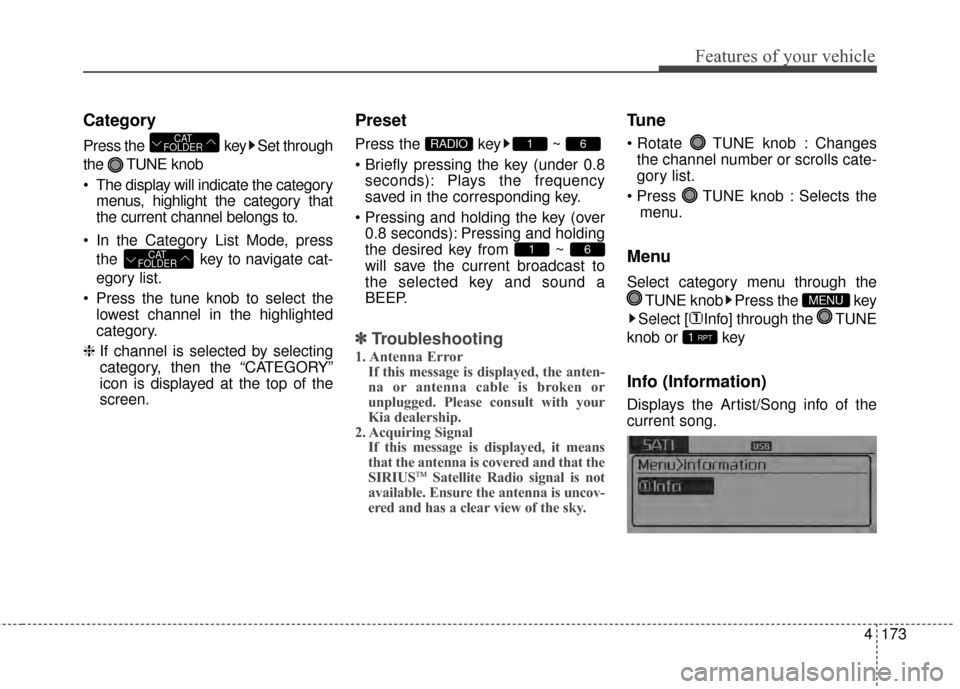
Category
Press the key Set through
the TUNE knob
The display will indicate the categorymenus, highlight the category that
the current channel belongs to.
In the Category List Mode, press the key to navigate cat-
egory list.
Press the tune knob to select the lowest channel in the highlighted
category.
❈ If channel is selected by selecting
category, then the “CATEGORY”
icon is displayed at the top of the
screen.
Preset
Press the key ~
seconds): Plays the frequency
saved in the corresponding key.
0.8 seconds): Pressing and holding
the desired key from ~
will save the current broadcast to
the selected key and sound a
BEEP.
✽ ✽ Troubleshooting
1. Antenna Error
If this message is displayed, the anten-
na or antenna cable is broken or
unplugged. Please consult with your
Kia dealership.
2. Acquiring Signal If this message is displayed, it means
that the antenna is covered and that the
SIRIUS
TMSatellite Radio signal is not
available. Ensure the antenna is uncov-
ered and has a clear view of the sky.
Tune
TUNE knob : Changes
the channel number or scrolls cate-
gory list.
TUNE knob : Selects the menu.
Menu
Select category menu through the
TUNE knob Press the key
Select [ Info] through the TUNE
knob or key
Info (Information)
Displays the Artist/Song info of the
current song.
1 RPT
MENU
61
61RADIO
CAT
FOLDER
CAT
FOLDER
Page 248 of 487
4175
Features of your vehicle
MP3 CD, USB mode: FLD.RDM on
screen
Plays all files within the current fold-
er in random order.
iPod
®mode: ALL RDM on screen
Plays all files in random order.
MP3 CD, USB : ALL RDM on screen
Plays all files in random order.
❈ Press the key again to turn
off random.
Changing Song/File
While song (file) is playing
key
Plays the current song from the beginning.
❈ If the key is pressed
again within 2 second, the previ-
ous song is played.
0.8 seconds): Rewinds the song. While song (file) is playing
key
Plays the next song.
0.8 seconds): Fast forwards the
song.
Scan
While song (file) is playing
key
Scans all
songs from the next song for 10
seconds each.
❈ Press the key again to turn
off.
❈ The SCAN function is not support-
ed in iPod
®mode.
Folder Search : MP3 CD, USB
Mode
While file is playing
(Folder Up) key
While file is playing
(Folder Down) key
❈ If a folder is selected by pressing
the TUNE knob, the first file
within the selected folder will be
played.
❈ In iPod
®mode, moves to the
Parent Folder.
Searching Songs (File)
TUNE knob : Searches for songs (files)
TUNE knob : Plays selected song (file).
CAT
FOLDER
CAT
FOLDER
SCAN
SCAN
SEEK
TRACK
SEEK
TRACK
SEEK
TRACK
2RDM
Page 256 of 487
4183
Features of your vehicle
PHONE
Before using the Bluetooth®Wireless
Technology phone features
Bluetooth®Wireless
Technology phone, you must first
pair and connect the
Bluetooth®
Wireless Technology mobile phone.
connected, it is not possible to
enter Phone mode. Once a phone
is paired or connected, the guid-
ance screen will be displayed.
tion (IGN/ACC ON), the
Bluetooth®
Wireless Technology phone will be
automatically connected. Even if
you are outside, the
Bluetooth®
Wireless Technology phone will be
automatically connected once you
are in the vicinity of the vehicle. If
you do not want automatic
Bluetooth®Wireless Technology
phone connection, set the
Bluetooth®Wireless Technology
power to OFF
Making a call using the
Steering-wheel mounted con-
trols
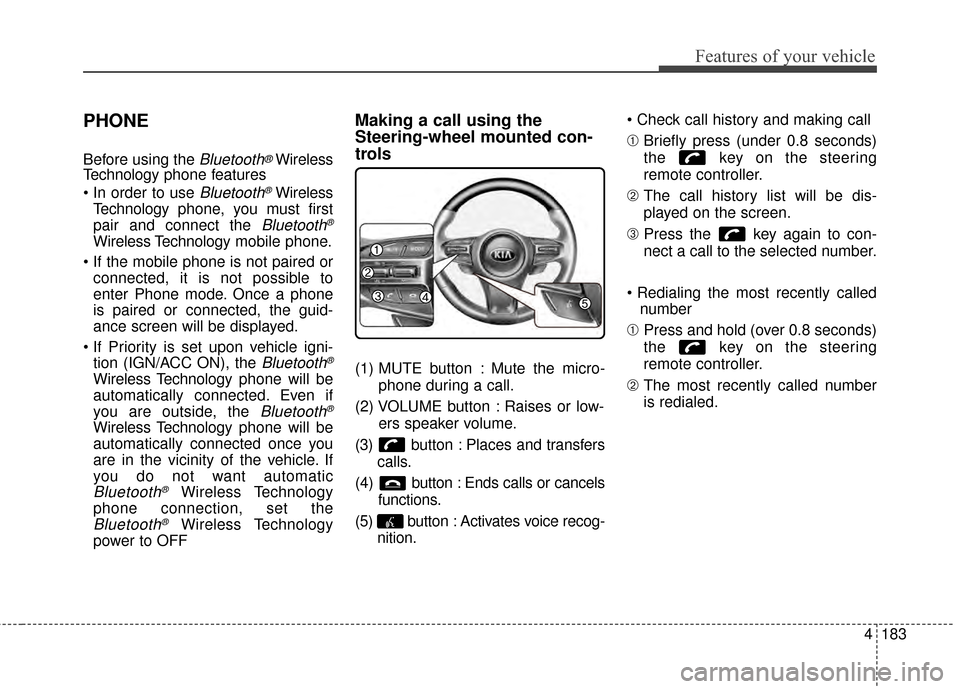
(1) MUTE button : Mute the micro-
phone during a call.
(2) VOLUME button : Raises or low- ers speaker volume.
(3) b utton : Places and transfers
calls.
(4) b utton : Ends calls or cancels
functions.
(5) button : Activates voice recog- nition.
➀
Briefly press (under 0.8 seconds)
the key on the steering
remote controller.
\b The call history list will be dis-
played on the screen.
➂ Press the key again to con-
nect a call to the selected number.
number
➀ Press and hold (over 0.8 seconds)
the key on the steering
remote controller.
\b The most recently called number
is redialed.
Page 270 of 487
![KIA Optima 2015 4.G Owners Guide 4197
Features of your vehicle
VOICE RECOGNITION
Using Voice Recognition
Starting Voice Recognition
Shortly press the key on the
steering wheel. Say a commandIf prompt feedback is in [ON], then
the](/img/2/2963/w960_2963-269.png "KIA Optima 2015 4.G Owners Guide 4197
Features of your vehicle
VOICE RECOGNITION
Using Voice Recognition
Starting Voice Recognition
Shortly press the key on the
steering wheel. Say a commandIf prompt feedback is in [ON], then
the")
4197
Features of your vehicle
VOICE RECOGNITION
Using Voice Recognition
Starting Voice Recognition
Shortly press the key on the
steering wheel. Say a commandIf prompt feedback is in [ON], then
the system will say “Please say a
command after the beep (BEEP)”
mode, then the system will only say
“(BEEP)”
[On]/[Off], go to [System] [Prompt Feedback]
command after the voice instruc-
tion and beep tone.
Skipping Prompt Messages
While prompt message is being stat-
ed Shortly press the key on the
steering remote controller
The prompt message is immediately
ended and the beep tone will sound.
After the “beep”, say the voice com-
mand.
Re-starting Voice Recognition
While system waits for a command
Shortly press the key on the
steering remote controller
The command wait state is immedi-
ately ended and the beep ton will
sound. After the “beep”, say the voice
command.
SETUP