ESP KIA OPTIMA HYBRID 2015 Owner's Manual
[x] Cancel search | Manufacturer: KIA, Model Year: 2015, Model line: OPTIMA HYBRID, Model: KIA OPTIMA HYBRID 2015Pages: 495, PDF Size: 13.38 MB
Page 253 of 495
Features of your vehicle
162
4
Bluetooth®Wireless Technology
Pairing a
Bluetooth®Wireless
Technology Device
What is Bluetooth®Wireless
Technology Pairing?
Pairing refers to the process of syn-
chronizing your
Bluetooth®Wireless
Technology phone or device with the
car audio system for connection.
Pairing is necessary to connect and
use the
Bluetooth®Wireless
Technology feature.
The
Bluetooth®word mark and logos
are registered trademarks owned by
Bluetooth SIG, Inc. and any use of
such marks by Kia is under license.
Other trademarks and trade names
are those of their respective owners.
A
Bluetooth®enabled cell phone is
required to use
Bluetooth®Wireless
Technology
WARNING
Driving while distracted can
result in a loss of vehicle control
that may lead to an accident,
severe personal injury, and
death. The driver’s primary
responsibility is in the safe and
legal operation of a vehicle, and
use of any handheld devices,
other equipment, or vehicle sys-
tems which take the driver’s
eyes, attention and focus away
from the safe operation of a vehi-
cle or which are not permissible
by law should never be used dur-
ing operation of the vehicle.
Page 256 of 495
![KIA OPTIMA HYBRID 2015 Owners Manual 4165
Features of your vehicle
Pairing through [PHONE]
Setup
Press the key Select
[Phone] Select [Pair Phone]
1. The following steps are the sameas those described in the section
"When No Devices ha](/img/2/55003/w960_55003-255.png "KIA OPTIMA HYBRID 2015 Owners Manual 4165
Features of your vehicle
Pairing through [PHONE]
Setup
Press the key Select
[Phone] Select [Pair Phone]
1. The following steps are the sameas those described in the section
\"When No Devices ha")
4165
Features of your vehicle
Pairing through [PHONE]
Setup
Press the key Select
[Phone] Select [Pair Phone]
1. The following steps are the sameas those described in the section
"When No Devices have been
Paired" on the previous page.
Bluetooth®Wireless Technology
features supported within the vehi-
cle are as follows. Some features
may not be supported depending
on your
Bluetooth®Wireless
Technology device.
- Outgoing/Incoming Handsfree calls
- Operations during a call (Switch to Private, Switch to call waiting,
MIC on/off)
- Downloading Call History
- Downloading Mobile Contacts
-
Bluetooth®Wireless Technology
device auto connection
- Bluetooth Audio Streaming
Bluetooth®Wireless
Technology devices can be paired
to the Car Handsfree system.
Bluetooth®device can be
connected at a time.
one
Bluetooth®Wireless
Technology device can be connect-
ed at a time.
while a
Bluetooth®Wireless
Technology device is connected. Only
Bluetooth®Wireless Technology
Handsfree and Bluetooth audio relat-
ed features are supported.
Bluetooth®Wireless Technology
related operations are possible only
within devices that support
Handsfree or audio features, such as
a
Bluetooth®Wireless Technology
mobile phone or a Bluetooth audio
device.
Bluetooth®Wireless
Technology device becomes discon-
nected due to being out of communi-
cation range, turning the device OFF,
or a
Bluetooth®Wireless Technology
communication error, corresponding
Bluetooth®Wireless Technology
devices are automatically searched
and reconnected.
to communication errors between
the car Handsfree and the
Bluetooth®
Wireless Technology device, reset
the device by turning off and back on
again. Upon resetting
Bluetooth®
Wireless Technology device, the sys-
tem will be restored.
SETUP
Page 263 of 495
Features of your vehicle
172
4
Bluetooth®Wireless
Technology Setting
The Bluetooth®word mark and logos
are registered trademarks owned by
Bluetooth SIG, Inc. and any use of
such marks by Kia is under license.
Other trademarks and trade names
are those of their respective owners.
A
Bluetooth®enabled cell phone is
required to use
Bluetooth®Wireless
Technology
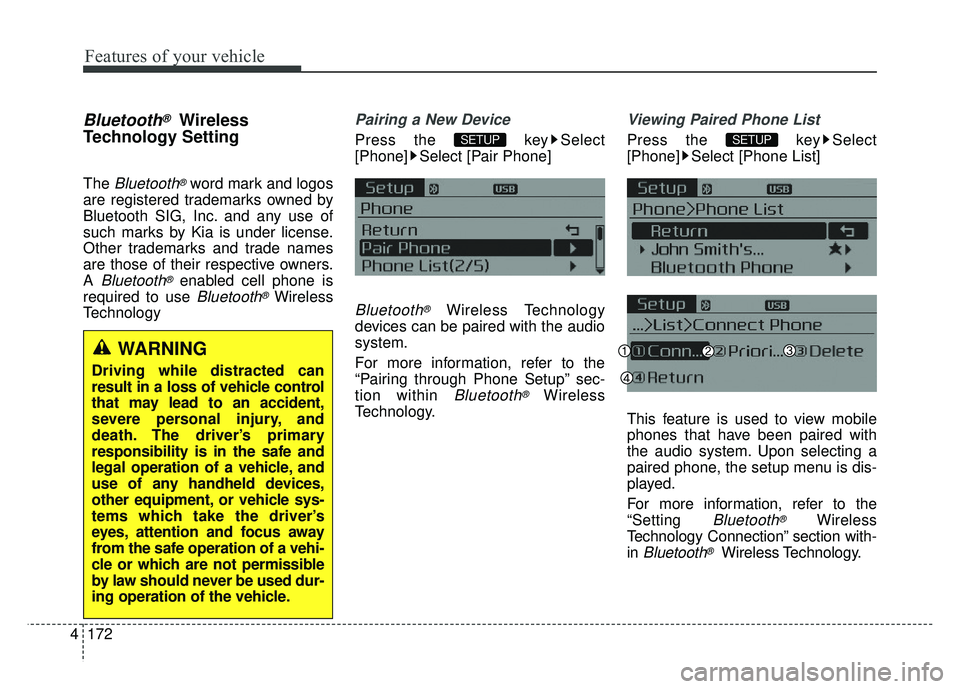
Pairing a New Device
Press the key Select
[Phone] Select [Pair Phone]
Bluetooth®Wireless Technology
devices can be paired with the audio
system.
For more information, refer to the
“Pairing through Phone Setup” sec-
tion within
Bluetooth®Wireless
Technology.
Viewing Paired Phone List
Press the key Select
[Phone] Select [Phone List]
This feature is used to view mobile
phones that have been paired with
the audio system. Upon selecting a
paired phone, the setup menu is dis-
played.
For more information, refer to the
“Setting
Bluetooth®Wireless
Technology Connection” section with-
in
Bluetooth®Wireless Technology.
SETUPSETUP
WARNING
Driving while distracted can
result in a loss of vehicle control
that may lead to an accident,
severe personal injury, and
death. The driver’s primary
responsibility is in the safe and
legal operation of a vehicle, and
use of any handheld devices,
other equipment, or vehicle sys-
tems which take the driver’s
eyes, attention and focus away
from the safe operation of a vehi-
cle or which are not permissible
by law should never be used dur-
ing operation of the vehicle.
Page 264 of 495
4173
Features of your vehicle
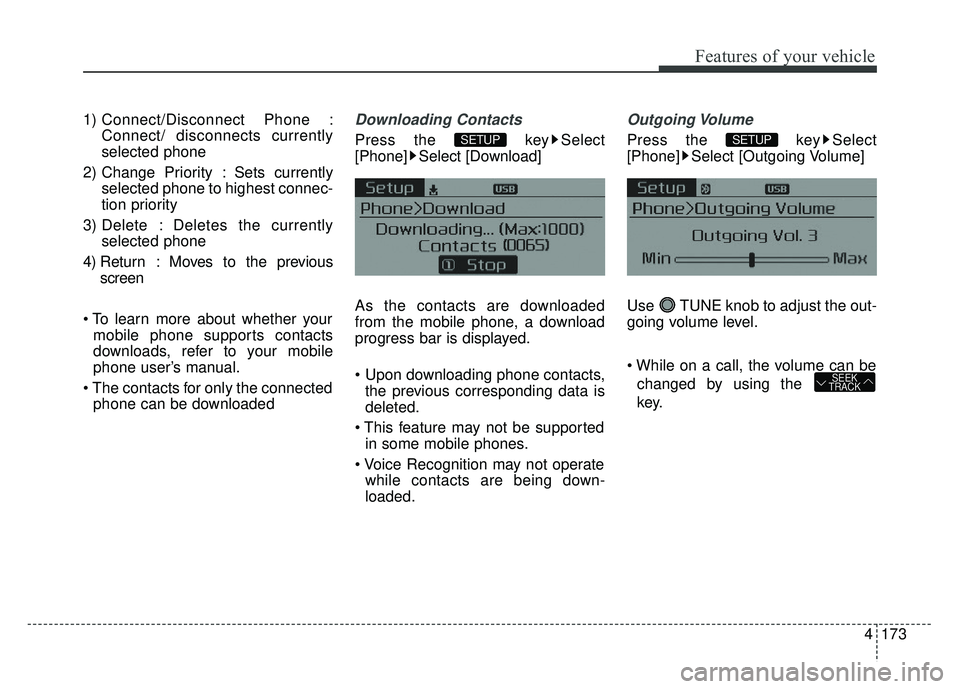
1) Connect/Disconnect Phone :Connect/ disconnects currently
selected phone
2) Change Priority : Sets currently selected phone to highest connec-
tion priority
3) Delete : Deletes the currently selected phone
4) Return : Moves to the previous screen
mobile phone supports contacts
downloads, refer to your mobile
phone user’s manual.
phone can be downloadedDownloading Contacts
Press the key Select
[Phone] Select [Download]
As the contacts are downloaded
from the mobile phone, a download
progress bar is displayed.
the previous corresponding data is
deleted.
in some mobile phones.
while contacts are being down-
loaded.
Outgoing Volume
Press the key Select
[Phone] Select [Outgoing Volume]
Use TUNE knob to adjust the out-
going volume level.
changed by using the
key.
SEEK
TRACK
SETUPSETUP
Page 269 of 495
Features of your vehicle
178
4
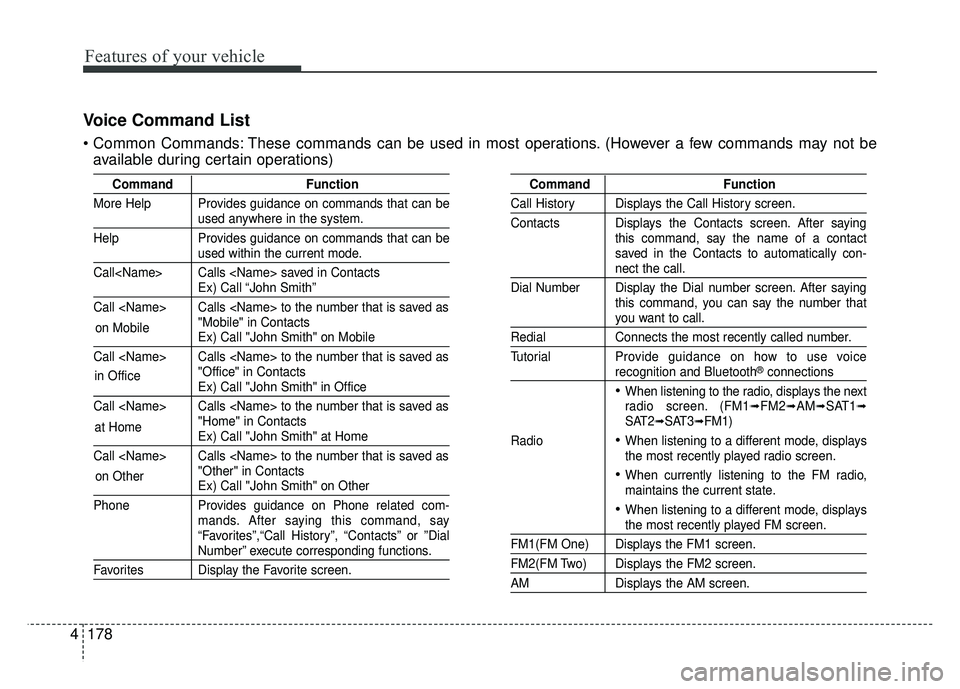
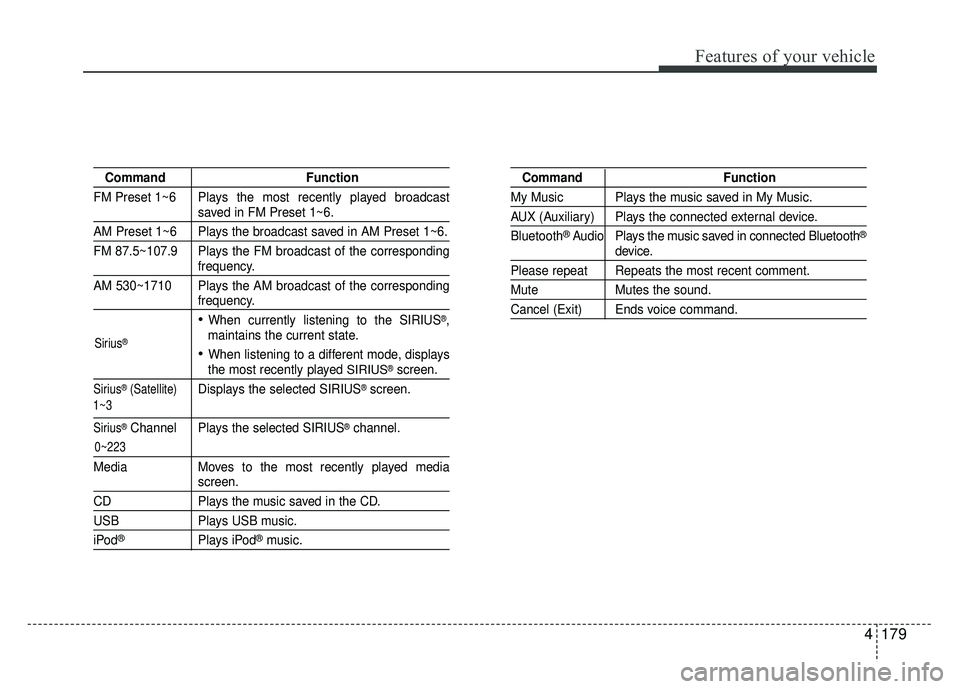
Voice Command List
These commands can be used in most operations. (However a few commands may not be
available during certain operations)
Command Function
More Help Provides guidance on commands that can be
used anywhere in the system.
Help Provides guidance on commands that can be
used within the current mode.
Call
Ex) Call “John Smith”
Call
Ex) Call "John Smith" on Mobile
Call
Ex) Call "John Smith" in Office
Call
Ex) Call "John Smith" at Home
Call
Ex) Call "John Smith" on Other
Phone Provides guidance on Phone related com- mands. After saying this command, say
“Favorites”,“Call History”, “Contacts” or ”Dial
Number” execute corresponding functions.
Favorites Display the Favorite screen.
Command Function
Call History Displays the Call History screen.
Contacts Displays the Contacts screen. After saying
this command, say the name of a contact
saved in the Contacts to automatically con-
nect the call.
Dial Number Display the Dial number screen. After saying this command, you can say the number that
you want to call.
RedialConnects the most recently called number.
Tutorial Pro vide guidance on how to use voice
recognition and Bluetooth®connections
When listening to the radio, displays the next
radio screen. (FM1➟FM2➟AM➟SAT1➟SAT2➟SAT3➟FM1)
Radio
When listening to a different mode, displays
the most recently played radio screen.
When currently listening to the FM radio,
maintains the current state.
When listening to a different mode, displaysthe most recently played FM screen.
FM1(FM One) Displays the FM1 screen.
FM2(FM Two) Displays the FM2 screen.
AM Displays the AM screen.
on Mobile
in Office
at Home
on Other
Page 270 of 495
4179
Features of your vehicle
CommandFunction
FM Preset 1~6 Plays the most recently played broadcast
saved in FM Preset 1~6.
AM Preset 1~6 Plays the broadcast saved in AM Preset 1~6.
FM 87.5~107.9 Plays the FM broadcast of the corresponding
frequency.
AM 530~1710 Plays the AM broadcast of the corresponding
frequency.
When currently listening to the SIRIUS®,
maintains the current state.
When listening to a different mode, displaysthe most recently played SIRIUS®screen.
Sirius®(Satellite) Displays the selected SIRIUS®screen.
Sirius®Channel Plays the selected SIRIUS®channel.
Media Moves to the most recently played mediascreen.
CD Plays the music saved in the CD.
USBPlays USB music.
iPod®Plays iPod®music.
Command Function
My Music Plays the music saved in My Music.
AUX (Auxiliary) Plays the connected external device.
Bluetooth
®Audio Plays the music saved in connected Bluetooth®
device.
Please repeat Repeats the most recent comment.
Mute Mutes the sound.
Cancel (Exit) Ends voice command.
0~223
1~3 Sirius
®
Page 278 of 495
Driving your vehicle
45
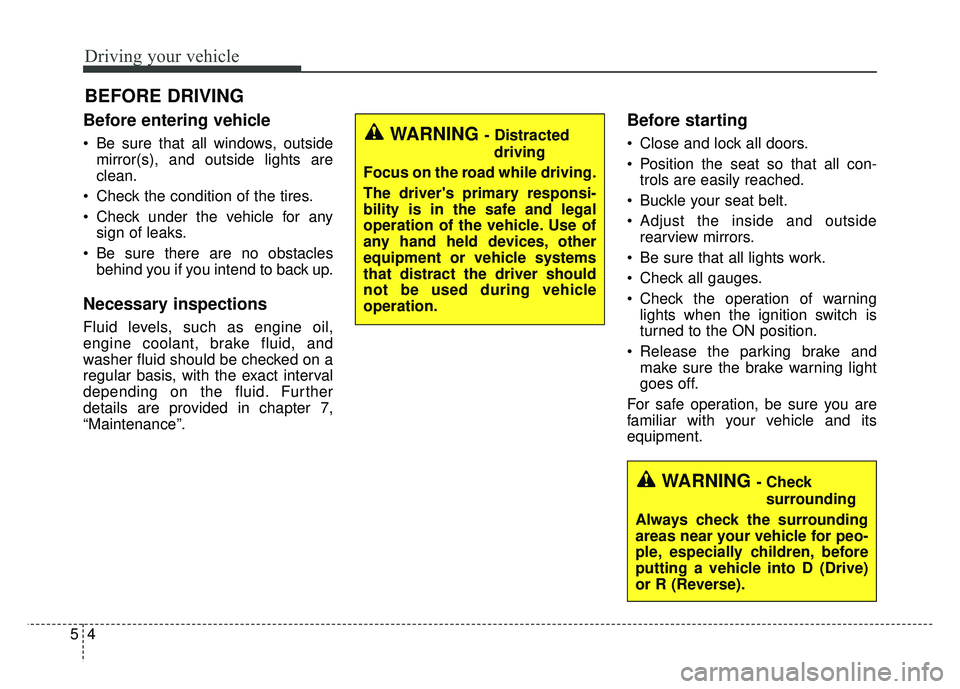
Before entering vehicle
• Be sure that all windows, outsidemirror(s), and outside lights are
clean.
Check the condition of the tires.
Check under the vehicle for any sign of leaks.
Be sure there are no obstacles behind you if you intend to back up.
Necessary inspections
Fluid levels, such as engine oil,
engine coolant, brake fluid, and
washer fluid should be checked on a
regular basis, with the exact interval
depending on the fluid. Further
details are provided in chapter 7,
“Maintenance”.
Before starting
Close and lock all doors.
Position the seat so that all con-trols are easily reached.
Buckle your seat belt.
Adjust the inside and outside rearview mirrors.
Be sure that all lights work.
Check all gauges.
Check the operation of warning lights when the ignition switch is
turned to the ON position.
Release the parking brake and make sure the brake warning light
goes off.
For safe operation, be sure you are
familiar with your vehicle and its
equipment.
BEFORE DRIVING
WARNING - Distracted driving
Focus on the road while driving.
The driver's primary responsi-
bility is in the safe and legal
operation of the vehicle. Use of
any hand held devices, other
equipment or vehicle systems
that distract the driver should
not be used during vehicle
operation.
WARNING - Check surrounding
Always check the surrounding
areas near your vehicle for peo-
ple, especially children, before
putting a vehicle into D (Drive)
or R (Reverse).
Page 304 of 495
Driving your vehicle
30
5
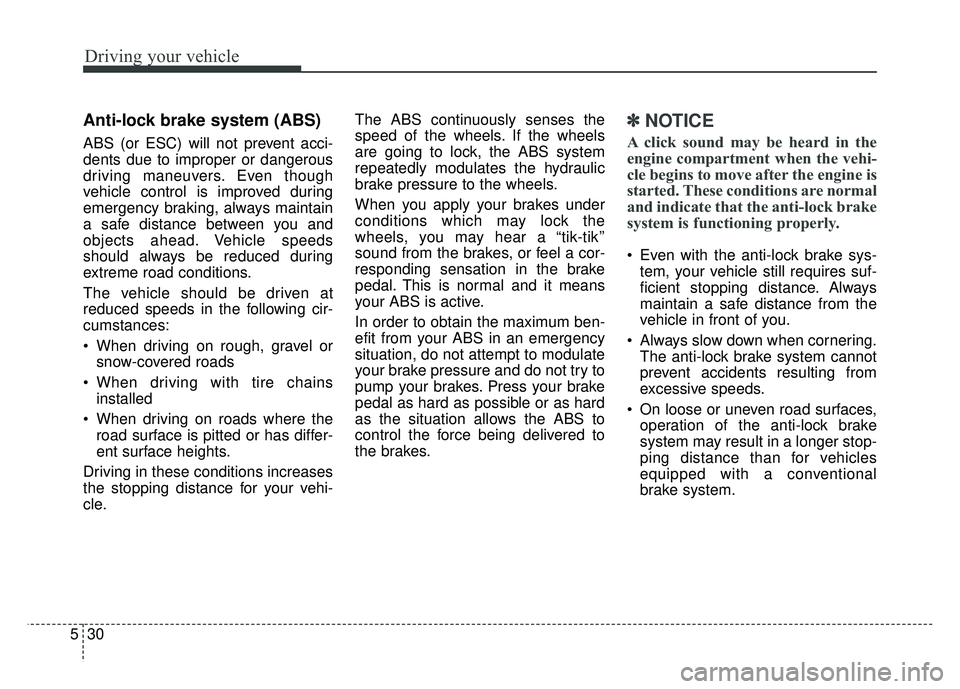
Anti-lock brake system (ABS)
ABS (or ESC) will not prevent acci-
dents due to improper or dangerous
driving maneuvers. Even though
vehicle control is improved during
emergency braking, always maintain
a safe distance between you and
objects ahead. Vehicle speeds
should always be reduced during
extreme road conditions.
The vehicle should be driven at
reduced speeds in the following cir-
cumstances:
When driving on rough, gravel or
snow-covered roads
When driving with tire chains installed
When driving on roads where the road surface is pitted or has differ-
ent surface heights.
Driving in these conditions increases
the stopping distance for your vehi-
cle. The ABS continuously senses the
speed of the wheels. If the wheels
are going to lock, the ABS system
repeatedly modulates the hydraulic
brake pressure to the wheels.
When you apply your brakes under
conditions which may lock the
wheels, you may hear a “tik-tik’’
sound from the brakes, or feel a cor-
responding sensation in the brake
pedal. This is normal and it means
your ABS is active.
In order to obtain the maximum ben-
efit from your ABS in an emergency
situation, do not attempt to modulate
your brake pressure and do not try to
pump your brakes. Press your brake
pedal as hard as possible or as hard
as the situation allows the ABS to
control the force being delivered to
the brakes.
✽ ✽
NOTICE
A click sound may be heard in the
engine compartment when the vehi-
cle begins to move after the engine is
started. These conditions are normal
and indicate that the anti-lock brake
system is functioning properly.
Even with the anti-lock brake sys-
tem, your vehicle still requires suf-
ficient stopping distance. Always
maintain a safe distance from the
vehicle in front of you.
Always slow down when cornering. The anti-lock brake system cannot
prevent accidents resulting from
excessive speeds.
On loose or uneven road surfaces, operation of the anti-lock brake
system may result in a longer stop-
ping distance than for vehicles
equipped with a conventional
brake system.
Page 306 of 495
Driving your vehicle
32
5
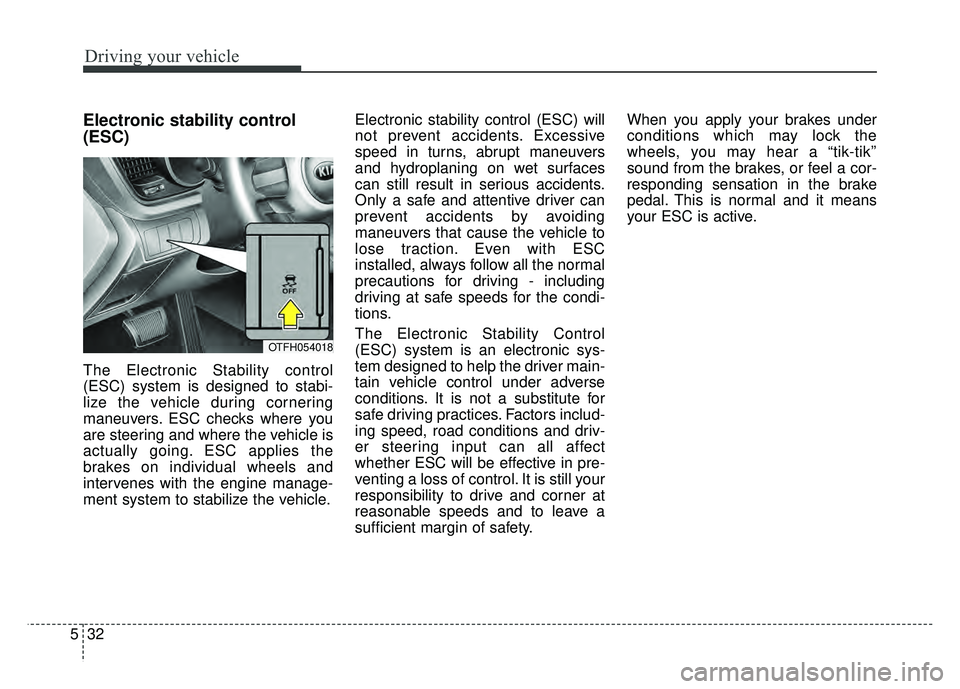
Electronic stability control
(ESC)
The Electronic Stability control
(ESC) system is designed to stabi-
lize the vehicle during cornering
maneuvers. ESC checks where you
are steering and where the vehicle is
actually going. ESC applies the
brakes on individual wheels and
intervenes with the engine manage-
ment system to stabilize the vehicle. Electronic stability control (ESC) will
not prevent accidents. Excessive
speed in turns, abrupt maneuvers
and hydroplaning on wet surfaces
can still result in serious accidents.
Only a safe and attentive driver can
prevent accidents by avoiding
maneuvers that cause the vehicle to
lose traction. Even with ESC
installed, always follow all the normal
precautions for driving - including
driving at safe speeds for the condi-
tions.
The Electronic Stability Control
(ESC) system is an electronic sys-
tem designed to help the driver main-
tain vehicle control under adverse
conditions. It is not a substitute for
safe driving practices. Factors includ-
ing speed, road conditions and driv-
er steering input can all affect
whether ESC will be effective in pre-
venting a loss of control. It is still your
responsibility to drive and corner at
reasonable speeds and to leave a
sufficient margin of safety.When you apply your brakes under
conditions which may lock the
wheels, you may hear a “tik-tik’’
sound from the brakes, or feel a cor-
responding sensation in the brake
pedal. This is normal and it means
your ESC is active.
OTFH054018
Page 310 of 495
Driving your vehicle
36
5
The HAC does not operate when
the transaxle shift lever is in the P
(Park) or N (Neutral) position.
The HAC activates even though the ESC is off but it does not acti-
vate when the ESC has malfunc-
tioned.
Vehicle stability management
(VSM)
This system provides further
enhancements to vehicle stability
and steering responses when a vehi-
cle is driving on a slippery road or a
vehicle detected changes in coeffi-
cient of friction between right wheels
and left wheels when braking.
VSM operation
When the vehicle stability manage-
ment is operating properly, you can
feel a slight pulsation in the vehicle.
This is only the effect of brake control
and indicates nothing unusual. The VSM does not operate when:
Driving on bank road such as gra-
dient or incline
Driving rearward
ESC OFF indicator light ( ) remains on the instrument
cluster
EPS (Electronic Power Steering) indicator light remains on the
instrument clusterVSM operation off
If you press the ESC OFF button to
turn off the ESC, the VSM will also
cancel and the ESC OFF indicator
light ( ) illuminates.
To turn on the VSM, press the button
again. The ESC OFF indicator light
goes out.
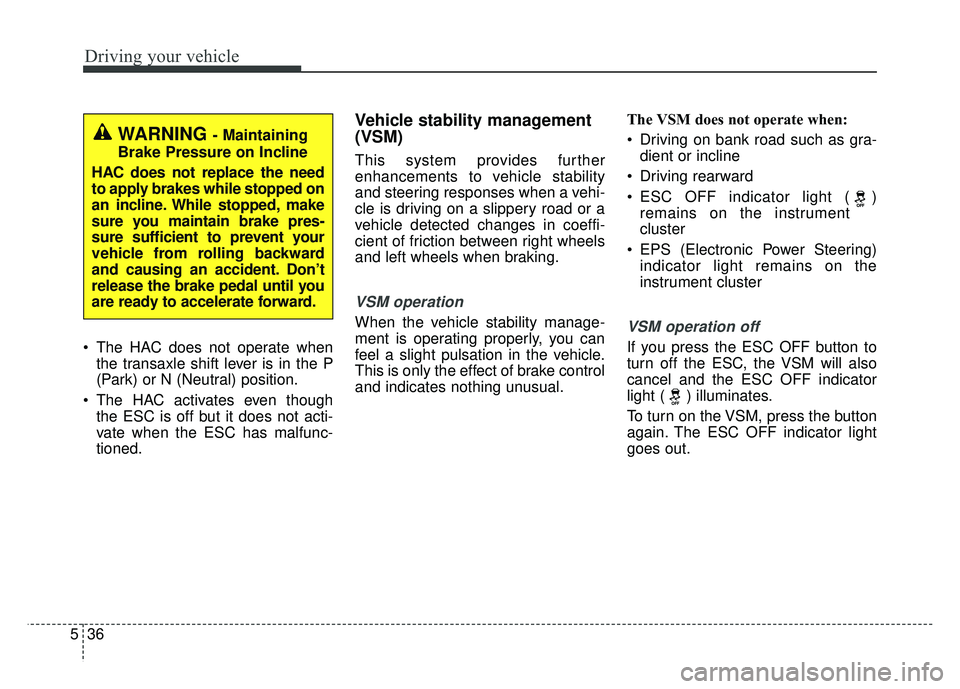
WARNING - Maintaining
Brake Pressure on Incline
HAC does not replace the need
to apply brakes while stopped on
an incline. While stopped, make
sure you maintain brake pres-
sure sufficient to prevent your
vehicle from rolling backward
and causing an accident. Don’t
release the brake pedal until you
are ready to accelerate forward.