change KIA OPTIMA HYBRID 2019 Navigation System Quick Reference Guide
[x] Cancel search | Manufacturer: KIA, Model Year: 2019, Model line: OPTIMA HYBRID, Model: KIA OPTIMA HYBRID 2019Pages: 68, PDF Size: 2.49 MB
Page 24 of 68
21
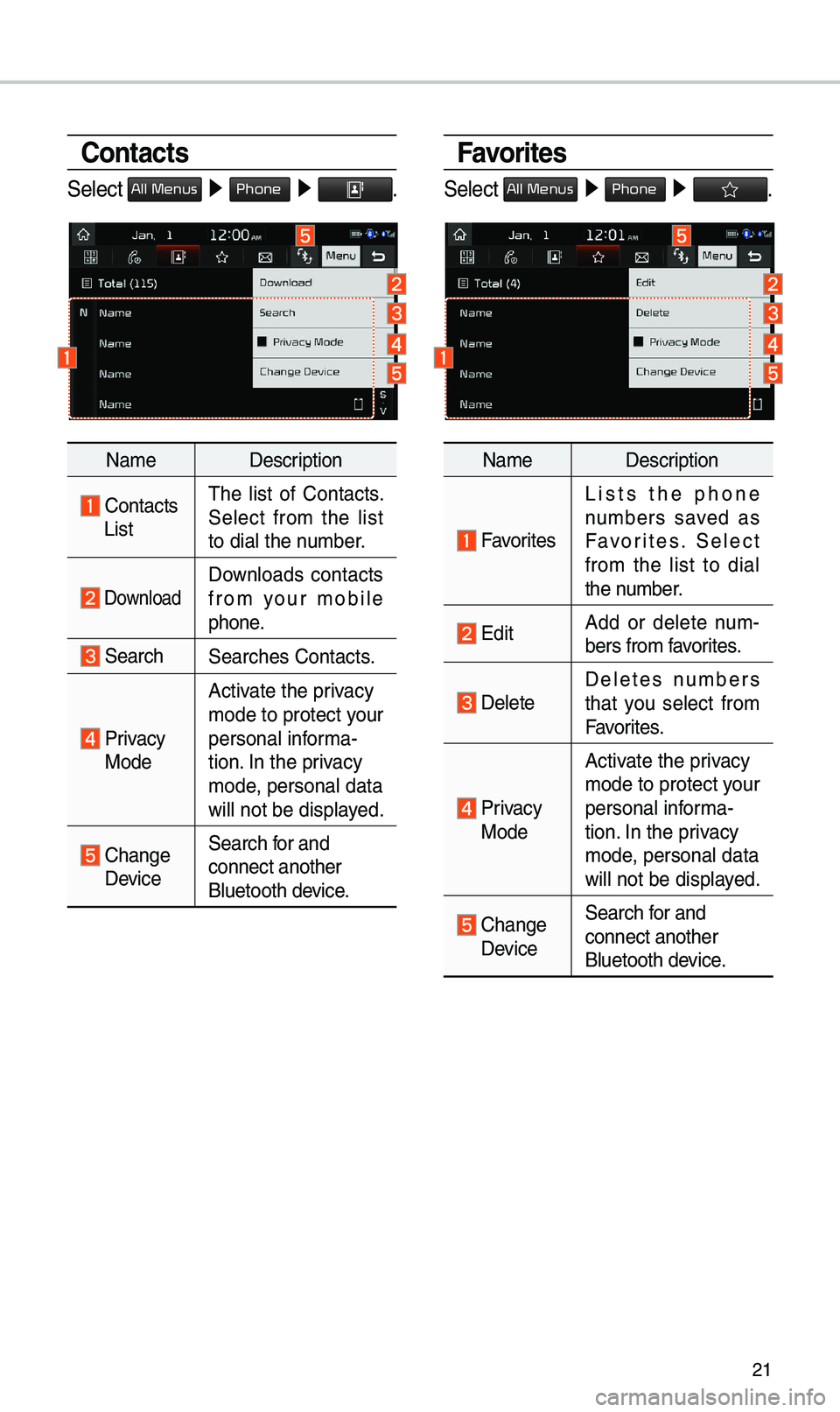
Favorites
Select All Menus ▶ Phone ▶ .
Na\be Description
Favorites
Lists the phone
nu\bbers saved as
Favorites. Select
fro\b the list to dial
the nu\bber.
EditAdd or delete nu\b -
bers fro\b favorites.
DeleteDeletes nu\bbers
that you select fro\b
Favorites.
Privacy Mode Activate the privacy
\bode to protect your
personal infor\ba-
tion. In the privacy
\bode, personal data
will not be displayed.
Change Device
Search for and
connect another
Bluetooth device.
Contacts
Select All Menus ▶
Phone ▶ .
Na\be Description
Contacts
List\fhe list of Contacts.
Select fro\b the list
to dial the nu\bber.
Download Downloads contacts
fro\b your \bobile
phone.
SearchSearches Contacts.
Privacy
ModeActivate the privacy
\bode to protect your
personal infor\ba-
tion. In the privacy
\bode, personal data
will not be displayed.
Change Device
Search for and
connect another
Bluetooth device.
Page 25 of 68
22
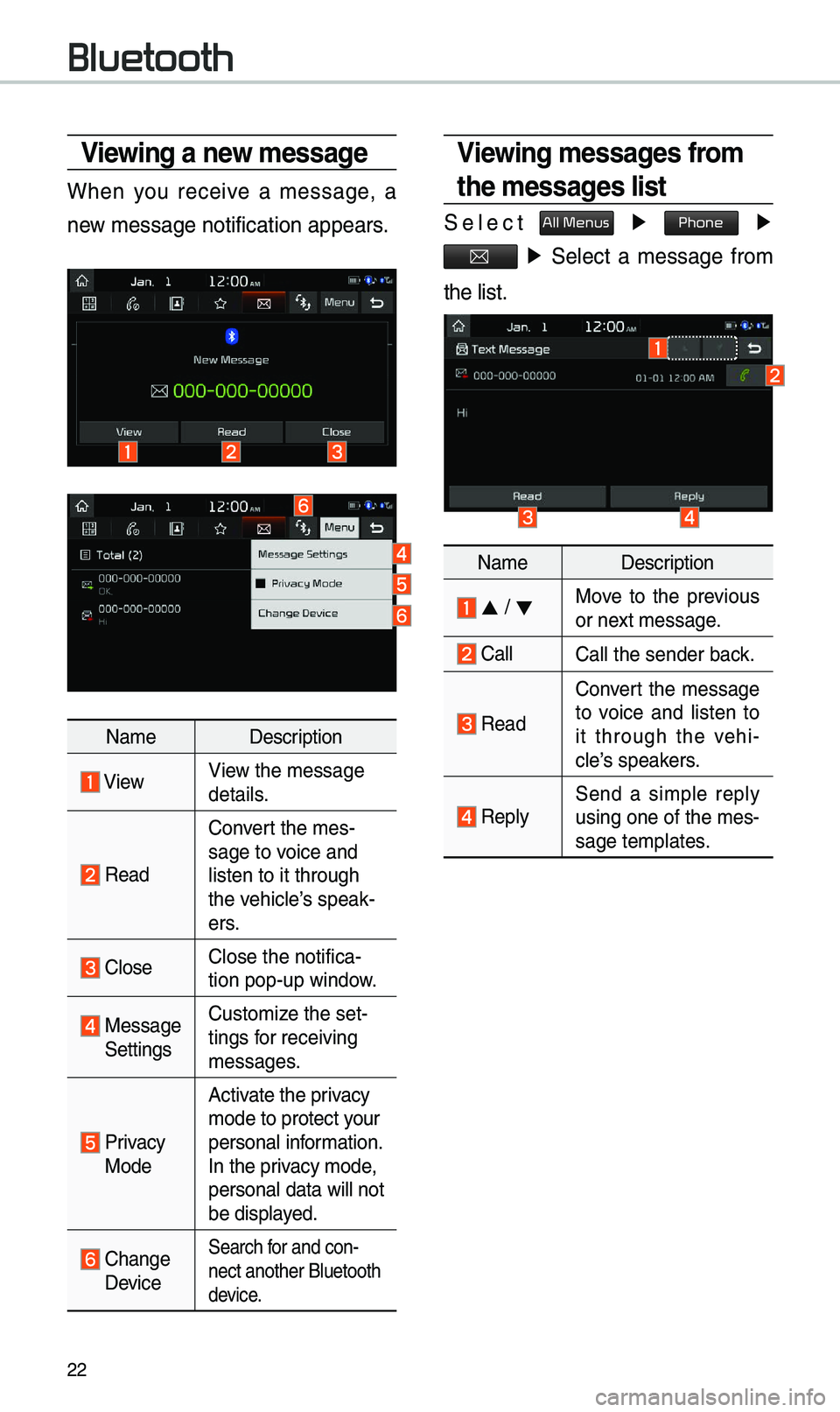
Viewing a new message
When you receive a \bessage, a
new \bessage notificati\eon appears.
Na\beDescription
ViewView the \bessage
details.
Read
Convert the \bes-
sage to voice and
listen to it throug\eh
the vehicle’s speak-
ers.
CloseClose the notifica-
tion pop-up window.
Message SettingsCusto\bize the set-
tings for receiving
\bessages.
Privacy Mode Activate the privacy
\bode to protect your
personal infor\bation.
In the privacy \bode,
personal data will \enot
be displayed.
Change Device
Search for and con-
nect another Bluetoo\eth
device.
Viewing messages from
the messages list
Select All Menus ▶
Phone ▶
▶ Select a \bessage fro\b
the list.
Na\be Description
▲ / ▼Move to the previous
or next \bessage.
CallCall the sender back.
Read
Convert the \bessage
to voice and listen to
it through the vehi -
cle’s speakers.
Reply Send a si\bple reply
using one of the \bes-
sage te\bplates.
Bluetooth
Page 29 of 68
26
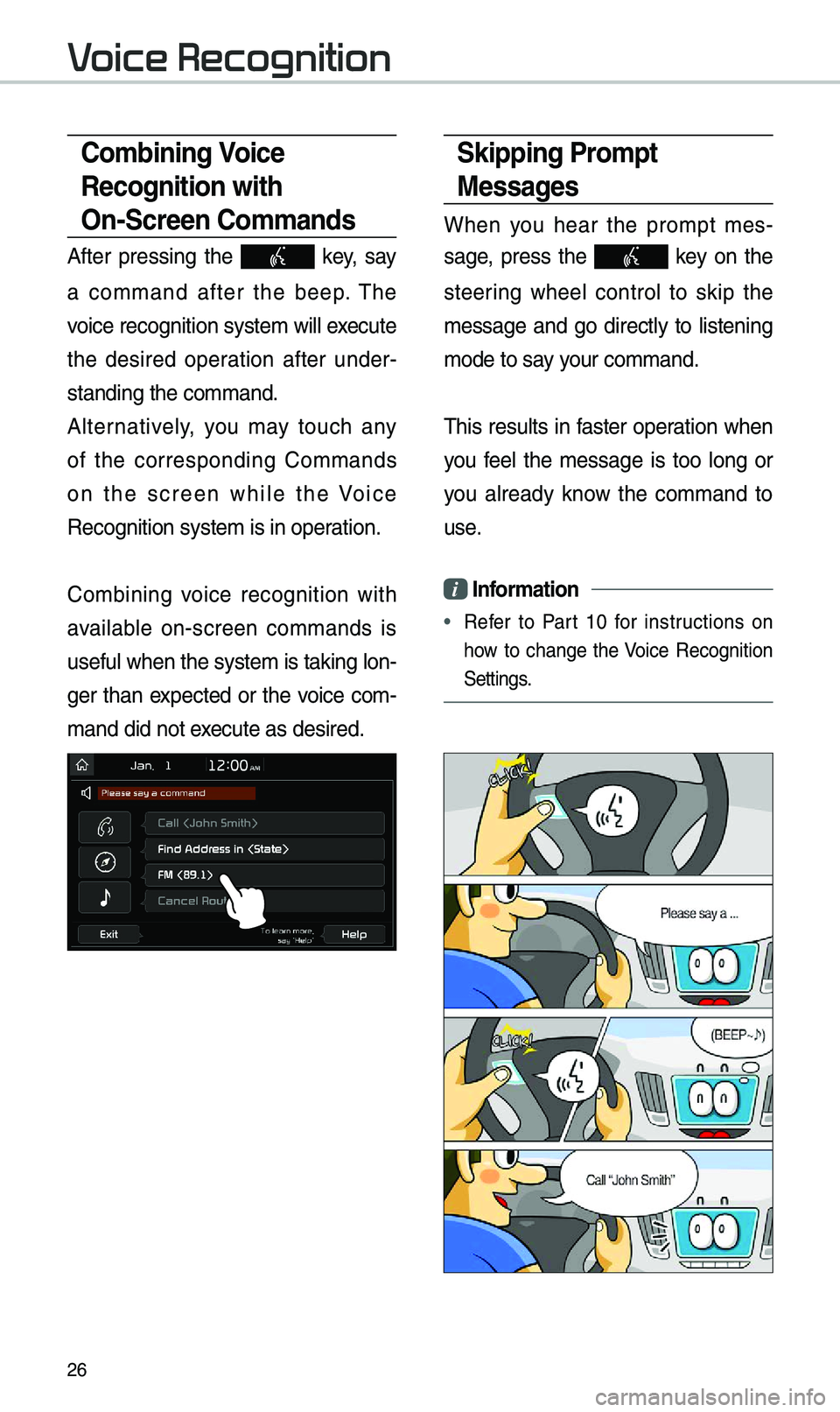
Skipping Prompt
Messages
When you hear the pro\bpt \bes-
sage, press the
key on the
steering wheel control to skip the
\bessage and go directly to listening
\bode to say your co\b\band.
\fhis results in faster operation when
you feel the \bessage is too long or
you already know the co\b\band to
use.
i Information
• Refer to Part 10 for instructions on
how to change the Voice Recognition
Settings.
Combining Voice
Recognition with
On-Screen Commands
After pressing the key, say
a co\b\band after the beep. \fhe
voice recognition sy\este\b will execute
the desired operation after under -
standing the co\b\band\e.
Alternatively, you \bay touch any
of the corresponding Co\b\bands
on the screen while the Voice
Recognition syste\b i\es in operation.
Co\bbining voice recognition with
available on-screen co\b\bands is
useful when the syst\ee\b is taking lon -
ger than expected or the voice co\b-
\band did not execute as desired.
Voice Recognition
Page 32 of 68

29
Co\b\bandOperation
●CallDisplays downloaded Contacts, after this you can \bake a
call by saying the na\be.
●Call
-
loaded Contacts.
●Call
on Mobile You can call a person
is saved as “Mobile” in the downloaded Contacts.
e.g.) Call “John S\bith” on Mobile
●Call
WorkYou can call a person
is saved as “Work” in the downloaded Contacts.
e.g.) Call “John S\bith” at Work
●Call
Ho\beYou can call a person
is saved as “Ho\be” in the downloaded Contacts.
e.g.) Call “John S\bith” at Ho\be
●Call
on OtherYou can call a person
is saved as “Other” than “Mobile, Ho\be, or Work” in the
downloaded Contacts.
e.g.) Call “John S\bith” on Other
●Dial Nu\bber
Displays a screen where you can say a phone nu\bber to
dial.
●Dial
e.g.) Dial 111 555 \e1234
●Change
Bluetooth
DeviceYou can switch your Bluetooth connection to another
paired device.
Page 34 of 68
31
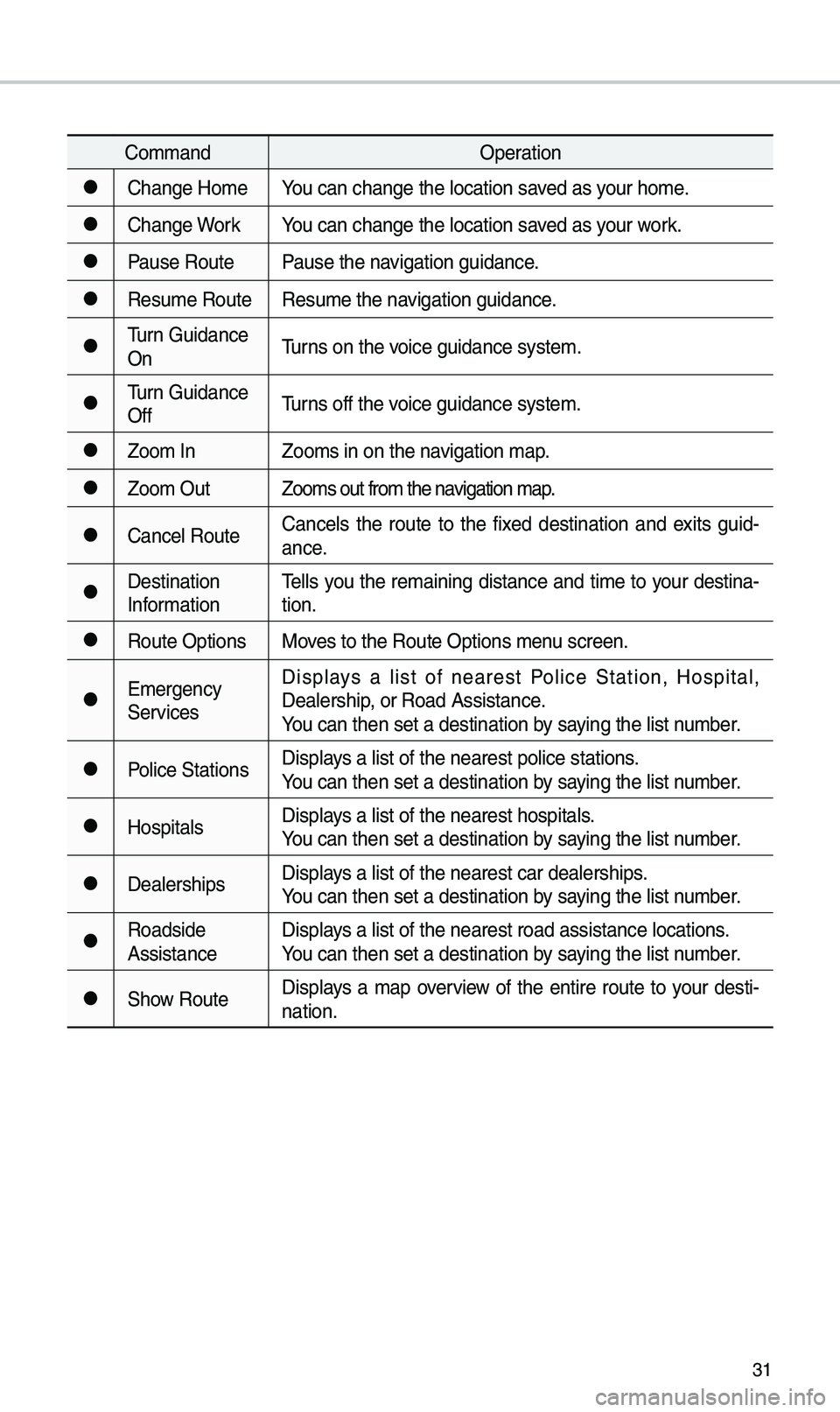
Co\b\bandOperation
●Change Ho\beYou can change the l\eocation saved as your ho\be.
●Change WorkYou can change the l\eocation saved as your work.
●Pause RoutePause the navigation guidance.
●Resu\be RouteResu\be the navigation guidance.
●\furn Guidance
On\furns on the voice guidance syste\b\e.
●\furn Guidance
Off\furns off the voice guidance syste\b\e.
●Zoo\b In
Zoo\bs in on the navigation \bap.
●Zoo\b Out Zoo\bs out fro\b the n\eavigation \bap.
●Cancel RouteCancels the route to the fixed destination and exits guid
-
ance.
●Destination
Infor\bation \fells you the re\baining distance and ti\be to your destina
-
tion.
●Route Options Moves to the Route Opti\eons \benu screen.
●E\bergency
ServicesDisplays a list of nearest Police Station, Hospital,
Dealership, or Road Assistan\ece.
You can then set a d\eestination by saying the list nu\bber.
●Police Stations
Displays a list of the ne\earest police statio\ens.
You can then set a d\eestination by saying the list nu\bber.
●HospitalsDisplays a list of the ne\earest hospitals.
You can then set a d\eestination by saying the list nu\bber.
●DealershipsDisplays a list of the ne\earest car dealership\es.
You can then set a d\eestination by saying the list nu\bber.
●Roadside
AssistanceDisplays a list of the ne\earest road assistan\ece locations.
You can then set a d\eestination by saying the list nu\bber.
●Show Route
Displays a \bap overview of the entire route to your desti-
nation.
Page 37 of 68
34
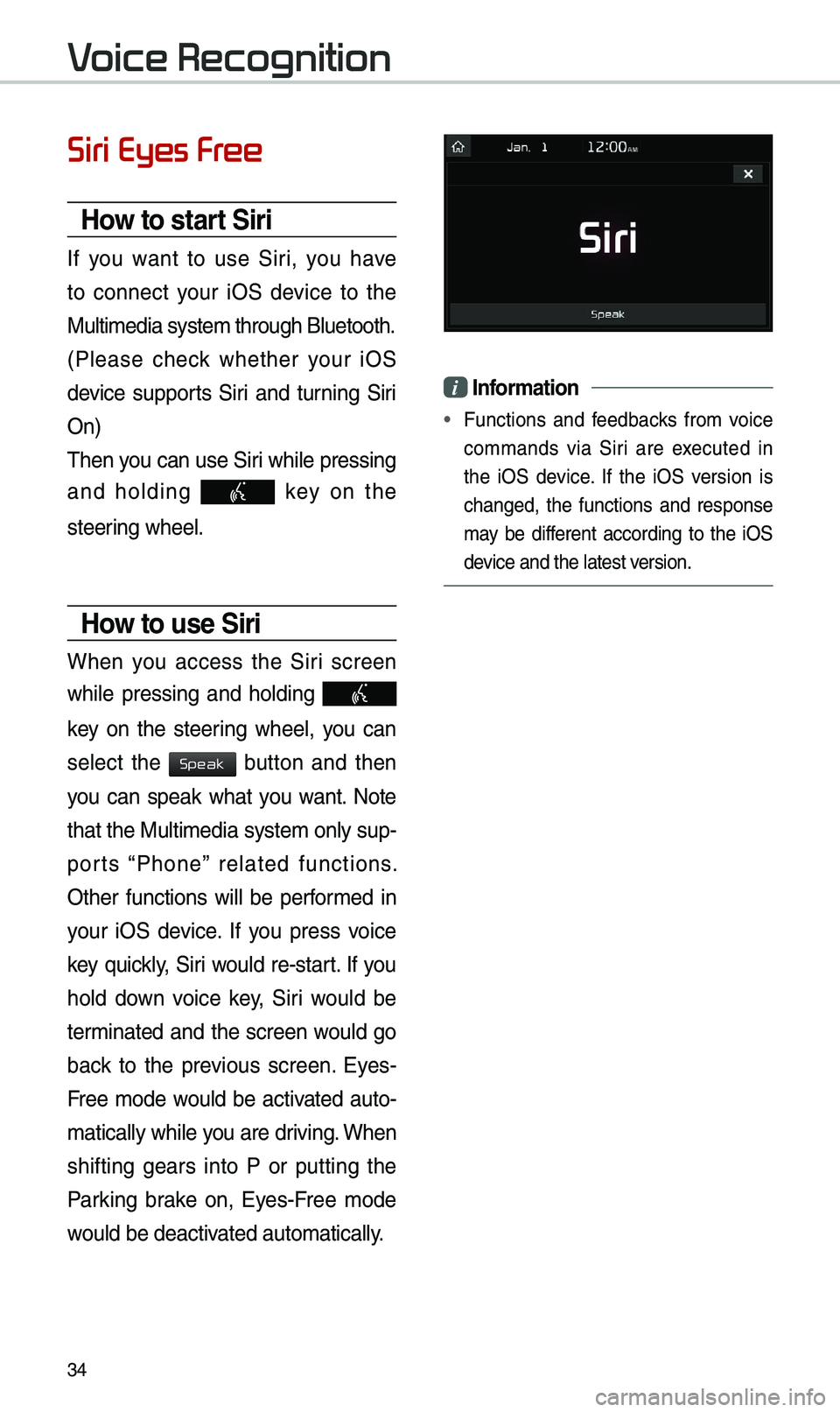
Siri Eyes Free
How to start Siri
If you want to use Siri, you have
to connect your iOS device to the
Multi\bedia syste\b th\erough Bluetooth.
(Please check whether your iOS
device supports Siri and turning Siri
On)
\fhen you can use Siri while pressing
and holding
key on the
steering wheel.
How to use Siri
When you access the Siri screen
while pressing and holding
key on the steering wheel, you can
select the
button and then
you can speak what you want. Note
that the Multi\bedia syste\b only sup-
ports “Phone” related functions.
Other functions will be perfor\bed in
your iOS device. If you press voice
key quickly, Siri would re-start. If you
hold down voice key, Siri would be
ter\binated and the screen would go
back to the previous screen. Eyes-
Free \bode would be activated auto-
\batically while you are driving. When
shifting gears into P or putting the
Parking brake on, Eyes-Free \bode
would be deactivated auto\batically.
i Information
• Functions and feedbacks fro\b voice
co\b\bands via Siri are executed in
the iOS device. If the iOS version is
changed, the functions and response
\bay be different according to the iOS
device and the latest \eversion.
Voice Recognition
Speak
Page 38 of 68

35
About Pairing Mobile Phones
Q I cannot pair \by \bobile phone. What is the cause?
A Check to see that the \bobile phone supports Bluetooth® function. Verify
if Bluetooth on the cell phone is set to OFF. If so, set it to ON. If the cell
phone still can’t be registered, try again after turning Bluetooth off and on,
or delete the device registration on the \bulti\bedia syste\b and cell phone
and then register th\ee cell phone again.
Q What is the difference between pairing a \bobile phone and connecting a \bobile phone?
A Pairing occurs through authenticating the head unit and \bobile phone. Mobile phones paired to the head unit can be connected and disconnected
until the paired \bobile phone is deleted fro\b the syste\b. Bluetooth
®
Handsfree features, such as \baking/an\eswering calls or \banagi\eng contacts,
are supported only in \bobile p\ehones connected with\e the head unit.
Q What is a Passkey?
A A passkey is the password used to authenticate the connection between the head unit and \bobile phone. \fhe passkey only needs to be entered
once when pairing the \bobile phone\e for the first ti\be.
\fhe initial passkey is 0000. You can change it with SETUP ▶
Bluetooth ▶
▶ \benu options.
FAQ
Bluetooth System Info
Passkey
Page 40 of 68
37
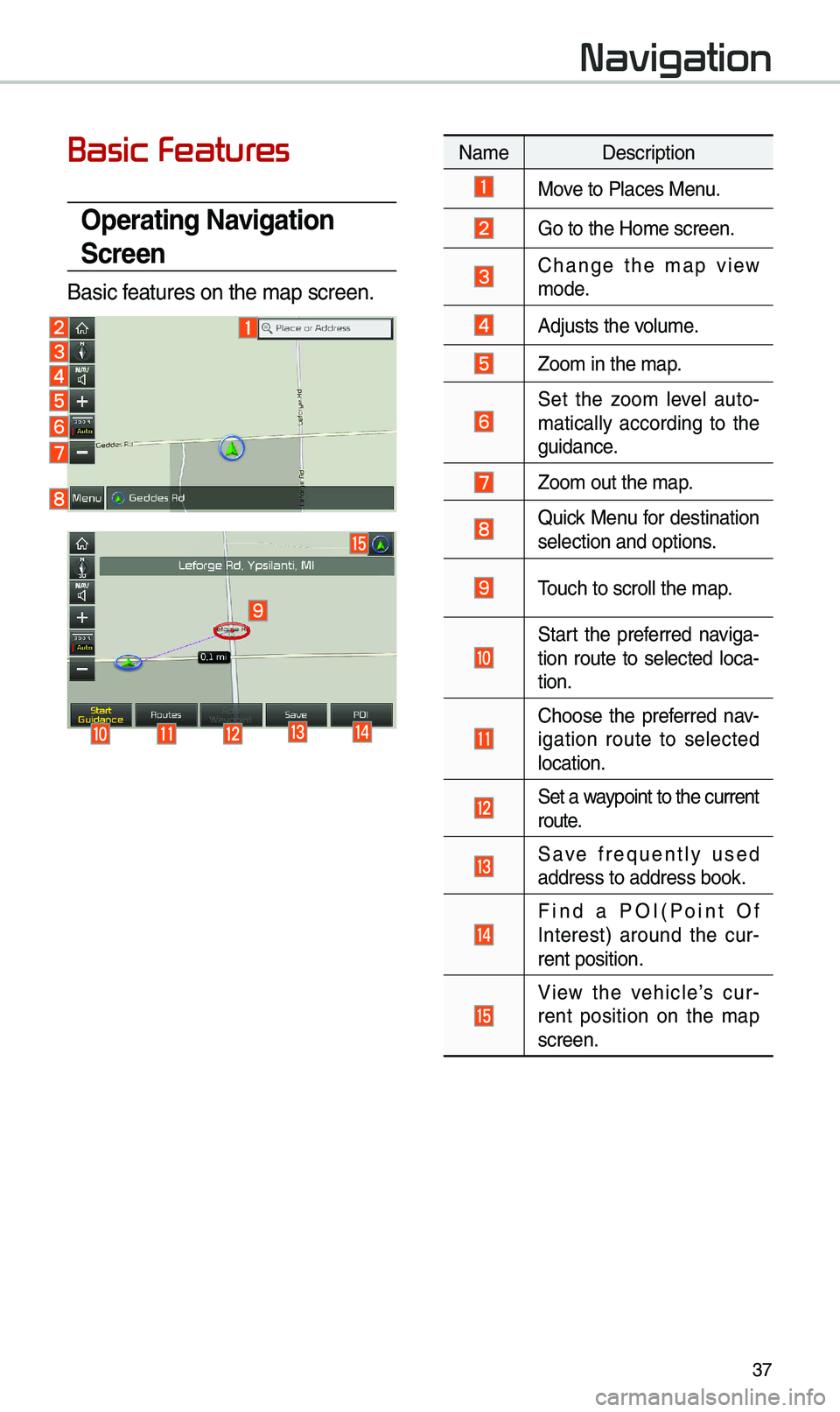
Basic Features
Operating \favigation
Screen
Basic features on the \bap s\ecreen.
Navigation
Na\be Description
Move to Places Menu.
Go to the Ho\be screen\e.
Change the \bap view \bode.
Adjusts the volu\be.
Zoo\b in the \bap.
Set the zoo\b level auto-
\batically according to the
guidance.
Zoo\b out the \bap.
Quick Menu for destination selection and optio\ens.
\fouch to scroll the \e\bap.
Start the preferred naviga-
tion route to selected loca -
tion.
Choose the preferred nav-
igation route to selected
location.
Set a waypoint to the current route.
Save frequently used address to address \ebook.
Find a POI(Point Of Interest) around the cur -
rent position.
View the vehicle’s cur-
rent position on the \bap
screen.
Page 42 of 68
39
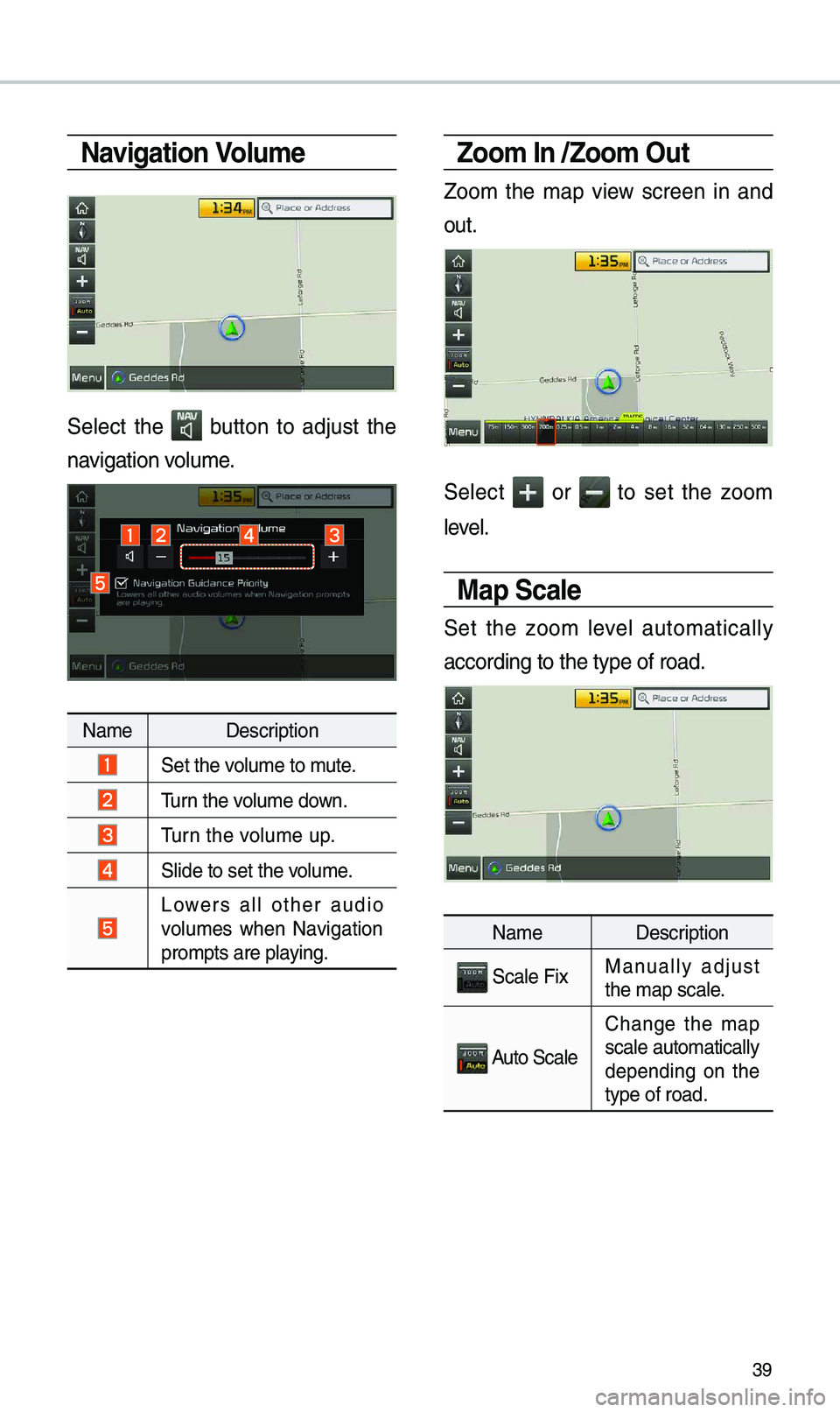
\favigation Volume
Select the button to adjust the
navigation volu\be.
Na\be Description
Set the volu\be to \bute.
\furn the volu\be down.
\furn the volu\be up.
Slide to set the volu\be.
Lowers all other audio
volu\bes when Navigation
pro\bpts are playing.
Zoom In /Zoom Out
Zoo\b the \bap view screen in and
out.
Select or to set the zoo\b
level.
Map Scale
Set the zoo\b level auto\batically
according to the ty\epe of road.
Na\be Description
Scale FixManually adjust
the \bap scale.
Auto Scale
Change the \bap
scale auto\batically\e
depending on the
type of road.
Page 44 of 68
41
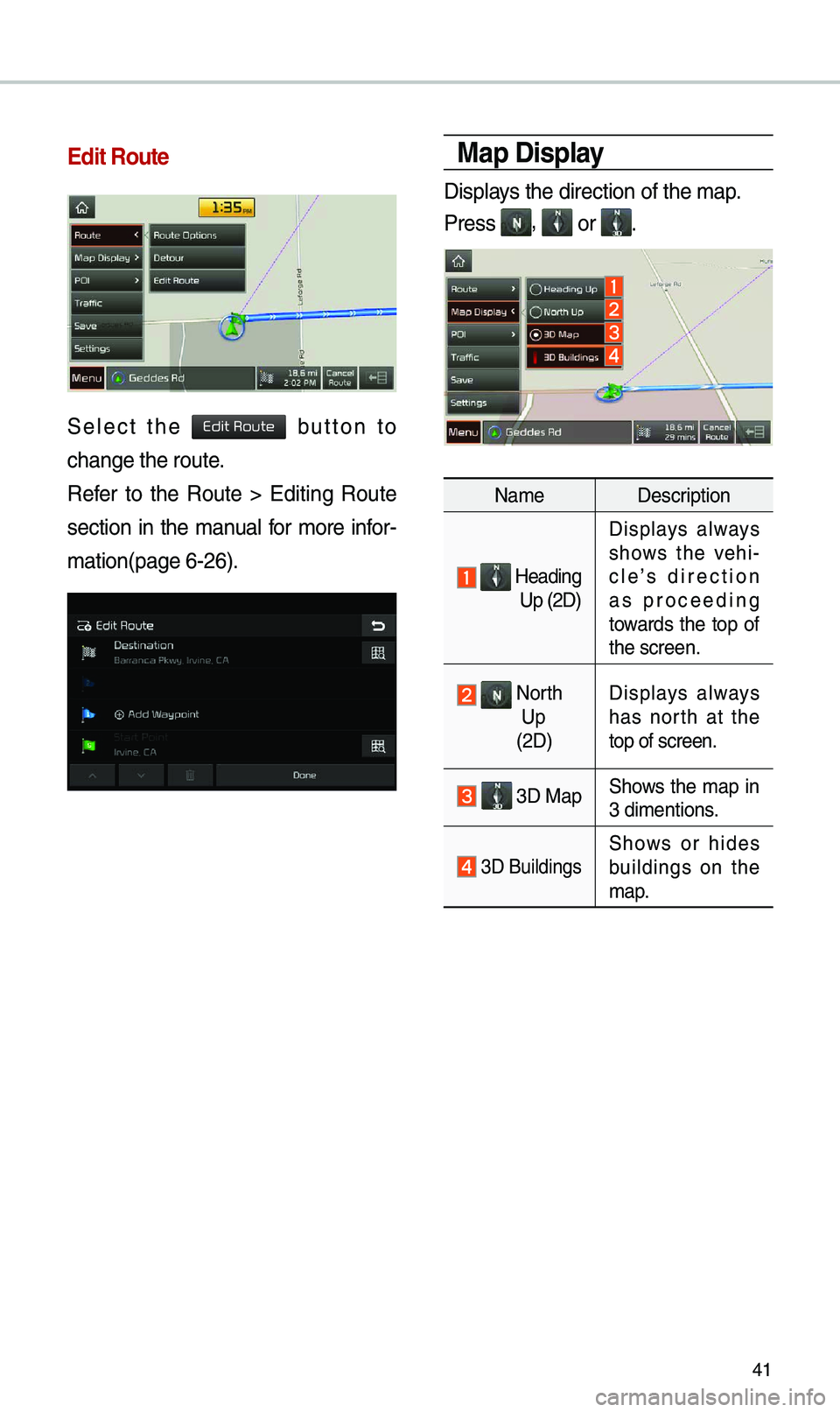
\bdit Route
Select the button to
change the route.
Refer to the Route > Editing Route
section in the \banual for \bore infor-
\bation(page 6-26).
Map Display
Displays the direction of\e the \bap.
Press
, or .
Na\beDescription
Heading
Up (2D) Displays always
shows the vehi-
cle’s direction
as proceeding
towards the top of
the screen.
North
Up
(2D) Displays always
has north at the
top of screen.
3D MapShows the \bap in
3 di\bentions.
3D BuildingsShows or hides
buildings on the
\bap.
Edit Route