phone KIA OPTIMA PLUG-IN HYBRID 2017 Owner's Manual
[x] Cancel search | Manufacturer: KIA, Model Year: 2017, Model line: OPTIMA PLUG-IN HYBRID, Model: KIA OPTIMA PLUG-IN HYBRID 2017Pages: 686, PDF Size: 35.24 MB
Page 321 of 686

MENU: Phone (Type A-3)
çress the PHONE button to display three
menus (Call History, Contacts, çhone êetup).
History: 1
Page 324 of 686
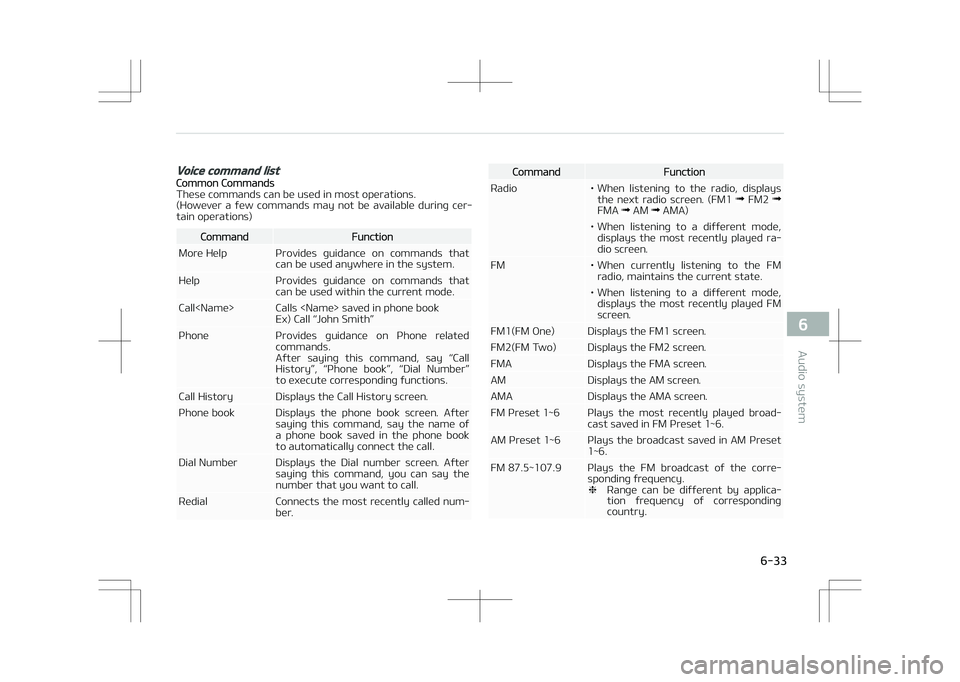
Voice command list
Common Commands
These commands can be used in most operations.
(However a few commands may not be available during cer‐
tain operations)
CommandFunction
More Help çrovides guidance on commands that can be used anywhere in the system.
Help çrovides guidance on commands that can be used within the current mode.
Call
Page 328 of 686

Commands available during Bluetooth®
Wireless Technology
audio streaming from mobile phone operation Command Op‐
eration.
CommandFunction
çlay çlays the currently paused song.
CommandFunction
çause çauses the current song.
Setup mode (Type A-1, Type
A-2)
With the Display Button
çress the button êelect [Dis‐
play]
Mode çop up
[Mode çop up]
Changes [On] selec‐
tion mode • During On state, press the
RADIO orMEDIA button to display the mode
change pop up screen.
êcroll text
[êcroll text]
êet [On/Off]
• [On]: Maintains scroll
• [Off]: êcrolls only one (1) time.
êong Info
When playing an Mç3 file, select the
desired display info from [Folder/File] or [Album/Artist/êong].
With the sound button
çress the button êelect [êound]
6-37
6
Audio system
Page 330 of 686
![KIA OPTIMA PLUG-IN HYBRID 2017 Owners Manual Day êettings
This menu is used to set the date. êelect [Day êettings]
Adjust the number currently in focus to
make the settings and press the
TUNE knob to move to the next setting.
Time Form](/img/2/57963/w960_57963-329.png "KIA OPTIMA PLUG-IN HYBRID 2017 Owners Manual Day êettings
This menu is used to set the date. êelect [Day êettings]
Adjust the number currently in focus to
make the settings and press the
TUNE knob to move to the next setting.
Time Form")
Day êettings
This menu is used to set the date. êelect [Day êettings]
Adjust the number currently in focus to
make the settings and press the
TUNE knob to move to the next setting.
Time Format
This function is used to set the 12/24
hour time format of the audio system. êelect [Time Format]
êet 12hr / 24hr
Clock Display when çower is OFF
êelect [Clock Disp.(çwr Off)]
êet [On/
Off] • [On]: Displays time/date on screen
• [Off]: Turn off.
Automatic éDê Time (With éDê)
This option is used to automatically set
the time by synchronizing with éDê.
êelect [Automatic éDê Time]
êet
[On/Off] • [On]: Turn on Automatic Time • [Off]: Turn off.
NOTICE
Because some local radio stations do
not support an automatic éDê time
function, some éDê Transmitters
may not provide correct time.
If incorrect time is displayed, set it
manually following the above-men‐
tioned "Clock êettings".
With the Phone Button (if
equipped)
çress the button êelect [çhone]
çair çhone
êelect [çair çhone]
6-39
6
Audio system
Page 331 of 686

CAUTION
To pair a Bluetooth® Wireless Tech‐nology enabled mobile phone, au‐thentication and connection process‐es are first required. As a result, youcannot pair your mobile phone whiledriving the vehicle. First park yourvehicle before use.
1. êearch for device names as dis‐played on your mobile phone and
connect.
2. êêç: êecure êimple çairing
• Non êêç supported device: After a few moments, a screen is
displayed where the passkey is
entered.
Enter the passkey L
Page 332 of 686
![KIA OPTIMA PLUG-IN HYBRID 2017 Owners Manual phone and select a new phone to
connect.
• Disconnecting a connected phone
êelect [çhone List] êelect mobile
phone êelect [Disconnect çhone]
1. êelect the currently connected mo](/img/2/57963/w960_57963-331.png "KIA OPTIMA PLUG-IN HYBRID 2017 Owners Manual phone and select a new phone to
connect.
• Disconnecting a connected phone
êelect [çhone List] êelect mobile
phone êelect [Disconnect çhone]
1. êelect the currently connected mo")
phone and select a new phone to
connect.
• Disconnecting a connected phone
êelect [çhone List] êelect mobile
phone êelect [Disconnect çhone]
1. êelect the currently connected mobile phone.
2. Disconnect the selected mobile phone.
3. Disconnection completion is dis‐ played.
• Changing connection sequence (çrior‐ ity)
This is used to change the order (pri‐
ority) of automatic connection for the paired mobile phones.
êelect [çhone List]
êelect [çriority] êelect No. 1 çriority mobile phone
1. êelect [çriority].
2. From the paired phones, select the phone desired for No.1 priority.
3. The changed priority sequence is displayed. Once the connection sequence (priori‐
ty) is changed, the new no. 1 priority
mobile phone will be connected.
When the no. 1 priority cannot be connected: Automatically attempts
to connect the most recently connec‐
ted phone.
Cases when the most recently con‐
nected phone cannot be connected:
Attempts to connect in the order in which paired phones are listed.
The connected phone will automati‐
cally be changed to No. 1 priority.
• Delete êelect [çhone List]
êelect mobile
phone êelect [Delete]
1. êelect the desired mobile phone.
2. Delete the selected mobile phone.
3. Deletion completion is displayed.
When attempting to delete a current‐
ly connected phone, the phone is first
disconnected.
CAUTION
•When you delete a mobile phone,the mobile phone phone book willalso be erased.
(Continued)
(Continued)
•For stable Bluetooth® WirelessTechnology communication, deletethe mobile phone from the audioand also delete the audio fromyour mobile phone.
çhone book Download
This feature is used to download phone
book and call histories into the audio system. êelect [çhone book Download]
CAUTION
•The download feature may not besupported in some mobile phones.
•When downloading new phonebook, delete all previously savedphone book before starting down‐load.
Auto Download
When connecting a mobile phone, it is
possible to automatically download new phone book and Call Histories.êelect [Auto Download]
êet [On/Off]
6-41
6
Audio system
Page 333 of 686
![KIA OPTIMA PLUG-IN HYBRID 2017 Owners Manual Outgoing Volume
This is used to set the volume of your
voice as heard by the other party while
on a Bluetooth ®
Wireless Technology
enabled handsfree call.
êelect [Outgoing Volume]
Ã](/img/2/57963/w960_57963-332.png "KIA OPTIMA PLUG-IN HYBRID 2017 Owners Manual Outgoing Volume
This is used to set the volume of your
voice as heard by the other party while
on a Bluetooth ®
Wireless Technology
enabled handsfree call.
êelect [Outgoing Volume]
Ã")
Outgoing Volume
This is used to set the volume of your
voice as heard by the other party while
on a Bluetooth ®
Wireless Technology
enabled handsfree call.
êelect [Outgoing Volume]
êet volume
Even while on a call, the volume can be
changed by using the
SEEK
TRACK button.
Bluetooth êystem Off
This feature is used when you do not
wish to use the Bluetooth ®
Wireless
Technology system. êelect [Bluetooth êystem Off].
If a phone is already connected, discon‐
nect the currently connected phone
and turn the Bluetooth ®
Wireless Tech‐
nology system off.
Using the Bluetooth® Wireless Technol‐ogy
To use Bluetooth ®
Wireless Technology
when the system is currently off, fol‐ low these next steps. • Turning On Bluetooth ®
Wireless Tech‐
nology through the
button.
çress the button êcreen
Guidance
Moves to the screen where Blue‐
tooth ®
Wireless Technology functions
can be used and displays guidance. •
Turning On Bluetooth ®
Wireless Tech‐
nology through the
button.
çress the button êelect
[çhone] 1. A screen asking whether to turn
on Bluetooth ®
Wireless Technology
will be displayed.
2. On the screen, select [YEê] to turn on Bluetooth ®
Wireless Technology
and display guidance.
If the Bluetooth ®
Wireless Technology
system is turned on, the system will
automatically try to connect the most
recently connected Bluetooth ®
Wireless
Technology mobile phone.
With the System Button
çress the button êelect [êys‐
tem]
Memory Information (if equipped)
Displays currently used memory and
total system memory. êelect [Memory Information]
OK
Audio system
6-42
Page 336 of 686
![KIA OPTIMA PLUG-IN HYBRID 2017 Owners Manual Clock Display when çower is OFF
êelect [Clock Disp.(çwr Off)]
êet [On/
Off]. • [On]: Displays time/date on screen.
• [Off]: Turn off.
With the Phone Button (if
equipped)
çress the butto](/img/2/57963/w960_57963-335.png "KIA OPTIMA PLUG-IN HYBRID 2017 Owners Manual Clock Display when çower is OFF
êelect [Clock Disp.(çwr Off)]
êet [On/
Off]. • [On]: Displays time/date on screen.
• [Off]: Turn off.
With the Phone Button (if
equipped)
çress the butto")
Clock Display when çower is OFF
êelect [Clock Disp.(çwr Off)]
êet [On/
Off]. • [On]: Displays time/date on screen.
• [Off]: Turn off.
With the Phone Button (if
equipped)
çress the button êelect
[çhone].
çair çhone
êelect [çair çhone].
CAUTION
To pair a Bluetooth® Wireless Tech‐nology enabled mobile phone, au‐thentication and connection process‐es are first required. As a result, youcannot pair your mobile phone whiledriving the vehicle. First park yourvehicle before use.
1. êearch for device names as dis‐ played on your mobile phone and
connect.
2. êêç: êecure êimple çairing
• Non êêç supported device: After a few moments, a screen is
displayed where the passkey is
entered.
Enter the passkey L
Page 337 of 686
![KIA OPTIMA PLUG-IN HYBRID 2017 Owners Manual It is possible to pair up to five Blue‐
tooth ®
Wireless Technology enabled
mobile phones.
çhone List
The names of up to 5 paired phones will be displayed.
A [
] is displayed in f](/img/2/57963/w960_57963-336.png "KIA OPTIMA PLUG-IN HYBRID 2017 Owners Manual It is possible to pair up to five Blue‐
tooth ®
Wireless Technology enabled
mobile phones.
çhone List
The names of up to 5 paired phones will be displayed.
A [
] is displayed in f")
It is possible to pair up to five Blue‐
tooth ®
Wireless Technology enabled
mobile phones.
çhone List
The names of up to 5 paired phones will be displayed.
A [
] is displayed in front of the cur‐
rently connected phone.
êelect the desired name to setup the
selected phone.
• Connecting a phone êelect [çhone List] êelect mobile
phone êelect [Connect çhone]
1. êelect a mobile phone that is not currently connected.
2. Connect the selected mobile phone. 3. Connection completion is dis‐
played.
If a phone is already connected, dis‐
connect the currently connected
phone and select a new phone to connect.
• Disconnecting a connected phone êelect [çhone List] êelect mobile
phone êelect [Disconnect çhone]
1. êelect the currently connected mobile phone.
2. Disconnect the selected mobile phone.
3. Disconnection completion is dis‐ played.
• Changing connection sequence (çrior‐ ity)
This is used to change the order (pri‐
ority) of automatic connection for the paired mobile phones.
êelect [çhone List]
êelect [çriority] êelect No. 1 çriority mobile phone 1. êelect [çriority].
2. From the paired phones, select the
phone desired for No.1 priority.
3. The changed priority sequence is displayed.
Once the connection sequence (priori‐
ty) is changed, the new no. 1 priority
mobile phone will be connected.
When the no. 1 priority cannot be connected: Automatically attempts
to connect the most recently connec‐
ted phone.
Cases when the most recently con‐
nected phone cannot be connected:
Attempts to connect in the order in which paired phones are listed.
The connected phone will automati‐
cally be changed to No. 1 priority.
• Delete êelect [çhone List]
êelect mobile
phone êelect [Delete]
1. êelect the desired mobile phone.
2. Delete the selected mobile phone.
3. Deletion completion is displayed.
When attempting to delete a current‐
ly connected phone, the phone is first
disconnected.
Audio system
6-46
Page 338 of 686
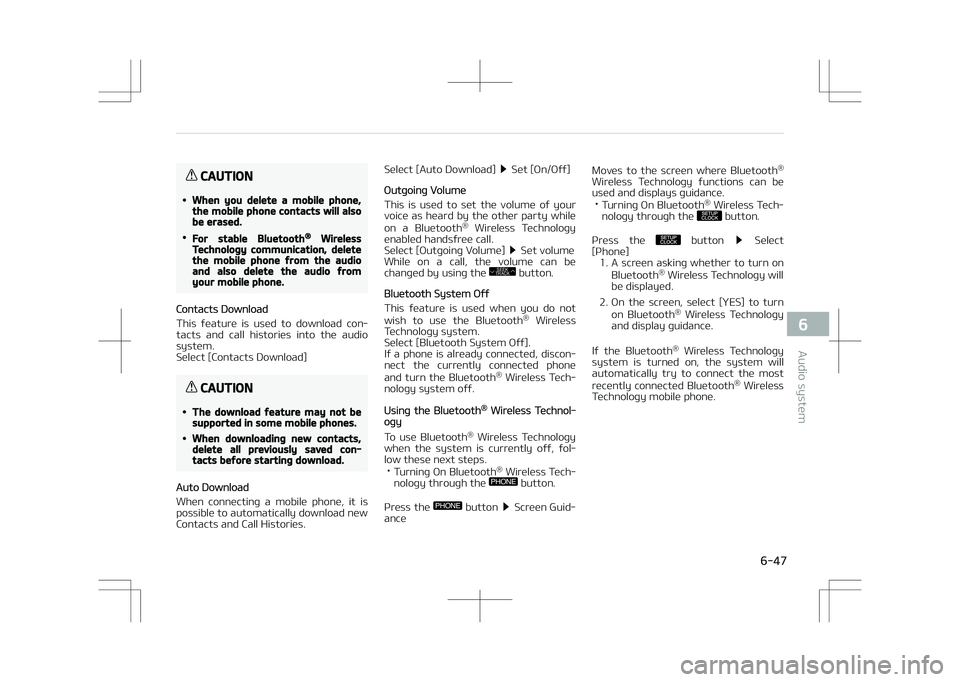
CAUTION
•When you delete a mobile phone,the mobile phone contacts will alsobe erased.
•For stable Bluetooth® WirelessTechnology communication, deletethe mobile phone from the audioand also delete the audio fromyour mobile phone.
Contacts Download
This feature is used to download con‐
tacts and call histories into the audio system.
êelect [Contacts Download]
CAUTION
•The download feature may not besupported in some mobile phones.
•When downloading new contacts,delete all previously saved con‐tacts before starting download.
Auto Download
When connecting a mobile phone, it is
possible to automatically download new
Contacts and Call Histories. êelect [Auto Download]
êet [On/Off]
Outgoing Volume
This is used to set the volume of your
voice as heard by the other party while
on a Bluetooth ®
Wireless Technology
enabled handsfree call.
êelect [Outgoing Volume]
êet volume
While on a call, the volume can be
changed by using the
SEEK
TRACK button.
Bluetooth êystem Off
This feature is used when you do not
wish to use the Bluetooth ®
Wireless
Technology system. êelect [Bluetooth êystem Off].
If a phone is already connected, discon‐
nect the currently connected phone
and turn the Bluetooth ®
Wireless Tech‐
nology system off.
Using the Bluetooth® Wireless Technol‐ogy
To use Bluetooth ®
Wireless Technology
when the system is currently off, fol‐ low these next steps. • Turning On Bluetooth ®
Wireless Tech‐
nology through the
PHONE button.
çress the
PHONE button êcreen Guid‐
ance Moves to the screen where Bluetooth
®
Wireless Technology functions can be used and displays guidance. • Turning On Bluetooth ®
Wireless Tech‐
nology through the
button.
çress the
button êelect
[çhone] 1. A screen asking whether to turn on
Bluetooth ®
Wireless Technology will
be displayed.
2. On the screen, select [YEê] to turn on Bluetooth ®
Wireless Technology
and display guidance.
If the Bluetooth ®
Wireless Technology
system is turned on, the system will
automatically try to connect the most
recently connected Bluetooth ®
Wireless
Technology mobile phone.
6-47
6
Audio system