CD, MP3 KIA PICANTO 2012 Owners Manual
[x] Cancel search | Manufacturer: KIA, Model Year: 2012, Model line: PICANTO, Model: KIA PICANTO 2012Pages: 840, PDF Size: 41.16 MB
Page 217 of 840
Features of your vehicle
144
4
■
Using the head unit as Bluetooth ®
music
This audio system supports A2DP (Audio
Advanced Distribution Profile) and
AVRCP(Audio Video Remote ControlProfile).
Both profiles are available for listening to
the MP3 music via Bluetooth cellular phone
supporting above Bluetooth profiles.
To play MP3 music from the Bluetooth
cellular phone, press the button
until “MP3 Play” is displayed on the LCD.
Then try playing music by phone.
When playing music from the Bluetooth
cellular phone, the head unit displays MP3 MODE. NOTE:
all the sounds that the phone supports can be
heard by the audio system.
feature A2DP and AVRCP functions.
cellular phones may not play music
through the head unit on first try.
Please try the below;
i.e : Menu ➟
Filemanager ➟Music ➟
Option ➟Play via Bluetooth
phone for more.
To stop music, try stop playing
music from the phone then change
the audio mode to other than “MP3
Play” mode (e.g. FM, AM, CD, etc.)
AUX
Page 224 of 840
4151
Features of your vehicle
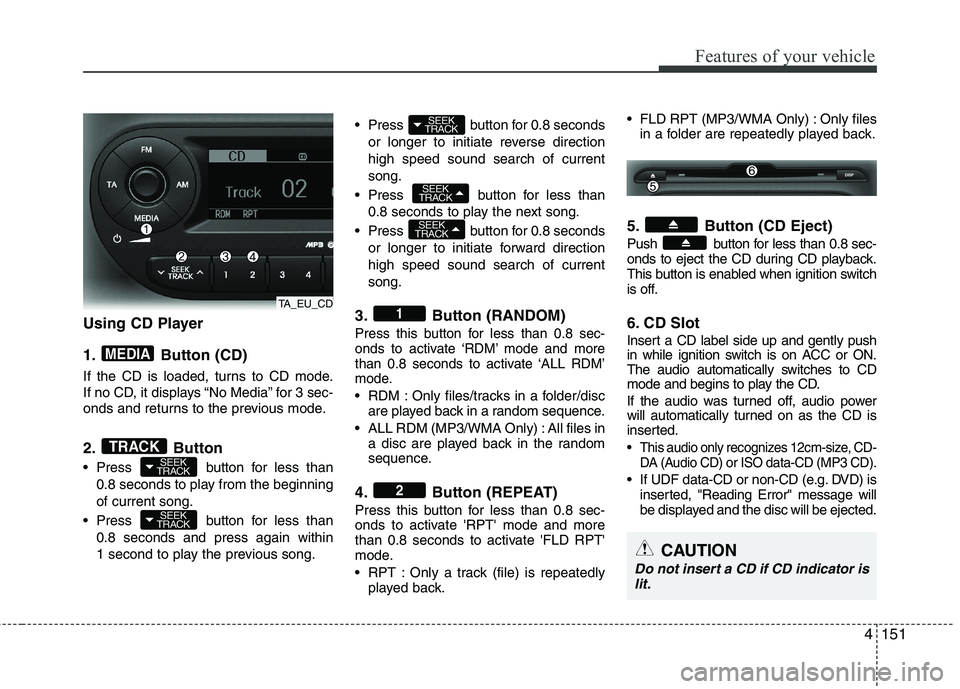
Using CD Player
1. Button (CD)
If the CD is loaded, turns to CD mode.
If no CD, it displays “No Media” for 3 sec-
onds and returns to the previous mode.
2. Button
Press button for less than0.8 seconds to play from the beginning of current song.
Press button for less than 0.8 seconds and press again within
1 second to play the previous song. Press button for 0.8 seconds
or longer to initiate reverse directionhigh speed sound search of currentsong.
Press button for less than 0.8 seconds to play the next song.
Press button for 0.8 seconds or longer to initiate forward directionhigh speed sound search of currentsong.
3. Button (RANDOM)Press this button for less than 0.8 sec-
onds to activate ‘RDM’ mode and more
than 0.8 seconds to activate ‘ALL RDM’
mode.
RDM : Only files/tracks in a folder/disc are played back in a random sequence.
ALL RDM (MP3/WMA Only) : All files in a disc are played back in the random
sequence.
4. Button (REPEAT)
Press this button for less than 0.8 sec-
onds to activate 'RPT' mode and more
than 0.8 seconds to activate 'FLD RPT'
mode.
RPT : Only a track (file) is repeatedly played back. FLD RPT (MP3/WMA Only) : Only files
in a folder are repeatedly played back.
5. Button (CD Eject)
Push button for less than 0.8 sec-
onds to eject the CD during CD playback.
This button is enabled when ignition switch
is off.
6. CD Slot
Insert a CD label side up and gently push
in while ignition switch is on ACC or ON.
The audio automatically switches to CD
mode and begins to play the CD.
If the audio was turned off, audio power
will automatically turned on as the CD is
inserted.
This audio only recognizes 12cm-size, CD- DA (Audio CD) or ISO data-CD (MP3 CD).
If UDF data-CD or non-CD (e.g. DVD) isinserted, "Reading Error" message will
be displayed and the disc will be ejected.2
1
SEEK
TRACK
SEEK
TRACK
SEEK
TRACK
SEEK
TRACK
SEEK
TRACKTRACK
MEDIA
TA_EU_CD
CAUTION
Do not insert a CD if CD indicator is
lit.
Page 243 of 840
Features of your vehicle
170
4
■
Bluetooth®Audio Music Streaming
The audio system supports Bluetooth ®
A2DP (Audio Advanced Distribution
Profile) and AVRCP (Audio Video
Remote Control Profile) technologies.
Both profiles provide steaming of music
via compatible “PAIRED” Bluetooth ®
Cellular phone.
To stream music from the Bluetooth ®
cel-
lular phone, play your music files on your
cellular phone according to your cellular
phone user’s manual and press the button on the audio system until
“MP3 play” is displayed on the LCD.
The audio system head unit displays ‘MP3 MODE’. NOTE:
all music and sound files your cellu-
lar phone supports can be played
by the audio system.
®
compatible cellular
phones must include A2DP and
AVRCP capabilities.
AVRCP compatible
Bluetooth ®
cellular phones may not
play music through the audio sys-
tem initially. These cellular phones
may need to have the Bluetooth ®
streaming enabled, for example;
i.e : Menu ➟Filemanager ➟Music ➟
Option ➟Play via Bluetooth
cellular phone for more information.
To cancel Bluetooth ®
cellular phone
music streaming, stop music play-
back on the cellular phone or
change the audio mode to AM/FM,
CD, iPod, ect.
MEDIA
Page 640 of 840
4141
Features of your vehicle
■Using the head unit as Bluetooth ®
music
This audio system supports A2DP (Audio
Advanced Distribution Profile) and
AVRCP(Audio Video Remote ControlProfile).
Both profiles are available for listening to
the MP3 music via Bluetooth mobile phone
supporting above Bluetooth profiles.
To play MP3 music from the Bluetooth
mobile phone, press the button
until “MP3 Play” is displayed on the LCD.
Then try playing music by phone.
When playing music from the Bluetooth
mobile phone, the head unit displays MP3 MODE. NOTE:
all the sounds that the phone supports can be
heard by the audio system.
feature A2DP and AVRCP functions.
mobile phones may not play music
through the head unit on first try.
Please try the below;
i.e : Menu ➟
Filemanager ➟Music ➟
Option ➟Play via Bluetooth
phone for more.
To stop music, try stop playing
music from the phone then change
the audio mode to other than “MP3
Play” mode (e.g. FM, AM, CD, etc.)
AUX
Page 647 of 840
Features of your vehicle
148
4
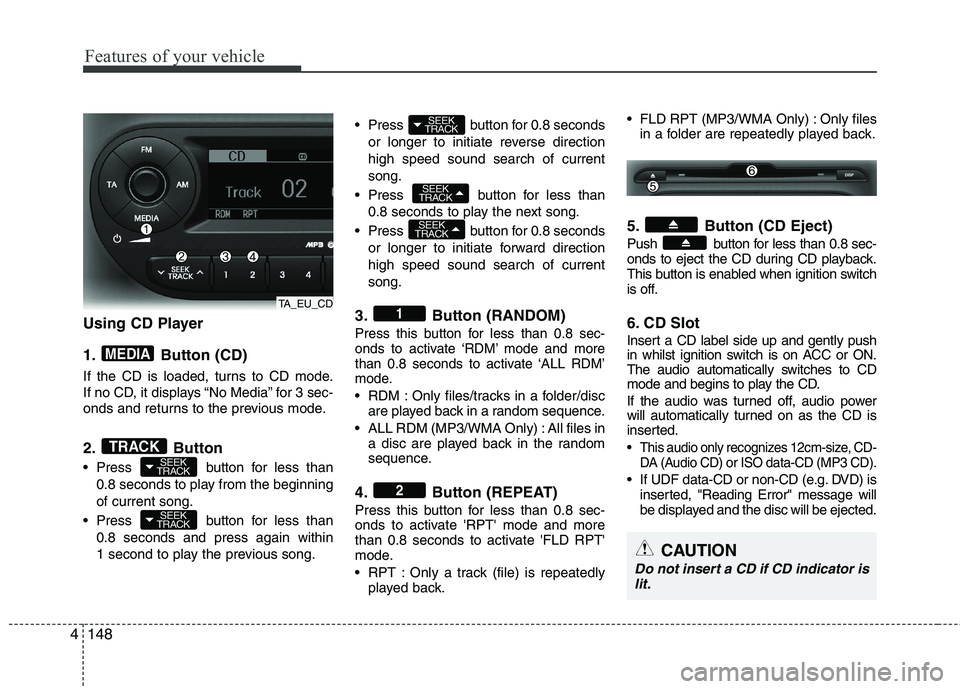
Using CD Player
1. Button (CD)
If the CD is loaded, turns to CD mode.
If no CD, it displays “No Media” for 3 sec-
onds and returns to the previous mode.
2. Button
Press button for less than
0.8 seconds to play from the beginning of current song.
Press button for less than 0.8 seconds and press again within
1 second to play the previous song. Press button for 0.8 seconds
or longer to initiate reverse directionhigh speed sound search of currentsong.
Press button for less than 0.8 seconds to play the next song.
Press button for 0.8 seconds or longer to initiate forward directionhigh speed sound search of currentsong.
3. Button (RANDOM)Press this button for less than 0.8 sec-
onds to activate ‘RDM’ mode and more
than 0.8 seconds to activate ‘ALL RDM’
mode.
RDM : Only files/tracks in a folder/disc are played back in a random sequence.
ALL RDM (MP3/WMA Only) : All files in a disc are played back in the random
sequence.
4. Button (REPEAT)
Press this button for less than 0.8 sec-
onds to activate 'RPT' mode and more
than 0.8 seconds to activate 'FLD RPT'
mode.
RPT : Only a track (file) is repeatedly played back. FLD RPT (MP3/WMA Only) : Only files
in a folder are repeatedly played back.
5. Button (CD Eject)
Push button for less than 0.8 sec-
onds to eject the CD during CD playback.
This button is enabled when ignition switch
is off.
6. CD Slot
Insert a CD label side up and gently push
in whilst ignition switch is on ACC or ON.
The audio automatically switches to CD
mode and begins to play the CD.
If the audio was turned off, audio power
will automatically turned on as the CD is
inserted.
This audio only recognizes 12cm-size, CD- DA (Audio CD) or ISO data-CD (MP3 CD).
If UDF data-CD or non-CD (e.g. DVD) isinserted, "Reading Error" message will
be displayed and the disc will be ejected.2
1
SEEK
TRACK
SEEK
TRACK
SEEK
TRACK
SEEK
TRACK
SEEK
TRACKTRACK
MEDIA
TA_EU_CD
CAUTION
Do not insert a CD if CD indicator is
lit.
Page 666 of 840
4167
Features of your vehicle
■Bluetooth®Audio Music Streaming
The audio system supports Bluetooth ®
A2DP (Audio Advanced Distribution
Profile) and AVRCP (Audio Video
Remote Control Profile) technologies.
Both profiles provide steaming of music
via compatible “PAIRED” Bluetooth ®
Mobile phone.
To stream music from the Bluetooth ®
mobile phone, play your music files on
your mobile phone according to your
mobile phone user’s manual and press
the button on the audio system
until “MP3 play” is displayed on the LCD.
The audio system head unit displays ‘MP3 MODE’. NOTE:
all music and sound files your
mobile phone supports can be
played by the audio system.
®
compatible mobile
phones must include A2DP and
AVRCP capabilities.
AVRCP compatible
Bluetooth ®
mobile phones may not
play music through the audio sys-
tem initially. These mobile phones
may need to have the Bluetooth ®
streaming enabled, for example;
i.e : Menu ➟Filemanager ➟Music ➟
Option ➟Play via Bluetooth
mobile phone for more information.
To cancel Bluetooth ®
mobile phone
music streaming, stop music play-
back on the mobile phone or
change the audio mode to AM/FM,
CD, iPod, ect.
MEDIA