phone KIA PICANTO 2017 Owner's Guide
[x] Cancel search | Manufacturer: KIA, Model Year: 2017, Model line: PICANTO, Model: KIA PICANTO 2017Pages: 488, PDF Size: 31.26 MB
Page 250 of 488
![KIA PICANTO 2017 Owners Guide 175
Features of your vehicle
4
Auto Download
When connecting a mobile phone, it is
possible to automatically download new
Contacts and Call Histories.
Select [Auto Download] Set /
through TUNE kno](/img/2/57964/w960_57964-249.png "KIA PICANTO 2017 Owners Guide 175
Features of your vehicle
4
Auto Download
When connecting a mobile phone, it is
possible to automatically download new
Contacts and Call Histories.
Select [Auto Download] Set /
through TUNE kno")
175
Features of your vehicle
4
Auto Download
When connecting a mobile phone, it is
possible to automatically download new
Contacts and Call Histories.
Select [Auto Download] Set /
through TUNE knob
Audio Streaming
Songs (files) saved in your
Bluetooth®
Wireless Technology enabled mobile
phone can be played through the audiosystem.
Select [Audio Streaming] Set / through TUNE knob Outgoing Volume
This is used to set the volume of your
voice as heard by the other party whileon a
Bluetooth®Wireless Technology
enabled handsfree call.
Select [Outgoing Volume] Set volume
through TUNE knob ❈ While on a call, the volume can be
changed by using the key.
SEEK
TRACK
OFFON
OFFON
CAUTION
The Bluetooth ®
Wireless Technology
audio streaming feature may not be supported in some mobile phones.
Page 251 of 488
![KIA PICANTO 2017 Owners Guide Features of your vehicle
1764
Bluetooth®Wireless Technology
System Off
This feature is used when you do not wish to use the
Bluetooth®Wireless
Technology system.
Select [Bluetooth System Off] Set](/img/2/57964/w960_57964-250.png "KIA PICANTO 2017 Owners Guide Features of your vehicle
1764
Bluetooth®Wireless Technology
System Off
This feature is used when you do not wish to use the
Bluetooth®Wireless
Technology system.
Select [Bluetooth System Off] Set")
Features of your vehicle
1764
Bluetooth®Wireless Technology
System Off
This feature is used when you do not wish to use the
Bluetooth®Wireless
Technology system.
Select [Bluetooth System Off] Set
through TUNE knob ❈ If a phone is already connected, dis- connect the currently connected
phone and turn the Bluetooth®
Wireless Technology system off. Using the
Bluetooth®Wireless
Technology System
To use
Bluetooth®Wireless Technology
when the system is currently off, follow
these next steps.
Turning On
Bluetooth®Wireless
Technology through the Key
Press the key Screen Guidance ❈ Moves to the screen where
Bluetooth®
Wireless Technology functions can be
used and displays guidance.
Turning On
Bluetooth®Wireless
Technology through the Key
Press the key Select [Phone] ➀ A screen asking whether to turn on
Bluetooth®Wireless Technology will be
displayed.
➁ On the screen, select to turn on
Bluetooth®Wireless Technology and
display guidance. ❈
If the
Bluetooth®Wireless Technology
system is turned on, the system will
automatically try to connect the mostrecently connected
Bluetooth®
Wireless Technology mobile phone.
YES
SETUP CLOCK
SETUPCLOCK
PHONE
PHONE
CAUTION
Bluetooth®Wireless Technology
connection may become intermit- tently disconnected in some
mobile phones. Follow these nextsteps to try again.
1) Turn the Bluetooth
®Wireless
Technology function within the
mobile phone ON/OFF and try to connect again.
2) Turn the mobile phone power ON/OFF and try to connect again.
3) Completely remove the mobile phone battery, reboot, and thentry to connect again.
4) Reboot the audio system and try to connect again
5) Delete all paired devices in your mobile phone and the audio sys-
tem and pair again for use.
Page 262 of 488
187
Features of your vehicle
4
Bluetooth®Wireless
Technology AUDIO
Type A-1, Type A-3
What is
Bluetooth®Wireless
Technology?
Bluetooth®Wireless Technology allows
devices to be connected in a short dis-
tance, including hands-free devices,
stereo headsets, wireless remote con-
trollers, etc. For more information, visitthe
Bluetooth®Wireless Technology
website at www.Bluetooth.com
Before using Bluetooth®Wireless
Technology audio features
Bluetooth®Wireless Technology audio
may not be supported depending on
the compatibility of your
Bluetooth®
Wireless Technology mobile phone.
In order to use
Bluetooth®Wireless
Technology audio, you must first pairand connect the
Bluetooth®Wireless
Technology mobile phone.
The
Bluetooth®word mark and logos
are registered trademarks owned by
Bluetooth®SIG, Inc. and any use of
such marks by Kia is under license.
Other trademarks and trade names are
those of their respective owners. A
Bluetooth®enabled cell phone is
required to use Bluetooth®Wireless
Technology.
WARNING
Driving while distracted can result
in a loss of vehicle control that may
lead to an accident, severe person-
al injury, and death. The driver’s pri-
mary responsibility is in the safe
and legal operation of a vehicle,
and use of any handheld devices,
other equipment, or vehicle sys-
tems which take the driver’s eyes,
attention and focus away from the
safe operation of a vehicle or which
are not permissible by law should
never be used during operation of
the vehicle.
Page 263 of 488
![KIA PICANTO 2017 Owners Guide Features of your vehicle
1884
Bluetooth®Wireless Technology audio
can be used only when the [Audio
Streaming] of Phone is turned On.
❈ Setting
Bluetooth®Wireless
Technology Audio Streaming : Pre](/img/2/57964/w960_57964-262.png "KIA PICANTO 2017 Owners Guide Features of your vehicle
1884
Bluetooth®Wireless Technology audio
can be used only when the [Audio
Streaming] of Phone is turned On.
❈ Setting
Bluetooth®Wireless
Technology Audio Streaming : Pre")
Features of your vehicle
1884
Bluetooth®Wireless Technology audio
can be used only when the [Audio
Streaming] of Phone is turned On.
❈ Setting
Bluetooth®Wireless
Technology Audio Streaming : Press the /key Select
[Phone] through the tune knob
Select [Audio Streaming] through the TUNE knob Set / Starting
Bluetooth®Wireless
Technology Audio
Press the key to change the mode in order of CD ➟USB ➟AUX ➟
My Music ➟BT Audio.
If BT Audio is selected,
Bluetooth®
Wireless Technology audio will start
playing.
❈ Audio may not automatically start play-
ing in some mobile phones. Using the
Bluetooth®Wireless
Technology audio features
Press the TUNE knob to play and pause the current song. ❈ The previous song / next song / play /
pause functions may not be supported
in some mobile phones.
MEDIA
OFFON
SETUP CLOCK
Page 264 of 488
189
Features of your vehicle
4
PHONE (IF EQUIPPED)
Before using the
Bluetooth®Wireless
Technology phone features
In order to use
Bluetooth®Wireless
Technology phone, you must first pair and connect the
Bluetooth®Wireless
Technology mobile phone.
If the mobile phone is not paired or connected, it is not possible to enter
Phone mode. Once a phone is pairedor connected, the guidance screen will
be displayed.
If Priority is set upon vehicle ignition (IGN/ACC ON), the
Bluetooth®
Wireless Technology phone will be
automatically connected. Even if you
are outside, the
Bluetooth®Wireless
Technology phone will be automatical-
ly connected once you are in the vicin-
ity of the vehicle. If you do not wantautomatic
Bluetooth®Wireless
Technology phone connection, set the
Bluetooth®Wireless Technology power
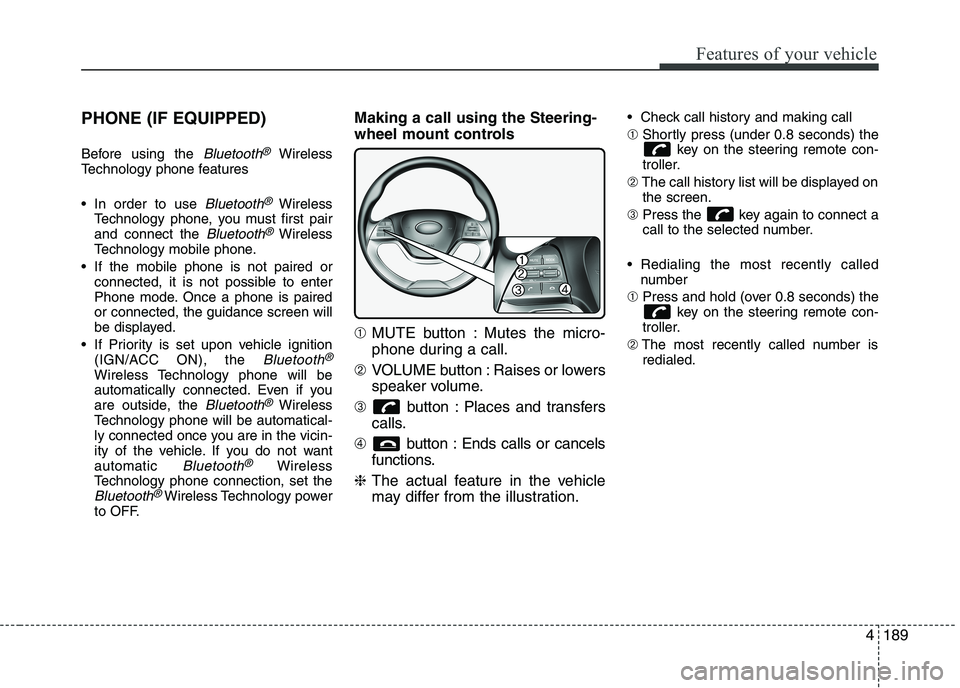
to OFF. Making a call using the Steering-
wheel mount controls ➀
MUTE button : Mutes the micro-
phone during a call.
➁ VOLUME button : Raises or lowers
speaker volume.
➂ button : Places and transfers
calls.
➃ button : Ends calls or cancels
functions.
❈ The actual feature in the vehicle
may differ from the illustration. Check call history and making call ➀
Shortly press (under 0.8 seconds) the
key on the steering remote con-
troller.
➁ The call history list will be displayed on
the screen.
➂ Press the key again to connect a
call to the selected number.
Redialing the most recently called number
➀ Press and hold (over 0.8 seconds) the
key on the steering remote con-
troller.
➁ The most recently called number is
redialed.
Page 265 of 488
Features of your vehicle
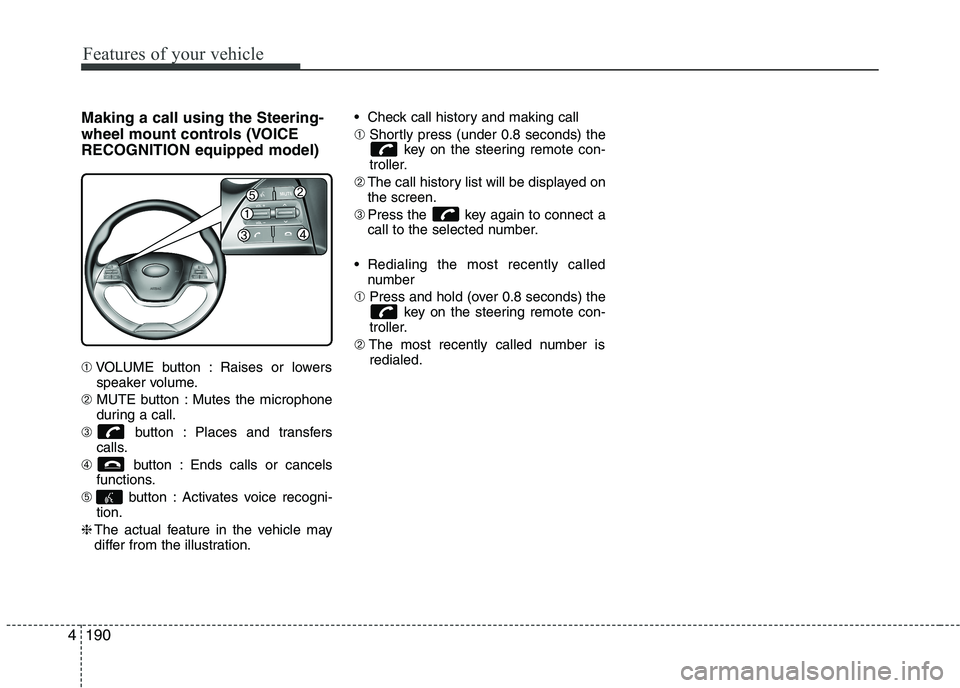
1904Making a call using the Steering-
wheel mount controls (VOICERECOGNITION equipped model) ➀
VOLUME button : Raises or lowers
speaker volume.
➁ MUTE button : Mutes the microphone
during a call.
➂ button : Places and transfers
calls.
➃ button : Ends calls or cancels
functions.
➄ button : Activates voice recogni-
tion.
❈ The actual feature in the vehicle may
differ from the illustration. Check call history and making call ➀
Shortly press (under 0.8 seconds) the
key on the steering remote con-
troller.
➁ The call history list will be displayed on
the screen.
➂ Press the key again to connect a
call to the selected number.
Redialing the most recently called number
➀ Press and hold (over 0.8 seconds) the
key on the steering remote con-
troller.
➁ The most recently called number is
redialed.
Page 266 of 488
![KIA PICANTO 2017 Owners Guide 191
Features of your vehicle
4
Phone MENU
Type A-1
Press the key to display
three menus (Call History, PhoneBook, Phone Setup).
History
Press the key Set [ History]
through the TUNE knob or](/img/2/57964/w960_57964-265.png "KIA PICANTO 2017 Owners Guide 191
Features of your vehicle
4
Phone MENU
Type A-1
Press the key to display
three menus (Call History, PhoneBook, Phone Setup).
History
Press the key Set [ History]
through the TUNE knob or")
191
Features of your vehicle
4
Phone MENU
Type A-1
Press the key to display
three menus (Call History, PhoneBook, Phone Setup).
History
Press the key Set [ History]
through the TUNE knob or key.
The call history is displayed and can be
used to select a number and make a call.
If call history does not exist, a screen ask-
ing whether to download call history is
displayed. (The download feature may not
be supported in some mobile phones)
P.Book
Press the key Set [ P. Book]
through the TUNE knob or key.
The phone book is displayed and can be
used to select a number and make a call. ❈
If more than one number is saved to
one contact, then a screen showing
the mobile phone number, Home and
office number is displayed. Select the
desired number to make the call.
❈ If phone book do not exist, a screen
asking whether to download phone
book is displayed. (The download fea-
ture may not be supported in somemobile phones) Setup
Press the key Set [ Setup]
through the TUNE knob or key. The
Bluetooth®Wireless Technology
mobile phone setup screen is displayed.
For more information, refer to “PhoneSetup”.
3
2
RDM
1
RPT
Page 267 of 488
![KIA PICANTO 2017 Owners Guide Features of your vehicle
1924Phone MENU
Type A-3
(for Colombia model)
Press the key to display four
menus (Favorites, Call History, Contacts,Phone Setup).
Favorites
Press the key Set [ FAV]
t](/img/2/57964/w960_57964-266.png "KIA PICANTO 2017 Owners Guide Features of your vehicle
1924Phone MENU
Type A-3
(for Colombia model)
Press the key to display four
menus (Favorites, Call History, Contacts,Phone Setup).
Favorites
Press the key Set [ FAV]
t")
Features of your vehicle
1924Phone MENU
Type A-3
(for Colombia model)
Press the key to display four
menus (Favorites, Call History, Contacts,Phone Setup).
Favorites
Press the key Set [ FAV]
through the TUNE knob or key.
Up to 20 frequently used contacts saved
for easy access
History
Press the key Set [ History]
through the TUNE knob or key.
The call history is displayed and can be
used to select a number and make a call.
If call history does not exist, a screen ask-
ing whether to download call history is
displayed. (The download feature may not
be supported in some mobile phones)Contacts
Press the key Set [ Contacts]
through the TUNE knob or key.
The contacts are displayed and can be
used to select a number and make a call. ❈
If more than one number is saved to
one contact, then a screen showing
the mobile phone number, Home and
office number is displayed. Select the
desired number to make the call.
❈ If contacts do not exist, a screen asking
whether to download contacts are dis-
played. (The download feature may not
be supported in some mobile phones)
Setup
Press the key Set [ Setup]
through the TUNE knob or key. The
Bluetooth®Wireless Technology
mobile phone setup screen is displayed.
For more information, refer to “PhoneSetup”.
4
PHONE
3
PHONE
2
RDM
PHONE
1
RPT
PHONE
PHONE
Page 268 of 488
![KIA PICANTO 2017 Owners Guide 193
Features of your vehicle
4
Phone MENU
Type A-3
Press the key to display three
menus (Call History, Contacts, PhoneSetup).
History
Press the key Set [ History]
through the TUNE knob or ke](/img/2/57964/w960_57964-267.png "KIA PICANTO 2017 Owners Guide 193
Features of your vehicle
4
Phone MENU
Type A-3
Press the key to display three
menus (Call History, Contacts, PhoneSetup).
History
Press the key Set [ History]
through the TUNE knob or ke")
193
Features of your vehicle
4
Phone MENU
Type A-3
Press the key to display three
menus (Call History, Contacts, PhoneSetup).
History
Press the key Set [ History]
through the TUNE knob or key.
The call history is displayed and can be
used to select a number and make a call.
If call history does not exist, a screen ask-
ing whether to download call history is
displayed. (The download feature may not
be supported in some mobile phones) Contacts
Press the key Set [ Contacts]
through the TUNE knob or key.
The contacts are displayed and can be
used to select a number and make a call. ❈
If more than one number is saved to
one contact, then a screen showing
the mobile phone number, Home and
office number is displayed. Select the
desired number to make the call.
❈ If contacts do not exist, a screen asking
whether to download contacts are dis-
played. (The download feature may not
be supported in some mobile phones) Setup
Press the key Set [ Setup]
through the TUNE knob or key. The
Bluetooth®Wireless Technology
mobile phone setup screen is displayed.
For more information, refer to “PhoneSetup”.
3
PHONE
2
RDM
PHONE
1
RPT
PHONE
PHONE
Page 269 of 488
Features of your vehicle
1944
✽✽NOTICE - USING THE
Bluetooth®Wireless Technology
CELLULAR PHONE
Do not use a cellular phone or per- form Bluetooth ®
Wireless Technology
settings (e.g. pairing a phone) while
driving.
Some Bluetooth ®
Wireless Technology
-enabled phones may not be recog-
nized by the system or fully compati-
ble with the system.
Before using Bluetooth®
Wireless
Technology related features of the
audio system, refer your phone’s User’s
Manual for phone-side Bluetooth®
Wireless Technology operations.
The phone must be paired to the audio
system to use Bluetooth®
Wireless
Technology related features.
You will not be able to use the hands- free feature when your phone (in the
car) is outside of the cellular service
area (e.g. in a tunnel, in a under-
ground, in a mountainous area, etc.). (Continued)(Continued)
If the cellular phone signal is poor or
the vehicles interior noise is too loud,
it may be difficult to hear the other
person’s voice during a call.
Do not place the phone near or inside
metallic objects, otherwise communi-
cations with Bluetooth®
Wireless
Technology system or cellular service
stations can be disturbed.
While a phone is connected through
Bluetooth ®
Wireless Technology your
phone may discharge quicker than
usual for additional Bluetooth®
Wireless
Technology-related operations.
Some cellular phones or other devices
may cause interference noise or mal-
function to audio system. In this case,
store the device in a different location
may resolve the condition.
Phone contact names should be saved in English or they may not be dis-
played correctly. (Continued)(Continued)
If Priority is set upon vehicle igni-
tion(IGN/ACC ON), the Bluetooth®
Wireless Technology phone will be
automatically connected.
Even if you are outside, the Bluetooth®
Wireless Technology phone will be
automatically connected once you are
in the vicinity of the vehicle.
If you do not want automatic
Bluetooth ®
Wireless Technology con-
nection, turn the Bluetooth®
Wireless
Technology feature off.
The hands-free call volume and quali-
ty may differ depending on the mobile
phone type.
Bluetooth ®
Wireless Technology fea-
tures can be used only when the
mobile phone has been paired and
connected with the device. For more
information on pairing and connect-
ing Bluetooth ®
Wireless Technology
enabled mobile phones, refer to the
“Phone Setup” section. (Continued)