change time KIA Rio 2014 3.G User Guide
[x] Cancel search | Manufacturer: KIA, Model Year: 2014, Model line: Rio, Model: KIA Rio 2014 3.GPages: 397, PDF Size: 7.56 MB
Page 174 of 397
4109
Features of your vehicle
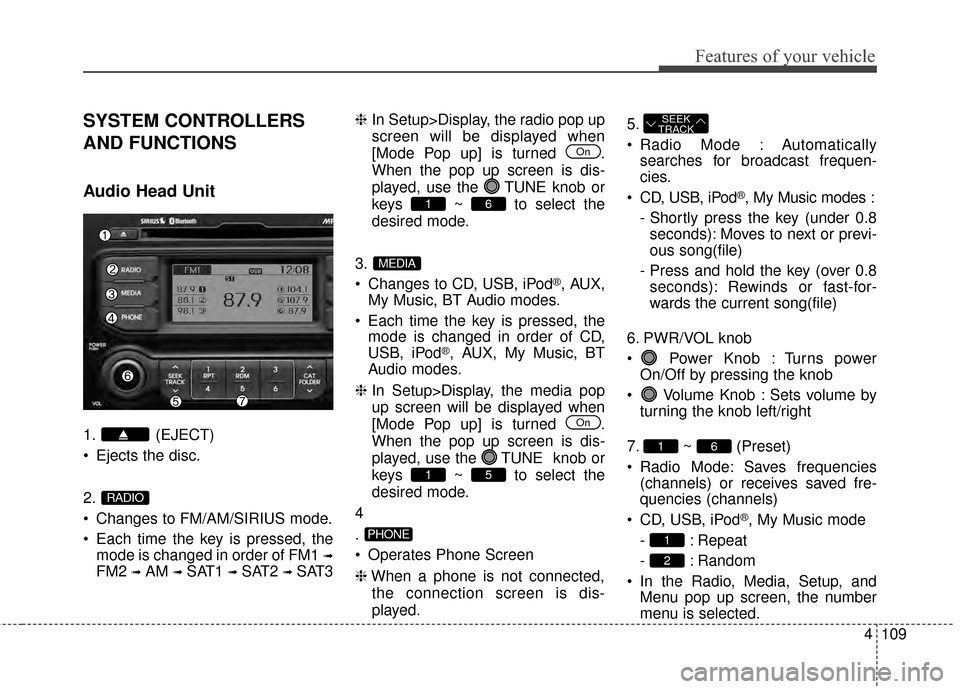
SYSTEM CONTROLLERS
AND FUNCTIONS
Audio Head Unit
1. (EJECT)
Ejects the disc.
2.
Changes to FM/AM/SIRIUS mode.
Each time the key is pressed, themode is changed in order of FM1
➟
FM2 ➟AM ➟SAT1 ➟SAT2 ➟SAT3 ❈
In Setup>Display, the radio pop up
screen will be displayed when
[Mode Pop up] is turned .
When the pop up screen is dis-
played, use the TUNE knob or
keys ~ to select the
desired mode.
3.
Changes to CD, USB, iPod
®, AUX,
My Music, BT Audio modes.
Each time the key is pressed, the mode is changed in order of CD,
USB, iPod
®, AUX, My Music, BT
Audio modes.
❈ In Setup>Display, the media pop
up screen will be displayed when
[Mode Pop up] is turned .
When the pop up screen is dis-
played, use the TUNE knob or
keys ~ to select the
desired mode.
4
.
Operates Phone Screen
❈ When a phone is not connected,
the connection screen is dis-
played. 5.
Radio Mode : Automatically
searches for broadcast frequen-
cies.
CD, USB, iPod
®, My Music modes :
- Shortly press the key (under 0.8 seconds): Moves to next or previ-
ous song(file)
- Press and hold the key (over 0.8 seconds): Rewinds or fast-for-
wards the current song(file)
6. PWR/VOL knob
Power Knob : Turns power On/Off by pressing the knob
Volume Knob : Sets volume by turning the knob left/right
7. ~ (Preset)
Radio Mode: Saves frequencies (channels) or receives saved fre-
quencies (channels)
CD, USB, iPod
®, My Music mode
- : Repeat
- : Random
In the Radio, Media, Setup, and Menu pop up screen, the number
menu is selected.
2
1
61
SEEK
TRACK
PHONE
51
On
MEDIA
61
On
RADIO
Page 175 of 397
Features of your vehicle
110
4
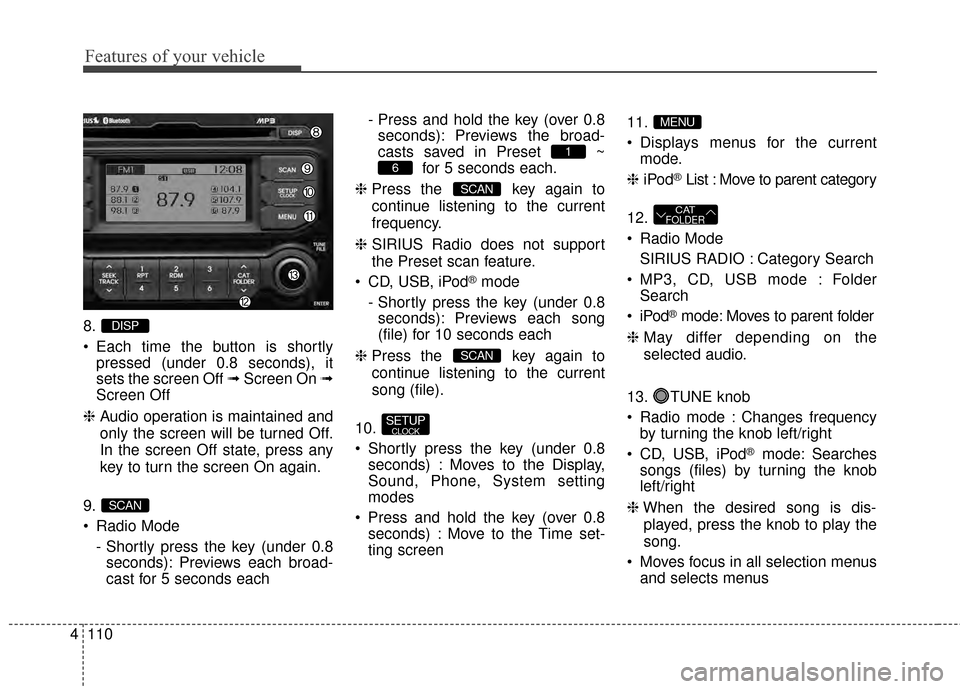
8.
Each time the button is shortly
pressed (under 0.8 seconds), it
sets the screen Off ➟ Screen On ➟
Screen Off
❈ Audio operation is maintained and
only the screen will be turned Off.
In the screen Off state, press any
key to turn the screen On again.
9.
Radio Mode - Shortly press the key (under 0.8seconds): Previews each broad-
cast for 5 seconds each - Press and hold the key (over 0.8
seconds): Previews the broad-
casts saved in Preset ~ for 5 seconds each.
❈ Press the key again to
continue listening to the current
frequency.
❈ SIRIUS Radio does not support
the Preset scan feature.
CD, USB, iPod
®mode
- Shortly press the key (under 0.8 seconds): Previews each song
(file) for 10 seconds each
❈ Press the key again to
continue listening to the current
song (file).
10.
Shortly press the key (under 0.8 seconds) : Moves to the Display,
Sound, Phone, System setting
modes
Press and hold the key (over 0.8 seconds) : Move to the Time set-
ting screen 11.
Displays menus for the current
mode.
❈ iPod
®List : Move to parent category
12.
Radio Mode SIRIUS RADIO : Category Search
MP3, CD, USB mode : Folder Search
®mode: Moves to parent folder
❈ May differ depending on the
selected audio.
13. TUNE knob
Radio mode : Changes frequency by turning the knob left/right
CD, USB, iPod
®mode: Searches
songs (files) by turning the knob
left/right
❈ When the desired song is dis-
played, press the knob to play the
song.
Moves focus in all selection menus and selects menus
CATFOLDER
MENU
SETUPCLOCK
SCAN
SCAN
6
1
SCAN
DISP
Page 176 of 397
4111
Features of your vehicle
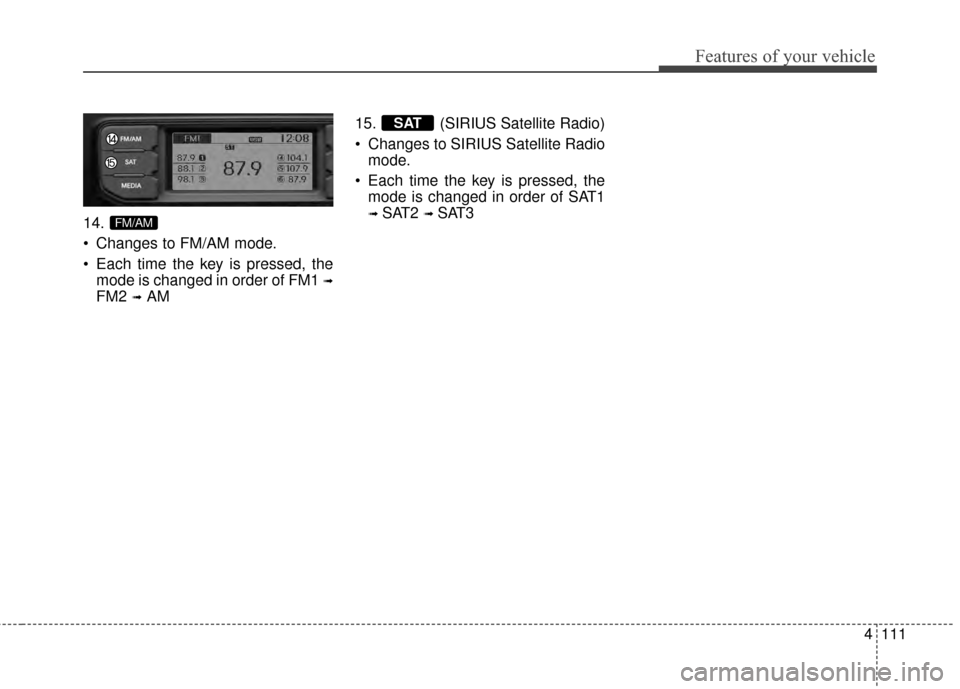
14.
Changes to FM/AM mode.
Each time the key is pressed, themode is changed in order of FM1
➟
FM2 ➟AM 15. (SIRIUS Satellite Radio)
Changes to SIRIUS Satellite Radio
mode.
Each time the key is pressed, the mode is changed in order of SAT1
➟ SAT2 ➟ SAT3
SAT
FM/AM
Page 177 of 397
![KIA Rio 2014 3.G User Guide Features of your vehicle
112
4
DISPLAY SETTINGS
Press the key Select
[Display] through TUNE knob or
key Select menu through
TUNE knob
Mode Pop up
[Mode Pop up] Changes /
selection mode
During On](/img/2/2954/w960_2954-176.png "KIA Rio 2014 3.G User Guide Features of your vehicle
112
4
DISPLAY SETTINGS
Press the key Select
[Display] through TUNE knob or
key Select menu through
TUNE knob
Mode Pop up
[Mode Pop up] Changes /
selection mode
During On")
Features of your vehicle
112
4
DISPLAY SETTINGS
Press the key Select
[Display] through TUNE knob or
key Select menu through
TUNE knob
Mode Pop up
[Mode Pop up] Changes /
selection mode
During On state, press the or key to display the mode
change pop up screen.
Text Scroll
[Text Scroll] Set /
: Maintains scroll
: Scrolls only one (1) time.
Media Display
When playing an MP3 file, select the
desired display info from ‘Folder/File’
or ‘Album/Artist/Song’.
Off
On
OffOn
MEDIA
RADIO
OffOn
1
SETUP
Page 194 of 397
4129
Features of your vehicle
If your iPhone is connected to boththe
Bluetooth®Wireless
Technology
and USB, the sound
may not be properly played. In your
iPhone, select the Dock connector or
Bluetooth®Wireless Technologyto
change the sound output (source).
When connecting iPod
®with the
iPod®Power Cable, insert the con-
nector to the multimedia socket
completely. If not inserted com-
pletely, communications between
iPod
®and audio may be interrupt-
ed.
When adjusting the sound effects of the iPod
®and the audio system,
the sound effects of both devices
will overlap and might reduce or
distort the quality of the sound.
Deactivate (turn off) the equalizer function of an iPod
®when adjust-
ing the audio system’s volume, and
turn off the equalizer of the audio
system when using the equalizer of
an iPod
®. When not using iPod
®with car
audio, detach the iPod®cable from
iPod®. Otherwise, iPod®may
remain in accessory mode, and
may not work properly.
Page 196 of 397

4131
Features of your vehicle
My Music
Even if memory is available, amaximum of 6,000 songs can be
stored.
The same song can be copied up to 1,000 times.
Memory info can be checked in the System menu of Setup.
AUX
AUX is used to play external MEDIA
currently connected with the AUX
terminal.
AUX mode will automatically start
when an external device is connect-
ed to the AUX terminal.
If an external device is connected,
you can also press the key to
change to AUX mode.
❈ AUX mode cannot be started
unless there is an external device
connected to the AUX terminal.
AUX
Fully insert the AUX cable into the
AUX terminal for use.
MEDIA
Page 199 of 397
Features of your vehicle
134
4
PHONE
Before using the Bluetooth®Wireless
Technology phone features
Bluetooth®Wireless
Technology phone, you must first
pair and connect the
Bluetooth®
Wireless Technology mobile phone.
connected, it is not possible to
enter Phone mode. Once a phone
is paired or connected, the guid-
ance screen will be displayed.
tion (IGN/ACC ON), the
Bluetooth®
Wireless Technology phone will be
automatically connected. Even if
you are outside, the
Bluetooth®
Wireless Technology phone will be
automatically connected once you
are in the vicinity of the vehicle. If
you do not want automatic
Bluetooth®Wireless Technology
phone connection, set the
Bluetooth®Wireless Technology
power to OFF
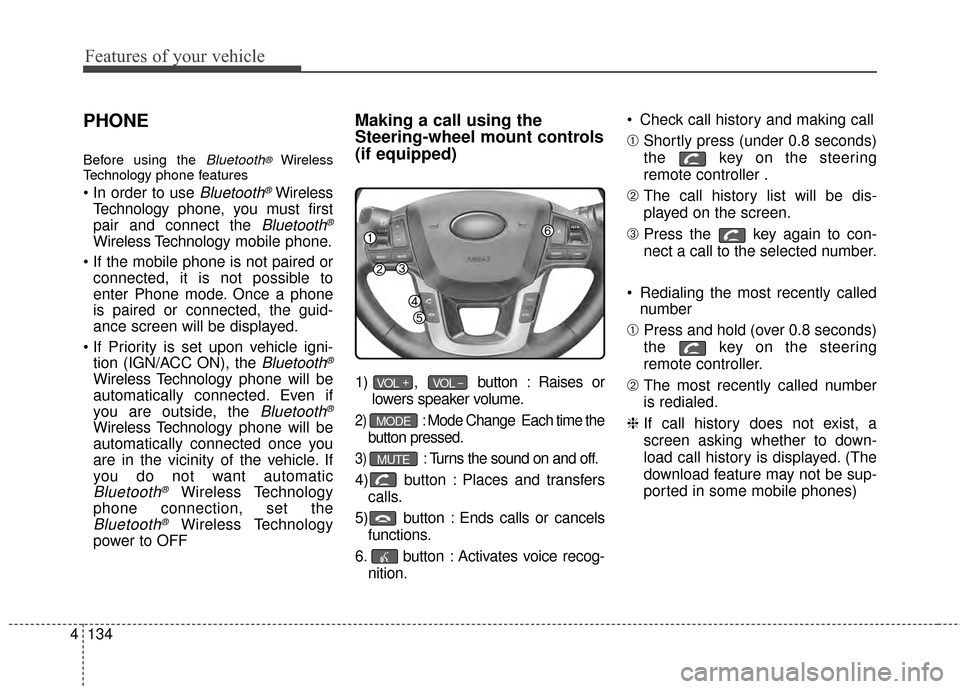
Making a call using the
Steering-wheel mount controls
(if equipped)
1) , button : Raises or
lowers speaker volume.
2) :Mode Change Each time the
button pressed.
3) :Turns the sound on and off.
4) button : Places and transfers calls.
5) button : Ends calls or cancels functions.
6. button : Activates voice recog- nition. Check call history and making call
➀
Shortly press (under 0.8 seconds)
the key on the steering
remote controller .
➁ The call history list will be dis-
played on the screen.
\b Press the key again to con-
nect a call to the selected number.
Redialing the most recently called number
➀ Press and hold (over 0.8 seconds)
the key on the steering
remote controller.
➁ The most recently called number
is redialed.
❈ If call history does not exist, a
screen asking whether to down-
load call history is displayed. (The
download feature may not be sup-
ported in some mobile phones)
MUTE
MODE
VOL _VOL +
Page 213 of 397
Features of your vehicle
148
4
1) Connect/Disconnect Phone :
Connect/ disconnects currently
selected phone
2) Change Priority : Sets currentlyselected phone to highest connec-
tion priority
3) Delete : Deletes the currently selected phone
4) Return : Moves to the previous screen
mobile phone supports contacts
downloads, refer to your mobile
phone user’s manual.
phone can be downloaded.
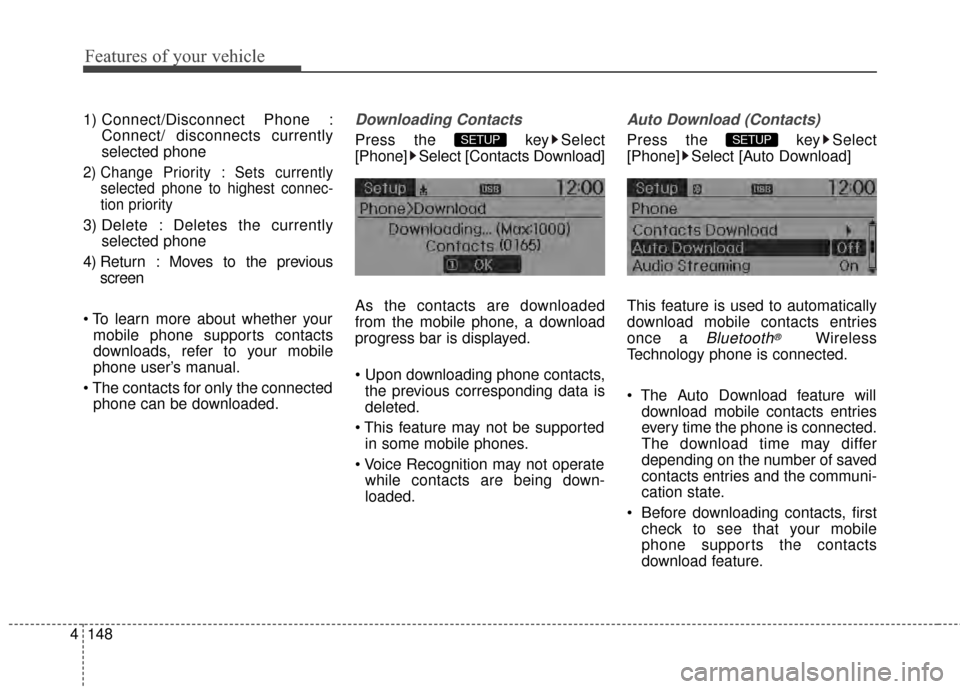
Downloading Contacts
Press the key Select
[Phone] Select [Contacts Download]
As the contacts are downloaded
from the mobile phone, a download
progress bar is displayed.
the previous corresponding data is
deleted.
in some mobile phones.
while contacts are being down-
loaded.
Auto Download (Contacts)
Press the key Select
[Phone] Select [Auto Download]
This feature is used to automatically
download mobile contacts entries
once a
Bluetooth®Wireless
Technology phone is connected.
download mobile contacts entries
every time the phone is connected.
The download time may differ
depending on the number of saved
contacts entries and the communi-
cation state.
Before downloading contacts, first check to see that your mobile
phone supports the contacts
download feature.
SETUP SETUP
Page 226 of 397
Driving your vehicle
25
Be sure the exhaust system does
not leak.
The exhaust system should be checked
whenever the vehicle is raised to change
the oil or for any other purpose. If you
hear a change in the sound of the
exhaust or if you drive over something
that strikes the underneath side of the
car, have the exhaust system checked as
soon as possible by an authorized Kia
dealer.
WARNING - Engineexhaust
Do not inhale exhaust fumes or
leave your engine running in a
enclosed area for a prolonged time.
Exhaust fumes contain carbon
monoxide, a colorless, odorless
gas that can cause unconscious-
ness and death by asphyxiation.
WARNING - Open tailgate
Do not drive with the tailgate open.
Poisonous exhaust gases can enter
the passenger compartment
If you must drive with the tailgate
open proceed as follows:
1. Close all windows.
2. Open side vents.
3. Set the air intake control at
"Fresh", the air flow control at
"Floor" or "Face" and the fan at
the highest speed.
Page 230 of 397
Driving your vehicle
65
Illuminated ENGINE START/STOP
button
Whenever the front door is opened, the
ENGINE START/STOP button will illumi-
nate for your convenience. The light will
go off after about 30 seconds when the
door is closed.
ENGINE START/STOP button
position
OFF
To turn off the engine (START/RUN posi-
tion) or vehicle power (ON position),
press the ENGINE START/STOP button
with the shift lever in the P (Park) posi-
tion. When you press the ENGINE
START/STOP button without the shift
lever in the P (Park) position, the
ENGINE START/STOP button will not
change to the OFF position but to the
ACC position. In an emergency situation while the vehi-
cle is in motion, you are able to turn the
engine off and to the ACC position by
pressing the ENGINE START/STOP but-
ton for more than 2 seconds or 3 times
successively within 3 seconds. If the
vehicle is still moving, you can restart the
engine without depressing the brake
pedal by pressing the ENGINE
START/STOP button with the shift lever
in the N (Neutral) position.
ENGINE START/STOP BUTTON (IF EQUIPPED)
OUB051004
White